Concepts and structure
Understanding the core components of workflows will help you design effective automations. Each workflow is built by connecting different components together to create an execution flow.
Nodes
Nodes are the building blocks of a workflow. There are four types of nodes:
| Node type | Description |
|---|---|
| Trigger | An entry point that initiates the workflow. Can be a self-service trigger (manual execution), an event trigger (automated based on entity changes), or a schedule trigger (automated on a cron schedule). A workflow can have multiple triggers, see multiple triggers below. |
| Action | Performs an operation such as sending a webhook, upserting an entity, publishing to Kafka, triggering an integration action, or invoking AI. See action nodes for more information. |
| Condition | Evaluates expressions and routes the workflow to different branches based on the results. See condition nodes for more information. |
| Input | Pauses the workflow and waits for a human response before continuing. Use for approvals, manual gates, and decision points. See input nodes for more information. |
Multiple triggers
A single workflow can define more than one trigger node. This lets you reuse the same downstream logic across different entry points, for example running the same automation when a user manually requests it and when an entity changes in the catalog.
- You can mix and match trigger types in the same workflow (multiple self-service triggers, multiple event triggers, multiple schedule triggers, or any combination).
- Each trigger node has its own
identifier,userInputs(for self-service),eventconfiguration (for event triggers),cronexpression (for schedule triggers), andpermissions. - At runtime, only the trigger that fired produces outputs. Reference its outputs using its node identifier, for example
.outputs["<trigger-node-identifier>"]. You can also always use.outputs.triggeras a reliable alias that resolves to the active trigger's outputs, regardless of its identifier - see data flow for details. - When testing a workflow with multiple triggers, Port prompts you to pick which trigger to execute the test run from.
- For self-service triggers, permissions are configured per trigger node, so different entry points into the same workflow can have different access controls.
Connections
Connections define the flow between nodes. Each connection links a source node to a target node, determining the order of execution. Condition and input nodes can have multiple outgoing connections, one for each branch (outlet).
When you connect nodes together, data flows from one to the next, allowing you to chain operations and pass outputs through your workflow.
Conditions
Condition nodes allow you to add branching logic to your workflows. Each condition has one or more options with JQ expressions that are evaluated at runtime. The workflow follows the path of the first matching expression, or a fallback path if none match.
For more information, see condition nodes.
Outputs
Nodes can produce outputs that are available to subsequent nodes in the workflow. Use JQ expressions to reference outputs from previous nodes when configuring action payloads.
For more information, see data flow.
JSON structure
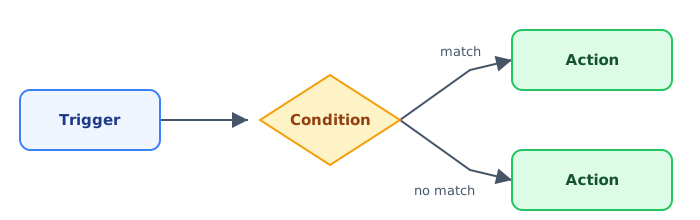
Before looking at the raw JSON, here's what a basic workflow graph looks like: a trigger starts the workflow, a condition evaluates an expression, and each branch leads to a different action.
Each workflow has basic metadata:
- Identifier - A unique identifier for the workflow.
- Title - A human-readable name.
- Description - An optional description of what the workflow does.
- Icon - An optional icon to display in the UI.
- Category - An optional label used to group the workflow in the UI.
The basic structure of a workflow looks like this:
{
  "identifier": "provision-cluster",
  "title": "Provision cluster",
  "icon": "Cluster",
  "description": "Provision a new Kubernetes cluster",
  "category": "Infra",
  "nodes": [
    {
      "identifier": "trigger",
      "title": "Self-Service Trigger",
      "config": {
        "type": "SELF_SERVE_TRIGGER",
        "userInputs": {
          "properties": {},
          "required": []
        }
      }
    },
    {
      "identifier": "action1",
      "title": "Send Webhook",
      "config": {
        "type": "WEBHOOK",
        "url": "https://example.com/webhook",
        "method": "POST",
        "body": {
          "message": "Workflow executed"
        }
      }
    }
  ],
  "connections": [
    {
      "sourceIdentifier": "trigger",
      "targetIdentifier": "action1"
    }
  ]
}
Concurrent edits
Each workflow has a workflowVersionIdentifier field (a string such as wfv_abc123...) that changes every time the workflow is updated. This is returned on the workflow object when you fetch or update a workflow, and Port uses it to prevent concurrent edits so that changes made from one place do not silently overwrite changes made from another.
In the UI
When you save a workflow that has been modified (by another user, or in another tab) since you opened it, Port shows a Workflow was modified dialog with three options:
- Overwrite - Save your changes, replacing the latest version.
- Revert - Discard your local changes and reload the latest version.
- Cancel - Close the dialog and keep editing without saving.
Via the API
When updating a workflow with PUT /v1/workflows/{workflow_identifier}, you can send the workflowVersionIdentifier you last loaded in the If-Match header. Port compares it against the version currently stored:
- If the version identifiers match, the update is applied and a new
workflowVersionIdentifieris generated. - If the version identifiers differ, Port returns a
412 Precondition Failedresponse with the errorworkflow_version_conflict, and your changes are not saved. - If you omit the
If-Matchheader, the update is applied unconditionally, overwriting any newer version.
The following example sends the last known version identifier (wfv_abc123...) so the update only succeeds if no one else has changed the workflow in the meantime:
curl --location --request PUT 'https://api.port.io/v1/workflows/provision-cluster' \
  --header 'Authorization: Bearer <YOUR_API_TOKEN>' \
  --header 'Content-Type: application/json' \
  --header 'If-Match: wfv_abc123...' \
  --data '{
    "identifier": "provision-cluster",
    "title": "Provision cluster",
    "nodes": [],
    "connections": []
  }'
When the version identifier is stale, the response looks like this:
{
  "ok": false,
  "error": "workflow_version_conflict",
  "message": "Workflow has been modified by another user. Apply the changes on the new version and try again."
}
Next steps
- Quickstart and build with AI - Get started building your first workflow
- Self-service trigger - Create workflows triggered by users
- Event trigger - Create workflows triggered by entity changes
- Schedule trigger - Create workflows triggered on a cron schedule
- Action nodes - Learn about available action types