Port AI Assistant
The Port AI Assistant is the fastest way to start using AI with Port - no configuration required. Available through the 
 button, it provides instant, intelligent answers about your software catalog, actions, and Port's capabilities.
What is the Port AI Assistant?
The Port AI Assistant is an out-of-the-box chat interface that:
- Requires no setup: Start asking questions immediately without defining agents or configurations.
- Always accessible: Available through the button whenever you have access to Port AI.
- Comprehensive knowledge: Understands your catalog, actions, and Port documentation.
- Flexible chat modes: Switch between ask, plan, and build modes to explore data, analyze larger changes, or make scoped edits.
- Configurable tool approval: Control whether each tool runs automatically, pauses for your approval, or is disabled entirely.
- Fastest experience: Get answers without the customization overhead of AI Agents.
Built on Port AI, the assistant uses Port AI's developer tools and Port documentation through a dedicated MCP tool. By default, ask mode limits the assistant to read-only tools. In plan and build modes, write tools are available and governed by your per-tool approval settings.
How to use the Port AI Assistant
The Port AI Assistant is available through the button in the Port interface, or from 
 Port AI in the navigation. Simply click either to open the chat interface and start asking questions.
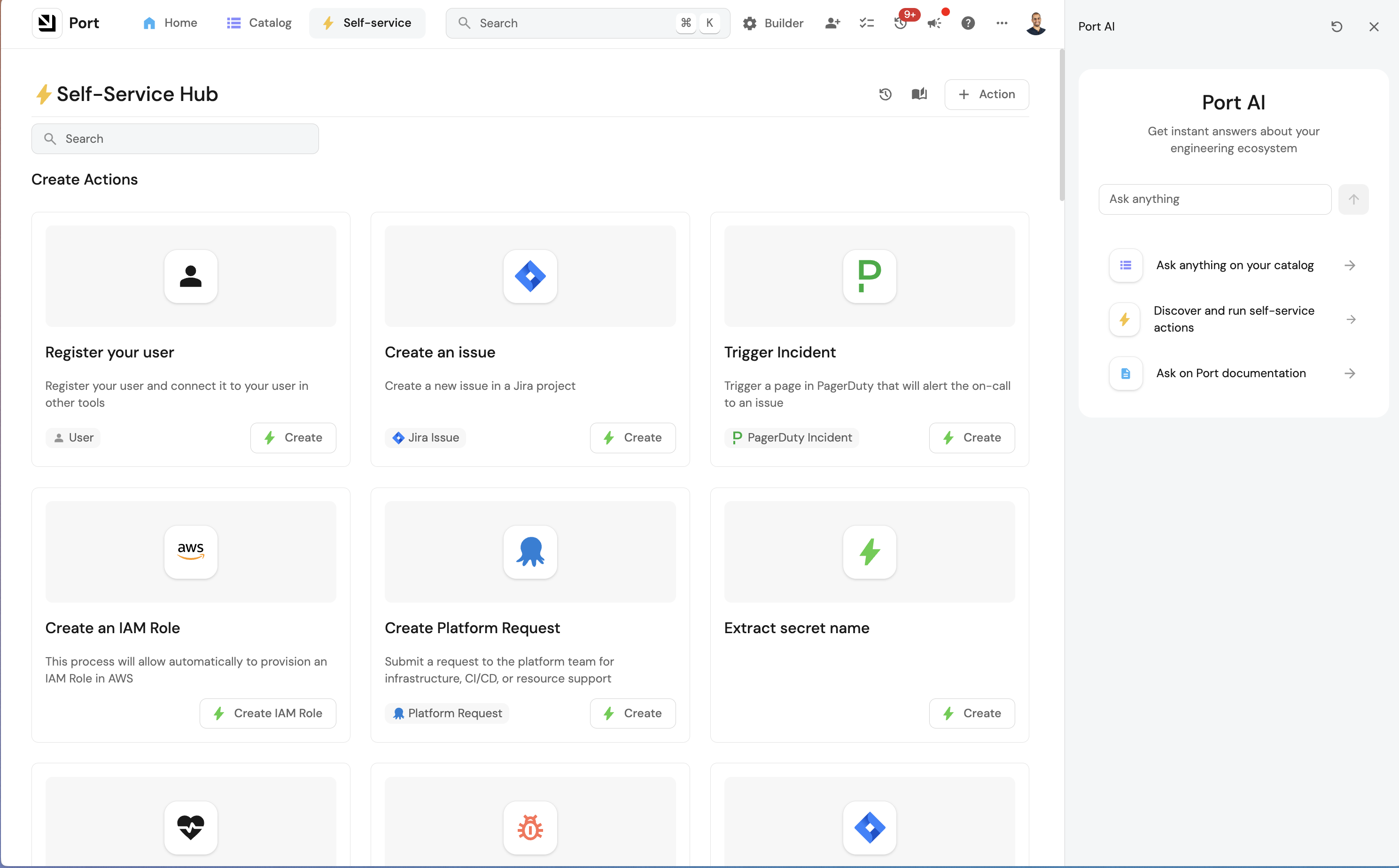
Once you ask a question, the assistant analyzes your request and selects the appropriate tools to use in order to provide a comprehensive response.
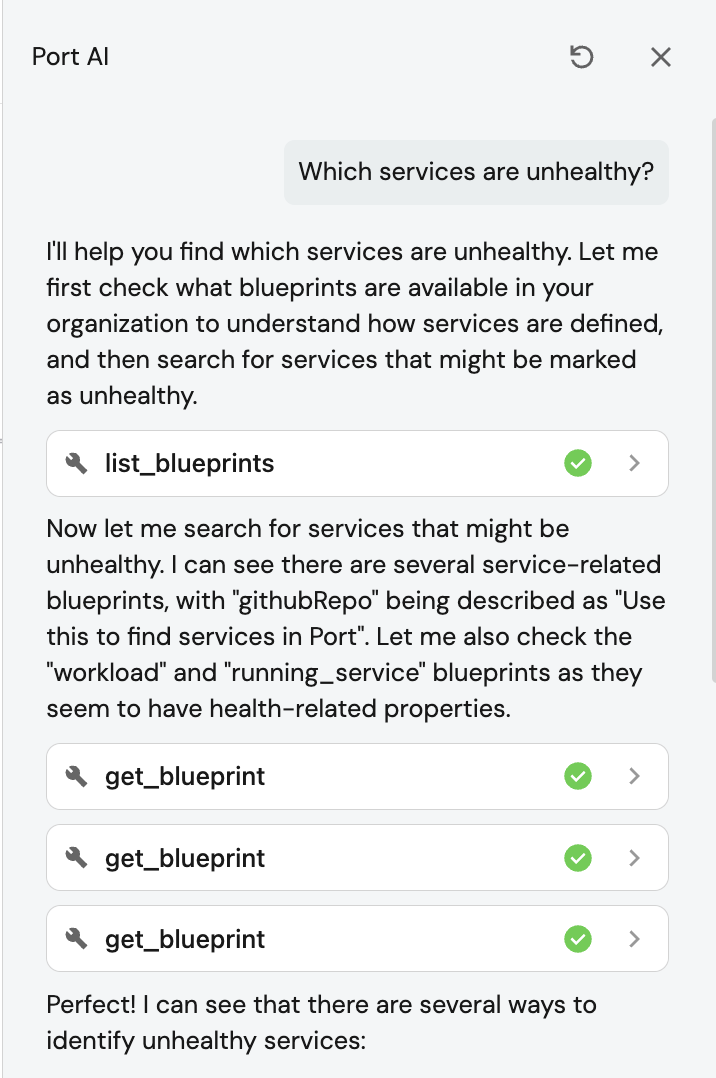
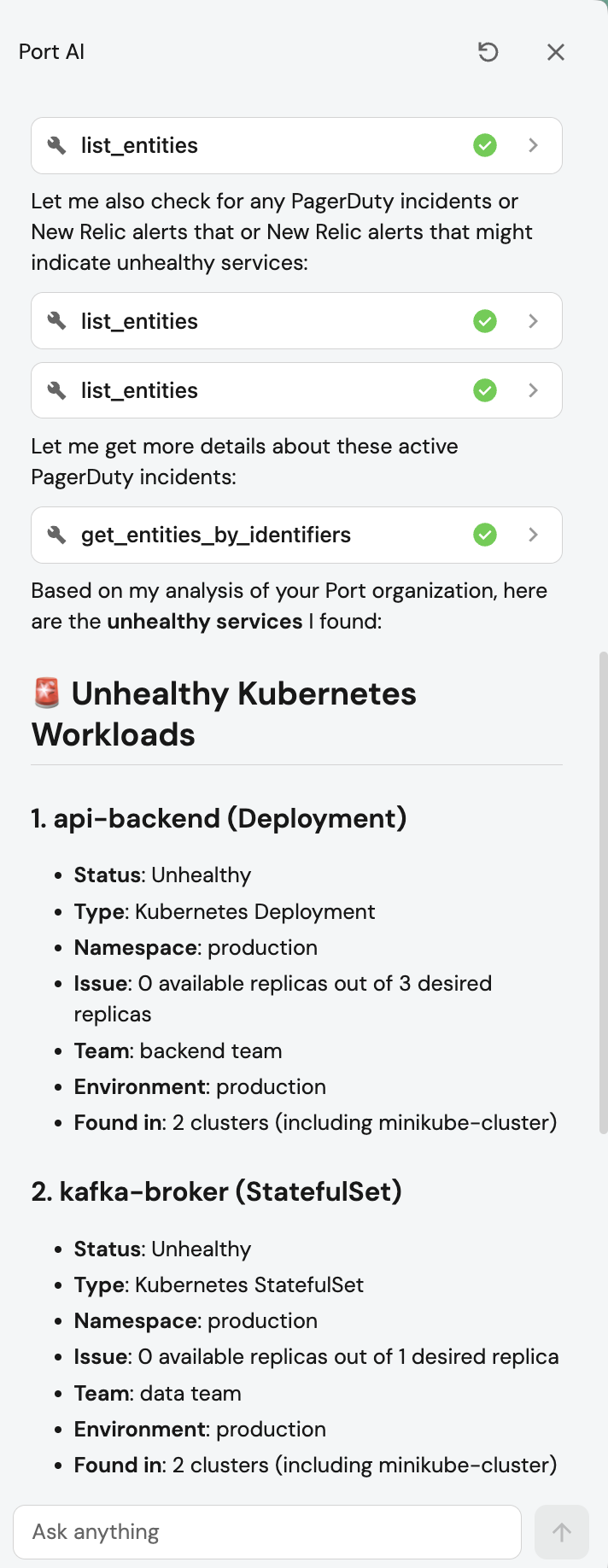
After processing your request, you'll receive a detailed answer along with any relevant actions or next steps.
Chat modes
The Port AI side chat supports three modes that control which tools the assistant can use. Select a mode from the chat input area before you send a message.
| Mode | Best for | Tool access |
|---|---|---|
| Ask | Exploring your data and configuration without making edits | Read-only Port tools (get_*, list_*, search_*, and similar) plus run_action and trigger_auto_discovery. Write tools never appear, even if you set them to automate. |
| Plan | Bigger changes that require deeper analysis across multiple components | Full tool set (minus tools you have disabled), including plan-specific tools for multi-step analysis. Approval and automate settings apply per tool. |
| Build | Scoped changes in your environment | Full tool set (minus tools you have disabled). Approval and automate settings apply per tool. |
When to use each mode
Ask is the safest starting point. Use it when you want to understand your catalog, investigate a problem, or learn how Port is configured without risking unintended changes. Examples include "Who owns the payment service?" or "Which services are failing security checks?"
Plan is for complex work that spans multiple parts of your environment. Use it when you need the assistant to analyze dependencies, compare options, or draft a multi-step approach before anything is changed. Examples include "Design a rollout plan for migrating our auth service" or "What would we need to change to add a new scorecard across all microservices?"
Build is for focused, scoped changes you are ready to execute. Use it when you know what you want to change and the assistant should take action in your environment. Examples include "Create an incident for the payment service outage" or "Update the owner on the checkout service."
If you are unsure which mode to use, start in ask mode. You can always switch to plan or build once you understand the scope of the work.
Chat plan mode is different from the reasoning plan shown in AI invocation records. Chat plan mode controls which tools are available during a conversation. The invocation reasoning plan is a log of how Port AI decided to approach a specific request.
Tool approval settings
Port AI uses two separate mechanisms to control how tools run. In the side chat, per-tool approval settings are what matter most.
| Layer | What it controls | Where it lives |
|---|---|---|
| Per-tool approval settings | Whether a specific tool pauses for your confirmation before it runs | Your user preferences, configured in the chat + menu |
Execution mode (Automatic / Approval Required) | API and agent-level behavior, mainly how run_action runs Port self-service actions | Agent entity or API request body |
The side chat does not send an executionMode in the request, so your saved per-tool settings drive the pause-and-approve flow. Learn more in Tools and approvals.
The three per-tool options
Each tool can be configured in one of three ways:
- Approval - the model can use the tool, but execution pauses until you approve, edit the arguments, or reject the call.
- Automate (
automatic) - the tool runs without pausing for confirmation. - Disabled - the tool is removed from the model's tool list. The model never sees it.
Default behavior when you have not customized a tool:
- Port read-only tools (
get_*,list_*, and similar, plusrun_action): Automate. - Port write tools (create, update, delete, and similar): Approval.
- External MCP tools: Approval.
Where to configure tool approval
In the side chat, click the + button below the input field, then select Port Tools or Connectors and select a connector.
For each tool you can:
- Toggle the tool on or off (disabled tools are not available to the model).
- Switch between Approval and Automate to control whether the tool pauses for approval before executing.
- Use the Enable all master toggle to enable or disable all tools at once (shown as
N/total).
Settings are per user, persisted server-side, and synced when tools or MCP servers change.
When you are chatting with a specific AI Agent, tool approval controls are read-only. You can see what the agent is allowed to use, but you cannot change your personal approval preferences from that view.
What happens at runtime
When you send a message to the Port AI assistant:
- The backend loads your saved preferences and builds the tool list (disabled tools are filtered out).
- The model selects tools for your request.
- For each tool call, the backend checks whether approval is required:
- An explicit approval setting pauses execution.
- An explicit automatic setting runs the tool immediately.
- Otherwise, read-only tools run automatically and write tools require approval.
- If any tool needs approval, the stream pauses and a tool approval card appears showing how many tools were requested.
- You approve, decline, or edit the arguments, and the chat resumes.
Tools set to Automate in the same batch still run immediately. Only tools set to Approval block the turn.
How chat mode interacts with tool approval
Chat mode controls which tools the assistant can use. Your per-tool approval settings control whether those tools pause before they run.
- Ask limits the assistant to read-only tools. Write tools never appear, even if you set them to Automate.
- Plan and Build give the assistant the full tool set, minus tools you have disabled. Your Approval and Automate settings then apply to each tool.
Using AI agents in the assistant
While the Port AI Assistant provides comprehensive out-of-the-box capabilities, you can also select specific AI Agents to leverage their specialized expertise and custom configurations directly from the chat interface.
Selecting an agent
To select an agent, perform the following steps:
- Click the button to open the Port AI side chat.›
- click the + button next to the input field
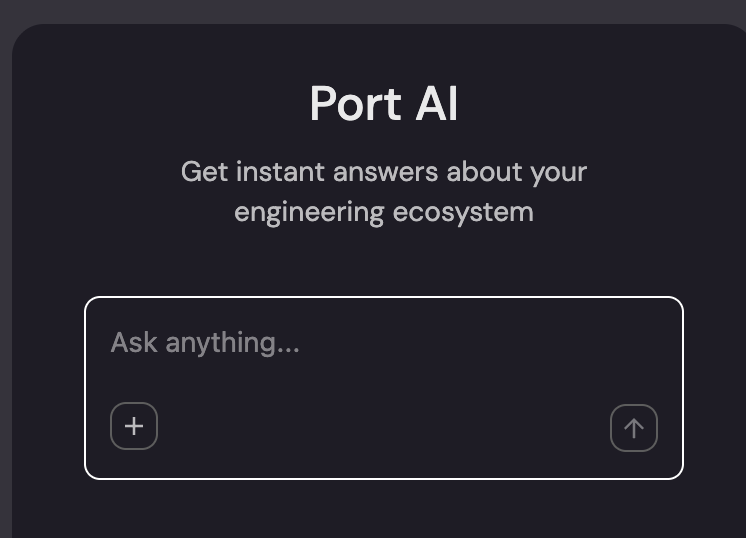
This opens the categories menu where you can browse different options:

From the categories menu, select the agents option to view all your active agents:

Once you select an agent, it will be indicated in the chat interface, and your conversation will use that agent's specialized capabilities:

Switching between agents
You can switch between different agents at any time during your conversation. Simply click the + button again to select a different agent or return to the default Port AI Assistant. This flexibility allows you to leverage different specialized agents as your needs change throughout a conversation.
When to use specific agents
Consider selecting a specific agent when:
- Domain expertise needed: You have a question that requires specialized knowledge (e.g., security, compliance, deployment workflows).
- Custom tools: The agent has access to custom tools or integrations not available in the default assistant.
- Specific prompts: The agent is configured with specific instructions or context for your team's workflows.
- Consistent behavior: You want responses aligned with a particular agent's configuration and personality.
For general questions about your catalog, Port features, or exploratory queries, the default Port AI Assistant provides the fastest and most flexible experience.
Example questions
The Port AI Assistant can help with a wide variety of questions out of the box:
Service Ownership & Information (click to expand)
- "Who owns the payment service?"
- "What services does the platform team own?"
- "Show me all microservices owned by the Backend team"
- "What is the checkout service about?"
- "What are the dependencies of the OrderProcessing service?"
Deployment & Operations (click to expand)
- "How do I deploy the auth service to production?"
- "When was the last successful deployment of the payment service?"
- "Show me failed deployments from last week"
- "What's deployed in production today?"
- "What's the deployment frequency of team X?"
Quality & Compliance (click to expand)
- "Which services are failing security checks?"
- "Give me a weekly summary of open bugs"
- "What's preventing the InventoryService from reaching Gold level?"
- "Show me services with high bug counts"
- "What's our overall security score?"
Incidents & Monitoring (click to expand)
- "Show me active incidents"
- "Which services had an incident in the last 30 days?"
- "Who is on call for the payment service?"
- "What is our mean time to resolution?"
Tasks & Workflow (click to expand)
- "What tasks are assigned to me?"
- "Show me my urgent Jira tickets"
- "How many issues were closed by the frontend team this month?"
- "What PRs are waiting for my review?"
Port Usage & Help (click to expand)
- "How do I create a new blueprint?"
- "What's the best way to set up scorecards?"
- "How can I trigger an action via API?"
- "Show me how to configure RBAC permissions"
External Tools (via MCP Connectors) (click to expand)
If your admin has configured MCP Connectors, you can also query external tools:
- "Search Notion for our API authentication documentation"
- "Find the deployment runbook in Confluence"
- "Show me open Jira tickets for the payments service"
- "What's in the architecture decisions page?"
Security & permissions
The Port AI Assistant respects your organization's security controls:
- RBAC compliance: Only accesses data you have permissions to view.
- Chat mode guardrails: Ask mode limits the assistant to read-only tools so you can explore without edits.
- Per-tool approval: Configure each tool to require approval, run automatically, or be disabled entirely. Write tools default to requiring approval.
- Audit trail: All interactions are logged as AI invocations.
- Access control: Access to the Port AI Assistant is controlled through the
_ai_invocationblueprint permissions. Learn more about controlling access to Port AI.
For comprehensive security information, see AI Security and Data Controls.