Port AI API Interaction
Port AI can be accessed programmatically through Port's API, enabling integration into custom applications and workflows. This provides the most flexible way to incorporate Port AI capabilities into your existing tools and processes.
API Endpoints
Port AI provides streaming API endpoints for real-time interaction:
- Port AI Assistant:
/v1/ai/invoke- General-purpose AI interactions. - AI Agents:
/v1/agent/<AGENT_IDENTIFIER>/invoke- Domain-specific agent interactions.
All interactions use streaming responses as Server-Sent Events (SSE) to provide real-time updates during execution. The response will be in text/event-stream format.
Interaction Process
- Invoke Port AI
- The API will start sending Server-Sent Events
- Your client should process these events as they arrive, with each event providing information about the AI's progress or final response
Basic API Examples
Port AI Assistant:
curl 'https://api.port.io/v1/ai/invoke' \
  -H 'Authorization: Bearer <YOUR_API_TOKEN>' \
  -H 'Content-Type: application/json' \
  --data-raw '{"prompt":"What services are failing health checks?"}'
AI Agents:
curl 'https://api.port.io/v1/agent/<AGENT_IDENTIFIER>/invoke' \
  -H 'Authorization: Bearer <YOUR_API_TOKEN>' \
  -H 'Content-Type: application/json' \
  --data-raw '{"prompt":"Analyze the health of our production services"}'
With metadata labels:
curl 'https://api.port.io/v1/ai/invoke' \
  -H 'Authorization: Bearer <YOUR_API_TOKEN>' \
  -H 'Content-Type: application/json' \
  --data-raw '{
    "prompt":"What services are failing health checks?",
    "tools": ["^(list|search|describe)_.*"],
    "labels": {
      "source": "monitoring_system",
      "environment": "production",
      "triggered_by": "automated_check"
    }
  }
Streaming Response Format
The API responds with Content-Type: text/event-stream; charset=utf-8.
Each event in the stream has the following format:
event: <event_name>
data: <json_payload_or_string>
Note the blank line after data: ... which separates events.
Example Event Sequence
event: tool_call
data: { "id": "call_0", "name": "list_entities", "arguments": "{\"blueprintIdentifier\":\"service\"}" }

event: tool_result
data: { "id": "call_0", "content": "Found 15 services in your catalog..." }

event: tool_call
data: { "id": "call_1", "name": "run_action", "arguments": "{\"actionIdentifier\":\"create_incident\"}" }

event: tool_result
data: { "id": "call_1", "content": "Action run created successfully with ID: run_12345" }

event: execution
data: I found 15 services in your catalog and created an incident report as requested.

event: done
data: {
  "rateLimitUsage": {
    "maxRequests": 200,
    "remainingRequests": 193,
    "maxTokens": 200000,
    "remainingTokens": 179910,
    "remainingTimeMs": 903
  },
  "monthlyQuotaUsage": {
    "monthlyLimit": 50,
    "remainingQuota": 49,
    "month": "2025-09",
    "remainingTimeMs": 1766899073
  }
}
Event Types
tool_call (Click to expand)
Indicates that Port AI is about to execute a tool. This event provides details about the tool being called and its arguments. For large arguments, the data may be sent in multiple chunks.
{
  "id": "call_0",
  "name": "list_entities",
  "arguments": "{\"blueprintIdentifier\":\"service\",\"limit\":10}",
  "lastChunk": true
}
Fields:
id: Unique identifier for this tool call.name: Name of the tool being executed (only included in the first chunk).arguments: JSON string containing the tool arguments (may be chunked for large payloads).lastChunk: Boolean indicating if this is the final chunk for this tool call (optional, only present on the last chunk).
tool_result (Click to expand)
Contains the result of a tool execution. For large results, the data may be sent in multiple chunks.
{
  "id": "call_0",
  "content": "Found 15 services in your catalog: api-gateway, user-service, payment-service...",
  "lastChunk": true
}
Fields:
id: Unique identifier matching the corresponding tool call.content: The result content from the tool execution (may be chunked for large responses).lastChunk: Boolean indicating if this is the final chunk for this tool result (optional, only present on the last chunk).
execution (Click to expand)
The final textual answer or a chunk of the answer from Port AI. For longer responses, multiple execution events might be sent.
done (Click to expand)
Signals that Port AI has finished processing and the response stream is complete. This event also includes quota usage information for managing your API limits.
{
  "rateLimitUsage": {
    "maxRequests": 200,
    "remainingRequests": 193,
    "maxTokens": 200000,
    "remainingTokens": 179910,
    "remainingTimeMs": 903
  },
  "monthlyQuotaUsage": {
    "monthlyLimit": 50,
    "remainingQuota": 49,
    "month": "2025-09",
    "remainingTimeMs": 1766899073
  }
}
Quota Usage Fields:
maxRequests: Maximum number of LLM calls allowed in the current rolling window.remainingRequests: Number of LLM calls remaining in the current window.maxTokens: Maximum number of tokens allowed in the current rolling window.remainingTokens: Number of tokens remaining in the current window.remainingTimeMs: Time in milliseconds until the rolling window resets.
Processing Quota Information
Use the quota information in the done event to implement client-side rate limiting and avoid hitting API limits. When remainingRequests (remaining LLM calls) or remainingTokens are low, consider adding delays between requests or queuing them for later execution.
JavaScript Example: Processing Quota Information (Click to expand)
When processing the streaming response, you'll receive quota usage information in the final done event. Here's a JavaScript example of how to handle this:
const eventSource = new EventSource(apiUrl);

eventSource.addEventListener("done", (event) => {
  const data = JSON.parse(event.data);

  if (data.rateLimitUsage) {
    const { remainingRequests, remainingTokens, remainingTimeMs } =
      data.rateLimitUsage;

    // Check if quota is running low (LLM calls or tokens)
    if (remainingRequests < 10 || remainingTokens < 10000) {
      console.warn("Quota running low, consider rate limiting");
      // Implement rate limiting logic
    }

    // Schedule next request after quota reset if needed
    if (remainingRequests === 0) {
      setTimeout(() => {
        // Safe to make next request
      }, remainingTimeMs);
    }
  }

  eventSource.close();
});
Rate Limits and Quotas
Port AI operates with specific limits to ensure optimal performance for all users:
These limits apply when using Port's managed AI infrastructure. When you configure your own LLM provider, these Port-specific limits no longer apply, and usage will be governed by your provider's own limits and pricing.
Port acts as a bridge to leading LLM providers and doesn't host LLM models internally.
Rate Limits (Per Minute)
- LLM call limit: 200 LLM calls per minute.
- Token usage limit: 500,000 tokens per minute.
- These limits reset every minute.
Monthly Quota
- Default quota: 500 AI invocations per month for most plans.
- Each interaction with Port AI counts as one request against your quota.
- Quota resets on the first day of each calendar month (UTC).
- Enterprise plans may have higher quotas or unlimited usage. Contact your account team for details.
Usage limits may change without prior notice. Once a limit is reached, you will need to wait until it resets.
If you attempt to interact with Port AI after reaching a limit, you will receive an error message indicating that the limit has been exceeded.
The query limit is estimated and depends on the actual token usage.
What happens when quota is exceeded
When you exceed your monthly quota, Port AI returns an error and does not process the request. The request is not queued or retried automatically.
Error response:
{
  "error": "Monthly quota exceeded",
  "type": "QUOTA_ERROR",
  "resetDate": "2025-10-01T00:00:00Z"
}
All AI interfaces (Port AI Assistant, AI Chat Widgets, API, and workflow AI nodes) will return this error until:
- The quota resets at the start of the next month, or
- Your organization's quota is increased.
Monitor your usage
You can monitor your current usage in several ways:
Check usage via API
Use the Get monthly AI invocations quota usage API endpoint:
curl 'https://api.port.io/v1/quota/ai-invocations' \
  -H 'Authorization: Bearer <YOUR_API_TOKEN>'
Response:
{
  "ok": true,
  "monthlyQuotaUsage": {
    "monthlyLimit": 500,
    "remainingQuota": 158,
    "month": "2025-11",
    "remainingTimeMs": 1234567890
  }
}
Check rate limits in streaming responses
- Check the final
doneevent in streaming responses for remaining LLM calls, tokens, and reset time.
Check your monthly quota before making multiple Port AI requests to avoid hitting limits. When remainingQuota is low, consider implementing rate limiting or queuing requests until the monthly quota resets. Note that you may also encounter per-minute rate limits, which are separate from this monthly quota.
Request a quota increase
If you need more AI invocations than your current quota allows:
- Contact Port support: Submit a request through support.port.io explaining your use case and estimated monthly usage.
- Upgrade your plan: Enterprise plans include higher quotas. Contact your account team or sales@port.io to discuss options.
- Bring your own LLM: Configure your own LLM provider to bypass Port's managed quotas entirely. Usage will then be governed by your provider's limits.
Structured output
Port AI supports structured output generation, allowing you to specify a JSON Schema that the AI response must conform to. This is useful when you need to parse the AI response programmatically.
How it works
Include an outputSchema parameter in your API request with a valid JSON Schema. The AI will generate a structured JSON object matching the schema instead of free-form text.
curl 'https://api.port.io/v1/ai/invoke' \
  -H 'Authorization: Bearer <YOUR_API_TOKEN>' \
  -H 'Content-Type: application/json' \
  --data-raw '{
    "prompt": "Analyze the health of our production services",
    "tools": ["^(list|search|describe)_.*"],
    "outputSchema": {
      "type": "object",
      "properties": {
        "summary": { "type": "string" },
        "healthyServices": { "type": "number" },
        "unhealthyServices": { "type": "number" },
        "recommendations": {
          "type": "array",
          "items": { "type": "string" }
        }
      },
      "required": ["summary", "healthyServices", "unhealthyServices"]
    }
  }'
The same parameter works with AI agents:
curl 'https://api.port.io/v1/agent/<AGENT_IDENTIFIER>/invoke' \
  -H 'Authorization: Bearer <YOUR_API_TOKEN>' \
  -H 'Content-Type: application/json' \
  --data-raw '{
    "prompt": "Analyze service dependencies",
    "outputSchema": {
      "type": "object",
      "properties": {
        "serviceName": { "type": "string" },
        "dependencies": {
          "type": "array",
          "items": { "type": "string" }
        },
        "riskLevel": { "type": "string" }
      },
      "required": ["serviceName", "dependencies"]
    }
  }'
Schema requirements
The outputSchema must be a valid JSON Schema with type: "object" at the root level. You can define:
properties: The fields the AI should generate.required: Fields that must be present in the response.- Nested objects and arrays for complex structures.
When outputSchema is provided, the AI must generate a valid JSON object matching the schema. If the AI fails to generate valid output conforming to the schema, the request will fail with an error. The response will contain the structured JSON object as the final execution event data.
Selecting Model
Port AI allows you to specify which LLM provider and model to use for specific API requests, giving you fine-grained control over AI processing on a per-request basis.
How LLM Providers Work
Port AI supports multiple LLM providers and models. You can either use Port's managed AI infrastructure (default) or configure your own LLM providers for additional control over data privacy, costs, and compliance.
Learn more about LLM Provider Management and see the supported models and providers.
Specifying Provider and Model
When making API requests, you can include provider and model parameters (if none specified, your organization's default will be used). See the Invoke an agent API reference for detailed example.
Default Behavior
If no provider is specified in your API request, the system uses your organization's configured defaults, or falls back to Port's system defaults if none are configured.
Tool execution modes
For action execution tools specifically, Port AI supports two execution modes:
- Automatic execution
- Manual approval
When configured for automatic execution, Port AI will:
- Determine the appropriate parameters based on your request.
- Execute actions immediately.
- Provide a link to the action run or results.
This mode streamlines workflows but should be used carefully, especially for actions with significant impact.
When configured for manual approval, Port AI will:
- Create a draft action based on your request.
- Provide a link to the draft.
- Allow you to review and modify parameters before execution.
This approach provides an additional safety layer, ensuring you can verify all parameters before execution.
Execution modes apply only to self-service actions. Data query tools execute immediately as they only retrieve information without making changes.
Tool selection
Port AI allows you to control which specific tools from the Port MCP server are available for each API interaction. This provides fine-grained control over what actions Port AI can perform, enabling you to create secure, purpose-specific AI interactions.
Port AI gives you fine-grained control over which tools are available and whether each tool runs automatically or requires manual approval before execution.
Controlling which tools are available
You can restrict which tools Port AI is allowed to use. For example, you can limit an interaction to read-only tools for simple Q&A, or allow only specific actions for automated workflows.
- Per-invocation: Pass the
toolsarray in the invoke request body with regex patterns that match tool names. Only matching tools will be available for that invocation. - Persistent preferences: Use the tool approval preferences API to disable specific tools entirely. Disabled tools are excluded from all future invocations unless overridden by a
toolsarray in the request body.
Controlling how tools are approved
Each tool has an approval mode that determines whether it runs automatically or pauses for user confirmation:
automatic- the tool executes immediately without user intervention.approval- the tool pauses and waits for the user to approve, edit, or reject the call before proceeding.
The effective approval mode for a tool is resolved using the following priority (highest to lowest):
- Per-invocation override - the
toolApprovalOverridesfield in the invoke request body. This takes the highest priority and can set any tool toautomaticorapprovalfor that single invocation. - Persistent preferences - the user's saved preferences via the tool approval preferences API. These apply to all invocations unless overridden by the request body.
- Read-only annotation - if the tool's MCP annotation marks it as read-only (
readOnlyHint: true), it defaults toautomatic. All other tools default toapproval.
When the executionMode is set to Automatic in the request body, all tools run automatically regardless of the approval settings above.
Selected tools will be available based on your regex patterns but won't include tools that are not within your permission scope. This means:
- If you request an action to create a Jira ticket but this action is not available to you as a user, it won't be available to Port AI.
- Members trying to use builder tools like
upsert_blueprintwill not have access to these tools through Port AI if they lack the necessary permissions. - Tool availability is determined by the intersection of your regex selection AND your user permissions.
Port AI respects your individual user permissions and cannot access tools or perform actions that you don't have permission to use.
How Tool Selection Works
Include a tools parameter in your API request with an array of regex patterns. Port AI will only use tools whose names match at least one of these patterns.
Basic format:
{
  "prompt": "Your question or request",
  "tools": ["regex_pattern_1", "regex_pattern_2"]
}
When you attach MCP connectors, treat patterns in two groups. To enable tools from a connector, an entry in tools must start with that connector's identifier in Port, then an underscore, then the rest of your regex (for example notion_.* for the notion connector). You cannot place ^ or any other characters before that prefix: ^notion_.* does not count as a connector pattern and will not enable connector tools. Every other pattern applies only to Port MCP tools (catalog query, run_* actions, and the rest of the built-in Port tool surface), including very broad regex such as .* or ^run_.*. Those patterns never enable connector tools on their own, even when the regex text could match a connector tool name. Add an explicit pattern that begins with {identifier}_ when you need connector tools.
Common Tool Selection Patterns
Read-only Operations (Click to expand)
Perfect for monitoring dashboards and reporting systems where no modifications should be made.
["^(list|search|track|describe)_.*"]
What this matches:
list_entities,list_blueprints,list_scorecards.list_actions,list_integrations.describe_user_details.search_port_knowledge_sources.
Action Execution Only (Click to expand)
Allows only action execution tools while blocking data query operations.
["^run_.*"]
What this matches:
run_action(the underlying tool that executes all self-service actions).run_create_service,run_deploy_to_production.run_github_create_issue,run_jira_create_ticket.run_slack_notify_team.
run_action must be matchedSelf-service actions are executed through the internal run_action tool. Your tools regex must match run_action — either explicitly or via a pattern like "^run_.*". If you only list specific action identifiers (e.g. ["run_deploy_to_production"]) without a pattern that also matches run_action, the agent will not be able to execute those actions.
Specific Integration Actions (Click to expand)
Target specific third-party service integrations.
["run_.*github.*", "run_.*jira.*", "run_.*zendesk.*"]
What this matches:
run_github_create_issue,run_github_merge_pr.run_jira_create_ticket,run_jira_update_status.run_zendesk_create_ticket.
Safe Entity Operations (Click to expand)
Enables entity operations while preventing accidental deletions.
["(?!delete_)\\w+_entity$", "list_.*"]
What this matches:
list_entities,upsert_entity.- Excludes:
delete_entity.
Documentation and Help Tools (Click to expand)
Focus on documentation search and help functionality.
[".*docs.*", "search_.*", "describe_.*"]
What this matches:
search_port_knowledge_sources.describe_user_details.
Blueprint and Scorecard Analysis (Click to expand)
Focus on catalog structure and quality metrics without action execution.
[".*blueprint.*", ".*scorecard.*", "^list_.*"]
What this matches:
list_blueprints,upsert_blueprint.list_scorecards,upsert_scorecard.- All list operations.
MCP connector tools (Click to expand)
Tools from MCP connectors use names that start with the connector identifier in Port, followed by an underscore. A tools entry only applies to connector tools if the pattern string itself begins with that {identifier}_ text (for example notion_.*). A leading regex anchor breaks that rule, so ^notion_.* does not work for connector tools. Patterns meant for Port tools (list_*, run_*, .*, ^run_.*, and so on) never unlock connector tools by themselves; see Port tools vs. MCP connector tools above.
["notion_.*"]
What this matches:
- Any published tool for that connector, such as
notion_notion-search.
Use the same identifier you pass in mcpServers[].identifier in place of notion.
Interactive Tool Matcher
Test your regex patterns to see which MCP tools would be available to Port AI. Enter your patterns in JSON array format (e.g., ["^(list|get)_.*", "run_.*github.*"]) and see the matching tools in real-time.
Tools (0 of 42 matched)
delete_actiondelete_workflowget_action_permissionsget_workflow_runlist_actionslist_workflowsrun_actiontrack_action_runtrigger_runupdate_action_permissionsupsert_actionupsert_workflowdelete_blueprintdelete_entitylist_blueprintslist_entitiessimulate_blueprint_permissionstrigger_auto_discoveryupsert_blueprintupsert_entitydescribe_user_detailsload_skillsearch_port_knowledge_sourcesget_integration_event_logsget_integration_kinds_with_examplesget_integration_sync_metricslist_integrationstest_integration_mappingdelete_sidebar_folderdelete_widgetget_pageget_sidebarload_widget_schemamove_pageupsert_dashboard_pageupsert_sidebar_folderupsert_widgetlist_pluginsupsert_plugindelete_scorecardlist_scorecardsupsert_scorecardAction tools (starting with run_*) depend on your Port configuration. The examples shown represent common action patterns, but your actual available actions may differ based on the self-service actions configured in your Port instance.
Best Practices
- Principle of least privilege: Only include tools necessary for the specific use case.
- Test patterns: Use the interactive matcher above to verify your regex patterns.
- Automated systems: Use highly restrictive patterns for automated workflows.
- User-facing interfaces: Consider broader patterns for interactive use cases.
Tool Approval in API Requests
In addition to controlling which tools are available, you can control whether each tool requires manual approval or runs automatically. There are two ways to manage this:
Per-Invocation Overrides
Pass the toolApprovalOverrides field in your request body. Each key is a tool name (regex pattern), and each value is either approval or automatic:
{
  "userPrompt": "Deploy service X to production",
  "tools": [".*"],
  "toolApprovalOverrides": {
    "run_action": "approval",
    "list_.*": "automatic"
  }
}
Per-invocation overrides take the highest priority and apply only to that single request.
Persistent Preferences
Use the tool approval preferences API to save default approval modes for your user. These preferences apply to all future invocations unless overridden by toolApprovalOverrides in the request body.
# Get current preferences
curl 'https://api.port.io/v1/ai/tool-approval-preferences' \
  -H 'Authorization: Bearer <YOUR_API_TOKEN>'

# Update preferences
curl -X PUT 'https://api.port.io/v1/ai/tool-approval-preferences' \
  -H 'Authorization: Bearer <YOUR_API_TOKEN>' \
  -H 'Content-Type: application/json' \
  --data-raw '{
    "toolOverrides": {
      "run_action": "approval",
      "list_entities": "automatic"
    },
    "disabledTools": ["delete_entity"]
  }'
You can also disable specific tools through disabledTools in the preferences API. Disabled tools are excluded from all invocations unless the request includes an explicit tools array, which takes full control of tool availability.
MCP Servers in API Requests
When using the /v1/ai/invoke endpoint, you can attach up to five configured MCP connectors per request. This allows Port AI to use tools from those servers in addition to your Port MCP tools, filtered by your tools patterns.
The mcpServers parameter is supported on /v1/ai/invoke and on workflow type: "AI" action nodes. It is not part of the invoke an agent request body. Agent entities use MCP connectors configured on the agent and require a connected user, so agent MCP works in chat only. See build an AI agent.
Prerequisites
- Your organization has MCP connectors set up (admins add servers under Data sources and publish allowed tools).
- The API token represents a user who is allowed to use those connectors. For connectors that use per-user OAuth, authenticate that user in Port before you rely on connector tools (for example from MCP Servers in the avatar menu or from the Port AI chat + menu) so OAuth tokens are available for tool calls.
Limitations
When /v1/ai/invoke runs with an organization automation token (for example, from an automation or a workflow type: "AI" node), per-user OAuth MCP connectors are not supported. OAuth tokens are stored per user; automated invocations use an organization automation token, not the triggering user.
Only MCP connectors with shared header authentication are supported in automated contexts.
Request body
Add an mcpServers array. Each item must include the connector identifier in Port (the _mcp_server entity identifier), for example the value you see on the connector in the catalog or in Data sources.
"mcpServers": [
  { "identifier": "notion" }
]
Port AI resolves which MCP servers to use based on this field:
- Omit
mcpServers: Port AI falls back to all of your usable MCP servers. mcpServers: [](empty array): Port AI uses no MCP servers.mcpServerswith entries: Port AI uses only the listed servers.
Your existing tools array still controls which tool names may run. Port-side patterns (anything that does not begin with {identifier}_ as the first characters of the pattern string, including .* and ^notion_.*) only affect Port MCP tools; use notion_.* (not ^notion_.*) when the identifier is notion. See MCP connector tools pattern and Port tools vs. MCP connector tools. Native Port tools and MCP connector tools are evaluated together against those patterns.
Example
curl 'https://api.port.io/v1/ai/invoke' \
  -H 'Authorization: Bearer <YOUR_API_TOKEN>' \
  -H 'Content-Type: application/json' \
  --data-raw '{
    "userPrompt": "Search our Notion space for the onboarding checklist and summarize the steps.",
    "tools": ["notion_notion-search", "^list_.*", "^run_.*"],
    "mcpServers": [
      { "identifier": "notion" }
    ]
  }'
For all request fields (including userPrompt, tools, and optional mcpServers), see the General-purpose AI interactions API reference.
Integration Patterns
- API Integration
- Actions & Automations
Direct API Calls
Integrate Port AI directly into your applications using HTTP requests:
# Basic Port AI request
curl 'https://api.port.io/v1/ai/invoke' \
  -H 'Authorization: Bearer <YOUR_API_TOKEN>' \
  -H 'Content-Type: application/json' \
  --data-raw '{
    "prompt": "What services are failing health checks?",
    "tools": ["^(list|search|describe)_.*"],
    "labels": {
      "source": "monitoring_system",
      "check_type": "health_analysis"
    }'

# AI Agent request
curl 'https://api.port.io/v1/agent/<AGENT_IDENTIFIER>/invoke' \
  -H 'Authorization: Bearer <YOUR_API_TOKEN>' \
  -H 'Content-Type: application/json' \
  --data-raw '{
    "prompt": "Analyze the health of our production services",
    "labels": {
      "source": "monitoring_dashboard",
      "environment": "production"
    }'
Application Integration Example
// Example: Monitoring dashboard integration
async function checkServiceHealth(serviceName) {
  const response = await fetch("/api/port-ai/check-service", {
    method: "POST",
    headers: { "Content-Type": "application/json" },
    body: JSON.stringify({
      prompt: `Analyze the health of service ${serviceName}`,
      tools: ["^(list|search|describe)_.*"],
      labels: {
        source: "monitoring_dashboard",
        service: serviceName,
        check_type: "health_analysis",
      },
    }),
  });

  // Process streaming response
  const reader = response.body.getReader();
  // Handle SSE parsing...
}
Port Automations
Automatically trigger Port AI based on catalog events using Port's automation system:Example: Infrastructure Healing Automation (Click to expand)
Self-Service Actions
Create actions that invoke Port AI for on-demand analysis:Example: Service Health Analysis Action (Click to expand)
Error Handling
Common error scenarios and handling strategies:
Rate Limit Exceeded
{
  "error": "Rate limit exceeded",
  "type": "RATE_LIMIT_ERROR",
  "retryAfter": 3600
}
Quota Exceeded
{
  "error": "Monthly quota exceeded",
  "type": "QUOTA_ERROR",
  "resetDate": "2025-10-01T00:00:00Z"
}
Implementation Example: Error Handling (Click to expand)
async function handlePortAIRequest(prompt) {
  try {
    const response = await invokePortAI(prompt);
    return response;
  } catch (error) {
    if (error.type === "RATE_LIMIT_ERROR") {
      // Wait and retry
      await new Promise((resolve) =>
        setTimeout(resolve, error.retryAfter * 1000),
      );
      return handlePortAIRequest(prompt);
    } else if (error.type === "QUOTA_ERROR") {
      // Queue for next month or upgrade plan
      console.log("Monthly quota exceeded, queuing request");
      return null;
    }
    throw error;
  }
}
Technical limitations
Port AI uses the Port MCP tools, which have their own limitations. For detailed information about MCP tool constraints, refer to the Port MCP server documentation.
Port AI operates within several technical constraints to ensure optimal performance and security:
- Tool calls per interaction: One AI interaction can include up to 15 tool calls.
- LLM final response: Limited to 10,000 tokens per response.
- Tool scope: Currently supports only developer tools (querying data and running actions), not administrative tools (creating blueprints, managing scorecards).
- User-based permissions: All interactions respect your individual user permissions - Port AI cannot access data you don't have permission to view.
- Sequential automation permissions: Sequential automations run with Admin privileges, which may differ from your user permissions.
AI invocations
Every interaction with Port AI creates a detailed AI invocation record in Port, providing comprehensive tracking and analysis capabilities. AI invocations act as execution logs that capture the complete lifecycle of each interaction.
What AI invocations track
Each AI invocation record includes:
- Who asked: User identity and context for the interaction.
- What they asked: The original prompt or question submitted.
- AI response: The complete response provided by Port AI.
- Tools used: Detailed log of which tools were executed and their results.
- Execution logs: Step-by-step record of tool calls and results.
- User feedback (optional): Users can rate assistant replies with thumbs up or down and optionally leave a short comment.
Accessing AI invocations
AI invocations are stored as entities in your Port catalog using the _ai_invocations blueprint. You can view them in the AI Invocations catalog page, or query them programmatically via the API.
Feedback on AI invocations
Users can leave thumbs up or thumbs down on an assistant message, and optionally add a short comment after choosing a rating. Feedback is stored per assistant message inside the invocation's execution_logs JSON (not as a single rating on the invocation entity).
| Field | Description |
|---|---|
messageId | Stable identifier for each message in execution_logs. Required when submitting feedback via API. |
feedbackRating | positive or negative. Cleared when the user removes their vote. Present on assistant messages. |
feedbackComment | Optional text; submitted together with the rating when the user sends a comment. |
The _ai_invocations blueprint may still include feedback_rating and feedback_comment properties from earlier releases. New feedback is written to individual messages in execution_logs; those entity properties are no longer updated.
Behavior:
- Choosing a rating saves it immediately; the user can then open Add a comment to attach text.
- Clicking the same thumb again clears the rating and any stored comment (equivalent to removing feedback).
- Updates are best-effort from the client: a failed request does not block the chat, but feedback may not be persisted.
Programmatic access: Integrations can update or clear feedback via the submit feedback and delete feedback API endpoints (with appropriate auth), which update the invocation entity in the catalog.
AI invocation details
Each AI invocation provides detailed information about how Port AI processed your request:
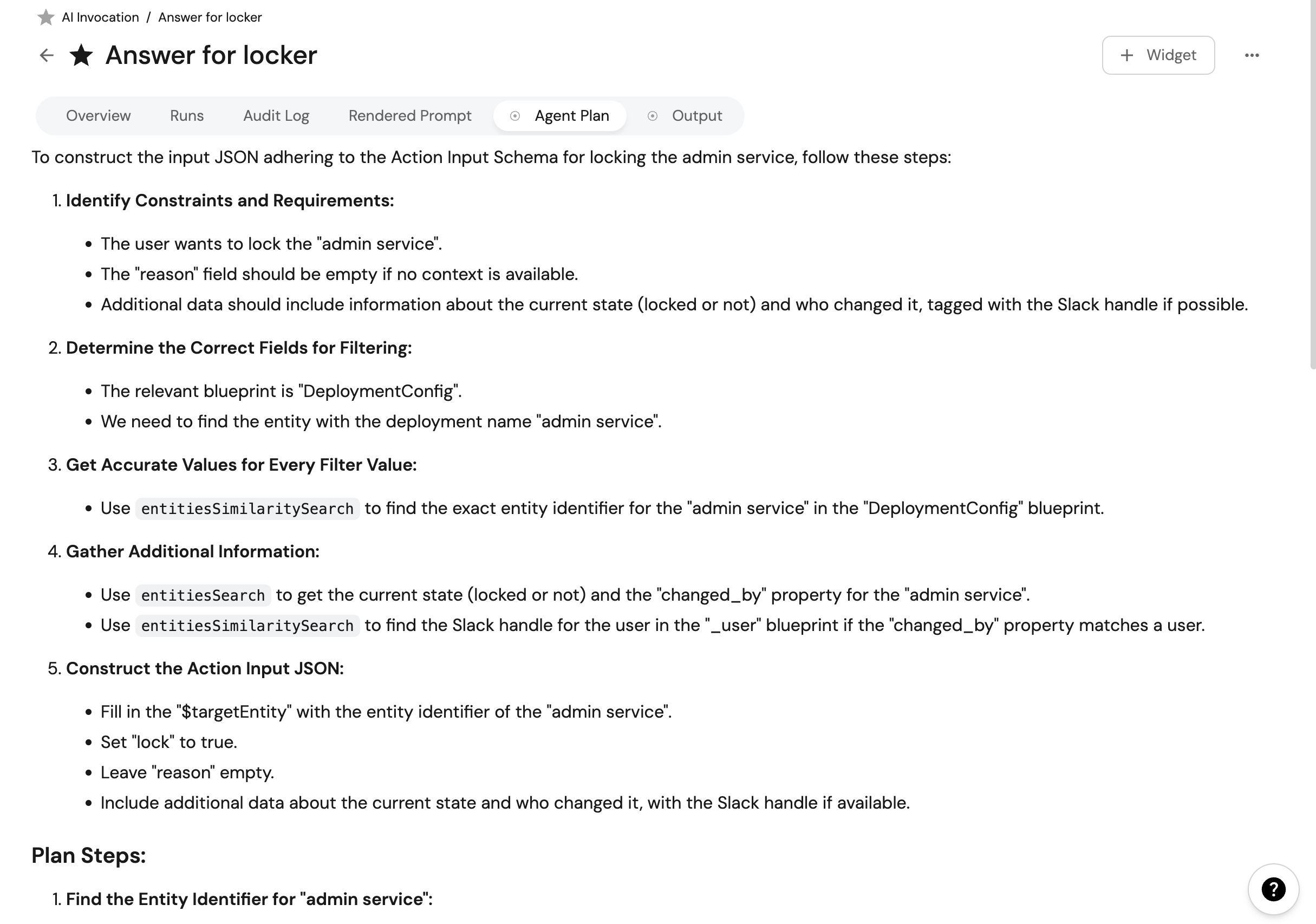
Plan
The plan shows how Port AI decided to tackle your request and the steps it intended to take.
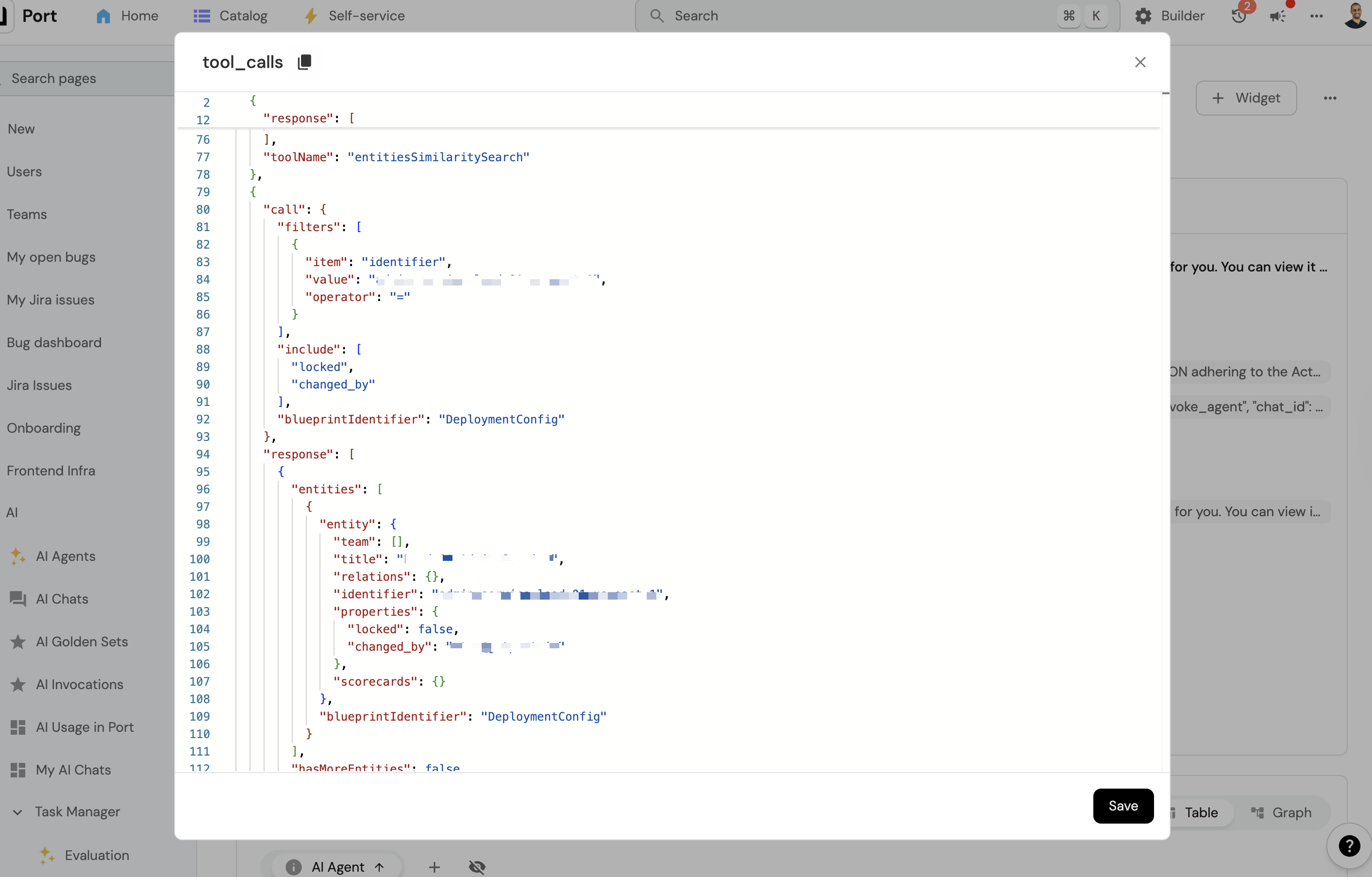
Tools used
This section displays the actual steps Port AI took and the tools it used to complete your request. This information can be particularly helpful for debugging when answers don't meet expectations.
Execution details
Each invocation record also includes:
- Request timestamp: When the interaction was initiated.
- User context: Who made the request and from what interface.
Frequently asked questions
Are there usage limits for Port AI? (Click to expand)
Yes, Port AI has usage limits to ensure fair usage across all customers:
Note: These limits apply when using Port's managed AI infrastructure. Bring your own LLM provider to use your provider's limits instead.
Rate limits (per minute):
- LLM call limit: 200 LLM calls per minute.
- Token usage limit: 500,000 tokens per minute.
- These limits reset every minute.
Monthly quota:
- Default quota: 500 AI invocations per month.
- Each interaction with Port AI counts as one request.
- Quota resets monthly.
You can monitor your usage through API response headers and the quota endpoint. See Rate limits and quotas for full details.
What happens when I reach usage limits? (Click to expand)
When you reach a usage limit:
- You are temporarily blocked from making new Port AI requests.
- You receive an error message indicating which limit was exceeded.
- Access resumes automatically when the limit resets.
For rate limits (per minute):
- Wait for limits to reset (they reset every minute).
- Monitor the
remainingTimeMsfield to know when you can make requests again.
For monthly quota:
- Wait for the monthly quota to reset at the beginning of the next month.
- Contact support to learn about quota upgrades for your organization.
Recommendations:
- Implement rate limiting in your applications.
- Monitor usage proactively using available monitoring methods.
- Optimize AI interactions for efficiency.
Can I audit and control Port AI usage? (Click to expand)
Yes, Port AI provides comprehensive audit and control capabilities:
- Each interaction is saved as an AI invocation record.
- Granular permission controls determine who can access Port AI.
- Admin dashboard for monitoring usage across your organization.
- Export capabilities for audit logs.
- All interactions respect your configured RBAC and data access policies.
For detailed security and governance information, see AI security and data controls.
Are there any technical limitations to Port AI capabilities? (Click to expand)
Yes, Port AI operates within several technical constraints related to search capabilities, data processing, tool usage, and permissions. See Technical limitations for the full list.
Security considerations
When integrating Port AI via API:
- Authentication: Always use secure API token storage and rotation.
- Data privacy: Port AI respects your organization's RBAC and data access policies.
- Audit trail: All API interactions are logged and trackable.
- Rate limiting: Implement client-side rate limiting to avoid hitting API limits.
For comprehensive security information, see AI Security and Data Controls.
Detailed Security Information:
- Data access and permissions - How AI respects your organization's access controls.