Folders
Port allows you to create folders in your software catalog that can be used to group pages by topic, team, or any other criteria that fits the needs of your organization.
Folders can contain both catalog pages and dashboard pages, and can be nested up to 3 levels deep.
A folder is visible only to users who have access to at least one of the pages or dashboards inside it.
Create a folder
-
In the catalog sidebar, click the + button next to your organization name.
-
Select New folder.
-
Enter a Folder name. You can optionally choose an Icon.
-
Click Save.
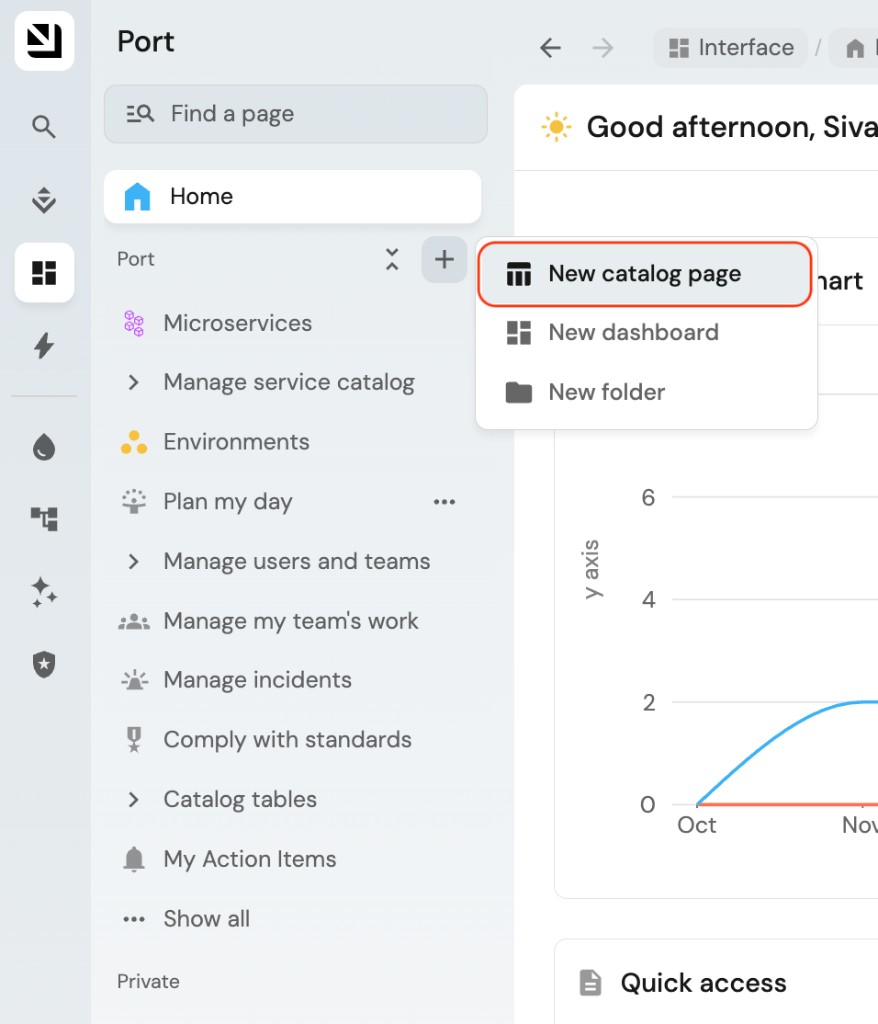
To change a folder's name or icon later, open its ... menu and select Edit folder.
Create a nested folder
-
Hover over the parent folder in the catalog sidebar and click the ... button.
-
Select + Create in folder, then choose New folder.
-
Enter a Folder name. You can optionally choose an Icon.
-
Click Save.
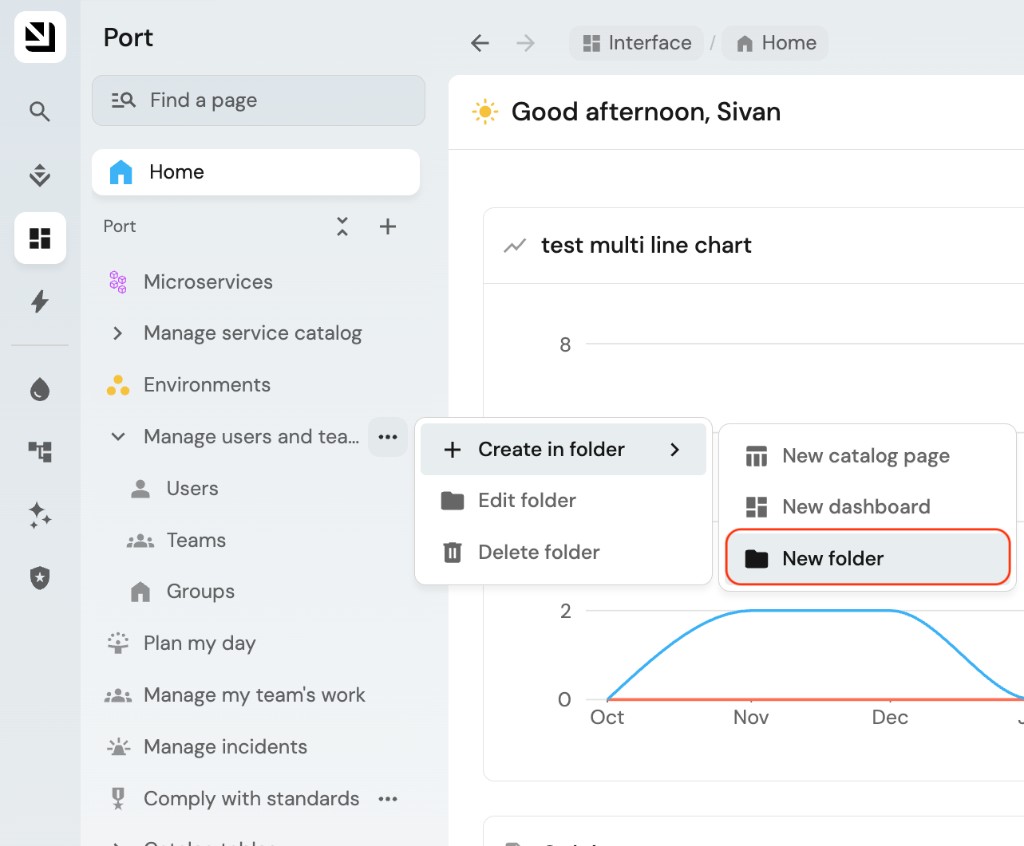
You can also use Create in folder to add a new catalog page or dashboard inside the folder.
Move pages and folders
- In the catalog sidebar, drag a page or folder to the location you want.
- Drop it at the desired location and depth.
You can drag a page or folder into another folder, out of a folder, or to reorder items at the same level.
Delete a folder
- Hover over the folder in the catalog sidebar and click the ... button.
- Select Delete folder.
- Click Delete.
When you delete a folder, any pages and nested folders inside it are also deleted. This action cannot be undone.
Folder identifiers
Each folder has a unique identifier that can be used to reference it when working with the Port API.
When creating a folder, you provide a Folder name. The identifier is automatically generated from that name using snake_case, which means that spaces and slashes are replaced with underscores and all letters are lowercase.
For example:
- A folder named
My Folderwill have the identifiermy_folder. - A folder named
CI/CDwill have the identifierci_cd.