Entity views
Entity views show catalog entities on a dashboard: many at once in a table or board, or one in an entity card.
Table
This widget allows you to create tables displaying all entities based on a selected blueprint.
Tables can be searched, filtered and customized as you wish, using the corresponding buttons in the widget. Like catalog pages, tables also support initial filters and excluded properties.
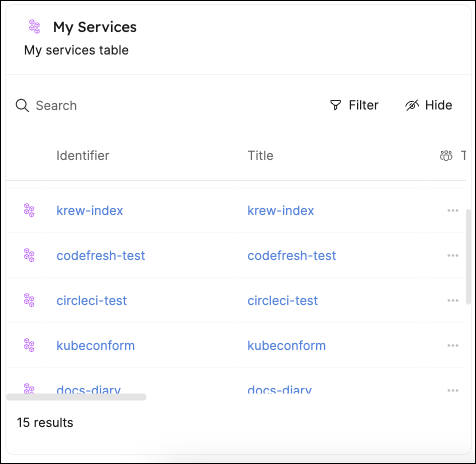
By default, a new table will display the following columns for each entity:
Title, Last update time, and Creation time.
Other properties will be hidden by default.
You can always customize the table to hide/show columns.
Switch to board view
- Click the
...button in the top-right corner of the table widget, then select Edit. - Set View mode to Board.
- Select a Group by property. Each distinct value of that property becomes a column.
- Click Save.
Save table view
When you customize a table by filtering, sorting, or hiding columns, the changes will be automatically saved for you in the browser's local storage. If you log out and log back in, the table will display the same view you left it in.
Any changes will display a Save view button in the top-right corner of the table, visible only to Admins.

Using this button, you can save the new view for all users in your organization.
The  button next to it reverts the table to the last saved view.
The ability to save a view for all users is available only for the Admin role.
Limitations
- Tables are limited to displaying up to 100,000 entities.
All UI table operations such as searching, filtering, grouping, etc. will be limited only to the entities that are displayed in the table.
If one of your blueprints has more than 100,000 entities, you can use the initial filters to narrow down the entities displayed in the table.
Board
Board is available on request. Contact your Port account team if it is not enabled for your organization.
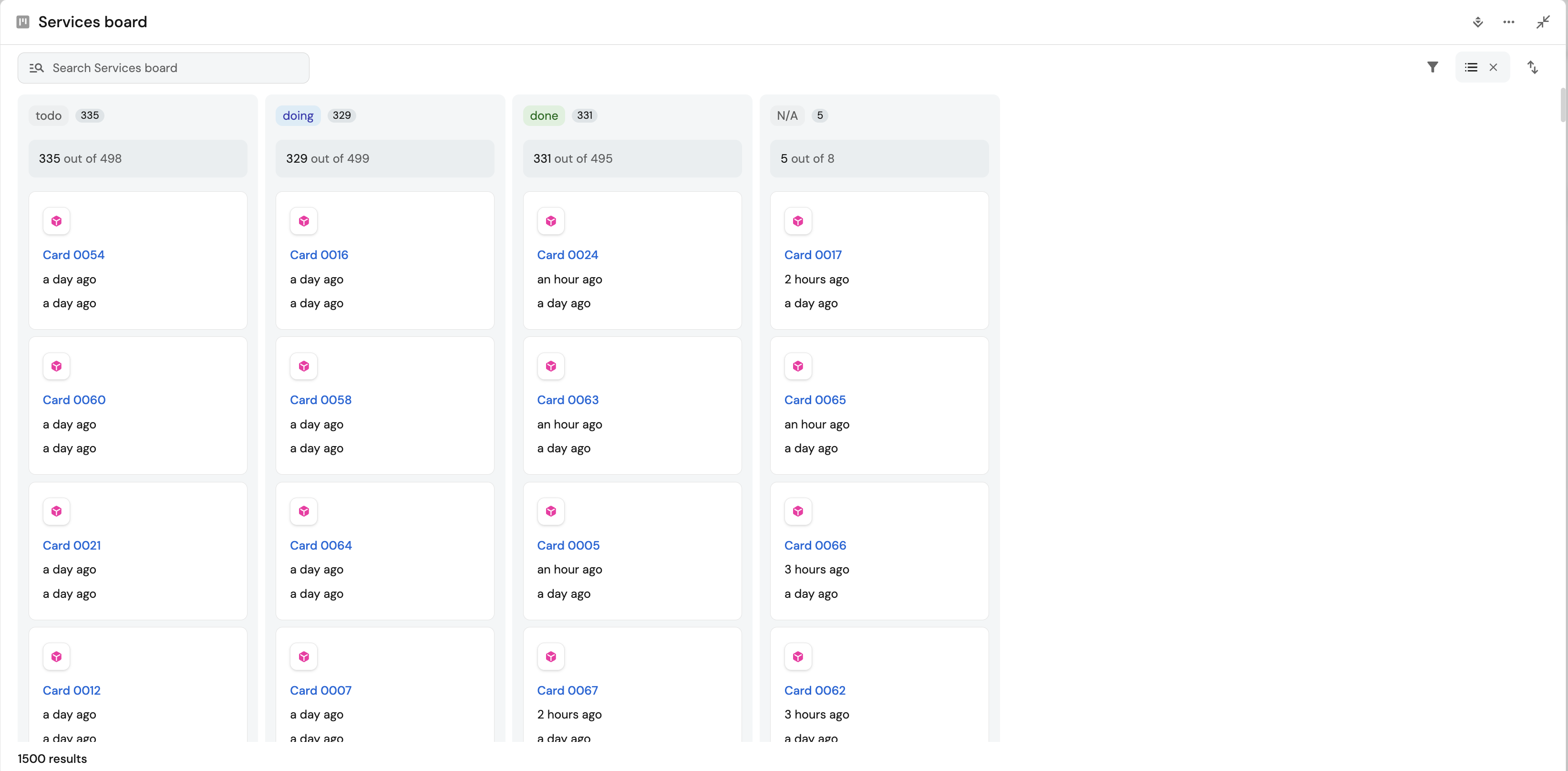
The board widget displays catalog entities as cards in columns, grouped by a single property you choose (for example priority or status). It is useful when you want a kanban-style view of work items, services, or incidents on a dashboard.
Create a board
-
On a dashboard or entity page, click + Widget.
-
Under the Data section, select Board.
-
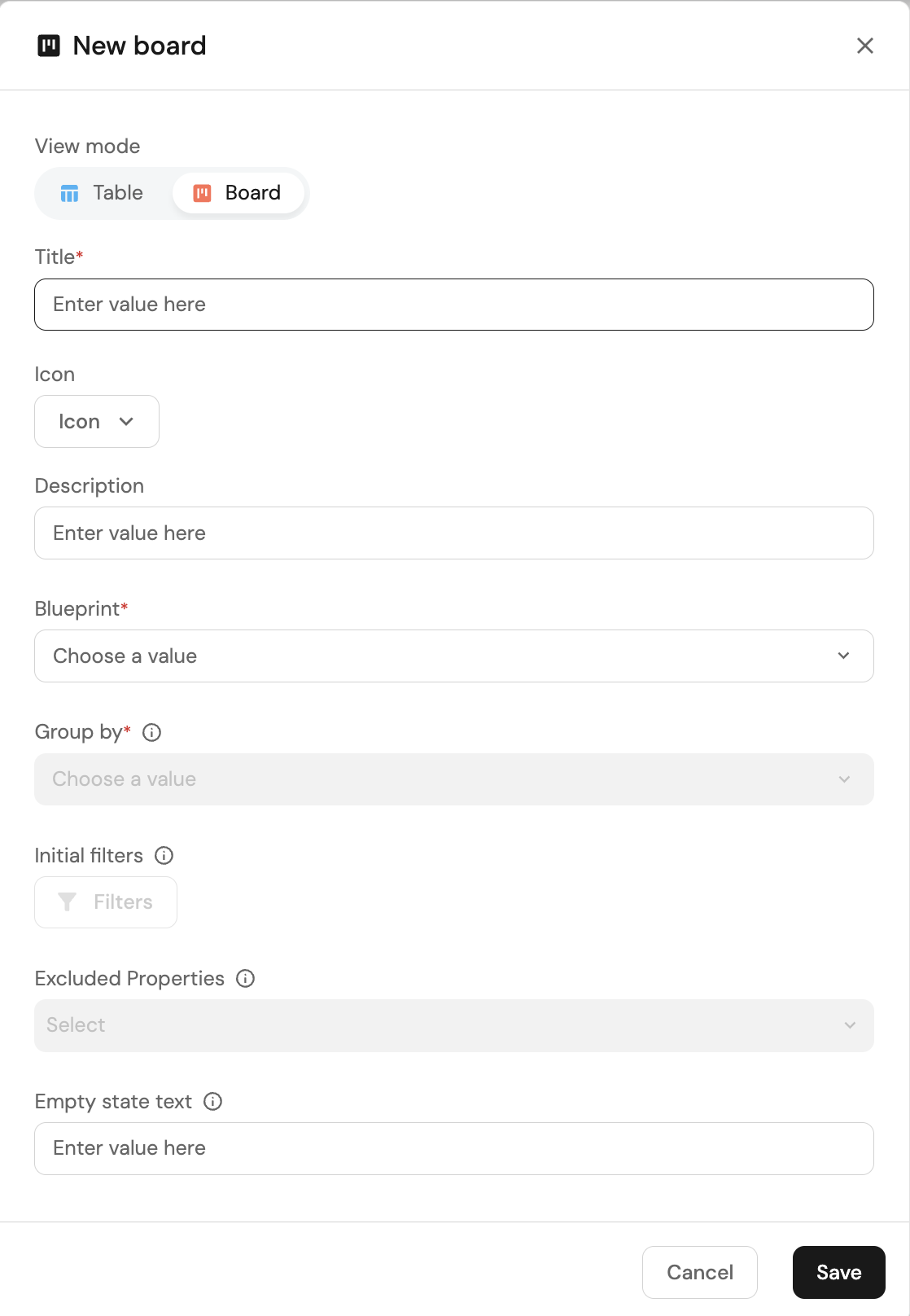
Keep View mode set to Board.
-
Enter a Title, and optionally an Icon and Description.
-
Select a Blueprint.
-
Select a Group by property. Each distinct value of that property becomes a column.
-
Optionally set initial filters, Excluded properties, and Empty state text.
-
Click Save.
Group by defines the board columns. Each value of the selected property becomes a column.
The board shows an empty column (N/A) for entities that have no value for the selected group by property. This column appears only when that property is not required and is editable in the blueprint.
Switch to table view
- Click the
...button in the top-right corner of the board widget, then select Edit. - Set View mode to Table.
- Click Save.
When switching to a table, you do not need to select a Group by property.
Board behavior
- Columns reflect the distinct values of the group by property.
- Each card shows the entity icon, title, and the properties you choose to show under Manage properties. By default the board shows a small set of properties so cards stay compact. Adding more properties increases card height.
- You can search, filter, and sort from the board toolbar, similar to tables. Changing the group by property is only available in the edit widget form.
- Boards support initial filters and excluded properties, same as tables.
- Dragging a card to another column updates the entity's Group by property value. See drag and drop for details.
- The board supports the expanded full-screen widget view.
- If the board has no entities matching its filters, it shows the widget empty state (you can customize this with custom empty state text).
- If the selected group by property was deleted from the blueprint, the board shows a No group by property selected message and prompts you to choose a property.
Drag and drop
Whether you can drag cards between columns depends on the group by property:
| Group by type | Drag cards between columns | Reorder columns |
|---|---|---|
| Enum or boolean | Yes | Yes |
| Other writable properties (for example free-text) | No (value is treated as read-only for drag) | Yes |
| Scorecard | No | No (columns keep the scorecard level order) |
Exact position of a card within a column is not persisted. Column membership is determined only by the property value.
Save board view
Members and admins can adjust the board on the fly (column order, filters, sort, visible properties, and search).
Only users with the Admin role can save those settings to the widget so they apply for everyone, using the same Save view flow as tables.
Limitations
- Board requires exactly one group by property.
- Group by uses the same supported property types and limitations as table group by (non-array properties).
- Manual card reordering within a column is currently not supported. Use the Sort button to control the order.
- Card position within a column is not saved between sessions.
- Changing the group by property resets column order.
Entity card
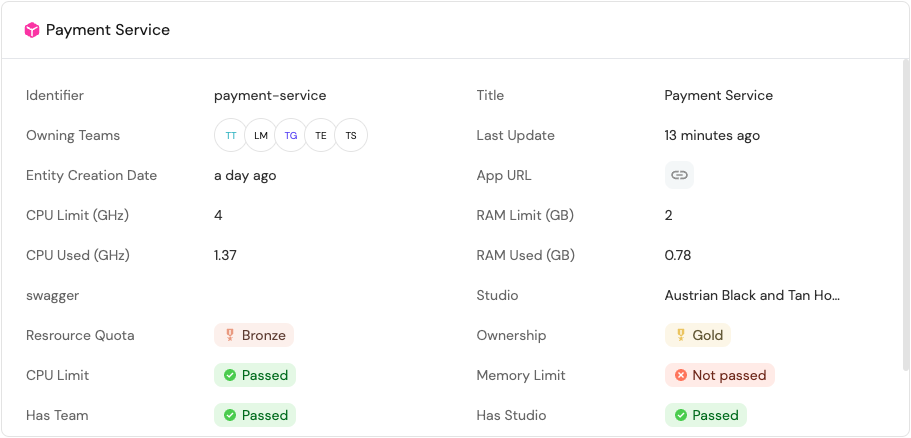
This widget displays information about a specific entity, including its properties and scorecard compliance.
Simply choose a blueprint and a specific entity, and the widget will display information similar to that found on the entity's page.
Custom empty state
The custom empty state field gives you the ability to define a custom message that appears when a widget has no data. This message can provide useful context to users such as setup instructions, relevant explanations, or helpful links.
The custom message supports Markdown formatting, so you can include links and other rich text elements. These will be rendered directly in the widget, making your guidance more actionable.
If you leave this field blank, the widget will display a default message: "No data for this widget".
The following widget types support the custom empty state message:
Initial filters
Initial filters limit which entities are included in a widget when it loads, so the visualization stays focused and performant.
Pie charts, number charts, tables, and boards support filters, which allow you to include or exclude specific data from them. The filters are based on Port's Search Rules, and are set when creating the widget:
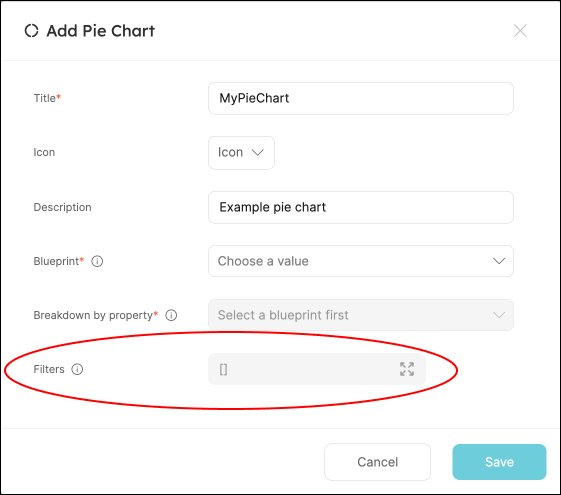
If you want to add initial filters, you can do so in the UI, or in the following manner:
Filter rules example (click to expand)
{
  "combinator": "and",
  "rules": [
    {
      "combinator": "or",
      "rules": [
        {
          "operator": "=",
          "value": "value1",
          "property": "property1"
        },
        {
          "operator": "=",
          "value": "value2",
          "property": "property2"
        }
      ]
    }
  ]
}
Filter example: only deployment entities from the last week
Let's assume we have a blueprint that is called Service which is related to another blueprint called Deployment, and we want to create visualizations on top of the last week's deployments of this service.
To achieve this desired state, we can go into one of the Service's profile pages and create a new visualization. After selecting the Deployment blueprint in the dropdown, we can add the following filter to the Filters array:
[
  {
    "property": "$createdAt",
    "operator": "between",
    "value": {
      "preset": "lastWeek"
    }
  }
]
Dynamic filters
You can use dynamic properties of the logged-in user when filtering a widget.