Slack Application
Port's Slack app brings your developer portal experience into your team's daily communication flow — allowing you to interact with Port directly from Slack and receive real-time notifications from Port right where your team collaborates. It uses the Port AI API to answer questions about your software catalog, similar to the Port AI Assistant. Unlike a Slack incoming webhook, which is tied to a single fixed channel, the Slack app's bot token lets a single workflow or automation route messages to different channels dynamically.
Use cases
Manage notifications
The Slack app allows you to send messages to any Slack channel directly from Port, without the need to create a separate webhook for each channel.
This can be used to communicate important notifications to people in your organization, such as:
- A new PagerDuty incident has been created.
- A new GitHub issue has been created.
- A GitLab merge request has been merged.
- A workflow input node is waiting for a responder's approval or decision.
Interact with AI capabilities
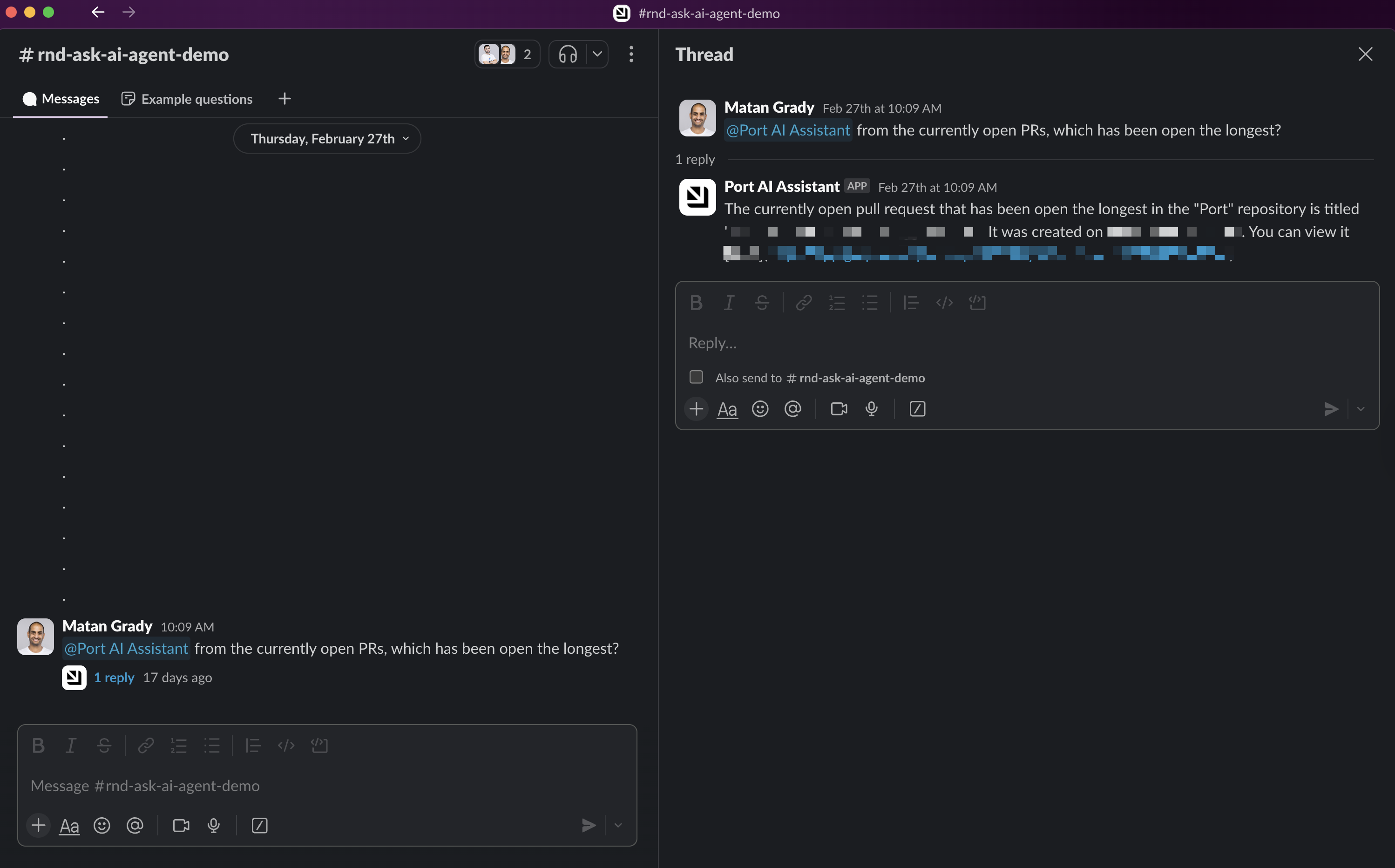
Another powerful use case of the Slack app is to interact with Port's AI capabilities directly from Slack. The Slack app uses the Port AI API (similar to the Port AI Assistant) to provide intelligent answers about your software catalog.
This can be used to get quick answers to questions about your resources, such as:
- Which services had an incident in the last 30 days?
- How many open Jira tickets are there for the service 'x'?
- What is the status of the deployment 'y'?
Prerequisites
- A Port account with admin permissions.
Installation
To install the Slack app, follow these steps:
-
Click your profile picture and select Settings.
-
Open the Slack tab.
-
Click on the Add to Slack button.
-
Select the workspace where you'd like to install the app, then click Allow.
-
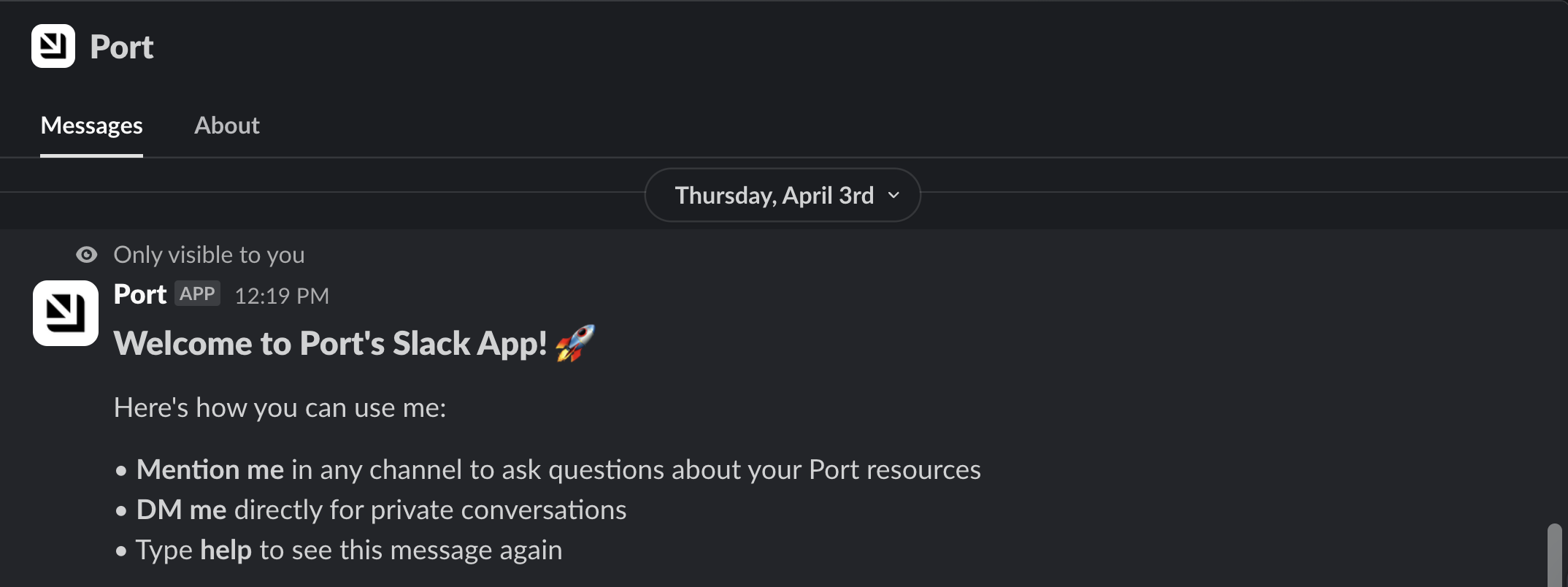
Once installed, you will receive a Slack message from Port's bot with a summary of the app's capabilities:
Display channel names in catalog
Once you install the Port Slack app, Port automatically enriches any Slack channel URL in your catalog with the actual channel name. This makes it easier to understand context, ownership, and communication paths at a glance.
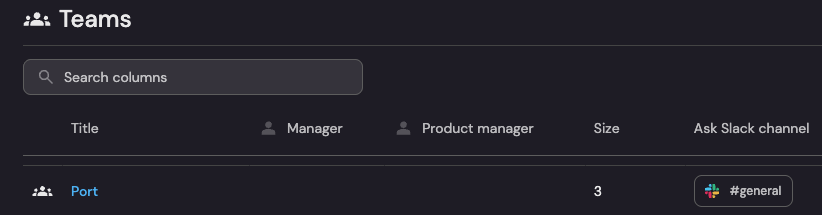
The feature works automatically with no additional configuration required. Install the Slack app from Settings: click your profile picture, select Settings, then open Slack. Channel names will appear wherever Slack URLs are present in your catalog.
Send notifications from Port
Slack app bot token
Once the app is installed into the Slack workspace, a new system secret will be created in your Port organization named __SLACK_APP_BOT_TOKEN_<team_id>, where <team_id> is the ID of the Slack workspace (e.g. T0206G5RTJQ).
You can copy it and use it in actions & automations to send messages to a specific Slack channel.
To view your system secrets, open the Credentials modal and click on the Secrets tab.
Usage example
The following snippet defines an automation that sends a Slack message to a specific channel when a new PagerDuty incident is created in Port, using the Slack app's bot token:
{
  "identifier": "pagerduty_incident_to_slack",
  "title": "PagerDuty incident to slack",
  "icon": "pagerduty",
  "description": "Sends a Slack message on new incident",
  "trigger": {
    "type": "automation",
    "event": {
      "type": "ENTITY_CREATED",
      "blueprintIdentifier": "pagerdutyIncident"
    }
  },
  "invocationMethod": {
    "type": "WEBHOOK",
    "url": "https://slack.com/api/chat.postMessage",
    "synchronized": true,
    "method": "POST",
    "headers": {
      "Content-Type": "application/json; charset=utf-8",
      "Authorization": "Bearer {{ .secrets.\"__SLACK_APP_BOT_TOKEN_T123\" }}"
    },
    "body": {
      "blocks": [
        {
          "type": "markdown",
          "text": "There is a new incident!\nTitle: {{ .event.diff.after.title }}\nOwner: {{ .event.diff.after.properties.assignees }}"
        }
      ],
      "channel": "C06BUh123"
    }
  },
  "publish": true
}
The example above posts to a specific channel (C06BUh123). To route each notification to a different channel dynamically, replace the channel value with a JQ expression that resolves per event, for example {{ .event.diff.after.properties.slack_channel_id }}.
Customize messages
You can customize messages with blocks following the Slack formatting guidelines.
Respond to workflow inputs from Slack
When a workflow input node includes a Slack notification target, Port sends responders a direct message with the node details. When the form is supported in Slack, responders can fill in fields and click submit buttons without leaving Slack.
If the form uses dynamic values that cannot be rendered in Slack (for example, unresolved JQ on enum, visible, or default fields), the message links to the workflow run in Port instead. If a submission fails validation, Port shows the error message in Slack so responders can correct their input.
To enable Slack notifications on an input node, add { "target": "slack" } to the node's notifications array. Responders must have connected their Slack account to Port before they can receive or respond to these messages.
Interact with Port from Slack
New user authentication flow
When a new team member first tries to use the Slack app, a private message with a "Connect to Port" button will be sent to them:
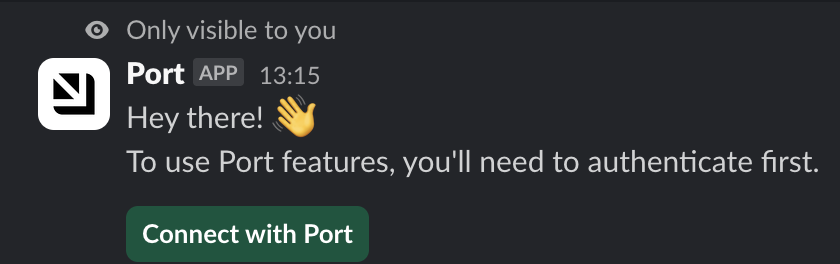
Once the user is authenticated, they can:
- Mention
@Portin any channel it's invited to. - Start interacting with Port directly from Slack.
Slash commands
The Slack app responds to the /port slash command with these options:
/port(or/port help) - Shows general help and available actions.
To ask the app a question, simply mention @Port and ask away, for example:
@Port is there an active incident for the service 'x'?
Agent experience in threads and DMs
When you mention @Port in a thread or DM:
- Thinking status: Slack displays a native "is thinking…" indicator while the agent processes your request and prepares a reply.
- Interactive questions: If the agent requires more context, it surfaces an interactive form directly in the thread- featuring radio buttons, checkboxes, and a free-text Other option.
- Conversation continuity: Messages within the same thread or DM automatically maintain a single, continuous AI conversation session, preserving all prior context for follow-up questions.
Use the Slack AI assistant interface
On paid Slack workspaces, you can also interact with Port through Slack's AI assistant interface, which provides enhanced features:
-
Chat history for previous interactions with Port is available when using direct messages with the app.

-
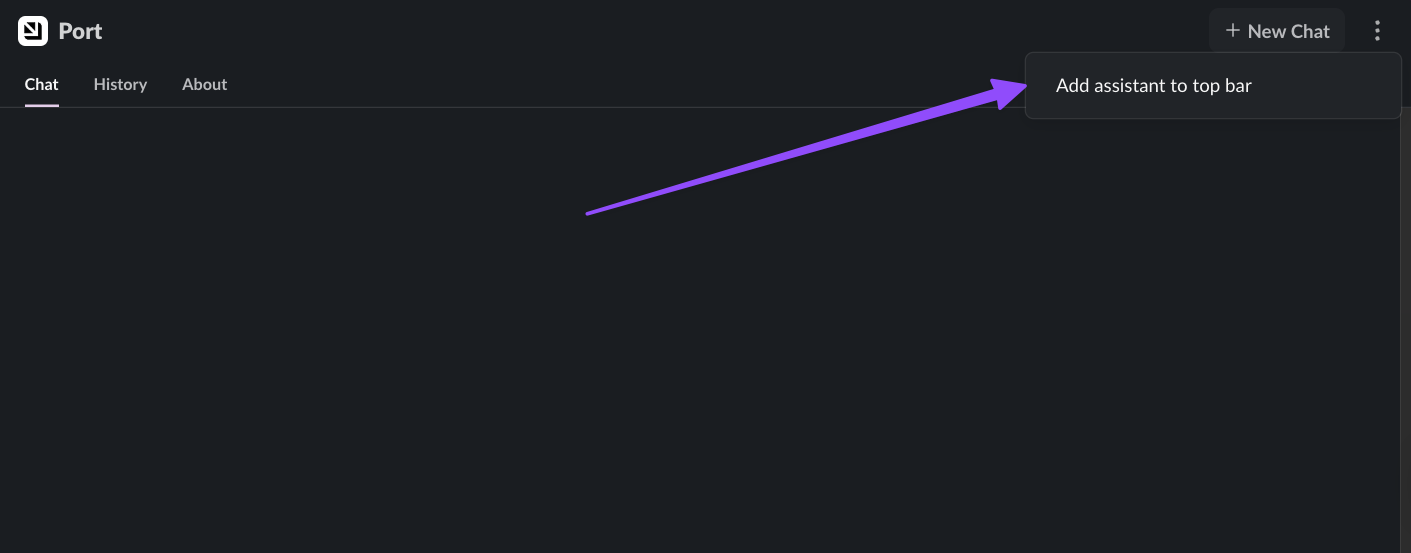
You can start a new conversation easily using the "New Chat" button in the top-right corner.
-
For quicker access, add Port to your Slack top bar by clicking the three dots menu and selecting "Add assistant to top bar".
-
Once added, you can access Port from anywhere in Slack through a side panel, without leaving your current conversation.
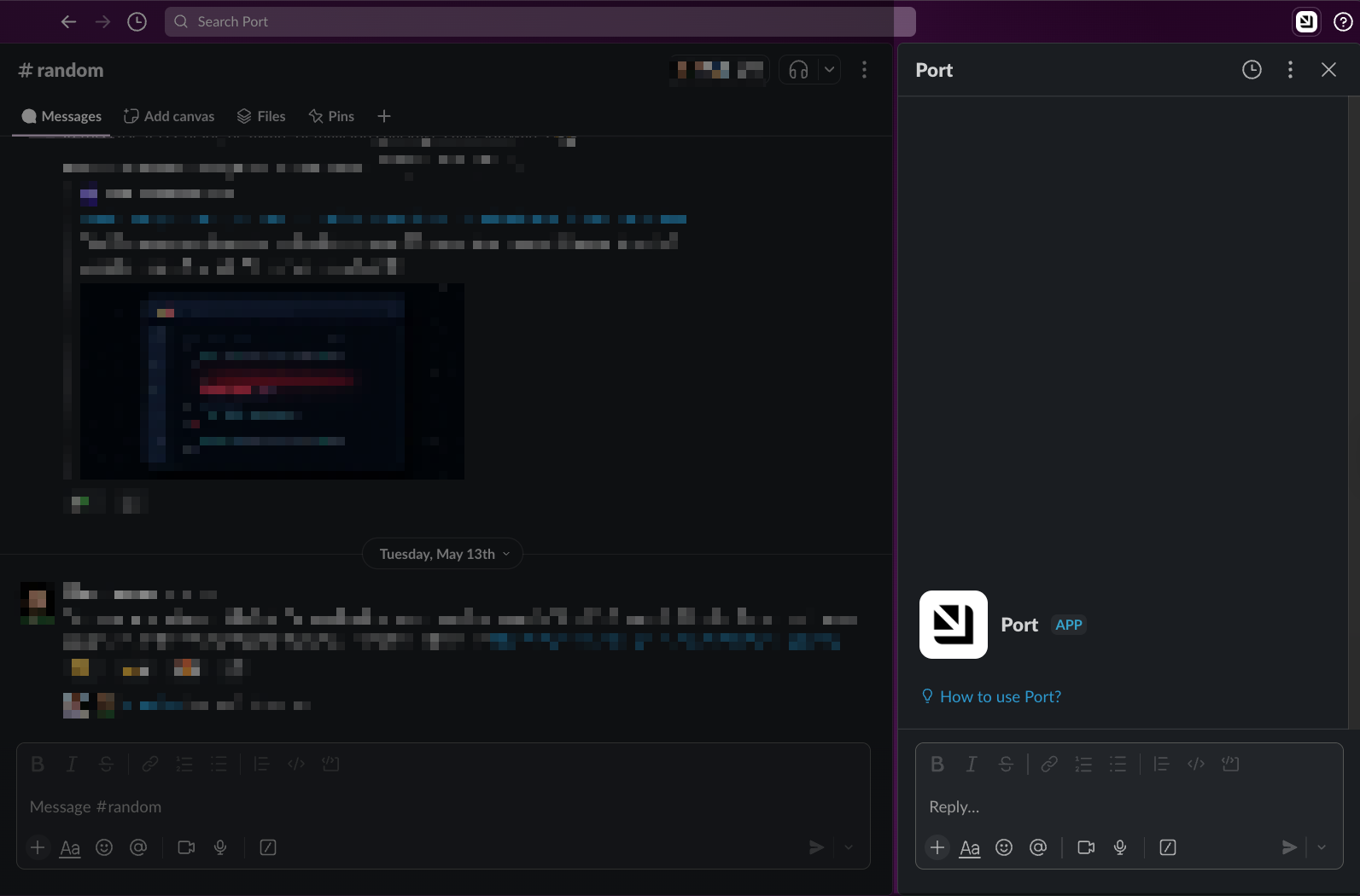
This provides a more seamless way to interact with your Port AI capabilities while working in Slack.
Security and permissions
Because each user connects their Slack identity to their Port account via OAuth, all RBAC settings are preserved across every Slack app interaction. Users can only query catalog data and trigger self-service actions they have permission to use in Port — the same controls apply whether they're working in the Port UI or from Slack.
For comprehensive security information, see AI Security and Data Controls.
Advanced configuration
Renaming the Slack Bot
You can rename the Port Slack bot in your workspace. This can be useful if you want the bot to have a name that is more recognizable to your organization, instead of the default "Port".
Follow these steps to rename the bot:
-
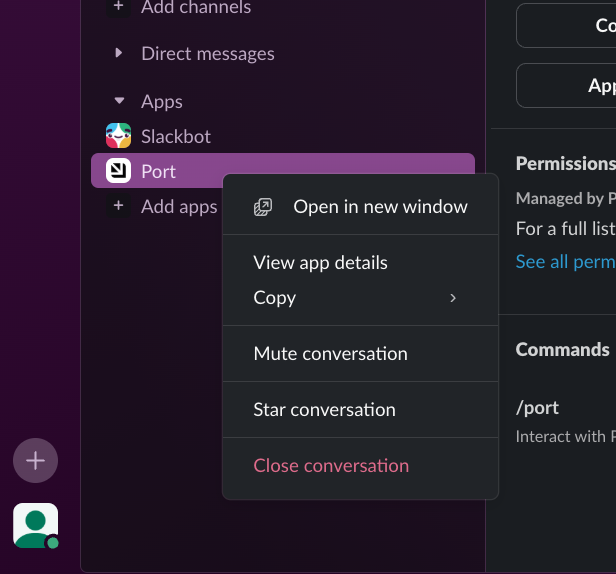
In your Slack workspace, find the Port app. Right-click on it and select "View app details".
-
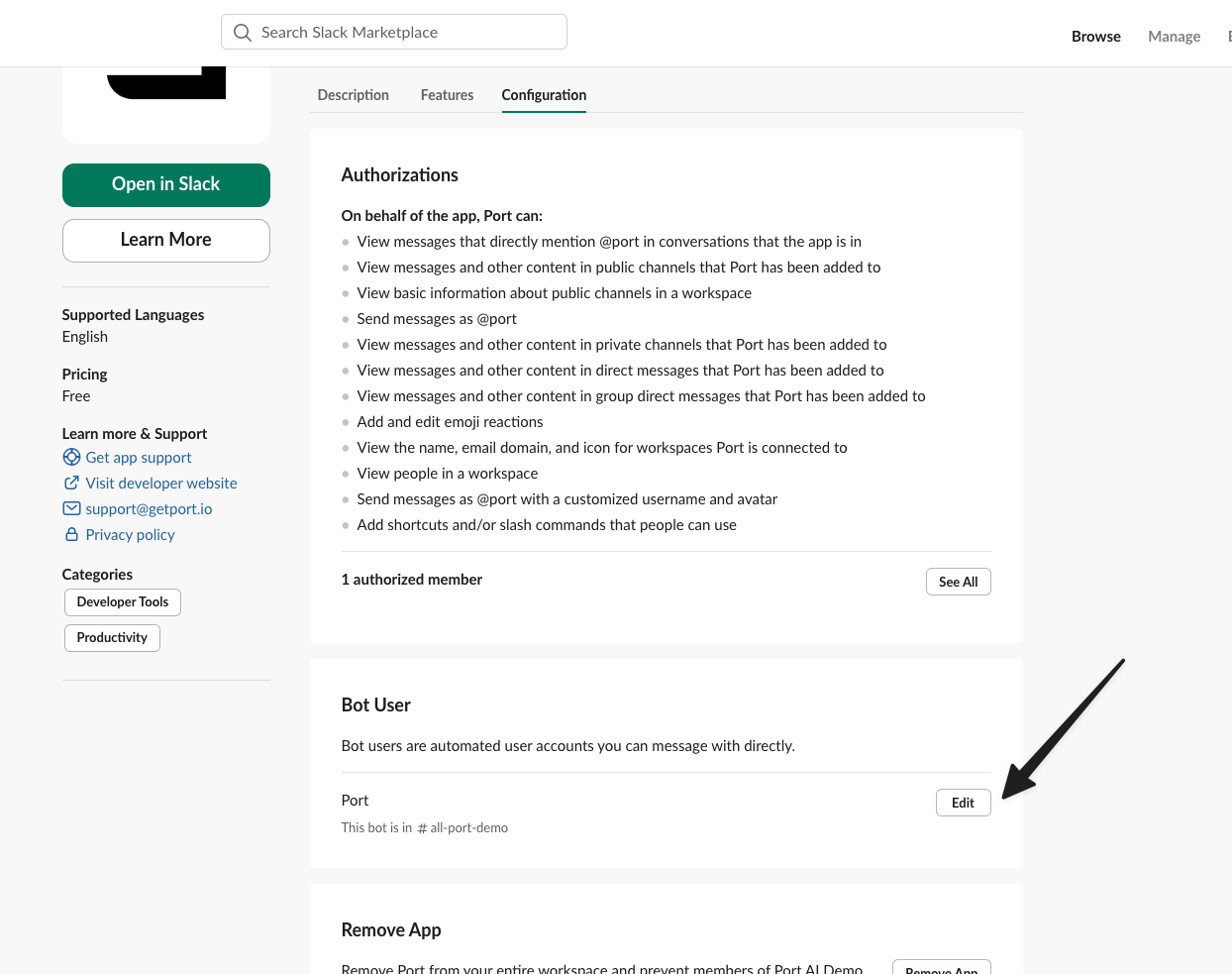
In the app details view, click on the "Configuration" tab. This will open a new page in your web browser. Scroll down to the "Bot User" section.
-
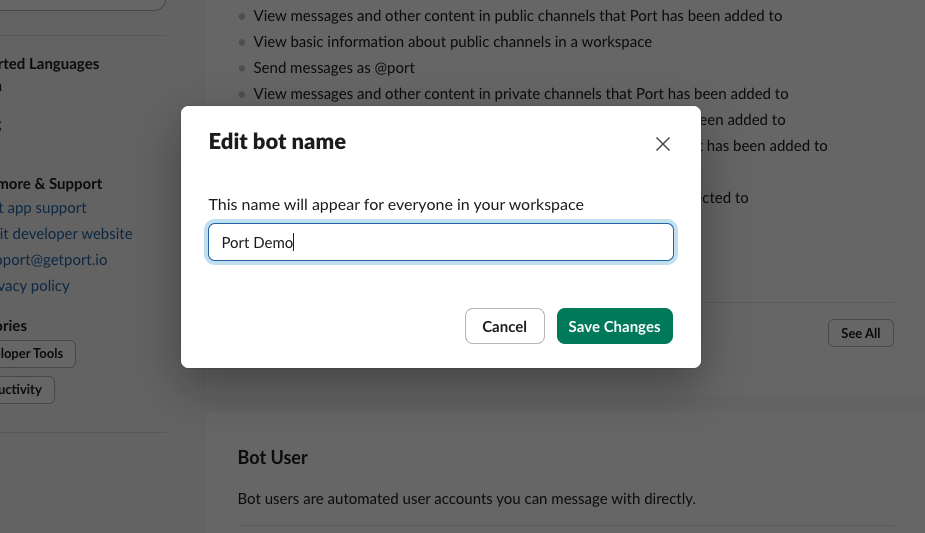
Click on the "Edit" button next to the bot user. In the modal that appears, enter the new desired name for your bot and click "Save Changes". The change will apply immediately.
Limitations
-
The Slack app can only operate in channels it's invited to and in private DMs with the bot.
-
Users must authenticate individually.
-
You can install only one Slack app, related to one Port organization, in each Slack workspace.
-
When sending a message from Port to Slack, up to 50
blockscan be used, and eachtextvalue can be up to 3000 characters long. -
The Slack app routes all requests to the Port AI general assistant. It does not support invoking specific AI agents configured in your organization. To interact with a specific agent, use the AI Agent widget in the Port UI.