Visualize and manage your ServiceNow incidents
This guide demonstrates how to bring your ServiceNow incident management experience into Port with workflows. You will learn how to:
- Ingest ServiceNow incident data into Port's context lake using Port's ServiceNow integration.
- Set up workflows to create, resolve, and delete incidents.
- Build dashboards in Port to monitor and act on incidents.
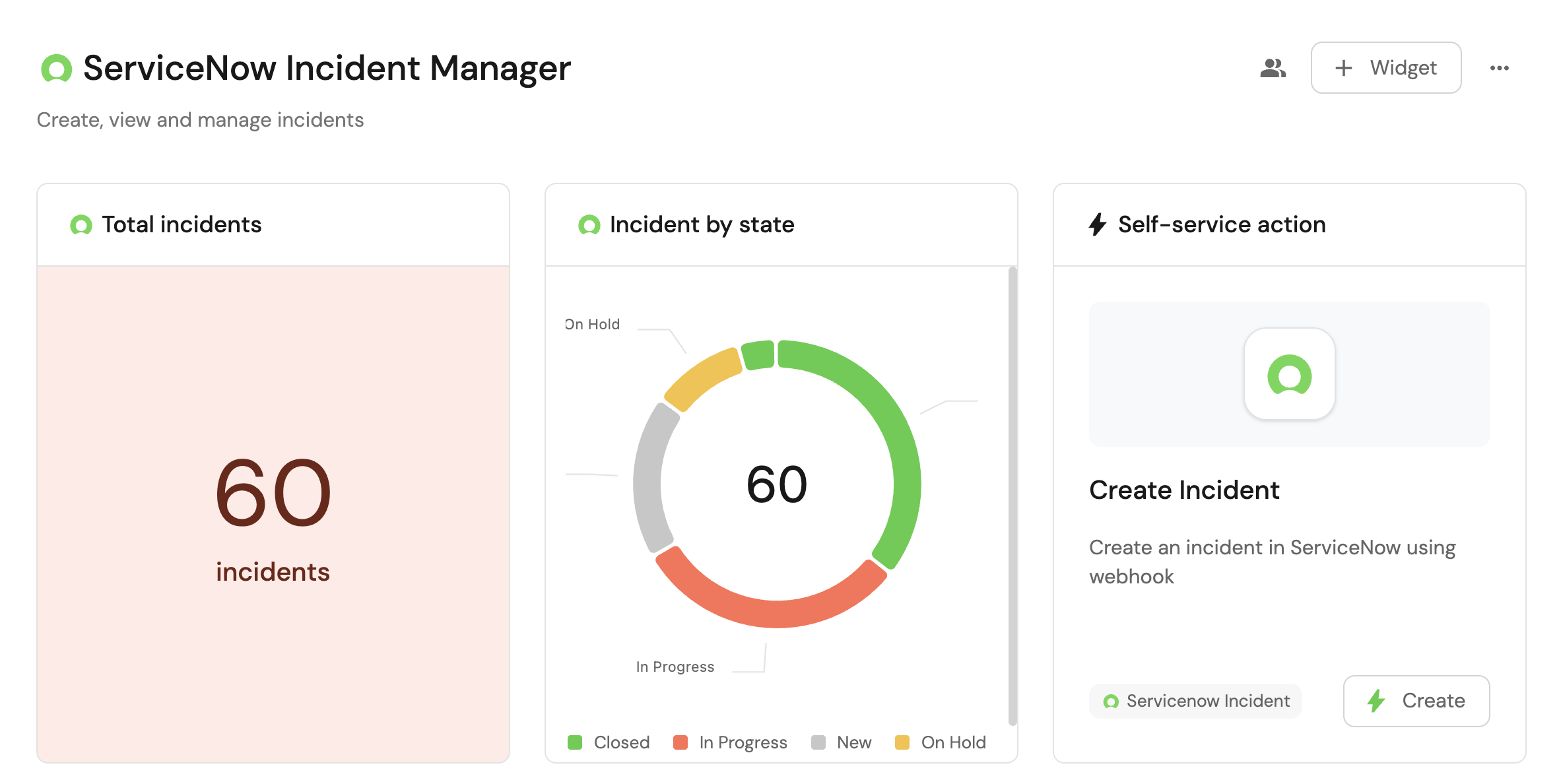
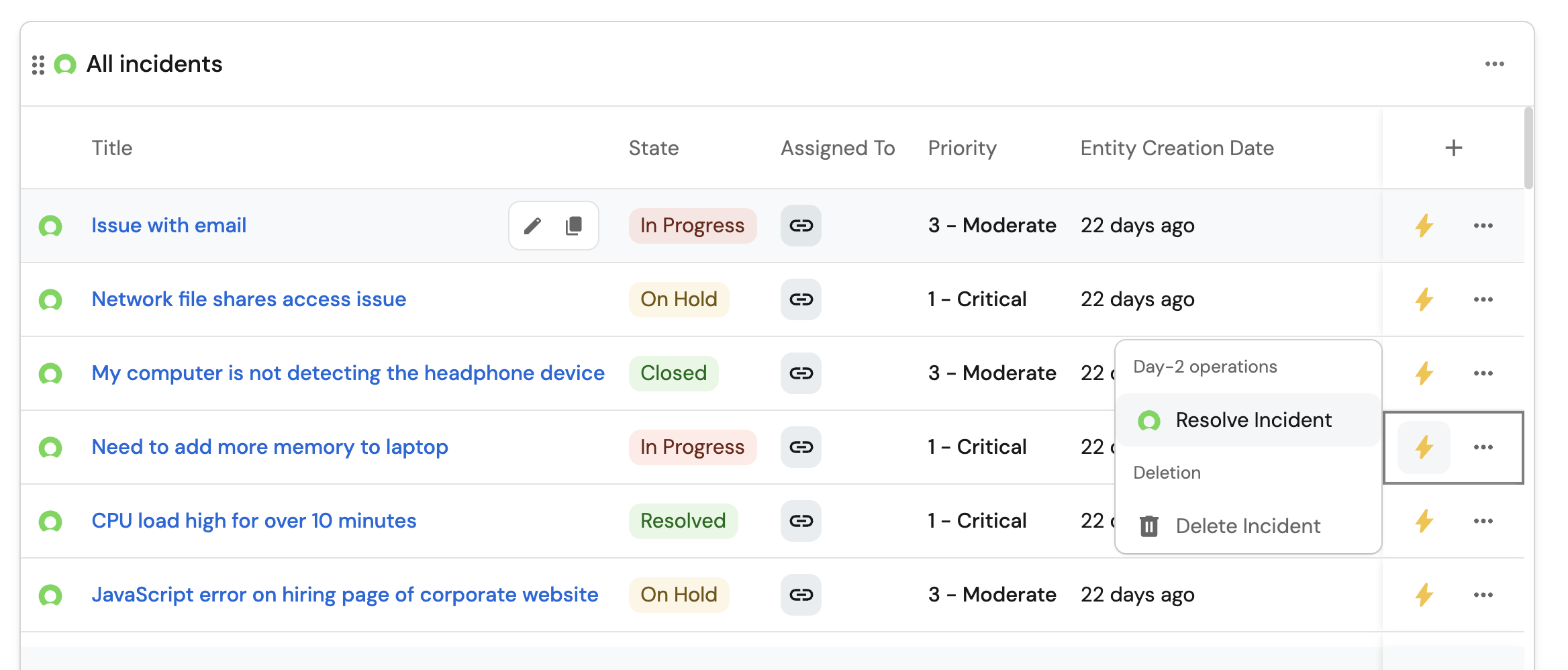
Common use cases
- Monitor the status and health of all ServiceNow incidents from a centralized dashboard.
- Empower platform teams to automate day-2 operations with governed workflows.
Prerequisites
This guide assumes the following:
- You have a Port account and have completed the onboarding process.
- Port's ServiceNow integration is installed in your account.
- ServiceNow instance URL, username, and password with permissions to manage incidents.
Set up Port secrets
If you have already installed Port's ServiceNow integration, these secrets should already exist in Port. To view your existing secrets:
- Open the Credentials modal.
- Click on the
Secretstab.
To add a secret to Port:
-
Open the Credentials modal.
-
Click on the
Secretstab. -
Click on the Secrets tab.
-
Click on + Secret and add the following secrets:
-
SERVICENOW_INSTANCE_URL- The ServiceNow instance URL. For example,https://example-id.service-now.com. -
SERVICENOW_API_TOKEN- A base64 encoded string of your ServiceNow credentials generated with:echo -n 'your-instance-username:your-instance-password' | base64
Use single quotes so shell characters in the password (such as
$) are not expanded. -
Set up the workflows
We will create three workflows that call the ServiceNow Table API:
- Create a new incident.
- Resolve an existing incident.
- Delete an incident.
Each workflow uses a self-service trigger and webhook nodes. Resolve and delete look up the ServiceNow sys_id by incident number first, because Port entities from the ServiceNow integration use the incident number as the identifier while the Table API requires sys_id.
To create each workflow:
- Go to the workflows page in Port.
- Click + Workflow.
- Fill out the Create new workflow form. For Name, enter the workflow name from the matching section below, then click Confirm.
- Click the
{...}button to open the JSON editor, paste the workflow JSON from the matching section below, and click Apply changes.
Create a new incident
Create a workflow named Create Incident with the JSON below.
Create incident workflow (click to expand)
{
  "identifier": "create_snow_incident",
  "title": "Create Incident",
  "icon": "Servicenow",
  "description": "Create an incident in ServiceNow using a webhook",
  "nodes": [
    {
      "identifier": "trigger",
      "title": "Create Incident",
      "config": {
        "type": "SELF_SERVE_TRIGGER",
        "userInputs": {
          "properties": {
            "short_description": {
              "icon": "DefaultProperty",
              "title": "Short Description",
              "description": "Description of the incident",
              "type": "string"
            },
            "assigned_to": {
              "icon": "DefaultProperty",
              "title": "Assigned To",
              "description": "User this incident is assigned to",
              "type": "string"
            },
            "urgency": {
              "title": "Urgency",
              "icon": "DefaultProperty",
              "type": "string",
              "default": "2",
              "enum": ["1", "2", "3"],
              "enumColors": {
                "1": "red",
                "2": "yellow",
                "3": "green"
              }
            },
            "sysparm_display_value": {
              "title": "Sysparm Display Value",
              "description": "Determines the type of data returned",
              "icon": "DefaultProperty",
              "type": "string",
              "default": "all",
              "enum": ["true", "false", "all"]
            },
            "sysparm_input_display_value": {
              "title": "Sysparm Input Display Value",
              "description": "Flag that indicates whether to set field values using the display value or the actual value",
              "type": "boolean",
              "default": false
            }
          },
          "required": ["short_description", "assigned_to"],
          "order": ["short_description", "assigned_to", "urgency", "sysparm_display_value", "sysparm_input_display_value"]
        }
      }
    },
    {
      "identifier": "create_incident",
      "title": "Create incident in ServiceNow",
      "config": {
        "type": "WEBHOOK",
        "url": "{{ .secrets.SERVICENOW_INSTANCE_URL }}/api/now/table/incident",
        "method": "POST",
        "synchronized": true,
        "headers": {
          "Content-Type": "application/json",
          "Accept": "application/json",
          "Authorization": "Basic {{ .secrets.SERVICENOW_API_TOKEN }}"
        },
        "body": {
          "short_description": "{{ .outputs.trigger.short_description }}",
          "assigned_to": "{{ .outputs.trigger.assigned_to }}",
          "urgency": "{{ .outputs.trigger.urgency }}",
          "sysparm_display_value": "{{ .outputs.trigger.sysparm_display_value }}",
          "sysparm_input_display_value": "{{ .outputs.trigger.sysparm_input_display_value }}"
        }
      }
    }
  ],
  "connections": [
    {
      "sourceIdentifier": "trigger",
      "targetIdentifier": "create_incident"
    }
  ]
}
After you create an incident, the ServiceNow integration syncs it back into Port as a servicenowIncident entity.
Resolve an incident
Create a workflow named Resolve Incident with the JSON below.
Resolve incident workflow (click to expand)
{
  "identifier": "resolve_snow_incident",
  "title": "Resolve Incident",
  "icon": "Servicenow",
  "description": "Resolve an incident in the ServiceNow catalog",
  "nodes": [
    {
      "identifier": "trigger",
      "title": "Resolve Incident",
      "config": {
        "type": "SELF_SERVE_TRIGGER",
        "userInputs": {
          "properties": {
            "incident": {
              "icon": "Service",
              "type": "string",
              "format": "entity",
              "blueprint": "servicenowIncident",
              "title": "Incident",
              "description": "The ServiceNow incident to resolve"
            },
            "resolution_code": {
              "type": "string",
              "title": "Resolution Code",
              "default": "Solution provided",
              "enum": [
                "Duplicate",
                "Known error",
                "No resolution provided",
                "Resolved by caller",
                "Resolved by change",
                "Resolved by problem",
                "Resolved by request",
                "Solution provided",
                "Workaround provided",
                "User error"
              ],
              "enumColors": {
                "Duplicate": "lightGray",
                "Known error": "lightGray",
                "No resolution provided": "lightGray",
                "Resolved by caller": "lightGray",
                "Resolved by change": "lightGray",
                "Resolved by problem": "lightGray",
                "Resolved by request": "lightGray",
                "Solution provided": "lightGray",
                "Workaround provided": "lightGray",
                "User error": "lightGray"
              }
            },
            "resolution_note": {
              "type": "string",
              "title": "Resolution Note"
            }
          },
          "required": ["incident", "resolution_code", "resolution_note"],
          "order": ["incident", "resolution_code", "resolution_note"]
        }
      }
    },
    {
      "identifier": "lookup_incident",
      "title": "Lookup ServiceNow sys_id",
      "config": {
        "type": "WEBHOOK",
        "url": "{{ .secrets.SERVICENOW_INSTANCE_URL }}/api/now/table/incident?sysparm_query=number%3D{{ .outputs.trigger.incident }}&sysparm_fields=sys_id&sysparm_limit=1",
        "method": "GET",
        "synchronized": true,
        "headers": {
          "Accept": "application/json",
          "Authorization": "Basic {{ .secrets.SERVICENOW_API_TOKEN }}"
        }
      },
      "variables": {
        "sysId": "{{ .result.response.data.result[0].sys_id }}"
      }
    },
    {
      "identifier": "resolve_incident",
      "title": "Resolve incident in ServiceNow",
      "config": {
        "type": "WEBHOOK",
        "url": "{{ .secrets.SERVICENOW_INSTANCE_URL }}/api/now/table/incident/{{ .outputs.lookup_incident.sysId }}",
        "method": "PATCH",
        "synchronized": true,
        "headers": {
          "Content-Type": "application/json",
          "Accept": "application/json",
          "Authorization": "Basic {{ .secrets.SERVICENOW_API_TOKEN }}"
        },
        "body": {
          "state": "6",
          "close_code": "{{ .outputs.trigger.resolution_code }}",
          "close_notes": "{{ .outputs.trigger.resolution_note }}"
        }
      }
    }
  ],
  "connections": [
    {
      "sourceIdentifier": "trigger",
      "targetIdentifier": "lookup_incident"
    },
    {
      "sourceIdentifier": "lookup_incident",
      "targetIdentifier": "resolve_incident"
    }
  ]
}
Delete an incident
Create a workflow named Delete Incident with the JSON below.
Delete incident workflow (click to expand)
{
  "identifier": "delete_snow_incident",
  "title": "Delete Incident",
  "icon": "Servicenow",
  "description": "Deletes an incident from ServiceNow and removes it from Port",
  "nodes": [
    {
      "identifier": "trigger",
      "title": "Delete Incident",
      "config": {
        "type": "SELF_SERVE_TRIGGER",
        "userInputs": {
          "properties": {
            "incident": {
              "icon": "Service",
              "type": "string",
              "format": "entity",
              "blueprint": "servicenowIncident",
              "title": "Incident",
              "description": "The ServiceNow incident to delete"
            }
          },
          "required": ["incident"],
          "order": ["incident"]
        }
      }
    },
    {
      "identifier": "lookup_incident",
      "title": "Lookup ServiceNow sys_id",
      "config": {
        "type": "WEBHOOK",
        "url": "{{ .secrets.SERVICENOW_INSTANCE_URL }}/api/now/table/incident?sysparm_query=number%3D{{ .outputs.trigger.incident }}&sysparm_fields=sys_id&sysparm_limit=1",
        "method": "GET",
        "synchronized": true,
        "headers": {
          "Accept": "application/json",
          "Authorization": "Basic {{ .secrets.SERVICENOW_API_TOKEN }}"
        }
      },
      "variables": {
        "sysId": "{{ .result.response.data.result[0].sys_id }}"
      }
    },
    {
      "identifier": "delete_in_servicenow",
      "title": "Delete incident in ServiceNow",
      "config": {
        "type": "WEBHOOK",
        "url": "{{ .secrets.SERVICENOW_INSTANCE_URL }}/api/now/table/incident/{{ .outputs.lookup_incident.sysId }}",
        "method": "DELETE",
        "synchronized": true,
        "headers": {
          "Content-Type": "application/json",
          "Accept": "application/json",
          "Authorization": "Basic {{ .secrets.SERVICENOW_API_TOKEN }}"
        }
      }
    },
    {
      "identifier": "delete_in_port",
      "title": "Remove incident from Port",
      "config": {
        "type": "WEBHOOK",
        "url": "https://api.port.io/v1/blueprints/servicenowIncident/entities/{{ .outputs.trigger.incident }}",
        "method": "DELETE",
        "synchronized": true
      }
    }
  ],
  "connections": [
    {
      "sourceIdentifier": "trigger",
      "targetIdentifier": "lookup_incident"
    },
    {
      "sourceIdentifier": "lookup_incident",
      "targetIdentifier": "delete_in_servicenow"
    },
    {
      "sourceIdentifier": "delete_in_servicenow",
      "targetIdentifier": "delete_in_port"
    }
  ]
}
If your Port organization is hosted in the US, replace https://api.port.io with https://api.us.port.io in the remove-from-Port node. Using the wrong region returns 401 no token provided because automatic Port API authentication only applies to your organization's API host.
Visualize metrics
With incidents ingested and workflows configured, the next step is building a dashboard to monitor ServiceNow data directly in Port. We can visualize all incidents by state, priority, or severity using customizable widgets. In addition, we can trigger remediation workflows right from your dashboard.
Create a dashboard
- Navigate to your context lake.
- Click on the + button in the left sidebar.
- Select New dashboard.
- Name the dashboard ServiceNow Incident Management.
- Input
Create, view and manage your incidentsunder Description. - Select the Servicenow icon.
- Click Create.
We now have a blank dashboard where we can start adding widgets to visualize insights from our ServiceNow incidents.
Add widgets
In the new dashboard, create the following widgets:
Total incidents created in the last 3 months (click to expand)
-
Click + Widget and select Number Chart.
-
Title:
Total incidents(add the Servicenow icon). -
Select
Count entitiesChart type and choose ServiceNow Incident as the Blueprint. -
Select
countfor the Function. -
Add this JSON to the Initial filters editor to filter incidents created in the last 3 months:
[{"combinator":"and","rules":[{"property":"createdOn","operator":"between","value":{"preset":"last3Months"}}]}] -
Select
customas the Unit and inputincidentsas the Custom unit.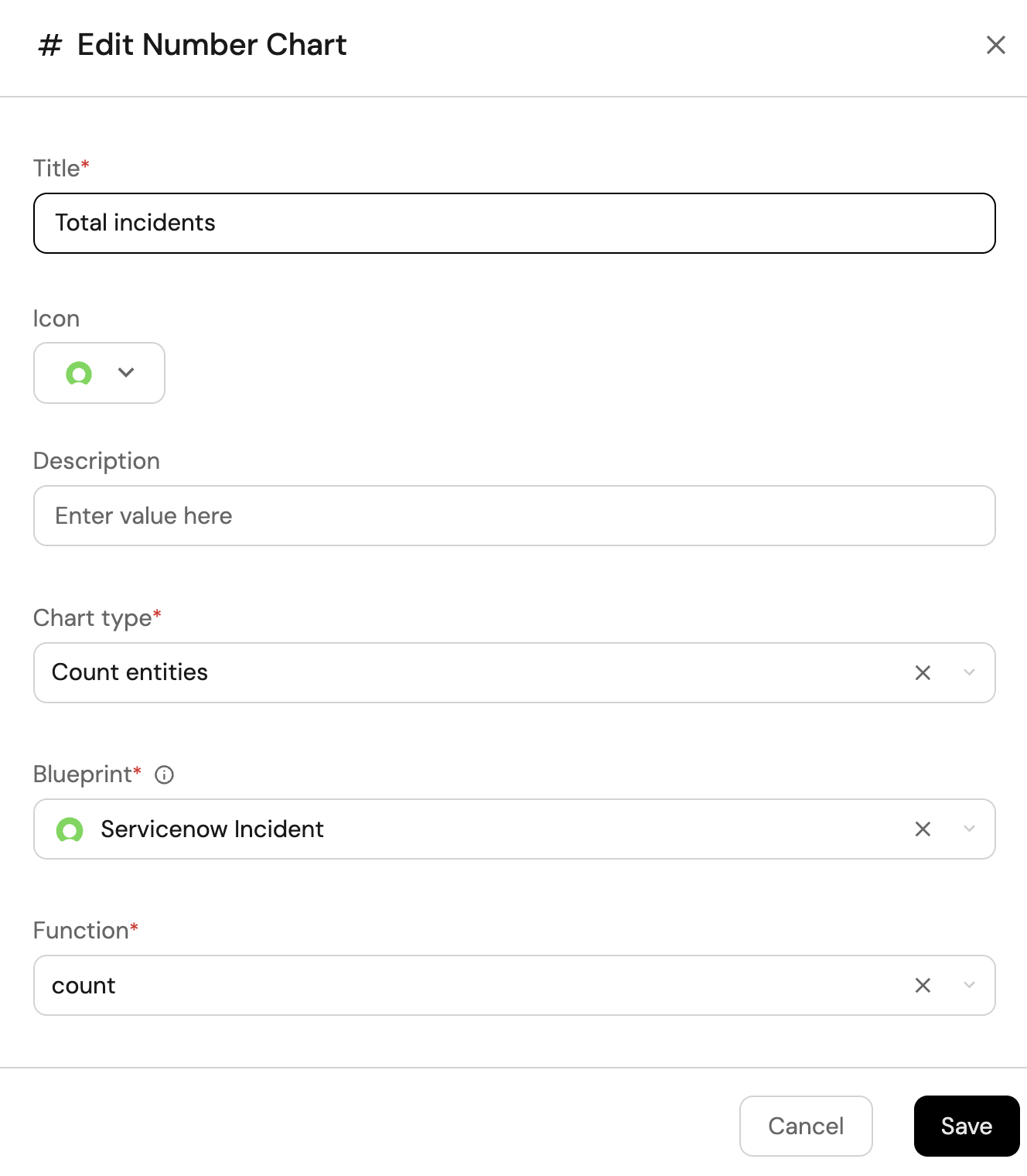
-
Click Save.
Incident by state (click to expand)
-
Click + Widget and select Pie chart.
-
Title:
Incident by state(add the Servicenow icon). -
Choose the ServiceNow Incident blueprint.
-
Under
Breakdown by property, select the State property.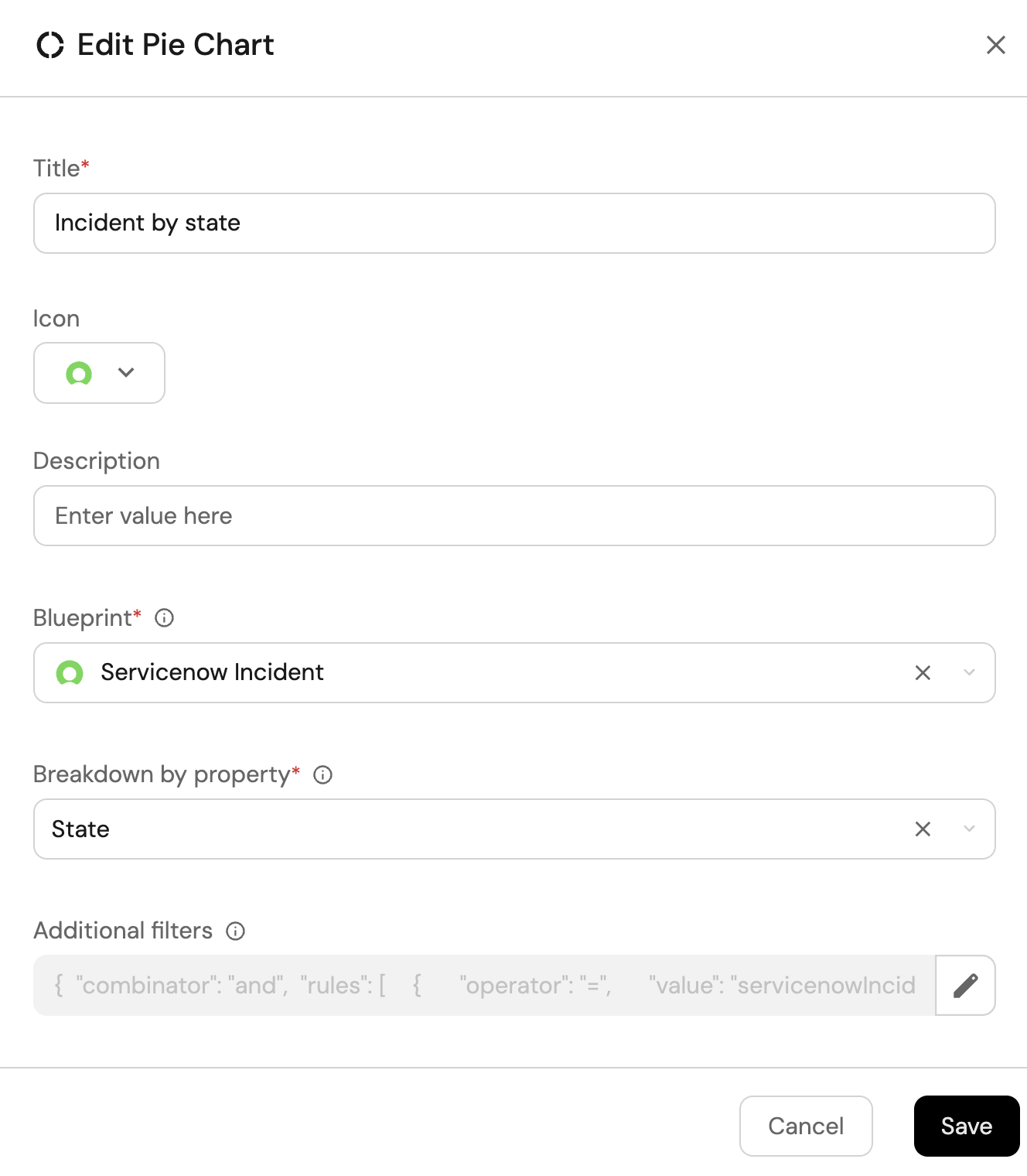
-
Click Save.
Incident by severity (click to expand)
-
Click + Widget and select Pie chart.
-
Title:
Incident by severity(add the Servicenow icon). -
Choose the ServiceNow Incident blueprint.
-
Under
Breakdown by property, select the Severity property.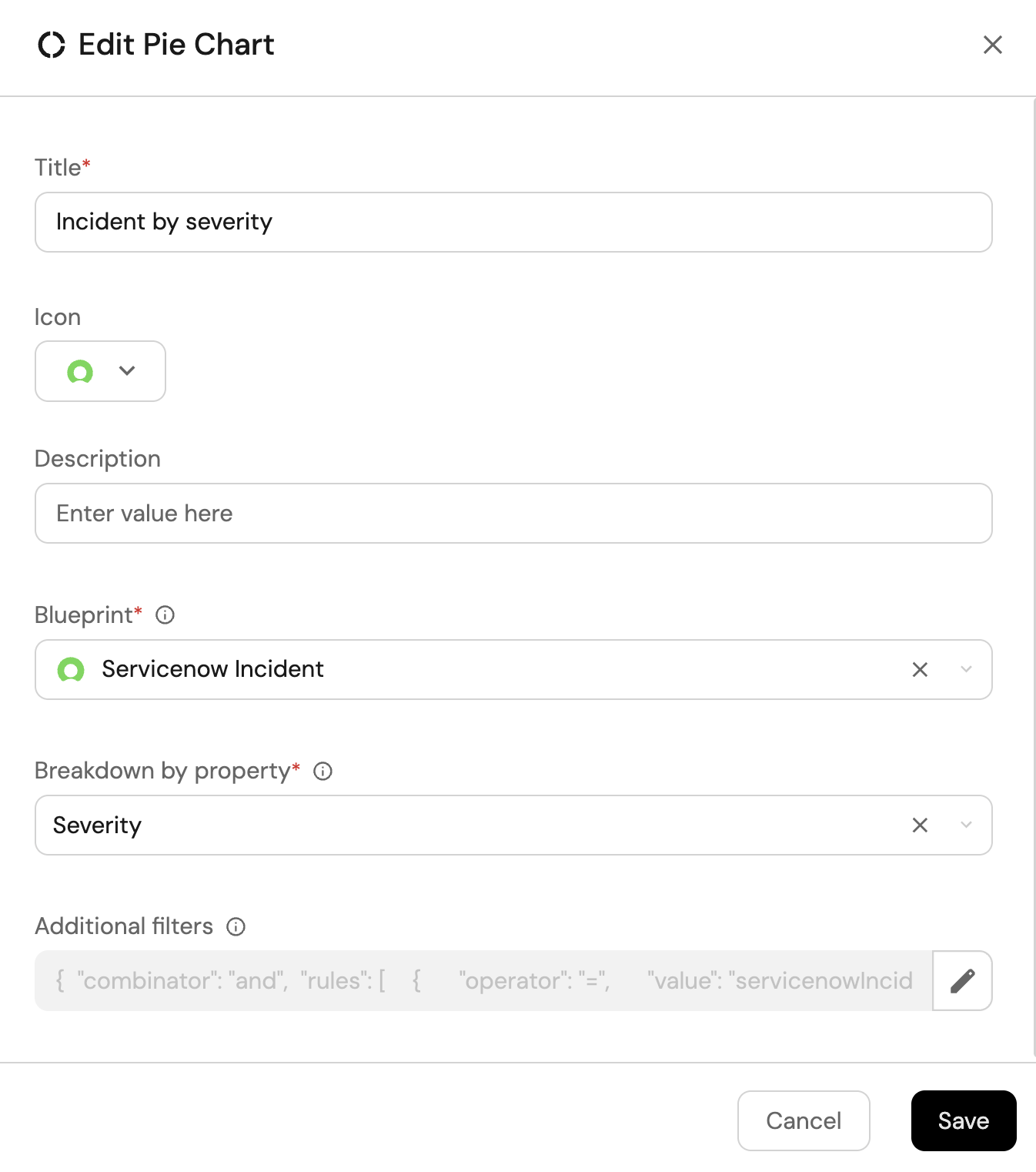
-
Click Save.
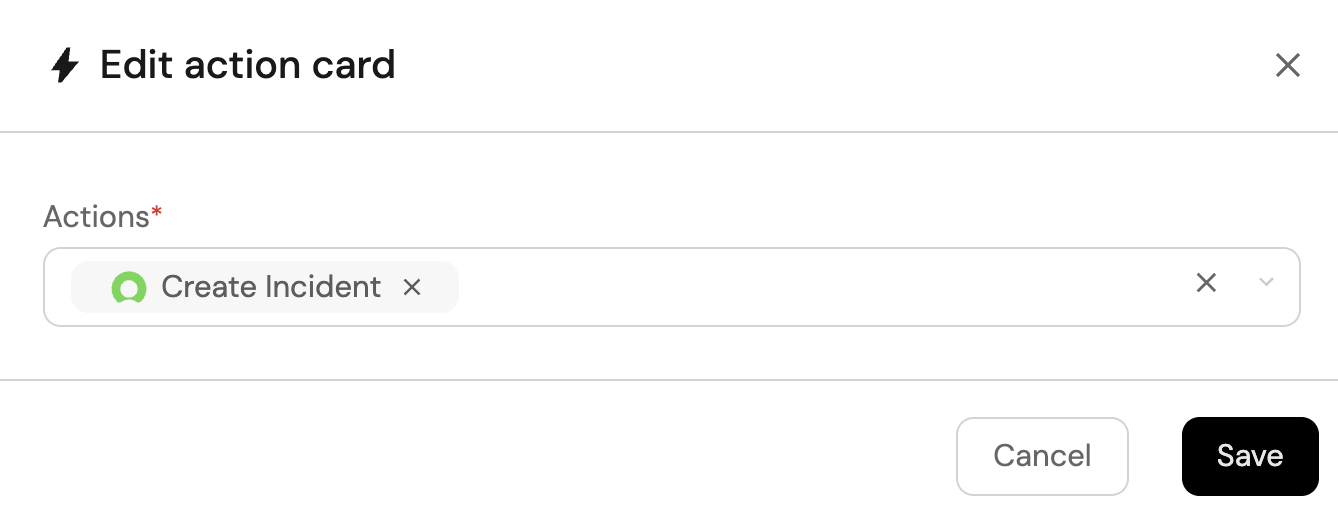
Create incident workflow (click to expand)
-
Click + Widget and select Action card.
-
Choose the Create Incident workflow we created in this guide.
-
Click Save.
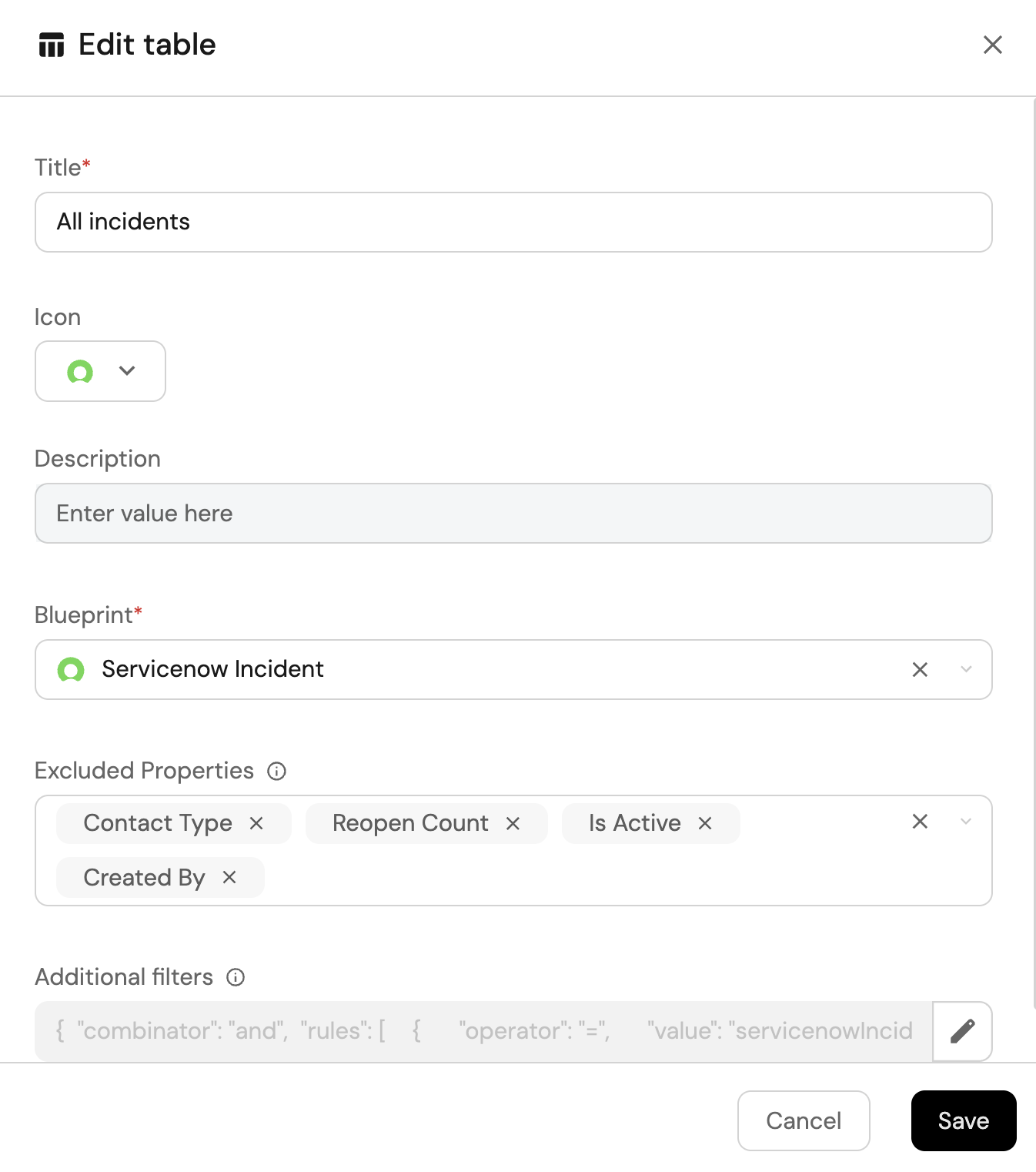
All ServiceNow incidents view (click to expand)
-
Click + Widget and select Table.
-
Title the widget All Incidents.
-
Choose the ServiceNow Incident blueprint.
-
Click Save to add the widget to the dashboard.
-
Click on the ... button in the top right corner of the table and select Customize table.
-
In the top right corner of the table, click on Manage Properties and add the following properties:
- State: The current state of the incident.
- Assigned To: The assignee of the incident.
- Priority: The incident priority.
- Entity Creation Date: The date the incident was created in Port.
-
Click on the save icon in the top right corner of the widget to save the customized table.
Let's test it!
- Go to the Self-service page in Port.
- Run the Create Incident workflow and confirm the incident appears in ServiceNow and in Port after the integration syncs.
- Run Resolve Incident on that entity and verify the state updates in ServiceNow.
- Optionally run Delete Incident and confirm the record is removed from ServiceNow and from Port.
- Open your ServiceNow Incident Management dashboard and verify the widgets reflect your incidents.