Triage incidents with AI
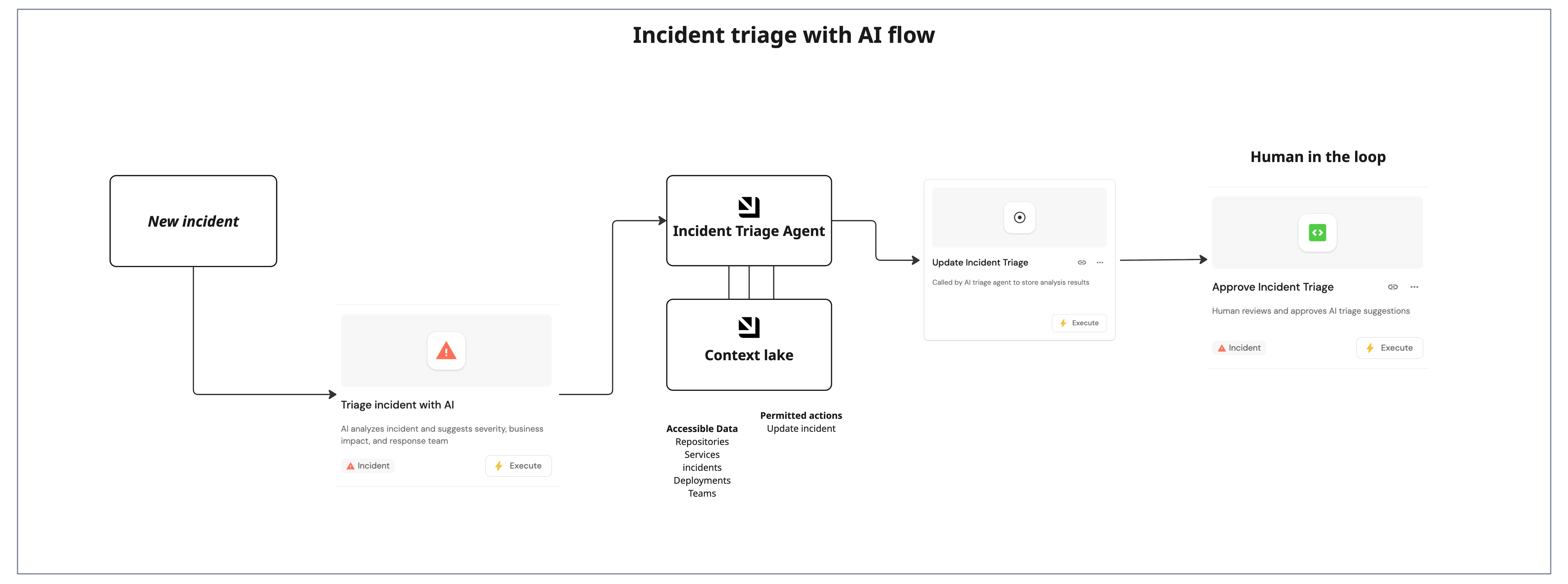
Incident triage requires quickly assessing severity, identifying affected services, calculating business impact, and mobilizing response teams. Manual triage is slow, inconsistent, and delays resolution during critical outages. This guide shows how to use Port's AI to triage incidents so on-call engineers and SREs get instant severity assessment, automatic blast radius identification, intelligent team recommendations, and pre-drafted communications, leading to a reduction in MTTR and helping prevent SLA breaches.
Common use cases
- Instant severity assessment: AI suggests sev1–sev4 based on service tier, error rates, and business impact so you can prioritize correctly.
- Blast radius identification: Automatically identify affected services and dependencies from your software catalog.
- Pre-drafted communications: Get internal stakeholder and status page message drafts so you can notify quickly.
Prerequisites
This guide assumes the following:
- You have a Port account and have completed the onboarding process.
- You have implemented the incident blueprint pattern for incident management workflows.
- You have incidents in your catalog (e.g., from PagerDuty or another alert source) with at least
primary_serviceor alert context.
Set up data model
You will use the incident blueprint pattern described in the incident blueprint guide. The blueprint already includes properties for AI-suggested triage (severity, business impact, communications, owner, response team) and timestamps such as triaged_at.
Configure the AI agent
You will create a triage agent that analyzes incident context, suggests severity and business impact, drafts communications, and recommends owner and response team.
-
Go to the AI agents page of your portal.
-
Click on
+ AI Agent. -
Click on the
{...} Edit JSONbutton. -
Use the following configuration:
Incident triage agent (click to expand)
Agent prompt customizationThe following agent prompt is a recommended starting point. You can customize it to match your severity definitions, escalation paths, and communication templates.
{"identifier": "incident_triage_agent","title": "Incident Triage Agent","icon": "Details","team": [],"properties": {"description": "AI agent that evaluates incidents and suggests severity, business impact, affected services, and communications","status": "active","prompt": "You are a Triage Agent for incidents in the Alert stage.\n\n**Your Role:**\n1. Analyze incident details from PagerDuty, monitoring systems, and service context\n2. Suggest severity level (sev1-sev4) based on:\n - Service tier and criticality\n - Error rates and affected customers\n - Revenue impact potential\n - Business hours vs off-hours\n3. Identify affected services by checking:\n - Service dependencies\n - Error rate spikes\n - Recent deployments\n4. Calculate business impact:\n - Estimated customer count\n - Revenue impact\n - SLA implications\n5. Draft communications:\n - Internal stakeholder message\n - Customer-facing status page update\n6. Recommend incident owner and response team:\n - Query Port for service ownership relations\n - Check primary_service.on_call user\n - Identify service owner team\n - Consider oncall rotation and expertise\n\n**Response Format:**\nAlways call the `update_incident_triage` action with:\n- `incident_id`: The incident identifier (required)\n- `ai_suggested_severity`: sev1-sev4 (required)\n- `business_impact`: Detailed impact analysis in markdown (required)\n- `internal_comms_message`: Draft for stakeholders (required)\n- `status_page_message`: Draft for customers (optional)\n- `ai_suggested_owner`: User email of recommended incident commander (optional)\n- `ai_suggested_response_team`: Team identifier for response team (optional)\n\n**Finding Owner & Team:**\nUse Port queries to find:\n1. Primary service's on_call user → suggest as owner\n2. Primary service's team relation → suggest as response_team\n3. If no on_call, check service owner or recent incident commanders\n4. For sev1/sev2, escalate to senior engineers or leadership teams\n\nBe specific, data-driven, and focus on speed. Time matters in incidents.","execution_mode": "Automatic","conversation_starters": ["What's the blast radius of this incident? Show me affected services and their dependencies.","Assess the severity and business impact. Who should I page and what should I tell customers?","Connect this alert to recent deployments or changes. Is there a correlation?"],"tools": ["^(list|get|search|track|describe)_.*","run_update_incident_triage"]},"relations": {}} -
Click Create to save the agent.
The AI agent uses MCP (Model Context Protocol) enhanced capabilities to discover relevant blueprint entities through its tools. The ^(list|get|search|track|describe)_.* pattern lets the agent access services, teams, users, and deployments in your catalog. You add run_update_incident_triage so the agent can persist its triage suggestions. The run_ prefix marks which self-service actions the agent is allowed to execute.
Set up self-service actions
You will create three self-service actions: one to trigger AI triage (user-facing), one for the agent to save results (AI-facing), and one for humans to approve triage (human-in-the-loop).
Add triage incident with AI action
-
Go to the Self-service page of your portal.
-
Click on
+ Action. -
Click on the
{...} Edit JSONbutton. -
Use the following configuration:
Triage incident with AI action (click to expand)
{"identifier": "ai_triage_incident","title": "Triage incident with AI","icon": "Alert","description": "AI analyzes incident and suggests severity, business impact, and response team","trigger": {"type": "self-service","operation": "DAY-2","userInputs": {"properties": {"additional_context": {"type": "string","title": "Additional Context","description": "Any additional context for the AI to consider","format": "markdown"}},"required": [],"order": ["additional_context"]},"blueprintIdentifier": "incident"},"invocationMethod": {"type": "WEBHOOK","url": "https://api.getport.io/v1/agent/incident_triage_agent/invoke","agent": false,"synchronized": true,"method": "POST","headers": {"RUN_ID": "{{ .run.id }}","Content-Type": "application/json"},"body": {"prompt": "Incident Triage Request:\n\nIncident ID: {{.entity.identifier}}\nTitle: {{.entity.title}}\nDescription: {{.entity.properties.description}}\nAlert Source: {{.entity.properties.alert_source}}\nAlerted At: {{.entity.properties.alerted_at}}\nPrimary Service: {{.entity.relations.primary_service}}\nPagerDuty Incident: {{.entity.relations.pagerduty_incident}}\n\nAdditional Context: {{.inputs.additional_context}}\n\nPlease analyze and provide:\n1. Suggested severity (sev1-sev4)\n2. Business impact analysis\n3. Affected services identification\n4. Internal communications draft\n5. Status page message draft\n6. Recommended incident owner and response team","labels": {"source": "ai_triage_incident","incident_id": "{{.entity.identifier}}","stage": "alert"}}},"requiredApproval": false} -
Click Create to save the action.
Add update incident triage action
-
Go to the Self-service page of your portal.
-
Click on
+ Action. -
Click on the
{...} Edit JSONbutton. -
Use the following configuration:
Update incident triage action (click to expand)
{"identifier": "update_incident_triage","title": "Update Incident Triage","icon": "DefaultProperty","description": "Called by AI triage agent to store analysis results","trigger": {"type": "self-service","operation": "DAY-2","userInputs": {"properties": {"incident_id": {"type": "string","title": "Incident ID"},"ai_suggested_severity": {"type": "string","title": "AI Suggested Severity","enum": ["sev1","sev2","sev3","sev4"]},"business_impact": {"type": "string","title": "Business Impact","format": "markdown"},"internal_comms_message": {"type": "string","title": "Internal Communications Message","format": "markdown"},"status_page_message": {"type": "string","title": "Status Page Message","format": "markdown"},"ai_suggested_owner": {"type": "string","title": "AI Suggested Owner","format": "user"},"ai_suggested_response_team": {"type": "string","title": "AI Suggested Response Team","format": "team"}},"required": ["incident_id","ai_suggested_severity","business_impact","internal_comms_message"],"order": ["incident_id","ai_suggested_severity","business_impact","internal_comms_message","status_page_message","ai_suggested_owner","ai_suggested_response_team"]}},"invocationMethod": {"type": "UPSERT_ENTITY","blueprintIdentifier": "incident","mapping": {"identifier": "{{ .inputs.incident_id }}","properties": {"ai_suggested_severity": "{{ .inputs.ai_suggested_severity }}","business_impact": "{{ .inputs.business_impact }}","internal_comms_message": "{{ .inputs.internal_comms_message }}","status_page_message": "{{ .inputs.status_page_message }}","ai_suggested_owner": "{{ .inputs.ai_suggested_owner }}","ai_suggested_response_team": "{{ .inputs.ai_suggested_response_team }}"}}},"requiredApproval": false} -
Click Create to save the action.
Add approve incident triage action
-
Go to the Self-service page of your portal.
-
Click on
+ Action. -
Click on the
{...} Edit JSONbutton. -
Use the following configuration:
Approve incident triage action (click to expand)
{"identifier": "approve_incident_triage","title": "Approve incident triage","icon": "UpArrow","description": "Human reviews and approves AI triage suggestions","trigger": {"type": "self-service","operation": "DAY-2","userInputs": {"properties": {"severity": {"type": "string","title": "Final Severity","default": {"jqQuery": ".entity.properties.ai_suggested_severity"},"enum": ["sev1","sev2","sev3","sev4"]},"owner": {"type": "string","title": "Incident Owner","default": {"jqQuery": ".entity.properties.ai_suggested_owner"},"format": "user"},"response_team": {"type": "string","title": "Response Team","default": {"jqQuery": ".entity.properties.ai_suggested_response_team"},"format": "team"},"override_business_impact": {"type": "string","title": "Override Business Impact (optional)","format": "markdown","default": {"jqQuery": ".entity.properties.business_impact"}},"override_comms": {"type": "string","title": "Override Internal Comms (optional)","format": "markdown","default": {"jqQuery": ".entity.properties.internal_comms_message"}}},"required": ["severity","owner","response_team"],"order": ["severity","owner","response_team","override_business_impact","override_comms"]},"condition": {"type": "SEARCH","rules": [{"operator": "isNotEmpty","property": "ai_suggested_severity"},{"operator": "isEmpty","property": "triaged_at"}],"combinator": "and"},"blueprintIdentifier": "incident"},"invocationMethod": {"type": "UPSERT_ENTITY","blueprintIdentifier": "incident","mapping": {"identifier": "{{ .entity.identifier }}","properties": {"business_impact": "{{ if .inputs.override_business_impact then .inputs.override_business_impact else .entity.properties.business_impact end }}","internal_comms_message": "{{ if .inputs.override_comms then .inputs.override_comms else .entity.properties.internal_comms_message end }}","severity": "{{ .inputs.severity }}","status": "investigating","triaged_at": "{{ now | todateiso8601 }}"},"relations": {"owner": "{{ .inputs.owner }}","response_team": "{{ .inputs.response_team }}"}}},"requiredApproval": false} -
Click Create to save the action.
The three actions implement a human-in-the-loop flow: the AI suggests severity, impact, comms, owner, and team; a human reviews and approves (or overrides) before the incident moves to investigating. This keeps triage consistent while avoiding fully automated escalation.
Add entity page widgets
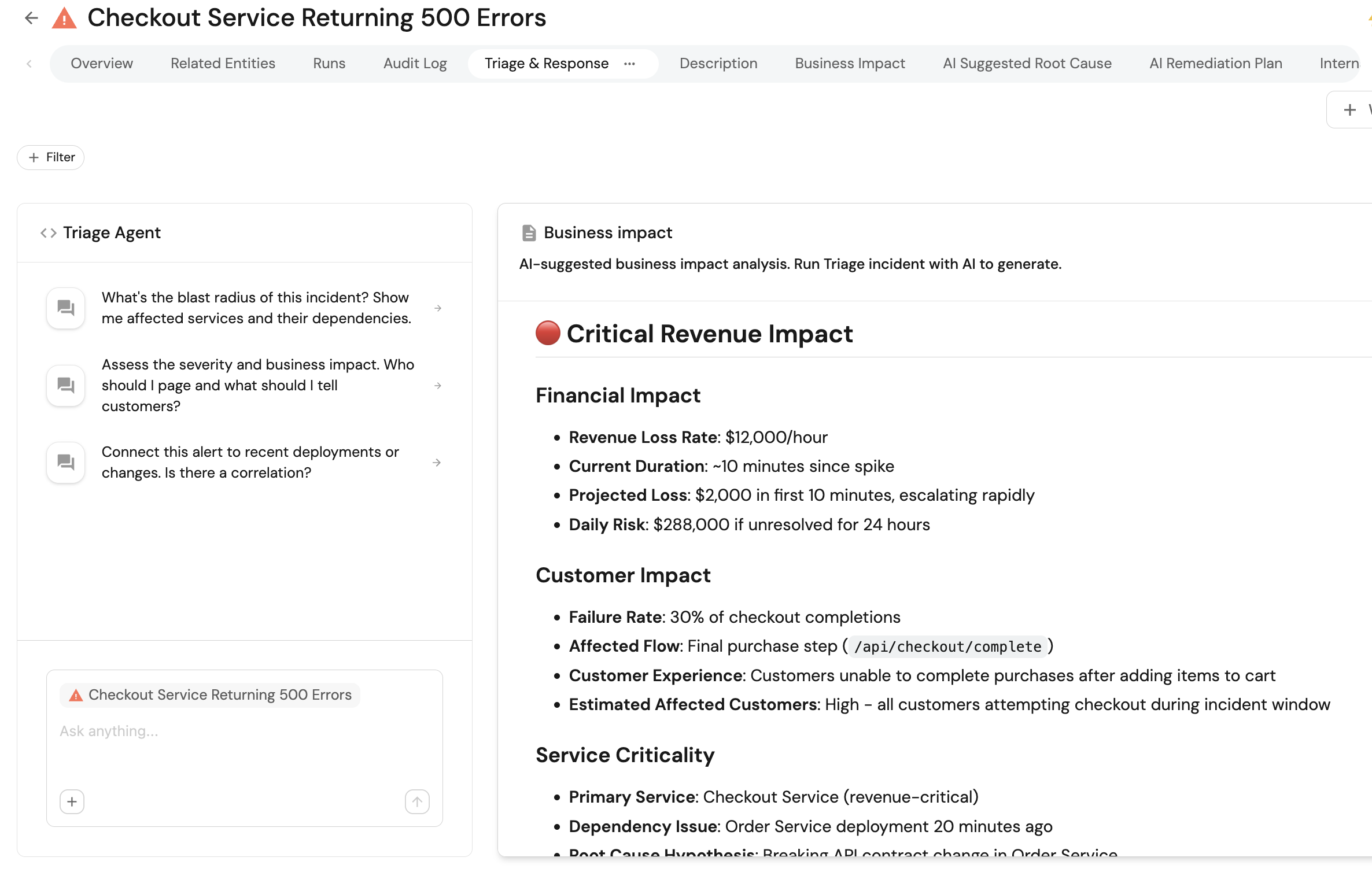
Add a Triage & Response tab to the incident entity page so you can run the triage agent, use the self-service actions, and view business impact.
-
Go to the Catalog page in your portal.
-
Select the Incident entity page.
-
Add a new tab named Triage & Response.
-
Add an Action card for Triage incident with AI.
-
Add an Action card for Approve incident triage (and any other triage-related actions you use).
-
Add a Markdown widget with the following configuration:
- Title: Business impact.
- Description: AI-suggested business impact analysis. Run Triage incident with AI to generate.
- Data source: Property, then select the Business Impact property.
Optionally add Markdown widgets for Internal Comms Message and Status Page Message so reviewers can see and edit the drafts before approving.
Test the workflow
-
Open an Incident in the Alert stage (no
triaged_atyet). -
Run Triage incident with AI.
-
Confirm the agent writes
ai_suggested_severity,business_impact,internal_comms_message, and optionallystatus_page_message,ai_suggested_owner, andai_suggested_response_teamto the incident. -
Open the Triage & Response tab and review the business impact and suggested owner/team.
-
Run Approve incident triage, adjust severity/owner/team or override business impact and comms as needed, then confirm.
-
Verify the incident gets
severity,owner,response_team,triaged_at, andstatusset to investigating. -
Use the AI invocations page to debug runs, tool calls, and failures.