Surface resource actions from Jira with AI
Send this guide to your coding agent.
Prerequisite: Install Port MCP
Open plan mode. Implement this Port guide in my org via MCP:

https://docs.port.io/guides/all/surface-resource-actions-from-jira-with-ai

Goal: get the guide's core flow working end-to-end in my org; adapting it to fit my existing setup takes priority over matching the guide 1:1.

Plan:
1. Confirm MCP is connected, in the right org, with sufficient permissions.
2. Diff the guide's data model (blueprints, properties, relations, actions, agents, automations, integrations, secrets) against mine.
3. Propose adaptations for gaps, reusing existing blueprints/relations over guide-named duplicates.
4. Flag what needs a UI click, credential, or secret from me, testing MCP capability empirically before ruling anything out.
5. Stop on any blocker and give me options. Approving this plan authorizes the writes it lists; pause only for writes beyond what's listed.

Build:
- Extend blueprint schema additively when upserting; don't remove or overwrite existing properties, and treat type conflicts as a blocker, not an auto-fix.
- List any mock data in the plan, minimal and labeled mock; once approved, seed it without re-asking, and tell me what you seeded.
- For anything the guide writes downstream (e.g. a webhook target), use a real entity, not a mock.
- For pages/widgets, use the real page identifier from the app URL, not a guessed slug.
- When you hit a UI step confirmed (not assumed) unsupported via MCP, pause, give exact clicks, then resume via MCP.
- Validate and give links after each meaningful step (only a tool-returned URL, no guessed paths); don't proceed if the last run wasn't a success.

Done:
- Confirm the guide's expected output exists and runs in Port.
- Summarize adaptations, seeded data, what was mocked or skipped, remaining UI steps, and how to verify.
Developers and platform engineers often spend significant time requesting cloud resources and permissions needed to complete a task. That involves context-switching, manual lookup, and filing platform requests, which slows delivery.
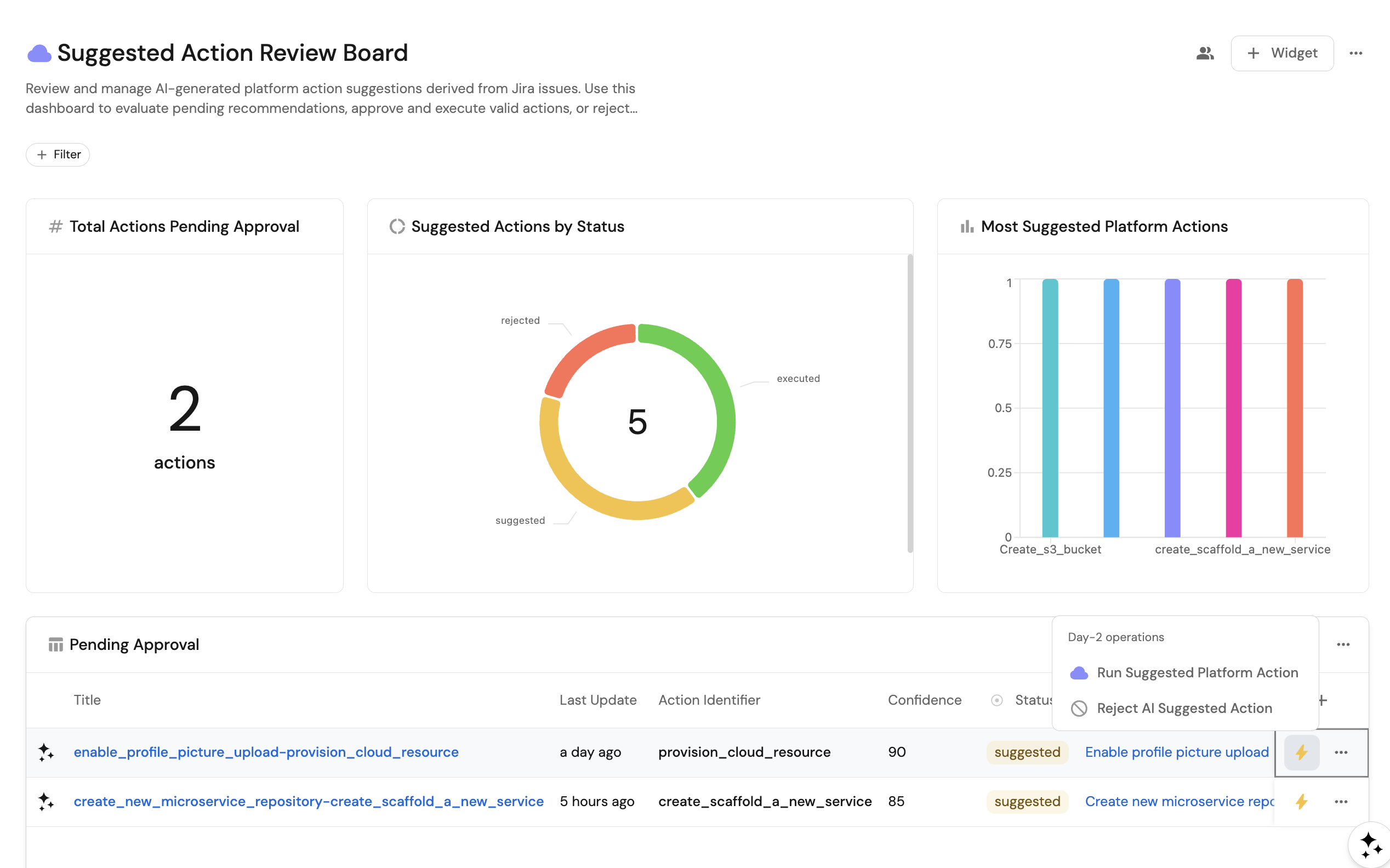
This guide shows how to use Port's AI agent to analyze a Jira issue, infer required resources and permissions, and create AI Suggested Action entities that surface the right self-service actions (e.g., create S3 bucket, grant IAM permissions). Teams can then run or reject suggested actions from the catalog and use a dashboard to review pending approvals.
Common use cases
- Analyze Jira issue with AI agent – Trigger the AI agent to process new Jira tickets and generate suggested actions.
- Run or reject suggested actions – Review, execute, or reject platform actions directly from the AI Suggested Action entity.
- Monitor suggested actions dashboard – Track pending approvals, action statuses, and trends from the review board dashboard.
Prerequisites
This guide assumes the following:
- You have a Port account and have completed the onboarding process.
- Jira issues are synced into Port (e.g., via the Jira integration) and you have a
jiraIssueblueprint. - You have self-service actions in Port for the resources and permissions you want to suggest (e.g., create S3 bucket, grant IAM permissions).
Set up data model
You will create the AI Suggested Action blueprint to store each suggestion from the AI agent, linked to the source Jira issue.
Create the AI Suggested Action blueprint
-
Go to the builder page in Port.
-
Click on
+ Blueprint. -
Click on
{...} Edit JSON. -
Use the following configuration:
AI Suggested Action blueprint (click to expand)
{"identifier": "aiSuggestedAction","description": "This blueprint represents an AI suggested action","title": "AI Suggested Action","icon": "AI","schema": {"properties": {"actionIdentifier": {"title": "Action Identifier","type": "string"},"actionProperties": {"title": "Action Properties","type": "object"},"entityIdentifier": {"title": "Entity Identifier","type": "string"},"confidence": {"title": "Confidence","type": "number"},"reasoning": {"title": "AI Reasoning","type": "string","format": "markdown"},"status": {"icon": "DefaultProperty","title": "Status","type": "string","enum": ["suggested","executed","rejected"],"enumColors": {"suggested": "yellow","executed": "green","rejected": "red"}}},"required": []},"mirrorProperties": {},"calculationProperties": {},"aggregationProperties": {},"relations": {"jiraIssue": {"title": "Jira Issue","target": "jiraIssue","required": true,"many": false}}} -
Click Create to save the blueprint.
Set up self-service actions
You will create three self-service actions: one for the AI agent to create suggested action records (AI-facing), one for users to run the suggested platform action (human-facing), and one for users to reject a suggestion (human-facing).
Create AI Suggested Action
-
Go to the Self-service page in Port.
-
Click on
+ Action. -
Click on the
{...} Edit JSONbutton. -
Use the following configuration:
Create AI Suggested Action action (click to expand)
{"identifier": "create_ai_suggested_action","title": "Create AI Suggested Action","icon": "Actions","description": "Creates a new AI suggested action record","trigger": {"type": "self-service","operation": "CREATE","userInputs": {"properties": {"jira_issue": {"type": "string","title": "Jira Issue ID","description": "The identifier of the Jira issue"},"action_identifier": {"icon": "DefaultProperty","type": "string","title": "Action Identifier","description": "The Identifier of the suggested self service action in Port"},"action_properties": {"icon": "DefaultProperty","type": "object","title": "Action Properties","description": "The action's input properties"},"entity_identifier": {"type": "string","title": "Entity Identifier","description": "Entity identifier if the action is a DAY-2"},"confidence": {"type": "number","title": "Confidence","description": "Confidence level of the suggested action"},"ai_reasoning": {"type": "string","title": "AI Reasoning","description": "Reasoning behind the suggested action","format": "markdown"}},"required": ["action_identifier","action_properties"],"order": ["action_identifier","action_properties","entity_identifier","confidence","ai_reasoning"]}},"invocationMethod": {"type": "UPSERT_ENTITY","blueprintIdentifier": "aiSuggestedAction","mapping": {"identifier": "{{.inputs.jira_issue}}-{{.inputs.action_identifier}}","title": "{{.inputs.jira_issue}}-{{.inputs.action_identifier}}","properties": {"actionIdentifier": "{{.inputs.action_identifier}}","actionProperties": "{{.inputs.action_properties}}","confidence": "{{.inputs.confidence}}","entityIdentifier": "{{.inputs.entity_identifier}}","reasoning": "{{.inputs.ai_reasoning}}","status": "suggested"},"relations": {"jiraIssue": "{{.inputs.jira_issue}}"}}},"requiredApproval": false,"allowAnyoneToViewRuns": true} -
Click Create to save the action.
Run Suggested Platform Action
-
Go to the Self-service page in Port.
-
Click on
+ Action. -
Click on the
{...} Edit JSONbutton. -
Use the following configuration:
Run Suggested Platform Action action (click to expand)
{"identifier": "run_suggested_platform_action","title": "Run Suggested Platform Action","trigger": {"type": "self-service","operation": "DAY-2","userInputs": {"properties": {},"required": [],"order": []},"blueprintIdentifier": "aiSuggestedAction"},"invocationMethod": {"type": "WEBHOOK","url": "https://api.port.io/v1/actions/{{.entity.properties.actionIdentifier}}/runs","agent": false,"synchronized": true,"method": "POST","headers": {"RUN_ID": "{{ .run.id }}","Content-Type": "application/json"},"body": {"properties": "{{.entity.properties.actionProperties}}"}},"requiredApproval": false,"allowAnyoneToViewRuns": true,"description": "Execute the platform action recommended by the AI agent for this Jira issue.","icon": "Cloud"} -
Click Create to save the action.
Reject AI Suggested Action
-
Go to the Self-service page in Port.
-
Click on
+ Action. -
Click on the
{...} Edit JSONbutton. -
Use the following configuration:
Reject AI Suggested Action action (click to expand)
{"identifier": "reject_ai_suggested_action","title": "Reject AI Suggested Action","description": "Reject the suggested platform action generated by the AI agent.","trigger": {"type": "self-service","operation": "DAY-2","userInputs": {"properties": {},"required": [],"order": []},"blueprintIdentifier": "aiSuggestedAction"},"invocationMethod": {"type": "UPSERT_ENTITY","blueprintIdentifier": "aiSuggestedAction","mapping": {"identifier": "{{.entity.identifier}}","properties": {"status": "rejected"}}},"requiredApproval": false,"allowAnyoneToViewRuns": true,"icon": "Unavailable"} -
Click Create to save the action.
Configure the AI agent
You will create the Resource Suggestion Agent that analyzes Jira issues, discovers available self-service actions via list_actions, and creates one AI Suggested Action entity per suggested action by calling create_ai_suggested_action.
-
Go to the AI agents page in Port.
-
Click on
+ AI Agent. -
Click on the
{...} Edit JSONbutton. -
Use the following configuration:
Resource Suggestion Agent (click to expand)
{"identifier": "resource_suggestion_agent","title": "Resource Suggestion Agent","icon": "Bolt","team": [],"properties": {"description": "AI agent that analyzes Jira-linked work items and suggests relevant Port self-service actions for cloud resources and permissions","status": "active","prompt": "You are a Resource Suggestion Agent for work items linked to Jira issues.\n\nYour job is to analyze Jira issues and determine which self-service actions should be suggested in order to complete the task described in the issue.\n\nUse the `list_actions` MCP tool to discover available self-service actions in Port. Match inferred needs to available actions and suggest which actions the user should run.\n\nEach suggested action must be saved as a separate entity in the \"aiSuggestedAction\" blueprint by ALWAYS calling the `create_ai_suggested_action`\n\nFor every suggested action you must provide:\n\n1. action_identifier: The identifier of the Port self-service action.\n\n2. action_properties: A JSON object containing the input properties required by that action.\n\n3. entity_identifier (optional): Only include this field if the action is a DAY-2 operation that targets an existing entity (for example scaling an EC2 instance or modifying a service).\n\n4. confidence: A number between 0 and 100 representing how confident you are that this action is correct.\n\n5. ai_reasoning: A short explanation describing why the action is needed based on the Jira issue content.\n\n6. jira_issue: The linked Jira issue identifier\n\nRules:\n\n* Suggest only actions that clearly map to the problem described in the Jira issue.\n* If the issue requests a new infrastructure resource, do NOT include entity_identifier.\n* If the issue modifies or operates on an existing resource, include entity_identifier.\n* If multiple resources are required, create multiple suggested actions.\n* If no platform action is needed, don't call the `create_ai_suggested_action`","execution_mode": "Automatic","conversation_starters": ["What resources and permissions does this ticket need?","Which self-service actions should I run for this Jira issue?","Analyze this ticket and surface relevant cloud resource actions."],"tools": ["^(list|get|search|track|describe)_.*","run_create_ai_suggested_action"]},"relations": {}} -
Click Create to save the agent.
The agent uses the list_actions MCP tool (available via Port's AI context) to discover self-service actions in Port. For each action it recommends, it calls create_ai_suggested_action with the action identifier, input properties, optional entity identifier for DAY-2 actions, confidence, reasoning, and Jira issue ID. Each call creates or updates one AI Suggested Action entity linked to the Jira issue.
Set up automation
You will add two automations: one to invoke the AI agent when a Jira issue is created, and one to mark the AI Suggested Action as executed when the user runs the suggested platform action.
Trigger when Jira issues are created
-
Go to the Automations page in Port.
-
Click on
+ Automation. -
Click on
{...} Edit JSON. -
Use the following configuration. You can add a
conditionwith JQ expressions to control when the agent is invoked (e.g., only for certain projects or issue types).On Jira Issue Created automation (click to expand)
{"identifier": "jira_issue_discover_actions","title": "On Jira Issue Created","description": "Automation that triggers AI agent to auto discover and provision cloud resources in a Jira ticket","icon": "AI","trigger": {"type": "automation","event": {"type": "ENTITY_CREATED","blueprintIdentifier": "jiraIssue"},"condition": {"type": "JQ","expressions": [],"combinator": "and"}},"invocationMethod": {"type": "WEBHOOK","url": "https://api.port.io/v1/agent/resource_suggestion_agent/invoke","agent": false,"synchronized": true,"method": "POST","headers": {"RUN_ID": "{{ .run.id }}","Content-Type": "application/json"},"body": {"prompt": "Here is the Jira issue information:\n\nJira Issue ID: {{.event.diff.after.identifier}}\nJira Issue Title: {{.event.diff.after.title}}\n\nRelated Entities in the Catalog (for context): {{.event.diff.after.relations}}\n\nFull Jira Issue Properties:\n{{.event.diff.after.properties}}","labels": {"source": "auto_discover_actions","jira_issue_id": "{{.event.diff.after.identifier}}"}}},"publish": true,"allowAnyoneToViewRuns": true} -
Click Create to save the automation.
Mark executed suggested action
-
Go to the Automations page in Port.
-
Click on
+ Automation. -
Click on
{...} Edit JSON. -
Use the following configuration:
Update AI Suggested Action Status automation (click to expand)
{"identifier": "update_ai_suggested_action_status","title": "Update AI Suggested Action Status","description": "Automation to set the status of the AI suggested action after the platform engineer executes the action","trigger": {"type": "automation","event": {"type": "RUN_UPDATED","actionIdentifier": "run_suggested_platform_action"},"condition": {"type": "JQ","expressions": [],"combinator": "and"}},"invocationMethod": {"type": "UPSERT_ENTITY","blueprintIdentifier": "aiSuggestedAction","mapping": {"identifier": "{{ .event.diff.after.entity.identifier }}","properties": {"status": "executed"}}},"publish": true,"allowAnyoneToViewRuns": true} -
Click Create to save the automation.
Set up dashboard
With your data model, actions, and automations in place, you can create a dedicated dashboard to review and manage AI-generated platform action suggestions from Jira issues.
Create "Suggested action review board" dashboard
- Navigate to the Catalog page in Port.
- Click on the
+button in the left sidebar. - Select New dashboard.
- Name the dashboard Suggested Action Review Board.
- Input
Review and manage AI-generated platform action suggestions derived from Jira issuesunder Description. - Select the Cloud icon.
- Click
Create.
You now have a blank dashboard where you can add widgets to visualize suggested actions and pending approvals.
Add widgets
In the new dashboard, create the following widgets:
Dashboard description (click to expand)
-
Click
+ Widgetand select Markdown. -
Copy and paste the following content:
## What this dashboard showsThis dashboard gives your team visibility into AI-suggested platform actions from Jira issues.- Review suggested actions (create S3 bucket, grant IAM permissions, etc.) and run or reject them from one place.- Track pending approvals and see which actions are most often suggested.Built with Port to reduce platform request friction and speed up access to cloud resources. -
Click
Save.
Total actions pending approval (click to expand)
- Click
+ Widgetand select Number Chart. - Title:
Total actions pending approval(add the Cloud icon). - Select Count Entities as the Chart type and choose AI Suggested Action as the Blueprint.
- Add a filter: Property =
status, Operator =equals, Value =suggested. - Click
Save.
Suggested action by status (click to expand)
- Click
+ Widgetand select Pie Chart. - Title:
Suggested action by status(add the AI icon). - Choose AI Suggested Action as the Blueprint.
- Select Status as the Property to aggregate by (suggested, executed, rejected).
- Click
Save.
Most suggested platform actions (click to expand)
- Click
+ Widgetand select Bar Chart. - Title:
Most suggested platform actions(add the Bolt icon). - Choose AI Suggested Action as the Blueprint.
- Select Action Identifier (or the property that holds the Port action identifier) as the Property to aggregate by.
- Click
Save.
Pending approvals table (click to expand)
- Click
+ Widgetand select Table. - Title:
Pending approvals(add the Checklist icon). - Choose the AI Suggested Action blueprint.
- Add a filter: Property =
status, Operator =equals, Value =suggested. - Click
Saveto add the widget to the dashboard. - Click on the
...button in the top right corner of the table and select Customize table. - In the top right corner of the table, click on Manage Properties and add the following properties:
- Action Identifier: The Port self-service action suggested.
- AI Reasoning: Why the action was suggested.
- Confidence: The AI confidence score.
- Jira Issue: The linked Jira issue.
- Status: Current status (suggested, executed, rejected).
- Click on the save icon in the top right corner of the widget to save the customized table.
Test the workflow
- Create or sync a Jira issue into Port that describes a need for a cloud resource or permission (e.g., "Need an S3 bucket for feature X").
- If the automation is enabled, the Resource Suggestion Agent runs automatically, otherwise invoke the agent manually with the Jira issue context.
- Confirm that AI Suggested Action entities are created and linked to the Jira issue, with
actionIdentifier,actionProperties,reasoning, andstatus= suggested. - Open an AI Suggested Action entity and run Run Suggested Platform Action or Reject AI Suggested Action.
- After running the suggested action, verify the automation updates the entity
statusto executed (or confirm rejected after using Reject). - Open the Suggested Action Review Board dashboard and confirm the widgets show the expected counts and pending approvals.
- Use the AI invocations page to debug agent runs, tool calls, and failures.