Slack reminders for scorecards
Send this guide to your coding agent.
Prerequisite: Install Port MCP
Open plan mode. Implement this Port guide in my org via MCP:

https://docs.port.io/guides/all/setup-slack-reminders

Goal: get the guide's core flow working end-to-end in my org; adapting it to fit my existing setup takes priority over matching the guide 1:1.

Plan:
1. Confirm MCP is connected, in the right org, with sufficient permissions.
2. Diff the guide's data model (blueprints, properties, relations, actions, agents, automations, integrations, secrets) against mine.
3. Propose adaptations for gaps, reusing existing blueprints/relations over guide-named duplicates.
4. Flag what needs a UI click, credential, or secret from me, testing MCP capability empirically before ruling anything out.
5. Stop on any blocker and give me options. Approving this plan authorizes the writes it lists; pause only for writes beyond what's listed.

Build:
- Extend blueprint schema additively when upserting; don't remove or overwrite existing properties, and treat type conflicts as a blocker, not an auto-fix.
- List any mock data in the plan, minimal and labeled mock; once approved, seed it without re-asking, and tell me what you seeded.
- For anything the guide writes downstream (e.g. a webhook target), use a real entity, not a mock.
- For pages/widgets, use the real page identifier from the app URL, not a guessed slug.
- When you hit a UI step confirmed (not assumed) unsupported via MCP, pause, give exact clicks, then resume via MCP.
- Validate and give links after each meaningful step (only a tool-returned URL, no guessed paths); don't proceed if the last run wasn't a success.

Done:
- Confirm the guide's expected output exists and runs in Port.
- Summarize adaptations, seeded data, what was mocked or skipped, remaining UI steps, and how to verify.
This guide will walk you through creating a self-service action that sends a Slack reminder for uncompleted scorecard rules. In reality, such an action can be used by R&D managers / Platform engineers to remind developers of unmet standards.
Once implemented:
- Developers will be notified about policies set by the platform engineer that need to be fixed.
- R&D managers & Platform engineers will be able to remind developers about unmet requirements in the services.
Common use cases
- Initiate changes in the organization using scorecards.
- Automate Slack reminders using Port's self-service actions.
Prerequisites
- One of the following Git integrations is installed: Port's GitHub Ocean integration, GitLab integration.
- A repository in your Git provider in which you can create a workflow/pipeline.
Implementation
Set up the action's frontend
-
Head to the Self-service page in Port.
-
Click on the
+ Actionbutton on the top left corner :
-
Fill in the action's details as shown below:
- Title:
Send scorecard reminder - Description:
Send a scorecard reminder to your team on slack - Operation:
Create - Blueprint:
Service - icon:
Slack
This Self-service has no user inputs, click on the
Nextbutton twice to proceed to theBackendtab.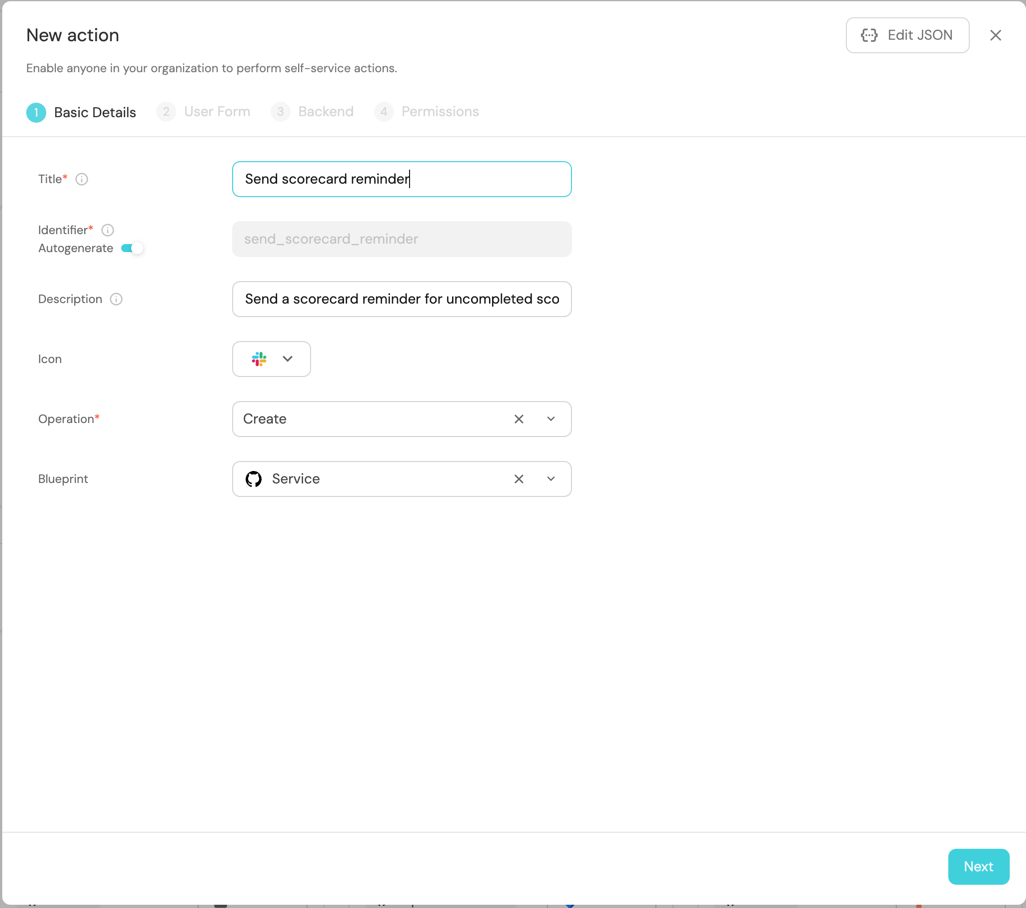
- Title:
Define backend type
Now we'll define the backend of the action. Port supports multiple invocation types, depending on the Git provider you are using.
- GitHub
- GitLab
Fill out the form with your values:
-
Replace the
OrganizationandRepositoryvalues with your values (this is where the workflow will reside and run). -
Name the workflow
port-slack-reminder.yml. -
Fill out your workflow details:
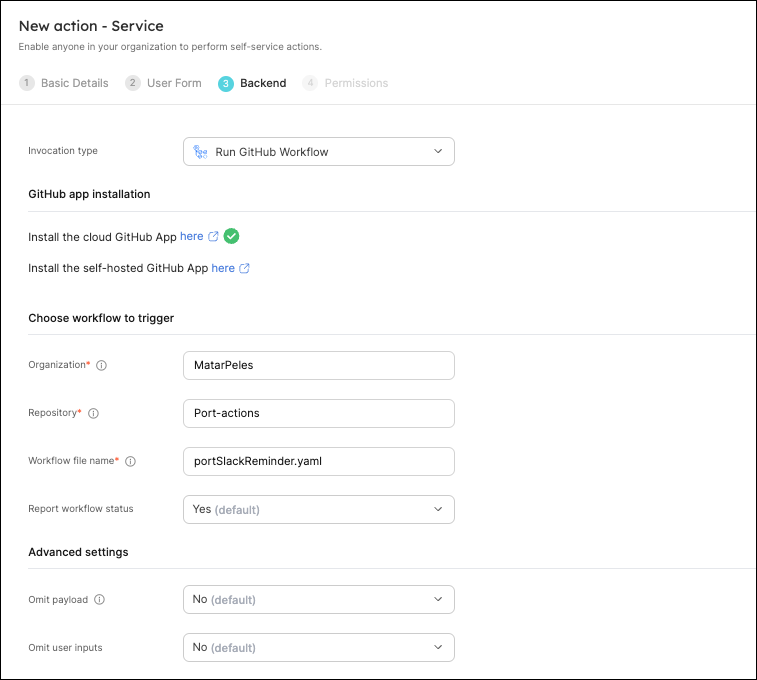
-
Scroll down to the
Configure the invocation payloadsection.
This is where you can define which data will be sent to your backend each time the action is executed.For this action, our backend only needs to know the id of the action run, so let's send it.
Copy the following JSON snippet and paste it in the payload code box:{"runId": "{{ .run.id }}"}
The last step is customizing the action's permissions. For simplicity's sake, we will use the default settings. For more information, see the permissions page. Click Create.
Fill out the form:
-
Choose
Trigger Webhook URLas theInvocation type. -
Leave
Endpoint URLblank for now, we will create it in the next section and come back to update it. -
Fill the rest of the form out like this, then click
Next: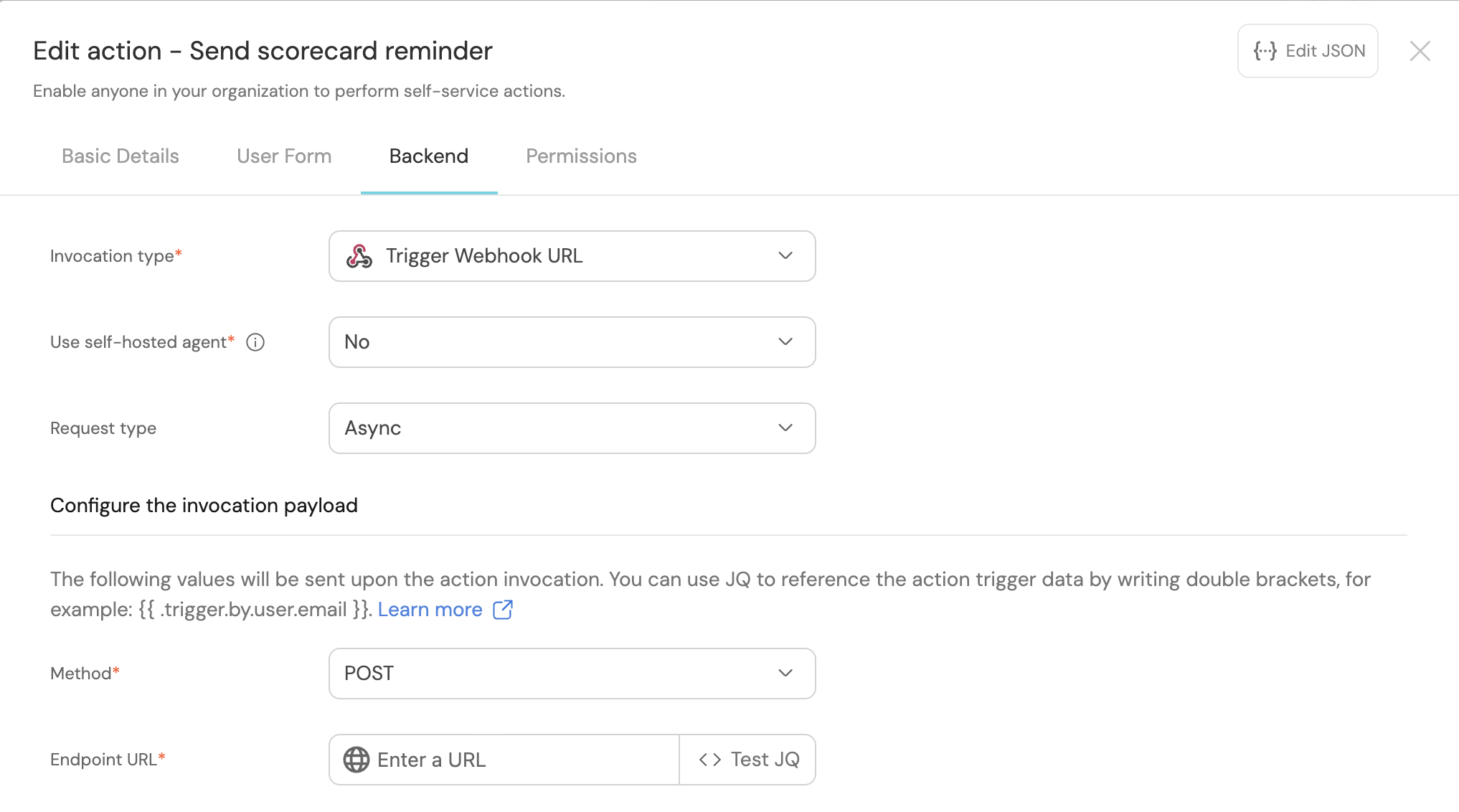
-
Scroll down to the
Configure the invocation payloadsection.
This is where you can define which data will be sent to your backend each time the action is executed.For this action, our backend only needs to know the id of the action run, so let's send it.
Copy the following JSON snippet and paste it in the payload code box:{"runId": "{{ .run.id }}"}
The last step is customizing the action's permissions. For simplicity's sake, we will use the default settings. For more information, see the permissions page. Click Create.
The action's frontend is now ready 🥳
Set up the action's backend
Now we want to write the logic that our action will trigger:
- GitHub
- GitLab
First, let's create the necessary token and secrets:
-
Go to your desired Slack channel and setup incoming webhooks. Make sure you copy the webhook URL, we will use it in the Github workflow.
-
Go to your Port application, click on your profile picture
 , then click
 Credentials. Copy yourClient IDandClient secret.
In the repository where your workflow will reside, create 3 new secrets under Settings -> Secrets and variables -> Actions:
-
SLACK_WEBHOOK_URL- the Slack Webhook URL of the destination channel. -
PORT_CLIENT_ID- the client ID you copied from your Port app. -
PORT_CLIENT_SECRET- the client secret you copied from your Port app.
Now let's create the workflow file that contains our logic.
Under .github/workflows, create a new file named port-slack-reminder.yml and use the following snippet as its content:Github workflow (click to expand)
This workflow uses Port's Initiatives Sender GitHub Action to send a Slack message.
First, let's create the required webhooks and variables:
-
Go to your desired Slack channel and setup incoming webhooks. Make sure you copy the webhook URL, we will use it in the Github workflow.
-
Go to your Port application, click on your profile picture
, then click Credentials. Copy yourClient IDandClient secret.
In the GitLab project where your pipeline will reside, create 3 new variables under Settings->CI/CD->Variables:
-
SLACK_WEBHOOK_URL- the Slack Webhook URL of the destination channel. -
PORT_CLIENT_ID- the client ID you copied from your Port app. -
PORT_CLIENT_SECRET- the client secret you copied from your Port app.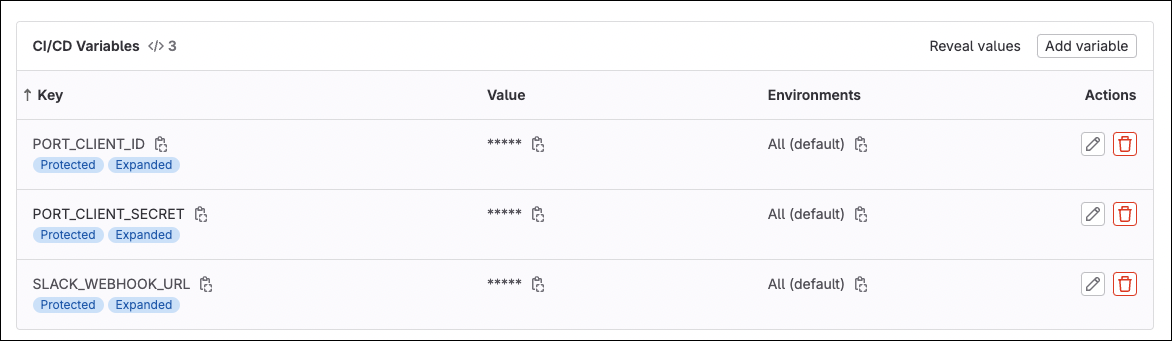
Create a webhook in GitLab for triggering your GitLab:
- Create a pipeline trigger token;
- Construct the pipeline trigger webhook URL with your project details.
- Back in Port, edit your action and in its
backendstep paste the webhook URL in theEndpoint URLfield.
Now let's create the pipeline file that contains our logic. In your GitLab project create a new file named gitlab-ci.yaml and use the following snippet as its content:GitLab pipeline (click to expand)
The port_region, port.baseUrl, portBaseUrl, port_base_url and OCEAN__PORT__BASE_URL parameters select which Port API instance to use:
- EU (app.port.io) →
https://api.port.io - US (app.us.port.io) →
https://api.us.port.io
All done! The action is ready to be used 🚀
Execute the action
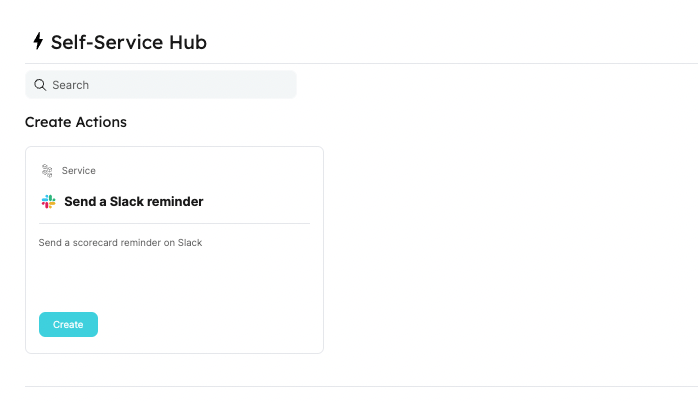
After creating an action, it will appear in the Self-service page in Port:
-
Click on
Createto begin executing the action. -
Click
Execute. A small popup will appear, click onView details: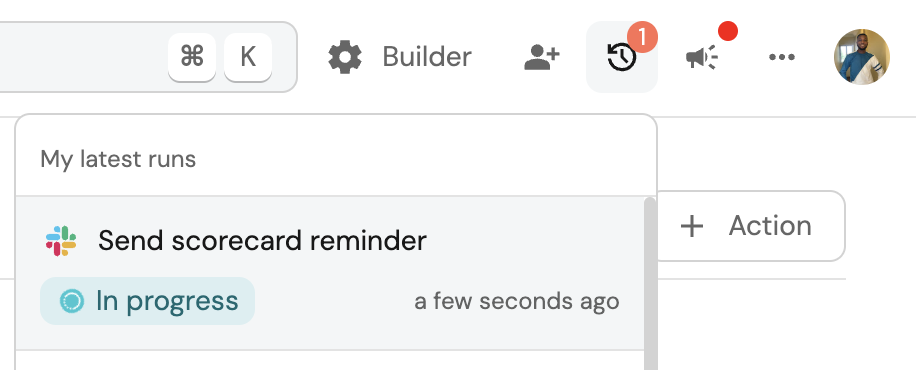
-
This page provides details about the action run. As you can see, the backend returned
Successand the repo was successfully created: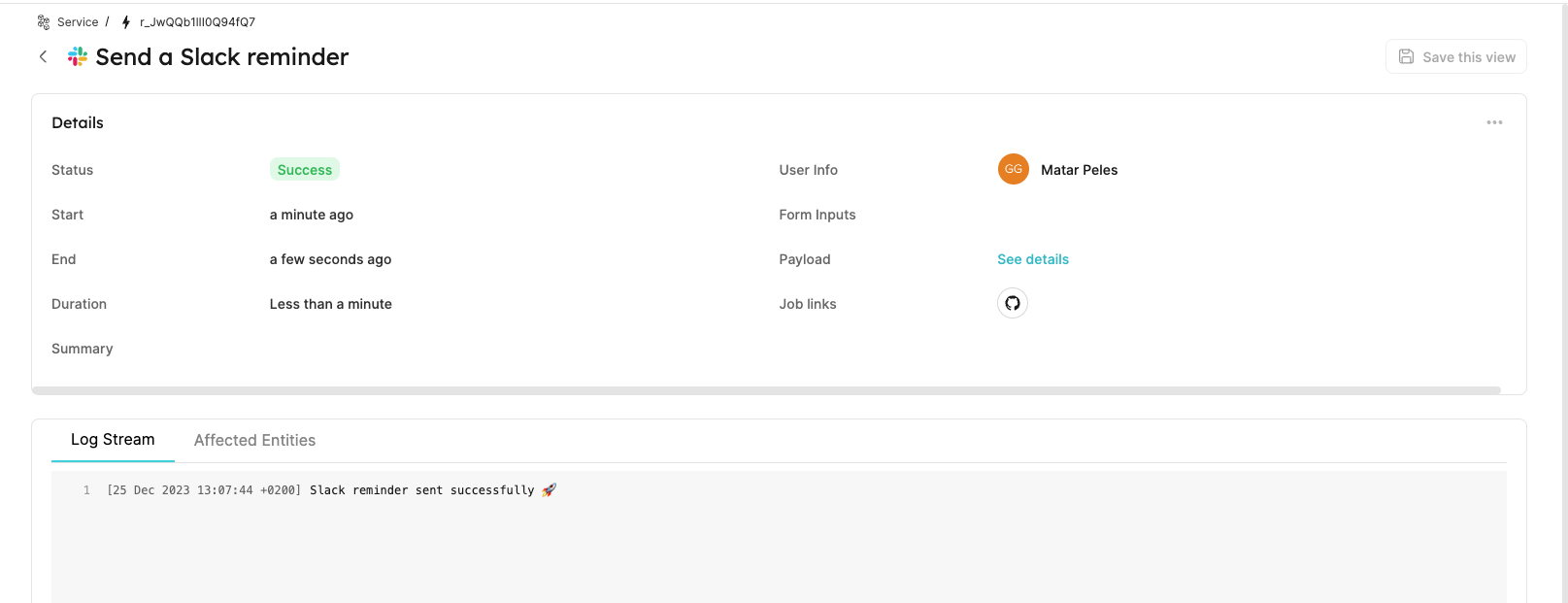
Logging action progress💡 Note the
Log streamat the bottom, this can be used to report progress, results and errors. Click here to learn more.
-
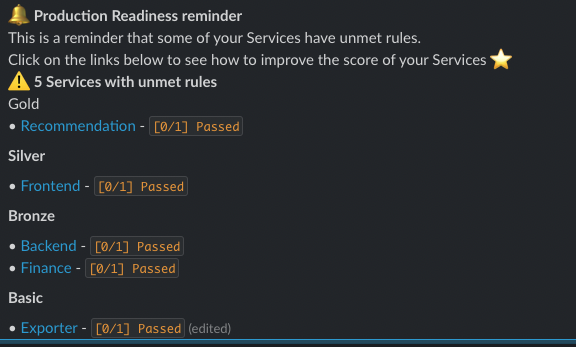
You can now enter your Slack channel and view the scorecard reminder:
Conclusion
Creating scorecards is the first step in setting standards in our development lifecycle. However, to ensure these standards are met, we need to turn rule violations into action items. By automating Slack reminders and the creation of Jira tasks, we can drive change across the entire organization using familiar tools to combine it natively within our delivery lifecycle.