Set up the Service Explorer AI agent
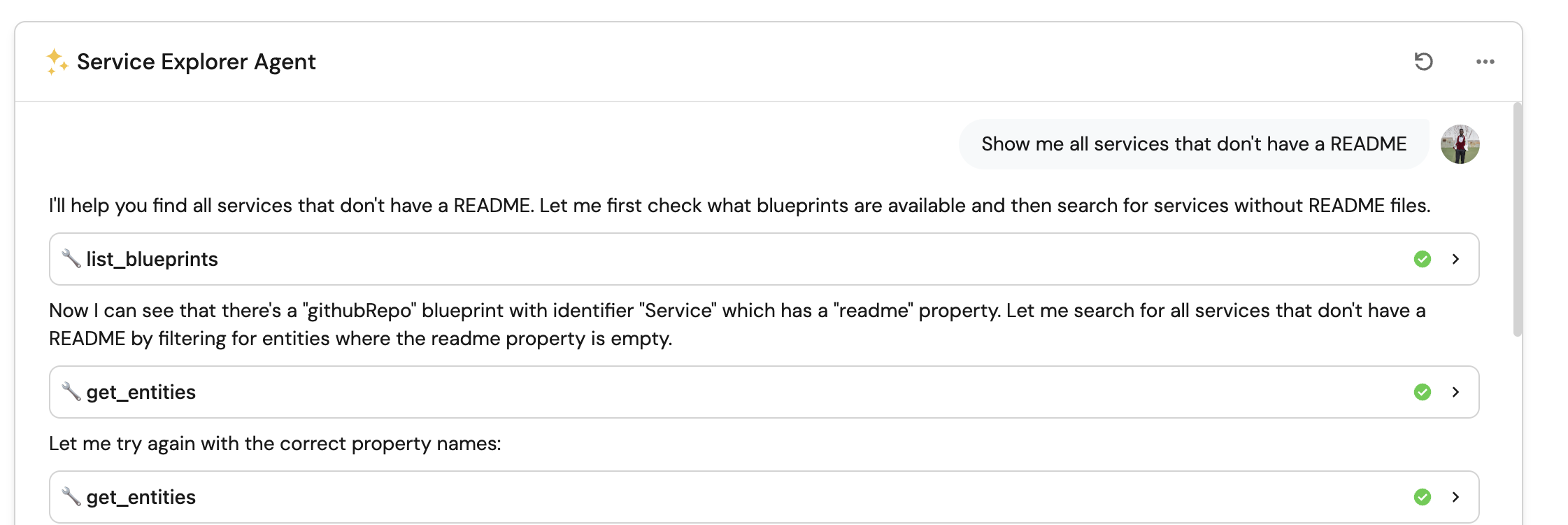
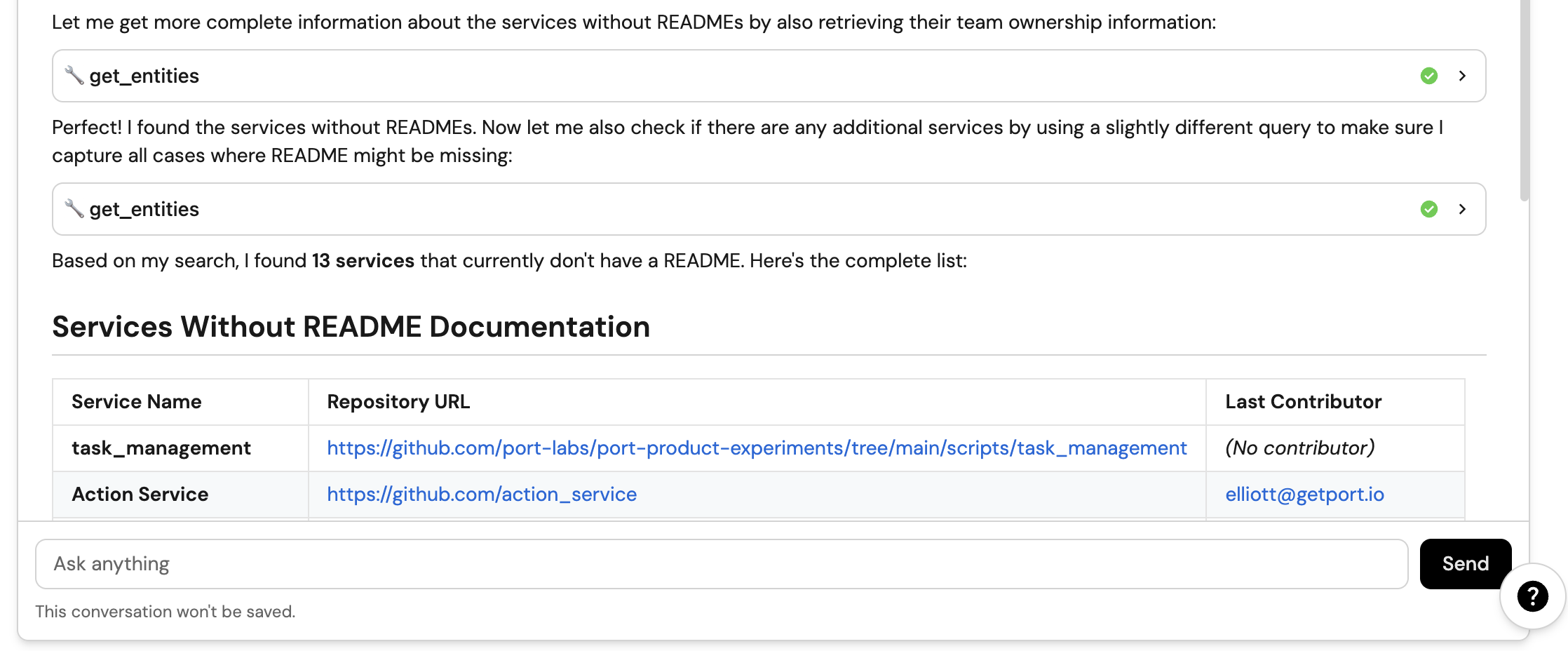
This guide demonstrates how to set up a "Service Explorer" AI agent in Port with enhanced capabilities powered by MCP. This agent helps developers discover services, understand ownership, and access documentation for quick onboarding.
With the MCP backend server, the Service Explorer becomes even more powerful:
- It can auto-discover all blueprints, entities, and actions in your service catalog.
- It provides transparency and visibility into what the AI agent is doing behind the scenes.
- It reduces manual configuration, since blueprint access is automatically managed.
By the end of this guide, your developers will be able to get information about your services via Port's AI chat.
Common use cases
- Quick service discovery for new developers.
- Understanding service ownership and team responsibilities.
- Accessing service documentation and READMEs.
- Checking service compliance and production readiness.
- Finding the right team to contact about a service.
Prerequisites
This guide assumes you have:
- Port's GitHub Ocean integration installed.
- Optional but recommended integrations for richer context:
- PagerDuty for incident management.
- Kubernetes tools for deployment information.
- Monitoring tools (e.g., New Relic) for service health.
Set up data model
To create a Service Explorer AI agent in Port, we'll need to configure two main components as described in our Build an AI agent guide:
- The data sources it will use to answer questions.
- The agent configuration that defines its capabilities and conversation starters.
Create the agent configuration
-
Go to the AI Agents page in Port.
-
Click on
+ AI Agent. -
Toggle
Json modeon. -
Copy and paste the following JSON schema:
Service Explorer agent configuration (click to expand)
{"identifier": "service_ownership_onboarding","title": "Service Explorer","icon": "Service","properties": {"description": "Helps developers discover services, understand ownership, and access documentation for quick onboarding","status": "active","prompt": "You are an agent responsible for helping developers understand the service landscape, ownership, and onboarding information.\n\n### Guidelines\n- Provide clear information about service ownership (teams and individuals)\n- Explain what services do based on their README and description\n- Identify service dependencies and relationships\n- Share service quality metrics and scorecard compliance\n- Help new developers understand which team owns which services\n- When asked about a service, always include: owner, team, description, and key technical details\n- If a service has a README, prioritize information from there\n- Mention service tier/criticality when relevant","execution_mode": "Approval Required","conversation_starters": ["Who owns the oauth service?","What is the payments service about?","Which services does the platform team own?","Show me all services that don't have a README","Which services are failing their production readiness scorecard?"],"tools": ["^(list|search|track|describe)_.*"]}}MCP Enhanced CapabilitiesThe AI agent uses MCP (Model Context Protocol) enhanced capabilities to automatically discover important and relevant blueprint entities via its tools. The
^(list|search|track|describe)_.*pattern allows the agent to access and analyze related entities across your entire context lake, including services, repositories, teams, users, incidents, deployments, monitoring data, and more. This automatic discovery means you don't need to manually configure which blueprints the agent can access - it intelligently finds and uses relevant data to answer questions about your services. -
Click on
Createto save the agent.
Interact with the Service Explorer
You can interact with the Service Explorer AI agent in several ways. This guide will demonstrate the two main ways.
- Port UI
- Slack Integration
The Service Explorer AI agent can be accessed through an AI Agent widget in your Port dashboard. Follow the steps below to set it up:
-
Go to the homepage in Port.
-
Click on
+ Widget. -
Choose
AI agent. -
Type Service Explorer for
Title. -
Select Service Explorer from the
Agentdropdown. -
Click on
Save.
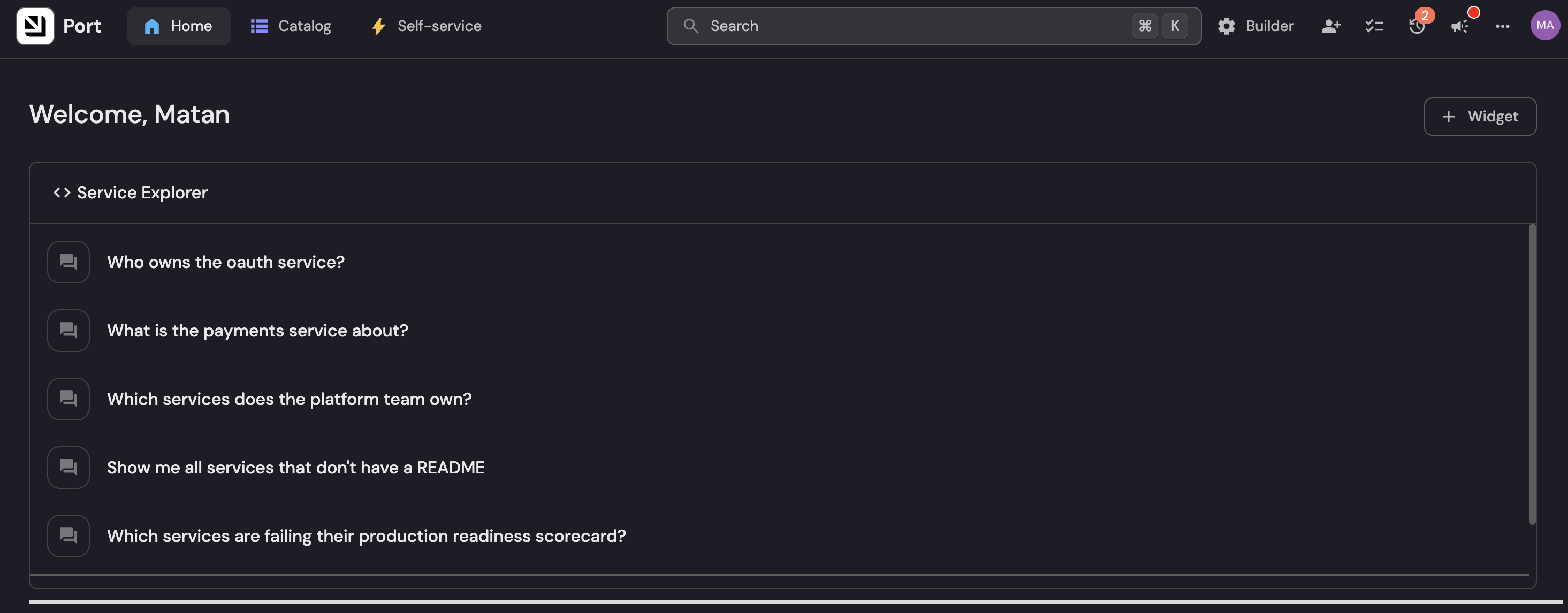
Once the widget is set up, you can ask questions directly in the chat field.
You can also ask service-related questions through the Port Slack App. Before using this method, ensure you have installed and configured the app.
You can interact with Port in two ways:
- Direct message the Port AI Assistant.
- Mention the app in any channel it's invited to.
When you send a message, the app will open a thread and respond with an answer.
Example queries:
@Port Who owns the oauth service?
@Port What is the payments service about?
@Port Which services does the platform team own?
The Slack app routes all requests to the Port AI general assistant, not to specific AI agents. The assistant can answer questions about your context lake, but it does not invoke the Service Explorer agent or any other configured agent directly. For agent-specific interactions, use the AI Agent widget in the Port UI.

Example questions
Here are some questions you can ask the Service Explorer agent:
- "Who owns the oauth service?"
- "What is the payments service about?"
- "Which services does the platform team own?"
- "Show me all tier 1 services"
- "Which services don't have a README?"
- "What services is John Smith responsible for?"
- "Show me all services with active incidents"
- "Which services are failing their production readiness scorecard?"
Possible enhancements
You can further enhance the Service Explorer setup by:
- Enrich your catalog: Add more integrations (PagerDuty, Kubernetes, monitoring tools) to your Port catalog. The agent will automatically discover and use this data thanks to the MCP tools pattern.
- Custom metadata: Add organization-specific properties to the service blueprint for richer answers that reflect your team's needs.
- Refine the prompt: Customize the agent's prompt to emphasize specific aspects of service ownership or documentation standards unique to your organization.
- Monitor interactions: Check the AI interaction details to see how developers are using the agent and improve it based on their questions and feedback.