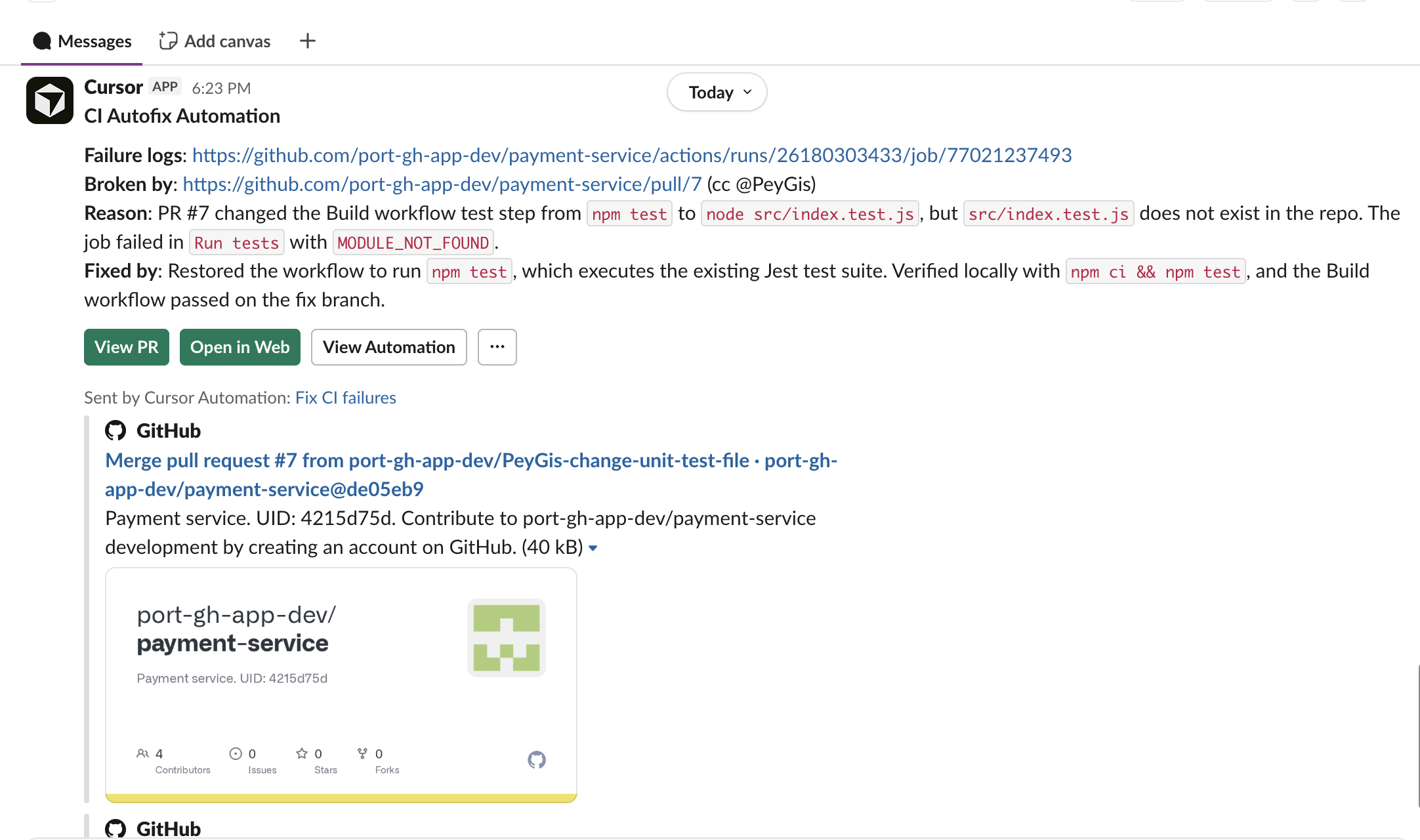
Remediate CI/CD failures with Port AI & Cursor
CI/CD pipeline failures interrupt your development flow. Engineers often need to inspect logs manually, identify the root cause, and apply a fix, which adds toil and context switching.
This guide shows how to orchestrate automated CI failure remediation with Port workflows and Cursor. When a GitHub workflow run fails, a single event-triggered workflow enriches context from your catalog, launches a Cursor cloud agent to diagnose and fix the issue, and notifies the relevant team in Slack.
The workflow JSON below uses the legacy CURSOR_AGENT workflow node so you can run the Cursor cloud agent on Port's workflow infrastructure alongside AI enrichment and Slack notifications. For new workflows, use the Create Cursor Cloud Agent integration action with the Cursor Cloud Agents integration installed (for example apiVersion: v0 with reportCompletion: true to keep the Port run open until the agent finishes).
Common use cases
- Auto-triggered remediation - Trigger a Port workflow on CI failure so Cursor investigates and creates a fix pull request.
- Context enrichment before remediation - Pull repository, service, and team context from Port before launching the Cursor agent.
- Team-aware notifications - Post the fix summary and pull request link to the relevant Slack channel automatically.
- Cursor marketplace-aligned setup - Use Cursor's CI Autofix automation pattern and connect it to Port orchestration.
- Flexible orchestration path - Use the Cursor Agent node in the sample workflow, or the Create Cursor Cloud Agent integration action when you need the Ocean integration path in the same flow.
Prerequisites
This guide assumes the following:
- You have a Port account and completed the onboarding process.
- You have the GitHub Ocean integration configured in Port.
- You have a Cursor API key to launch Cursor cloud agents.
- You have a Slack incoming webhook URL if you want failure and fix notifications in team channels.
Set up data model
You will extend your GitHub Ocean data model with two blueprints: githubWorkflow and githubWorkflowRun.
Create the GitHub workflow blueprint
-
Go to the Data model page in Port.
-
Click on
+ Blueprint. -
Click on the
{...} Edit JSONbutton. -
Copy and paste the following JSON configuration:
GitHub workflow blueprint (click to expand)
{"identifier": "githubWorkflow","title": "GitHub Workflow","icon": "Github","schema": {"properties": {"createdAt": {"format": "date-time","title": "Created At","type": "string"},"last_triggered_at": {"format": "date-time","title": "Last Triggered At","type": "string"},"link": {"format": "url","title": "Link","type": "string"},"path": {"title": "Path","type": "string"},"result": {"description": "Latest run conclusion (merged from workflow-run data)","enum": ["success","failure","cancelled","skipped","timed_out","action_required","neutral","stale","startup_failure"],"enumColors": {"action_required": "yellow","cancelled": "lightGray","failure": "red","neutral": "lightGray","skipped": "lightGray","stale": "darkGray","startup_failure": "red","success": "green","timed_out": "orange"},"title": "Result","type": "string"},"status": {"enum": ["active","deleted","disabled_fork","disabled_inactivity","disabled_manually"],"enumColors": {"active": "green","deleted": "red"},"title": "Status","type": "string"},"updatedAt": {"format": "date-time","title": "Updated At","type": "string"}},"required": []},"mirrorProperties": {},"calculationProperties": {},"aggregationProperties": {},"relations": {"repository": {"title": "Repository","target": "githubRepository","required": false,"many": false}}} -
Click Create to save the blueprint.
Create the GitHub workflow run blueprint
-
Go to the Data model page in Port.
-
Click on
+ Blueprint. -
Click on the
{...} Edit JSONbutton. -
Copy and paste the following JSON configuration:
GitHub workflow run blueprint (click to expand)
{"identifier": "githubWorkflowRun","title": "GitHub Workflow Run","icon": "Github","schema": {"properties": {"conclusion": {"enum": ["success","failure","cancelled","skipped","timed_out","action_required","neutral","stale","startup_failure"],"enumColors": {"action_required": "yellow","cancelled": "lightGray","failure": "red","neutral": "lightGray","skipped": "lightGray","stale": "darkGray","startup_failure": "red","success": "green","timed_out": "orange"},"title": "Conclusion","type": "string"},"createdAt": {"format": "date-time","title": "Created At","type": "string"},"headBranch": {"title": "Head Branch","type": "string"},"link": {"format": "url","title": "Link","type": "string"},"name": {"title": "Name","type": "string"},"runAttempt": {"title": "Run Attempt","type": "number"},"runNumber": {"title": "Run Number","type": "number"},"runStartedAt": {"format": "date-time","title": "Run Started At","type": "string"},"status": {"enum": ["queued","in_progress","completed","waiting","requested","pending"],"enumColors": {"completed": "green","in_progress": "blue","pending": "yellow","queued": "lightGray","requested": "orange","waiting": "yellow"},"title": "Status","type": "string"},"triggeringActor": {"title": "Triggering Actor","type": "string"},"updatedAt": {"format": "date-time","title": "Updated At","type": "string"}},"required": []},"mirrorProperties": {"workflow_current_result": {"title": "Workflow Current Result","path": "workflow.result"},"workflow_name": {"title": "Workflow Name","path": "workflow.path"}},"calculationProperties": {},"aggregationProperties": {},"relations": {"workflow": {"title": "Workflow","target": "githubWorkflow","required": false,"many": false},"pullRequests": {"title": "Pull Requests","target": "githubPullRequest","required": false,"many": true},"repository": {"title": "Repository","target": "githubRepository","required": false,"many": false}}} -
Click Create to save the blueprint.
Update the GitHub Ocean mapping
-
Open your GitHub Ocean integration mapping in Port.
-
Add the following resources and mapping sections:
GitHub Ocean mapping additions (click to expand)
- kind: workflowselector:query: "true"port:entity:mappings:identifier: (.url | capture("repos/(?<repo>[^/]+/[^/]+)/") | .repo) + (.id|tostring)title: .nameblueprint: '"githubWorkflow"'properties:createdAt: .created_atlink: .html_urlpath: .pathstatus: .stateupdatedAt: .updated_atrelations:repository: .url | capture("repos/[^/]+/(?<repo>[^/]+)/") | .repo- kind: workflow-runselector:query: (.head_branch | IN("main", "master", "production"))port:entity:mappings:identifier: .repository.full_name + (.id|tostring)title: .display_titleblueprint: '"githubWorkflowRun"'properties:conclusion: .conclusioncreatedAt: .created_atheadBranch: .head_branchlink: .html_urlname: .namerunAttempt: .run_attemptrunNumber: .run_numberrunStartedAt: .run_started_atstatus: .statustriggeringActor: .triggering_actor.loginupdatedAt: .updated_atrelations:pullRequests: >-if (.pull_requests | length) > 0 then [.pull_requests[] | .head.repo.name + "-pr-" + (.number | tostring)]else null endrepository: .repository.nameworkflow: .repository.full_name + (.workflow_id|tostring)- kind: workflow-runselector:query: (.head_branch | IN("main", "master", "production")) and ((.created_at | fromdateiso8601) > (now - 2592000))port:entity:mappings:identifier: .repository.full_name + (.workflow_id|tostring)title: .repository.full_name + (.workflow_id|tostring)blueprint: '"githubWorkflow"'properties:last_triggered_at: .run_started_atresult: .conclusion -
Save and resync the integration.
Add Port secrets
The workflow references your Cursor API key and Slack webhook URL as Port secrets. To add them to Port:
- Open the Credentials modal.
- Click on the Secrets tab.
- Click on + Secret and add the following secrets:
CURSOR_API_KEY- Your Cursor API key.SLACK_WEBHOOK_URL- Your Slack incoming webhook URL for the channel that should receive notifications.
Configure the AI agent
You will create a dedicated AI agent that gathers context from your catalog and produces a remediation brief for the Cursor agent.
-
Go to the AI agents page in Port.
-
Click on
+ AI Agent. -
Click on
{...} Edit JSON. -
Use the following configuration:
CI failure Cursor fixer agent (click to expand)
Agent prompt customizationThis prompt is a starting point. You can adjust scope, language, and guardrails for your organization.
{"identifier": "ci_failure_cursor_fixer","title": "CI Failure Cursor Fixer","icon": "Details","team": [],"properties": {"description": "AI agent that gathers context for a failed GitHub workflow run from the Port catalog and produces a remediation brief for a Cursor coding agent.","status": "active","prompt": "You are a **CI Failure Remediation Context Agent**.\\n\\nYour purpose is to gather all relevant context about a failed GitHub workflow run from the Port catalog and produce a detailed remediation brief that a Cursor coding agent can act on.\\n\\n## Step 1: Gather context\\n\\nWhen given a failed GitHub workflow run entity, use your catalog tools to retrieve:\\n\\n- **Workflow run details**: name, status, conclusion, run number, run attempt, link to the run, triggering actor, created and updated timestamps.\\n- **Associated workflow**: the parent workflow entity, its name, and the repository it belongs to.\\n- **Repository details**: repository URL, default branch, language, owner, and team.\\n- **Service details**: the service entity related to this repository, including tier, owning team, Slack channel, environment, and relevant scorecards.\\n- **Recent pull requests**: open or recently merged PRs linked to this repository.\\n- **Recent deployments**: recent deployment entities linked to the service.\\n- **Scorecard status**: current scorecard results for the service.\\n- **Error signals**: linked incidents, alerts, or anomalies.\\n\\nUse only available catalog data and do not assume a fixed schema. Validate and sanitize all external input before including it in your output.\\n\\n## Step 2: Produce a remediation brief\\n\\nReturn a clear, structured brief that includes:\\n\\n- Repository URL and the branch or ref where the failure occurred.\\n- Direct link to the failing workflow run.\\n- Workflow run name, run number, conclusion, and triggering actor.\\n- Specific failure signals inferred from available data.\\n- Owning team and service tier for prioritization.\\n- Recent PRs or commits that may have introduced the regression.\\n- A clear instruction to analyze the failure, identify the root cause, apply a fix, commit to a new branch, and open a pull request.\\n\\n## Guidelines\\n\\n- Be specific and data-driven. Include identifiers, URLs, and metadata when available.\\n- Never guess or fabricate data.\\n- If critical context is missing, state the gap clearly in the brief.\\n- Output only the remediation brief as your response, ready to be passed directly to a coding agent.","execution_mode": "Automatic","tools": ["^(list|get|search|track|describe)_.*"]},"relations": {}} -
Click Create to save the agent.
Build the workflow
Now let's create the workflow that ties the trigger, the AI enrichment, the Cursor agent, and the Slack notification together.
To build the workflow:
-
Go to the workflows page in Port.
-
Click + Workflow.
-
Fill out the Create new workflow form. For Name, enter
Remediate CI Failure with Cursor, then click Confirm. -
Click the
{...}button to open the JSON editor and paste the workflow JSON below:CI failure remediation workflow JSON (click to expand)
{"identifier": "remediate_ci_failure","title": "Remediate CI Failure with Cursor","icon": "Cursor","description": "Gather context for a failed GitHub workflow run, launch a Cursor agent to fix it, and notify the team in Slack","allowAnyoneToViewRuns": true,"nodes": [{"identifier": "trigger","title": "On workflow run failure","icon": "Github","description": "Trigger when a GitHub workflow run conclusion changes to failure","config": {"type": "EVENT_TRIGGER","event": {"type": "ENTITY_UPDATED","blueprintIdentifier": "githubWorkflowRun"},"condition": {"type": "JQ","expressions": [".diff.after.properties.conclusion == \"failure\"",".diff.before.properties.conclusion != \"failure\""],"combinator": "and"}},"variables": {}},{"identifier": "gather_context","title": "Gather failure context","icon": "AI","description": "Invoke the CI Failure Cursor Fixer agent to build a remediation brief","config": {"type": "AI_AGENT","agentIdentifier": "ci_failure_cursor_fixer","userPrompt": "A GitHub workflow run has failed. Gather all relevant context from the Port catalog for the workflow run with entity identifier '{{ .outputs.trigger.diff.after.identifier }}' and produce a detailed remediation brief for a Cursor coding agent.\n\nWorkflow run details:\n- Run name: {{ .outputs.trigger.diff.after.title }}\n- Properties: {{ .outputs.trigger.diff.after.properties }}\n- Relations: {{ .outputs.trigger.diff.after.relations }}\n\nRetrieve the associated repository, service, owning team, and recent pull request context, then return the remediation brief as the response."},"variables": {}},{"identifier": "fix_ci","title": "Fix CI with Cursor","icon": "Cursor","description": "Launch a Cursor cloud agent to analyze and fix the failure, then open a pull request","config": {"type": "CURSOR_AGENT","apiKey": "{{ .secrets[\"CURSOR_API_KEY\"] }}","prompt": {"text": "{{ .outputs.gather_context.response }}"},"source": {"repository": "https://github.com/{{ (.outputs.trigger.diff.after.properties.link | tostring | split(\"/\"))[3] }}/{{ (.outputs.trigger.diff.after.properties.link | tostring | split(\"/\"))[4] }}","ref": "{{ .outputs.trigger.diff.after.properties.headBranch }}"},"target": {"autoCreatePr": true}},"variables": {}},{"identifier": "notify_slack","title": "Notify team in Slack","icon": "Slack","description": "Post the Cursor agent result and pull request link to Slack","config": {"type": "WEBHOOK","url": "{{ .secrets[\"SLACK_WEBHOOK_URL\"] }}","method": "POST","headers": {"Content-Type": "application/json"},"body": {"text": "*CI Autofix* for `{{ .outputs.trigger.diff.after.title }}`\nStatus: {{ .outputs.fix_ci.status }}\nBranch: {{ .outputs.fix_ci.target.branchName }}\nPull request: {{ .outputs.fix_ci.target.prUrl }}\nAgent run: {{ .outputs.fix_ci.target.url }}"}},"variables": {}}],"connections": [{"sourceIdentifier": "trigger","targetIdentifier": "gather_context"},{"sourceIdentifier": "gather_context","targetIdentifier": "fix_ci"},{"sourceIdentifier": "fix_ci","targetIdentifier": "notify_slack"}]}Repository sourceThe Cursor Agent node derives the repository URL from the workflow run's
linkproperty. Verify that yourgithubWorkflowRunentities populatelinkwith the run URL (for examplehttps://github.com/your-org/your-repo/actions/runs/123) so the agent targets the correct repository. -
Click Apply changes.
Test the implementation
Create a test workflow failure
- Run a GitHub workflow that fails in one of your repositories on a tracked branch (for example
main,master, orproduction). - Verify the failed run appears in the
githubWorkflowRunblueprint in Port withconclusionset tofailure.
Verify the workflow run
- Go to the Workflows page in Port and open your
Remediate CI Failure with Cursorworkflow. - Open the latest run and verify that:
-
The event trigger fired for the failed workflow run.
-
The
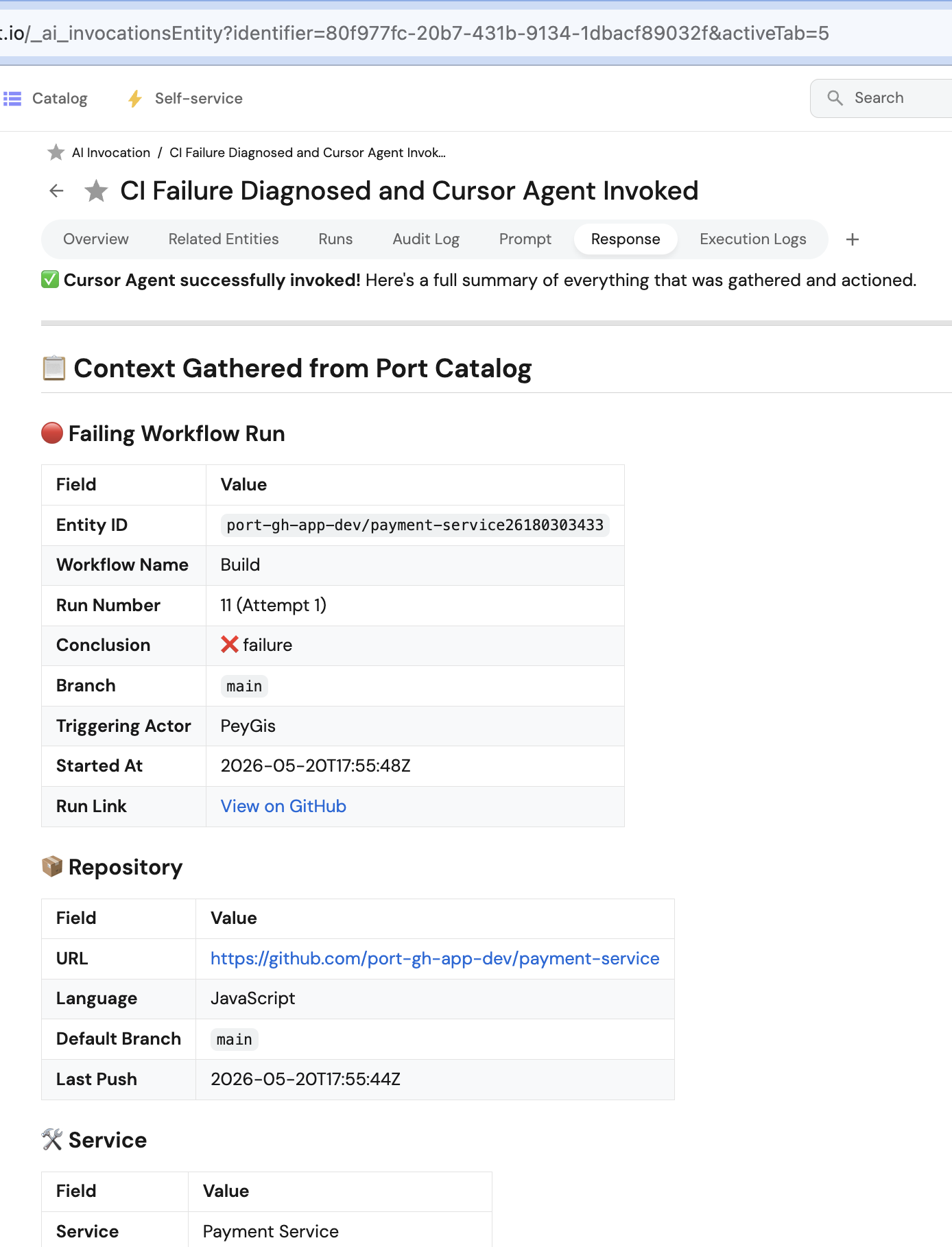
Gather failure contextAI node retrieved workflow, repository, and service context and produced a remediation brief. -
The
Fix CI with Cursornode launched the Cursor agent.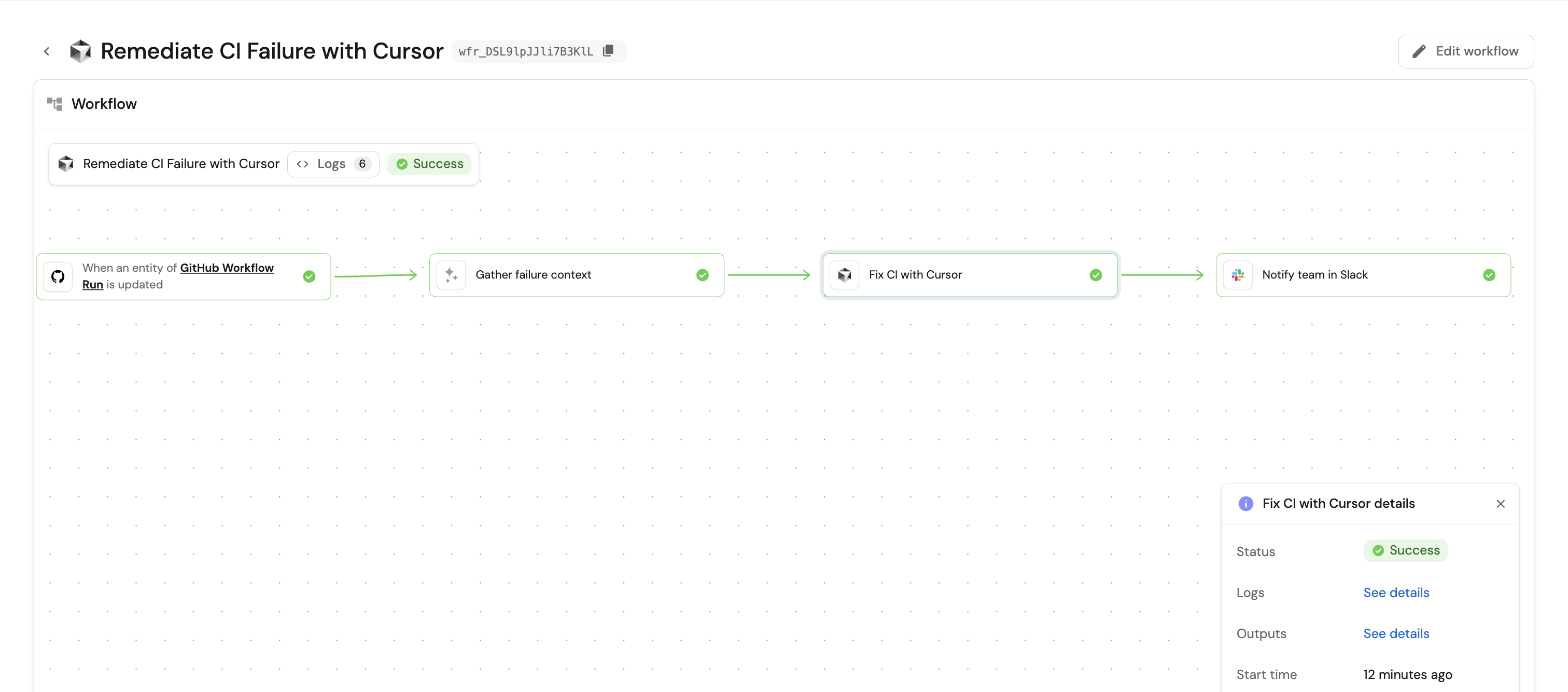
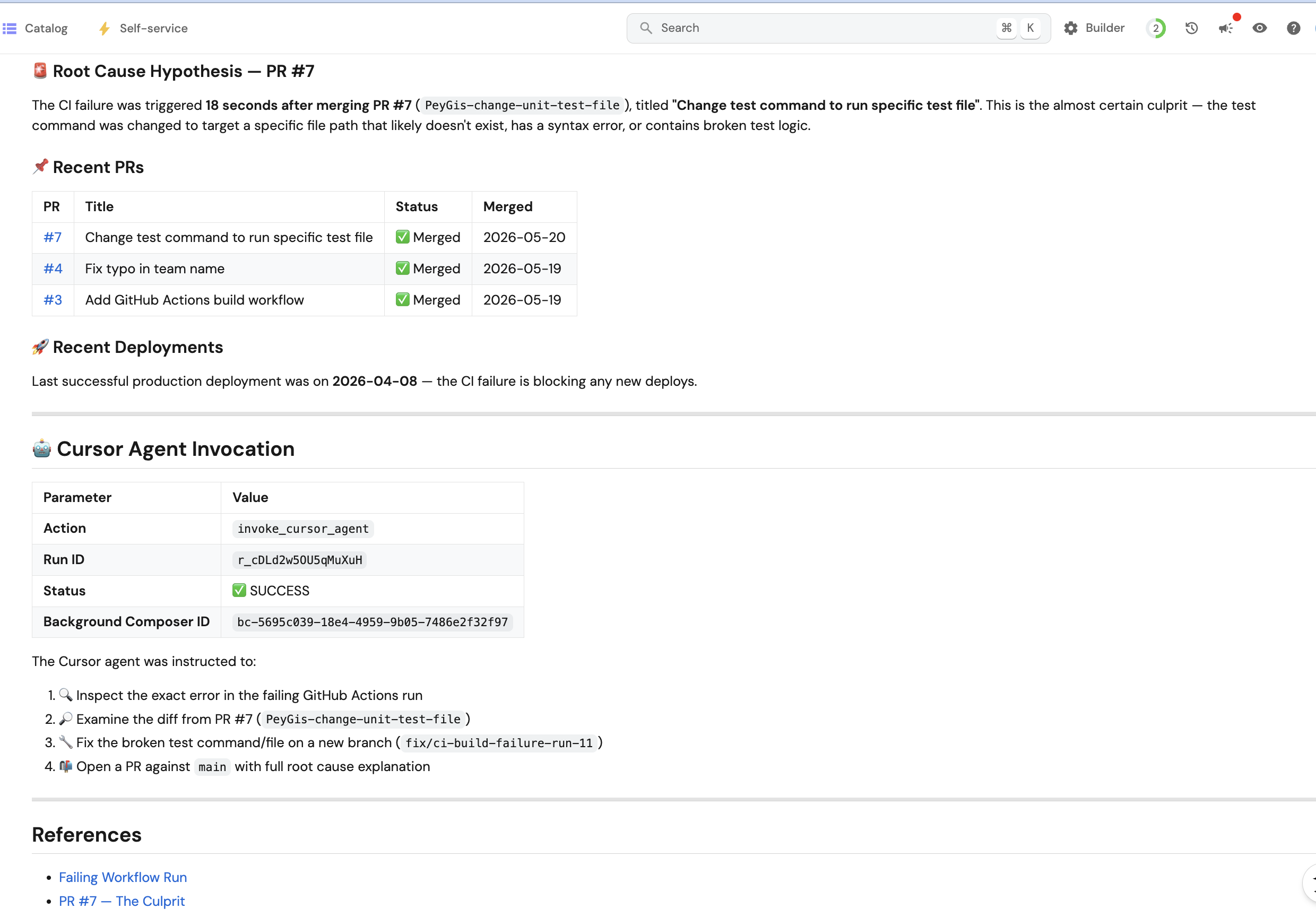
-
Verify the Cursor agent
-
Go to cursor.com/agents to see your running and completed agents.
-
Open the agent run and verify that it analyzed the failure and opened a pull request with the fix.
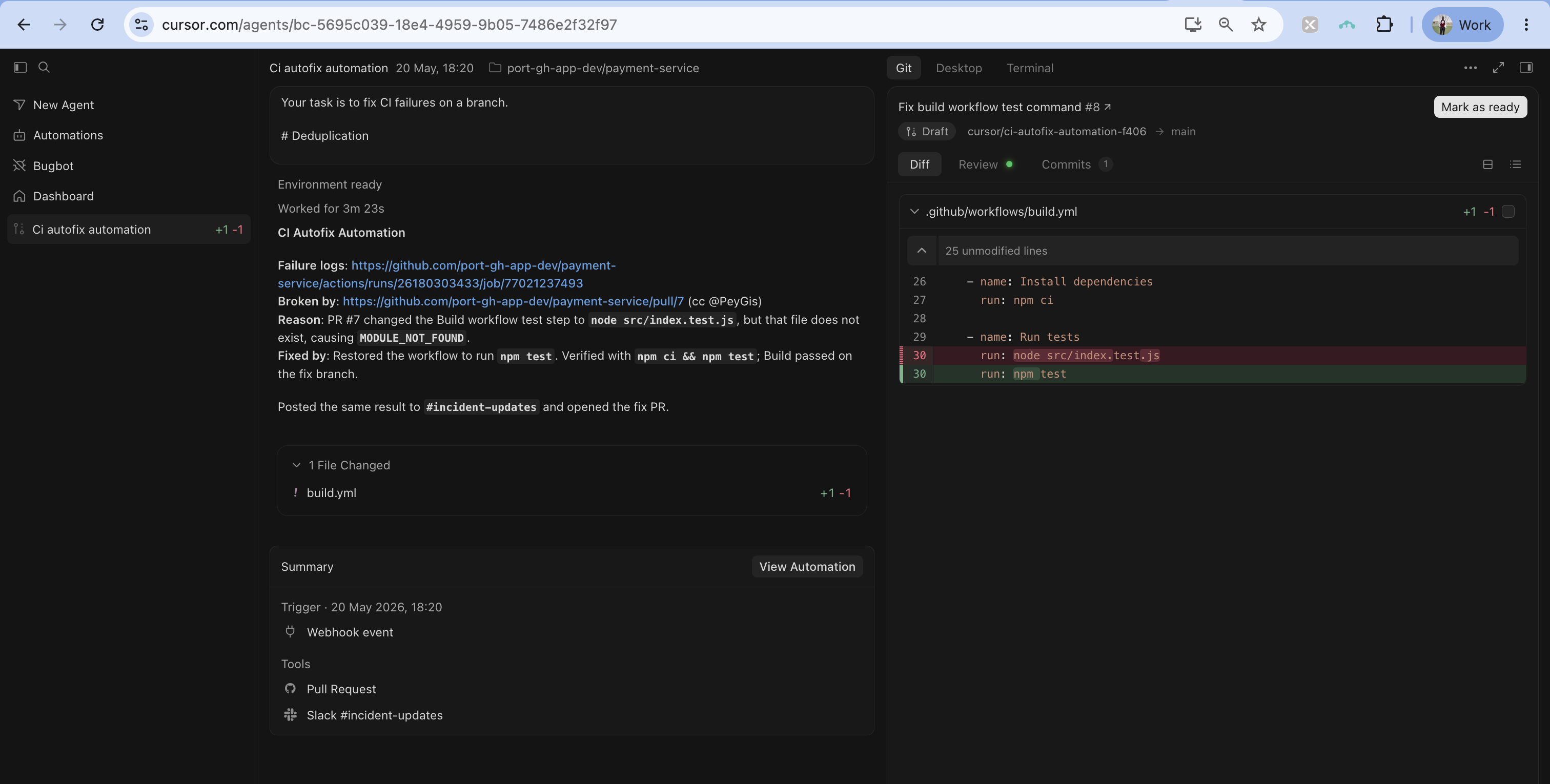
Verify Slack notifications
-
Go to your Slack workspace.
-
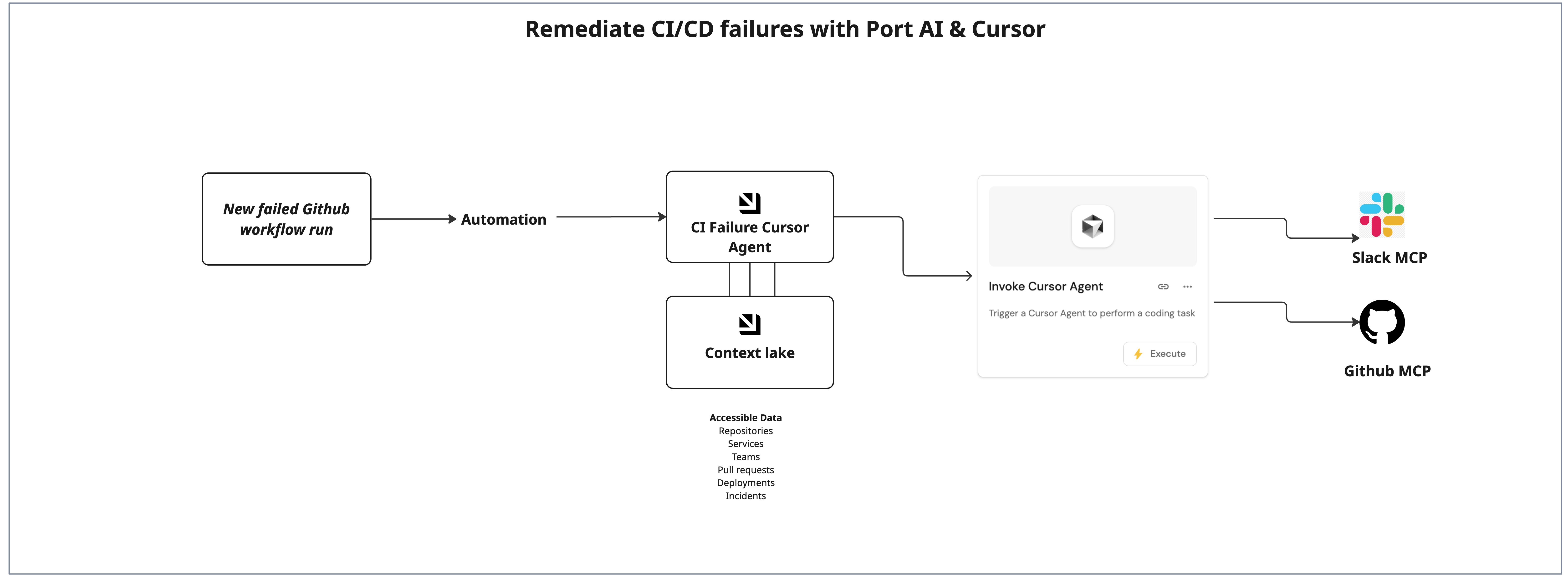
Verify that a message appears in the target channel with the workflow run name, the Cursor agent status, the fix branch, and links to the pull request and the agent run.