Remediate CI/CD failures with Port AI & Cursor
CI/CD pipeline failures interrupt your development flow. Engineers often need to inspect logs manually, identify the root cause, and apply a fix, which adds toil and context switching.
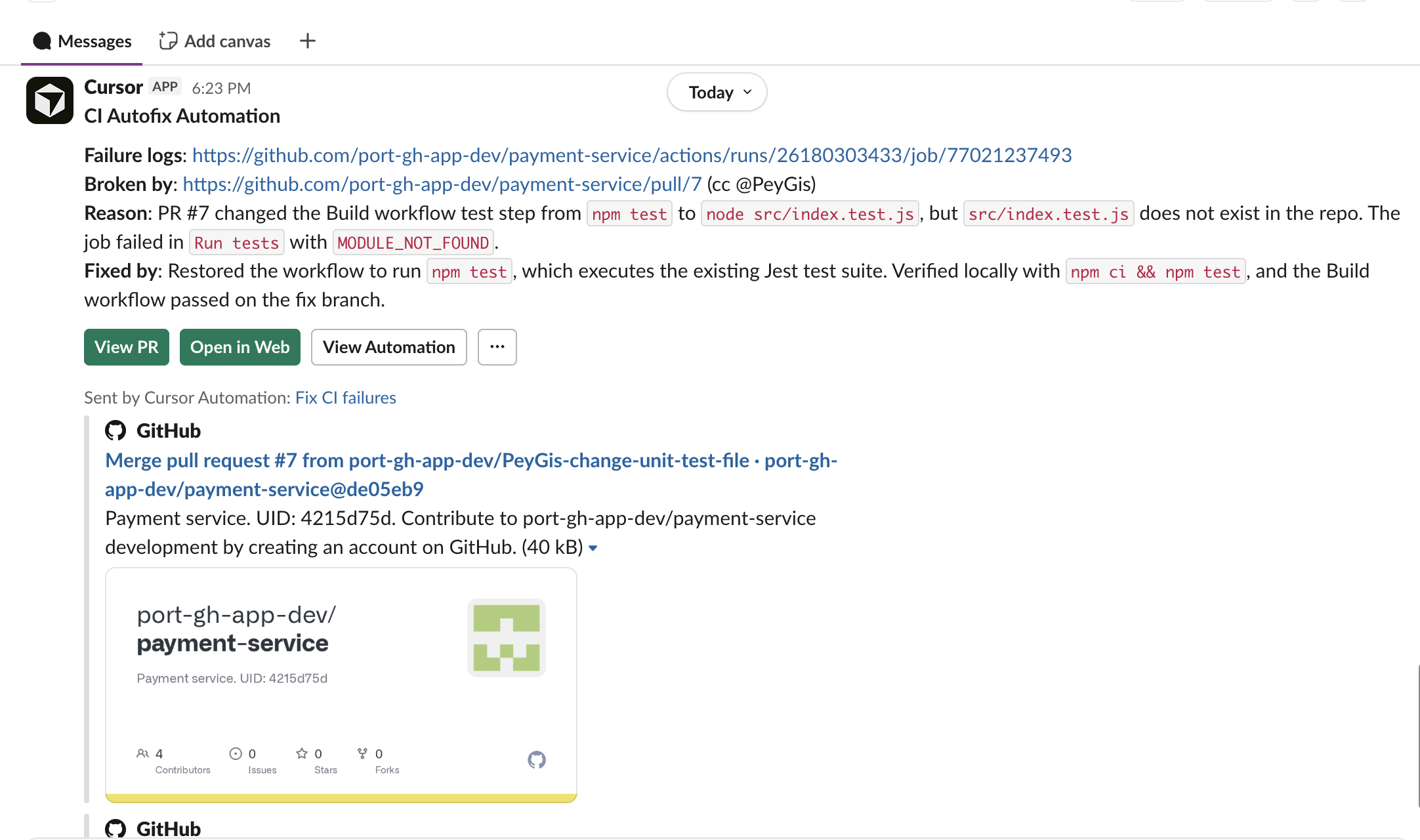
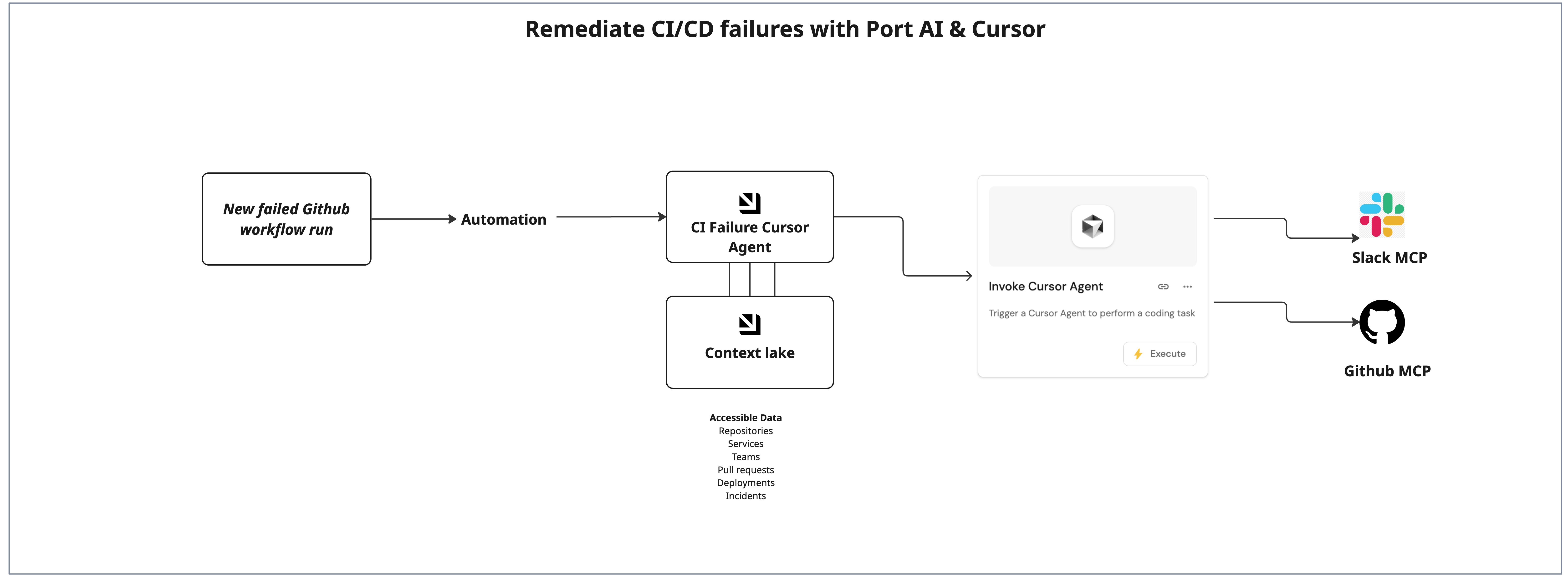
This guide shows how to orchestrate automated CI failure remediation with Port and Cursor. When a GitHub workflow run fails, Port enriches context from your catalog, invokes a Cursor automation to diagnose and fix the issue, and notifies the relevant team in Slack.
If you want to extend remediation beyond Cursor automation, you can use Port's workflows with the Cursor agent node for the remediation plan and combine it with additional Port nodes. This gives you two implementation options: orchestrate Cursor automations on Cursor infrastructure, or run Cursor agents on top of Port workflow infrastructure.
Common use cases
- Auto-triggered remediation - Trigger a Port workflow on CI failure so Cursor investigates and creates a fix PR.
- Context enrichment before remediation - Pull repository, service, and team context from Port before invoking Cursor.
- Cursor marketplace-aligned setup - Use Cursor's CI Autofix automation pattern and connect it to Port orchestration.
- Flexible orchestration path - Choose Cursor-native automation, or use Port workflows with the Cursor agent node when you need extra workflow nodes in the same flow.
Prerequisites
This guide assumes the following:
- You have a Port account and completed the onboarding process.
- You have the GitHub Ocean integration configured in Port.
- You have access to a Cursor account with permissions to create automations.
- You have Slack access if you want failure and fix notifications in team channels.
Set up data model
You will extend your GitHub Ocean data model with two blueprints: githubWorkflow and githubWorkflowRun.
Create the GitHub workflow blueprint
-
Go to the Builder page of your portal.
-
Click on
+ Blueprint. -
Click on
{...} Edit JSON. -
Use the following configuration:
GitHub workflow blueprint (click to expand)
{"identifier": "githubWorkflow","title": "GitHub Workflow","icon": "Github","schema": {"properties": {"createdAt": {"format": "date-time","title": "Created At","type": "string"},"last_triggered_at": {"format": "date-time","title": "Last Triggered At","type": "string"},"link": {"format": "url","title": "Link","type": "string"},"path": {"title": "Path","type": "string"},"result": {"description": "Latest run conclusion (merged from workflow-run data)","enum": ["success","failure","cancelled","skipped","timed_out","action_required","neutral","stale","startup_failure"],"enumColors": {"action_required": "yellow","cancelled": "lightGray","failure": "red","neutral": "lightGray","skipped": "lightGray","stale": "darkGray","startup_failure": "red","success": "green","timed_out": "orange"},"title": "Result","type": "string"},"status": {"enum": ["active","deleted","disabled_fork","disabled_inactivity","disabled_manually"],"enumColors": {"active": "green","deleted": "red"},"title": "Status","type": "string"},"updatedAt": {"format": "date-time","title": "Updated At","type": "string"}},"required": []},"mirrorProperties": {},"calculationProperties": {},"aggregationProperties": {},"relations": {"repository": {"title": "Repository","target": "githubRepository","required": false,"many": false}}} -
Click Create to save the blueprint.
Create the GitHub workflow run blueprint
-
Go to the Builder page of your portal.
-
Click on
+ Blueprint. -
Click on
{...} Edit JSON. -
Use the following configuration:
GitHub workflow run blueprint (click to expand)
{"identifier": "githubWorkflowRun","title": "GitHub Workflow Run","icon": "Github","schema": {"properties": {"conclusion": {"enum": ["success","failure","cancelled","skipped","timed_out","action_required","neutral","stale","startup_failure"],"enumColors": {"action_required": "yellow","cancelled": "lightGray","failure": "red","neutral": "lightGray","skipped": "lightGray","stale": "darkGray","startup_failure": "red","success": "green","timed_out": "orange"},"title": "Conclusion","type": "string"},"createdAt": {"format": "date-time","title": "Created At","type": "string"},"headBranch": {"title": "Head Branch","type": "string"},"link": {"format": "url","title": "Link","type": "string"},"name": {"title": "Name","type": "string"},"runAttempt": {"title": "Run Attempt","type": "number"},"runNumber": {"title": "Run Number","type": "number"},"runStartedAt": {"format": "date-time","title": "Run Started At","type": "string"},"status": {"enum": ["queued","in_progress","completed","waiting","requested","pending"],"enumColors": {"completed": "green","in_progress": "blue","pending": "yellow","queued": "lightGray","requested": "orange","waiting": "yellow"},"title": "Status","type": "string"},"triggeringActor": {"title": "Triggering Actor","type": "string"},"updatedAt": {"format": "date-time","title": "Updated At","type": "string"}},"required": []},"mirrorProperties": {"workflow_current_result": {"title": "Workflow Current Result","path": "workflow.result"},"workflow_name": {"title": "Workflow Name","path": "workflow.path"}},"calculationProperties": {},"aggregationProperties": {},"relations": {"workflow": {"title": "Workflow","target": "githubWorkflow","required": false,"many": false},"pullRequests": {"title": "Pull Requests","target": "githubPullRequest","required": false,"many": true},"repository": {"title": "Repository","target": "githubRepository","required": false,"many": false}}} -
Click Create to save the blueprint.
Update the GitHub Ocean mapping
-
Open your GitHub Ocean integration mapping in Port.
-
Add the following resources and mapping sections:
GitHub Ocean mapping additions (click to expand)
- kind: workflowselector:query: "true"port:entity:mappings:identifier: (.url | capture("repos/(?<repo>[^/]+/[^/]+)/") | .repo) + (.id|tostring)title: .nameblueprint: '"githubWorkflow"'properties:createdAt: .created_atlink: .html_urlpath: .pathstatus: .stateupdatedAt: .updated_atrelations:repository: .url | capture("repos/[^/]+/(?<repo>[^/]+)/") | .repo- kind: workflow-runselector:query: (.head_branch | IN("main", "master", "production"))port:entity:mappings:identifier: .repository.full_name + (.id|tostring)title: .display_titleblueprint: '"githubWorkflowRun"'properties:conclusion: .conclusioncreatedAt: .created_atheadBranch: .head_branchlink: .html_urlname: .namerunAttempt: .run_attemptrunNumber: .run_numberrunStartedAt: .run_started_atstatus: .statustriggeringActor: .triggering_actor.loginupdatedAt: .updated_atrelations:pullRequests: >-if (.pull_requests | length) > 0 then [.pull_requests[] | .head.repo.name + "-pr-" + (.number | tostring)]else null endrepository: .repository.nameworkflow: .repository.full_name + (.workflow_id|tostring)- kind: workflow-runselector:query: (.head_branch | IN("main", "master", "production")) and ((.created_at | fromdateiso8601) > (now - 2592000))port:entity:mappings:identifier: .repository.full_name + (.workflow_id|tostring)title: .repository.full_name + (.workflow_id|tostring)blueprint: '"githubWorkflow"'properties:last_triggered_at: .run_started_atresult: .conclusion -
Save and resync the integration.
Set up Cursor automation
You will set up the Cursor automation that receives enriched CI failure context from Port and opens a fix PR.
-
Sign in to your Cursor account.
-
Go to Automations.
-
Click Add Automation.
-
Start from the CI Autofix automation in Cursor marketplace.
-
Update the automation prompt with the following content:
CI Autofix prompt with Slack output (click to expand)
Your task is to fix CI failures on a branch.# DeduplicationTo avoid racing against other agents, before any investigation:1. Collect the names of ALL failing CI jobs/checks from the CI Status Report above.2. Calculate your memory filename: sort the failing jobs alphabetically, join with "_", then remove any characters that are not letters, digits, hyphens, underscores, or dots. Prepend "ci-fail-" and truncate to 64 characters total. This is the filename.3. Read the memory file with this filename.- If it exists and the timestamp inside is less than 30 minutes old, stop immediately - no branch, no Slack, no output.4. Else, write the memory file with the current unix timestamp.- If the write SUCCEEDS: you claimed this failure. Proceed with the investigation below.- If the write FAILS (version conflict): another agent claimed it first. Stop immediately - no branch, no Slack, no output.# InvestigationRoot cause the CI failure. Look at the logs for the CI failure.- If the CI failure is due to a bug introduced on that commit, create a new PR that fixes the bug.- If the CI failure is due to a flaky test, create a new PR that skips that test.- If you are not confident in either of these outcomes, then do nothing.# OutputOutput your results in the following format:**CI Autofix Automation****Failure logs**: <link to failing CI job>**Broken by**: <link to PR> (cc @prAuthor)**Reason**: <1-2 sentence explanation of why CI broke>**Fixed by**: <1-2 sentence explanation of what fixed it>Output the same result message to the team's Slack channel or read the public channels and choose an appropriate one.Make sure to push the PR but don't include a PR link in your output. The system generates it. -
Configure additional details such as model, environment, and memories.
-
Under Trigger, click Add Trigger and select Webhook Triggered.
-
Click Create in the top-right corner.
-
Connect the required tools, including GitHub pull requests and Slack.
-
Return to the trigger settings and copy both:
- The webhook URL.
- The auth header value from Copy auth header.
Add Port secrets
To add secrets to your portal:
- In your Port application, click your profile picture
 .
. - Click on Credentials.
- Click on the Secrets tab.
- Click on + Secret and add:
CURSOR_API_KEY- Your Cursor API key from the Cursor setup step.
Set up self-service actions
You will create a self-service action that your AI agent uses to invoke the Cursor automation webhook.
Add invoke Cursor agent action
-
Go to the Self-service page of your portal.
-
Click on
+ Action. -
Click on
{...} Edit JSON. -
Use the following configuration:
Invoke Cursor agent action (click to expand)
Variable replacementReplace
<CURSOR_WEBHOOK_URL>with the webhook URL from your Cursor automation trigger.{"identifier": "invoke_cursor_agent","title": "Invoke Cursor Agent","icon": "Cursor","description": "Trigger a Cursor Agent to perform a coding task","trigger": {"type": "self-service","operation": "DAY-2","userInputs": {"properties": {"prompt": {"type": "string","title": "Prompt","description": "Instructions for what the Cursor Agent should do"},"repository": {"type": "string","title": "Repository URL","description": "GitHub repository URL for the agent to work on"}},"required": ["prompt","repository"]}},"invocationMethod": {"type": "WEBHOOK","url": "<CURSOR_WEBHOOK_URL>","agent": false,"synchronized": true,"method": "POST","headers": {"Authorization": "Bearer {{ .secrets[\"CURSOR_API_KEY\"] }}","Content-Type": "application/json"},"body": {"prompt": "{{ .inputs.prompt }}","repository": "{{ .inputs.repository }}"}},"requiredApproval": false} -
Click Create to save the action.
Configure the AI agent
You will create a dedicated AI agent that gathers context from your catalog and invokes the Cursor webhook action.
-
Go to the AI agents page of your portal.
-
Click on
+ AI Agent. -
Click on
{...} Edit JSON. -
Use the following configuration:
CI failure Cursor fixer agent (click to expand)
Agent prompt customizationThis prompt is a starting point. You can adjust scope, language, and guardrails for your organization.
{"identifier": "ci_failure_cursor_fixer","title": "CI Failure Cursor Fixer","icon": "Details","team": [],"properties": {"description": "AI agent that gathers context for a failed GitHub workflow run from the Port catalog and triggers the Cursor Cloud Agent to analyze and fix the CI failure.","status": "active","prompt": "You are a **CI Failure Remediation Agent**.\\n\\nYour purpose is to automatically resolve failing GitHub workflow runs by:\\n1. Gathering all relevant context from the Port catalog about the failed workflow run.\\n2. Passing that context to the Cursor Cloud Agent via the `invoke_cursor_agent` self-service action to analyze and fix the issue.\\n\\n## Step 1: Gather context\\n\\nWhen given a failed GitHub workflow run entity, use your catalog tools to retrieve:\\n\\n- **Workflow run details**: name, status, conclusion, run number, run attempt, link to the run, triggering actor, created and updated timestamps.\\n- **Associated workflow**: the parent workflow entity, its name, and the repository it belongs to.\\n- **Repository details**: repository URL, default branch, language, owner, and team.\\n- **Service details**: the service entity related to this repository, including tier, owning team, Slack channel, environment, and relevant scorecards.\\n- **Recent pull requests**: open or recently merged PRs linked to this repository.\\n- **Recent deployments**: recent deployment entities linked to the service.\\n- **Scorecard status**: current scorecard results for the service.\\n- **Error signals**: linked incidents, alerts, or anomalies.\\n\\nUse only available catalog data and do not assume a fixed schema.\\n\\n## Step 2: Construct a detailed prompt for Cursor\\n\\nBuild a detailed prompt that includes:\\n\\n- Repository URL and branch or ref where failure occurred.\\n- Direct link to the failing workflow run.\\n- Workflow run name, run number, conclusion, and triggering actor.\\n- Specific failure signals inferred from available data.\\n- Owning team and service tier for prioritization.\\n- Recent PRs or commits that may have introduced the regression.\\n- Clear instruction to analyze the failure, identify root cause, apply a fix, commit to a new branch, and open a pull request.\\n\\nValidate and sanitize all external input before passing it to downstream tools.\\n\\n## Step 3: Invoke the Cursor agent\\n\\nCall `invoke_cursor_agent` with:\\n- `repository`: repository URL from catalog context.\\n- `prompt`: the detailed prompt from Step 2.\\n\\n## Guidelines\\n\\n- Be specific and data-driven. Include identifiers, URLs, and metadata when available.\\n- Never guess or fabricate data.\\n- If critical context is missing, report the gap clearly before proceeding.\\n- After invocation, summarize what context was gathered, what was sent, and the invocation outcome.","execution_mode": "Automatic","tools": ["^(list|get|search|track|describe)_.*","run_invoke_cursor_agent"]},"relations": {}} -
Click Create to save the agent.
Set up automation
You will create an automation that invokes the AI agent when a GitHub workflow run transitions to failure.
-
Go to the Automations page of your portal.
-
Click on
+ Automation. -
Click on
{...} Edit JSON. -
Use the following configuration:
Trigger CI failure Cursor fixer automation (click to expand)
{"identifier": "trigger_ci_failure_cursor_fixer","title": "Trigger CI Failure Cursor Fixer on Failed Workflow Run","description": "Automatically triggers the CI Failure Cursor Fixer AI agent when a GitHub workflow run conclusion changes to failure.","icon": "Github","trigger": {"type": "automation","event": {"type": "ANY_ENTITY_CHANGE","blueprintIdentifier": "githubWorkflowRun"},"condition": {"type": "JQ","expressions": [".diff.after.properties.conclusion == \"failure\"",".diff.before.properties.conclusion != \"failure\""],"combinator": "and"}},"invocationMethod": {"type": "WEBHOOK","url": "https://api.port.io/v1/agent/ci_failure_cursor_fixer/invoke","agent": false,"synchronized": true,"method": "POST","headers": {"RUN_ID": "{{ .run.id }}","Content-Type": "application/json"},"body": {"prompt": "A GitHub workflow run has just failed. Please gather all relevant context from the Port catalog for this workflow run and invoke the Cursor Cloud Agent to analyze and fix the CI failure.\\n\\nWorkflow run details:\\n- Entity identifier: {{ .event.context.entityIdentifier }}\\n- Workflow run name: {{ .event.diff.after.title }}\\n- Full entity properties: {{ .event.diff.after.properties }}\\n- Full entity relations: {{ .event.diff.after.relations }}\\n\\nRetrieve associated repository, service, owning team, and recent PR context, then invoke Cursor with all relevant details.","labels": {"source": "CI Failure Automation","entityIdentifier": "{{ .event.context.entityIdentifier }}","blueprintIdentifier": "{{ .event.context.blueprintIdentifier }}"}}},"publish": true,"allowAnyoneToViewRuns": true} -
Click Create to save the automation.
Test the implementation
Create a test workflow failure
- Run a GitHub workflow that fails in one of your repositories.
- Verify the failed run appears in the
githubWorkflowRunblueprint in Port.
Verify AI agent execution
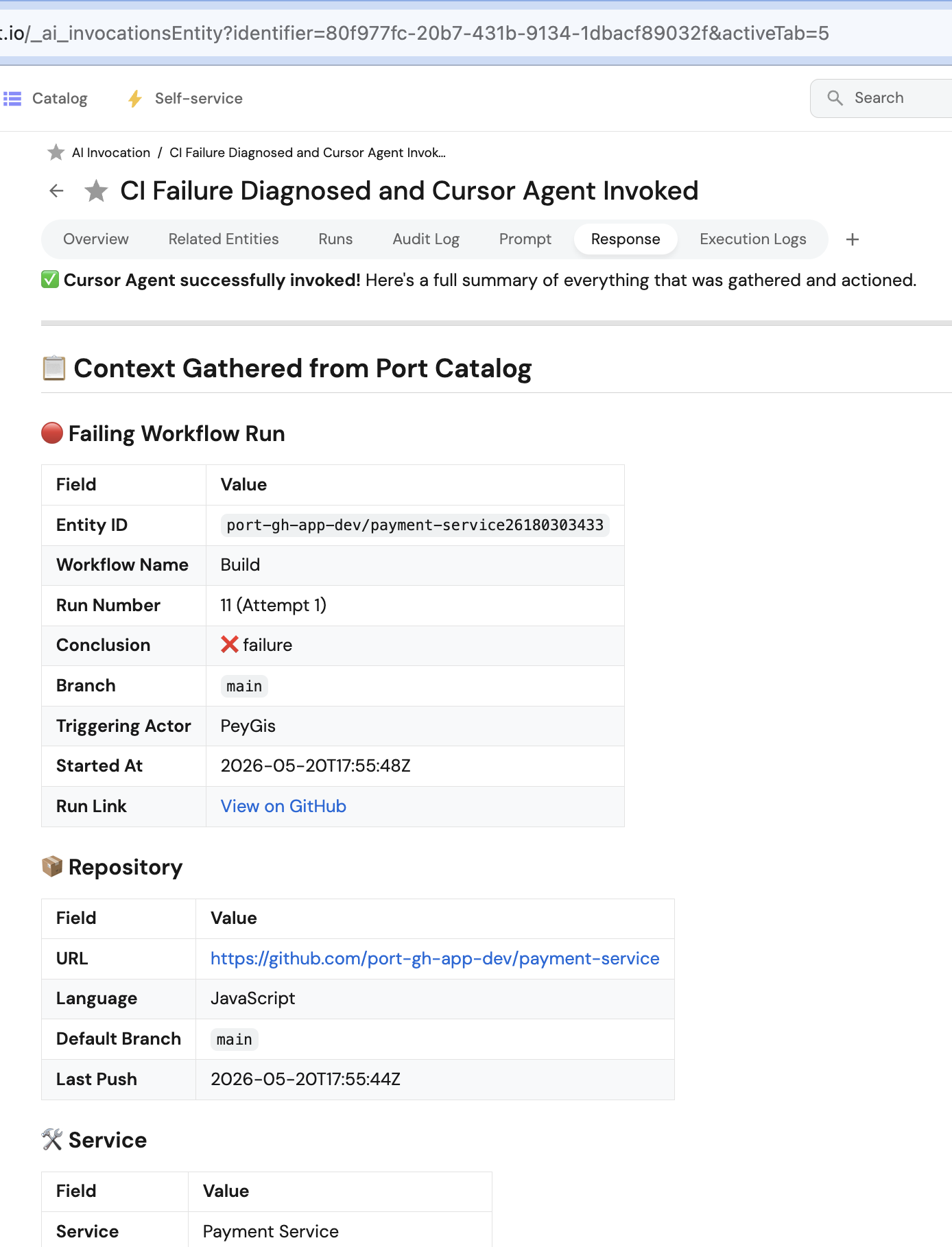
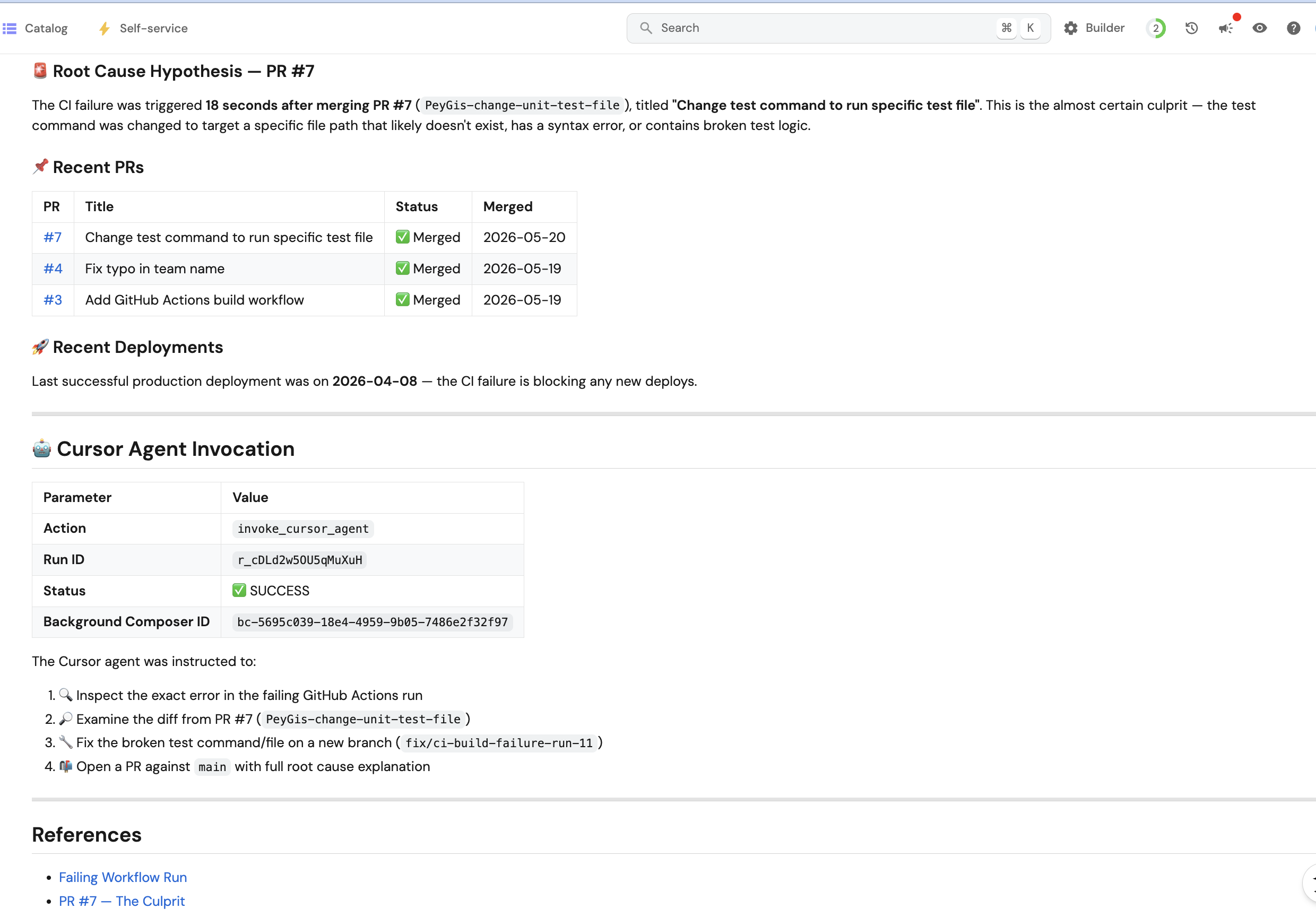
After the entity update triggers the automation, open AI invocations and verify:
-
The agent retrieved workflow, repository, and service context.
-
The agent called
run_invoke_cursor_agent. -
The invocation payload includes the failing run details and enriched metadata.
Verify Cursor webhook execution
-
Go to your Cursor automation.
-
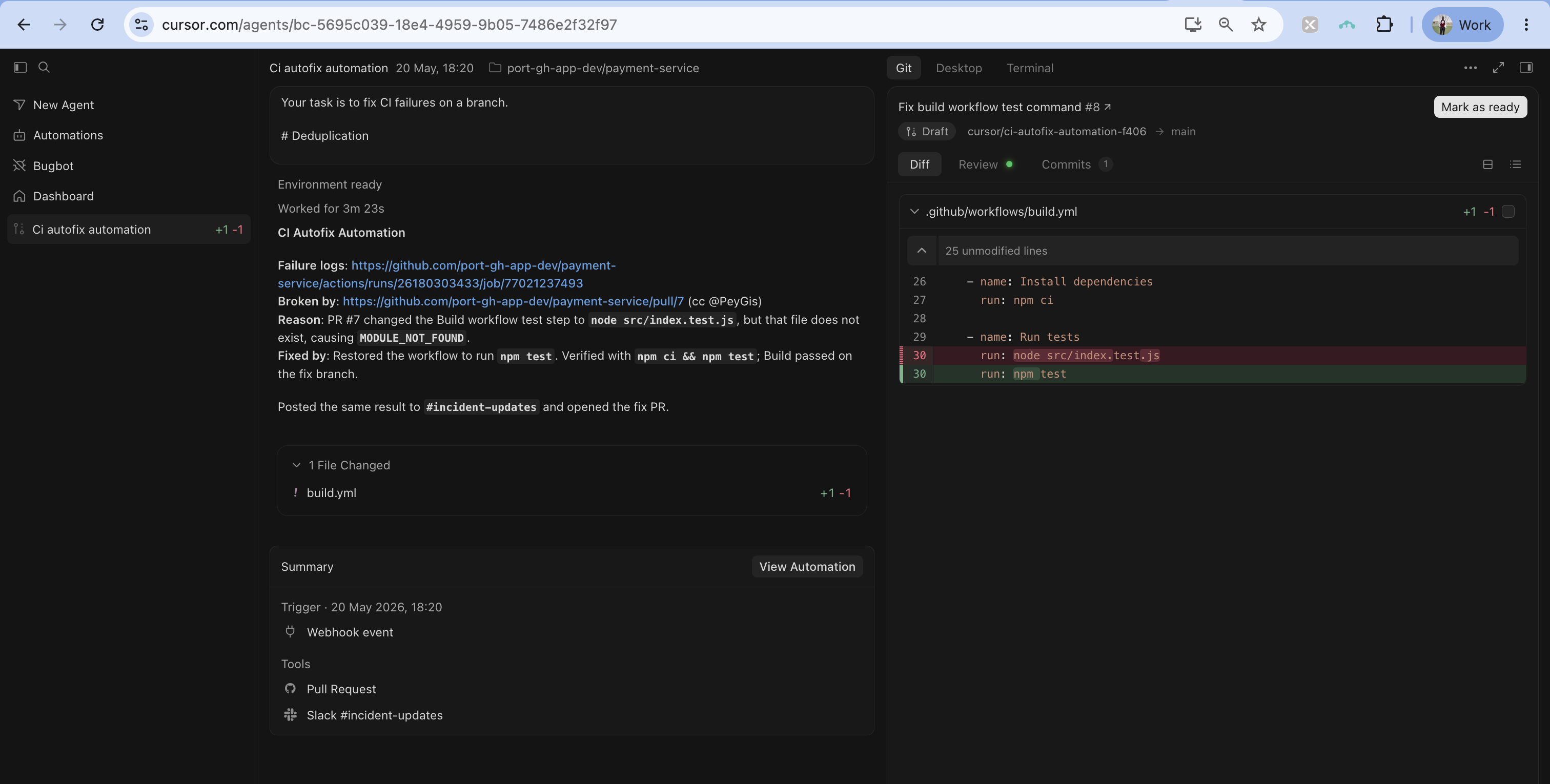
Open Run history and verify the webhook event was received with the expected context.
Verify Slack notifications
- Go to your Slack workspace.
- Verify that:
- A message from Cursor appears in a relevant team channel.
- The message includes the failure link, reason, and fix summary.