Provision cloud resources with an agentic IaC workflow
Send this guide to your coding agent.
Prerequisite: Install Port MCP
Open plan mode. Implement this Port guide in my org via MCP:

https://docs.port.io/guides/all/provision-cloud-resources-with-agentic-iac-workflow

Goal: get the guide's core flow working end-to-end in my org; adapting it to fit my existing setup takes priority over matching the guide 1:1.

Plan:
1. Confirm MCP is connected, in the right org, with sufficient permissions.
2. Diff the guide's data model (blueprints, properties, relations, actions, agents, automations, integrations, secrets) against mine.
3. Propose adaptations for gaps, reusing existing blueprints/relations over guide-named duplicates.
4. Flag what needs a UI click, credential, or secret from me, testing MCP capability empirically before ruling anything out.
5. Stop on any blocker and give me options. Approving this plan authorizes the writes it lists; pause only for writes beyond what's listed.

Build:
- Extend blueprint schema additively when upserting; don't remove or overwrite existing properties, and treat type conflicts as a blocker, not an auto-fix.
- List any mock data in the plan, minimal and labeled mock; once approved, seed it without re-asking, and tell me what you seeded.
- For anything the guide writes downstream (e.g. a webhook target), use a real entity, not a mock.
- For pages/widgets, use the real page identifier from the app URL, not a guessed slug.
- When you hit a UI step confirmed (not assumed) unsupported via MCP, pause, give exact clicks, then resume via MCP.
- Validate and give links after each meaningful step (only a tool-returned URL, no guessed paths); don't proceed if the last run wasn't a success.

Done:
- Confirm the guide's expected output exists and runs in Port.
- Summarize adaptations, seeded data, what was mocked or skipped, remaining UI steps, and how to verify.
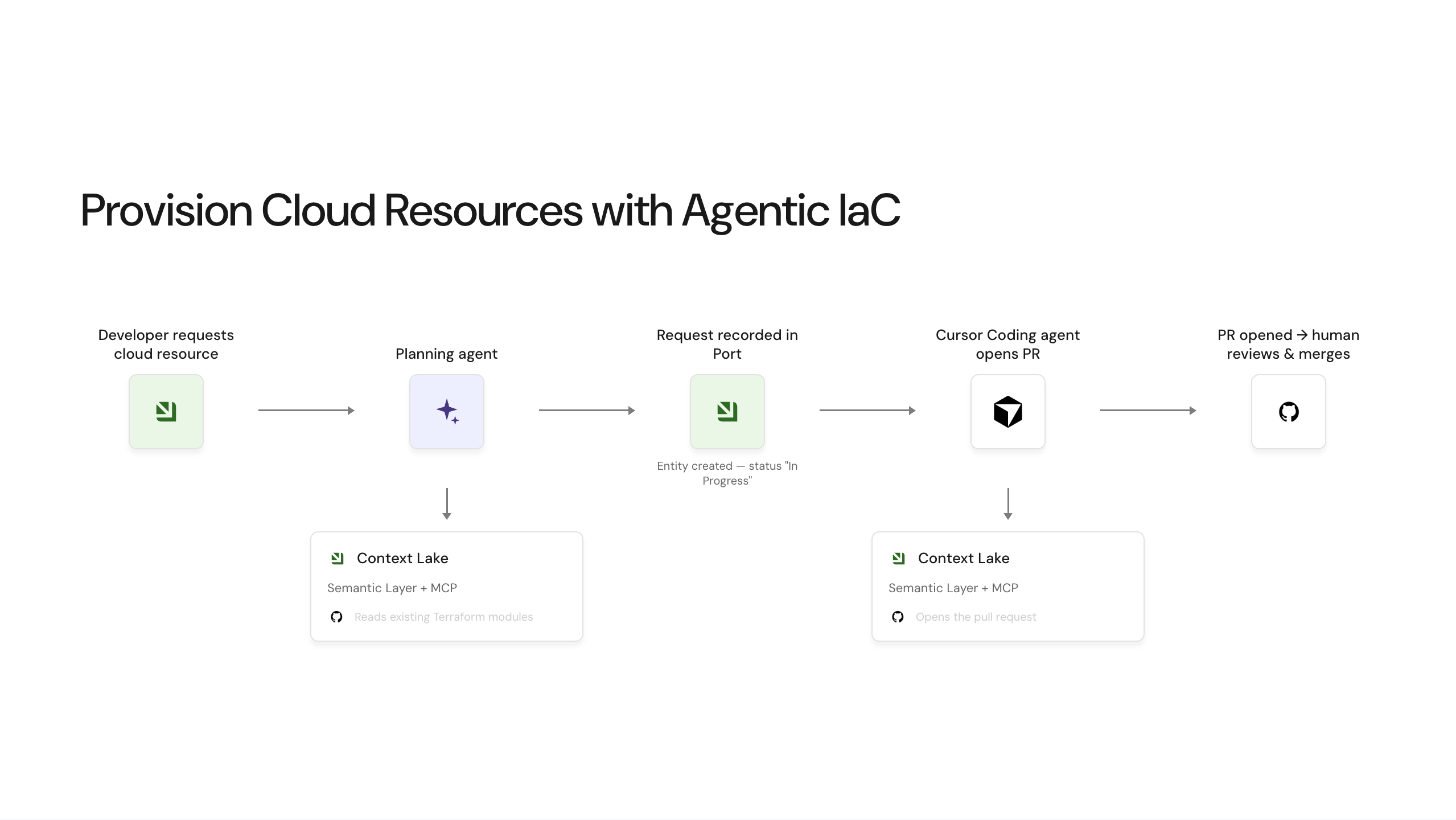
We will build a self-service workflow that lets a developer request a cloud resource and walks it, unattended, from intent to an open pull request. The workflow fetches context about the requesting service, asks AI to draft an implementation plan from your existing Terraform modules, records the request in Port's catalog, and uses a coding agent to open a real pull request against your GitOps repository. This gives developers a fast, governed path to infrastructure changes, instead of a ticket that waits for a platform engineer to pick up.
This is the basic, cloud-only version of the pattern shown in Agentic resource management.
Prerequisites
- A GitHub integration connected to the GitOps repository that holds your Terraform modules.
- A coding agent with access to that repository and its API key stored as a Port secret, so the workflow can open a pull request on your behalf. This guide uses the Cursor Agent node with a
CURSOR_API_KEYsecret, but you can use other coding agents, like Claude or GitHub Copilot, instead. - Port AI enabled on your organization.
- A property on your
serviceblueprint that gives the coding agent more context, for examplecriticality. - Port's Slack app installed in your workspace (optional), for example to send a Slack message when the pull request opens.
Create the cloud resource request blueprint
This workflow builds on the existing service blueprint and adds one new blueprint, cloud_resource_request, which tracks a request from submission through to a merged (or rejected) change.
The status property reflects the request's own lifecycle, not the physical infrastructure: it starts at In Progress while the plan is being drafted, moves to Pending Approval once the pull request is submitted, and becomes Approved once that pull request is merged, or Rejected if it's closed without merging. This guide's workflow only sets the first two states automatically. Merging (and therefore Approved/Rejected) happens through your normal GitHub review process, so nothing in this basic workflow sets those two - see Enhancements for syncing that decision back into Port automatically.
-
Go to the Builder page in Port.
-
Click on
+ Blueprint. -
Click on the
Edit JSON {...}button in the top right corner of the modal. -
Add this JSON schema:
Cloud resource request blueprint (click to expand)
{"identifier": "cloud_resource_request","title": "Cloud Resource Request","icon": "RequestQuote","schema": {"properties": {"status": {"type": "string","title": "Status","enum": ["In Progress", "Pending Approval", "Approved", "Rejected"],"enumColors": {"In Progress": "lightGray","Pending Approval": "yellow","Approved": "green","Rejected": "red"}},"resource_type": {"type": "string","title": "Resource type"},"environment": {"type": "string","title": "Environment","enum": ["Development", "Staging", "Production"],"enumColors": {"Development": "green","Staging": "yellow","Production": "red"}},"additional_context": {"type": "string","title": "Additional context","format": "markdown"},"implementation_plan": {"type": "string","title": "Implementation plan","format": "markdown"},"architecture": {"type": "string","title": "Architecture","format": "markdown"},"pr_url": {"type": "string","title": "PR URL","format": "url"},"requested_at": {"type": "string","title": "Requested at","format": "date-time"}},"required": ["status", "resource_type"]},"mirrorProperties": {},"calculationProperties": {},"aggregationProperties": {},"relations": {"requested_by": {"title": "Requested by","target": "_user","required": false,"many": false}}} -
Click
Saveto create the blueprint.
Configure the GitHub MCP connector
The AI node that drafts the implementation plan needs a way to read your existing Terraform modules. We'll set up a GitHub MCP connector so it can search and read files from your GitOps repository.
Workflow AI nodes run with an organization automation token rather than an individual user's session, so the per-user OAuth setup described in GitHub MCP connector doesn't apply here. Instead, configure the connector with a GitHub token in the request headers, shared across the organization. See the MCP connectors page's FAQ on shared header authentication vs. per-user OAuth for more on this distinction.
- Create a fine-grained personal access token with Contents: read scope on your GitOps repository.
- Store that token as a Port secret (for example
GITHUB_MCP_TOKEN). - Go to the Data sources page in Port.
- Click on
+ Data source, then select the MCP Servers tab. - Select Custom Server and fill in:
- Name:
git_hub(or a name of your choice - you'll reference this identifier from the workflow). - URL:
https://api.githubcopilot.com/mcp/- GitHub's own hosted remote MCP server. - Headers:
{ "Authorization": "Bearer {{ .secrets[\"GITHUB_MCP_TOKEN\"] }}" }(referencing the secret from step 2).
- Name:
- Under Allowed Tools, add read-only tools for searching and reading repository content (for example, tools for searching code and fetching file contents).
- Click
Publishto make the connector available.
Build the workflow
This workflow chains a self-service trigger, an entity-creation step, an AI action node that drafts the implementation plan, a Cursor Agent node that opens the pull request, an entity-update step, and an optional Slack notification. It's grouped under the "Agentic Resource Management" category in the Self-Service Hub.
-
Go to the Workflows page in Port.
-
Click on the
+ Workflowbutton in the top-right corner. -
In the workflow page, click on the {...} button and paste the following definition:
Request cloud resource workflow JSON (click to expand)
{"identifier": "request_cloud_resource_basic","title": "Request Cloud Resource","icon": "Cloud","description": "Request a cloud resource, draft an implementation plan with AI, and open a pull request against the GitOps repository","category": "Agentic Resource Management","allowAnyoneToViewRuns": true,"nodes": [{"identifier": "trigger","title": "Request Cloud Resource","icon": "Cloud","config": {"type": "SELF_SERVE_TRIGGER","userInputs": {"properties": {"resource_type": {"type": "string","title": "Resource type","default": "RDS Database","enum": ["RDS Database", "S3 Bucket", "EC2 Instance", "EKS Cluster", "ElastiCache"]},"environment": {"type": "string","title": "Environment","default": "Staging","enum": ["Development", "Staging", "Production"],"enumColors": {"Development": "green","Staging": "yellow","Production": "red"}},"service": {"type": "string","format": "entity","blueprint": "service","title": "Service"},"additional_context": {"type": "string","title": "Additional context","description": "Describe any special requirements","format": "markdown"}},"required": ["resource_type", "environment", "service"],"order": ["resource_type", "environment", "service", "additional_context"]}}},{"identifier": "fetch_service_context","title": "Fetch Service Context","icon": "Port","config": {"type": "WEBHOOK","url": "https://api.port.io/v1/blueprints/service/entities/{{ .outputs[\"trigger\"].service }}","method": "GET","synchronized": true},"variables": {"request_id": "{{ .outputs[\"trigger\"].environment | ascii_downcase }}-{{ .outputs[\"trigger\"].service }}-{{ .outputs[\"trigger\"].resource_type | gsub(\" \"; \"-\") | ascii_downcase }}-{{ .workflowRun.identifier | gsub(\"wfr_\"; \"\") | ascii_downcase }}","service_criticality": "{{ .result.response.data.entity.properties.criticality }}","service_title": "{{ .result.response.data.entity.title }}"}},{"identifier": "create_resource_request","title": "Create Resource Request","icon": "NewPage","config": {"type": "UPSERT_ENTITY","blueprintIdentifier": "cloud_resource_request","mapping": {"identifier": "{{ .outputs[\"fetch_service_context\"].request_id }}","title": "{{ .outputs[\"trigger\"].resource_type }} for {{ .outputs[\"fetch_service_context\"].service_title }}","properties": {"status": "In Progress","resource_type": "{{ .outputs[\"trigger\"].resource_type }}","environment": "{{ .outputs[\"trigger\"].environment }}","additional_context": "{{ .outputs[\"trigger\"].additional_context }}","requested_at": "{{ now | todateiso8601 }}"},"relations": {"requested_by": "{{ .workflowRun.trigger.by.email }}"}}}},{"identifier": "generate_implementation_plan","title": "Generate Implementation Plan","icon": "AI","config": {"type": "AI","userPrompt": "Generate an implementation plan for provisioning a cloud resource.\n\nRequest details:\n- Resource type: {{ .outputs[\"trigger\"].resource_type }}\n- Environment: {{ .outputs[\"trigger\"].environment }}\n- Service: {{ .outputs[\"fetch_service_context\"].service_title }}\n- Service criticality: {{ .outputs[\"fetch_service_context\"].service_criticality }}\n- Additional requirements: {{ .outputs[\"trigger\"].additional_context }}\n\nGenerate:\n1. **Implementation plan** - step-by-step pseudo-code for the Terraform PR, reusing existing modules wherever possible\n2. **Architecture diagram** - a simple Mermaid flowchart with a maximum of 5-7 nodes, showing the environment, the service, and the new resource","systemPrompt": "You are an infrastructure architect. Generate clear, actionable implementation plans using Terraform best practices. Prefer existing modules over new resources. Be concise.\n\nFor architecture diagrams, generate simple Mermaid flowcharts with a maximum of 5-7 nodes. Focus only on the core components. Do not include security groups, IAM roles, KMS keys, or other low-level details.","tools": ["git_hub_get_file_contents", "git_hub_search_repositories", "git_hub_search_code"],"mcpServers": [{ "identifier": "git_hub" }],"outputSchema": {"type": "object","properties": {"implementation_plan": { "type": "string" },"architecture": { "type": "string" }},"required": ["implementation_plan", "architecture"]}},"variables": {"implementation_plan": "{{ .result.response | fromjson | .implementation_plan }}","architecture": "{{ .result.response | fromjson | .architecture }}"}},{"identifier": "open_pull_request","title": "Open Pull Request","icon": "Cursor","config": {"type": "CURSOR_AGENT","apiKey": "{{ .secrets[\"CURSOR_API_KEY\"] }}","prompt": {"text": "Apply the following implementation plan to this repository's Terraform modules, then open a pull request.\n\nPlan:\n{{ .outputs[\"generate_implementation_plan\"].implementation_plan }}\n\nPull request requirements (follow exactly, do not deviate):\n1. PR title MUST be exactly: \"[{{ .outputs[\"trigger\"].environment }}] Provision {{ .outputs[\"trigger\"].resource_type }} for {{ .outputs[\"fetch_service_context\"].service_title }}\"\n2. Open the PR as a normal, ready-for-review pull request. Do NOT open it as a draft.\n3. The PR description must contain only: a one-paragraph summary of the change, and a \"## Changes\" section listing the files touched as a plain bullet list. Do NOT include a task checklist, TODO list, or any checkbox items (no \"- [ ]\" items) in the description.\n4. Do NOT post any comments on the PR after creation (no follow-up comments, no bot comments, no plan recap comments). The implementation plan is already recorded in Port; it does not need to be repeated in a PR comment.\n5. Make exactly one commit for this change with a clear, conventional commit message."},"source": {"repository": "https://github.com/your-org/gitops-repo","ref": "main"},"target": {"autoCreatePr": true}},"variables": {"pr_url": "{{ .result.target.prUrl }}"}},{"identifier": "update_request_pr_submitted","title": "Update Request - PR Submitted","icon": "Link","config": {"type": "UPSERT_ENTITY","blueprintIdentifier": "cloud_resource_request","mapping": {"identifier": "{{ .outputs[\"fetch_service_context\"].request_id }}","properties": {"status": "Pending Approval","pr_url": "{{ .outputs[\"open_pull_request\"].pr_url }}","implementation_plan": "{{ .outputs[\"generate_implementation_plan\"].implementation_plan }}","architecture": "{{ .outputs[\"generate_implementation_plan\"].architecture }}"}}}},{"identifier": "notify_slack","title": "Send Slack Notification","icon": "Slack","config": {"type": "WEBHOOK","url": "https://slack.com/api/chat.postMessage","method": "POST","onTimeout": "continue","onFailure": "continue","headers": {"Content-Type": "application/json","Authorization": "Bearer {{ .secrets.__SLACK_APP_BOT_TOKEN_T123 }}"},"body": {"channel": "C0123456789","text": "New resource request pending approval","blocks": [{"type": "section","text": {"type": "mrkdwn","text": "*{{ .outputs[\"fetch_service_context\"].service_title }}* requested a *{{ .outputs[\"trigger\"].resource_type }}* in *{{ .outputs[\"trigger\"].environment }}*. Pending Approval.\nPR: {{ .outputs[\"open_pull_request\"].pr_url }}"}}]}}}],"connections": [{ "sourceIdentifier": "trigger", "targetIdentifier": "fetch_service_context" },{ "sourceIdentifier": "fetch_service_context", "targetIdentifier": "create_resource_request" },{ "sourceIdentifier": "create_resource_request", "targetIdentifier": "generate_implementation_plan" },{ "sourceIdentifier": "generate_implementation_plan", "targetIdentifier": "open_pull_request" },{ "sourceIdentifier": "open_pull_request", "targetIdentifier": "update_request_pr_submitted" },{ "sourceIdentifier": "update_request_pr_submitted", "targetIdentifier": "notify_slack" }]} -
If you named your GitHub MCP connector something other than
git_hub, updategenerate_implementation_plan.config.mcpServers[0].identifierto match, and update thetoolslist to match the tool names your connector actually exposes. -
Update
open_pull_request.config.source.repositoryto point at your own GitOps repository. -
If you have Port's Slack app installed, update
notify_slack.config.headers.Authorizationwith your own__SLACK_APP_BOT_TOKEN_<team_id>secret (see Send Slack messages for how to find it) andnotify_slack.config.body.channelwith your channel ID. Otherwise, delete thenotify_slacknode and its incoming connection. -
Click
Saveto save the workflow.
Test the workflow
- Go to the Self-service page in Port and find
Request Cloud Resource. - Fill in the form: choose a
resource_type,environment, andservice, and optionally addadditional_context. - Submit the form and go to the Workflow runs tab to follow the run.
- Confirm that each node produces the expected output:
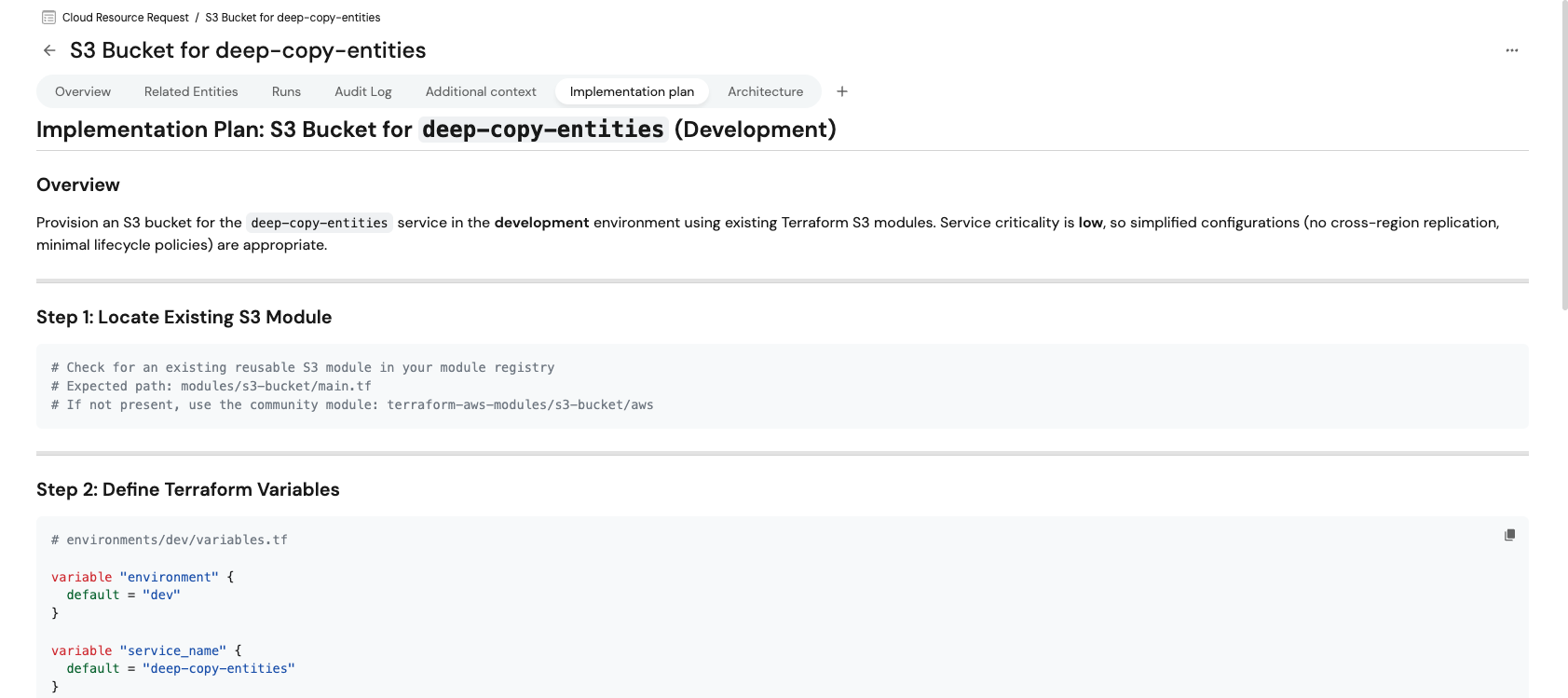
fetch_service_contextreturns the selected service's entity, and itsvariablescompute arequest_id,service_criticality, andservice_title.create_resource_requestcreates a newcloud_resource_requestentity withstatus: In Progress.generate_implementation_planreturns a structured response withimplementation_planandarchitecture.open_pull_requestopens a real pull request against your GitOps repository and returns its URL.update_request_pr_submittedupdates the request entity tostatus: Pending Approval, withpr_url,implementation_plan, andarchitecturepopulated.
- Open the pull request and confirm it reflects the implementation plan.
- Merge (or close) the pull request as you normally would. The request stays at
Pending Approvalin Port until you either update it manually or wire up the automation described in Enhancements.
Enhancements
Once the basic workflow is running, you can extend it:
- Close the loop on merge. Add a second, event-triggered workflow that listens for the GitOps repository's pull request being merged or closed, and updates the matching
cloud_resource_requestentity toApprovedorRejected. Once you have that signal, it's also the natural place to create acloudResourceentity (see the public demo for an example) representing the now-real resource, linked back to the request. - On-premise resources. Duplicate the AI node and add a condition node to branch on a cloud vs. on-premise resource type, and route on-premise requests to their own implementation plan prompt.
- Additional resource types. Extend the
resource_typeenum and adjust the AI prompt to cover more of your golden paths. - Skills for the AI node. Attach skills to
generate_implementation_planso it follows your organization's specific "how-to" for each resource type.