Notify users upon approval of self-service actions
Send this guide to your coding agent.
Prerequisite: Install Port MCP
Open plan mode if your tool supports it; otherwise present the plan below filled in and wait for my approval. Implement this Port guide in my org via MCP:

https://docs.port.io/guides/all/notify-users-upon-approval-of-action

Read the raw markdown version at https://docs.port.io/guides/all/notify-users-upon-approval-of-action.md - it contains every tab and code block without page markup.

Goal: get the guide's core flow working end-to-end in my org; adapting it to fit my existing setup takes priority over matching the guide 1:1.

Plan:
1. Confirm MCP is connected, in the right org, with sufficient permissions.
2. If the guide offers alternative implementation paths (tabs), pick the one matching my installed integrations and tools, confirm it with me, and implement only that path.
3. Diff the guide's data model (blueprints, properties, relations, workflows, actions, agents, automations, integrations, webhook data sources, secrets) against mine.
4. Propose adaptations for gaps, reusing existing blueprints/relations over guide-named duplicates.
5. Flag what needs a UI click, credential, or secret from me, testing MCP capability empirically before ruling anything out. If the guide has a "Set up via API" section, use it for anything MCP can't do before treating a step as UI-only.
6. Stop on any blocker and give me options. Approving this plan authorizes the writes it lists; pause only for writes beyond what's listed.

Build:
- Extend blueprint schema additively when upserting; don't remove or overwrite existing properties, and treat type conflicts as a blocker, not an auto-fix.
- Never print secret values into the chat or logs; ask me to set them in Port, or write them via the secrets API without echoing them back.
- List any mock data in the plan, minimal and labeled mock; once approved, seed it without re-asking, and tell me what you seeded.
- For anything the guide writes downstream (e.g. a webhook target), use a real entity, not a mock.
- For pages/widgets, use the real page identifier from the app URL, not a guessed slug.
- When you hit a UI step confirmed (not assumed) unsupported via MCP and not covered by the guide's API sections, pause, give exact clicks, then resume via MCP.
- Validate and give links after each meaningful step (only a tool-returned URL, no guessed paths); don't proceed if the last run wasn't a success.

Done:
- Run the guide's "Let's test it" steps where possible (e.g. execute a workflow test run) and confirm the expected output exists in Port.
- Summarize adaptations, seeded data, what was mocked or skipped, remaining UI steps, and how to verify.
This guide shows how to build an automation in Port that sends Slack notifications to users when their self-service actions are approved or declined. This workflow ensures transparency and closes the feedback loop after a team member submits a request.
Use cases
- Automatically inform users when their actions are approved or rejected.
- Reduce manual follow-ups and delays by streamlining communication.
Prerequisites
- Complete the onboarding process.
- You have access to Slack developers page and have created a Slack webhook URL. Follow the steps in the Slack Incoming Webhooks Guide to create a webhook URL.
Set up action
In this guide, we will use the Service blueprint that is created by default during the onboarding process.
Here is an example action that locks service deployment environments — useful during maintenance or peak traffic periods. To introduce approvals, we will modify the action to require approval before execution.
This action can be reused from our Lock and Unlock Service guide.
Updated lock service action (Click to expand)
{
  "identifier": "lock_service",
  "title": "Lock Service",
  "icon": "Lock",
  "description": "Lock service in Port",
  "trigger": {
    "type": "self-service",
    "operation": "DAY-2",
    "userInputs": {
      "properties": {
        "reason": {
          "type": "string",
          "title": "Reason"
        },
        "environment": {
          "type": "string",
          "title": "Environment",
          "enum": [
            "Production",
            "Staging",
            "Development"
          ],
          "enumColors": {
            "Production": "green",
            "Staging": "orange",
            "Development": "blue"
          }
        }
      },
      "required": [],
      "order": [
        "reason"
      ]
    },
    "blueprintIdentifier": "service"
  },
  "invocationMethod": {
    "type": "UPSERT_ENTITY",
    "blueprintIdentifier": "service",
    "mapping": {
      "identifier": "{{ .entity.identifier }}",
      "title": "{{ .entity.title }}",
      "properties": {
        "{{ if .inputs.environment == 'Production' then 'locked_in_prod' else 'locked_in_test' end }}": true,
        "{{ if .inputs.environment == 'Production' then 'locked_reason_prod' else 'locked_reason_test' end }}": "{{ .inputs.reason }}",
        "trigger_type": "Locked",
        "triggered_environment": "{{ .inputs.environment }}"
      }
    }
  },
  "requiredApproval": true
}
Set up automation
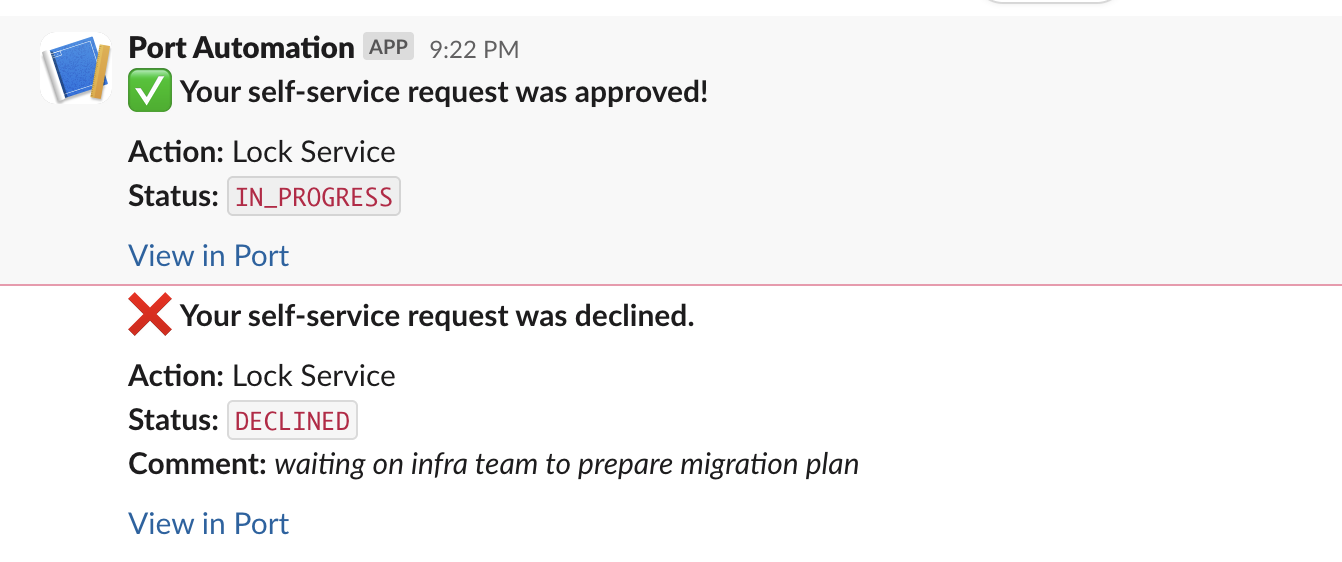
Now let us create an automation that sends a Slack message when the status of the self-service action changes from WAITING_FOR_APPROVAL to either IN_PROGRESS (approved) or DECLINED (declined).
Follow the steps below to configure the automation:
-
Head to the automation page.
-
Click on the
+ Automationbutton. -
Copy and paste the following JSON configuration into the editor:
Self service approval notification automation (Click to expand)
Configure your Slack environmentReplace
<SLACK_WEBHOOK_URL>with your actual Slack webhook URL.{"identifier": "approval_notification","title": "Notify on Action Approval/Decline","description": "Sends Slack notifications when a self-service action is approved or declined","trigger": {"type": "automation","event": {"type": "RUN_UPDATED","actionIdentifier": "test_approval"},"condition": {"type": "JQ","expressions": [".diff.before.status == \"WAITING_FOR_APPROVAL\"",".diff.after.status | IN(\"DECLINED\", \"IN_PROGRESS\")"],"combinator": "and"}},"invocationMethod": {"type": "WEBHOOK","url": "<SLACK_WEBHOOK_URL>","agent": false,"synchronized": true,"method": "POST","headers": {},"body": {"text": "{{ if .event.diff.after.status == \"DECLINED\" then \":x: *Your self-service request was declined.*\\n\\n*Action:* \" + .event.context.action.title + \"\\n*Status:* `\" + .event.diff.after.status + \"`\\n*Comment:* _\" + .event.diff.after.approval.description + \"_\\n\\n<https://app.port.io/organization/run?runId=\" + .event.diff.after.id + \"|View in Port>\" else \":white_check_mark: *Your self-service request was approved!*\\n\\n*Action:* \" + .event.context.action.title + \"\\n*Status:* `\" + .event.diff.after.status + \"`\\n\\n<https://app.port.io/organization/run?runId=\" + .event.diff.after.id + \"|View in Port>\" end }}"}},"publish": true} -
Click
Save.
When a user submits a self-service action and it is reviewed, the automation sends them a Slack message indicating whether it was approved or declined: