Manage and surface technical documentation in Port
Send this guide to your coding agent.
Prerequisite: Install Port MCP
Open plan mode if your tool supports it; otherwise present the plan below filled in and wait for my approval. Implement this Port guide in my org via MCP:

https://docs.port.io/guides/all/manage-and-surface-technical-docs

Read the raw markdown version at https://docs.port.io/guides/all/manage-and-surface-technical-docs.md - it contains every tab and code block without page markup.

Goal: get the guide's core flow working end-to-end in my org; adapting it to fit my existing setup takes priority over matching the guide 1:1.

Plan:
1. Confirm MCP is connected, in the right org, with sufficient permissions.
2. If the guide offers alternative implementation paths (tabs), pick the one matching my installed integrations and tools, confirm it with me, and implement only that path.
3. Diff the guide's data model (blueprints, properties, relations, workflows, actions, agents, automations, integrations, webhook data sources, secrets) against mine.
4. Propose adaptations for gaps, reusing existing blueprints/relations over guide-named duplicates.
5. Flag what needs a UI click, credential, or secret from me, testing MCP capability empirically before ruling anything out. If the guide has a "Set up via API" section, use it for anything MCP can't do before treating a step as UI-only.
6. Stop on any blocker and give me options. Approving this plan authorizes the writes it lists; pause only for writes beyond what's listed.

Build:
- Extend blueprint schema additively when upserting; don't remove or overwrite existing properties, and treat type conflicts as a blocker, not an auto-fix.
- Never print secret values into the chat or logs; ask me to set them in Port, or write them via the secrets API without echoing them back.
- List any mock data in the plan, minimal and labeled mock; once approved, seed it without re-asking, and tell me what you seeded.
- For anything the guide writes downstream (e.g. a webhook target), use a real entity, not a mock.
- For pages/widgets, use the real page identifier from the app URL, not a guessed slug.
- When you hit a UI step confirmed (not assumed) unsupported via MCP and not covered by the guide's API sections, pause, give exact clicks, then resume via MCP.
- Validate and give links after each meaningful step (only a tool-returned URL, no guessed paths); don't proceed if the last run wasn't a success.

Done:
- Run the guide's "Let's test it" steps where possible (e.g. execute a workflow test run) and confirm the expected output exists in Port.
- Summarize adaptations, seeded data, what was mocked or skipped, remaining UI steps, and how to verify.
This guide demonstrates how to bring a TechDocs experience into Port, so your markdown documentation lives alongside the rest of your context lake.
Three ideas drive the implementation of this guide:
-
Documentation lives as entities.
Port persists each markdown file as atechDocentity in your context lake. Once data is in the catalog, every Port surface (search, AI, dashboards, plugins) can reach it through the same blueprint and relations. -
Ingestion is source-agnostic.
This guide uses GitHub as the example, but the same data model works with any source that can fetch markdown and upsert it into Port: GitLab, Bitbucket, Azure DevOps, Confluence, a webhook, or a CI job that calls Port's upsert entity API. Pick the source you have, keep thetechDocshape, and every downstream visualization keeps working unchanged. -
Visualization follows context.
The TechDocs plugin and the built-in markdown widget scope what they render based on the page they sit on. When placed on a service entity page, they show that service's documents; when placed on a repository entity page, they show that repository's documents; on a global dashboard, they show everything. The scoping uses the relations you define on thetechDocblueprint.
Common use cases
- Centralize technical documentation from many repositories into a single, queryable catalog.
- Display documentation next to the service or repository it describes, on the relevant entity page.
- Surface documentation in Port's global search and Port AI for fast, contextual answers.
- Track ownership and freshness of documentation alongside the rest of your context lake.
- Optionally give your team a navigable in-Port reading experience for documentation, with a folder-based sidebar and document metadata.
- Optionally let teammates discuss documents and resolve threads alongside the content.
Prerequisites
This guide assumes the following:
- You have a Port account and have completed the onboarding process.
- One of Port's Git integrations is installed in your organization.
Set up data model
- If you completed Port's onboarding, you already have a
serviceblueprint with a relation togithubRepository. In this case, relatetechDocdirectly toserviceso documents follow the service they describe. The plugin can still scope by repository through the existing service-to-repository link. - If you do not have a
serviceblueprint, or it is not connected to your repository blueprint, relatetechDocdirectly togithubRepository. This is the right choice for legacy catalogs where services were never modeled.
Choose the case that matches your catalog and follow the matching tab below. The rest of the guide carries the same choice through the integration mapping and the plugin parameters.
- Connected to a service blueprint
- Connected to a repository blueprint
Create the techdoc blueprint with a service relation
-
Go to the Builder page in Port.
-
Click on
+ Blueprint. -
Click on the
{...} Edit JSONbutton. -
Copy and paste the following JSON schema:
Tech Doc blueprint (click to expand)
{"identifier": "techDoc","title": "Tech Doc","icon": "Book","schema": {"properties": {"content": {"title": "Content","type": "string","format": "markdown","description": "The raw markdown content of the document"},"filePath": {"title": "File Path","type": "string","description": "Path to the file within the repository"},"folderPath": {"title": "Folder Path","type": "string","description": "Parent folder path (e.g. apps/Frontend)"},"url": {"title": "GitHub URL","type": "string","format": "url","description": "Direct link to the file on GitHub"},"lastUpdated": {"title": "Last Updated","type": "string","format": "date-time"},"archived": {"type": "boolean","title": "Archived","default": false}},"required": ["content"]},"mirrorProperties": {},"calculationProperties": {},"aggregationProperties": {},"relations": {"service": {"title": "Service","target": "service","required": true,"many": false}}} -
Click
Createto save the blueprint.
Create the techdoc blueprint with a repository relation
-
Go to the Builder page in Port.
-
Click on
+ Blueprint. -
Click on the
{...} Edit JSONbutton. -
Copy and paste the following JSON schema based on your Git provider:
- GitHub
- GitLab
- Azure DevOps
Tech Doc blueprint for GitHub (click to expand)
{"identifier": "techDoc","title": "Tech Doc","icon": "Book","schema": {"properties": {"content": {"title": "Content","type": "string","format": "markdown","description": "The raw markdown content of the document"},"filePath": {"title": "File Path","type": "string","description": "Path to the file within the repository"},"folderPath": {"title": "Folder Path","type": "string","description": "Parent folder path (e.g. apps/Frontend)"},"url": {"title": "URL","type": "string","format": "url","description": "Direct link to the file in the repository"},"lastUpdated": {"title": "Last Updated","type": "string","format": "date-time"},"archived": {"type": "boolean","title": "Archived","default": false}},"required": ["content"]},"mirrorProperties": {},"calculationProperties": {},"aggregationProperties": {},"relations": {"repository": {"title": "Repository","target": "githubRepository","required": true,"many": false}}}Tech Doc blueprint for GitLab (click to expand)
{"identifier": "techDoc","title": "Tech Doc","icon": "Book","schema": {"properties": {"content": {"title": "Content","type": "string","format": "markdown","description": "The raw markdown content of the document"},"filePath": {"title": "File Path","type": "string","description": "Path to the file within the repository"},"folderPath": {"title": "Folder Path","type": "string","description": "Parent folder path (e.g. apps/Frontend)"},"url": {"title": "URL","type": "string","format": "url","description": "Direct link to the file in the repository"},"lastUpdated": {"title": "Last Updated","type": "string","format": "date-time"},"archived": {"type": "boolean","title": "Archived","default": false}},"required": ["content"]},"mirrorProperties": {},"calculationProperties": {},"aggregationProperties": {},"relations": {"repository": {"title": "Repository","target": "gitlabRepository","required": true,"many": false}}}Tech Doc blueprint for Azure DevOps (click to expand)
{"identifier": "techDoc","title": "Tech Doc","icon": "Book","schema": {"properties": {"content": {"title": "Content","type": "string","format": "markdown","description": "The raw markdown content of the document"},"filePath": {"title": "File Path","type": "string","description": "Path to the file within the repository"},"folderPath": {"title": "Folder Path","type": "string","description": "Parent folder path (e.g. apps/Frontend)"},"url": {"title": "URL","type": "string","format": "url","description": "Direct link to the file in the repository"},"lastUpdated": {"title": "Last Updated","type": "string","format": "date-time"},"archived": {"type": "boolean","title": "Archived","default": false}},"required": ["content"]},"mirrorProperties": {},"calculationProperties": {},"aggregationProperties": {},"relations": {"repository": {"title": "Repository","target": "azureDevopsRepository","required": true,"many": false}}} -
Click
Createto save the blueprint.
The example above relates techDoc to the git source you selected, which is the default blueprint created by Port's GitHub integration. If your repository blueprint uses a different identifier (for example, when ingesting from GitLab or another provider), change the target value accordingly.
Update integration mapping
Next, we will configure your Git integration to fetch markdown files from your repositories and upsert them as techDoc entities. The integration uses the file kind, which fetches file contents and exposes them in your JQ mappings.
The mapping below ingests markdown files from a list of repositories you specify. We start narrow on purpose so you can confirm the pipeline end-to-end with a couple of known repos, then broaden the file selection (more repos, docs/ folders, other markdown sources) once everything looks right.
-
Go to your data sources page and click on your Git integration.
-
Open the Mapping tab.
-
Click on the
{...} Edit YAMLbutton. -
Append the following block to your existing configuration in the exact strcuture:
- Connected to a service blueprint
- Connected to a repository blueprint
- GitHub
- GitLab
- Azure DevOps
Tech Doc mapping for GitHub Ocean (click to expand)
resources:
  - kind: file
    selector:
      query: '.path | startswith("node_modules/") | not'
      files:
        - path: '**/*.md'
          repos:
            - name: my-service-repo # Replace with your repository name
              branch: main
            - name: my-other-service-repo # Replace with your repository name
              branch: main
          skipParsing: true
    port:
      entity:
        mappings:
          identifier: '.repository.name + "-" + (.path | gsub("/"; "-") | gsub("\\."; "-") | gsub(" ";"-"))'
          title: '.path | split("/") | .[-1] | split(".") | .[0]'
          blueprint: '"techDoc"'
          properties:
            content: .content
            filePath: .path
            folderPath: .path | split("/") | .[:-1] | join("/")
            url: '.repository.html_url + "/blob/" + .repository.default_branch + "/" + .path'
            lastUpdated: >-
              (try (.commit.commit.committer.date // .commit.commit.author.date //
              .commit.committer.date // .commit.author.date) catch null)
              // .repository.pushed_at // .repository.updated_at
          relations:
            service: .repository.name
Tech Doc mapping for GitLab (click to expand)
resources:
  - kind: file
    selector:
      query: 'true'
      files:
        path: '*.md'
        repos:
          - group/my-service-repo # Replace with your group/project path
          - group/my-other-service-repo # Replace with your group/project path
    port:
      entity:
        mappings:
          identifier: (.repo.path_with_namespace | gsub("/"; "-")) + "-" + (.file.file_path | gsub("/"; "-") | gsub("[.]"; "-"))
          title: .file.file_name | split(".") | .[0]
          blueprint: '"techDoc"'
          properties:
            content: .file.content
            filePath: .file.file_path
            folderPath: .file.file_path | split("/") | .[:-1] | join("/")
            url: .repo.web_url + "/-/blob/" + .repo.default_branch + "/" + .file.file_path
          relations:
            service: .repo.path_with_namespace
GitLab's file kind uses simple wildcards (e.g. *.md) rather than recursive glob patterns like **/*.md. For more details, see the GitLab capabilities documentation.
Tech Doc mapping for Azure DevOps (click to expand)
resources:
  - kind: file
    selector:
      query: 'true'
      files:
        path: '**/*.md'
        repos:
          - my-service-repo # Replace with your repository name
          - my-other-service-repo # Replace with your repository name
    port:
      entity:
        mappings:
          identifier: .repo.name + "-" + (.file.path | gsub("/"; "-") | gsub("[.]"; "-"))
          title: .file.path | split("/") | .[-1] | split(".") | .[0]
          blueprint: '"techDoc"'
          properties:
            content: .file.content
            filePath: .file.path
            folderPath: .file.path | split("/") | .[:-1] | join("/")
            url: .repo.url + "?path=" + .file.path
          relations:
            service: .repo.name
- GitHub
- GitLab
- Azure DevOps
Tech Doc mapping for GitHub Ocean (click to expand)
resources:
  - kind: file
    selector:
      query: '.path | startswith("node_modules/") | not'
      files:
        - path: '**/*.md'
          repos:
            - name: my-service-repo
              branch: main
            - name: my-other-service-repo
              branch: main
          skipParsing: true
    port:
      entity:
        mappings:
          identifier: '.repository.name + "-" + (.path | gsub("/"; "-") | gsub("\\."; "-"))'
          title: '.path | split("/") | .[-1] | split(".") | .[0]'
          blueprint: '"techDoc"'
          properties:
            content: .content
            filePath: .path
            folderPath: .path | split("/") | .[:-1] | join("/")
            url: '.repository.html_url + "/blob/" + .repository.default_branch + "/" + .path'
            lastUpdated: >-
              (try (.commit.commit.committer.date // .commit.commit.author.date //
              .commit.committer.date // .commit.author.date) catch null)
              // .repository.pushed_at // .repository.updated_at
          relations:
            repository: .repository.name
Tech Doc mapping for GitLab (click to expand)
resources:
  - kind: file
    selector:
      query: 'true'
      files:
        path: '*.md'
        repos:
          - group/my-service-repo # Replace with your group/project path
          - group/my-other-service-repo # Replace with your group/project path
    port:
      entity:
        mappings:
          identifier: (.repo.path_with_namespace | gsub("/"; "-")) + "-" + (.file.file_path | gsub("/"; "-") | gsub("[.]"; "-"))
          title: .file.file_name | split(".") | .[0]
          blueprint: '"techDoc"'
          properties:
            content: .file.content
            filePath: .file.file_path
            folderPath: .file.file_path | split("/") | .[:-1] | join("/")
            url: .repo.web_url + "/-/blob/" + .repo.default_branch + "/" + .file.file_path
          relations:
            repository: .repo.path_with_namespace
GitLab's file kind uses simple wildcards (e.g. *.md) rather than recursive glob patterns like **/*.md. For more details, see the GitLab capabilities documentation.
Tech Doc mapping for Azure DevOps (click to expand)
resources:
  - kind: file
    selector:
      query: 'true'
      files:
        path: '**/*.md'
        repos:
          - my-service-repo # Replace with your repository name
          - my-other-service-repo # Replace with your repository name
    port:
      entity:
        mappings:
          identifier: .repo.name + "-" + (.file.path | gsub("/"; "-") | gsub("[.]"; "-"))
          title: .file.path | split("/") | .[-1] | split(".") | .[0]
          blueprint: '"techDoc"'
          properties:
            content: .file.content
            filePath: .file.path
            folderPath: .file.path | split("/") | .[:-1] | join("/")
            url: .repo.url + "?path=" + .file.path
          relations:
            repository: .repo.name
- Click
Save & Resyncto apply the mapping and trigger a sync.
After the sync completes, open your catalog and switch to the Tech Doc tab to confirm that documents were ingested.
The title field is a JQ expression, so you can shape entity titles to suit how you browse the catalog (for example, include the repository name or the full path) when the default produces collisions like several README entries.
Refine the file selection
Once the initial sync looks right, you can broaden or tighten the selection in two ways:
-
Glob patterns and repository scope control which files are fetched. The syntax differs by provider:
- GitHub: Use
files:as an array (- path:). Path supports full glob patterns (**/*.md).reposis an array of objects withnameandbranch. Omitreposto scan all accessible repositories. - GitLab: Use
files:as an object (path:). Path supports simple wildcards (*.md), not full glob syntax.reposis a list ofgroup/projectstrings. - Azure DevOps: Use
files:as an object (path:). Path supports full glob patterns (**/*.md).reposis an array of repository name strings.
- GitHub: Use
-
JQ filters in
selector.querycontrol which fetched files become entities. The field paths differ by provider:
- GitHub
- GitLab
- Azure DevOps
# Exclude node_modules and files whose name starts with an underscore.
query: '(.path | startswith("node_modules/") | not) and (.name | startswith("_") | not)'

# Only include files under a top-level "docs" folder.
query: '.path | startswith("docs/")'

# Regex match on file name (using JQ's test function).
query: '.name | test("^(README|CHANGELOG|guide-.*)\\.md$")'
# Exclude node_modules and files whose name starts with an underscore.
query: '(.file.file_path | startswith("node_modules/") | not) and (.file.file_name | startswith("_") | not)'

# Only include files under a top-level "docs" folder.
query: '.file.file_path | startswith("docs/")'

# Regex match on file name (using JQ's test function).
query: '.file.file_name | test("^(README|CHANGELOG|guide-.*)\\.md$")'
# Exclude node_modules and files whose name starts with an underscore.
query: '(.file.path | startswith("node_modules/") | not) and (.file.fileName | startswith("_") | not)'

# Only include files under a top-level "docs" folder.
query: '.file.path | startswith("docs/")'

# Regex match on file name (using JQ's test function).
query: '.file.fileName | test("^(README|CHANGELOG|guide-.*)\\.md$")'
Add the TechDocs plugin
Port provides a reference TechDocs plugin built on the plugins framework. Use this plugin as-is, customize it to fit your needs, or build your own visualization from scratch.
The plugin reads the page it sits on and scopes the document list automatically, so the same plugin works for both data-model cases above:
- On a service entity page, it shows only the documents related to that service.
- On a repository entity page, it shows only the documents related to that repository.
- On a dashboard, it is not scoped to any single entity and displays every
techDocin the catalog (across all services and repositories).
The TechDocs plugin does not render images embedded in markdown.
Set up the plugin
-
Clone Port's Plugin repository.
-
Enter the
techdocsfolder. -
Build the plugin and upload it with the Port plugins CLI by running the following commands:
npm installnpm run buildport-plugins upload \--file dist/index.html \--identifier techdocs-port-plugin \--title "TechDocs Viewer" \--params "$(cat upload-params.json)" \--upsert -
On a dashboard or entity page, click
+ Widget, select Custom, choose the TechDocs Viewer plugin. -
Type
TechDocs Viewerin theTitlefield. -
Select
TechDocas theTechDoc blueprintparameter. -
Select
GitHub RepositoryorServiceas theTech Doc related blueprintparameter depending on your data model. -
Click
Createto save the plugin.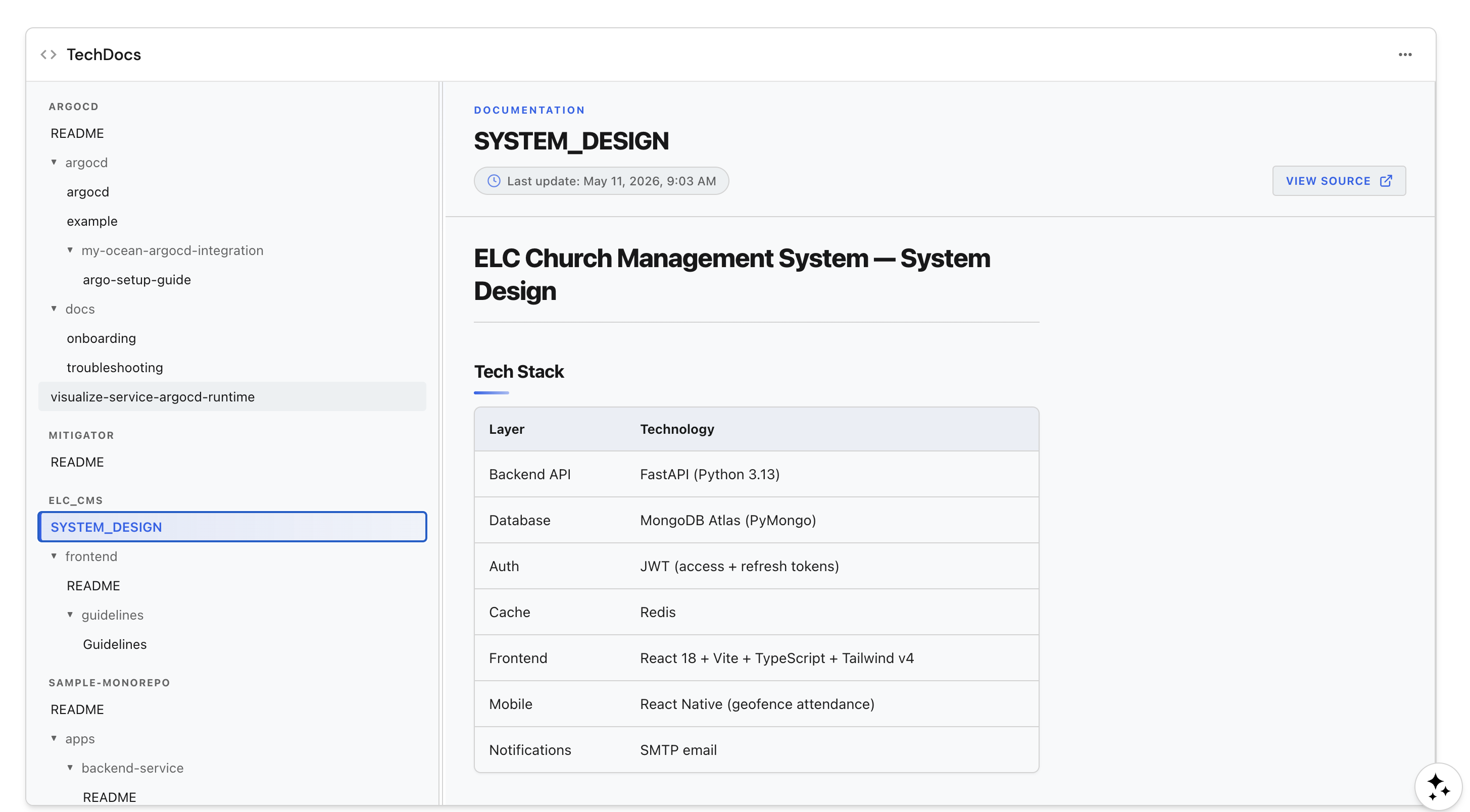
Use Port AI and search to find documentation
Once documents live in the catalog, they are automatically available everywhere else in Port:
- Global search: type a phrase from any document into Port's global search (
Ctrl + KorCommand + K) to find matchingtechDocentities. See global search for query syntax. - API: read documents programmatically with the
POST /v1/blueprints/techDoc/entities/searchendpoint. See the search entities API reference. - Port AI: open the AI assistant with
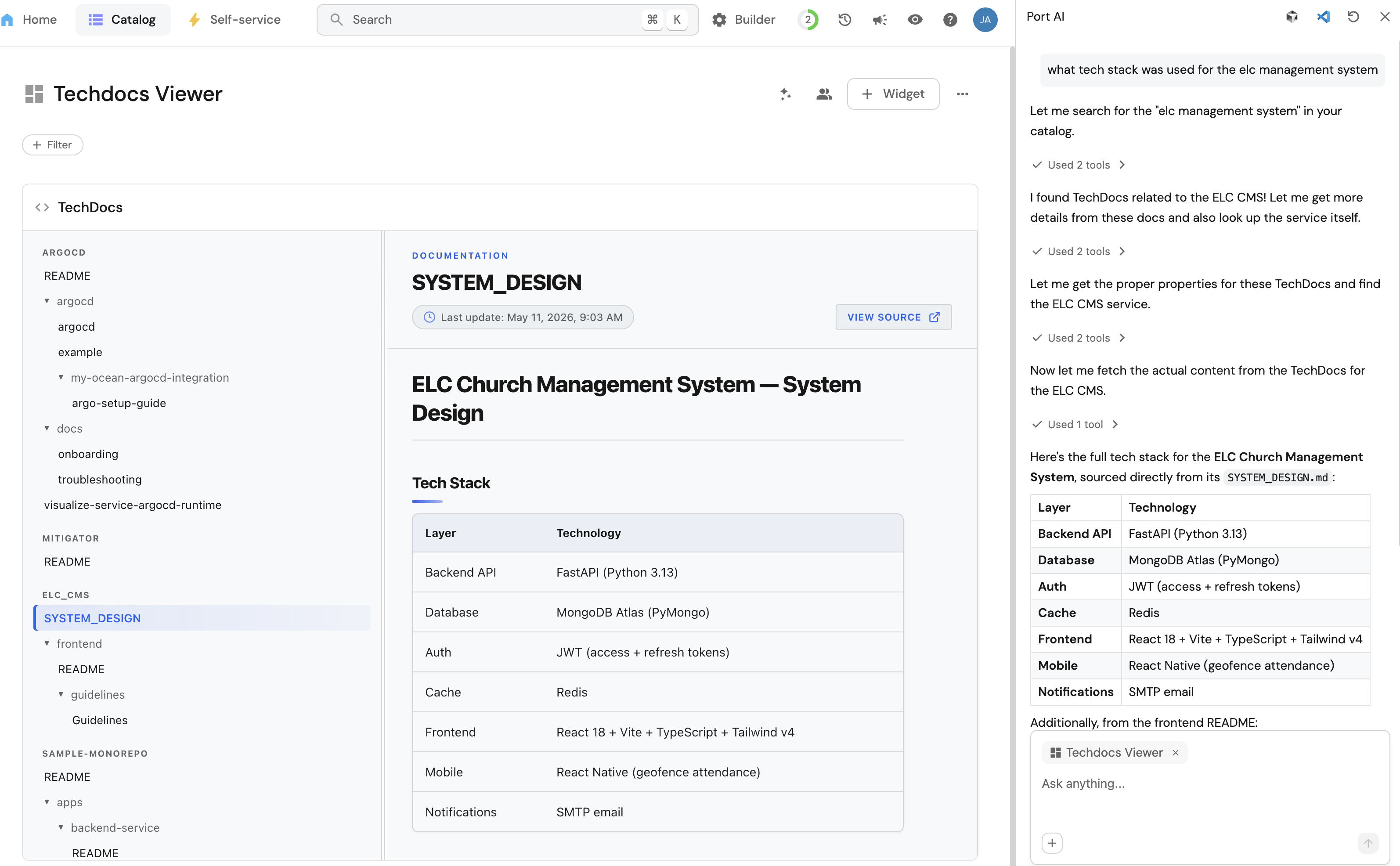
Ctrl + I(orCommand + I) and ask natural-language questions such as:- "What tech stack was used in x service?"
- "Which services are missing documentation in our catalog?"
- "Where do we describe how to rotate the auth service's signing keys?"
Conclusion
You now have a complete pipeline for managing technical documentation in Port:
- A
techDocblueprint that captures markdown content, file context, and a link back to either the service or the repository it belongs to, depending on your data model. - A GitHub integration mapping that keeps documentation in sync with its source of truth.
- Built-in widgets and a dashboard that expose documentation across the catalog.
- A plugin for a richer, navigable reading experience that scopes itself to the current service or repository entity page.
- Out-of-the-box availability in global search, the Port API, and Port AI.
Because the contract is on the techDoc shape, you can extend this pattern to additional sources (GitLab, Bitbucket, Confluence, a webhook, or a CI job) without changing the dashboards or plugin layer.