Keep your Azure catalog up to date with incremental syncing
Send this guide to your coding agent.
Prerequisite: Install Port MCP
Open plan mode. Implement this Port guide in my org via MCP:

https://docs.port.io/guides/all/keep-azure-catalog-upto-date-with-incremental-syncing

Goal: get the guide's core flow working end-to-end in my org; adapting it to fit my existing setup takes priority over matching the guide 1:1.

Plan:
1. Confirm MCP is connected, in the right org, with sufficient permissions.
2. Diff the guide's data model (blueprints, properties, relations, actions, agents, automations, integrations, secrets) against mine.
3. Propose adaptations for gaps, reusing existing blueprints/relations over guide-named duplicates.
4. Flag what needs a UI click, credential, or secret from me, testing MCP capability empirically before ruling anything out.
5. Stop on any blocker and give me options. Approving this plan authorizes the writes it lists; pause only for writes beyond what's listed.

Build:
- Extend blueprint schema additively when upserting; don't remove or overwrite existing properties, and treat type conflicts as a blocker, not an auto-fix.
- List any mock data in the plan, minimal and labeled mock; once approved, seed it without re-asking, and tell me what you seeded.
- For anything the guide writes downstream (e.g. a webhook target), use a real entity, not a mock.
- For pages/widgets, use the real page identifier from the app URL, not a guessed slug.
- When you hit a UI step confirmed (not assumed) unsupported via MCP, pause, give exact clicks, then resume via MCP.
- Validate and give links after each meaningful step (only a tool-returned URL, no guessed paths); don't proceed if the last run wasn't a success.

Done:
- Confirm the guide's expected output exists and runs in Port.
- Summarize adaptations, seeded data, what was mocked or skipped, remaining UI steps, and how to verify.
This guide demonstrates how to set up incremental syncing of Azure resources into Port. Instead of rescanning all resources on every run, the integration detects recent changes and syncs only what has changed — making it well-suited for large Azure environments with many subscriptions.
By the end of this guide, you will have:
- Created Port blueprints to represent your Azure subscriptions, resource groups, and cloud resources.
- Configured a Port webhook to receive Azure resource data.
- Deployed a sync workflow that runs every 15 minutes and pushes only changed resources to Port.
Common use cases
- Keep your Port catalog in sync with Azure resources across multiple subscriptions without full rescans.
- Detect and reflect Azure resource additions, updates, and deletions in near real-time.
- Filter which resources are synced by tagging resource groups.
Prerequisites
- A Port account with admin permissions.
- An Azure service principal with read access to your subscriptions. After completing the Azure app registration, keep the following credentials handy:
AZURE_CLIENT_ID: The client ID of the Azure service principal.AZURE_CLIENT_SECRET: The client secret of the Azure service principal.AZURE_TENANT_ID: The tenant ID of the Azure service principal.
- A GitHub repository (required for the GitHub Actions installation method).
Azure App Registration setup
To ingest resources from Azure, you will need to create an Azure App Registration and assign it read permissions to the resources you want to ingest.
Step-by-step setup guide (click to expand)
-
Create an App Registration:
- In the Azure portal, search for App registrations in the top search bar and select it.
- Click New registration.
- Enter a name (e.g.
port-integration), leave the default settings, and click Register.
-
Copy the Application (client) ID and Directory (tenant) ID:
- After registration, you will be taken to the app's Overview page.
- Copy the
Application (client) IDandDirectory (tenant) IDvalues. You will need these when configuring the integration.
-
Create a client secret:
- In the left sidebar, go to Certificates & secrets.
- Select the Client secrets tab, then click New client secret.
- Enter a description, choose an expiration period, and click Add.
-
Copy the secret value: Copy the
Valueof the newly created secret immediately. This value is only shown once and cannot be retrieved later, this is yourApplication (client) Secret. -
Assign the Reader role:
- Navigate to the Subscriptions page in the Azure portal.
- Select the subscription you want to ingest resources from.
- Go to Access control (IAM) → Add → Add role assignment.
- Select the Reader role.
- Under Members, click Select members and search for the App Registration you created.
- Select it and click Review + assign.
-
Repeat for additional subscriptions (optional):
- To ingest resources from multiple subscriptions, repeat step 5 for each subscription you want to include.
The Reader role is recommended for querying all resources in your Azure subscription. You can restrict permissions to specific resource groups or types by assigning a different role. If you do this, remember to adjust permissions when adding more resources to the catalog. Basic permissions required for ingesting resources from Azure include:
Microsoft.Resources/subscriptions/read(to list the accessible subscriptions).Microsoft.Resources/subscriptions/resourceGroups/read(to list the accessible resource groups).read/listpermissions to the resources you want to ingest.
Set up data model
We will create three blueprints to represent the Azure resource hierarchy in Port: subscriptions, resource groups, and cloud resources.
These blueprints are a starting point. You can customize them based on the Azure resources you want to track.
Create the following blueprints in Port:
Azure subscription blueprint (click to expand)
{
  "identifier": "azureSubscription",
  "title": "Azure Subscription",
  "icon": "Azure",
  "schema": {
    "properties": {
      "subscriptionId": {
        "title": "Subscription ID",
        "type": "string"
      },
      "tags": {
        "title": "Tags",
        "type": "object"
      }
    },
    "required": []
  },
  "mirrorProperties": {},
  "calculationProperties": {},
  "aggregationProperties": {},
  "relations": {}
}
Azure resource group blueprint (click to expand)
{
  "identifier": "azureResourceGroup",
  "description": "This blueprint represents an Azure Resource Group in our software catalog",
  "title": "Azure Resource Group",
  "icon": "Azure",
  "schema": {
    "properties": {
      "location": {
        "title": "Location",
        "type": "string"
      },
      "tags": {
        "title": "Tags",
        "type": "object"
      }
    },
    "required": []
  },
  "mirrorProperties": {},
  "calculationProperties": {},
  "aggregationProperties": {},
  "relations": {
    "subscription": {
      "title": "Subscription",
      "target": "azureSubscription",
      "required": false,
      "many": false
    }
  }
}
Azure cloud resources blueprint (click to expand)
{
  "identifier": "azureCloudResources",
  "description": "This blueprint represents an Azure Cloud Resource in our software catalog",
  "title": "Azure Cloud Resources",
  "icon": "Git",
  "schema": {
    "properties": {
      "tags": {
        "title": "Tags",
        "type": "object"
      },
      "type": {
        "title": "Type",
        "type": "string"
      },
      "location": {
        "title": "Location",
        "type": "string"
      }
    },
    "required": []
  },
  "mirrorProperties": {},
  "calculationProperties": {},
  "aggregationProperties": {},
  "relations": {
    "resourceGroup": {
      "title": "Resource Group",
      "target": "azureResourceGroup",
      "required": false,
      "many": false
    }
  }
}
Configure the webhook
We'll use a Port webhook to receive Azure resource data from the sync script. Start by retrieving your Port credentials:
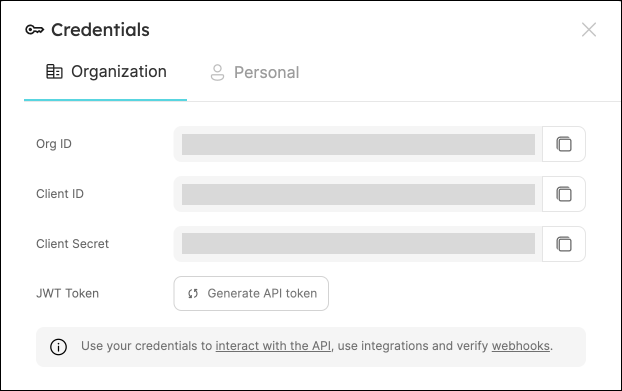
To get your Port credentials, go to your Port application, click on your profile picture  , and select
 Credentials. Here you can view and copy your CLIENT_ID and CLIENT_SECRET:
Next, create the webhook in Port:
- Navigate to the Data sources page.
- Click + Data Source and select Webhook.
- Fill in the required fields and create the webhook.
- Copy the webhook URL — you'll need it when deploying the sync script.
- Click Next to go to the Mapping section.
- Scroll down to the Map the data from the external system into Port field.
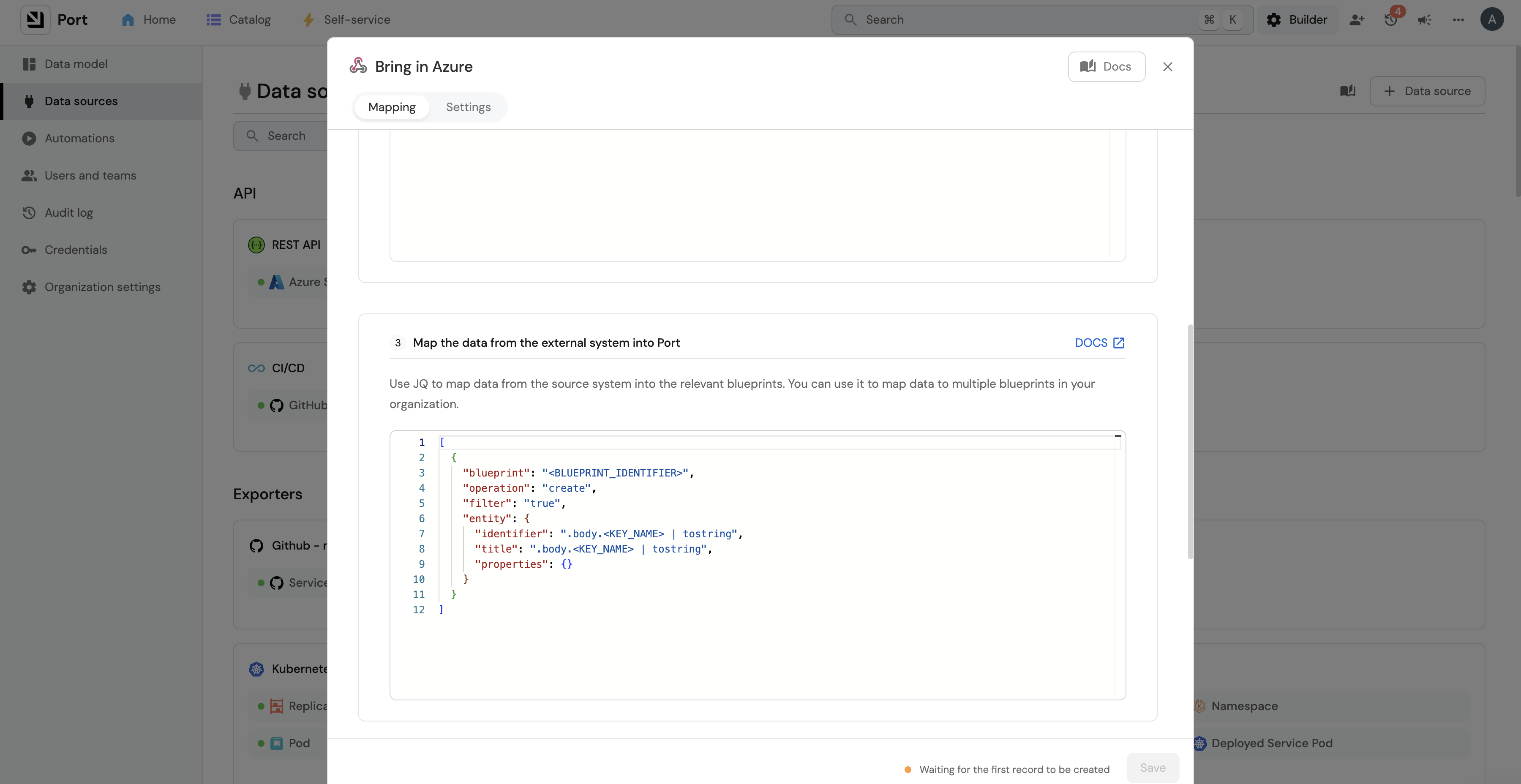
Add the following webhook mapping:
Webhook mapping configuration (click to expand)
[
  {
    "blueprint": "azureCloudResources",
    "operation": "create",
    "filter": ".body.type == 'resource' and .body.operation == 'upsert'",
    "entity": {
      "identifier": ".body.data.resourceId | gsub(\" \";\"_\")",
      "title": ".body.data.name",
      "properties": {
        "tags": ".body.data.tags",
        "type": ".body.data.type",
        "location": ".body.data.location"
      },
      "relations": {
        "resourceGroup": "'/subscriptions/' + .body.data.subscriptionId + '/resourcegroups/' + .body.data.resourceGroup | gsub(\" \";\"_\")"
      }
    }
  },
  {
    "blueprint": "azureCloudResources",
    "operation": "delete",
    "filter": ".body.type == 'resource' and .body.operation == 'delete'",
    "entity": {
      "identifier": ".body.data.resourceId | gsub(\" \";\"_\")"
    }
  },
  {
    "blueprint": "azureResourceGroup",
    "operation": "create",
    "filter": ".body.data.type == 'microsoft.resources/subscriptions/resourcegroups' and .body.operation == 'upsert'",
    "entity": {
      "identifier": ".body.data.resourceId | gsub(\" \";\"_\")",
      "title": ".body.data.name",
      "properties": {
        "tags": ".body.data.tags",
        "location": ".body.data.location"
      },
      "relations": {
        "subscription": "'/subscriptions/' + .body.data.subscriptionId | gsub(\" \";\"_\")"
      }
    }
  },
  {
    "blueprint": "azureResourceGroup",
    "operation": "delete",
    "filter": ".body.data.type == 'microsoft.resources/subscriptions/resourcegroups' and .body.operation == 'delete'",
    "entity": {
      "identifier": ".body.data.resourceId | gsub(\" \";\"_\")"
    }
  },
  {
    "blueprint": "azureSubscription",
    "operation": "create",
    "filter": ".body.data.type == 'microsoft.resources/subscriptions' and .body.operation == 'upsert'",
    "entity": {
      "identifier": ".body.data.resourceId | gsub(\" \";\"_\")",
      "title": ".body.data.name",
      "properties": {
        "subscriptionId": ".body.data.subscriptionId",
        "tags": ".body.data.tags"
      }
    }
  },
  {
    "blueprint": "azureSubscription",
    "operation": "delete",
    "filter": ".body.data.type == 'microsoft.resources/subscriptions' and .body.operation == 'delete'",
    "entity": {
      "identifier": ".body.data.resourceId | gsub(\" \";\"_\")"
    }
  }
]
body.operation: Discriminator added by the sync script (not part of the Azure payload). Possible values:upsert,delete.body.type: Resource category. Possible values:resource(Azure resources),resourceContainer(resource groups and subscriptions).body.data: Full Azure resource payload.body.data.type: Specific Azure resource type, for example:microsoft.resources/subscriptions/resourcegroupsfor resource groups.microsoft.resources/subscriptionsfor subscriptions.microsoft.network/networksecuritygroupsfor network security groups.
Deploy the sync
The source code is available in the port-labs/incremental-sync repository.
- GitHub Actions
- Local installation
-
Add the following secrets to your GitHub repository:
AZURE_CLIENT_ID: The Azure service principal client ID.AZURE_CLIENT_SECRET: The Azure service principal client secret.AZURE_TENANT_ID: The Azure service principal tenant ID.PORT_WEBHOOK_INGEST_URL: The webhook URL copied from Port.
-
Optionally, configure these environment variables to control sync behavior:
SUBSCRIPTION_BATCH_SIZE: Number of subscriptions to process per batch (default:1000, max:1000).CHANGE_WINDOW_MINUTES: How far back to look for changes (default:15minutes).RESOURCE_TYPES: Limit sync to specific Azure resource types (default: all types). Example:RESOURCE_TYPES='["microsoft.keyvault/vaults","Microsoft.Network/virtualNetworks","Microsoft.network/networksecuritygroups"]'RESOURCE_GROUP_TAG_FILTERS: Filter resources by their parent resource group tags. See filter resources by resource group tag.
-
Create a workflow file based on your sync requirements:
- Incremental sync
- Full sync
This workflow runs automatically every 15 minutes and syncs only recently changed resources.
Create .github/workflows/azure-incremental-sync.yml:
name: "Incremental sync of Azure resources to Port"
on:
  schedule:
    - cron: "*/15 * * * *"

jobs:
  sync:
    name: Incremental sync
    runs-on: ubuntu-latest
    steps:
      - name: Setup Python 3.12
        uses: actions/setup-python@v5
        with:
          python-version: "3.12"

      - name: Checkout Repository
        uses: actions/checkout@v6
        with:
          ref: main
          repository: port-labs/incremental-sync

      - name: Install dependencies with Poetry
        run: |
          cd integrations/azure_incremental
          python -m pip install --upgrade pip
          pip install poetry
          make install

      - name: Run incremental sync
        run: |
          cd integrations/azure_incremental
          make run
        env:
          AZURE_CLIENT_ID: ${{ secrets.AZURE_CLIENT_ID }}
          AZURE_CLIENT_SECRET: ${{ secrets.AZURE_CLIENT_SECRET }}
          AZURE_TENANT_ID: ${{ secrets.AZURE_TENANT_ID }}
          PORT_WEBHOOK_INGEST_URL: ${{ secrets.PORT_WEBHOOK_INGEST_URL }}
          CHANGE_WINDOW_MINUTES: 15
          # Optional: filter resources by resource group tags
          # RESOURCE_GROUP_TAG_FILTERS: ${{ secrets.RESOURCE_GROUP_TAG_FILTERS }}
This workflow is triggered manually from the GitHub Actions UI. Use it for the initial sync or whenever you need a complete refresh of all resources.
Full sync can take a long time depending on the number of subscriptions, resource groups, and resources in your Azure account. We recommend running it manually rather than on a schedule.
Create .github/workflows/azure-full-sync.yml:
name: "Full sync of Azure resources to Port"
on:
  workflow_dispatch:

jobs:
  sync:
    name: Full sync
    runs-on: ubuntu-latest
    steps:
      - name: Checkout Repository
        uses: actions/checkout@v6
        with:
          ref: main
          repository: port-labs/incremental-sync

      - name: Install dependencies with Poetry
        run: |
          cd integrations/azure_incremental
          python -m pip install --upgrade pip
          pip install poetry
          make install

      - name: Run full sync
        run: |
          cd integrations/azure_incremental
          make run
        env:
          AZURE_CLIENT_ID: ${{ secrets.AZURE_CLIENT_ID }}
          AZURE_CLIENT_SECRET: ${{ secrets.AZURE_CLIENT_SECRET }}
          AZURE_TENANT_ID: ${{ secrets.AZURE_TENANT_ID }}
          PORT_WEBHOOK_INGEST_URL: ${{ secrets.PORT_WEBHOOK_INGEST_URL }}
          SYNC_MODE: full
          # Optional: filter resources by resource group tags
          # RESOURCE_GROUP_TAG_FILTERS: ${{ secrets.RESOURCE_GROUP_TAG_FILTERS }}
-
Clone the repository:
git clone https://github.com/port-labs/incremental-sync.gitcd integrations/azure_incremental -
Install dependencies using Poetry:
pip install poetrymake install -
Set the required environment variables:
# Requiredexport AZURE_CLIENT_ID="your-azure-client-id"export AZURE_CLIENT_SECRET="your-azure-client-secret"export AZURE_TENANT_ID="your-azure-tenant-id"export PORT_WEBHOOK_INGEST_URL="your-port-webhook-url"# Optionalexport SUBSCRIPTION_BATCH_SIZE=1000export CHANGE_WINDOW_MINUTES=15export RESOURCE_TYPES='["microsoft.keyvault/vaults","Microsoft.Network/virtualNetworks"]'export RESOURCE_GROUP_TAG_FILTERS='{"include": {"Environment": "Production"}}' -
Run the sync:
# Incremental sync (default)make run# Full syncexport SYNC_MODE=fullmake run
Use a smaller CHANGE_WINDOW_MINUTES value when testing to pick up changes more quickly.
Filter resources by resource group tag
You can limit which Azure resources are synced to Port by filtering on the tags of their parent resource groups. This is more reliable than tagging every individual resource, since resource groups typically carry consistent, organization-wide tags.
Filtering is applied in Azure Resource Graph before data is transferred, so only matching resources are processed and sent to Port. This reduces sync time, API calls, and data volume.
Specify include and exclude conditions in a single JSON object assigned to RESOURCE_GROUP_TAG_FILTERS:
{
  "include": {"Environment": "Production", "Team": "Platform"},
  "exclude": {"Temporary": "true", "Stage": "deprecated"}
}
Filter logic:
- Include filters use AND logic — all conditions must match.
- Exclude filters use OR logic — any matching condition excludes the resource group.
- Combined — a resource must satisfy all include conditions and none of the exclude conditions.
- Omitting
includeincludes all resource groups; omittingexcludeexcludes none.
Tag matching:
- Keys and values are matched case-insensitively.
- Values must match exactly (after case normalization).
- Resource groups missing a required include tag are excluded.
Filter examples (click to expand)
# Include only Production resources
export RESOURCE_GROUP_TAG_FILTERS='{"include": {"Environment": "Production"}}'

# Include Production, exclude temporary resources
export RESOURCE_GROUP_TAG_FILTERS='{"include": {"Environment": "Production"}, "exclude": {"Temporary": "true"}}'

# Include Platform team resources, exclude Development
export RESOURCE_GROUP_TAG_FILTERS='{"include": {"Team": "Platform"}, "exclude": {"Environment": "Development"}}'

# Exclude only (no include filter)
export RESOURCE_GROUP_TAG_FILTERS='{"exclude": {"Environment": "Development", "Stage": "staging"}}'

# Multiple include and exclude conditions
export RESOURCE_GROUP_TAG_FILTERS='{"include": {"Environment": "Production", "Team": "Platform"}, "exclude": {"Temporary": "true", "Purpose": "testing"}}'
How it works
Each sync run follows these steps:
- Fetches all Azure subscriptions accessible to the configured service principal.
- Queries Azure Resource Graph for resource changes within the configured time window.
- Applies any resource group tag filters at the query level to reduce data transfer.
- Upserts or deletes the corresponding entities in Port via the webhook.
- Resource groups are constructed and ingested alongside their child resources.