RBAC for AI agents with n8n and Port
Send this guide to your coding agent.
Prerequisite: Install Port MCP
Open plan mode. Implement this Port guide in my org via MCP:

https://docs.port.io/guides/all/implement-rbac-for-ai-agents-with-n8n-and-port

Goal: get the guide's core flow working end-to-end in my org; adapting it to fit my existing setup takes priority over matching the guide 1:1.

Plan:
1. Confirm MCP is connected, in the right org, with sufficient permissions.
2. Diff the guide's data model (blueprints, properties, relations, actions, agents, automations, integrations, secrets) against mine.
3. Propose adaptations for gaps, reusing existing blueprints/relations over guide-named duplicates.
4. Flag what needs a UI click, credential, or secret from me, testing MCP capability empirically before ruling anything out.
5. Stop on any blocker and give me options. Approving this plan authorizes the writes it lists; pause only for writes beyond what's listed.

Build:
- Extend blueprint schema additively when upserting; don't remove or overwrite existing properties, and treat type conflicts as a blocker, not an auto-fix.
- List any mock data in the plan, minimal and labeled mock; once approved, seed it without re-asking, and tell me what you seeded.
- For anything the guide writes downstream (e.g. a webhook target), use a real entity, not a mock.
- For pages/widgets, use the real page identifier from the app URL, not a guessed slug.
- When you hit a UI step confirmed (not assumed) unsupported via MCP, pause, give exact clicks, then resume via MCP.
- Validate and give links after each meaningful step (only a tool-returned URL, no guessed paths); don't proceed if the last run wasn't a success.

Done:
- Confirm the guide's expected output exists and runs in Port.
- Summarize adaptations, seeded data, what was mocked or skipped, remaining UI steps, and how to verify.
Multi-agent systems and AI agent workflows need role-based access control (RBAC) to restrict which tools different users can access. Teams currently rely on external systems like Airtable to manage permissions, adding friction and complexity. Port can serve as the single source of truth for tool access control, eliminating the need for external permission databases.
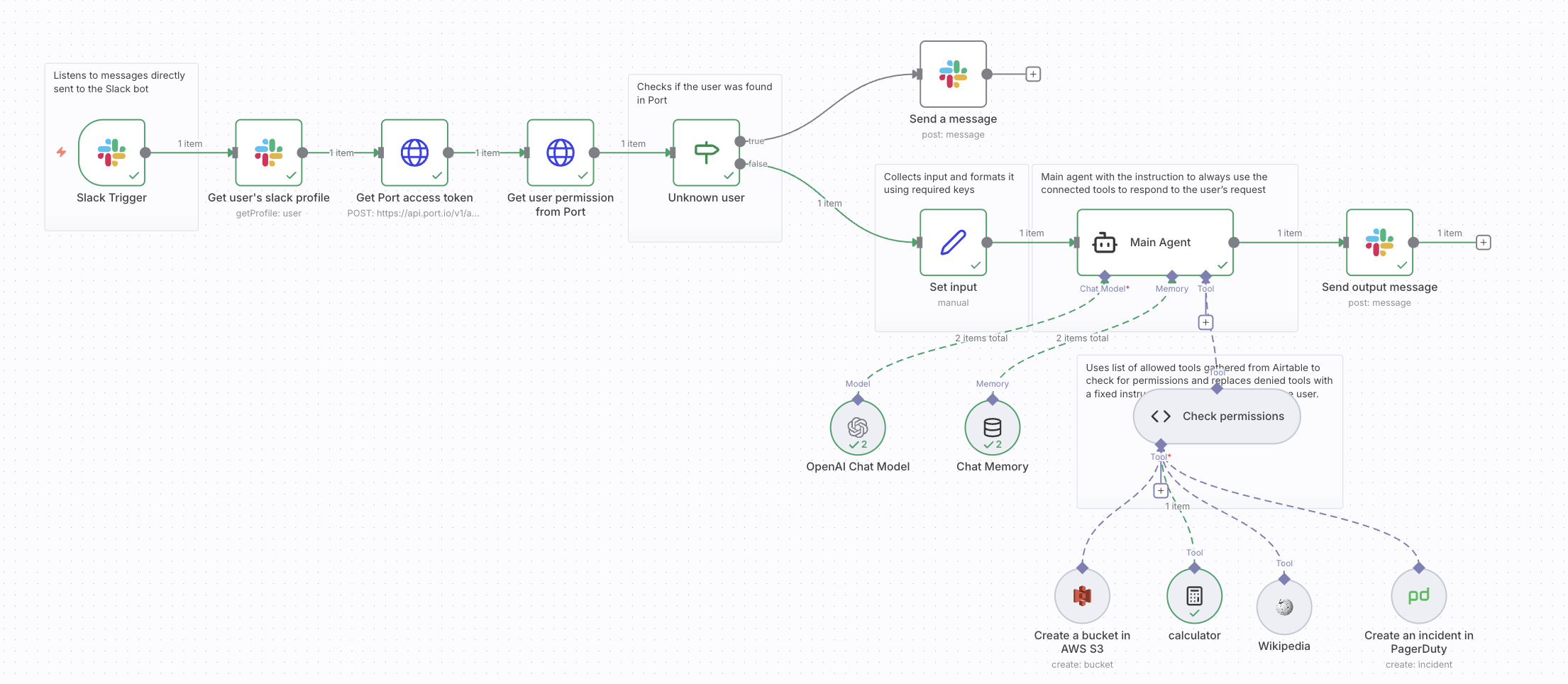
This guide demonstrates how to build an n8n workflow that queries Port for RBAC rules, enabling dynamic tool access control for AI agents based on user roles and tool definitions.
Common use cases
- Control tool access for AI agents based on user roles and permissions.
- Centralize RBAC management in Port instead of maintaining separate permission databases.
- Integrate with communication channels like Slack or Telegram for user-initiated tool requests.
Prerequisites
This guide assumes the following:
- You have a Port account and have completed the onboarding process.
- You have a working n8n instance (Cloud or self-hosted) with Port's n8n custom node installed or you can use HTTP Request nodes to query Port's API.
- You have access to a communication channel like Slack workspace and developer token for sending notifications.
- You have an OpenAI API key or another LLM provider configured in n8n for the AI agent.
While this guide uses Slack as the communication channel, you can adapt it for other channels like Telegram, Microsoft Teams, or Discord. Additionally, you can use other LLM providers like Anthropic Claude, Google Gemini, or local models instead of OpenAI.
Set up the Port data model
First, we need to create the blueprints in Port that will store users, roles, tools, and their relationships. This data model enables Port to serve as the single source of truth for RBAC.
Create the tool blueprint
The rbacTool blueprint represents the tools that AI agents can use. Each tool has a runtime_name that matches the tool identifier used in your agent system.
-
Navigate to your Port Builder page.
-
Click the + Blueprint button to create a new blueprint.
-
Click on the Edit JSON button.
-
Copy the definition below and paste it in the editor:
RBAC Tool blueprint (Click to expand)
{"identifier": "rbacTool","title": "RBAC Tool","icon": "Job","schema": {"properties": {"category": {"type": "string","title": "Category"},"description": {"type": "string","title": "Description"},"runtime_name": {"type": "string","title": "Tool Runtime Identifier","description": "Matching the tool name used in the agent."}},"required": ["runtime_name"]},"mirrorProperties": {},"calculationProperties": {},"aggregationProperties": {},"relations": {}} -
Click Save to create the blueprint.
Create the role blueprint
The rbacRole blueprint represents user roles. Each role can have multiple allowed tools through a relation.
-
Click the + Blueprint button again to create another blueprint.
-
Click on the Edit JSON button.
-
Copy the definition below and paste it in the editor:
RBAC Role blueprint (Click to expand)
{"identifier": "rbacRole","title": "RBAC Role","icon": "Shield","schema": {"properties": {"description": {"type": "string","title": "Description"}},"required": []},"mirrorProperties": {},"calculationProperties": {},"aggregationProperties": {},"relations": {"allowed_tools": {"title": "Allowed Tools","description": "A list of tools that is allowed for this role","target": "rbacTool","required": false,"many": true}}} -
Click Save to create the blueprint.
Update the user blueprint
The _user blueprint is the existing system users blueprint in Port. Each user can have multiple roles, and through mirror properties, we automatically compute which tools each user is allowed to access.
-
Go to your Builder page.
-
Search for the
Userblueprint (the system_userblueprint). -
Click on
{...} Edit JSON. -
Copy and paste the following JSON snippet into the
relationsobject:RBAC role relation (Click to expand)
{"relations": {"roles": {"title": "Agent Roles","target": "rbacRole","required": false,"many": true}}} -
Copy and paste the following JSON snippet into the
mirrorPropertiesobject:RBAC allowed tools mirror property (Click to expand)
{"mirrorProperties": {"allowed_tools": {"title": "Allowed Tools","path": "roles.allowed_tools.runtime_name"}}} -
Click Save to create the blueprint.
Create the region blueprint
This blueprint stores AWS Region entries (for example, us-east-1). The agent uses these entries when it gets tasks related to creating AWS resources such as S3 buckets.
-
Click the + Blueprint button again to create another blueprint.
-
Click on the Edit JSON button.
-
Copy the definition below and paste it in the editor:
AWS Region blueprint (Click to expand)
{"identifier": "awsRegion","title": "AWS Region","icon": "Cloud","schema": {"properties": {"description": {"type": "string","title": "Description"}},"required": []},"mirrorProperties": {},"calculationProperties": {},"aggregationProperties": {},"relations": {}} -
Click Save to create the blueprint.
Populate the data model
After creating the blueprints, you need to populate them with your users, roles, and tools. Here's an example of how to create entities:
- Create tools — Navigate to each tool entity and create entries for the tools your AI agents can use (e.g.,
calculator,wikipedia,Create_an_incident_in_PagerDuty,Create_a_bucket_in_AWS_S3). - Create roles — Create roles like
admin,developer,viewer, and link them to their allowed tools via theallowed_toolsrelation. - Create users — Create user entities with their email addresses and link them to their roles via the
rolesrelation. - Create regions — Create entries like
us-east-1,eu-west-1, andap-south-1so the agent can resolve AWS Region data for resource creation tasks.
Create n8n workflow
We will create an n8n workflow that uses Port as the RBAC source of truth. The workflow will trigger when a user sends a message to the AI agent via Slack, query Port for the user's permissions, and dynamically filter tools based on those permissions.
Import the workflow template
-
Go to your n8n instance.
-
Click on Workflows in the left sidebar.
-
Click on Import from File or Import from URL.
-
Copy and paste the following workflow JSON:
n8n workflow template (Click to expand)
{"name": "Control AI agent tool access with Port RBAC and Slack mentions","nodes": [{"parameters": {"model": {"__rl": true,"mode": "list","value": "gpt-4o","cachedResultName": "gpt-4o"},"options": {}},"id": "5c4ceb24-7ccd-4b90-b2d7-14d723d08c74","name": "OpenAI Chat Model","type": "@n8n/n8n-nodes-langchain.lmChatOpenAi","position": [2448,896],"typeVersion": 1.2,"credentials": {"openAiApi": {"id": "bJtkwjUh5ICoAtil","name": "OpenAi account 2"}}},{"parameters": {"code": {"supplyData": {"code": "const { DynamicTool } = require(\"@langchain/core/tools\");\nconst connectedTools = await this.getInputConnectionData('ai_tool', 0);\nconst allowedTools = $input.item.json.allowed_tools;\n\nconst noTool = (tool) => {\n return new DynamicTool({\n name: tool.getName(),\n description: tool.description,\n func: async () => {\n return \"Tell the user 'You are not authorized to use this tool'.\";\n },\n });\n}\n\nreturn connectedTools.map(connectedTool => {\n const permissionGranted = allowedTools.includes(connectedTool.getName());\n return permissionGranted ? connectedTool : noTool(connectedTool);\n});"}},"inputs": {"input": [{"type": "ai_tool","required": true}]},"outputs": {"output": [{"type": "ai_tool"}]}},"id": "132461b5-bd6f-4e68-b623-eaea4c536e3c","name": "Check permissions","type": "@n8n/n8n-nodes-langchain.code","position": [2880,880],"typeVersion": 1,"notes": "A tool to check user's allowed tools and permissions"},{"parameters": {"assignments": {"assignments": [{"id": "9ea62c8f-984b-4c05-8e40-549d8035c4d3","name": "name","type": "string","value": "={{ $json.entity.identifier }}"},{"id": "bf74b2c4-f0d1-458a-9044-5cb1b62722e6","name": "granted_roles","type": "array","value": "={{ $json.entity.relations.roles || [] }}"},{"id": "e0f4d3d7-a916-43cb-a13d-e4453b0d1a3b","name": "allowed_tools","type": "array","value": "={{ $json.entity.properties.allowed_tools || [] }}"},{"id": "26d0f442-4cd3-4930-a80b-fc471226dd36","name": "regions","value": "={{ $('Get Regions from Port').item.json.entities.map(e => e.identifier) }}","type": "array"}]},"options": {}},"id": "0a041ea8-f282-4120-8c4e-5e86df4373d2","name": "Set input","type": "n8n-nodes-base.set","position": [2576,624],"typeVersion": 3.4},{"parameters": {},"id": "5e15aaad-cf19-401b-a96a-97b9d028d177","name": "calculator","type": "@n8n/n8n-nodes-langchain.toolCalculator","position": [2928,1136],"typeVersion": 1},{"parameters": {"conditions": {"options": {"version": 2,"leftValue": "","caseSensitive": true,"typeValidation": "strict"},"conditions": [{"id": "1d042f5b-ef39-4b9e-8d9c-900b39dbe3fb","operator": {"type": "boolean","operation": "false","singleValue": true},"leftValue": "={{ $json.ok }}","rightValue": ""}],"combinator": "and"},"options": {}},"id": "a5c4e743-3894-45c7-a3b9-fbf42ac3eed1","name": "Unknown user","type": "n8n-nodes-base.if","position": [2224,496],"typeVersion": 2.2},{"parameters": {"content": "Uses list of allowed tools gathered from Port to check for permissions and replaces denied tools with a fixed instruction to return a message to the user.","height": 220,"width": 380,"color": 7},"id": "966a41d6-68b0-4629-84f3-0d925b6e88e3","name": "Sticky Note2","type": "n8n-nodes-base.stickyNote","position": [2800,832],"typeVersion": 1},{"parameters": {"content": "AI agent with the instruction to always use the connected tools to respond to the user's request","height": 240,"width": 380,"color": 7},"id": "9394b13a-262f-49fa-9b3e-99f1a17766a3","name": "Sticky Note4","type": "n8n-nodes-base.stickyNote","position": [2736,560],"typeVersion": 1},{"parameters": {"content": "Collects input and formats it using required keys","height": 240,"width": 220,"color": 7},"id": "b9cf7ecf-5372-4e75-be15-eebbd79a458f","name": "Sticky Note5","type": "n8n-nodes-base.stickyNote","position": [2512,560],"typeVersion": 1},{"parameters": {"content": "Listens to messages directly sent to the Slack bot","height": 240,"width": 220,"color": 7},"id": "f307100d-d57d-42a8-bc1f-d93a6cc62a82","name": "Sticky Note11","type": "n8n-nodes-base.stickyNote","position": [1120,416],"typeVersion": 1},{"parameters": {"content": "Checks if the user was found in Port","height": 240,"width": 428,"color": 7},"id": "1be0d592-609b-45b6-9970-ad7d49f43e96","name": "Sticky Note12","type": "n8n-nodes-base.stickyNote","position": [1952,432],"typeVersion": 1},{"parameters": {"trigger": ["app_mention"],"channelId": {"__rl": true,"value": "channelId","mode": "id"},"options": {}},"id": "e1f41863-12e5-4d35-8d6c-2f14884fb4ad","name": "Slack Trigger","type": "n8n-nodes-base.slackTrigger","position": [1168,496],"webhookId": "a95a0f15-3d4d-4e26-b320-e6a285c63dc6","typeVersion": 1,"credentials": {"slackApi": {"id": "bmLMktmeZdmPlgBG","name": "Slack account 2"}}},{"parameters": {"select": "channel","channelId": {"__rl": true,"value": "={{ $('Slack Trigger').item.json.channel }}","mode": "id"},"text": "User not found in Port. Please contact your administrator.","otherOptions": {}},"id": "0204fb6e-05b1-46c4-8d09-d7b8a8666b01","name": "Send a message","type": "n8n-nodes-base.slack","position": [2576,384],"webhookId": "1a280ab3-5b22-40cf-9355-73e33596d505","typeVersion": 2.3,"credentials": {"slackApi": {"id": "bmLMktmeZdmPlgBG","name": "Slack account 2"}}},{"parameters": {"url": "=https://api.port.io/v1/blueprints/_user/entities/{{ $('Get user\\'s slack profile').item.json.email }}","sendHeaders": true,"headerParameters": {"parameters": [{"name": "Authorization","value": "={{ $('Get Port access token').item.json.tokenType }} {{ $('Get Port access token').item.json.accessToken }}"}]},"options": {}},"id": "2b119903-8698-4d05-b6ed-d50ed3f40fd0","name": "Get user permission from Port","type": "n8n-nodes-base.httpRequest","position": [2016,496],"typeVersion": 4.3},{"parameters": {},"id": "76183718-358b-443d-af04-4b7cef4130b7","name": "Wikipedia","type": "@n8n/n8n-nodes-langchain.toolWikipedia","position": [3056,1152],"typeVersion": 1},{"parameters": {"descriptionType": "auto","authentication": "apiToken","resource": "incident","operation": "create","title": "={{ /*n8n-auto-generated-fromAI-override*/ $fromAI('Title', ``, 'string') }}","serviceId": "PUKOVRM","email": "={{ /*n8n-auto-generated-fromAI-override*/ $fromAI('Email', ``, 'string') }}","additionalFields": {},"conferenceBridgeUi": {}},"id": "4f99e983-0ca3-4e79-8e55-bf4745531bf0","name": "Create an incident in PagerDuty","type": "n8n-nodes-base.pagerDutyTool","position": [3248,1136],"typeVersion": 1,"credentials": {"pagerDutyApi": {"id": "LNKkdnqHKHFCQsm6","name": "PagerDuty account"}}},{"parameters": {"resource": "bucket","name": "={{ /*n8n-auto-generated-fromAI-override*/ $fromAI('BucketName', ``, 'string') }}","additionalFields": {"region": "={{ /*n8n-auto-generated-fromAI-override*/ $fromAI('Region', ``, 'string') }}"}},"id": "60a35b13-fa61-4b86-91e6-3e0b849b930f","name": "Create a bucket in AWS S3","type": "n8n-nodes-base.awsS3Tool","position": [2768,1136],"typeVersion": 2,"credentials": {"aws": {"id": "ymYqVmcWvZ3QARX6","name": "AWS (IAM) account"}}},{"parameters": {"resource": "user","operation": "getProfile","user": {"__rl": true,"mode": "id","value": "={{ $json.user }}"}},"id": "2a538a0c-3539-4511-8ea9-63002a6e7c2a","name": "Get user's slack profile","type": "n8n-nodes-base.slack","position": [1392,496],"webhookId": "f72543b5-4a1a-4776-9d40-c6537aa8d835","typeVersion": 2.3,"credentials": {"slackApi": {"id": "bmLMktmeZdmPlgBG","name": "Slack account 2"}}},{"parameters": {"method": "POST","url": "https://api.port.io/v1/auth/access_token","sendBody": true,"specifyBody": "json","jsonBody": "{\n \"clientId\": \"REPLACE WITH CLIENT ID\",\n \"clientSecret\": \"REPLACE WITH CLIENT SECRET\"\n}","options": {}},"id": "50b8dda9-26c5-41ac-8f47-a88f688d8b81","name": "Get Port access token","type": "n8n-nodes-base.httpRequest","position": [1600,496],"typeVersion": 4.3},{"parameters": {"sessionIdType": "customKey","sessionKey": "={{ $json.name}}"},"id": "bcad96f3-3279-465c-8378-08656dd71e88","name": "Chat Memory","type": "@n8n/n8n-nodes-langchain.memoryBufferWindow","position": [2640,896],"typeVersion": 1.3},{"parameters": {"select": "channel","channelId": {"__rl": true,"mode": "id","value": "={{ $('Slack Trigger').item.json.channel }}"},"text": "={{ $json.output }}","otherOptions": {}},"id": "74000745-d221-4b0c-97fa-25b1f9c1a0f8","name": "Send output message","type": "n8n-nodes-base.slack","position": [3184,624],"webhookId": "080cefa9-f770-407e-88b6-6880dee871fb","typeVersion": 2.3,"credentials": {"slackApi": {"id": "bmLMktmeZdmPlgBG","name": "Slack account 2"}}},{"parameters": {"content": "## AI Agent Access Control (Port + Slack)\n\nThis workflow adds role-based access control to AI agents. Users @mention the bot in Slack, and the workflow checks their permissions in Port before letting the agent use any tools.\n\n### How it works\n1. Slack trigger picks up @mentions and gets the user's email.\n2. Authenticates with Port and looks up the user in the _user blueprint.\n3. If the user exists, reads their allowed_tools array.\n4. The LangChain code node filters tools at runtime, swapping any unauthorized tool with a \"not authorized\" stub.\n5. AI agent runs with only permitted tools, then posts the response back to Slack.\n\n### Setup\n- [ ] Connect your Slack account and set the channel ID.\n- [ ] Add your OpenAI API key.\n- [ ] Get a free Port account at port.io.\n- [ ] Create the [rbac blueprints](https://docs.port.io/guides/all/implement-rbac-for-ai-agents-with-n8n-and-port/#set-up-the-port-data-model) in Port with an allowed_tools property (string array).\n- [ ] Add user entities with their email as identifier and allowed tools listed.\n- [ ] Replace the Port client ID and secret in the \"Get Port access token\" node.\n- [ ] Connect any tool credentials you want to use (PagerDuty, AWS, etc.).\n- [ ] Invite the bot to your Slack channel.","height": 576,"width": 688},"id": "fffead23-643d-48ef-9e17-ca894ee75967","name": "Sticky Note","type": "n8n-nodes-base.stickyNote","position": [368,240],"typeVersion": 1},{"parameters": {"promptType": "define","text": "={{ $('Slack Trigger').item.json.text }}","options": {"systemMessage": "=You are a personal assistant. The name of the current user is \"{{ $json.name }}\"\nYou MUST only use the provided tools to process any user input. Never use general knowledge to answer questions. If you can't use a tool, tell the user why.\n\nBelow are the list of allowed tools for this user:\n{{ $json.allowed_tools }}\n\nRegions available to use when interacting with AWS: {{ $json.regions }}","returnIntermediateSteps": true}},"id": "a5396cc8-81f7-454d-9e0f-fe5bf9d87652","name": "AI Agent","type": "@n8n/n8n-nodes-langchain.agent","position": [2800,624],"typeVersion": 1.8},{"parameters": {"url": "https://api.port.io/v1/blueprints/region/entities","sendHeaders": true,"headerParameters": {"parameters": [{"name": "Authorization","value": "={{ $('Get Port access token').item.json.tokenType }} {{ $('Get Port access token').item.json.accessToken }}"}]},"options": {}},"type": "n8n-nodes-base.httpRequest","typeVersion": 4.3,"position": [1792,496],"id": "076909ce-1054-41ef-8cf7-a3d85a56c493","name": "Get Regions from Port"}],"pinData": {},"connections": {"AI Agent": {"main": [[{"node": "Send output message","type": "main","index": 0}]]},"Set input": {"main": [[{"node": "AI Agent","type": "main","index": 0}]]},"Wikipedia": {"ai_tool": [[{"node": "Check permissions","type": "ai_tool","index": 0}]]},"calculator": {"ai_tool": [[{"node": "Check permissions","type": "ai_tool","index": 0}]]},"Chat Memory": {"ai_memory": [[{"node": "AI Agent","type": "ai_memory","index": 0}]]},"Unknown user": {"main": [[{"node": "Send a message","type": "main","index": 0}],[{"node": "Set input","type": "main","index": 0}]]},"Slack Trigger": {"main": [[{"node": "Get user's slack profile","type": "main","index": 0}]]},"Check permissions": {"ai_tool": [[{"node": "AI Agent","type": "ai_tool","index": 0}]]},"OpenAI Chat Model": {"ai_languageModel": [[{"node": "AI Agent","type": "ai_languageModel","index": 0}]]},"Get Port access token": {"main": [[{"node": "Get Regions from Port","type": "main","index": 0}]]},"Get user's slack profile": {"main": [[{"node": "Get Port access token","type": "main","index": 0}]]},"Create a bucket in AWS S3": {"ai_tool": [[{"node": "Check permissions","type": "ai_tool","index": 0}]]},"Get user permission from Port": {"main": [[{"node": "Unknown user","type": "main","index": 0}]]},"Create an incident in PagerDuty": {"ai_tool": [[{"node": "Check permissions","type": "ai_tool","index": 0}]]},"Get Regions from Port": {"main": [[{"node": "Get user permission from Port","type": "main","index": 0}]]}},"active": false,"settings": {"executionOrder": "v1","availableInMCP": false},"versionId": "0cd92b77-2f77-46e0-aa63-5424cc642de2","meta": {"templateId": "12062","templateCredsSetupCompleted": true,"instanceId": "ece285d5f6d021267c1bf415cc6f43f61f89e93c51704a3846513e293fe52759"},"id": "JxGoWSeBkNUoBvTc","tags": []} -
Click Import to load the workflow into n8n.
Configure workflow credentials
Before the workflow can run, you need to configure credentials for Slack, OpenAI, Port, and any external tools (PagerDuty, AWS S3, etc.).
Configure Port credentials
-
In the Get Port access token node, update the JSON body with your Port credentials:
-
Replace
REPLACE WITH CLIENT IDwith your Port Client ID. -
Replace
REPLACE WITH CLIENT SECRETwith your Port Client Secret.Finding your Port credentialsYou can find your Port credentials in your Port application under Settings → Credentials. Learn more about Port API credentials.
-
-
In the Get user permission from Port node, configure the Bearer Auth credential:
- Click on the credentials dropdown.
- Select Create New Credential or use an existing Bearer Auth credential.
- Set the Token to
={{ $('Get Port access token').item.json.accessToken }}to use the token from the previous node.
Configure Slack credentials
- In the Slack Trigger node, click on the credentials dropdown.
- Select Create New Credential or use an existing Slack credential.
- Enter your Slack credentials:
- Access Token — Your Slack Bot Token (starts with
xoxb-)
- Access Token — Your Slack Bot Token (starts with
- Click Save to store the credential.
Configure OpenAI credentials
- In the OpenAI Chat Model node, click on the credentials dropdown.
- Select Create New Credential or use an existing OpenAI credential.
- Enter your OpenAI API key.
- Click Save to store the credential.
Configure external tool credentials
Configure credentials for any external tools you're using (PagerDuty, AWS S3, etc.):
- PagerDuty — In the Create an incident in PagerDuty node, add your PagerDuty API token.
- AWS S3 — In the Create a bucket in AWS S3 node, add your AWS credentials.
Configure workflow parameters
After importing the workflow, you need to update several parameters to match your environment:
-
Update Slack channel ID:
- In the Slack Trigger node, update the
channelIdfield with your target Slack channel ID. - Update the
channelIdin the Send a message and Send output message nodes to match.
- In the Slack Trigger node, update the
-
Update Port API endpoint (if needed):
- The workflow uses
https://api.port.io/v1by default. If you're using a different Port data center, update the URLs in the Get Port access token and Get user permission from Port nodes.
- The workflow uses
-
Update user entity identifier:
- The workflow queries Port using the user's email address as the entity identifier. Ensure your
rbacUserentities use email addresses as their identifiers, or adjust the query in the Get user permission from Port node.
- The workflow queries Port using the user's email address as the entity identifier. Ensure your
-
Update tool names:
- Ensure the
runtime_nameproperty in yourrbacToolentities matches the tool names used in your n8n workflow (e.g.,calculator,wikipedia,Create_an_incident_in_PagerDuty,Create_a_bucket_in_AWS_S3).
- Ensure the
You can customize the workflow to match your specific needs:
- Add more tools by connecting additional tool nodes to the Check permissions node.
- Modify the permission check logic in the Check permissions node to implement different access control rules.
- Add notification nodes to alert administrators when access is denied.
Permission check logic
The Check permissions node uses a Code node to dynamically filter tools:
- It receives all connected tools as input.
- It compares each tool's name against the user's
allowed_toolsarray from Port. - For allowed tools, it passes them through unchanged.
- For unauthorized tools, it replaces them with a
DynamicToolthat always returns "You are not authorized to use this tool."
This ensures that the AI agent can only call tools the user has permission to use, and unauthorized tool calls are gracefully handled with a clear error message.
Test the workflow
-
Set up test data in Port:
- Create a user entity in Port with your Slack email address.
- Create roles and link them to specific tools.
-
Trigger a test message:
-
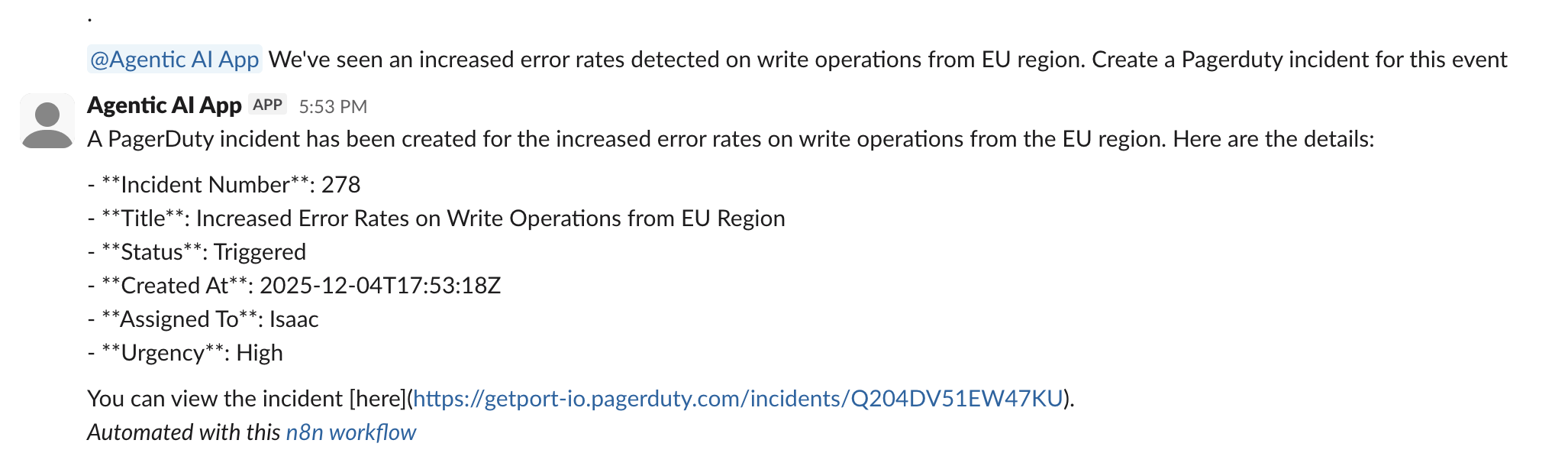
In your Slack channel, mention the bot with a message like:
@bot create a PagerDuty incident. -
Check the workflow execution in n8n to verify each step completes successfully.
-
-
Verify permission enforcement:
-
Try requesting a tool you don't have access to.
-
Verify that the agent responds with an authorization error.

-
Related guides
- Set up Port's n8n custom node — Learn how to install and configure Port's n8n node.
- Remediate vulnerability with n8n and Port — Another example of using Port as a context lake in n8n workflows.
- Automatically resolve tickets with n8n and Port context — Learn how to use Port as a context lake in n8n workflows.