Seamlessly distribute skills across your organization
This feature is currently in closed beta with limited availability.
To request access, please contact Port's support team.
A skills registry delivers value only when each user and AI agent gets the skills assigned to them, in their latest version, wherever they work. Installing skills on disk works well for developers with a terminal, but it leaves out chat clients and hosted agents, and it needs a hook or an install command on every machine first.
In this guide, we will build a single virtual MCP server that distributes your registry to any MCP client or AI agent. You configure it once, and you can connect it wherever skills are needed:
- Coding agents for every user: IT or the platform team rolls the server out to every coding agent in the organization, such as Claude Code or Cursor, through their managed configuration.
- AI agents: assign the server to Port AI agents or your own custom agents, so they always get their most up-to-date assigned skills.
- Individual users: anyone can add the server's URL to their own MCP client, such as Claude Desktop or the Claude web app.
Once connected, the agent:
- Lists the skills they can use at the start of every session, so it knows what the organization offers before it does anything else.
- Loads a skill on demand when a task matches it, with the skill's full instructions and files.
- Publishes a new skill to the registry through your golden path, when the user asks for it.
The server exposes only these three tools, so the agent does not carry the rest of the Port MCP server's tools into every conversation.
The server is the same for everyone, but the skills it returns are not. Every call runs with the permissions of the connected user, so your RBAC and dynamic permission policies on the skill blueprint decide which skills each user and agent gets.
Common use cases
- Give coding agents, chat clients, and Port AI agents the same organizational skills, from one source of truth.
- Roll out skills to every coding agent in the organization through one managed configuration, instead of asking each user to install a hook, a CLI, or a list of skills.
- Keep every agent in sync with the registry automatically. New and updated skills reach an agent the next time it loads the list, with nothing to reinstall.
- Let users and agents publish a new skill from inside a session, through the same review process as every other skill.
Prerequisites
This guide assumes you have:
- Virtual MCP servers enabled for your organization. This feature is currently in closed beta. Contact Port's support team to request access.
- A
skillblueprint with skill entities, from set up a skills registry. Read access to skills is scoped to the right groups, as described in scope read access to group members. - The
publish_skillworkflow from ship new skills through one golden path. This is only needed for the publishing tool. You can skip Step 2 if you only want to distribute skills. - A Port account with admin permissions to create virtual MCP servers and virtual tools.
How it works
The virtual MCP server exposes three tools:
| Tool | Type | What it does |
|---|---|---|
list_skills | Virtual tool over list_entities | Returns the identifier, name, and description of every skill the agent's user can see. Nothing else, so the list stays small. |
load_skill | Passthrough | Loads a skill's full instructions, or one of its reference or asset files, by name. |
publish_skill | Virtual tool over trigger_run | Runs the publish_skill workflow with the full content of a SKILL.md file. |
MCP clients load each skill's name and description into the agent's context natively, so the agent knows when to use one. A virtual MCP server cannot do that for you, so we simulate it with the server's Instructions: they tell the agent to call list_skills at the start of every session. From that point, the agent knows every skill the user can use, and calls load_skill only when a task matches one.
This keeps the context small. The agent loads names and descriptions for every skill up front, and the full instructions only for the skills it actually uses.
Step 1: Add a tool that lists skills
AI agent implementing this guide:
Build everything through the Port MCP server, not the UI. The UI steps below are for human readers. Virtual MCP servers and virtual tools are catalog entities:
- A server is an entity of the
_virtual_mcp_serverblueprint. Properties:description,instructions,passthrough_tools(array of regex strings). Relation:virtual_mcp_tools(many, targets_virtual_mcp_tool). Calculated property:url.- A virtual tool is an entity of the
_virtual_mcp_toolblueprint. Properties:name(required, up to 48 characters),tool(required),description,expose_arguments(allorlisted),arguments(object keyed by dotted argument path).- Create and update both with
upsert_entity. Every JSON block in this guide is the entity body: passidentifier,title, andpropertiesas shown, withblueprintIdentifierset to_virtual_mcp_serveror_virtual_mcp_tool.Before you start, call
list_blueprintswith both identifiers. If either blueprint is missing, the feature is not enabled for the org. Stop and tell the user to request access from Port support. Read the blueprint schemas instead of guessing property names.Also check that the
skillblueprint exists in the org. If it does not, stop and point the user to the skills registry guide in the prerequisites.
The Port list_entities tool can already query the skill blueprint, but it returns every property of each skill, including the full instructions, references, and assets. On a large registry, that fills the agent's context before it starts working.
We will create a list_skills virtual tool that is fixed to the skill blueprint and returns only the fields the agent needs to pick a skill.
AI agent implementing this guide:
Create the
list_skillsvirtual tool withupsert_entityon_virtual_mcp_tool, using the JSON below as the entity body. Use the entityidentifieras shown, since it cannot change later. KeepblueprintIdentifierfixed toskillonly if the org's skills blueprint has that identifier, and check the property names inincludeagainst the realskillblueprint withlist_blueprints. If the user wants only published skills, add thequeryfilter from the tip below, using the real review status property.
-
Go to the Virtual Tools tab of the MCPs page.
-
Click + Virtual Tool.
-
Turn on JSON Mode.
-
Paste the following JSON, then click Register:
list_skills virtual tool (click to expand)
{"identifier": "skills_distribution_list_skills","title": "list_skills","properties": {"name": "list_skills","tool": "list_entities","description": "Lists all available skills (up to 1000). Returns only each skill's identifier, name (title) and description. Call this at the beginning of every session to sync the organizational skills, then call `load_skill` with the chosen skill's identifier to get its full instructions. Read-only. Do not use it to read skill instructions, references or assets.","expose_arguments": "listed","arguments": {"blueprintIdentifier": { "value": "skill" },"include": { "value": ["$identifier", "$title", "description"] },"limit": { "value": 1000 }}}}
A few things to note about this tool:
expose_argumentsislisted, and every listed argument is fixed withvalue. The agent sees a tool with no arguments at all, so it cannot query another blueprint or ask for more fields.includekeeps the response small. Each skill returns only its identifier, title, and description, which is all the agent needs to decide whether a skill matches the task.- The description tells the agent what to do next. It points the agent to
load_skillfor the full instructions, so it does not try to read them through this tool.
If your registry tracks a review status, such as publish_status from the golden path guide, fix a filter so the agent never sees pending or rejected skills. Add the following entry to arguments:
"query": {
  "value": {
    "combinator": "and",
    "rules": [{ "property": "publish_status", "operator": "=", "value": "published" }]
  }
}
Step 2: Add a tool that publishes a skill
A skill written during a session should reach the registry without leaving that session. We will create a publish_skill virtual tool that can only run the publish_skill workflow, so the agent cannot use it to trigger any other workflow or action.
AI agent implementing this guide:
This step is optional. Ask the user whether they want the publishing tool. If they do not, skip it and leave
skills_distribution_publish_skillout of the server in Step 3.Before you create the tool, call
list_workflowsandget_workflowto find the user's real publishing workflow identifier, its trigger node identifier, and the name of the trigger's input. Use those values foridentifier,nodeIdentifier, and the input key in theinputsdescription instead ofpublish_skill,trigger, andskill_content. If the org has no publishing workflow, skip this step and tell the user it needs the golden path guide first. Then create the tool withupsert_entityon_virtual_mcp_tool.
-
Go to the Virtual Tools tab of the MCPs page.
-
Click + Virtual Tool.
-
Turn on JSON Mode.
-
Paste the following JSON, then click Register:
publish_skill virtual tool (click to expand)
{"identifier": "skills_distribution_publish_skill","title": "publish_skill","properties": {"name": "publish_skill","tool": "trigger_run","description": "Publishes a new skill to the organization from a full SKILL.md file. Starts the `publish_skill` workflow, which opens a pull request in the skills registry and registers the skill as pending until it is reviewed. Use it only when explicitly asked to publish a skill. Returns a run; poll it for completion. To read existing skills, use `list_skills` and `load_skill` instead.","expose_arguments": "all","arguments": {"identifier": { "value": "publish_skill" },"nodeIdentifier": { "value": "trigger" },"inputs": {"description": "Object with a single key `skill_content` holding the full text of the SKILL.md file, e.g. {\"skill_content\": \"---\\nname: my-skill\\ndescription: ...\\n---\\n# Instructions...\"}. Always pass the complete file content."}}}}
identifierandnodeIdentifierare fixed, so the tool can only start the trigger node of thepublish_skillworkflow. Update them if your workflow or its trigger node uses different identifiers.inputskeeps a custom description.inputsis a free-form object, so you cannot fix or limit the keys inside it. Instead, the description tells the agent exactly which key to send. If your workflow's trigger uses a different input name, changeskill_contentin the description to match.
Every skill published this way goes through the same review as any other: a pull request opens, and the skill stays pending until someone merges it.
Step 3: Create the virtual MCP server
Now we will combine the two virtual tools with the load_skill Port tool in one server, and write instructions that make the agent list skills at the start of every session.
AI agent implementing this guide:
Check
list_entitieson_virtual_mcp_serverfor an existing server with the same identifier, and ask the user before you overwrite it. Create the server withupsert_entityon_virtual_mcp_server, using the JSON below as the entity body. Setrelations.virtual_mcp_toolsto the virtual tools you actually created in the previous steps, and read the server first if it already exists so you keep the tools already linked. Keeppassthrough_toolstoload_skillonly: do not add patterns such as.*, so the server does not expose other Port tools. Read the entity back and give the user itsurlproperty. Theurlcalculation always uses the EU host. If the org is in the US region, replacemcp.port.iowithmcp.us.port.io, here and in the connection snippets in Step 4.
-
Go to the Virtual MCPs tab of the MCPs page.
-
Click + Virtual MCP Server.
-
Turn on JSON Mode.
-
Paste the following JSON, then click Register:
Skills distribution virtual MCP server (click to expand)
{"identifier": "skills_distribution","title": "Skills Distribution","properties": {"description": "Distributes skills: lists available skills and loads a skill's full instructions.","instructions": "This server is the way to sync organizational skills.\n\n**Always call `list_skills` at the beginning of every session**, before doing anything else. It returns every available skill (identifier, name, description).\n\nThen, when a task matches a skill, call `load_skill` with that skill's name to get its full instructions and follow them.\n\nTo publish a new skill to the org, call `publish_skill` with the full skill .md file content. Only do this when explicitly asked to publish.","passthrough_tools": ["load_skill"]},"relations": {"virtual_mcp_tools": ["skills_distribution_list_skills","skills_distribution_publish_skill"]}}
passthrough_toolsholds onlyload_skill. The server exposes no other Port tool, so the agent cannot read or change anything else in your catalog through it.- The instructions do the work of native skill loading. They reach the agent when it connects, and tell it to sync the list of skills before it does anything else.
- Publishing needs an explicit request. Both the instructions and the tool description tell the agent to publish only when explicitly asked, so a skill drafted in a session does not reach the registry by accident.
If you skipped Step 2, remove skills_distribution_publish_skill from virtual_mcp_tools, and remove the publishing paragraph from the instructions.
After you register the server, its page shows the virtual tools, the passthrough tools, and the instructions:
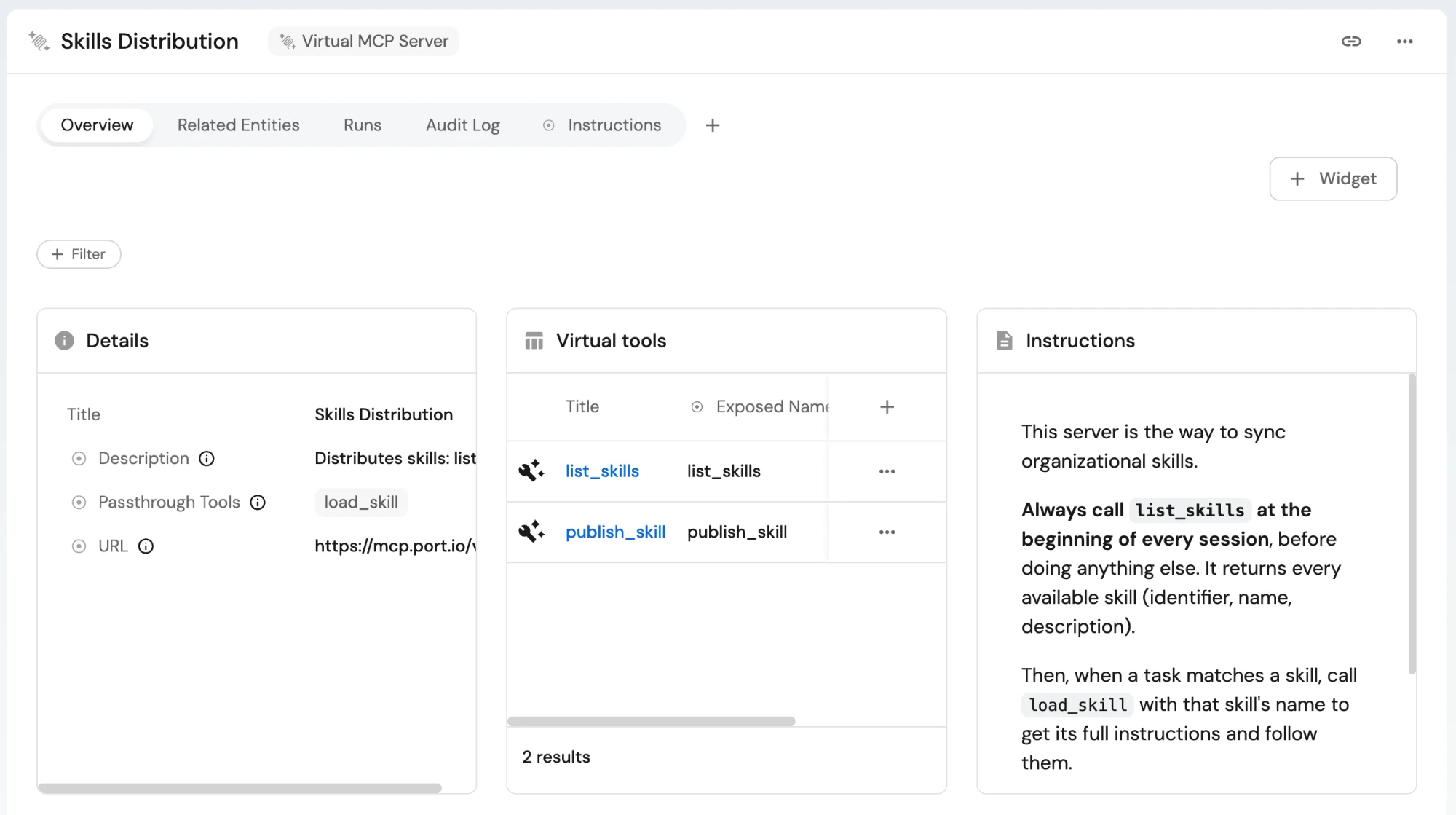
Copy the server's URL from the URL property. It looks like this:
https://mcp.port.io/v1/virtual-server/skills_distribution
If your Port organization is in the US region, the URL starts with https://mcp.us.port.io instead.
Step 4: Connect the server to your agents
AI agent implementing this guide:
You are connected to the Port MCP server, not to the new virtual server, so you cannot run the test prompts yourself. Give the user the server URL, the connection snippet for their client, and the prompts from the test section, and ask them to run the prompts in a new session.
Every agent connects to the same URL. MCP clients authenticate with Port through OAuth, and each call runs with the permissions of the connected user, so every agent gets only the skills that user is allowed to see.
There are three ways to roll the server out:
- To every coding agent in the organization: distribute the configuration below through your device management or the client's managed settings, the same way you roll out any other approved MCP server. Users only complete the OAuth sign-in the first time they connect.
- To Port AI and custom agents: add the server as an MCP connector and select it in each agent, as described in the Port AI and custom agents tab below.
- To individual users: share the URL and the snippet for their client, for example in your onboarding docs.
- Claude Code
- Cursor
- VS Code
- Port AI and custom agents
claude mcp add --transport http port-skills https://mcp.port.io/v1/virtual-server/skills_distribution
Add the server to your .cursor/mcp.json file:
{
  "mcpServers": {
    "port-skills": {
      "url": "https://mcp.port.io/v1/virtual-server/skills_distribution"
    }
  }
}
Add the server to your .vscode/mcp.json file:
{
  "servers": {
    "port-skills": {
      "url": "https://mcp.port.io/v1/virtual-server/skills_distribution"
    }
  }
}
- Add the server URL as a Custom Server MCP connector.
- Select the connector in an agent's MCP servers field, as described in build an AI agent.
For other clients, such as Claude Desktop or the Claude web app, add the URL as a remote MCP server. See Port MCP server installation for client-specific steps, using the virtual MCP server URL instead of the Port MCP server URL.
Test the server
Start a new session in a connected client, then send the agent the following prompts:
| Prompt | Expected result |
|---|---|
| "What tools do you have from Port?" | Only list_skills, load_skill, and publish_skill. |
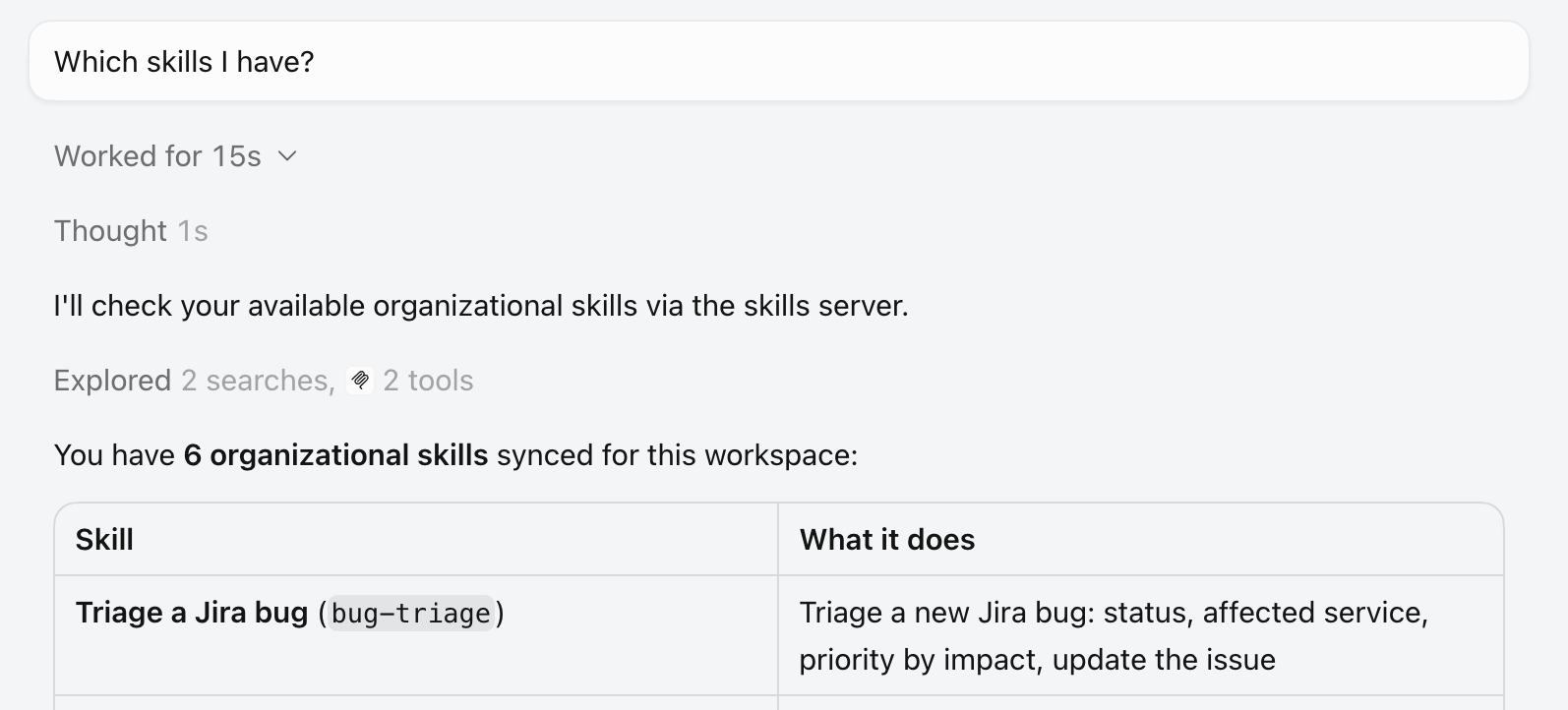
| "Which skills do I have?" | The skills you have access to, with their descriptions. Skills scoped to groups you are not in do not appear. |
| A task that matches one of your skills | The agent calls load_skill for that skill and follows its instructions. |
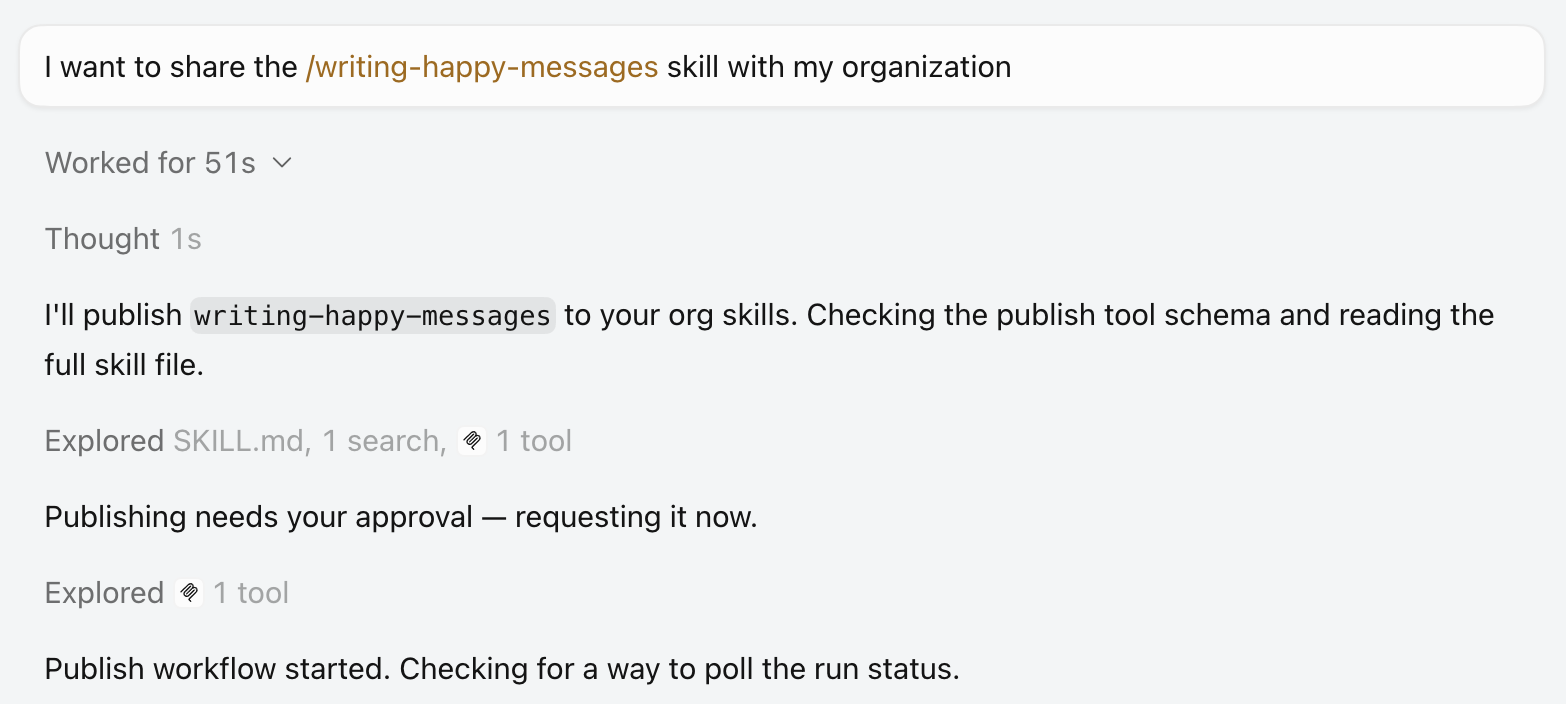
"Publish this skill to the org", with a SKILL.md file | The agent calls publish_skill, and a new run of the publish_skill workflow starts. |
For example, when asked which skills are available, the agent lists the skills it synced through list_skills:
When asked to share a local skill with the organization, the agent reads the SKILL.md file, asks for approval, and calls publish_skill:
If a result does not match:
- The agent does not call
list_skillsat the start of the session. Some clients load server instructions only on a new connection. Reconnect the client, or start a new session. - The agent still sees other Port tools. Check that Passthrough Tools holds only
load_skill, with no pattern such as.*. If the client is also connected to the full Port MCP server, its tools appear separately. - A skill is missing from the list. The connected user does not have read access to it. Check its groups and the read permissions on the
skillblueprint. publish_skillfails. Check that the workflow and trigger node identifiers match yourpublish_skillworkflow, and that the input key in the tool description matches the trigger's input.
For more troubleshooting, see the virtual MCP servers FAQ.
Continue building your skills registry
- Certify skills to meet industry and org standards - review each skill's description, the field
list_skillsreturns and agents use to pick a skill. - Avoid duplicate skills in your org registry - catch a duplicate before it reaches the list every agent loads.
- Bundle skills into plugins - group related skills into installable plugins.
- Measure the ROI of skills in your org registry - find out which distributed skills are worth their cost.
Related pages
- Set up a skills registry: the skill blueprint and group permissions this guide's tools read from.
- Ship new skills through one golden path: the
publish_skillworkflow the publishing tool runs. - Virtual MCP servers: passthrough patterns, virtual tools, and argument overrides in depth.
- Build an MCP server scoped to one agent task: another step-by-step example of a scoped virtual MCP server.
- Skills overview: the skill blueprint and how
load_skillworks. - Port catalog RBAC: control which users can see each skill.