Auto-create Slack channel & GitHub issue for PagerDuty incidents
This guide demonstrates how to set up an automated incident management system using Port Workflows that creates a dedicated Slack channel and GitHub issue whenever a PagerDuty incident is reported.
The guide covers two flows:
- Automatic incident handler - an event-triggered workflow that runs whenever a
pagerdutyIncidententity is created. It creates a GitHub issue, opens a Slack channel, posts a notification, and links everything back to the incident entity in Port. - Manual Slack channel - a self-service workflow that lets responders open a Slack channel from a
serviceentity and optionally invite members.
Once implemented:
- A new Slack channel will be automatically created for each incident, providing a dedicated space for team communication.
- A GitHub issue will be automatically created to document the incident and track progress.
- The incident entity in Port will be updated with links to both the Slack channel and GitHub issue.
- Team members will have a centralized place to collaborate.
Port workflows are currently in open beta and available to all users. Workflows may undergo changes without prior notice.
Common use cases
- Real-time incident response: Automatically create communication channels when incidents are reported.
- Incident documentation: Ensure every incident is properly documented in your issue tracking system.
- Team collaboration: Provide dedicated spaces for teams to discuss and resolve incidents.
- Audit trail: Maintain a complete record of incident response activities.
- Manual incident channel creation: Let teams open a dedicated Slack channel from a service entity when they need a response room before or outside a PagerDuty incident.
Prerequisites
- Install GitHub ocean.
- Ingest GitHub issues using GitHub ocean (see GitHub ocean examples).
- Install Port's PagerDuty integration for real-time incident ingestion.
- A GitHub personal access token with the
reposcope, used by the automatic workflow to create GitHub issues. - Configure a Slack app:
- Create a Slack app and install it in a workspace.
- Save the
Bot User OAuth Tokenfor later use. - Add the following permissions to the Slack app in OAuth & Permissions under
Bot Token Scopes:- Create channels:
channels:manage,groups:write,im:write,mpim:write - Send messages:
chat:write - Find users by email:
users:read,users:read.emailif you want to invite members automatically. - Invite users to channels:
channels:write.invites,groups:write.invites,mpim:write.invitesif you want to invite members automatically.
- Create channels:
Set up the data model
To support our automated incident management workflow, we need to modify the existing PagerDuty Incidents blueprint to include additional properties and relations.
Update PagerDuty incidents blueprint
-
Go to the data model page of your portal.
-
Find the
pagerdutyIncidentblueprint. -
Click on
...and selectEdit JSON. -
Add the following snippet to the
propertiessection:Slack channel property (Click to expand)
"slack_channel": {"type": "string","description": "The Slack Channel opened for troubleshooting this incident","title": "Slack Channel URL","icon": "Slack","format": "url"} -
Add the following snippet to the
relationssection:Service and issue relations (Click to expand)
"service": {"title": "Service","description": "The service this incident is related to","target": "service","required": false,"many": false},"issue": {"target": "githubIssue","title": "GitHub Issue","many": false,"required": false,"description": "The issue created for documenting this incident"} -
Click Save to update the blueprint.
For simplicity, this guide assumes that the GitHub Service entity identifier matches the PagerDuty Service identifier (lowercased and split by -).
For example, a PagerDuty incident for the My Service PagerDuty service will be related to the my-service GitHub service.
Add secrets to Port
Both workflows call the GitHub and Slack APIs directly from webhook nodes, so they need credentials stored as Port secrets.
-
Go to your portal's Settings page.
-
Navigate to Credentials and add the following secrets:
GITHUB_TOKEN- A GitHub personal access token with thereposcope, used to create GitHub issues.SLACK_BOT_TOKEN- TheBot User OAuth Tokenfrom your Slack app, used to create channels, look up users, and post messages.
Webhook nodes reference Port secrets using the {{ .secrets["NAME"] }} syntax, as shown in the workflow JSONs below.
Build the automatic incident workflow
This workflow runs automatically when a new pagerdutyIncident entity is created. It fetches the related service, creates a GitHub issue, opens a Slack channel, posts a notification, and updates the incident entity with links to both.
Follow the steps below to build the workflow:
-
Go to the Workflows page of your portal.
-
Click on the
+ Workflowbutton in the top-right corner. -
Click on the
Skip to editorbutton. -
Copy and paste the workflow JSON below into the editor to replace the example workflow:
Handle new incident workflow JSON (Click to expand)
Replace the variables<GITHUB_ORG>- your GitHub organization or user name.
{"identifier": "handle_new_incident","title": "Handle new PagerDuty incident","icon": "pagerduty","description": "Create a Slack channel and GitHub issue when a PagerDuty incident is reported","nodes": [{"identifier": "trigger","title": "On PagerDuty incident created","config": {"type": "EVENT_TRIGGER","event": {"type": "ENTITY_CREATED","blueprintIdentifier": "pagerdutyIncident"}}},{"identifier": "fetch_service","title": "Fetch related service","config": {"type": "WEBHOOK","url": "https://api.port.io/v1/blueprints/pagerdutyService/entities/search","method": "POST","headers": {"Content-Type": "application/json"},"body": {"query": {"combinator": "and","rules": [{"property": "$identifier","operator": "=","value": "{{ .outputs.trigger.diff.after.relations.pagerdutyService }}"}]}}},"variables": {"service_title": "{{ .result.response.data.entities[0].title }}","service_identifier": "{{ .result.response.data.entities[0].title | ascii_downcase | gsub(\" \"; \"-\") }}"}},{"identifier": "create_issue","title": "Create GitHub issue","config": {"type": "WEBHOOK","url": "https://api.github.com/repos/<GITHUB_ORG>/{{ .outputs.fetch_service.service_identifier }}/issues","method": "POST","headers": {"Accept": "application/vnd.github+json","X-GitHub-Api-Version": "2022-11-28","Authorization": "Bearer {{ .secrets[\"GITHUB_TOKEN\"] }}"},"body": {"title": "PagerDuty incident - ID {{ .outputs.trigger.diff.after.identifier }}","labels": ["bug", "incident", "pagerduty"],"body": "PagerDuty incident issue reported.\nPort incident entity URL: https://app.port.io/pagerdutyIncidentEntity?identifier={{ .outputs.trigger.diff.after.identifier }}.\nPagerDuty incident URL: {{ .outputs.trigger.diff.after.properties.url }}."},"onFailure": "continue"},"variables": {"issue_number": "{{ .result.response.data.number }}","issue_url": "{{ .result.response.data.html_url }}"}},{"identifier": "report_issue","title": "Report GitHub issue to Port","config": {"type": "UPSERT_ENTITY","blueprintIdentifier": "githubIssue","mapping": {"identifier": "{{ .outputs.fetch_service.service_identifier }}-{{ .outputs.create_issue.issue_number }}","relations": {"service": "{{ .outputs.fetch_service.service_identifier }}"}},"onFailure": "continue"}},{"identifier": "create_channel","title": "Create Slack channel","config": {"type": "WEBHOOK","url": "https://slack.com/api/conversations.create","method": "POST","headers": {"Content-Type": "application/json","Authorization": "Bearer {{ .secrets[\"SLACK_BOT_TOKEN\"] }}"},"body": {"name": "incident-{{ .outputs.trigger.diff.after.identifier | ascii_downcase }}"}},"variables": {"channel_id": "{{ .result.response.data.channel.id }}"}},{"identifier": "notify_channel","title": "Send Slack message","config": {"type": "WEBHOOK","url": "https://slack.com/api/chat.postMessage","method": "POST","headers": {"Content-Type": "application/json","Authorization": "Bearer {{ .secrets[\"SLACK_BOT_TOKEN\"] }}"},"body": {"channel": "{{ .outputs.create_channel.channel_id }}","text": ":rotating_light: New incident reported - {{ .outputs.trigger.diff.after.title }} :rotating_light:\nUrgency: {{ .outputs.trigger.diff.after.properties.urgency }}\nService: {{ .outputs.fetch_service.service_title }}\nManage incident: https://app.port.io/pagerdutyIncidentEntity?identifier={{ .outputs.trigger.diff.after.identifier }}\n\nPlease use this Slack channel to report any updates, ideas, or root-cause findings related to this incident. :thread:"},"onFailure": "continue"}},{"identifier": "update_incident","title": "Update incident entity","config": {"type": "UPSERT_ENTITY","blueprintIdentifier": "pagerdutyIncident","mapping": {"identifier": "{{ .outputs.trigger.diff.after.identifier }}","properties": {"slack_channel": "https://slack.com/app_redirect?channel={{ .outputs.create_channel.channel_id }}"},"relations": {"issue": "{{ .outputs.fetch_service.service_identifier }}-{{ .outputs.create_issue.issue_number }}","service": "{{ .outputs.fetch_service.service_identifier }}"}}}}],"connections": [{"sourceIdentifier": "trigger","targetIdentifier": "fetch_service"},{"sourceIdentifier": "fetch_service","targetIdentifier": "create_issue"},{"sourceIdentifier": "create_issue","targetIdentifier": "report_issue"},{"sourceIdentifier": "report_issue","targetIdentifier": "create_channel"},{"sourceIdentifier": "create_channel","targetIdentifier": "notify_channel"},{"sourceIdentifier": "notify_channel","targetIdentifier": "update_incident"}]}Selecting a Port API URL by account regionThe
port_region,port.baseUrl,portBaseUrl,port_base_urlandOCEAN__PORT__BASE_URLparameters select which Port API instance to use:- EU (app.port.io) →
https://api.port.io - US (app.us.port.io) →
https://api.us.port.io
-
Replace
<GITHUB_ORG>in thecreate_issuenode with your GitHub organization or user name. -
Click
Saveto save the workflow.
The report_issue and update_incident nodes reference the service and issue relations added to your blueprints earlier. If your githubIssue or pagerdutyIncident blueprint uses different relation identifiers, update the relations keys in the workflow to match.
Set up the manual Slack channel workflow
Use this optional workflow when responders need to create an incident channel manually from a service entity. It creates a public or private Slack channel and can invite users based on a selected list.
The whole flow runs natively in Port, so no external backend is needed. A webhook node creates the channel, a condition node checks whether members were selected, a single call to Slack's users.list API matches the selected emails to Slack user IDs, and one call to conversations.invite adds all matched users to the channel.
Build the workflow
-
Go to the Workflows page of your portal.
-
Click on the
+ Workflowbutton in the top-right corner. -
Click on the
Skip to editorbutton. -
Copy and paste the workflow JSON below into the editor to replace the example workflow:
Open Slack channel workflow JSON (Click to expand)
{"identifier": "open_slack_channel","title": "Open Slack channel","icon": "Slack","description": "Create a Slack channel and optionally invite members from a service entity","nodes": [{"identifier": "trigger","title": "Open Slack channel","config": {"type": "SELF_SERVE_TRIGGER","contexts": [{"on": "ENTITY","userInput": "service"}],"userInputs": {"properties": {"service": {"type": "string","format": "entity","blueprint": "service","title": "Service","icon": "Slack"},"channel_name": {"type": "string","title": "Channel name","icon": "Slack","default": {"jqQuery": "\"incident-\" + .form.service"}},"is_private": {"type": "boolean","title": "Is private","description": "Create a private channel instead of a public one.","default": false,"icon": "Slack"},"members": {"type": "array","title": "Members","icon": "Slack","description": "Emails of users to invite to the channel.","items": {"type": "string","format": "user"}}},"required": ["service", "channel_name"],"order": ["service", "channel_name", "members", "is_private"]}}},{"identifier": "create_channel","title": "Create Slack channel","config": {"type": "WEBHOOK","url": "https://slack.com/api/conversations.create","method": "POST","headers": {"Content-Type": "application/json","Authorization": "Bearer {{ .secrets[\"SLACK_BOT_TOKEN\"] }}"},"body": {"name": "{{ .outputs.trigger.channel_name | ascii_downcase | gsub(\" \"; \"-\") }}","is_private": "{{ .outputs.trigger.is_private // false }}"}},"variables": {"channel_id": "{{ .result.response.data.channel.id }}"}},{"identifier": "check_members","title": "Members selected?","config": {"type": "CONDITION","options": [{"identifier": "has_members","title": "Has members","expression": "(.outputs.trigger.members // []) | length > 0"}]}},{"identifier": "find_user_ids","title": "Find Slack user IDs","config": {"type": "WEBHOOK","url": "https://slack.com/api/users.list?limit=1000","method": "GET","headers": {"Authorization": "Bearer {{ .secrets[\"SLACK_BOT_TOKEN\"] }}"}},"variables": {"user_ids": "{{ ((.outputs.trigger.members // []) | map(ascii_downcase)) as $emails | [.result.response.data.members[]? | select(((.profile.email // \"\") | ascii_downcase) as $email | $emails | index($email)) | .id] | unique | join(\",\") }}"}},{"identifier": "invite_members","title": "Invite members to channel","config": {"type": "WEBHOOK","url": "https://slack.com/api/conversations.invite","method": "POST","headers": {"Content-Type": "application/json","Authorization": "Bearer {{ .secrets[\"SLACK_BOT_TOKEN\"] }}"},"body": {"channel": "{{ .outputs.create_channel.channel_id }}","users": "{{ .outputs.find_user_ids.user_ids }}"},"onFailure": "continue"}}],"connections": [{"sourceIdentifier": "trigger","targetIdentifier": "create_channel"},{"sourceIdentifier": "create_channel","targetIdentifier": "check_members"},{"sourceIdentifier": "check_members","targetIdentifier": "find_user_ids","sourceOptionIdentifier": "has_members"},{"sourceIdentifier": "find_user_ids","targetIdentifier": "invite_members"}]} -
Click
Saveto save the workflow.
Here is how the workflow handles members:
- The
check_memberscondition node only lets the flow continue to the invite branch when at least one member was selected, so runs without members simply end after creating the channel. - The
find_user_idsnode fetches your workspace users once and matches the selected emails to Slack user IDs using a JQ expression, so no per-email lookup calls are needed. - The
invite_membersnode invites all matched users in a single API call.
The find_user_ids node reads the first page of Slack's users.list API, which returns up to 1000 users. Emails that do not match a Slack user are skipped, and the remaining members are still invited. If your workspace has more than 1000 users, use the GitHub Actions based flow from the original guide instead.
Let's test it!
Test the automatic incident workflow
-
Go to your PagerDuty account.
-
Create a new PagerDuty incident.
-
Navigate to the Workflow runs tab and look for a
Handle new PagerDuty incidentrun. -
Go to your PagerDuty Incidents page.
-
Click on the incident entity you created.
-
Verify that the
Slack Channel URLproperty andGitHub Issuerelation are populated.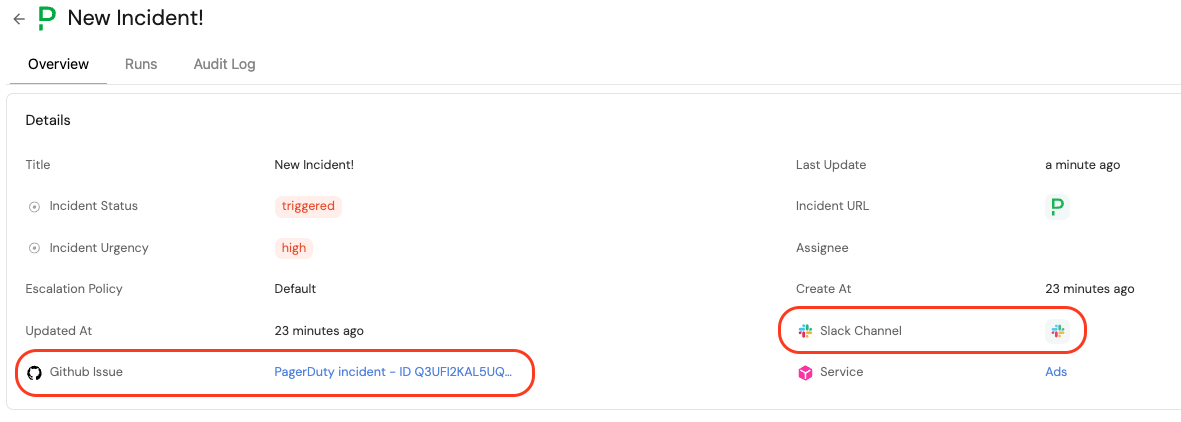
Test the manual Slack channel workflow
-
Go to the Self-service page of your portal, or open the bolt (⚡) menu on a
serviceentity. -
Select the Open Slack channel workflow.
-
Select a service entity.
-
Enter a channel name and optionally add members.
-
Toggle Is private if you want to create a private channel.
-
Click Execute.
-
Open Slack and verify that the channel was created and the selected members were invited.