Create an AWS EC2 instance
Send this guide to your coding agent.
Prerequisite: Install Port MCP
Open plan mode. Implement this Port guide in my org via MCP:

https://docs.port.io/guides/all/create-an-ec2-instance/

Goal: get the guide's core flow working end-to-end in my org; adapting it to fit my existing setup takes priority over matching the guide 1:1.

Plan:
1. Confirm MCP is connected, in the right org, with sufficient permissions.
2. Diff the guide's data model (blueprints, properties, relations, actions, agents, automations, integrations, secrets) against mine.
3. Propose adaptations for gaps, reusing existing blueprints/relations over guide-named duplicates.
4. Flag what needs a UI click, credential, or secret from me, testing MCP capability empirically before ruling anything out.
5. Stop on any blocker and give me options. Approving this plan authorizes the writes it lists; pause only for writes beyond what's listed.

Build:
- Extend blueprint schema additively when upserting; don't remove or overwrite existing properties, and treat type conflicts as a blocker, not an auto-fix.
- List any mock data in the plan, minimal and labeled mock; once approved, seed it without re-asking, and tell me what you seeded.
- For anything the guide writes downstream (e.g. a webhook target), use a real entity, not a mock.
- For pages/widgets, use the real page identifier from the app URL, not a guessed slug.
- When you hit a UI step confirmed (not assumed) unsupported via MCP, pause, give exact clicks, then resume via MCP.
- Validate and give links after each meaningful step (only a tool-returned URL, no guessed paths); don't proceed if the last run wasn't a success.

Done:
- Confirm the guide's expected output exists and runs in Port.
- Summarize adaptations, seeded data, what was mocked or skipped, remaining UI steps, and how to verify.
This guide demonstrates how to create a self-service action in Port that executes a GitHub workflow or GitLab pipeline to create an EC2 instance in AWS using Terraform templates.
- For GitHub (Ocean), see the GitHub Ocean workflow documentation.
- For GitLab, see the GitLab pipeline documentation.
Prerequisites
-
A GitHub repository or GitLab project to contain your action resources.
-
An AWS Account or IAM user with permission to create access keys. Learn more
-
An SSH Key Pair to connect with the provisioned instance. Learn more
-
If you use GitHub, install Port's GitHub Ocean integration.
-
If you use GitHub, in your GitHub repository, go to Settings > Secrets and add the following secrets:
PORT_CLIENT_ID- Port Client ID learn morePORT_CLIENT_SECRET- Port Client Secret learn moreTF_USER_AWS_KEY- An aws access key with the right iam permission to create an ec2 instance learn moreTF_USER_AWS_SECRET- An aws access key secret with permission to create an ec2 instance learn moreTF_USER_AWS_REGION- The aws region where you would like to provision your ec2 instance.
-
If you use GitLab, in your GitLab project, go to Settings > CI/CD > Variables and add the following variables:
PORT_CLIENT_ID- Port Client ID learn more.PORT_CLIENT_SECRET- Port Client Secret learn more.AWS_ACCESS_KEY_ID- An AWS access key with permission to create an EC2 instance learn more.AWS_SECRET_ACCESS_KEY- An AWS access key secret with permission to create an EC2 instance learn more.AWS_DEFAULT_REGION- The AWS region where you would like to provision your EC2 instances.
Set up data model
We need to create a blueprint in Port for the EC2 Instance. Follow the steps below to create the blueprint:
-
Go to the Builder page in Port.
-
Click on
+ Blueprint. -
Click on the
{...}button in the top right corner, and chooseEdit JSON. -
Copy and paste the following JSON schema:
EC2 Instance Blueprint (Click to expand)
{"identifier": "ec2Instance","description": "This blueprint represents an AWS EC2 instance in our context lake.","title": "EC2 Instance","icon": "EC2","schema": {"properties": {"instance_state": {"type": "string","title": "Instance State","description": "The state of the EC2 instance (e.g., running, stopped).","enum": ["pending", "running", "shutting-down", "terminated", "stopping", "stopped"],"enumColors": {"pending": "yellow","running": "green","shutting-down": "pink","stopped": "purple","stopping": "orange","terminated": "red"}},"instance_type": {"type": "string","title": "Instance Type","description": "The type of EC2 instance (e.g., t2.micro, m5.large)."},"availability_zone": {"type": "string","title": "Availability Zone","description": "The Availability Zone where the EC2 instance is deployed."},"public_dns": {"type": "string","title": "Public DNS","description": "The public DNS name assigned to the EC2 instance."},"public_ip": {"type": "string","title": "Public IP Address","description": "The public IP address assigned to the EC2 instance."},"private_dns": {"type": "string","title": "Private DNS","description": "The private DNS name assigned to the EC2 instance within its VPC."},"private_ip": {"type": "string","title": "Private IP Address","description": "The private IP address assigned to the EC2 instance within its VPC."},"monitoring": {"type": "boolean","title": "Monitoring","description": "Indicates if detailed monitoring is enabled for the EC2 instance."},"security_group_ids": {"type": "array","title": "Security Group IDs","description": "The list of security group IDs assigned to the EC2 instance."},"key_name": {"type": "string","title": "Key Name","description": "The name of the key pair associated with the EC2 instance."}},"required": []},"mirrorProperties": {},"calculationProperties": {},"aggregationProperties": {},"relations": {"operatingSystem": {"title": "Operating System","target": "ami","required": false,"many": false}}} -
Click
Saveto create the blueprint.
Create the AMI blueprint
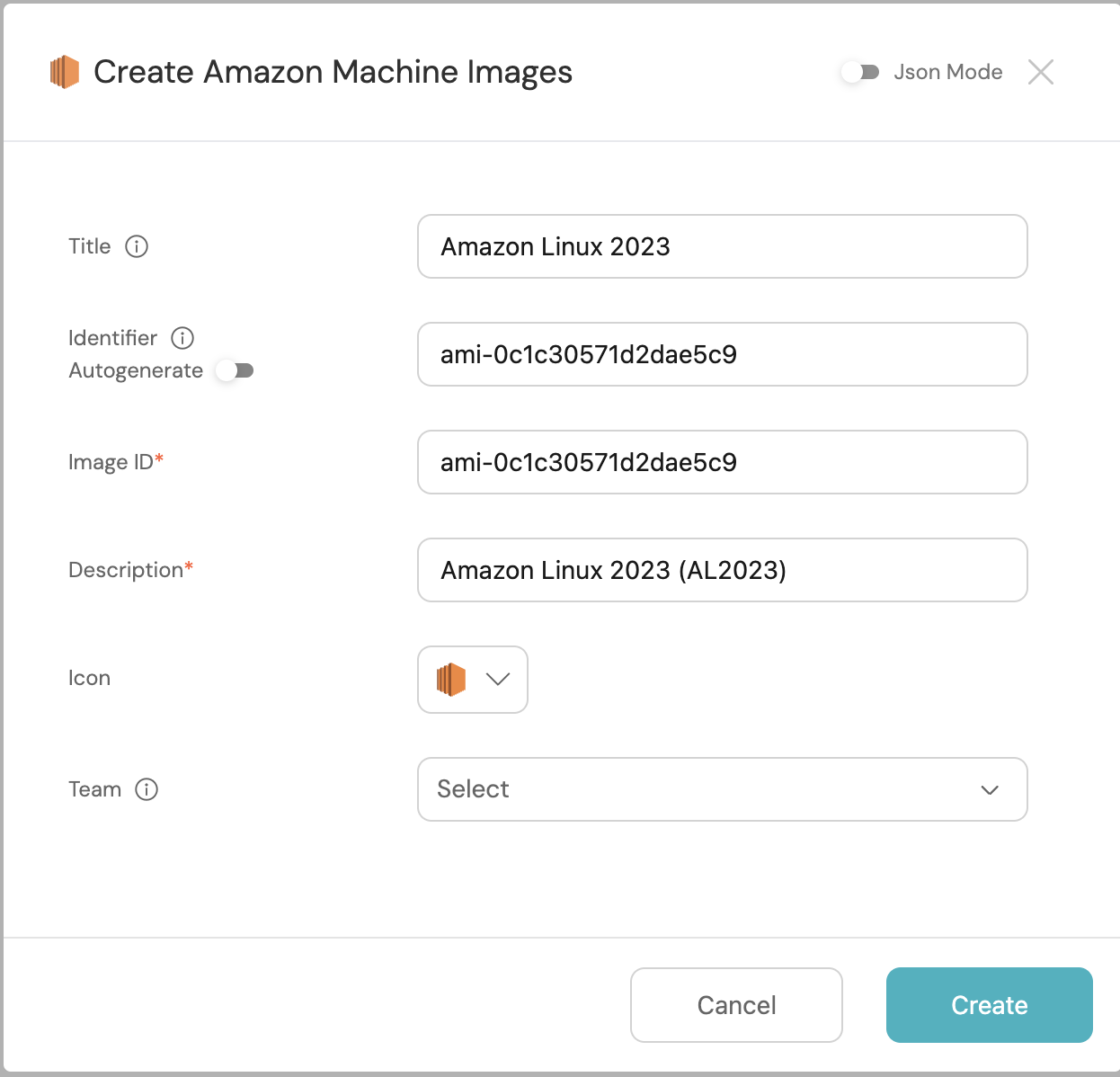
The GitLab path uses an Amazon Machine Image (AMI) selector so users can choose the operating system for the instance.
-
Go to the Builder page in Port.
-
Click on
+ Blueprint. -
Click on the
{...}button in the top right corner, and chooseEdit JSON. -
Copy and paste the following JSON schema:
AMI blueprint (Click to expand)
{"identifier": "ami","description": "AMIs for creating EC2 instances","title": "Amazon Machine Images","icon": "EC2","schema": {"properties": {"image_id": {"type": "string","title": "Image ID","pattern": "^ami-[0-9a-f]{8,17}$"},"description": {"type": "string","title": "Description"}},"required": ["image_id","description"]},"mirrorProperties": {},"calculationProperties": {},"aggregationProperties": {},"relations": {}} -
Click
Saveto create the blueprint. -
Add AMI entities to the blueprint. The entity identifier should be the AMI ID:
AMI identifier AMI title Description ami-0f007bf1d5c770c6eAmazon Linux 2023 Amazon Linux 2023 (AL2023). ami-0c1c30571d2dae5c9Ubuntu Server 22.04 LTS Canonical, Ubuntu, 22.04 LTS. ami-08e592fbb0f535224RHEL 9 Red Hat Enterprise Linux 9.
Set up GitHub workflow
-
Create a folder in a directory of your choice within your github repository to host the terraform template files.
-
Create the following terraform templates (
main.tf,variables.tfandoutputs.tf) within the created folder.
We recommend creating a dedicated repository for the workflows that are used by Port actions.
main.tf
data "aws_ami" "ubuntu" {
    most_recent = true

    filter {
        name   = "name"
        values = ["ubuntu/images/hvm-ssd/*20.04-amd64-server-*"]
    }

    filter {
        name   = "virtualization-type"
        values = ["hvm"]
    }

    owners = ["099720109477"] # Canonical
}

provider "aws" {
  region  = var.aws_region
}

resource "aws_instance" "app_server" {
  ami           = data.aws_ami.ubuntu.id
  instance_type = var.ec2_instance_type
  key_name      = var.pem_key_name

  tags = {
    Name = var.ec2_name
  }
}
variables.tf
variable "ec2_name" {
  type = string
}

variable "pem_key_name" {
  type = string
}

variable "aws_region" {
  type = string
}

variable "ec2_instance_type" {
  type = string
}
outputs.tf
output "instance_id" {
  description = "The unique identifier for the provisioned EC2 instance."
  value       = aws_instance.app_server.id
}

output "instance_state" {
  description = "The state of the EC2 instance (e.g., running, stopped)."
  value       = aws_instance.app_server.instance_state
}

output "instance_type" {
  description = "The type of EC2 instance (e.g., t2.micro, m5.large)."
  value       = aws_instance.app_server.instance_type
}

output "availability_zone" {
  description = "The Availability Zone where the EC2 instance is deployed."
  value       = aws_instance.app_server.availability_zone
}

output "public_dns" {
  description = "The public DNS name assigned to the EC2 instance."
  value       = aws_instance.app_server.public_dns
}

output "public_ip" {
  description = "The public IP address assigned to the EC2 instance."
  value       = aws_instance.app_server.public_ip
}

output "private_dns" {
  description = "The private DNS name assigned to the EC2 instance within its VPC."
  value       = aws_instance.app_server.private_dns
}

output "private_ip" {
  description = "The private IP address assigned to the EC2 instance within its VPC."
  value       = aws_instance.app_server.private_ip
}

output "monitoring" {
  description = "Indicates if detailed monitoring is enabled for the EC2 instance."
  value       = aws_instance.app_server.monitoring
}

output "security_group_ids" {
  description = "The list of security group IDs assigned to the EC2 instance."
  value       = aws_instance.app_server.vpc_security_group_ids
}

output "key_name" {
  description = "The name of the key pair associated with the EC2 instance."
  value       = aws_instance.app_server.key_name
}

output "subnet_id" {
  description = "The ID of the subnet to which the instance is attached."
  value       = aws_instance.app_server.subnet_id
}

output "tags" {
  description = "A map of tags assigned to the resource."
  value       = aws_instance.app_server.tags
}
- Create a
Github Workflowfile under.github/workflows/create-an-ec2-instance.yamlwith the following content:
GitHub workflow
Replace <TERRAFORM-TEMPLATE-DIR> with the directory created to host your terraform templates.
name: Provision AN EC2 Instance

on:
  workflow_dispatch:
    inputs:
      ec2_name:
        description: EC2 name
        required: true
        default: 'App Server'
        type: string
      ec2_instance_type:
        description: EC2 instance type
        required: false
        default: "t3.micro"
        type: string
      pem_key_name:
        description: EC2 pem key
        required: true
        type: string
      port_context:
        required: true
        description: includes blueprint, run ID, and entity identifier from Port.
jobs:
  provision-ec2:
    runs-on: ubuntu-latest
    steps:
      - uses: actions/checkout@v6
      - uses: actions/setup-node@v3
        with:
          node-version: '14'

      - name: Log starting of EC2 Instance creation
        uses: port-labs/port-github-action@v1
        with:
          clientId: ${{ secrets.PORT_CLIENT_ID }}
          clientSecret: ${{ secrets.PORT_CLIENT_SECRET }}
          operation: PATCH_RUN
          runId: ${{ fromJson(inputs.port_context).run_id }}
          logMessage: |
              About to create ec2 instance ${{ github.event.inputs.ec2_name }} .. ⛴️

      - name: Configure AWS credentials
        uses: aws-actions/configure-aws-credentials@v1
        with:
          aws-access-key-id: '${{ secrets.TF_USER_AWS_KEY }}'
          aws-secret-access-key: '${{ secrets.TF_USER_AWS_SECRET }}'
          aws-region: '${{ secrets.TF_USER_AWS_REGION }}'

      - name: Setup Terraform
        uses: hashicorp/setup-terraform@v2
        with:
          terraform_wrapper: false

      - name: Terraform Apply
        id:   apply
        env:
          TF_VAR_ec2_name:  "${{ github.event.inputs.ec2_name }}"
          TF_VAR_pem_key_name: "${{ github.event.inputs.pem_key_name}}"
          TF_VAR_aws_region: "${{ secrets.TF_USER_AWS_REGION }}"
          TF_VAR_ec2_instance_type: "${{ github.event.inputs.ec2_instance_type}}"
        run: |
          cd <TERRAFORM-TEMPLATE-DIR>
          terraform init
          terraform validate
          terraform plan
          terraform apply -auto-approve

      - name: Set Outputs
        id: set_outputs
        run: |
          cd <TERRAFORM-TEMPLATE-DIR>
          echo "instance_id=$(terraform output -raw instance_id)" >> $GITHUB_ENV
          echo "instance_state=$(terraform output -raw instance_state)" >> $GITHUB_ENV
          echo "instance_type=$(terraform output -raw instance_type)" >> $GITHUB_ENV
          echo "availability_zone=$(terraform output -raw availability_zone)" >> $GITHUB_ENV
          echo "public_dns=$(terraform output -raw public_dns)" >> $GITHUB_ENV
          echo "public_ip=$(terraform output -raw public_ip)" >> $GITHUB_ENV
          echo "private_dns=$(terraform output -raw private_dns)" >> $GITHUB_ENV
          echo "private_ip=$(terraform output -raw private_ip)" >> $GITHUB_ENV
          echo "monitoring=$(terraform output -raw monitoring)" >> $GITHUB_ENV
          security_group_ids_json=$(terraform output -json security_group_ids | jq -c .)
          echo "security_group_ids=$security_group_ids_json" >> $GITHUB_ENV
          echo "key_name=$(terraform output -raw key_name)" >> $GITHUB_ENV
          echo "subnet_id=$(terraform output -raw subnet_id)" >> $GITHUB_ENV
          tags=$(terraform output -json tags | jq -c .)
          echo "tags=$tags" >> $GITHUB_ENV

      - name: Create a log message
        uses: port-labs/port-github-action@v1
        with:
          clientId: ${{ secrets.PORT_CLIENT_ID }}
          clientSecret: ${{ secrets.PORT_CLIENT_SECRET }}
          operation: PATCH_RUN
          runId: ${{ fromJson(inputs.port_context).run_id }}
          logMessage: |
              EC2 Instance created successfully ✅

     - name: Report Created Instance to Port
        uses: port-labs/port-github-action@v1
        with:
          clientId: ${{ secrets.PORT_CLIENT_ID }}
          clientSecret: ${{ secrets.PORT_CLIENT_SECRET }}
          baseUrl: https://api.port.io
          operation: PATCH_RUN
          runId: ${{ fromJson(inputs.port_context).run_id }}
          logMessage: "Upserting created EC2 Instance to Port ... "

      - name: UPSERT EC2 Instance Entity
        uses: port-labs/port-github-action@v1
        with:
          identifier: "${{ steps.display_outputs.outputs.instance_id }}"
          title: "${{ inputs.ec2_name }}"
          blueprint: ${{ fromJson(inputs.port_context).blueprint }}
          properties: |-
            {
              "instance_state": "${{ env.instance_state }}",
              "instance_type": "${{ env.instance_type }}",
              "availability_zone": "${{ env.availability_zone }}",
              "public_dns": "${{ env.public_dns }}",
              "public_ip": "${{ env.public_ip }}",
              "private_dns": "${{ env.private_dns }}",
              "private_ip": "${{ env.private_ip }}",
              "monitoring": ${{ env.monitoring }},
              "security_group_ids": ${{ env.security_group_ids }},
              "key_name": "${{ env.key_name }}",
              "subnet_id": "${{ env.subnet_id }}",
              "tags": ${{ env.tags }}
            }
          clientId: ${{ secrets.PORT_CLIENT_ID }}
          clientSecret: ${{ secrets.PORT_CLIENT_SECRET }}
          baseUrl: https://api.port.io
          operation: UPSERT
          runId: ${{ fromJson(inputs.port_context).run_id }}

      - name: Log After Upserting Entity
        uses: port-labs/port-github-action@v1
        with:
          clientId: ${{ secrets.PORT_CLIENT_ID }}
          clientSecret: ${{ secrets.PORT_CLIENT_SECRET }}
          baseUrl: https://api.port.io
          operation: PATCH_RUN
          runId: ${{ fromJson(inputs.port_context).run_id }}
          logMessage: "Entity upserting was successful ✅"
Set up GitLab pipeline
If you use GitLab, create the Terraform templates and pipeline file in the root of your GitLab project.
Add GitLab Terraform templates
Use the following Terraform templates for the GitLab pipeline.
GitLab main.tf (Click to expand)
terraform {
  required_providers {
    port = {
      source  = "port-labs/port-labs"
      version = "~> 2.0.3"
    }
    aws = {
      source = "hashicorp/aws"
    }
  }

  required_version = ">= 1.1.0"
}

data "aws_ami" "ubuntu" {
  most_recent = true

  filter {
    name   = "name"
    values = ["ubuntu/images/hvm-ssd/*22.04-amd64-server-*"]
  }

  filter {
    name   = "virtualization-type"
    values = ["hvm"]
  }

  owners = ["099720109477"]
}

locals {
  ami_id = var.ec2_ami != "" ? var.ec2_ami : data.aws_ami.ubuntu.id
}

provider "aws" {
  region = var.aws_region
}

resource "aws_instance" "app_server" {
  ami           = local.ami_id
  instance_type = var.ec2_instance_type

  tags = {
    Name = var.ec2_name
  }
}

resource "port_entity" "ec2_instance" {
  count      = length(aws_instance.app_server) > 0 ? 1 : 0
  identifier = aws_instance.app_server.id
  title      = var.ec2_name
  blueprint  = "ec2Instance"
  run_id     = var.port_run_id
  properties = {
    string_props = {
      "instance_state"   = aws_instance.app_server.instance_state,
      "instance_type"    = aws_instance.app_server.instance_type,
      "availabilityZone" = aws_instance.app_server.availability_zone,
      "public_dns"       = aws_instance.app_server.public_dns,
      "public_ip"        = aws_instance.app_server.public_ip,
      "private_dns"      = aws_instance.app_server.private_dns,
      "private_ip"       = aws_instance.app_server.private_ip,
      "monitoring"       = aws_instance.app_server.monitoring,
      "key_name"         = aws_instance.app_server.key_name,
      "subnet_id"        = aws_instance.app_server.subnet_id
    }
    array_props = {
      "tags"               = aws_instance.app_server.tags,
      "security_group_ids" = aws_instance.app_server.vpc_security_group_ids
    }
  }
  relations = {
    single_relations = {
      "operatingSystem" = local.ami_id
    }
  }

  depends_on = [aws_instance.app_server]
}
GitLab variables.tf (Click to expand)
variable "ec2_name" {
  type = string
}

variable "aws_region" {
  type = string
}

variable "ec2_instance_type" {
  type = string
}

variable "ec2_ami" {
  type = string
}

variable "port_run_id" {
  type = string
}
Add GitLab pipeline
Create a .gitlab-ci.yaml file with the following content:
GitLab pipeline (Click to expand)
Replace QUOTA_CODE with your service quota code for vCPUs.
You can view your quotas in the AWS Service Quotas console.
stages:
  - prerequisites
  - terraform
  - port-update

image:
  name: hashicorp/terraform:light
  entrypoint:
    - '/usr/bin/env'
    - 'PATH=/usr/local/sbin:/usr/local/bin:/usr/sbin:/usr/bin:/sbin:/bin'

variables:
  AWS_ACCESS_KEY_ID: ${AWS_ACCESS_KEY_ID}
  AWS_SECRET_ACCESS_KEY: ${AWS_SECRET_ACCESS_KEY}
  AWS_DEFAULT_REGION: ${AWS_DEFAULT_REGION}
  QUOTA_CODE: "L-1216C47A"
  PORT_CLIENT_ID: ${PORT_CLIENT_ID}
  PORT_CLIENT_SECRET: ${PORT_CLIENT_SECRET}

before_script:
  - rm -rf .terraform
  - export AWS_ACCESS_KEY=${AWS_ACCESS_KEY_ID}
  - export AWS_SECRET_ACCESS_KEY=${AWS_SECRET_ACCESS_KEY}
  - export AWS_DEFAULT_REGION=${AWS_DEFAULT_REGION}

fetch-port-access-token:
  stage: prerequisites
  except:
    - pushes
  before_script:
    - apk update
    - apk add --upgrade curl jq -q
  script:
    - |
      echo "Getting access token from Port API"
      accessToken=$(curl -X POST \
        -H 'Content-Type: application/json' \
        -d '{"clientId": "'"$PORT_CLIENT_ID"'", "clientSecret": "'"$PORT_CLIENT_SECRET"'"}' \
        -s 'https://api.port.io/v1/auth/access_token' | jq -r '.accessToken')

      echo "ACCESS_TOKEN=$accessToken" >> data.env
      runId=$(cat $TRIGGER_PAYLOAD | jq -r '.context.runId')
      echo "RUN_ID=$runId" >> data.env

      curl -X POST \
        -H 'Content-Type: application/json' \
        -H "Authorization: Bearer $accessToken" \
        -d '{"message":"Starting action to create an EC2 instance"}' \
        "https://api.port.io/v1/actions/runs/$runId/logs"

      curl -X PATCH \
        -H 'Content-Type: application/json' \
        -H "Authorization: Bearer $accessToken" \
        -d '{"link":"'"$CI_PIPELINE_URL"'"}' \
        "https://api.port.io/v1/actions/runs/$runId"
  artifacts:
    reports:
      dotenv: data.env

check-quota:
  stage: prerequisites
  image: registry.gitlab.com/gitlab-org/cloud-deploy/aws-base:latest
  except:
    - pushes
  needs:
    - job: fetch-port-access-token
      artifacts: true
  script:
    - |
      echo "Checking AWS quota for CPU, memory, and storage..."
      EC2_COUNT=1
      runId=$(cat $TRIGGER_PAYLOAD | jq -r '.context.runId')
      INSTANCE_TYPE=$(cat $TRIGGER_PAYLOAD | jq -r '.payload.properties.size')
      AMI_ID=$(cat $TRIGGER_PAYLOAD | jq -r '.payload.properties.os')

      if [[ -z "$INSTANCE_TYPE" || -z "$AMI_ID" ]]; then
        echo "Error: INSTANCE_TYPE and AMI_ID are required."
        exit 1
      fi

      instance_vcpus=$(aws ec2 describe-instance-types --instance-types "$INSTANCE_TYPE" --query 'InstanceTypes[].VCpuInfo.DefaultVCpus' --output text)
      required_vcpus=$((instance_vcpus * EC2_COUNT))
      ec2_quota=$(aws service-quotas get-service-quota --service-code ec2 --quota-code "$QUOTA_CODE" --region "$AWS_DEFAULT_REGION")
      current_vcpus=$(echo "$ec2_quota" | jq -r '.Quota.UsageMetric.CurrentUsage.Value // 0')
      vcpu_limit=$(echo "$ec2_quota" | jq -r '.Quota.Value')

      echo "INSTANCE_TYPE=$INSTANCE_TYPE" >> data.env
      echo "AMI_ID=$AMI_ID" >> data.env

      if [ "$current_vcpus" -lt "$required_vcpus" ] && [ "$vcpu_limit" -ge "$required_vcpus" ]; then
        echo "vCPU quota is sufficient."
      else
        echo "Insufficient vCPU quota."
        curl -X POST \
          -H 'Content-Type: application/json' \
          -H "Authorization: Bearer $ACCESS_TOKEN" \
          -d '{"terminationStatus":"FAILURE","message":"Insufficient vCPU quota to create EC2 instance"}' \
          "https://api.port.io/v1/actions/runs/$runId/logs"
        exit 1
      fi
  artifacts:
    reports:
      dotenv: data.env

search-role-entities:
  stage: prerequisites
  except:
    - pushes
  before_script:
    - apk update
    - apk add --upgrade curl jq -q
  needs:
    - job: check-quota
      artifacts: true
  script:
    - |
      echo "Searching for role entities in Port"
      accessToken=$(curl -X POST \
        -H 'Content-Type: application/json' \
        -d '{"clientId": "'"$PORT_CLIENT_ID"'", "clientSecret": "'"$PORT_CLIENT_SECRET"'"}' \
        -s 'https://api.port.io/v1/auth/access_token' | jq -r '.accessToken')

      roleName=$(cat $TRIGGER_PAYLOAD | jq -r '.payload.properties.role_name')
      blueprint=$(cat $TRIGGER_PAYLOAD | jq -r '.context.blueprint')

      searchQuery='{
        "combinator": "and",
        "rules": [
          {
            "property": "$blueprint",
            "operator": "=",
            "value": "'$blueprint'"
          },
          {
            "property": "$title",
            "operator": "contains",
            "value": "aws-'$roleName'"
          }
        ]
      }'

      roleEntities=$(curl -X POST \
        'https://api.port.io/v1/entities/search?exclude_calculated_properties=false&attach_title_to_relation=false' \
        -H "Authorization: Bearer $accessToken" \
        -H 'Content-Type: application/json' \
        -d "$searchQuery" | jq -c .)

      nextNumber=$(echo "$roleEntities" | jq '.entities | length + 1')
      ec2MachineName="aws-${roleName}-${nextNumber}"
      echo "EC2_MACHINE_NAME=$ec2MachineName" >> data.env
  artifacts:
    reports:
      dotenv: data.env

apply:
  stage: terraform
  needs:
    - job: check-quota
      artifacts: true
    - job: search-role-entities
      artifacts: true
  except:
    - pushes
  before_script:
    - apk update
    - apk add --upgrade curl jq -q
    - terraform --version
    - terraform init
    - export TF_VAR_ec2_name=$EC2_MACHINE_NAME
    - export TF_VAR_ec2_instance_type=${SERVICE_NAME:-$(cat $TRIGGER_PAYLOAD | jq -r '.payload.properties.size')}
    - export TF_VAR_ec2_ami=${AMI_ID:-$(cat $TRIGGER_PAYLOAD | jq -r '.payload.properties.os')}
    - export TF_VAR_aws_region=${AWS_DEFAULT_REGION}
    - export TF_VAR_port_run_id=$(cat $TRIGGER_PAYLOAD | jq -r '.context.runId')
  script:
    - terraform validate
    - terraform plan -out="planfile"
    - terraform apply -input=false "planfile"
    - echo "INSTANCE_ID=$(terraform output -raw instance_id)" >> data.env
  artifacts:
    reports:
      dotenv: data.env

update-run-status:
  stage: port-update
  needs:
    - job: apply
      artifacts: true
  except:
    - pushes
  before_script:
    - apk update
    - apk add --upgrade curl jq -q
  script:
    - |
      accessToken=$(curl -X POST \
        -H 'Content-Type: application/json' \
        -d '{"clientId": "'"$PORT_CLIENT_ID"'", "clientSecret": "'"$PORT_CLIENT_SECRET"'"}' \
        -s 'https://api.port.io/v1/auth/access_token' | jq -r '.accessToken')
      runId=$(cat $TRIGGER_PAYLOAD | jq -r '.context.runId')

      curl -X POST \
        -H 'Content-Type: application/json' \
        -H "Authorization: Bearer $accessToken" \
        -d '{"terminationStatus":"SUCCESS","message":"Finished EC2 instance creation successfully"}' \
        "https://api.port.io/v1/actions/runs/$runId/logs"
Set up self-service action
Follow the steps below to create the self-service action:
-
Go to the self-service page.
-
Click on the
+ New Actionbutton. -
Click on the
{...} Edit JSONbutton. -
Copy and paste the following JSON configuration into the editor:
Port action: Create an EC2 instance (click to expand)
- GitHub (Ocean)
- GitHub (Sunset)
- GitLab
Replace the variables<GITHUB_ORG>- your GitHub organization or user name.<GITHUB_REPO>- your GitHub repository name.<YOUR_GITHUB_OCEAN_INTEGRATION_ID>- your GitHub Ocean integration installation ID.
{"identifier": "create_ec2_instance","title": "Create Instance","icon": "EC2","description": "Create An EC2 Instance from Port","trigger": {"type": "self-service","operation": "CREATE","userInputs": {"properties": {"pem_key_name": {"title": "Pem Key Name","description": "EC2 .pem key pair name","icon": "EC2","type": "string"},"ec2_name": {"icon": "EC2","title": "EC2_Name","description": "Name of the instance","type": "string"},"ec2_instance_type": {"title": "EC2 Instance Type","description": "EC2 instance type","icon": "EC2","type": "string","default": "t2.micro","enum": ["t2.micro", "t2.medium", "t2.large", "t2.xlarge", "t2.2xlarge"]}},"required": ["ec2_name", "pem_key_name"],"order": ["ec2_name", "ec2_instance_type", "pem_key_name"]},"blueprintIdentifier": "ec2Instance"},"invocationMethod": {"type": "INTEGRATION_ACTION","installationId": "<YOUR_GITHUB_OCEAN_INTEGRATION_ID>","integrationActionType": "dispatch_workflow","integrationActionExecutionProperties": {"org": "<GITHUB_ORG>","repo": "<GITHUB_REPO>","workflow": "create-ec2-instance.yaml","workflowInputs": {"pem_key_name": "{{.inputs.\"pem_key_name\"}}","ec2_name": "{{.inputs.\"ec2_name\"}}","ec2_instance_type": "{{.inputs.\"ec2_instance_type\"}}","port_context": {"blueprint": "{{.action.blueprint}}","entity": "{{.entity.identifier}}","run_id": "{{.run.id}}","relations": "{{.entity.relations}}"}},"reportWorkflowStatus": true}},"requiredApproval": false}Modification RequiredMake sure to replace
<GITHUB_ORG>and<GITHUB_REPO>with your GitHub organization and repository names respectively.{"identifier": "create_ec2_instance","title": "Create Instance","icon": "EC2","description": "Create An EC2 Instance from Port","trigger": {"type": "self-service","operation": "CREATE","userInputs": {"properties": {"pem_key_name": {"title": "Pem Key Name","description": "EC2 .pem key pair name","icon": "EC2","type": "string"},"ec2_name": {"icon": "EC2","title": "EC2_Name","description": "Name of the instance","type": "string"},"ec2_instance_type": {"title": "EC2 Instance Type","description": "EC2 instance type","icon": "EC2","type": "string","default": "t2.micro","enum": ["t2.micro", "t2.medium", "t2.large", "t2.xlarge", "t2.2xlarge"]}},"required": ["ec2_name", "pem_key_name"],"order": ["ec2_name", "ec2_instance_type", "pem_key_name"]},"blueprintIdentifier": "ec2Instance"},"invocationMethod": {"type": "GITHUB","org": "<GITHUB_ORG>","repo": "<GITHUB_REPO>","workflow": "create-ec2-instance.yaml","workflowInputs": {"pem_key_name": "{{.inputs.\"pem_key_name\"}}","ec2_name": "{{.inputs.\"ec2_name\"}}","ec2_instance_type": "{{.inputs.\"ec2_instance_type\"}}","port_context": {"blueprint": "{{.action.blueprint}}","entity": "{{.entity.identifier}}","run_id": "{{.run.id}}","relations": "{{.entity.relations}}"}},"reportWorkflowStatus": true},"requiredApproval": false}Replace the variables<PROJECT_ID>- your GitLab project ID.<PIPELINE_TRIGGER_TOKEN>- your GitLab pipeline trigger token. See GitLab's pipeline trigger token documentation.
{"identifier": "ec2Instance_create_ec2_instance_with_gitlab","title": "Create EC2 instance with GitLab","icon": "EC2","description": "Trigger EC2 instance creation with GitLab and Terraform","trigger": {"type": "self-service","operation": "CREATE","userInputs": {"properties": {"project": {"type": "string","title": "Project","description": "AWS account","default": "851725549828","enum": ["851725549828","851745549766"],"enumColors": {"851725549828": "lightGray","851745549766": "lightGray"}},"size": {"icon": "DefaultProperty","title": "Size","type": "string","default": "t2.micro","enum": ["t2.micro","t2.small","t2.medium","t2.large"],"enumColors": {"t2.micro": "lightGray","t2.small": "lightGray","t2.medium": "lightGray","t2.large": "lightGray"}},"role_name": {"icon": "DefaultProperty","type": "string","title": "Role name","minLength": 4,"maxLength": 8,"pattern": "^[a-z0-9]+$"},"os": {"icon": "EC2","title": "OS","description": "The operating system","type": "string","blueprint": "ami","format": "entity"}},"required": ["project","role_name","os","size"],"order": ["project","os","size","role_name"]},"blueprintIdentifier": "ec2Instance"},"invocationMethod": {"type": "WEBHOOK","url": "https://gitlab.com/api/v4/projects/<PROJECT_ID>/ref/main/trigger/pipeline?token=<PIPELINE_TRIGGER_TOKEN>","agent": false,"synchronized": false,"method": "POST","body": {"action": "{{ .action.identifier[(\"ec2Instance_\" | length):] }}","resourceType": "run","status": "TRIGGERED","trigger": "{{ .trigger | {by, origin, at} }}","context": {"entity": "{{ .entity.identifier }}","blueprint": "{{ .action.blueprint }}","runId": "{{ .run.id }}"},"payload": {"entity": "{{ (if .entity == {} then null else .entity end) }}","action": {"invocationMethod": {"type": "WEBHOOK","url": "https://gitlab.com/api/v4/projects/<PROJECT_ID>/ref/main/trigger/pipeline?token=<PIPELINE_TRIGGER_TOKEN>","agent": false,"synchronized": false,"method": "POST"},"trigger": "{{ .trigger.operation }}"},"properties": {"project": "{{ .inputs.\"project\" }}","size": "{{ .inputs.\"size\" }}","role_name": "{{ .inputs.\"role_name\" }}","os": "{{ .inputs.\"os\" | if type == \"array\" then map(.identifier) else .identifier end }}"},"censoredProperties": "{{ .action.encryptedProperties }}"}}},"requiredApproval": false} -
Click
Saveto create the action.
Let's test it!
-
Head to the Self Service hub
-
Click on the
Create An EC2 Instanceaction -
Fill the pop-up form with details of the EC2 Instance you wish to create
-
Click on
Execute -
Wait for the EC2 Instance to be created in AWS