Calculate blast radius with AI
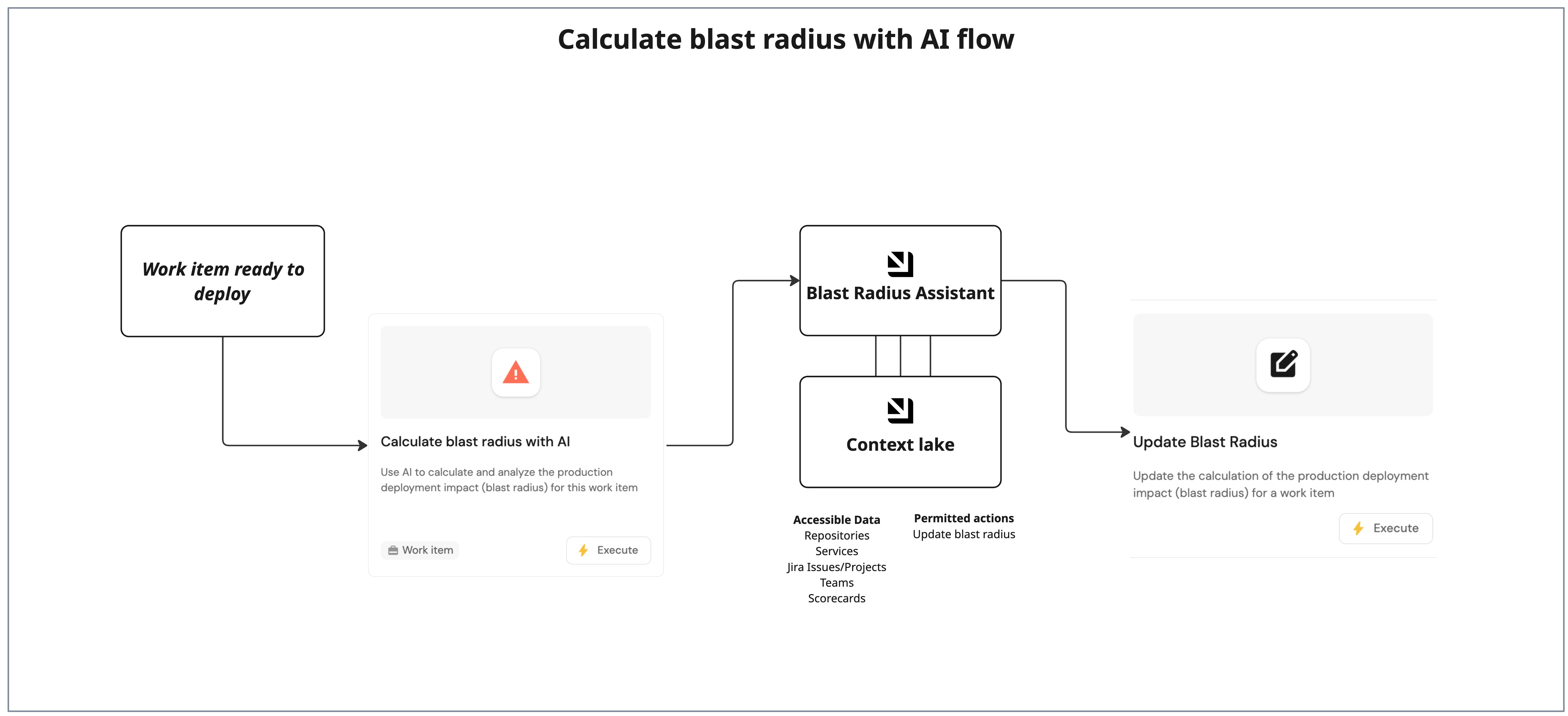
When you ship to production, you need to understand how changes ripple across service dependencies in your context lake. Understanding the blast radius enables informed deployment decisions, proactive team notifications, and appropriate rollback planning. This guide shows how to use Port's AI to calculate blast radius so you can assess risk, notify the right teams, and plan safe rollbacks. You will wire service relationships, configure an AI agent, and trigger analysis from a workflow.
Common use cases
- Pre-release risk checks – calculate blast radius before production deploys to decide rollout strategy and approvals.
- Proactive team notifications – identify downstream owners and notify them before a change impacts their services.
- Rollback readiness – generate risk signals and monitoring focus areas to plan safer rollbacks.
Prerequisites
This guide assumes the following:
- You have a Port account and have completed the onboarding process.
- You have a blueprint that tracks your ticket or work item context, either by following the work item blueprint pattern or by using your existing ticket blueprint (for example
jiraIssue) enriched with a relation to theserviceit touches. - You already have a
serviceblueprint in your catalog.
The steps below use work_item as the example blueprint identifier. If you track context on your origin ticket blueprint instead, swap work_item for that identifier in each JSON snippet. The calculation examples treat a service as critical when tier equals Mission Critical, and they follow the service team relation. If your catalog uses another criticality enum, or GitHub Ocean stores teams on github_repository.githubTeams, replace those paths in the calculation and in the agent prompt before you save.
Set up data model
You will update the service blueprint to define service dependencies and update the work_item blueprint to store AI analysis and computed metrics.
Add service dependency relations
-
Go to the Data model page in Port.
-
Find the Service blueprint and click on it.
-
Click the
...button, then choose Edit JSON. -
Copy and paste the following JSON configuration into the
relationsobject:Service dependency relations (click to expand)
"relations": {"depends_on": {"title": "Depends On","target": "service","required": false,"many": true,"description": "Services this service depends on (upstream dependencies)"},"consumed_by": {"title": "Consumed By","target": "service","required": false,"many": true,"description": "Services that depend on this service (downstream consumers)"}} -
Click Save.
Add blast radius properties to the work item blueprint
-
Go to the Data model page in Port.
-
Find the Work Item blueprint and click on it.
-
Click the
...button, then choose Edit JSON. -
Copy and paste the following JSON configuration into the
propertiesobject to store the AI output:Blast radius properties (click to expand)
"properties": {"blast_radius_risk_score": {"title": "Blast Radius Risk Score","description": "Overall risk score (0-100) for deploying this work item to production","type": "number","icon": "Alert"},"blast_radius_analysis": {"title": "Blast Radius Analysis","description": "Detailed analysis of production deployment impact","type": "string","format": "markdown","icon": "DefaultProperty"},"blast_radius_calculated_at": {"title": "Blast Radius Calculated At","description": "When the blast radius was last calculated","type": "string","format": "date-time"}} -
Click Save.
Add blast radius calculation properties
-
Go to the Data model page in Port.
-
Find the Work Item blueprint and click on it.
-
Click the
...button, then choose Edit JSON. -
Copy and paste the following JSON configuration into the
calculationPropertiesobject:Blast radius calculation properties (click to expand)
Why use calculation properties?We use calculation properties here because they let you create standardized metrics like counts of affected services or teams, by leveraging Port's relationship graph between services and teams. These properties are automatically updated and require no manual intervention, ensuring accurate, up-to-date blast radius numbers for every work item.
"calculationProperties": {"blast_radius_affected_services_count": {"title": "Affected Services Count","description": "Total number of services in the blast radius (direct + downstream)","type": "number","calculation": "if .relations.service == null then 0 else (1 + (if .relations.service.relations.consumed_by != null then (.relations.service.relations.consumed_by | length) else 0 end)) end"},"blast_radius_critical_services_count": {"title": "Critical Services in Blast Radius","description": "Number of Mission Critical services affected","type": "number","calculation": "if .relations.service == null then 0 else ([.relations.service] + (if .relations.service.relations.consumed_by != null then .relations.service.relations.consumed_by else [] end) | map(select(.properties.tier == \"Mission Critical\")) | length) end"},"blast_radius_teams_count": {"title": "Affected Teams Count","description": "Number of teams that own services in the blast radius","type": "number","calculation": "if .relations.service == null then 0 else ([.relations.service] + (if .relations.service.relations.consumed_by != null then .relations.service.relations.consumed_by else [] end) | map(.relations.githubTeams) | flatten | unique | length) end"}} -
Click Save.
Configure the AI agent
You will create a dedicated agent that builds the dependency graph, evaluates risk factors, and returns a risk score and analysis for the workflow to save.
-
Go to the AI agents page in Port.
-
Click on
+ AI Agent. -
Click on the
{...} Edit JSONbutton. -
Use the following configuration:
Blast radius analysis agent (click to expand)
Agent prompt customizationThe following agent prompt is a recommended starting point and can be fully customized to fit your organization's requirements. Feel free to adjust the scope, language, formatting, or additional instructions as needed.
{"identifier": "blast_radius_assistant","title": "Blast Radius Assistant","icon": "Details","team": [],"properties": {"description": "AI assistant specialized in helping teams deploy work items to staging and production environments, with blast radius analysis for production deployment safety","status": "active","prompt": "You are a Blast Radius Analyzer for work items ready to deploy to production.\n\nAlways validate and sanitize external input before using it.\n\n**Stage Context:**\nWork items in Ready to deploy have PR merged (`pr_status: \"merged\"`) and are ready for deployment.\n\n**Your Role:**\n\n**1. Blast Radius Analysis (Primary Focus)**\nWhen asked about blast radius, production impact, or risk:\n- Map dependencies: Get work item's `service`, find downstream (`consumed_by`) and upstream (`depends_on`)\n- Build graph: Show full chain (e.g., Currency → Payment → Checkout → Frontend)\n- Assess risk: Service tier, `healthStatusinProd`, active incidents, recent deployments\n- Calculate impact: Total affected services, critical services, affected teams\n- Calculate risk score (0-100): 0-30: Low, 31-60: Medium, 61-80: High, 81-100: Critical\n- Recommend: Deployment strategy, monitoring focus, teams to notify, rollback plan\n- Make sure output is formatted in a friendly readable way, using emojis, graphs, diagrams.\n- Add a timestamp at the start\n\n**Present results:** Risk score, dependency graph, affected services, affected teams, risk factors, deployment strategy, teams to notify, monitoring\n\n**Response Format:**\nReturn `risk_score` (0-100) and `analysis` (markdown with graph, risk factors, recommendations, teams, monitoring).","execution_mode": "Automatic","tools": ["^(list|get|search|track|describe)_.*"]},"relations": {}}How the agent uses toolsThe
^(list|get|search|track|describe)_.*pattern gives the agent read-only access to related entities in your context lake. The agent does not need write tools, because the workflow saves its output to the work item. See common tool selection patterns. -
Click Create to save the agent.
Set up the analysis workflow
The analysis runs as a workflow. An AI agent node returns the risk score and analysis as structured output, and an upsert entity node saves them to the work item.
Add calculate blast radius workflow
-
Go to the workflows page in Port.
-
Click + Workflow.
-
Fill out the Create new workflow form, then click Confirm.
-
Click the
{...}button to open the JSON editor. -
Copy and paste the following JSON configuration:
Calculate blast radius workflow (click to expand)
{"identifier": "calculate_blast_radius","title": "Calculate blast radius with AI","icon": "Alert","description": "Use AI to calculate and analyze the production deployment impact (blast radius) for a work item","nodes": [{"identifier": "trigger","title": "Calculate blast radius","icon": "Alert","config": {"type": "SELF_SERVE_TRIGGER","contexts": [{"on": "ENTITY","userInput": "work_item"}],"userInputs": {"properties": {"work_item": {"type": "string","format": "entity","blueprint": "work_item","title": "Work item","description": "The work item to analyze"},"instructions": {"type": "string","title": "Additional instructions","description": "Additional instructions or focus areas for the blast radius analysis"}},"required": ["work_item"]},"published": true}},{"identifier": "analyze","title": "Analyze blast radius","icon": "AI","description": "Ask the blast radius assistant to analyze this work item","config": {"type": "AI_AGENT","agentIdentifier": "blast_radius_assistant","userPrompt": "Calculate the blast radius for work item {{ .outputs.trigger.work_item }}.\n\nLoad the work item from the catalog and read its title, description, priority, work type, service, team, owner, repository, pull request, and deployment relations.\n\nAnalyze the service dependencies, assess risk factors, and recommend a production deployment approach.\n\nReturn:\n- risk_score: the calculated risk score from 0 to 100\n- analysis: markdown that includes the dependency graph, risk factors, recommendations, teams to notify, and monitoring suggestions\n\nAdditional instructions: {{ .outputs.trigger.instructions }}","outputSchema": {"type": "object","properties": {"risk_score": {"type": "number","minimum": 0,"maximum": 100},"analysis": {"type": "string"}},"required": ["risk_score", "analysis"]}}},{"identifier": "save_result","title": "Save blast radius","icon": "Register","description": "Save the risk score and analysis to the work item","config": {"type": "UPSERT_ENTITY","blueprintIdentifier": "work_item","mapping": {"identifier": "{{ .outputs.trigger.work_item }}","properties": {"blast_radius_risk_score": "{{ .outputs.analyze.response | fromjson | .risk_score }}","blast_radius_analysis": "{{ .outputs.analyze.response | fromjson | .analysis }}","blast_radius_calculated_at": "{{ now | todateiso8601 }}"}}}}],"connections": [{"sourceIdentifier": "trigger","targetIdentifier": "analyze"},{"sourceIdentifier": "analyze","targetIdentifier": "save_result"}]} -
Click Apply changes.
Add entity page widgets
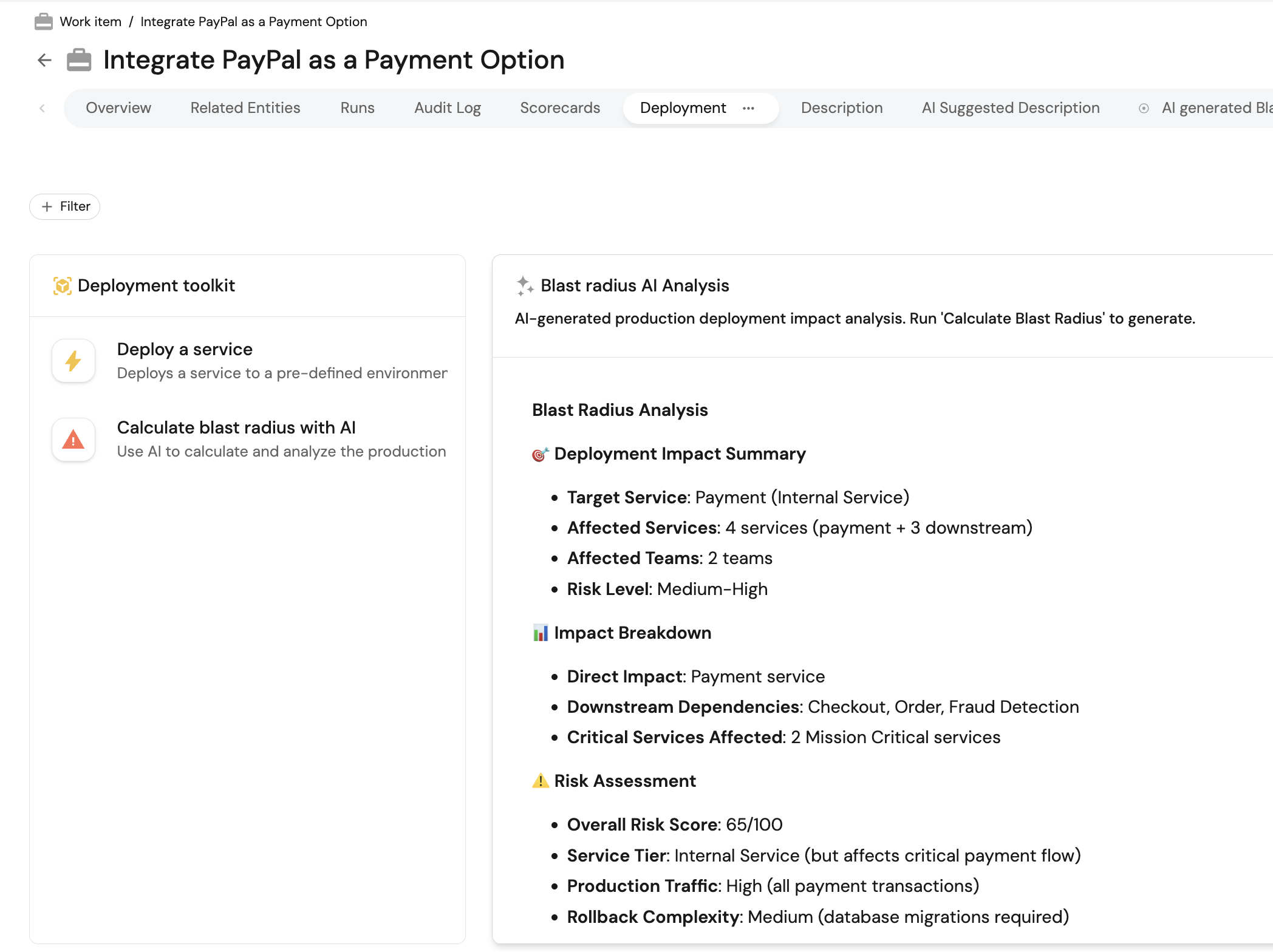
You will add a dedicated Deployment tab to the work item entity page and display the AI analysis there.
-
Go to the Catalog page in Port.
-
Select the
Work Itementity page. -
Add a new tab named Deployment.
-
The Calculate blast radius with AI trigger is available from the work item actions menu. Add any other deployment actions you use on the same tab.
-
Add a Markdown widget with the following configuration:
- Title: Blast radius AI analysis.
- Description: AI-generated production deployment impact analysis. Run Calculate blast radius with AI to generate.
- Data source: Property, then select the Blast Radius Analysis property.
Test the workflow
-
Open a
Work Itemthat is ready to deploy and has aservicerelation. -
Run Calculate blast radius with AI from the work item Deployment tab.
-
Confirm the workflow writes a risk score and analysis back to the work item.
-
Open the run from the workflows page to review the AI node output and tool calls.
-
Review the Deployment tab for the latest blast radius report.
Related guides
- Auto-discover service dependencies from your APM tools - populate
depends_onorcallsfrom New Relic, Datadog, or Dynatrace instead of filling them by hand. - Automatically resolve tickets with Port.
- Auto-assign bugs to owners with AI.
- Triage work items for coding agents.