Track Azure resource tagging compliance
This guide demonstrates how to implement an Azure resource tagging initiative in Port. You will learn how to:
- Create a blueprint with calculated properties to detect missing tags.
- Set up a scorecard to track tagging compliance at Bronze, Silver, and Gold levels.
- Build a self-service action to let teams add missing tags directly from Port.
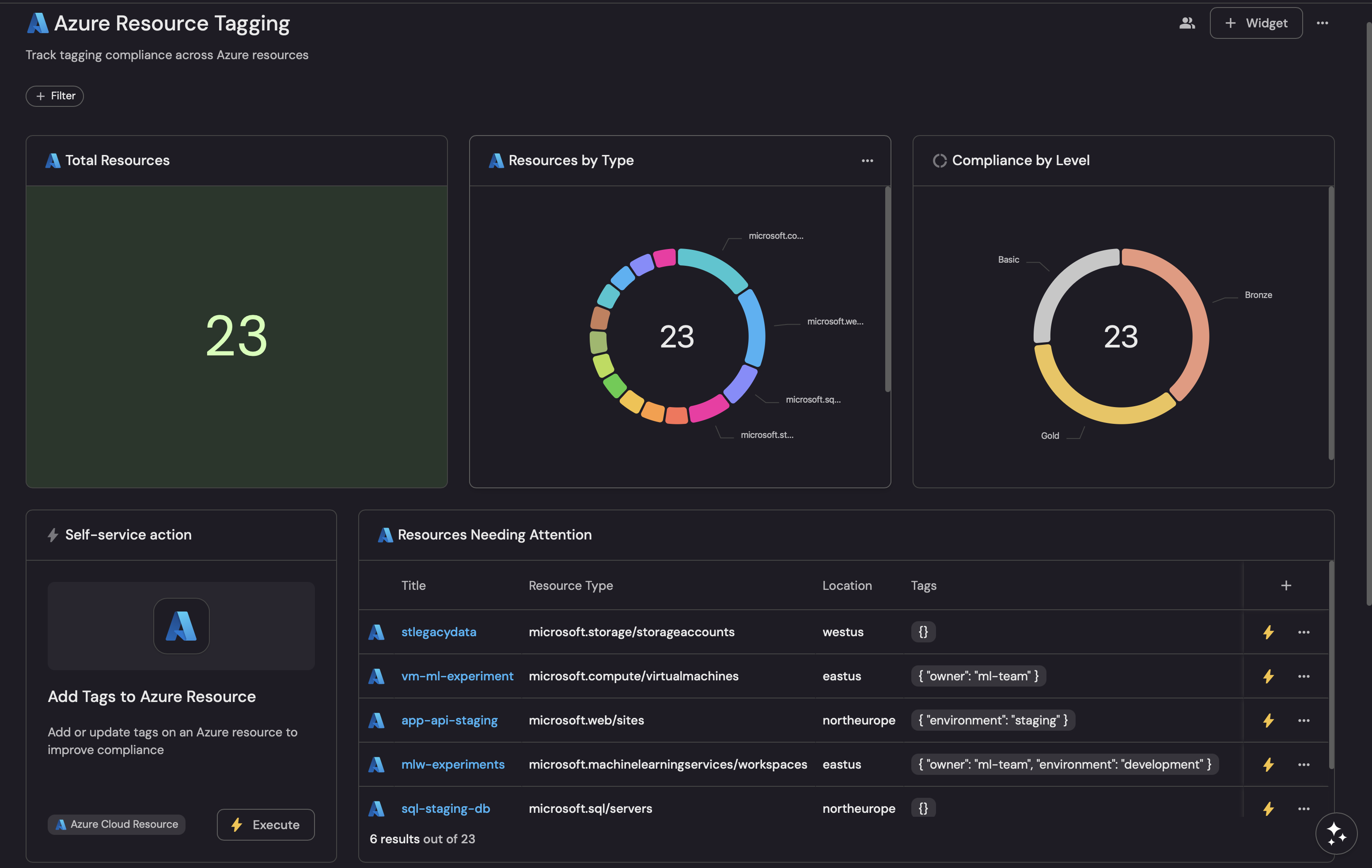
- Create a dashboard to visualize compliance across your Azure resources.
This guide includes steps that require integration with GitHub:
- GitHub (Ocean) - uses the Ocean framework. We strongly recommend this integration for new and migrated setups.
- GitHub (Sunset) - uses a GitHub app that is in sunset and will be fully deprecated on September 15, 2026.
Common use cases
- Track which Azure resources are missing required tags for cost attribution.
- Enable teams to self-remediate tagging gaps without waiting for platform engineers.
- Report on tagging compliance progress across subscriptions and resource groups.
- Add or update tags on a single Azure resource directly from its Port entity page.
Prerequisites
This guide assumes the following:
- You have a Port account and have completed the onboarding process.
- Port's Azure integration is installed in your account.
- GitHub Ocean is installed in your account.
We recommend creating a dedicated repository for the workflows that are used by Port actions.
Set up data model
We will create a blueprint to represent Azure resources with calculated properties that check for the presence of required tags.
This initiative uses three compliance levels:
- Bronze:
owner,cost-center,environmenttags (mandatory). - Silver: Adds
projectandapplicationtags (recommended). - Gold: All tags present (full compliance).
Create the Azure resource blueprint
-
Go to the Data model page in Port.
-
Click on + Blueprint.
-
Click Edit JSON.
-
Copy and paste the following JSON configuration into the editor:
Azure resource blueprint (click to expand)
{"identifier": "azureResource","title": "Azure Cloud Resource","icon": "Azure","schema": {"properties": {"type": {"title": "Resource Type","type": "string"},"location": {"title": "Location","type": "string"},"tags": {"title": "Tags","type": "object"},"resourceGroup": {"title": "Resource Group","type": "string"},"subscriptionId": {"title": "Subscription ID","type": "string"}}},"calculationProperties": {"hasOwnerTag": {"title": "Has Owner Tag","type": "boolean","calculation": ".properties.tags.owner != null"},"hasCostCenterTag": {"title": "Has Cost Center Tag","type": "boolean","calculation": ".properties.tags.\"cost-center\" != null"},"hasEnvironmentTag": {"title": "Has Environment Tag","type": "boolean","calculation": ".properties.tags.environment != null"},"hasProjectTag": {"title": "Has Project Tag","type": "boolean","calculation": ".properties.tags.project != null"},"hasApplicationTag": {"title": "Has Application Tag","type": "boolean","calculation": ".properties.tags.application != null"}},"mirrorProperties": {},"relations": {}} -
Click Save to create the blueprint.
Update the integration mapping
-
Go to the Data sources page in Port.
-
Select your Azure integration.
-
Add the following YAML block into the editor to ingest Azure resources with their tags:
Azure integration configuration (click to expand)
resources:- kind: resourceselector:query: 'true'graphQuery: >-resources| project id, type, name, location, tags, subscriptionId, resourceGroup| extend resourceGroup=tolower(resourceGroup)| extend type=tolower(type)port:entity:mappings:identifier: .id | gsub(" ";"_")title: .nameblueprint: '"azureResource"'properties:tags: .tagstype: .typelocation: .locationresourceGroup: .resourceGroupsubscriptionId: .subscriptionId -
Click Save & Resync to apply the mapping.
Set up the tagging scorecard
Now let's create a scorecard to evaluate tagging compliance at different levels.
-
Go to the Data model page in Port.
-
Search for the Azure Cloud Resource blueprint and select it.
-
Click the Scorecards tab, then click + New Scorecard.
-
Click on the
{...}button in the top right corner, and choose Edit JSON. -
Paste the following JSON configuration:
Tagging compliance scorecard (click to expand)
{"identifier": "azure_tagging_compliance","title": "Azure Resource Tagging Compliance","levels": [{"color": "paleBlue","title": "Basic"},{"color": "bronze","title": "Bronze"},{"color": "silver","title": "Silver"},{"color": "gold","title": "Gold"}],"rules": [{"identifier": "has_owner_tag","title": "Has owner tag","level": "Bronze","query": {"combinator": "and","conditions": [{"operator": "=","property": "hasOwnerTag","value": true}]}},{"identifier": "has_cost_center_tag","title": "Has cost center tag","level": "Bronze","query": {"combinator": "and","conditions": [{"operator": "=","property": "hasCostCenterTag","value": true}]}},{"identifier": "has_environment_tag","title": "Has environment tag","level": "Bronze","query": {"combinator": "and","conditions": [{"operator": "=","property": "hasEnvironmentTag","value": true}]}},{"identifier": "has_project_tag","title": "Has project tag","level": "Silver","query": {"combinator": "and","conditions": [{"operator": "=","property": "hasProjectTag","value": true}]}},{"identifier": "has_application_tag","title": "Has application tag","level": "Silver","query": {"combinator": "and","conditions": [{"operator": "=","property": "hasApplicationTag","value": true}]}},{"identifier": "full_compliance","title": "Full tag compliance","level": "Gold","query": {"combinator": "and","conditions": [{"operator": "=","property": "hasOwnerTag","value": true},{"operator": "=","property": "hasCostCenterTag","value": true},{"operator": "=","property": "hasEnvironmentTag","value": true},{"operator": "=","property": "hasProjectTag","value": true},{"operator": "=","property": "hasApplicationTag","value": true}]}}]} -
Click Save.
Set up self-service action
Now let's create a self-service action to allow teams to add missing tags directly from Port. Follow the steps below to create the action:
Choose the action configuration that matches the workflow implementation you will create later in this guide.
-
Go to the Self-service page in Port.
-
Click on the
+ New Actionbutton. -
Click on the
{...} Edit JSONbutton. -
Copy and paste the following JSON configuration into the editor.
- Azure CLI
- GitHub (Sunset)
- Terraform
Use this action with the Azure CLI workflow. It exposes the compliance fields used by the scorecard and dashboard.
Azure CLI action (click to expand)
Replace the variables<GITHUB-ORG>- your GitHub organization or user name.<GITHUB-REPO>- your GitHub repository name.<YOUR_GITHUB_OCEAN_INTEGRATION_ID>- your GitHub Ocean integration installation ID.
{"identifier": "add_tags_to_azure_resource","title": "Add tags to Azure resource","icon": "Azure","description": "Add or update tags on an Azure resource to improve compliance","trigger": {"type": "self-service","operation": "DAY-2","userInputs": {"properties": {"owner": {"title": "Owner","type": "string","description": "Team or individual responsible for this resource"},"cost_center": {"title": "Cost Center","type": "string","description": "Financial cost center for billing"},"environment": {"title": "Environment","type": "string","enum": ["production", "staging", "development", "sandbox"],"description": "Deployment environment"},"project": {"title": "Project","type": "string","description": "Project or initiative name"},"application": {"title": "Application","type": "string","description": "Application or service name"}},"required": ["owner", "cost_center", "environment"],"order": ["owner", "cost_center", "environment", "project", "application"]},"blueprintIdentifier": "azureResource"},"invocationMethod": {"type": "INTEGRATION_ACTION","installationId": "<YOUR_GITHUB_OCEAN_INTEGRATION_ID>","integrationActionType": "dispatch_workflow","integrationActionExecutionProperties": {"org": "<GITHUB-ORG>","repo": "<GITHUB-REPO>","workflow": "tag-azure-resource.yml","workflowInputs": {"owner": "{{ .inputs.owner }}","cost_center": "{{ .inputs.cost_center }}","environment": "{{ .inputs.environment }}","project": "{{ .inputs.project }}","application": "{{ .inputs.application }}","port_context": {"runId": "{{ .run.id }}","entity": "{{ .entity }}"}},"reportWorkflowStatus": true}},"requiredApproval": false}GitHub (Sunset) action (click to expand)
Modification RequiredMake sure to replace
<GITHUB_ORG>and<GITHUB_REPO>with your GitHub organization and repository names respectively.{"identifier": "add_tags_to_azure_resource","title": "Add tags to Azure resource","icon": "Azure","description": "Add or update tags on an Azure resource to improve compliance","trigger": {"type": "self-service","operation": "DAY-2","userInputs": {"properties": {"owner": {"title": "Owner","type": "string","description": "Team or individual responsible for this resource"},"cost_center": {"title": "Cost Center","type": "string","description": "Financial cost center for billing"},"environment": {"title": "Environment","type": "string","enum": ["production", "staging", "development", "sandbox"],"description": "Deployment environment"},"project": {"title": "Project","type": "string","description": "Project or initiative name"},"application": {"title": "Application","type": "string","description": "Application or service name"}},"required": ["owner", "cost_center", "environment"],"order": ["owner", "cost_center", "environment", "project", "application"]},"blueprintIdentifier": "azureResource"},"invocationMethod": {"type": "GITHUB","org": "<GITHUB-ORG>","repo": "<GITHUB-REPO>","workflow": "tag-azure-resource.yml","workflowInputs": {"owner": "{{ .inputs.owner }}","cost_center": "{{ .inputs.cost_center }}","environment": "{{ .inputs.environment }}","project": "{{ .inputs.project }}","application": "{{ .inputs.application }}","port_context": {"runId": "{{ .run.id }}","entity": "{{ .entity }}"}},"reportWorkflowStatus": true},"requiredApproval": false}Use this action with the Terraform workflow. It accepts arbitrary tag keys and passes the complete tag map to Terraform as
TF_VAR_resource_tags.Terraform action (click to expand)
- GitHub (Ocean)
- GitHub (Sunset)
Replace the variables<GITHUB-ORG>- your GitHub organization or user name.<GITHUB-REPO>- your GitHub repository name.<YOUR_GITHUB_OCEAN_INTEGRATION_ID>- your GitHub Ocean integration installation ID.
{"identifier": "add_tags_to_azure_resource","title": "Add tags to Azure resource","icon": "Azure","description": "Add or update tags on an Azure resource using Terraform","trigger": {"type": "self-service","operation": "DAY-2","userInputs": {"properties": {"tags": {"title": "Tags","type": "object"}},"required": ["tags"],"order": ["tags"]},"blueprintIdentifier": "azureResource"},"invocationMethod": {"type": "INTEGRATION_ACTION","installationId": "<YOUR_GITHUB_OCEAN_INTEGRATION_ID>","integrationActionType": "dispatch_workflow","integrationActionExecutionProperties": {"org": "<GITHUB-ORG>","repo": "<GITHUB-REPO>","workflow": "tag-azure-resource.yml","workflowInputs": {"tags": "{{ .inputs.\"tags\" }}","port_context": {"entity": "{{ .entity }}","blueprint": "{{ .action.blueprint }}","runId": "{{ .run.id }}","trigger": "{{ .trigger }}"}},"reportWorkflowStatus": true}},"requiredApproval": false}Modification RequiredMake sure to replace
<GITHUB_ORG>and<GITHUB_REPO>with your GitHub organization and repository names respectively.{"identifier": "add_tags_to_azure_resource","title": "Add tags to Azure resource","icon": "Azure","description": "Add or update tags on an Azure resource using Terraform","trigger": {"type": "self-service","operation": "DAY-2","userInputs": {"properties": {"tags": {"title": "Tags","type": "object"}},"required": ["tags"],"order": ["tags"]},"blueprintIdentifier": "azureResource"},"invocationMethod": {"type": "GITHUB","org": "<GITHUB-ORG>","repo": "<GITHUB-REPO>","workflow": "tag-azure-resource.yml","workflowInputs": {"tags": "{{ .inputs.\"tags\" }}","port_context": {"entity": "{{ .entity }}","blueprint": "{{ .action.blueprint }}","runId": "{{ .run.id }}","trigger": "{{ .trigger }}"}},"reportWorkflowStatus": true},"requiredApproval": false} -
Click Save to create the action.
Create the GitHub workflow
Before creating the GitHub workflow, add the following Port secrets to your GitHub repository:
PORT_CLIENT_ID- Port Client ID learn more.PORT_CLIENT_SECRET- Port Client Secret learn more.
Choose the workflow implementation that matches how you manage Azure resources:
- Azure CLI
- Terraform
Use this path to update tags directly on any Azure resource using its Azure resource ID.
Add the following secret to your GitHub repository:
-
AZURE_CREDENTIALS- Azure service principal credentials in JSON format.Azure credentials secret format (click to expand)
{"clientSecret": "<AZURE_CLIENT_SECRET>","subscriptionId": "<AZURE_SUBSCRIPTION_ID>","tenantId": "<AZURE_TENANT_ID>","clientId": "<AZURE_CLIENT_ID>"}
The action tags a single Azure resource when you run it from that resource's entity page, and it supports broader compliance remediation from the dashboard.
Create the file .github/workflows/tag-azure-resource.yml in the .github/workflows folder of your repository with the following content:GitHub workflow (click to expand)
Use this path when the Azure resource is managed through Terraform state. The example below keeps the original storage account tagging flow, where Terraform receives the full tag map through If Port already models Azure storage accounts with a dedicated blueprint, you can keep that model and point the Terraform tagging action to it instead of TF_VAR_resource_tags.Azure storage account blueprint (click to expand)
azureResource. This blueprint is only needed for the storage-account-specific flow.
Add the following Azure secrets to your GitHub repository:
ARM_CLIENT_ID- Azure service principal application (client) ID.ARM_CLIENT_SECRET- Azure service principal password.ARM_SUBSCRIPTION_ID- Azure subscription ID.ARM_TENANT_ID- Azure tenant ID.
Update Terraform templates
In the terraform folder at the root of your GitHub repository, make sure your Azure storage account resource includes the tags argument:main.tf storage account tags (click to expand)
Add the resource_tags variable to your Terraform variables:variables.tf resource tags variable (click to expand)
Create Terraform workflow
This workflow expects the generic tags object input shown in the self-service action section above. It also assumes the entity identifier is the Terraform-managed storage account name; adjust TF_VAR_storage_account_name if your blueprint stores that value in a different property.
Create the file .github/workflows/tag-azure-resource.yml in the .github/workflows folder of your repository with the following content:Terraform GitHub workflow (click to expand)
Visualize tagging compliance
With your data, scorecard, and action in place, let's create a dashboard to visualize tagging compliance across your Azure resources.
Create a dashboard
-
Navigate to the Catalog page in Port.
-
Click on the
+button in the left sidebar. -
Select New dashboard.
-
Name the dashboard Azure Resource Tagging.
-
Input Track tagging compliance across Azure resources under Description.
-
Select the Azure icon.
-
Click Create.
Add widgets
In the new dashboard, create the following widgets:
Total resources (click to expand)
-
Click
+ Widgetand select Number chart. -
Title:
Total resources(add theAzureicon). -
Select
Count entitiesChart type and choose Azure Cloud Resource as the Blueprint. -
Select
countfor the Function. -
Click Save.
Compliance by level (click to expand)
-
Click
+ Widgetand select Pie chart. -
Title:
Compliance by level(add theAzureicon). -
Choose the Azure Cloud Resource blueprint.
-
Under Breakdown by property, select the Azure Resource Tagging Compliance scorecard.
-
Click Save.
Resources needing attention (click to expand)
-
Click
+ Widgetand select Table. -
Title:
Resources needing attention(add theAzureicon). -
Choose the Azure Cloud Resource blueprint.
-
Click Save to add the widget to the dashboard.
-
Click on the
...button in the top right corner of the table and select Customize table. -
Click on the filter icon and add a filter where Azure Resource Tagging Compliance equals Basic.
-
In the top right corner of the table, click on Manage Properties and add: Title, Resource Type, Location, Tags.
-
Click on the save icon in the top right corner of the widget.
Resources by environment (click to expand)
-
Click
+ Widgetand select Pie chart. -
Title:
Resources with environment tag(add theAzureicon). -
Choose the Azure Cloud Resource blueprint.
-
Under Breakdown by property, select Environment (from the
tagsproperty). -
Click Save.
Resources by type (click to expand)
-
Click
+ Widgetand select Pie chart. -
Title:
Resources by type(add theAzureicon). -
Choose the Azure Cloud Resource blueprint.
-
Under Breakdown by property, select Resource Type.
-
Click Save.
Add tags action card (click to expand)
-
Click
+ Widgetand select Action card. -
Choose the Add tags to Azure resource action we created in this guide.
-
Click Save.
Extend the tagging initiative
Once you have the basic tagging initiative in place, consider these enhancements:
Automate notifications
Create an automation to notify teams via Slack when new resources are created without required tags:
Slack notification automation (click to expand)
{
  "identifier": "notify_untagged_resources",
  "title": "Notify on Untagged Azure Resources",
  "trigger": {
    "type": "automation",
    "event": {
      "type": "ENTITY_CREATED",
      "blueprintIdentifier": "azureResource"
    },
    "condition": {
      "type": "JQ",
      "expressions": [
        ".diff.after.properties.tags.owner == null"
      ]
    }
  },
  "invocationMethod": {
    "type": "WEBHOOK",
    "url": "<SLACK_WEBHOOK_URL>",
    "body": {
      "text": "⚠️ New Azure resource created without required tags!\n*Resource:* {{ .event.diff.after.title }}\n*Type:* {{ .event.diff.after.properties.type }}"
    }
  }
}
Define enforcement strategies
Consider implementing enforcement at different levels:
- Awareness: Make dashboards visible to all teams, send weekly compliance reports.
- Accountability: Include compliance metrics in team reviews and leadership reports.
- Prevention: Use Azure Policy to deny resource creation without required tags.
Measure success metrics
Monitor these KPIs to measure your initiative's progress:
| Metric | Target |
|---|---|
| Bronze compliance | 100% within 30 days |
| Silver compliance | 80% within 60 days |
| Gold compliance | 50% within 90 days |
| Cost attribution coverage | 95%+ of cloud spend |
More relevant guides
- Azure integration - Set up Azure data ingestion.
- Scorecards - Learn more about Port scorecards.