Track Azure Resource tagging compliance
This guide includes steps that require integration with GitHub:
- GitHub (Ocean) - uses the Ocean framework. We strongly recommend this integration for new and migrated setups.
- GitHub (Sunset) - uses a GitHub app that is in sunset and will be fully deprecated on September 15, 2026.
This guide demonstrates how to implement an Azure resource tagging initiative in Port. You will learn how to:
- Create a blueprint with calculated properties to detect missing tags.
- Set up a scorecard to track tagging compliance at Bronze, Silver, and Gold levels.
- Build a self-service action to let teams add missing tags directly from Port.
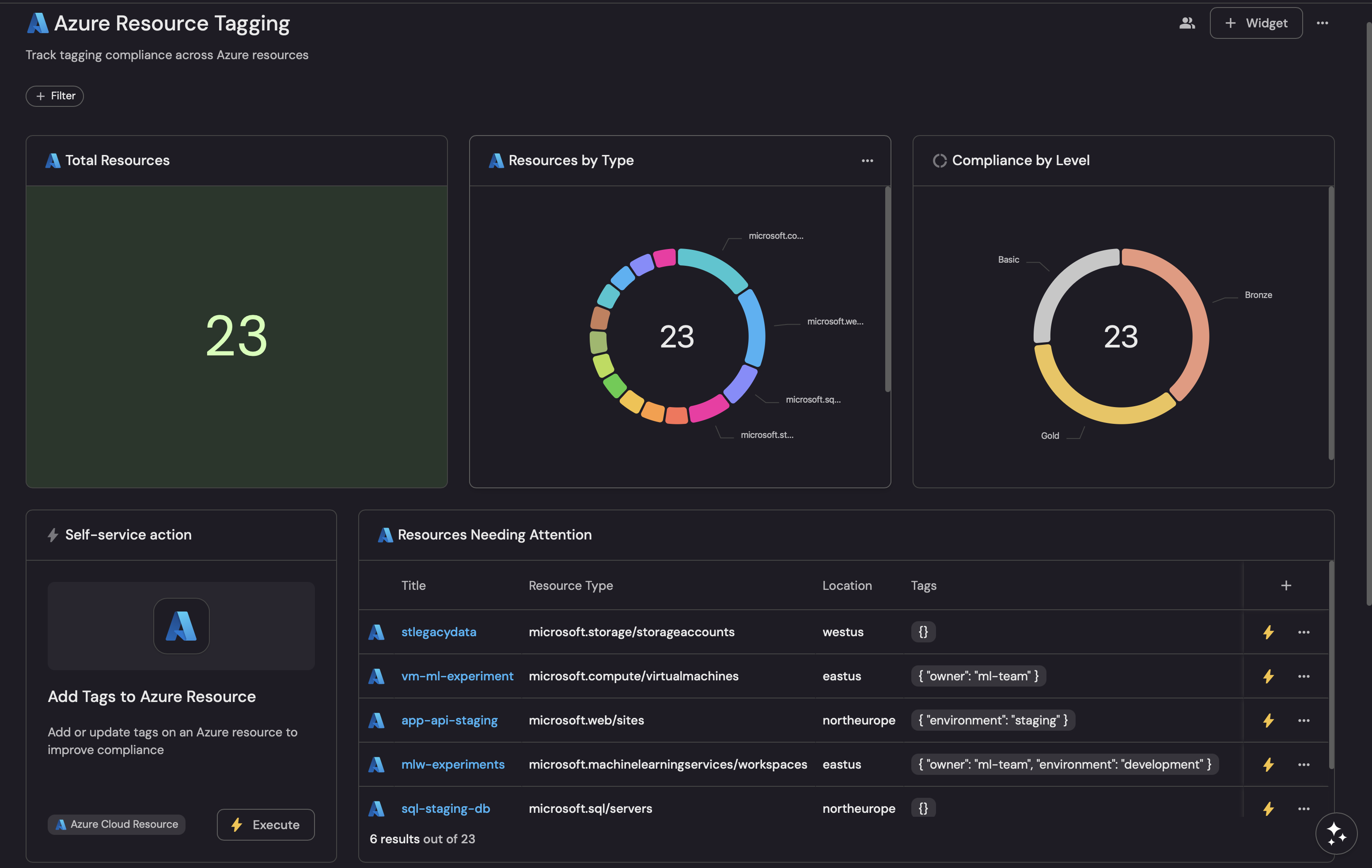
- Create a dashboard to visualize compliance across your Azure resources.
Common use cases
- Track which Azure resources are missing required tags for cost attribution.
- Enable teams to self-remediate tagging gaps without waiting for platform engineers.
- Report on tagging compliance progress across subscriptions and resource groups.
Prerequisites
This guide assumes the following:
- You have a Port account and have completed the onboarding process.
- Port's Azure integration is installed in your account.
- GitHub (Ocean)
- GitHub (Sunset)
- Install GitHub ocean.
- Port's GitHub app needs to be installed.
We recommend creating a dedicated repository for the workflows that are used by Port actions.
Set up data model
We will create a blueprint to represent Azure resources with calculated properties that check for the presence of required tags.
This initiative uses three compliance levels:
- Bronze:
owner,cost-center,environmenttags (mandatory). - Silver: Adds
projectandapplicationtags (recommended). - Gold: All tags present (full compliance).
Create the Azure resource blueprint
-
Go to the Builder page of your portal.
-
Click on
+ Blueprint. -
Click on the
{...}button in the top right corner, and chooseEdit JSON. -
Add this JSON schema:
Azure resource blueprint (click to expand)
{"identifier": "azureResource","title": "Azure Cloud Resource","icon": "Azure","schema": {"properties": {"type": {"title": "Resource Type","type": "string"},"location": {"title": "Location","type": "string"},"tags": {"title": "Tags","type": "object"},"resourceGroup": {"title": "Resource Group","type": "string"},"subscriptionId": {"title": "Subscription ID","type": "string"}}},"calculationProperties": {"hasOwnerTag": {"title": "Has Owner Tag","type": "boolean","calculation": ".properties.tags.owner != null"},"hasCostCenterTag": {"title": "Has Cost Center Tag","type": "boolean","calculation": ".properties.tags.\"cost-center\" != null"},"hasEnvironmentTag": {"title": "Has Environment Tag","type": "boolean","calculation": ".properties.tags.environment != null"},"hasProjectTag": {"title": "Has Project Tag","type": "boolean","calculation": ".properties.tags.project != null"},"hasApplicationTag": {"title": "Has Application Tag","type": "boolean","calculation": ".properties.tags.application != null"}},"mirrorProperties": {},"relations": {}} -
Click
Saveto create the blueprint.
Update the integration mapping
-
Go to the Data Sources page of your portal.
-
Select the Azure integration.
-
Add the following YAML block into the editor to ingest Azure resources with their tags:
Azure integration configuration (click to expand)
resources:- kind: resourceselector:query: 'true'graphQuery: >-resources| project id, type, name, location, tags, subscriptionId, resourceGroup| extend resourceGroup=tolower(resourceGroup)| extend type=tolower(type)port:entity:mappings:identifier: .id | gsub(" ";"_")title: .nameblueprint: '"azureResource"'properties:tags: .tagstype: .typelocation: .locationresourceGroup: .resourceGroupsubscriptionId: .subscriptionId -
Click
Save & Resyncto apply the mapping.
Set up the tagging scorecard
Now let's create a scorecard to evaluate tagging compliance at different levels.
-
Go to the Builder page of your portal.
-
Select the
azureResourceblueprint. -
Click the Scorecards tab, then click + New Scorecard.
-
Click on the
{...}button in the top right corner, and chooseEdit JSON. -
Add this JSON schema:
Tagging compliance scorecard (click to expand)
{"identifier": "azure_tagging_compliance","title": "Azure Resource Tagging Compliance","levels": [{"color": "paleBlue","title": "Basic"},{"color": "bronze","title": "Bronze"},{"color": "silver","title": "Silver"},{"color": "gold","title": "Gold"}],"rules": [{"identifier": "has_owner_tag","title": "Has owner tag","level": "Bronze","query": {"combinator": "and","conditions": [{"operator": "=","property": "hasOwnerTag","value": true}]}},{"identifier": "has_cost_center_tag","title": "Has cost center tag","level": "Bronze","query": {"combinator": "and","conditions": [{"operator": "=","property": "hasCostCenterTag","value": true}]}},{"identifier": "has_environment_tag","title": "Has environment tag","level": "Bronze","query": {"combinator": "and","conditions": [{"operator": "=","property": "hasEnvironmentTag","value": true}]}},{"identifier": "has_project_tag","title": "Has project tag","level": "Silver","query": {"combinator": "and","conditions": [{"operator": "=","property": "hasProjectTag","value": true}]}},{"identifier": "has_application_tag","title": "Has application tag","level": "Silver","query": {"combinator": "and","conditions": [{"operator": "=","property": "hasApplicationTag","value": true}]}},{"identifier": "full_compliance","title": "Full tag compliance","level": "Gold","query": {"combinator": "and","conditions": [{"operator": "=","property": "hasOwnerTag","value": true},{"operator": "=","property": "hasCostCenterTag","value": true},{"operator": "=","property": "hasEnvironmentTag","value": true},{"operator": "=","property": "hasProjectTag","value": true},{"operator": "=","property": "hasApplicationTag","value": true}]}}]} -
Click
Saveto create the scorecard.
Set up self-service action
Now let's create a self-service action to allow teams to add missing tags directly from Port. Follow the steps below to create the action:
-
Go to the Self-service page of your portal.
-
Click on the
+ New Actionbutton. -
Click on the
{...} Edit JSONbutton. -
Copy and paste the following JSON configuration into the editor.
Add tags to Azure resource action (click to expand)
- GitHub (Ocean)
- GitHub (Sunset)
Replace the variables<GITHUB-ORG>- your GitHub organization or user name.<GITHUB-REPO>- your GitHub repository name.<YOUR_GITHUB_OCEAN_INTEGRATION_ID>- your GitHub Ocean integration installation ID.
{"identifier": "add_tags_to_azure_resource","title": "Add Tags to Azure Resource","icon": "Azure","description": "Add or update tags on an Azure resource to improve compliance","trigger": {"type": "self-service","operation": "DAY-2","userInputs": {"properties": {"owner": {"title": "Owner","type": "string","description": "Team or individual responsible for this resource"},"cost_center": {"title": "Cost Center","type": "string","description": "Financial cost center for billing"},"environment": {"title": "Environment","type": "string","enum": ["production", "staging", "development", "sandbox"],"description": "Deployment environment"},"project": {"title": "Project","type": "string","description": "Project or initiative name"},"application": {"title": "Application","type": "string","description": "Application or service name"}},"required": ["owner", "cost_center", "environment"],"order": ["owner", "cost_center", "environment", "project", "application"]},"blueprintIdentifier": "azureResource"},"invocationMethod": {"type": "INTEGRATION_ACTION","installationId": "<YOUR_GITHUB_OCEAN_INTEGRATION_ID>","integrationActionType": "dispatch_workflow","integrationActionExecutionProperties": {"org": "<GITHUB-ORG>","repo": "<GITHUB-REPO>","workflow": "tag-azure-resource.yml","workflowInputs": {"owner": "{{ .inputs.owner }}","cost_center": "{{ .inputs.cost_center }}","environment": "{{ .inputs.environment }}","project": "{{ .inputs.project }}","application": "{{ .inputs.application }}","port_context": {"runId": "{{ .run.id }}","entity": "{{ .entity }}"}},"reportWorkflowStatus": true}},"requiredApproval": false}Modification RequiredMake sure to replace
<GITHUB_ORG>and<GITHUB_REPO>with your GitHub organization and repository names respectively.{"identifier": "add_tags_to_azure_resource","title": "Add Tags to Azure Resource","icon": "Azure","description": "Add or update tags on an Azure resource to improve compliance","trigger": {"type": "self-service","operation": "DAY-2","userInputs": {"properties": {"owner": {"title": "Owner","type": "string","description": "Team or individual responsible for this resource"},"cost_center": {"title": "Cost Center","type": "string","description": "Financial cost center for billing"},"environment": {"title": "Environment","type": "string","enum": ["production", "staging", "development", "sandbox"],"description": "Deployment environment"},"project": {"title": "Project","type": "string","description": "Project or initiative name"},"application": {"title": "Application","type": "string","description": "Application or service name"}},"required": ["owner", "cost_center", "environment"],"order": ["owner", "cost_center", "environment", "project", "application"]},"blueprintIdentifier": "azureResource"},"invocationMethod": {"type": "GITHUB","org": "<GITHUB-ORG>","repo": "<GITHUB-REPO>","workflow": "tag-azure-resource.yml","workflowInputs": {"owner": "{{ .inputs.owner }}","cost_center": "{{ .inputs.cost_center }}","environment": "{{ .inputs.environment }}","project": "{{ .inputs.project }}","application": "{{ .inputs.application }}","port_context": {"runId": "{{ .run.id }}","entity": "{{ .entity }}"}},"reportWorkflowStatus": true},"requiredApproval": false} -
Click
Save.
Create the GitHub workflow
Before creating the GitHub workflow, you need to add the following secrets to your GitHub repository:
PORT_CLIENT_ID- Port Client ID learn more.PORT_CLIENT_SECRET- Port Client Secret learn more.AZURE_CREDENTIALS- Azure service principal credentials in JSON format.
Create the file .github/workflows/tag-azure-resource.yml in the .github/workflows folder of your repository with the following content:
GitHub workflow (click to expand)
name: Add Tags to Azure Resource

on:
  workflow_dispatch:
    inputs:
      owner:
        required: true
        type: string
      cost_center:
        required: true
        type: string
      environment:
        required: true
        type: string
      project:
        required: false
        type: string
      application:
        required: false
        type: string
      port_context:
        required: true
        type: string

jobs:
  add-tags:
    runs-on: ubuntu-latest
    steps:
      - name: Inform Port of workflow start
        uses: port-labs/port-github-action@v1
        with:
          clientId: ${{ secrets.PORT_CLIENT_ID }}
          clientSecret: ${{ secrets.PORT_CLIENT_SECRET }}
          baseUrl: https://api.port.io
          operation: PATCH_RUN
          runId: ${{ fromJson(inputs.port_context).runId }}
          logMessage: Starting to add tags to Azure resource ${{ fromJson(inputs.port_context).entity.title }}

      - name: Azure Login
        uses: azure/login@v2
        with:
          creds: ${{ secrets.AZURE_CREDENTIALS }}

      - name: Add tags to resource
        uses: azure/CLI@v1
        env:
          RESOURCE_ID: ${{ fromJson(inputs.port_context).entity.identifier }}
        with:
          azcliversion: latest
          inlineScript: |
            TAGS="owner=${{ inputs.owner }}"
            TAGS="$TAGS cost-center=${{ inputs.cost_center }}"
            TAGS="$TAGS environment=${{ inputs.environment }}"

            if [ -n "${{ inputs.project }}" ]; then
              TAGS="$TAGS project=${{ inputs.project }}"
            fi

            if [ -n "${{ inputs.application }}" ]; then
              TAGS="$TAGS application=${{ inputs.application }}"
            fi

            az tag update --resource-id "$RESOURCE_ID" --operation merge --tags $TAGS

      - name: Inform Port about success
        if: success()
        uses: port-labs/port-github-action@v1
        with:
          clientId: ${{ secrets.PORT_CLIENT_ID }}
          clientSecret: ${{ secrets.PORT_CLIENT_SECRET }}
          baseUrl: https://api.port.io
          operation: PATCH_RUN
          runId: ${{ fromJson(inputs.port_context).runId }}
          status: 'SUCCESS'
          logMessage: ✅ Successfully added tags to ${{ fromJson(inputs.port_context).entity.title }}
          summary: Tags added successfully

      - name: Inform Port about failure
        if: failure()
        uses: port-labs/port-github-action@v1
        with:
          clientId: ${{ secrets.PORT_CLIENT_ID }}
          clientSecret: ${{ secrets.PORT_CLIENT_SECRET }}
          baseUrl: https://api.port.io
          operation: PATCH_RUN
          runId: ${{ fromJson(inputs.port_context).runId }}
          status: 'FAILURE'
          logMessage: ❌ Failed to add tags to ${{ fromJson(inputs.port_context).entity.title }}
          summary: Failed to add tags
Visualize tagging compliance
With your data, scorecard, and action in place, let's create a dashboard to visualize tagging compliance across your Azure resources.
Create a dashboard
-
Navigate to the Catalog page of your portal.
-
Click on the
+button in the left sidebar. -
Select New dashboard.
-
Name the dashboard Azure Resource Tagging.
-
Input
Track tagging compliance across Azure resourcesunder Description. -
Select the
Azureicon. -
Click
Create.
Add widgets
In the new dashboard, create the following widgets:
Total resources (click to expand)
-
Click
+ Widgetand select Number Chart. -
Title:
Total resources(add theAzureicon). -
Select
Count entitiesChart type and choose Azure Cloud Resource as the Blueprint. -
Select
countfor the Function. -
Click Save.
Compliance by level (click to expand)
-
Click
+ Widgetand select Pie chart. -
Title:
Compliance by level(add theAzureicon). -
Choose the Azure Cloud Resource blueprint.
-
Under
Breakdown by property, select the Azure Resource Tagging Compliance scorecard. -
Click Save.
Resources needing attention (click to expand)
-
Click
+ Widgetand select Table. -
Title:
Resources needing attention(add theAzureicon). -
Choose the Azure Cloud Resource blueprint.
-
Click Save to add the widget to the dashboard.
-
Click on the
...button in the top right corner of the table and select Customize table. -
Click on the filter icon and add a filter where Azure Resource Tagging Compliance equals Basic.
-
In the top right corner of the table, click on
Manage Propertiesand add: Title, Resource Type, Location, Tags. -
Click on the save icon in the top right corner of the widget.
Resources by environment (click to expand)
-
Click
+ Widgetand select Pie chart. -
Title:
Resources with environment tag(add theAzureicon). -
Choose the Azure Cloud Resource blueprint.
-
Under Breakdown by property, select Environment (from the
tagsproperty). -
Click Save.
Resources by type (click to expand)
-
Click
+ Widgetand select Pie chart. -
Title:
Resources by type(add theAzureicon). -
Choose the Azure Cloud Resource blueprint.
-
Under Breakdown by property, select Resource Type.
-
Click Save.
Add tags action card (click to expand)
-
Click
+ Widgetand select Action card. -
Choose the Add Tags to Azure Resource action we created in this guide.
-
Click Save.
Next steps
Once you have the basic tagging initiative in place, consider these enhancements:
Automate notifications
Create an automation to notify teams via Slack when new resources are created without required tags:
Slack notification automation (click to expand)
{
  "identifier": "notify_untagged_resources",
  "title": "Notify on Untagged Azure Resources",
  "trigger": {
    "type": "automation",
    "event": {
      "type": "ENTITY_CREATED",
      "blueprintIdentifier": "azureResource"
    },
    "condition": {
      "type": "JQ",
      "expressions": [
        ".diff.after.properties.tags.owner == null"
      ]
    }
  },
  "invocationMethod": {
    "type": "WEBHOOK",
    "url": "<SLACK_WEBHOOK_URL>",
    "body": {
      "text": "⚠️ New Azure resource created without required tags!\n*Resource:* {{ .event.diff.after.title }}\n*Type:* {{ .event.diff.after.properties.type }}"
    }
  }
}
Define enforcement strategies
Consider implementing enforcement at different levels:
- Awareness: Make dashboards visible to all teams, send weekly compliance reports.
- Accountability: Include compliance metrics in team reviews and leadership reports.
- Prevention: Use Azure Policy to deny resource creation without required tags.
Track success metrics
Monitor these KPIs to measure your initiative's progress:
| Metric | Target |
|---|---|
| Bronze compliance | 100% within 30 days |
| Silver compliance | 80% within 60 days |
| Gold compliance | 50% within 90 days |
| Cost attribution coverage | 95%+ of cloud spend |
Related guides
- Add tags to Azure resource - Single resource tagging action.
- Azure integration - Set up Azure data ingestion.
- Scorecards - Learn more about Port scorecards.