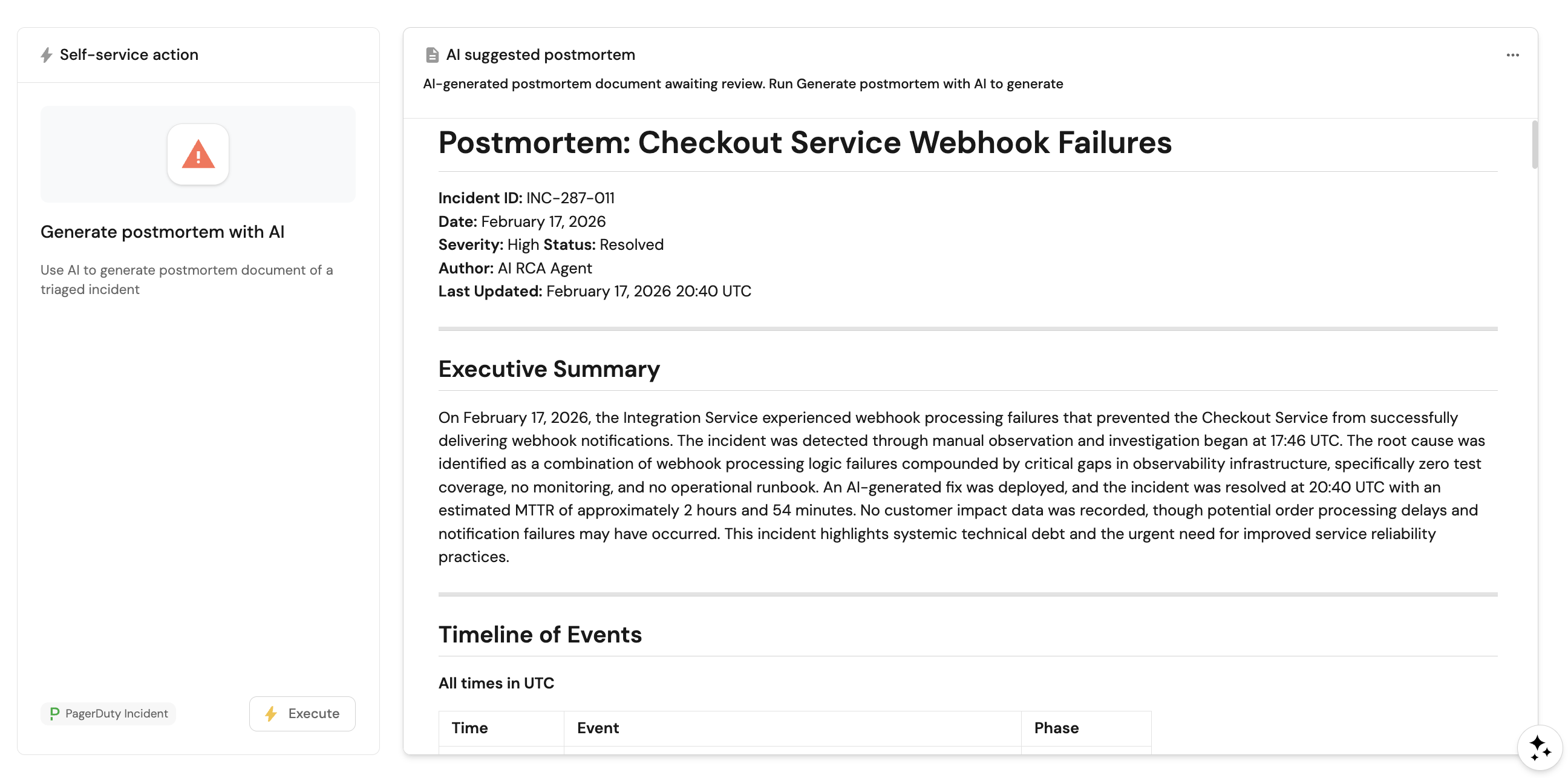
AI-powered RCA and postmortem generation
After resolving production incidents, teams need to generate comprehensive RCA (Root Cause Analysis) and postmortem documents that capture timeline, impact, root cause, action items, and lessons learned. This process is typically manual, time-consuming, and often inconsistent in quality or completeness. Teams either skip RCAs due to time pressure or produce low-quality retrospectives that don't prevent future incidents.
This guide shows how to use Port's AI to automatically generate postmortem documents so you can ensure every incident gets documented consistently, capture all context while it's fresh, and free engineers to focus on prevention rather than documentation.
Common use cases
- Consistent postmortem documentation: Ensure every resolved incident gets a postmortem document without manual effort.
- Faster incident closure: generate postmortem drafts immediately after resolution while context is fresh.
- Organizational learning: capture lessons learned, action items, and process improvements automatically.
Prerequisites
This guide assumes the following:
- You have a Port account and have completed the onboarding process.
- You have implemented the incident blueprint pattern for incident management workflows.
- You already have incidents in your catalog with
resolved_attimestamps.
Set up data model
You will use the incident blueprint pattern described in the incident blueprint guide. The blueprint already includes properties for AI-suggested and final approved postmortem content.
Optional: Add postmortem template blueprint
If you want the AI agent to follow different postmortem formats based on incident type or severity (e.g., Google SRE format, Atlassian format, etc), you can add a postmortem_template blueprint and link it to incidents via the incident blueprint's postmortem_template relation. The RCA agent will use the linked template's structure and content to guide postmortem generation.
-
Go to the builder page of your portal.
-
Click on
+ Blueprint. -
Click on
{...} Edit JSON. -
Use the following configuration:
Postmortem template blueprint (click to expand)
{"identifier": "postmortem_template","title": "Postmortem Template","icon": "Book","schema": {"properties": {"template_content": {"type": "string","title": "Template Content","format": "markdown","description": "The markdown content of the postmortem template"},"template_type": {"type": "string","title": "Template Type","enum": ["google_sre", "atlassian", "five_whys", "custom"],"enumColors": {"google_sre": "blue","atlassian": "orange","five_whys": "green","custom": "lightGray"}}},"required": ["template_content"]},"mirrorProperties": {},"calculationProperties": {},"aggregationProperties": {},"relations": {}} -
Click Create to save the blueprint.
Configure the AI agent
You will create a dedicated RCA agent that analyzes incident context, builds timelines, and generates comprehensive postmortem documents.
-
Go to the AI agents page of your portal.
-
Click on
+ AI Agent. -
Click on the
{...} Edit JSONbutton. -
Use the following configuration:
Incident RCA agent (click to expand)
Using postmortem templatesWhen an incident has a postmortem template linked, the AI agent can access the template structure through the relation and use it to guide the postmortem generation format. This allows you to use different templates based on incident type or severity (e.g., Google SRE format, Atlassian format, Five Whys, or custom templates). The agent reads the template structure to generate consistent, well-organized postmortems that match your organization's standards.
{"identifier": "incident_rca_agent","title": "Incident RCA Agent","icon": "Details","team": [],"properties": {"description": "AI agent that generates comprehensive postmortem documents using Port context and template structures","status": "active","prompt": "You are an RCA Agent for incidents in the Postmortem stage.\n\n**Your Role:**\n1. Generate comprehensive postmortem document including:\n - **Executive Summary**: One-paragraph overview\n - **Timeline**: Key events from alert to resolution\n - **Root Cause**: Detailed technical analysis\n - **Impact**: Customer, revenue, SLA effects\n - **Resolution**: Steps taken to fix\n - **Action Items**: Prevent recurrence (with owners)\n - **Lessons Learned**: What went well, what to improve\n2. Identify gaps in monitoring, alerting, or processes\n3. Suggest action items with specific owners\n4. Reference similar past incidents\n5. Calculate key metrics (MTTR, MTTD, impact duration)\n6. If the incident has a `postmortem_template` relation, use the template structure to guide the postmortem format and ensure consistency with your organization's standards\n\n**Response Format:**\nGenerate comprehensive markdown document with all sections. If a postmortem template is linked to the incident, follow its structure and format.\n\nYou MUST always call the `update_incident_postmortem` action with inputs: `ai_suggested_postmortem` field and `incident_id` to save the results of the postmortem.\n\n**Tone:**\nFactual, blame-free, focused on system improvements.","execution_mode": "Automatic","conversation_starters": ["Generate postmortem for this incident","What learnings can we extract?","Create action items to prevent recurrence"],"tools": ["^(list|get|search|track|describe)_.*","^run_update_incident_postmortem$"]},"relations": {}} -
Click Create to save the agent.
The AI agent uses MCP (Model Context Protocol) enhanced capabilities to discover relevant blueprint entities through its tools. The ^(list|search|track|describe)_.* pattern lets the agent access and analyze related entities in your software catalog, which gives it richer context. You can allow the corresponding self-service action in the agent's Allowed Actions input (or include ^run_update_incident_postmortem$ in the tools list in Advanced mode (regex)) to instruct the agent to call this specific action and update the incident with the AI-generated postmortem. The run_ prefix marks which self-service actions the agent is allowed to execute.
Set up self-service actions
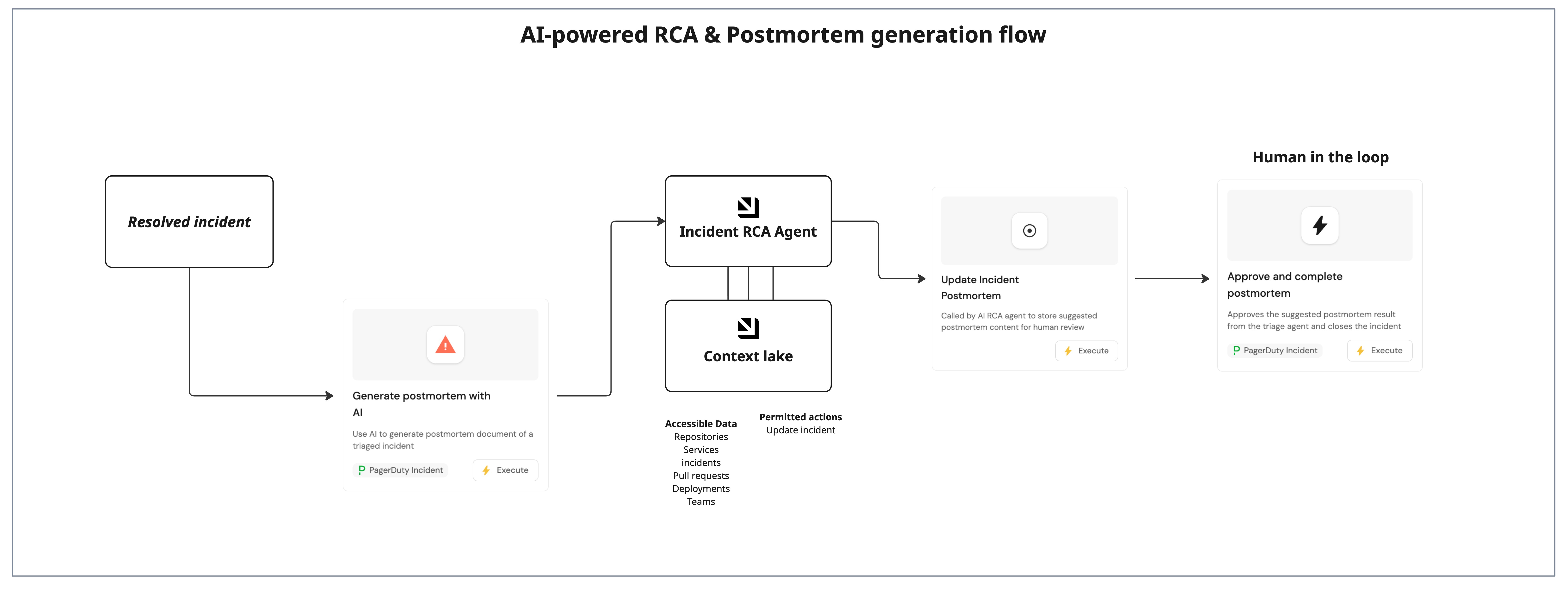
You will create three self-service actions that work together: one triggers the AI analysis (user-facing), one saves the AI results (AI-facing tool), and one completes the postmortem with human approval (human-in-the-loop).
Add generate postmortem with AI action
-
Go to the Self-service page of your portal.
-
Click on
+ Action. -
Click on the
{...} Edit JSONbutton. -
Use the following configuration:
Generate postmortem with AI action (click to expand)
{"identifier": "ai_generate_postmortem","title": "Generate postmortem with AI","icon": "Alert","description": "Use AI to generate postmortem document of a triaged incident","trigger": {"type": "self-service","operation": "DAY-2","userInputs": {"properties": {"include_sections": {"type": "string","title": "Include Section","description": "Additional sections to include in the postmortem report","icon": "DefaultProperty","format": "multi-line"}},"required": [],"order": ["include_sections"]},"executeActionButtonText": "Generate Report","condition": {"type": "SEARCH","rules": [{"property": "resolved_at","operator": "isNotEmpty"},{"property": "postmortem_completed_at","operator": "isEmpty"}],"combinator": "and"},"blueprintIdentifier": "incident"},"invocationMethod": {"type": "WEBHOOK","url": "https://api.port.io/v1/agent/incident_rca_agent/invoke","agent": false,"synchronized": true,"method": "POST","headers": {"RUN_ID": "{{ .run.id }}","Content-Type": "application/json"},"body": {"prompt": "Postmortem Generation Request:\n\nIncident ID: {{.entity.identifier}}\nTitle: {{.entity.title}}\nSeverity: {{.entity.properties.severity}}\nAlerted At: {{.entity.properties.alerted_at}}\nResolved At: {{.entity.properties.resolved_at}}\nMTTR: {{.entity.properties.mttr_minutes}} minutes\n\nRoot Cause: {{.entity.properties.ai_suggested_root_cause}}\nRemediation Plan: {{.entity.properties.ai_remediation_plan}}\nBusiness Impact: {{.entity.properties.business_impact}}\n\nPlease generate a comprehensive postmortem including:\n1. Executive summary\n2. Timeline of events\n3. Root cause analysis\n4. Impact assessment\n5. Remediation steps taken\n6. Action items to prevent recurrence\n7. What went well / What could improve\n\n**CRITICAL: After completing the postmortem generation, you MUST use the \"Update Incident Postmortem\" self-service action to save the results:**\n- Call the \"Update Incident Postmortem\" action with:\n - `incident_id`: {{.entity.identifier}}\n - `ai_suggested_postmortem`: The complete markdown formatted postmortem document\n- This saves the postmortem to the incident properties for human review\n\nAdditional sections to include: {{.inputs.include_sections}}","labels": {"source": "ai_generate_postmortem","incident_id": "{{.entity.identifier}}","stage": "postmortem"}}}} -
Click Create to save the action.
Add update incident postmortem action
-
Go to the Self-service page of your portal.
-
Click on
+ Action. -
Click on the
{...} Edit JSONbutton. -
Use the following configuration:
Update incident postmortem action (click to expand)
{"identifier": "update_incident_postmortem","title": "Update Incident Postmortem","icon": "DefaultProperty","description": "Called by AI RCA agent to store suggested postmortem content for human review","trigger": {"type": "self-service","operation": "DAY-2","userInputs": {"properties": {"ai_suggested_postmortem": {"type": "string","title": "AI Suggested Postmortem","format": "markdown"},"incident_id": {"type": "string","title": "Incident ID"}},"required": ["incident_id","ai_suggested_postmortem"],"order": ["incident_id","ai_suggested_postmortem"]}},"invocationMethod": {"type": "UPSERT_ENTITY","blueprintIdentifier": "incident","mapping": {"identifier": "{{ .inputs.incident_id }}","properties": {"ai_suggested_postmortem": "{{ .inputs.ai_suggested_postmortem }}"}}},"requiredApproval": false} -
Click Create to save the action.
Add approve and complete postmortem action
-
Go to the Self-service page of your portal.
-
Click on
+ Action. -
Click on the
{...} Edit JSONbutton. -
Use the following configuration:
Approve and complete postmortem action (click to expand)
{"identifier": "approve_and_complete_postmortem","title": "Approve and complete postmortem","description": "Approves the suggested postmortem result from the triage agent and closes the incident","trigger": {"type": "self-service","operation": "DAY-2","userInputs": {"properties": {"postmortem_content": {"type": "string","title": "Postmortem Content","format": "markdown","default": {"jqQuery": ".entity.properties.ai_suggested_postmortem"}}},"required": ["postmortem_content"],"order": ["postmortem_content"]},"condition": {"type": "SEARCH","rules": [{"property": "resolved_at","operator": "isNotEmpty"},{"property": "postmortem_completed_at","operator": "isEmpty"}],"combinator": "and"},"blueprintIdentifier": "incident"},"invocationMethod": {"type": "UPSERT_ENTITY","blueprintIdentifier": "incident","mapping": {"identifier": "{{ .entity.identifier }}","properties": {"postmortem_completed_at": "{{ now | todateiso8601 }}","postmortem_content": "{{ .inputs.postmortem_content }}","status": "closed"}}},"requiredApproval": false,"allowAnyoneToViewRuns": true,"icon": "Bolt"} -
Click Create to save the action.
The three actions work together to create a human-in-the-loop workflow: the AI generates the postmortem draft, saves it for review, and then a human reviews, edits if needed, and approves it to complete the incident. This ensures quality while reducing manual effort.
Add entity page widgets
You will add widgets to the incident entity page to display the AI-generated postmortem and provide easy access to the actions.
-
Go to the Catalog page in your portal.
-
Select the
Incidententity page. -
Add a new tab named Completed with Postmortem.
-
Add an Action card for Generate postmortem with AI.
-
Add a Markdown widget with the following configuration:
- Title: AI suggested postmortem.
- Description: AI-generated postmortem document awaiting review. Run Generate postmortem with AI to generate.
- Data source: Property, then select the AI Suggested Postmortem property.
-
Add another Action card for Approve and complete postmortem.
Test the workflow
-
Open an
Incidentthat has aresolved_attimestamp and nopostmortem_completed_attimestamp. -
Run Generate postmortem with AI action.
-
Confirm the agent writes the postmortem draft to the
ai_suggested_postmortemproperty. -
Review the AI-generated postmortem in the Postmortem tab.
-
Edit the postmortem content if needed, then run Approve and complete postmortem action.
-
Verify the incident status changes to
closedandpostmortem_completed_atis set. -
Debug the run from the AI invocations page to review execution logs, tool calls, and failures.