Plugins
A plugin is a self-contained web UI, built from HTML, JavaScript, or a framework such as React, that you develop locally and upload to Port. Plugins power custom widgets that render inside dashboards and entity pages using the same catalog data and permissions as the rest of the platform.
You develop and build the plugin in your usual toolchain (for example VS Code, Cursor, or WebStorm), then upload a single compiled HTML file. Port hosts that file for you, there is no separate infrastructure to run. When a custom widget renders, Port serves the plugin, injects authentication, and passes context such as entity data, dashboard filters, page context, and user identity, so your code can call Port APIs safely.
Administrators can manage plugins in several ways:
- Upload, list, update, and delete plugins using the Port plugins CLI.
- Install curated widgets from the Plugins library in Port.
- Use the Port MCP server in your IDE (
list_plugins,upsert_plugin, orinstall_library_plugin- see Manage plugins with Port MCP). - Define custom parameters (
Params) that appear when someone creates or edits a custom widget, so a single plugin can power different widgets. For example, different blueprints or date properties for a shared calendar-style UI.
Load the plugin skill before you start: it gives your AI agent templates, conventions, and Port-specific patterns built for this task. Call load_skill with identifier create-port-plugin in your MCP client.
Prerequisites
Before you begin, make sure you have the following installed on your machine:
- Node.js (version 18 or higher) - Download from nodejs.org
- npm (comes with Node.js) or yarn
- Git - Download from git-scm.com
- A code editor such as VS Code, Cursor, or WebStorm
You will also need:
- Port admin permissions to upload plugins.
- Your Port client ID and client secret for authentication. See Find your Port credentials.
Getting started
Start from the port-plugins repository on GitHub. You can deploy a ready-made plugins as-is, adapt an example for your catalog needs, or scaffold a new plugin with the bundled create-port-plugin Agent Skill and Port MCP in your IDE.
Each build outputs a single dist/index.html file. Upload it to Port with the Port plugins CLI or Port MCP.
Each plugin folder has its own README with prerequisites, widget parameters, local development steps, and upload commands.
Clone the repository
git clone https://github.com/port-experimental/port-plugins.git
cd port-plugins
Install these tools before you start working with the port-plugins repository. You normally use them together: MCP for catalog context in the IDE, and either the CLI or MCP plugin tools to register the built file.
- Port plugins CLI (
@port-labs/port-plugins-cli) - Register and manage plugins from the terminal or CI. See configure your Port connection before your first upload. - Port MCP server - Use during design to inspect blueprints, relations, properties, and entities. You can also call
list_pluginsandupsert_pluginso uploads stay in the IDE (Manage plugins with Port MCP). Plugin runtime code still uses the Port HTTP API with the host token, not MCP.
Use an existing plugin
Let's deploy an example plugin:
- Open the desired plugin folder (for example
entity-calendarortechdocs). - Follow that folder's README to install dependencies and run
npm run build. - Register the built file in Port using the Port plugins CLI or
upsert_pluginin MCP (Manage plugins with Port MCP).
Create a new plugin
The repository includes a project-scoped Agent Skill at .cursor/skills/create-port-plugin. When you open the cloned repository in Cursor or another IDE that loads skills from .cursor/skills, the skill is available to the agent.
To scaffold or adapt a plugin, ask your IDE agent to build the widget you need (for example, "Create a Port plugin that shows open incidents for the current service"). The skill guides reuse of existing widgets, copying from bundled templates, and compliance with Port constraints (single HTML artifact, CSP, @port-labs/plugins-sdk, and upload-params.json conventions). When the build produces dist/index.html, register it with port-plugins upload from the Port plugins CLI section, or with upsert_plugin in MCP (Manage plugins with Port MCP).
Plugins SDK
@port-labs/plugins-sdk bridges postMessage between your plugin code and the Port web app. When Port serves your plugin, the host passes context such as the user, page, params, entity, optional theme data, and a JWT for Port API calls. On PLUGIN_DATA, the host sends baseUrl, and the React hook exposes it as portApiBaseUrl.
The package includes mergePageFilters for entity search with dashboard page filters, React helpers from @port-labs/plugins-sdk/react, and framework-agnostic patterns. For full API detail, see the plugins SDK package on npm.
Port blocks window.open() for plugins, so you cannot use it to open new windows or tabs from plugin code. If you need links, navigation, or similar behavior, use @port-labs/plugins-sdk 0.1.1 or newer.
Host bridge helpers
The SDK exposes helpers that ask the Port host to open UI on the user's behalf:
openAiChat(body, options?)— Open the Port AI side chat with a prefilled prompt (ask,build, orplanmode). Requires SDK and host 0.2.0+.showRunActionDialog(actionIdentifier | options)— Open the run-action modal for a self-service action. Pass an action identifier, or an object withactionIdentifier, optionalentityIdentifier, and optionalinitialData. IfentityIdentifieris omitted, the host uses the current page entity when available.showRunWorkflowDialog(compoundId | options)— Open the workflow trigger modal. Pass a compound id such asmy_workflow/my_trigger, or an object withworkflowIdentifier, optionaltriggerIdentifier, and optionalinitialData.
import {
  openAiChat,
  showRunActionDialog,
  showRunWorkflowDialog,
} from '@port-labs/plugins-sdk';

openAiChat('Which services are unhealthy?');
showRunActionDialog({
  actionIdentifier: 'my_action',
  initialData: { property: 'value' },
});
showRunWorkflowDialog('my_workflow/my_trigger');
See How your plugin can communicate with Port for the underlying postMessage payloads.
Constraints when building plugins
Do not include API keys, passwords, or tokens in widget content or in your uploaded plugin file. They may be exposed to other users or widgets in your organization.
Content security policy (CSP)
Port serves your plugin inside the browser under a content security policy (CSP) that limits what the page can load and connect to. Design your bundle and network usage to stay within these rules.
-
Scripts and styles - Scripts and styles load only from the plugin origin.
'unsafe-inline'is allowed, so a single HTML file with inlined JavaScript and CSS works as expected. -
Asset loading (
default-src) - Thedefault-srcdirective is set to'self',https://*.getport.io, andhttps://*.port.io. This covers<img>,<video>,<audio>,<source>,@font-face, and similar resource types - asset URLs on those origins load, and every other host is blocked. -
Self-contained assets - To keep your bundle self-contained, you can embed images, fonts, and media directly in the plugin HTML file.
-
Blocked elements - Port blocks common embedding patterns that bypass normal resource loading rules:
object-src 'none'- Blocks<object>and<embed>elements, including common patterns for embedding external players or documents.frame-src 'none'- Blocks<iframe>, so you cannot embed another site's page, player, or document inside the plugin UI.
-
Network requests (
connect-src) -connect-srclimits scripted network APIs (fetch,XMLHttpRequest, WebSockets, and similar) to'self',https://*.getport.io, andhttps://*.port.io. Calls from the plugin to other hosts - for example, third-party analytics or public REST APIs - are blocked. -
Framing (
frame-ancestors) -frame-ancestorsallows the Port web app (on*.getport.ioand*.port.io) to embed your plugin. Arbitrary third-party sites cannot frame it. -
Trusted types -
require-trusted-types-for 'script'enforces trusted types for script-related DOM sinks. If a library assigns raw strings where the browser expects a trusted type, you may need to adjust usage or dependencies.
Technical limitations
- Each plugin artifact is one self-contained HTML file, multi-file bundles or separate asset uploads are not supported.
- The uploaded file must be 10 MB or smaller.
Port plugins CLI
The Port plugins CLI (@port-labs/port-plugins-cli) uploads and manages plugins from your terminal or from CI. Install it globally with:
npm install -g @port-labs/port-plugins-cli
For full install steps, commands, authentication, configuration, and plugin metadata limits, see the @port-labs/port-plugins-cli package on npm.
Authenticate the Port plugins CLI with a client ID and client secret, or with an access token. Admin permissions are required to upload and manage plugins. For where to find your credentials, see Find your Port credentials.
Configure your Port connection
Run port-plugins config once to save credentials so you do not pass them on every command. The interactive flow asks for your Port API region (EU or US), then whether to use a client ID + secret or an access token.
port-plugins config
By default, this writes .port/config in your current directory (project scope). For credentials that apply everywhere on your machine:
port-plugins config --global
Non-interactive example (for example in CI):
port-plugins config --client-id "your-client-id" --client-secret "your-client-secret"
You can also authenticate per command with --client-id / --client-secret, --token, or environment variables (PORT_CLIENT_ID, PORT_CLIENT_SECRET, PORT_TOKEN, or PORT_ACCESS_TOKEN). Prefer a config file over putting secrets in shell profile files.
Upload a plugin
port-plugins upload \
  --file dist/index.html \
  --identifier my-plugin \
  --title "My Plugin" \
  --description "A description of what this plugin does" \
  --upsert
Upload with custom parameters
If your plugin accepts configuration such as blueprint selection:
port-plugins upload \
  --file dist/index.html \
  --identifier my-plugin \
  --title "My Plugin" \
  --params "$(cat params.json)" \
  --upsert
List all plugins: port-plugins list
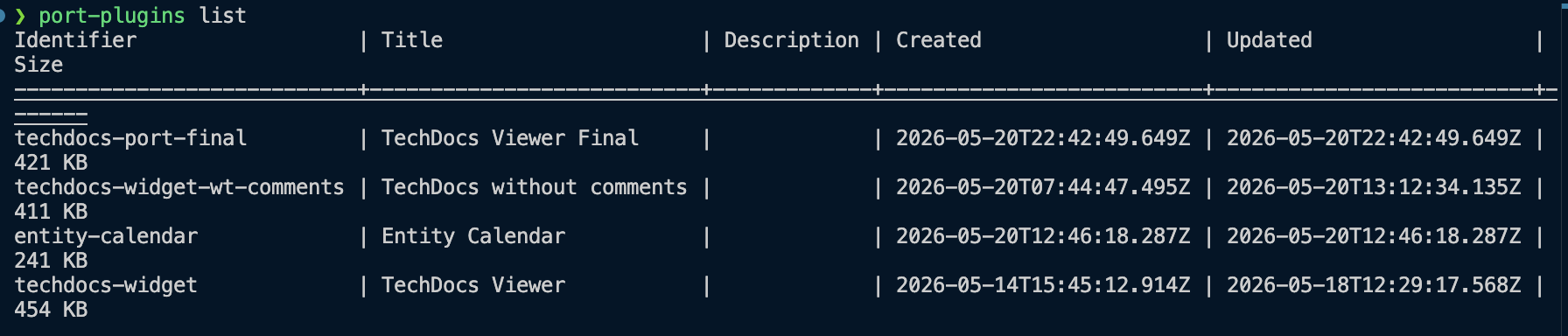
Delete a plugin: port-plugins delete <plugin-identifier>
For the full command reference, see the @port-labs/port-plugins-cli package on npm.
Plugins library
The Plugins library is a curated catalog of ready-made plugins from the public port-plugins repository. Each entry ships with a README that lists catalog prerequisites - blueprint properties the plugin expects on your data model.
Install from the Port UI
- Click on your profile picture
 and select Settings.
 - Navigate to Plugins and click Library.
- Find the plugin you want and click Add plugin.
Once added, the plugin appears under the Plugins tab in the Settings.
If the plugin README lists catalog prerequisites, add the required (and any optional) properties to your blueprints before you add the plugin as a custom widget.
Manage plugins with Port MCP
With the Port MCP server in your IDE, you can install ready-made widgets from the Plugins library or upload plugins you built locally.
Install from the plugins library
Use these MCP tools:
list_available_library_plugins- Browse the catalog. Each entry includespluginName,readmeContent(prerequisites and widget parameters), and metadata.install_library_plugin- Install a library plugin into your organization bypluginName(the repo folder name, for exampleentity-calendar).
Port also provides skills that guide your AI agent through library plugin workflows:
list-available-library-plugins- Browse the catalog and compare plugin README prerequisites with your catalog.install-plugin-library- Walk through catalog prerequisites, blueprint setup, and installation.
Call load_skill with name: "list-available-library-plugins" to browse the catalog, or name: "install-plugin-library" before installing a library plugin.
Recommended workflow:
- Load the skill:
load_skill({ name: "install-plugin-library" }). - Call
list_available_library_pluginsand read the plugin'sreadmeContentfor Prerequisites (required and optional catalog properties). - Call
list_blueprintsto check whether your catalog already has the required blueprint properties. - If properties are missing, ask which prerequisites to add (required only, or required and optional). Wait for the user's answer before calling
upsert_blueprintorinstall_library_pluginin the same turn. - Add missing properties with
upsert_blueprint, copying each property schema verbatim from the README Prerequisites JSON block (sametype,items,title, anddescription). Verify withlist_blueprintsbefore installing. - Call
install_library_pluginwith the plugin'spluginName.
Use install_library_plugin for Plugins library widgets. Do not use install_integrations - that tool is for Ocean data-source integrations only. If installation fails, report the error or retry install_library_plugin - do not fall back to CLI upload or git clone from the README.
list_plugins (not list_available_library_plugins) shows plugins already installed in your organization. After install, use the returned plugin.identifier when wiring dashboard widgets via pluginId.
Upload custom plugins
If you're building a new plugin locally, load the skill first. It contains the build patterns your AI agent needs.
Call load_skill with name: "create-port-plugin" in your MCP client. Port provides the skill for you, with the same intent as the create-port-plugin Agent Skill in the port-plugins repository.
list_plugins and upsert_plugin list and register custom plugins in Port the same way the CLI covers inventory and port-plugins upload. Use upsert_plugin for plugins you built and uploaded yourself - not for Plugins library widgets. You can mix MCP and the CLI in one project without changing the result in Port.
Using the plugins in Port
Plugins manager
Admins can open Plugins Manager in Builder to manage plugins for your organization:
- Go to the Data model page in Port.
- Click on the Plugins Manager in the left sidebar to manage your uploaded plugins.
The Plugins Manager lists all plugins uploaded to your organization, showing each plugin's identifier, title, description, size, creator, and the custom parameters it exposes (Params). From here, admins can review available plugins before wiring one into a custom widget.
Add plugin as a custom widget
After you upload a plugin, add it as a custom widget in Port:
- Go to any dashboard or entity page in Port.
- Click + Widget, select Custom.
- Choose your plugin from the list.
- Configure the parameters and click Create.
For more widget options, see Custom widget.
API reference
Use these Port API endpoints to upload, list, update, and delete plugins programmatically:
- Uploading plugins:
- Managing plugins: