Custom widgets
Custom widgets are specialized widgets that provide additional functionality beyond data visualization, such as executing actions, displaying external content, or showing formatted markdown.
Iframe visualization
You can create an iframe widget to display an embedded url in the dashboard. The iframe widget is useful to display external dashboards or other external content. It also appends to the iframe URL query params the entity identifier and the blueprint identifier so the embedded page can use it for various purposes.
The entity identifier will be concatenated under the entity query param and the blueprint identifier will be concatenated under the blueprint query param. For example: https://some-iframe-url.com?entity=entity_identifier&blueprint=blueprint_identifier.
Note that the iframe request is made directly from the end user’s browser, not from Port’s backend.
If you are implementing IP whitelisting at the network or firewall level, you will need to account for the IP addresses of the users accessing the embedded dashboard - not the IP of Port itself.

URL type
When configuring an Iframe widget, you can specify whether the URL is public or protected.
For the protected URL type, you can configure how the OAuth authentication flow is handled using the "Use pop-up for authentication URL" toggle:
- Toggle off (default): The OAuth login flow runs inside the Iframe.
- Toggle on: The OAuth login flow opens in a separate pop-up window.
If the Authentication URL points to Microsoft Entra ID (https://login.microsoftonline.com), the toggle is automatically turned on, since Entra ID login pages include security headers that prevent them from being displayed inside an Iframe.
Make sure your application allows CORS requests from the Port app origin for the authentication flow to work correctly:
- For the EU region, add
https://app.port.ioto your allowed origins. - For the US region, add
https://app.us.port.ioto your allowed origins.
If you enable the pop-up option, ensure your browser allows pop-ups for the Port app’s domain. If pop-ups are blocked at the browser level, the authentication window will not open and the Iframe widget will fail to load.
Widget properties
| Field | Type | Description | Default | Required |
|---|---|---|---|---|
Title | String | Iframe widget title | null | true |
Icon | String | Iframe widget icon. | null | false |
Description | String | Iframe widget description. | null | false |
URL | String | Iframe widget url. | null | false |
URL type | String | public or protect. | null | false |
Authentication Url | URL String | If the URL type is protected this will be required. Read more about it here. | null | false |
clientId | String | If the URL type is protected this will be required. Read more about it here. | null | false |
Scopes | String Array | If the URL type is protected this will be required. Read more about it here. | null | false |
Token URL | URL String | If the URL type is protected this will be required. Read more about it here. | null | false |
Template variables
You can use template variables in your iframe widget URL to dynamically construct links based on user or entity information. This is useful for creating dynamic iframe URLs that adapt to the current context.
User information
In every dashboard, you can access user information using the {{ .user... }} template syntax. Available user properties include:
{{ .user.name }}{{ .user.email }}{{ .user.fullName }}{{ .user.firstName }}{{ .user.lastName }}
Entity information
On specific entity pages, you can also access entity information using template variables. Available properties depend on the entity's specific properties. For example, if an entity has a title property, you can access it using {{ .entity.title }}.
Example use case
You can create an iframe widget that links to external resources based on entity properties. For example, you can create an iframe widget that links to a Grafana dashboard filtered by the entity's title:
https://grafana.example.com?var-service={{ .entity.title }}
Exploring available properties
To see what properties are available, you can print the whole object in your iframe URL. For example, use {{ .user }} to see all available user properties, or {{ .entity }} to see all available entity properties on entity pages.
Template expressions require spaces inside the delimiters: a space after {{ and a space before }}.
Make sure to use {{ .user... }}, and not {{.user...}}.
Workflow card
This widget allows you to execute one or more workflow self-service triggers directly from any dashboard (including your homepage and entity pages).
A workflow card can display a single trigger, multiple triggers from the same workflow, or a list of triggers from different workflows. Each trigger appears as a row with its own title, description, icon, and execution button.
The widget respects both the trigger's execution permissions and the _workflows blueprint permissions, so users only see and run the triggers they are allowed to.
On entity pages, when a trigger has a matching entity user input, the current entity is prefilled automatically using the page context.
Widget properties
| Field | Type | Description | Default | Required |
|---|---|---|---|---|
Title | String | Workflow card widget title. | null | true |
Icon | String | Workflow card widget icon. | null | false |
Description | String | Workflow card widget description. | null | false |
Triggers | Array | The workflow self-service triggers to display. Each item contains a workflowIdentifier and a triggerIdentifier. At least one trigger is required. | null | true |
You can override the default title, description, icon, and button text for each trigger to tailor how it appears in the widget.
Action card
This widget allows you to execute self-service actions directly from any dashboard (including your homepage).
A single action card can contain one or multiple actions:
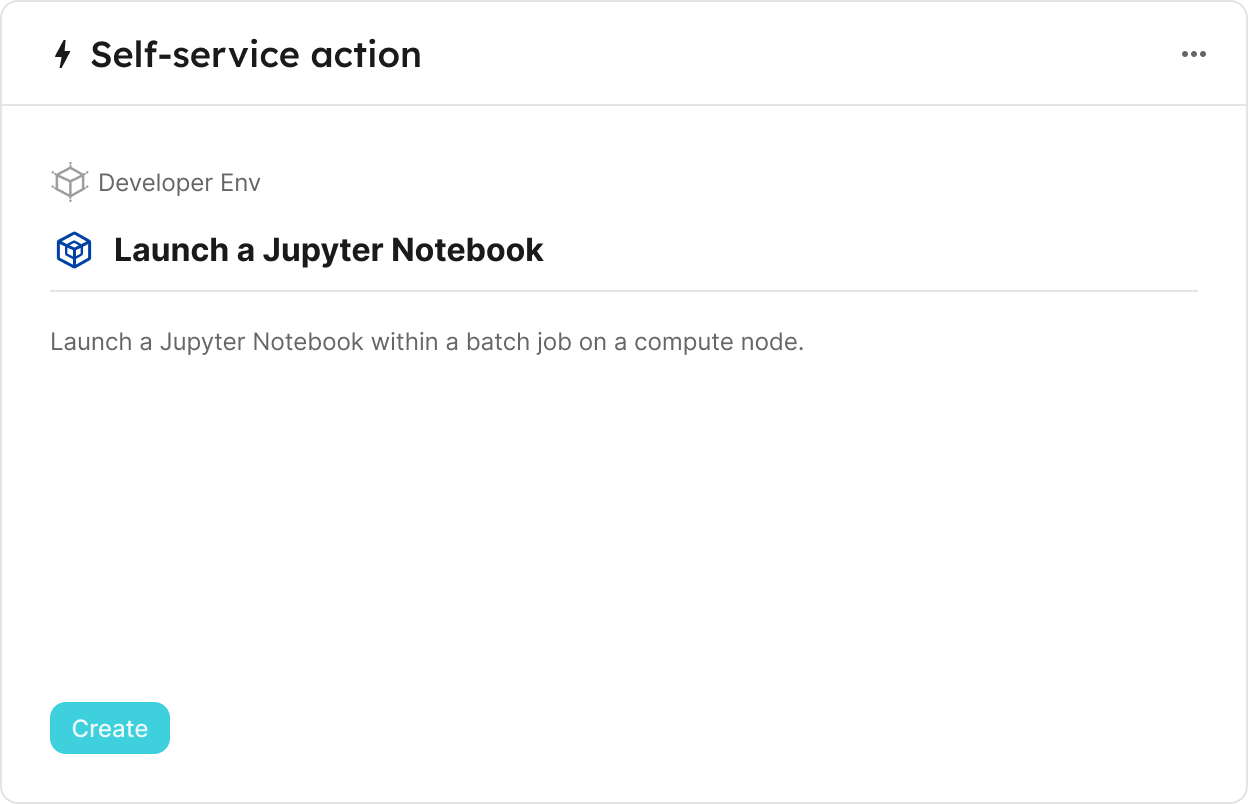
Single action
To execute the action, click on the button in the bottom left corner of the widget:
Multiple actions
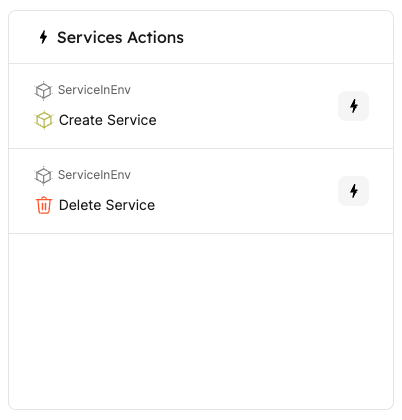
When choosing multiple actions, you can choose your own title for the widget.
To execute an action, click on the ⚡ button next to it:
Action history
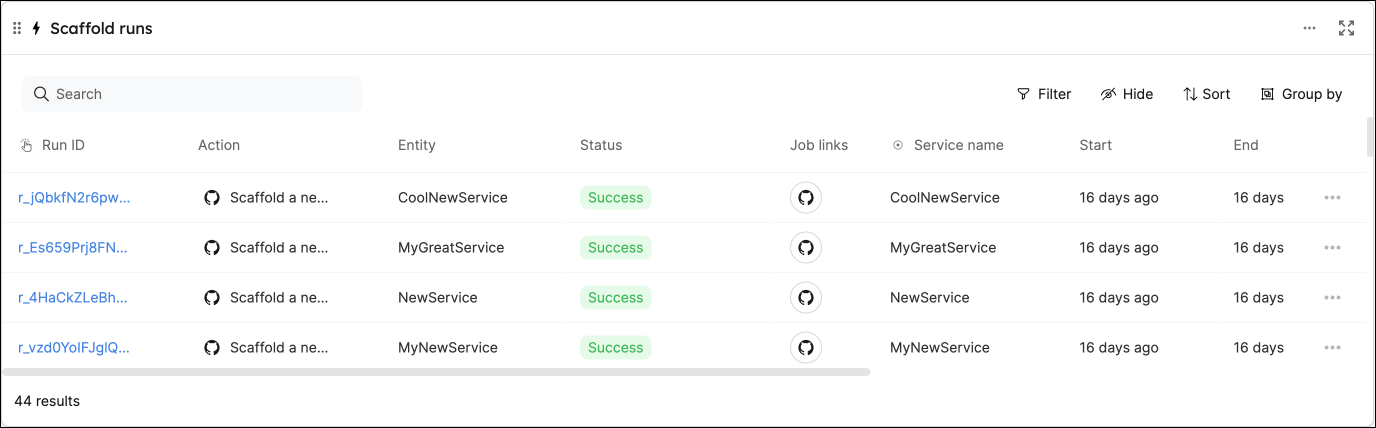
This widget allows you to create a table displaying all past runs of a self-service action in your portal.
The table will automatically display data about each run, including status, input parameters, the executing user, and more.
Markdown
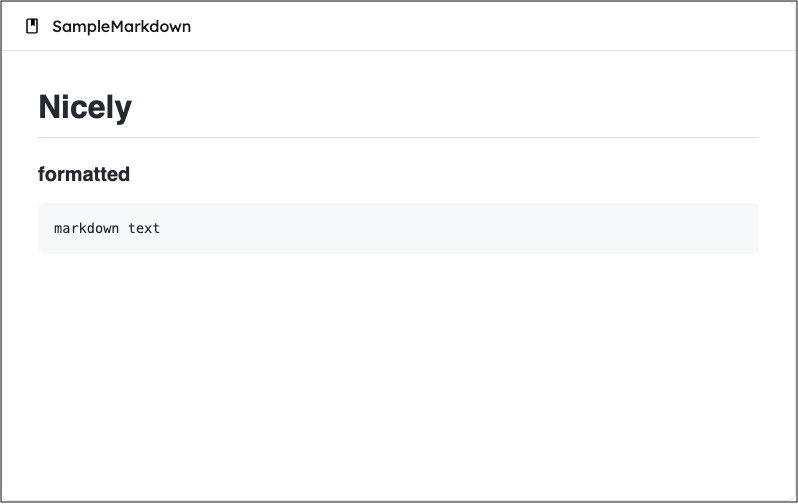
This widget allows you to display markdown content in formatted form. You can create custom markdown content or display markdown from an entity property.
Markdown content types
The markdown widget supports two data source types, selected via the data source field:
- Custom: create and edit markdown content directly in the widget configuration. When selecting this option, you will proceed to a second page where you can enter your custom markdown content. You can edit this content later by modifying the widget configuration.
- Property: display markdown content from a specific entity's markdown property. This is useful for entity-specific documentation, such as a service's README file. Users with edit permissions can modify the content directly within the widget, and Port will automatically sync the changes back to the entity's property.
- In specific entity pages: When using the property data source, only the property field is required. The blueprint and entity are automatically selected from the page context, so you don't need to specify them. There's no separate creation step since the markdown property already exists on the entity.
- In dashboards: When using the property data source, you must select the blueprint, entity, and property fields to specify which entity's markdown property to display.
Upload images
You can add images directly to your content while editing a markdown widget in Port.
Use any of the following methods to upload an image:
- Paste from clipboard: copy an image and paste it into the editor with
Cmd+V(macOS) orCtrl+V(Windows/Linux). - Drag & drop: drag an image file from your computer into the editor.
- Toolbar: click the image button in the editor toolbar to select a file to upload.
To insert an image hosted at an external URL, use Ctrl+K and provide the image URL.
Limitations:
- Maximum file size: 10MB per image.
- Maximum 50 uploaded images per widget.
The widget also supports a wide variety of HTML tags, allowing you to create rich content:
Supported HTML tags (click to expand)
'iframe',
'a',
'style',
'h1',
'h2',
'h3',
'h4',
'h5',
'h6',
'nav',
'blockquote',
'dd',
'div',
'pre',
'dl',
'hr',
'li',
'menu',
'ol',
'p',
'ul',
'b',
'br',
'cite',
'code',
'em',
'i',
'mark',
'q',
's',
'samp',
'small',
'span',
'strong',
'sub',
'sup',
'time',
'u',
'var',
'wbr',
'img',
'video',
'caption',
'col',
'colgroup',
'table',
'tbody',
'td',
'tfoot',
'th',
'thead',
'tr'
Note: For external video URLs from providers such as YouTube, use the iframe visualization widget.
A practical example of using HTML in a markdown widget can be found in Port's live demo, in the Catalog quick access widget.
Markdown widget properties
| Field | Type | Description | Default | Required |
|---|---|---|---|---|
Title | String | Markdown widget title | null | true |
Description | String | Markdown widget description | null | false |
Icon | String | Markdown widget Icon | null | false |
Data source | String | The data source type for the markdown content. Possible values: Custom or Property. | null | true |
When Data source is Custom:
| Field | Type | Description | Default | Required |
|---|---|---|---|---|
markdown | String | Markdown content. Configured on a separate page after selecting Custom data source. | null | true |
When Data source is Property:
| Field | Type | Description | Default | Required |
|---|---|---|---|---|
Blueprint | String | The blueprint of the entity containing the markdown property. Required in dashboards. Not shown in specific entity pages (auto-selected from context). | null | false |
Entity | String | The entity containing the markdown property. Required in dashboards. Not shown in specific entity pages (auto-selected from context). | null | false |
Property | String | The entity's markdown property to display in the widget. Users with update permissions can edit the content directly through the widget. | null | true |
Links in markdown
When displaying markdown content in Port (especially content ingested from Git repositories or other external sources), relative links will not work. This is because the markdown is rendered in the context of your Port portal, not the original source location.
For example, links like [guide](./docs/guide.md) or [readme](../README.md) will not function correctly.
Solutions:
- Use absolute URLs instead:
[guide](https://github.com/your-org/your-repo/blob/main/docs/guide.md). - For links to other pages within your Port portal, use internal links (see below).
Internal Port portal links
When linking to other pages in your portal, you can use / as the URL base, instead of using full URLs.
For example, you can use <a href="/plan_my_day"> instead of <a href="https://demo.port.io/plan_my_day">.
Template variables
You can use template variables in your markdown widget content to dynamically display information about the current user or entity.
User information
In every dashboard, you can access the signed-in user using the {{ .user... }} template syntax. Commonly used built-in fields include:
{{ .user.name }}.{{ .user.email }}.{{ .user.fullName }}.{{ .user.firstName }}.{{ .user.lastName }}.
You can also reference custom user properties you add on the User blueprint (for example, fields you sync from your identity provider or maintain in the catalog). Use the same dotted path style as elsewhere in Port, for example {{ .user.properties.slack_url }} when your User blueprint defines a slack_url property. See Manage users & teams for how user entities and their properties work.
For example:
Welcome, {{ .user.firstName }}!
Entity information
On specific entity pages, you can also access entity information using template variables. The way you access properties depends on the property type:
- Built-in properties (identifier, title, team, etc.) are accessed directly:
{{ .entity.title }},{{ .entity.identifier }}. - Custom properties (user-added properties defined in the blueprint) are accessed via the
propertiesobject:{{ .entity.properties.custom_field }}.
Markdown from related entities
On entity pages, you can embed markdown that lives on a related entity. Port exposes that value on the current entity so you can reference it like any other property under {{ .entity.properties... }}. This lets you build richer, context-aware markdown (for example, pulling in a related service's readme next to fields on the current entity).
For example, if the markdown field's identifier is readme, use:
{{ .entity.properties.readme }}
Replace _readme with the markdown property identifier from your blueprint.
Exploring available properties
To see what properties are available, you can print the whole object in your markdown widget. For example, use {{ .user }} to inspect the full user object (including custom properties), or {{ .entity }} to inspect the current entity and its relations on entity pages.
Template expressions require spaces inside the delimiters: a space after {{ and a space before }}.
Make sure to use {{ .user... }}, and not {{.user...}}.
AI Agent
The AI Agent widget provides an interactive chat interface that helps you work with Port. You can ask questions and get assistance with various tasks in your software catalog.
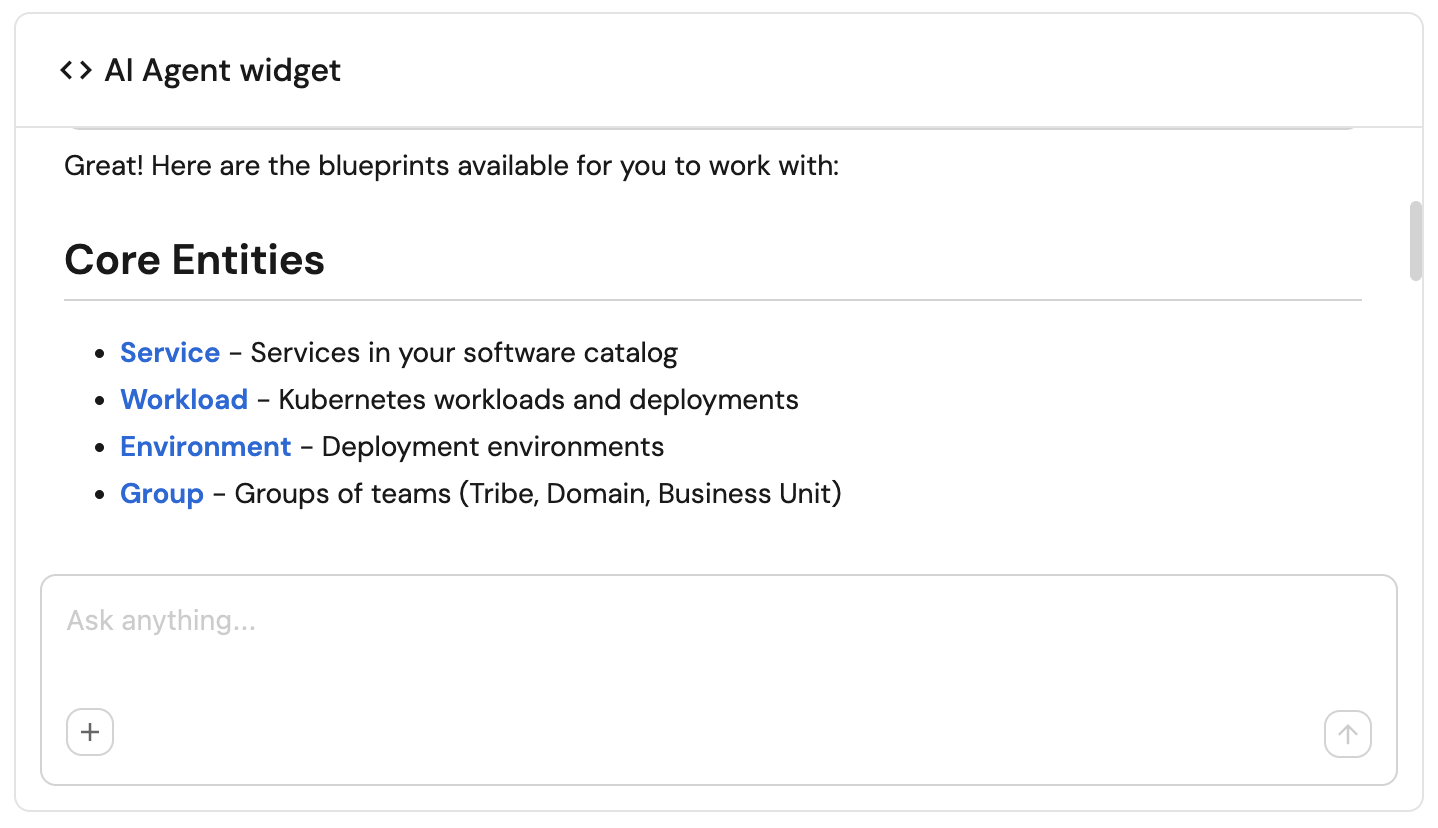
The AI Agent can help you with:
- Exploring your data model - viewing blueprints, entities, and relationships.
- Understanding your integrations - checking integration status, sync metrics, and configurations.
- Managing scorecards - viewing scorecard details and rules.
- Executing actions - running self-service and automation actions.
- Finding Port documentation - searching for help and best practices.
Links
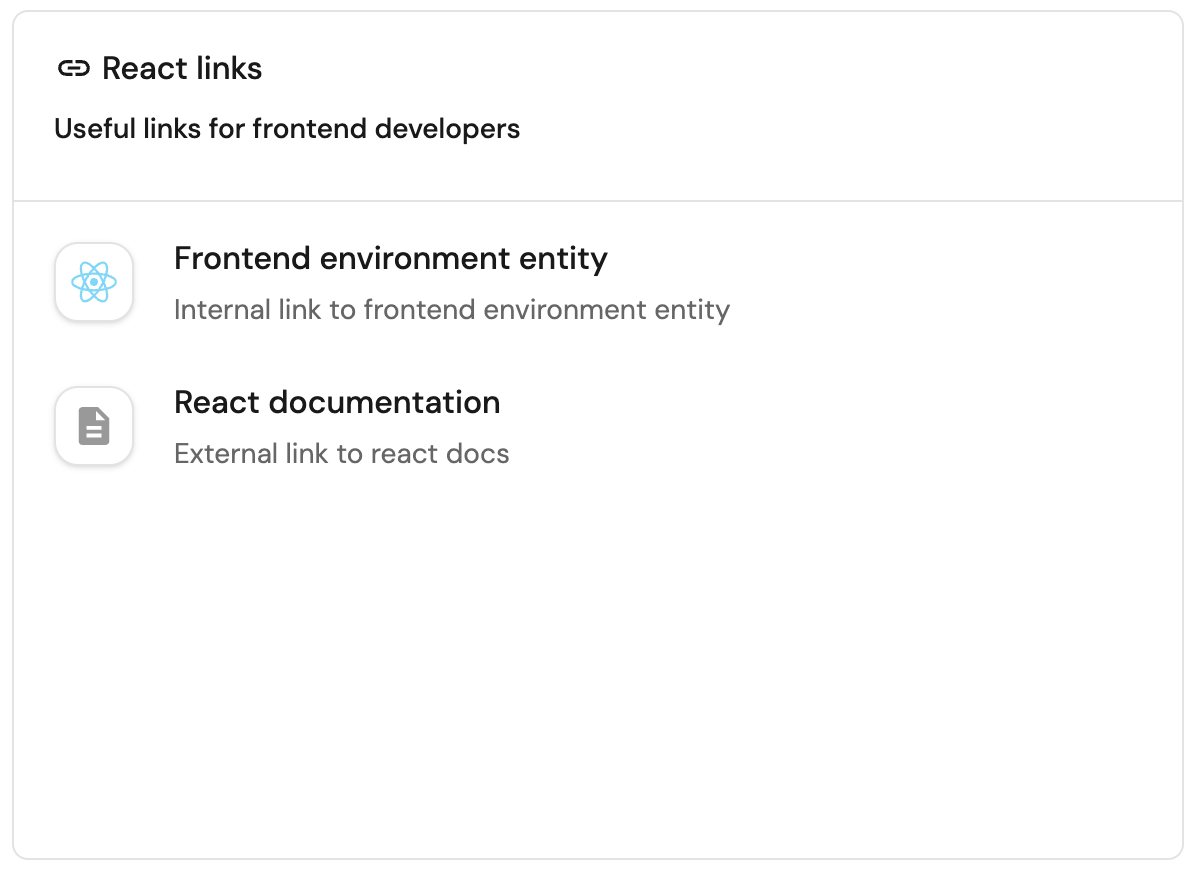
This widget allows you to display a list of links, both internal and external, for quick access to useful pages.
-
External links - links to external websites, such as documentation, 3rd party tools, etc.
These links will open in a new tab when clicked.
For example: "https://www.google.com". -
Internal links - links to internal pages in your portal, such as an entity page, a catalog page, an entity's audit log page, etc.
These links will open in the same tab when clicked.
For example: "https://app.port.io/serviceEntity?identifier=frontend". -
Dynamic links (available in specific entity page only) - links to external websites or internal pages while using the identifier of an entity.
These links will open according to the methods mentioned above.
For example: Let's take the following specific entity page/Services?identifier=myService.-
An external link:
https://slack.com/myOrganization/channel={{url.identifier}}-> translated intohttps://slack.com/myOrganization/channel=myService. -
An internal link:
https://app.port.io/PagerDutyService?identifier={{url.identifier}}-> translated intohttps://app.port.io/PagerDutyService?identifier=myService.
-
During creation/editing of the widget, you can sort the links by dragging and dropping them.
Custom widget
Custom widgets let you run your own plugin's UI directly inside Port dashboards and entity pages. A plugin is a self-contained HTML file, write it in your IDE, build it, and upload it to Port using the Port plugins CLI. Uploaded plugins are listed in the Plugins Manager. For details, see Plugins.
Only plugins uploaded to your organization are listed in the Plugins Manager and available when you create a custom widget. Upload them with the Port plugins CLI.
Why use custom widgets?
When built-in widgets aren't enough - a deployment calendar, an incident timeline, a production readiness panel - custom widgets let you bring those interfaces directly into Port, leveraging Port's hosting, authentication, secured environment, and rich context.
Widget properties
| Field | Type | Description | Default | Required |
|---|---|---|---|---|
Title | string | Custom widget title. | — | true |
Icon | string | Custom widget icon. | — | false |
Description | string | Custom widget description. | — | false |
Plugin Id | string | The plugin to display. Choose from your organization's uploaded plugins. | — | true |
Param Values | object | Key-value pairs for the plugin's custom parameters. Each parameter has a type (string, number, boolean, object, array, or blueprint) and a value. Which parameters are required is defined by the plugin's configuration. | — | false |
For blueprint type parameters, use the blueprint's identifier as the value.
UI preview
When creating or editing a custom widget, Port renders a live preview using the real widget context, so you can see how the widget will look before saving.
You can turn on the toggle in the preview section to use development mode. When enabled, it overrides the plugin URL and postMessage URL to localhost:9000 so you can develop and test your plugin locally.
Please note: In development mode, CORS prevents the plugin from sending browser requests to the API.
How Port communicates with your plugin
The widget communicates with the plugin via postMessage. Port sends context and tokens to the plugin, and the plugin can send messages to the Port host when the parent page must perform an action on its behalf.
Port token
Listen for the PORT_TOKEN event to receive an authenticated token for making Port API calls from within the widget:
Plugin data
Port sends context to the plugin via the PLUGIN_DATA event. The payload includes:
- User – the logged-in user's data.
- Page – the page identifier and any filters applied on the page (
identifier,pageFilters). - Entity – on entity pages, an object containing the current entity's data.
- Params – the parameter values configured for the widget.
- Base URL – Port's URL for Port API calls from the plugin (the React SDK exposes this as
portApiBaseUrl). - Theme – optional host theme data (including CSS variables) for styling the plugin to match Port.
How your plugin can communicate with Port
Your plugin can send the following message types to the Port host:
Request token
Send this message when the plugin initializes inside the iframe to request a Port API token from the host. The host responds with the PORT_TOKEN event.
{ "type": "REQUEST_PORT_TOKEN" }
Open URL
Send this message when the plugin needs the host to open a URL in a new tab or at the top level. Use this mechanism instead of window.open(), which Port blocks for security reasons.
{ "type": "OPEN_URL", "data": { "url": "https://example.com" } }
Open AI chat
Open the Port AI side chat with a prefilled prompt. The user sends the message manually. Requires @port-labs/plugins-sdk 0.2.0+ on the plugin and a matching Port host.
{
  "type": "OPEN_AI_CHAT",
  "data": {
    "body": "Which services are unhealthy?",
    "chatMode": "ask"
  }
}
chatMode is optional (possible values: ask, build, or plan. Defaults to ask).
Show run-action dialog
Open the Port run-action modal for a self-service action. Requires @port-labs/plugins-sdk 0.3.0+.
{
  "type": "SHOW_RUN_ACTION_DIALOG",
  "data": {
    "actionIdentifier": "my_action",
    "entityIdentifier": "entity-id",
    "initialData": { "property": "value" }
  }
}
entityIdentifier and initialData are optional. If entityIdentifier is omitted, the host uses the current page entity when available.
Show run-workflow dialog
Open the Port workflow trigger modal. Requires @port-labs/plugins-sdk 0.3.0+.
{
  "type": "SHOW_RUN_WORKFLOW_DIALOG",
  "data": {
    "workflowIdentifier": "my_workflow",
    "triggerIdentifier": "my_trigger",
    "initialData": { "inputKey": "value" }
  }
}
triggerIdentifier and initialData are optional. You can also pass a compound workflow/trigger id in workflowIdentifier (for example my_workflow/my_trigger).
Using Terraform
To add a custom widget with Terraform, include a widget object with type set to custom-widget in the widgets configuration.
See Port's Terraform provider for how to pass widget definitions on your page resource.
Example:
{
  "icon": "<YOUR_ICON>",
  "pluginId": "<YOUR_PLUGIN_ID>",
  "title": "<YOUR_WIDGET_TITLE>",
  "description": "<YOUR_DESCRIPTION>",
  "paramValues": {
    "<PARAM_NAME>": {
      "value": <PARAM_VALUE>,
      "type": "<PARAM_TYPE>"
    }
  },
  "type": "custom-widget",
  "id": "<YOUR_WIDGET_ID>"
}
pluginId, title, type, and id are required (type must be custom-widget).
Widget type identifiers (Terraform)
When creating widgets using Port's Terraform provider, you need to provide the widget type's identifier in the type key.
The following table lists the identifiers for each custom widget type:
| Widget type | Identifier |
|---|---|
| IFrame | iframe-widget |
| Action card | action-card-widget |
| Workflow card | workflow-card-widget |
| Action history | action-runs-table-widget |
| Markdown | markdown |
| AI Agent | ai-agent |
| Links | links-widget |
| Custom widget | custom-widget |