Sync notifications
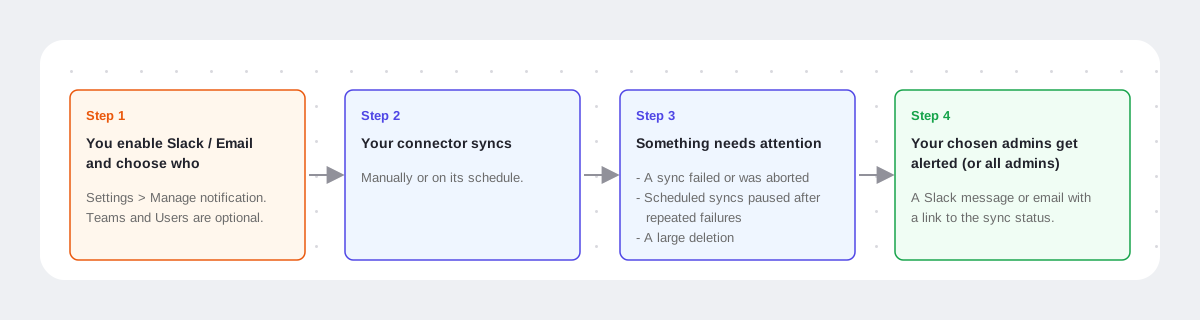
Port can send you a Slack message and/or an email when a connector has a sync problem. This allows you to get notified about failing syncs without having to check the connector's sync status.
This setting is configured per connector, and both channels are off by default.
This setting does not affect in-app notifications: your Port Inbox keeps receiving sync notifications as before, whether Slack and email notifications are on or off.
Prerequisites
- An admin role in your Port organization is required.
- To send Slack notifications, the Port Slack app must be installed in your Slack workspace. Until it is, the Slack toggle is disabled.
Enable notifications
- Go to the Connectors page of your Port app.
- Select the connector you want to configure.
- Open the Settings tab.
- In the Manage notification section, turn on Send notification via Slack, Send notification via Email, or both.
- (Optional) Under each enabled toggle, choose who is notified using the Teams and Users selects.
Port saves your changes automatically. Turn a toggle off to stop notifications on that channel.
Who gets notified
- If you leave Teams and Users empty, every admin in your organization is notified.
- If you select teams or users, only they are notified. Each channel has its own selection.
- Only admins receive notifications. Members of a selected team who are not admins are skipped.
Notification triggers
Notifications (with a link to the sync status) will be sent when:
- A sync fails or is aborted.
- Port suspends the connector's scheduled syncs after repeated failed syncs that bring in no data. A successful sync resumes them.
- A sync deletes more than half of the connector's entities.
Successful syncs do not trigger Slack or email notifications.
Notification frequency
For repeated scheduled sync failures, at most one alert a day per channel will be sent.