Migration steps
This guide is the customer checklist for migrating from Port's legacy GitHub app (Probot) to GitHub Ocean. Complete it before October 15, 2026, when Port turns on the sunset experience for leftover legacy installs.
Starting October 15, 2026, leftover legacy GitHub integrations become read-only in Port. You cannot resync them or apply mapping changes, and self-service actions or automations that still use the legacy GITHUB backend fail closed. After Port scales the legacy service down, webhooks to the old app stop delivering, so the catalog goes stale until you finish this migration.
Customer checklist
Follow these steps in order:
- Install GitHub Ocean - for hosted installs, disable Create default resources; for self-hosted, set
createPortResourcesOrigin: Empty. - Transfer entity ownership - run
port-github-migratorbefore you uninstall the old app. - Rewrite actions and automations - change
GITHUBbackends toINTEGRATION_ACTIONwith your OceaninstallationId(for exampledispatch_workflow). - Uninstall the legacy GitHub App in GitHub - Port does not uninstall it for you.
What Port does vs what you do
| Owner | Migration tasks |
|---|---|
| Port | Soft-deprecate leftover legacy integrations in Port (deprecated: true), keep them visible as read-only, and block resync / mapping writes. |
| You | Install GitHub Ocean, transfer ownership, rewrite actions/automations, and uninstall the GitHub App in GitHub. |
Port does not delete your catalog entities or uninstall the GitHub App from your organization. If you skip migration, entities stay in Port but stop receiving live updates once the legacy webhook path freezes.
Before you start
Before the detailed steps below, review the key changes page so you know how blueprints and selectors differ between the two integrations.
Only the integration that created an entity can delete it. Transfer ownership with the migrator before uninstalling the old app. If you uninstall first, entities created by the legacy integration become orphaned and you must delete them manually.
Step-by-step migration plan
This section provides the practical steps to migrate your entities and transfer ownership to the new GitHub Ocean integration.
Prerequisites
Get your installation IDs
Before migrating, you need to identify both installation IDs. Note that these are different types of values:
| Flag | Type | Example | Where to find it |
|---|---|---|---|
--old-installation-id | Numeric GitHub App installation ID | 12345678 | GitHub App installation URL |
--new-installation-id | String Port integration identifier | github-ocean-v2 | Port UI or API (see below) |
A common mistake is passing a numeric GitHub App installation ID for --new-installation-id. This will cause get-diff to return empty results (all entities appear as "not migrated") because the migrator cannot find the new integration. The --new-installation-id must be the string identifier of your Port integration, not a numeric ID.
Finding the legacy GitHub App installation ID (numeric):
-
Navigate to GitHub App installations:
- Personal installations:
https://github.com/settings/installations - Organization installations:
https://github.com/organizations/YOUR-ORG/settings/installations
- Personal installations:
-
Click on Port's GitHub App installation from the list.
-
Look at the URL in your browser address bar - it contains the installation ID at the end.
Visual guide:

The installation ID is the numeric value circled in the URL bar (e.g., 97269548 in the example above).
Finding the new GitHub Ocean integration identifier (string):
The --new-installation-id is the name you gave to the GitHub Ocean integration when you created it in Port (e.g., github-ocean, github-ocean-v2, my-github-integration).
You can find it in one of these ways:
- Port UI: Go to the connectors page and look for the integration name.
- Port API: Call the integrations endpoint and look for the
installationIdfield of your GitHub Ocean integration:curl -s https://api.port.io/v1/integration \-H "Authorization: Bearer YOUR_ACCESS_TOKEN" | jq '.integrations[] | {installationId, integrationType}'
Replace YOUR_ACCESS_TOKEN with your Port API access token.
Install the migrator tool
curl -sL https://raw.githubusercontent.com/port-labs/port-github-migrator/main/install.sh | bash
Gather your Port API credentials:
- Port API client ID.
- Port API client secret.
- Your Port instance URL.
For detailed command reference and usage examples, refer to the port-github-migrator GitHub repository. The repository contains complete documentation for all available commands.
Set up the new integration
Follow the installation guide.
For Port-hosted deployments: disable "Create default resources"
When installing the new GitHub Ocean integration via Port UI while migrating from the old GitHub app, you must disable the "Create default resources" toggle in the Advanced Configuration section. If you leave this toggle enabled, the integration will create new default blueprints and mappings that may conflict with your existing data, causing disruptions to your catalog.
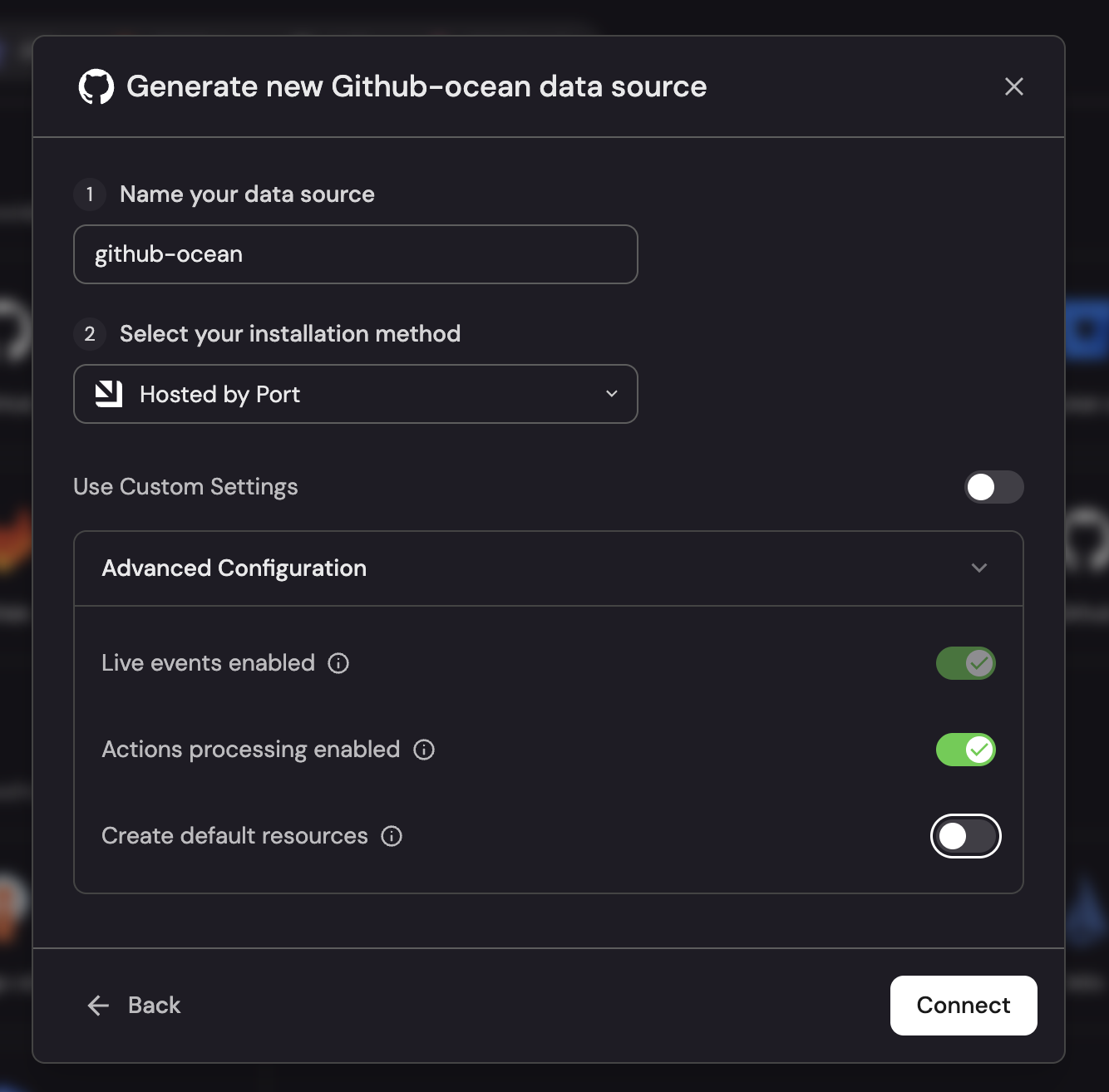
By disabling this toggle, the integration will start up with empty mapping, which ensures that the integration won't disrupt existing entities.
For self-hosted deployments: set createPortResourcesOrigin: Empty
If you are deploying GitHub Ocean as self-hosted (Docker, Kubernetes, or CI), add the following to your values file or environment configuration during the migration:
createPortResourcesOrigin: Empty
This registers only the integration without creating default blueprints or mappings that could conflict with your existing data, just like the UI toggle for hosted deployments. You should remove this setting once all blueprints are successfully migrated.
Set entityDeletionThreshold: 0 before running the migration
Before running migrate, add entityDeletionThreshold: 0 to the GitHub Ocean integration's mapping config. The migrate command will refuse to run without it, as this prevents the next resync from deleting entities you just transferred while the new integration is still pointed at a temporary blueprint. You should remove the threshold flag once all blueprints are migrated and the new integration is pointed at the original blueprints.
If you installed Ocean with Create default resources disabled (or createPortResourcesOrigin: Empty), the mapping starts empty. Port will not save a config that only sets entityDeletionThreshold: 0 with no resources.
To solve this, add entityDeletionThreshold: 0 and a resources block in the same save. The resources block should map one kind to the temporary blueprint of the first blueprint you are migrating, as shown in the example below (repository mapped to githubRepository-ocean-temp).
For how to create the temporary blueprint, see Migrate each blueprint.
deleteDependentEntities: true
createMissingRelatedEntities: true
entityDeletionThreshold: 0 # required during migration
resources:
  - kind: repository
    selector:
      query: "true"
    port:
      entity:
        mappings:
          blueprint: '"githubRepository-ocean-temp"'
          # ... rest of mapping for this kind ...
GitOps managed config
If you managed your integration mapping from a repository (using port-app-config.yml), you will need to perform an extra step during migration because the steps below require temporary mapping changes.
To successfully complete the migration:
- For each blueprint you migrate, copy only the relevant
resourcesblock(s) fromport-app-config.ymlinto the GitHub Ocean mapping in Port. - Apply the migration steps below.
- After you finish migrating all blueprints, copy the final mapping back into
port-app-config.ymland re-enable repo-managed mapping. See Managing your configuration.
Migrate each blueprint (entity ownership transfer)
This is where you transfer ownership of entities from the old app to the new one.
The migrator does not copy or move entities into a new catalog location. It only updates ownership ($datasource) on your existing blueprints.
When a command asks for a source and a target:
- Source - your real blueprint (for example
githubRepository). Ownership is transferred here. - Target - a temporary Ocean blueprint (for example
githubRepository-ocean-temp) used only for comparison. After you migrate, point Ocean back at the original blueprint and delete the temp.
There is no supported single command that safely re-owns every blueprint without this temp-blueprint flow. Work one blueprint at a time.
For each blueprint, repeat these steps:
Step 1: Create temporary blueprint
- Duplicate your existing blueprint and rename to
<blueprint>-ocean-temp(choose whatever name you want).
Step 2: Map the new integration to the temporary blueprint
resources:
  - kind: repository
    port:
      entity:
        mappings:
          blueprint: '"githubRepository-ocean-temp"' # Use temp blueprint
          # ... rest of config ...
Step 3: Compare entities
port-github-migrator get-diff githubRepository githubRepository-ocean-temp \
  --client-id <your-client-id> \
  --client-secret <your-client-secret> \
  --old-installation-id 12345678 \
  --new-installation-id github-ocean-v2 \
  --port-url https://api.port.io # use https://api.us.port.io if you are using the US region
  # --ignore-property <property-name> # optional: filter out dynamic properties from diff
Replace 12345678 with your numeric GitHub App installation ID and github-ocean-v2 with the string identifier of your Port GitHub Ocean integration.
Step 4: Adjust mappings if needed
- Review the kind mapping changes page and update your configuration if there are differences.
Step 5: Transfer ownership (critical step)
If the blueprint has fewer than about 5000 entities, use interactive migrate:
port-github-migrator migrate githubRepository \
  --client-id <your-client-id> \
  --client-secret <your-client-secret> \
  --old-installation-id <legacy-id> \
  --new-installation-id <ocean-id> \
  --port-url https://api.port.io # use https://api.us.port.io if you are using the US region
This command transfers ownership of matching legacy entities on that blueprint (up to 5000 per run). It will refuse to run if entityDeletionThreshold is not set to 0 on the new integration (see Set up the new integration).
If the blueprint has more than 5000 entities (for example large pull-request or branch sets), use --auto instead of re-running interactive migrate many times. See Auto mode.
Do not combine --all with --auto. Those flags are incompatible; --auto always needs an explicit <sourceBlueprint> <targetBlueprint> pair.
Step 6: Update mapping and clean up
- Point the new integration back to the original blueprint.
- Delete the temporary blueprint.
Step 7: Repeat for each remaining blueprint
Migration tool reference
This section documents migrator behavior that is good to know before you run it on large or unattended workloads.
Per-blueprint batch limit
migrate <blueprint> and get-diff <source> <target> operate on up to 5000 entities per blueprint per invocation. This cap exists because the underlying Port search API caps a single result set at the same number, and migrating in bounded batches keeps each run quick to retry and easy to reason about.
What this means in practice:
- If a blueprint has fewer than 5000 entities, the cap is invisible — everything migrates in one run.
- If a blueprint has more than 5000 entities,
migratereports the cap up front (Total entities affected: N / M (capped at 5000 per blueprint)) and migrates the first 5000. Re-runmigrate <blueprint>to process the next batch. Each run picks up entities still owned by the legacy app, so progress is monotonic and safe to resume. - For continuous, unattended processing of every entity in a blueprint, use
--auto(see below). It paginates past the 5000 cap and produces a single result file you can inspect afterwards.
Auto mode (unattended bulk migration)
migrate <sourceBlueprint> <targetBlueprint> --auto paginates the source blueprint in batches of 5000, diffs each batch against the target blueprint under the new installation, patches identicals in place, and dumps the leftover entities (those that need attention) to a single JSON file under your local cache directory. It is designed for large blueprints and unattended runs (CI, scheduled jobs).
--auto cannot be combined with --allmigrate --all --auto is rejected by the CLI. Auto mode always runs against one source/target blueprint pair. Use migrate --all only for smaller catalogs where the 5000-per-blueprint cap is acceptable and you accept that it re-owns without a content diff against a temp blueprint.
Key differences from interactive migrate:
- No
'type yes'confirmation prompt - auto mode is meant to run unattended. - Two positional arguments - source and target blueprints, just like
get-diff. The target is only used for diffing against the desired state; ownership is transferred on the source blueprint. - No 5000 cap - auto mode walks the search cursor until the source blueprint is exhausted.
- Result file — every run writes
<cache>/auto/<oldInstallationID>/migration-result-<uuid>.jsonand prints its path on completion. The file contains:changed— entities whose properties or relations differ between old and new, with the per-property diff so you can review what would change before re-running.notMigrated— identifiers of entities that exist on the old side but have no counterpart under the new installation yet (typically because the new integration has not synced them, or the mapping does not produce them).
- A live spinner reports the current operation per batch (
Batch N: fetching target entities…,Batch N: patching identicals…, etc.) so progress is visible in CI logs.
port-github-migrator migrate githubRepository githubRepository-ocean-temp --auto \
  --client-id <your-client-id> \
  --client-secret <your-client-secret> \
  --old-installation-id <legacy-id> \
  --new-installation-id <ocean-id> \
  --port-url https://api.port.io \
  # --ignore-property <property-name> # optional: filter out dynamic properties from diff
After the run completes, inspect the result file. Entities listed under notMigrated typically need a resync of the new integration (or a mapping fix) before they can be migrated; entities under changed warrant a manual review of the property diffs before deciding whether to re-run migrate for that blueprint.
Filtering dynamic properties with --ignore-property
Use --ignore-property with get-diff or migrate --auto to exclude specific properties from diffs. This is useful for filtering out dynamically-computed properties that differ between integrations but don't affect entity ownership transfer.
port-github-migrator get-diff githubRepository githubRepository-ocean-temp \
  --client-id <your-client-id> \
  --client-secret <your-client-secret> \
  --old-installation-id <legacy-id> \
  --new-installation-id <ocean-id> \
  --ignore-property updatedAt \
  --ignore-property syncStatus
Specify --ignore-property once per property you want to exclude.
Command flags reference
| Flag | Description | Example |
|---|---|---|
--client-id | Port API client ID | (required) |
--client-secret | Port API client secret | (required) |
--old-installation-id | Numeric GitHub App installation ID | 12345678 |
--new-installation-id | String Port integration identifier | github-ocean-v2 |
--port-url | Port API endpoint | https://api.port.io or https://api.us.port.io |
--auto | Unattended bulk migration with pagination. Requires <source> <target>. Cannot combine with --all. | migrate githubRepository githubRepository-ocean-temp --auto |
--all | Migrate every blueprint under the old install (5000 entities per blueprint per run). Cannot combine with --auto. | migrate --all |
--ignore-property | Filter out dynamic properties from diff (repeatable) | --ignore-property updatedAt |
Local state and result files
The migrator persists a small amount of state under your user cache directory (resolved via Go's os.UserCacheDir() — typically ~/Library/Caches/port-github-migrator/ on macOS, ~/.cache/port-github-migrator/ on Linux, %LocalAppData%\port-github-migrator\ on Windows):
| Path | Written by | Purpose |
|---|---|---|
blueprints/<oldInstallationID>/<blueprint>.json | get-diff and migrate | Identifier manifest with a 10-minute freshness window. migrate honors this manifest: it patches exactly the captured identifiers and removes the file on full success. |
auto/<oldInstallationID>/migration-result-<uuid>.json | migrate --auto | One file per auto-mode run with the changed and notMigrated sections described above. These files are not removed automatically; they are intended as run artifacts. |
You can safely delete anything under this directory at any time — get-diff will rebuild manifests on its next run, and migrate will fall back to a live search if no manifest is present.
Update action backend types
If you have self-service actions or automations that use the legacy GitHub App backend (type: GITHUB), you must rewrite them to the GitHub Ocean backend (type: INTEGRATION_ACTION) before uninstalling the old integration.
For each action or automation that uses GitHub workflows:
- Navigate to the action's or automation's configuration in Port.
- Update the backend from the legacy GitHub App backend to GitHub workflow via Ocean.
- Set the
installationIdfield to the name of your GitHub Ocean integration installation. - Configure the organization, repository, workflow, and integration action type (for example
dispatch_workflow) as needed.
Port does not auto-migrate GITHUB backends. Leftover legacy backends become unsupported after the October 15 cutover and fail closed when executed.
For detailed configuration instructions, see the GitHub Ocean backend documentation.
Finalize and uninstall
Only uninstall the legacy GitHub App after:
- ✅ All blueprints are migrated.
- ✅ Ownership is transferred for each blueprint (using the
migratecommand). - ✅ The new integration is syncing correctly.
- ✅ All actions and automations use the GitHub Ocean backend.
How you uninstall depends on how the legacy app was installed:
| Install type | What to uninstall |
|---|---|
SaaS Port app (getport-io or getport-io-us) | Uninstall the Port GitHub App from your GitHub installations (or your organization's installations page). |
| Custom or Enterprise GitHub App | Uninstall or delete your GitHub App under the GitHub organization settings. Do this in GitHub, not in the Port UI. |
| Self-hosted Probot | Stop and remove the legacy container or deployment, then remove the old GitHub Enterprise app. Deploy GitHub Ocean instead. |
After October 15, 2026, Port keeps soft-deprecated legacy integration rows in Data Sources as read-only. Uninstalling in GitHub is still required on your side so failed webhook deliveries stop.
Best practices
- Start with non-critical blueprints - Build confidence before migrating critical data.
- One blueprint at a time - Easier to debug if issues arise. Do not expect a single
migrate --all --autocommand to cover the catalog. - Use
get-diffbefore migrating - Verify entities match before transferring ownership. - Use
--autofor large blueprints - Prefer it when a blueprint has more than 5000 entities (for example pull requests or branches). - Keep the legacy app active until the checklist is done - Removing it early leaves orphaned entities that you can only delete manually.
- Check Port logs - Monitor for sync issues after migration.
- Finish before October 15, 2026 - After the cutover, legacy installs are read-only and legacy
GITHUBaction runs fail closed.