GitHub (Ocean)


The GitHub Ocean integration allows you to model GitHub resources in your software catalog and ingest data into them.
 OrganizationRepositoryPull RequestIssueFileFolderSkillPluginMCPUserTeamWorkflowWorkflow RunBranchEnvironmentDeploymentDeployment StatusReleaseTagDependabot AlertCode Scanning AlertSecret Scanning AlertCollaboratorPackage
Core support
If you are migrating from the old GitHub app integration, disable the "Create default resources" toggle in the Advanced Configuration section before clicking Connect.
For a self-hosted GitHub Ocean installation, set createPortResourcesOrigin: Empty in your values file. This registers only the integration without creating default blueprints or mappings.
Leaving this toggle enabled will create new default blueprints and mappings that may conflict with your existing data. See the migration guide for detailed instructions.
Prerequisites
- A GitHub account with permissions to create access tokens.
- Your Port user role is set to
Admin.
Setup
Choose your preferred authentication and installation method below. Not sure which to pick? See the installation methods overview.
The prerequisites required for installation are listed below.
Personal access token (PAT)
The token must belong to a user with access to the relevant GitHub resources (e.g., repositories, teams) across all organizations you want to sync.
The GitHub integration supports authenticating with both fine-grained and classic PATs. If you need multi-organization support (v3.0.0-beta+), use a classic PAT (fine-grained PATs do not support multi-org).
Create a PAT:
- Fine-grained PAT
- Classic PAT
Follow the steps described in GitHub's documentation and create a PAT with the following permissions: Choose the resource owner (organization/user). Under Repository access, choose All repositories or Only select repositories (and select the relevant repositories). Repository permissions: Organization permissions (when the resource owner is an organization): Account permissions (when the resource owner is a personal account):Required permissions (click to expand)
Follow the steps described in GitHub's documentation and create a PAT with the following scopes:Required scopes (click to expand)
reporepo_deploymentpublic_reposecurity_eventsworkflowread:orgadmin:repo_hook (required if you intend syncing a personal account used to create repository webhooks).admin:org_hookread:useruser:emailread:packages (required to ingest the package kind).
-
A Kubernetes cluster - the integration's container chart will be deployed to this cluster.
-
kubectlandhelmmust be installed on your machine. YourkubectlCLI must be connected to the Kubernetes cluster where you plan to install the integration.
- Port credentials — You will need your Port
CLIENT_IDandCLIENT_SECRET, available in the Credentials modal.
Personal access token (PAT)
The token must belong to a user with access to the relevant GitHub resources (e.g., repositories, teams) across all organizations you want to sync.
The GitHub integration supports authenticating with both fine-grained and classic PATs. If you need multi-organization support (v3.0.0-beta+), use a classic PAT (fine-grained PATs do not support multi-org).
Create a PAT:
- Fine-grained PAT
- Classic PAT
Follow the steps described in GitHub's documentation and create a PAT with the following permissions: Choose the resource owner (organization/user). Under Repository access, choose All repositories or Only select repositories (and select the relevant repositories). Repository permissions: Organization permissions (when the resource owner is an organization): Account permissions (when the resource owner is a personal account):Required permissions (click to expand)
Follow the steps described in GitHub's documentation and create a PAT with the following scopes:Required scopes (click to expand)
reporepo_deploymentpublic_reposecurity_eventsworkflowread:orgadmin:repo_hook (required if you intend syncing a personal account used to create repository webhooks).admin:org_hookread:useruser:emailread:packages (required to ingest the package kind).
- Port credentials — You will need your Port
CLIENT_IDandCLIENT_SECRET, available in the Credentials modal.
Personal access token (PAT)
The token must belong to a user with access to the relevant GitHub resources (e.g., repositories, teams) across all organizations you want to sync.
The GitHub integration supports authenticating with both fine-grained and classic PATs. If you need multi-organization support (v3.0.0-beta+), use a classic PAT (fine-grained PATs do not support multi-org).
Create a PAT:
- Fine-grained PAT
- Classic PAT
Follow the steps described in GitHub's documentation and create a PAT with the following permissions: Choose the resource owner (organization/user). Under Repository access, choose All repositories or Only select repositories (and select the relevant repositories). Repository permissions: Organization permissions (when the resource owner is an organization): Account permissions (when the resource owner is a personal account):Required permissions (click to expand)
Follow the steps described in GitHub's documentation and create a PAT with the following scopes:Required scopes (click to expand)
reporepo_deploymentpublic_reposecurity_eventsworkflowread:orgadmin:repo_hook (required if you intend syncing a personal account used to create repository webhooks).admin:org_hookread:useruser:emailread:packages (required to ingest the package kind).
- Port credentials — You will need your Port
CLIENT_IDandCLIENT_SECRET, available in the Credentials modal.
Personal access token (PAT)
The token must belong to a user with access to the relevant GitHub resources (e.g., repositories, teams) across all organizations you want to sync.
The GitHub integration supports authenticating with both fine-grained and classic PATs. If you need multi-organization support (v3.0.0-beta+), use a classic PAT (fine-grained PATs do not support multi-org).
Create a PAT:
- Fine-grained PAT
- Classic PAT
Follow the steps described in GitHub's documentation and create a PAT with the following permissions: Choose the resource owner (organization/user). Under Repository access, choose All repositories or Only select repositories (and select the relevant repositories). Repository permissions: Organization permissions (when the resource owner is an organization): Account permissions (when the resource owner is a personal account):Required permissions (click to expand)
Follow the steps described in GitHub's documentation and create a PAT with the following scopes:Required scopes (click to expand)
reporepo_deploymentpublic_reposecurity_eventsworkflowread:orgadmin:repo_hook (required if you intend syncing a personal account used to create repository webhooks).admin:org_hookread:useruser:emailread:packages (required to ingest the package kind).
-
A Kubernetes cluster - the integration's container chart will be deployed to this cluster.
-
kubectlandhelmmust be installed on your machine. YourkubectlCLI must be connected to the Kubernetes cluster where you plan to install the integration.
-
A GitHub account that can create and manage GitHub Apps. For multi-organization setups, an enterprise owner can transfer the app to the enterprise after it is created. Organization owners must install it in their organizations.
-
Your Port user role is set to
Admin. -
Port credentials — You will need your Port
CLIENT_IDandCLIENT_SECRET, available in the Credentials modal.
Create an enterprise-owned GitHub App
Create the GitHub App under your GitHub enterprise so it is available to install in its organizations. Enterprise-owned apps can only be installed on the enterprise or its organizations.
-
Navigate to your GitHub enterprise Settings:
- For Enterprise Managed Users, click your profile picture and select Your enterprise.
- For personal accounts, click your profile picture, select Your enterprises, then click Settings next to the enterprise.
-
In the left sidebar, under Settings, select GitHub Apps.
-
Click New GitHub App.
-
Configure the GitHub App with the following values:
-
GitHub App name: Choose a unique name for the app. Note that GitHub App names must be globally unique.
-
Homepage URL:
https://port.io. -
Callback URL: Leave this empty.
-
Setup URL: Leave this empty.
-
Leave Active unchecked under Webhooks. When you configure
OCEAN__BASE_URL, Ocean creates the required organization webhooks during deployment.
Required permissions (click to expand)
- Repository permissions:
- Actions: Read-only (if you intend to trigger GitHub Actions workflows as well, use Read and write).
- Checks: Read-only (for syncing
Port.yml). - Contents: Read-only (for reading port configuration files and repository files).
- Metadata: Read-only.
- Administration: Read-only (for syncing collaborators).
- Pull requests: Read-only.
- Code scanning alerts: Read-only.
- Dependabot alerts: Read-only.
- Deployments: Read-only.
- Environments: Read-only.
- Organization permissions:
- Members: Read-only (for syncing members and teams).
- Administration: Read-only (for syncing external identities).
- Webhooks: Read and write (to allow the integration to create webhooks).
-
-
Then select Create GitHub app.
-
Go to the Private keys section at the bottom of the app’s General settings page and generate a private key.
Base64-encode the private key by using:
- MacOS / Linux
- Windows (PowerShell)
- Online
base64 -i <path/to/downloaded/private_key.pem>[Convert]::ToBase64String([IO.File]::ReadAllBytes("path\to\downloaded\private_key.pem"))You will need the base64-encoded private key in the installation step.
Install the GitHub App in your organizations
After you create the app, install it in every organization you want to sync. Port discovers and syncs the organizations where the app is installed.
-
On the GitHub App's settings page, select Install App.
-
Select an organization in your enterprise and choose the repositories you want to sync.
-
Repeat for every organization you want to sync.
Creating an enterprise-owned app makes it available to your enterprise organizations, but GitHub still requires an installation in each organization. You can use GitHub's enterprise installation automation separately if you need to automate those installations.
The integration uses the app ID and private key to discover installations. You do not need to provide an installation ID.
Refer to the GitHub App documentation for more details.
-
A GitHub account that can create and manage GitHub Apps. For multi-organization setups, an enterprise owner can transfer the app to the enterprise after it is created. Organization owners must install it in their organizations.
-
Your Port user role is set to
Admin. -
Port credentials — You will need your Port
CLIENT_IDandCLIENT_SECRET, available in the Credentials modal.
Create an enterprise-owned GitHub App
Create the GitHub App under your GitHub enterprise so it is available to install in its organizations. Enterprise-owned apps can only be installed on the enterprise or its organizations.
-
Navigate to your GitHub enterprise Settings:
- For Enterprise Managed Users, click your profile picture and select Your enterprise.
- For personal accounts, click your profile picture, select Your enterprises, then click Settings next to the enterprise.
-
In the left sidebar, under Settings, select GitHub Apps.
-
Click New GitHub App.
-
Configure the GitHub App with the following values:
-
GitHub App name: Choose a unique name for the app. Note that GitHub App names must be globally unique.
-
Homepage URL:
https://port.io. -
Callback URL: Leave this empty.
-
Setup URL: Leave this empty.
-
Leave Active unchecked under Webhooks. When you configure
OCEAN__BASE_URL, Ocean creates the required organization webhooks during deployment.
Required permissions (click to expand)
- Repository permissions:
- Actions: Read-only (if you intend to trigger GitHub Actions workflows as well, use Read and write).
- Checks: Read-only (for syncing
Port.yml). - Contents: Read-only (for reading port configuration files and repository files).
- Metadata: Read-only.
- Administration: Read-only (for syncing collaborators).
- Pull requests: Read-only.
- Code scanning alerts: Read-only.
- Dependabot alerts: Read-only.
- Deployments: Read-only.
- Environments: Read-only.
- Organization permissions:
- Members: Read-only (for syncing members and teams).
- Administration: Read-only (for syncing external identities).
- Webhooks: Read and write (to allow the integration to create webhooks).
-
-
Then select Create GitHub app.
-
Go to the Private keys section at the bottom of the app’s General settings page and generate a private key.
Base64-encode the private key by using:
- MacOS / Linux
- Windows (PowerShell)
- Online
base64 -i <path/to/downloaded/private_key.pem>[Convert]::ToBase64String([IO.File]::ReadAllBytes("path\to\downloaded\private_key.pem"))You will need the base64-encoded private key in the installation step.
Install the GitHub App in your organizations
After you create the app, install it in every organization you want to sync. Port discovers and syncs the organizations where the app is installed.
-
On the GitHub App's settings page, select Install App.
-
Select an organization in your enterprise and choose the repositories you want to sync.
-
Repeat for every organization you want to sync.
Creating an enterprise-owned app makes it available to your enterprise organizations, but GitHub still requires an installation in each organization. You can use GitHub's enterprise installation automation separately if you need to automate those installations.
The integration uses the app ID and private key to discover installations. You do not need to provide an installation ID.
Refer to the GitHub App documentation for more details.
-
A GitHub account that can create and manage GitHub Apps. For multi-organization setups, an enterprise owner can transfer the app to the enterprise after it is created. Organization owners must install it in their organizations.
-
Your Port user role is set to
Admin. -
Port credentials — You will need your Port
CLIENT_IDandCLIENT_SECRET, available in the Credentials modal.
Create an enterprise-owned GitHub App
Create the GitHub App under your GitHub enterprise so it is available to install in its organizations. Enterprise-owned apps can only be installed on the enterprise or its organizations.
-
Navigate to your GitHub enterprise Settings:
- For Enterprise Managed Users, click your profile picture and select Your enterprise.
- For personal accounts, click your profile picture, select Your enterprises, then click Settings next to the enterprise.
-
In the left sidebar, under Settings, select GitHub Apps.
-
Click New GitHub App.
-
Configure the GitHub App with the following values:
-
GitHub App name: Choose a unique name for the app. Note that GitHub App names must be globally unique.
-
Homepage URL:
https://port.io. -
Callback URL: Leave this empty.
-
Setup URL: Leave this empty.
-
Leave Active unchecked under Webhooks. When you configure
OCEAN__BASE_URL, Ocean creates the required organization webhooks during deployment.
Required permissions (click to expand)
- Repository permissions:
- Actions: Read-only (if you intend to trigger GitHub Actions workflows as well, use Read and write).
- Checks: Read-only (for syncing
Port.yml). - Contents: Read-only (for reading port configuration files and repository files).
- Metadata: Read-only.
- Administration: Read-only (for syncing collaborators).
- Pull requests: Read-only.
- Code scanning alerts: Read-only.
- Dependabot alerts: Read-only.
- Deployments: Read-only.
- Environments: Read-only.
- Organization permissions:
- Members: Read-only (for syncing members and teams).
- Administration: Read-only (for syncing external identities).
- Webhooks: Read and write (to allow the integration to create webhooks).
-
-
Then select Create GitHub app.
-
Go to the Private keys section at the bottom of the app’s General settings page and generate a private key.
Base64-encode the private key by using:
- MacOS / Linux
- Windows (PowerShell)
- Online
base64 -i <path/to/downloaded/private_key.pem>[Convert]::ToBase64String([IO.File]::ReadAllBytes("path\to\downloaded\private_key.pem"))You will need the base64-encoded private key in the installation step.
Install the GitHub App in your organizations
After you create the app, install it in every organization you want to sync. Port discovers and syncs the organizations where the app is installed.
-
On the GitHub App's settings page, select Install App.
-
Select an organization in your enterprise and choose the repositories you want to sync.
-
Repeat for every organization you want to sync.
Creating an enterprise-owned app makes it available to your enterprise organizations, but GitHub still requires an installation in each organization. You can use GitHub's enterprise installation automation separately if you need to automate those installations.
The integration uses the app ID and private key to discover installations. You do not need to provide an installation ID.
Refer to the GitHub App documentation for more details.
- Go to the Connectors page in Port.
- Click on the
+ Connectorbutton in the top-right corner. - Click on
Githubin the list. - Under
Select your installation method, chooseHosted by Port.
Before clickingConnect, you can customizeadvanced configurationsettings as you wish (see below for details). - Click
Connectto start the setup process.
Redirect step (important)
Port redirects you to GitHub to approve the requested permissions. Complete the following steps to create and install an app in your selected organization:
- Select the GitHub organization where you want to create the app.
- Click
Install & Authorize. - Enter a name for the app, then click
Create GitHub App. - On the GitHub App installation page, click
Install.
To ingest data from multiple organizations after the initial installation:
- In GitHub, open the app's Settings page.
- Go to the Advanced tab and click Transfer ownership of this GitHub App.
- Choose the enterprise whose organizations you want to ingest.
- Open the app's Install App page and install it in each organization you want Port to sync.
Creating the app directly at the enterprise level is not supported by this flow. Enterprise ownership makes the app available to your enterprise organizations, but it does not install the app automatically. Port discovers and syncs the organizations where the app is installed.
If GitHub requires organization-owner approval, cancel the pending installation request in GitHub and ask an organization owner to install the app.
Advanced configuration
- During the installation process each integration may have additional settings under the
Advanced configurationsection in Port's UI. Additionally, each integration has one or more settings that can be configured after installation. To do so, click on the integration's name in the Connectors page and navigate to theSettingtab. Hover over the ⓘ icon next to each setting to see more details about it.
-
Go to the GithubOcean Connectors page in Port.
-
Under
Select your installation method, chooseHosted by Port. -
Toggle on
Use Custom Settingsand Configure theInstallation parametersandAdvanced configurationas you wish (see below for details).
Installation parameters
Each integration requires specific parameters (such as an API token, a URL, etc.), as seen in Port's UI when installing it. Hover over the ⓘ icon next to each parameter to see more details about it.
Advanced configuration
- During the installation process each integration may have additional settings under the
Advanced configurationsection in Port's UI. Additionally, each integration has one or more settings that can be configured after installation. To do so, click on the integration's name in the Connectors page and navigate to theSettingtab. Hover over the ⓘ icon next to each setting to see more details about it.
Port secrets
Some integration settings require sensitive pieces of data, such as tokens. For these settings, Port secrets will be used, ensuring that your sensitive data is encrypted and secure.
When filling in such a setting, its value will be obscured (shown as ••••••••).
For each such setting, Port will automatically create a secret in your organization.
To see all secrets in your organization, follow these steps.
Port source IP addresses
When using this installation method, Port will make outbound calls to your 3rd-party applications from static IP addresses. You may need to add these addresses to your allowlist, in order to allow Port to interact with the integrated service:
- Europe (EU):
54.73.167.226,63.33.143.237,54.76.185.219 - United States (US):
3.234.37.33,54.225.172.136,3.225.234.99
-
Go to the GithubOcean Connectors page in your portal.
-
Select the
Self-hostedmethod. -
A
helmcommand will be displayed, with default values already filled out (e.g. your Port client ID, client secret, etc). Copy the command, replace the placeholders with your values, then run it in your terminal to install the integration.
Scalable mode for large integrations
If you are deploying the integration at scale and want to decouple the resync process from the live events process (recommended for large or high-throughput environments), you can enable scalable mode by adding the following flags to your Helm install command:
  --set workload.kind="CronJob"  \
  --set workload.cron.resyncTimeoutMinutes=60  \
  --set scheduledResyncInterval="'*/60 * * * *'"  \
  --set liveEvents.worker.enabled=true
Required parameters:
port.clientId- Your Port client ID.port.clientSecret- Your Port client secret.port.baseUrl- Your Port API URL (https://api.port.iofor EU,https://api.us.port.iofor US).integration.identifier- A unique identifier for your integration.integration.type- The integration type.integration.eventListener.type- The event listener type.integration.config.githubOrganization- The GitHub organization to sync. Required when you use a single-organization setup, and not required when you use multi-organization support.integration.config.githubAppInstallationId- The installation id of the GitHub app.integration.secrets.githubToken- A GitHub Personal Access Token (PAT) to authenticate with GitHub.
Optional parameters (click to expand)
integration.config.githubHost- The API endpoint for your GitHub instance. For GitHub Enterprise Cloud, this will behttps://api.<SUBDOMAIN>.ghe.com. Defaults tohttps://api.github.comif not provided.integration.config.resyncRatelimitReservationThreshold- GitHub REST rate-limit utilization percentage (0–100) at which resync pauses to reserve budget for webhooks and actions. Defaults to95.scheduledResyncInterval- The number of minutes between each resync.initializePortResources- Whentrue, the integration will create default blueprints and port-app-config.yml mapping.sendRawDataExamples- Whentrue, sends raw data examples from the third-party API to Port for testing and managing the integration mapping.liveEvents.baseUrl- The base URL of the instance where the GitHub integration is hosted, used for real-time updates and GitHub workflow status callbacks (e.g.https://mygithuboceanintegration.com). This Helm value setsOCEAN__BASE_URLand is required if you want to enable live-events or actions processing with automatic workflow status reporting.actionsProcessor.enabled- When set totrue, the integration will be able to process actions and automations.identityPropagation.enabled- When set totrue, workflow integration actions can run as the triggering user. RequiresactionsProcessor.enabledandliveEvents.baseUrl. See identity propagation.integration.config.identityOauthClientId- Client ID of the GitHub OAuth app used for identity propagation. Authorize and token URLs are derived fromgithubHost.integration.secrets.identityOauthClientSecret- Client secret of the GitHub OAuth app used for identity propagation.integration.config.webhookSecret- A secret to secure webhooks from GitHub. Optional but highly recommended for security if you enable live-events.integration.config.skipWebhookPatching- When set totrue, the integration will not update existing webhook configurations on GitHub. Use this if you route webhooks through a relay or proxy service that manages its own webhook settings. Defaults tofalse.
If you're running high volumes of live events in a self-hosted deployment and want better reliability, event durability, or horizontal scalability, you can optionally set up Port's dedicated live events infrastructure. See live events at scale for details.
Recommended resource sizes
To ensure optimal performance and avoid out-of-memory (OOM) errors, we recommend the following resources for this integration:
- CPU Limit:
800m - CPU Request:
200m - Memory Limit:
2Gi - Memory Request:
2Gi
Set resource values
helm install my-integration port-labs/port-ocean \
# ... other parameters
--set resources.limits.cpu=800m \
--set resources.limits.memory=2Gi \
--set resources.requests.cpu=200m \
--set resources.requests.memory=2Gi
The integration can be deployed on any platform that allows deploying images as containers such as: K8S, ECS, AWS App Runner, etc.
Pull the Docker image by running:
docker pull ghcr.io/port-labs/port-ocean-github-ocean:latest
Run the following command to start the app:
Make sure to replace the placeholder values with your actual values before running the command.
docker run \
-e OCEAN__PORT__CLIENT_ID="<PORT_CLIENT_ID>" \
-e OCEAN__PORT__CLIENT_SECRET="<PORT_CLIENT_SECRET>" \
-e OCEAN__PORT__BASE_URL="https://api.port.io" \
-e OCEAN__BASE_URL="<https.example.com>" \ #optional, only required if you want to enable live-events or actions processing
-e OCEAN__ACTIONS_PROCESSOR__ENABLED=true \ #optional, only required if you want to enable actions processing
-e OCEAN__EVENT_LISTENER__TYPE="POLLING" \
-e OCEAN__INTEGRATION__CONFIG__GITHUB_HOST="<GITHUB_HOST>" \ # e.g https://api.github.com
-e OCEAN__INTEGRATION__CONFIG__GITHUB_ORGANIZATION="<GITHUB_ORGANIZATION>" \
-e OCEAN__INTEGRATION__IDENTIFIER="github-ocean" \
-e OCEAN__INTEGRATION__CONFIG__GITHUB_TOKEN="<GITHUB_TOKEN>" \
-p 8000:8000 \
ghcr.io/port-labs/port-ocean-github-ocean:latest
Required parameters:
OCEAN__PORT__CLIENT_ID- Port client id for interacting with the API.OCEAN__PORT__CLIENT_SECRET- Port client secret for interacting with the API.OCEAN__PORT__BASE_URL- Port API URL (https://api.port.iofor EU,https://api.us.port.iofor US).OCEAN__EVENT_LISTENER__TYPE- The event listener type. For more details, see the Port Event Listener documentation.OCEAN__INTEGRATION__IDENTIFIER- A unique identifier for the integration instance. Useful if you are running multiple self-hosted GitHub integrations. Defaults togithub-ocean.OCEAN__INTEGRATION__CONFIG__GITHUB_TOKEN- GitHub PAT.OCEAN__INTEGRATION__CONFIG__GITHUB_APP_INSTALLATION_ID- The installation id of the GitHub app.
Optional parameters (click to expand)
OCEAN__BASE_URL- The base URL of the instance where the GitHub integration is hosted, used for real-time updates (e.g.https://mygithuboceanintegration.com).OCEAN__ACTIONS_PROCESSOR__ENABLED- When set to true, the integration will be able to process actions and automations.OCEAN__INTEGRATION__CONFIG__WEBHOOK_SECRET- A secret to secure webhooks from GitHub. Optional but highly recommended for security if you enable live-events.OCEAN__INTEGRATION__CONFIG__GITHUB_HOST- The API endpoint for your GitHub instance. For GitHub Enterprise, this will behttps://api.<SUBDOMAIN>.ghe.com. Defaults tohttps://api.github.comif not provided.OCEAN__INTEGRATION__CONFIG__GITHUB_ORGANIZATION- Single GitHub organization name to sync data from a single organization. Required for single-org authentication.
Recommended resource sizes
To ensure optimal performance and avoid out-of-memory (OOM) errors, we recommend the following resources for this integration:
- CPU Limit:
800m - CPU Request:
200m - Memory Limit:
2Gi - Memory Request:
2Gi
Set resource values
helm install my-integration port-labs/port-ocean \
# ... other parameters
--set resources.limits.cpu=800m \
--set resources.limits.memory=2Gi \
--set resources.requests.cpu=200m \
--set resources.requests.memory=2Gi
- GitHub
- Jenkins
- Azure DevOps
- GitLab
- Go to the GithubOcean Connectors page in your portal.
- Under Select your installation method, choose your desired CI/CD platform.
- Copy the workflow and replace the placeholders with your values.
Below are the available parameters and their descriptions.
| Parameter | Description | Required? | Secret?Store this value as a GitHub Actions secret |
|---|---|---|---|
port_client_id | Your Port client ID (How to get the credentials). | ✓ | ✓ |
port_client_secret | Your Port client secret (How to get the credentials). | ✓ | ✓ |
port_base_url | Your Port API URL (https://api.port.io for EU, https://api.us.port.io for US). | ✓ | ✗ |
github_token | A GitHub Personal Access Token (PAT) to authenticate with GitHub. Use a classic PAT for multi-organization support (v3.0.0-beta+) | ✓ | ✓ |
github_host | The API endpoint for your GitHub instance. For GitHub Enterprise Cloud, this will be https://api.SUBDOMAIN.ghe.com. Defaults to https://api.github.com if not provided | ✗ | ✗ |
github_organization | The GitHub organization to sync. Required for single-organization setups, and not required for multi-organization support | ✗ | ✗ |
initialize_port_resources | Default true. When set to true, the integration will create default blueprints and the Port app config mapping. | ✗ | ✗ |
integration_identifier | The identifier of the integration that will be installed. | ✗ | ✗ |
send_raw_data_examples | Enable sending raw data examples from the third-party API to Port for testing and managing the integration mapping. Default is true. | ✗ | ✗ |
Your Jenkins agent must be able to run Docker commands.
Below are the available parameters and their descriptions.
| Parameter | Description | Required? | Secret?Store this value as a Jenkins credential (Secret Text) |
|---|---|---|---|
OCEAN__ | Your Port client ID (How to get the credentials). | ✓ | ✓ |
OCEAN__ | Your Port client secret (How to get the credentials). | ✓ | ✓ |
OCEAN__ | Your Port API URL (https://api.port.io for EU, https://api.us.port.io for US). | ✓ | ✗ |
OCEAN__ | A GitHub Personal Access Token (PAT) to authenticate with GitHub. Use a classic PAT for multi-organization support (v3.0.0-beta+) | ✓ | ✓ |
OCEAN__ | The API endpoint for your GitHub instance. For GitHub Enterprise Cloud, this will be https://api.SUBDOMAIN.ghe.com. Defaults to https://api.github.com if not provided | ✗ | ✗ |
OCEAN__ | The GitHub organization to sync. Required for single-organization setups, and not required for multi-organization support | ✗ | ✗ |
OCEAN__ | Default true. When set to true, the integration will create default blueprints and the Port app config mapping. | ✗ | ✗ |
OCEAN__ | The identifier of the integration that will be installed. | ✗ | ✗ |
OCEAN__ | Enable sending raw data examples from the third-party API to Port for testing and managing the integration mapping. Default is true. | ✗ | ✗ |
Here is an example for a Jenkinsfile pipeline file:Jenkins pipeline (click to expand)
Prerequisites
- Your Azure Devops agent should be able to run docker commands. Learn more about agents here.
- You must have permissions to create and manage Azure DevOps variable groups for storing credentials.
Set up your credentials
- Create a Variable Group: Name it port-ocean-credentials.
- Store the required variables (see the table below).
- Authorize Your Pipeline:
-
Go to "Library" -> "Variable groups."
-
Find port-ocean-credentials and click on it.
-
Select "Pipeline Permissions" and add your pipeline to the authorized list.
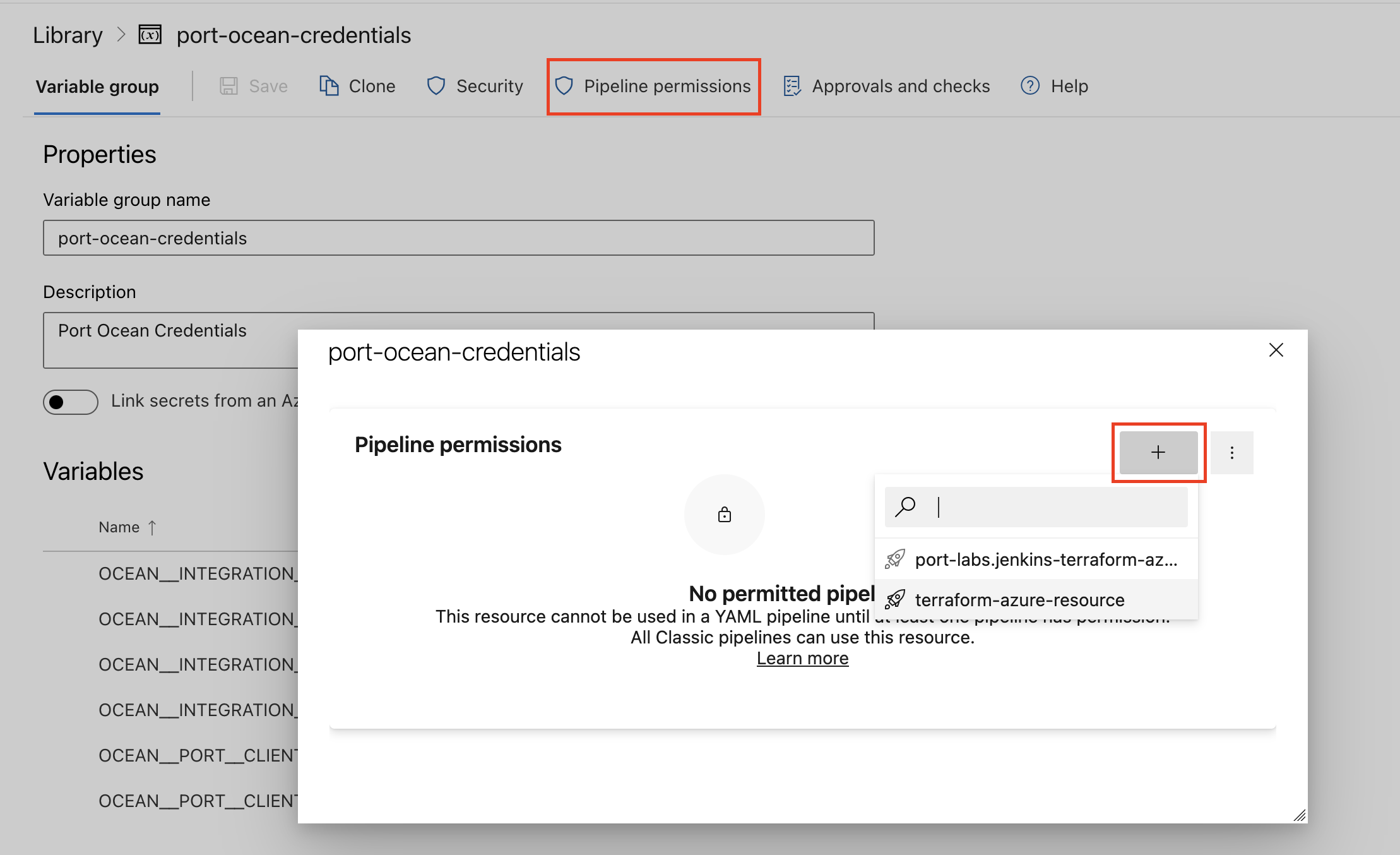
-
Below are the available parameters and their descriptions.
| Parameter | Description | Required? | Secret?Store this value as an Azure DevOps pipeline variable |
|---|---|---|---|
OCEAN__ | Your Port client ID (How to get the credentials). | ✓ | ✓ |
OCEAN__ | Your Port client secret (How to get the credentials). | ✓ | ✓ |
OCEAN__ | Your Port API URL (https://api.port.io for EU, https://api.us.port.io for US). | ✓ | ✗ |
OCEAN__ | A GitHub Personal Access Token (PAT) to authenticate with GitHub. Use a classic PAT for multi-organization support (v3.0.0-beta+) | ✓ | ✓ |
OCEAN__ | The API endpoint for your GitHub instance. For GitHub Enterprise Cloud, this will be https://api.SUBDOMAIN.ghe.com. Defaults to https://api.github.com if not provided | ✗ | ✗ |
OCEAN__ | The GitHub organization to sync. Required for single-organization setups, and not required for multi-organization support | ✗ | ✗ |
OCEAN__ | Default true. When set to true, the integration will create default blueprints and the Port app config mapping. | ✗ | ✗ |
OCEAN__ | The identifier of the integration that will be installed. | ✗ | ✗ |
OCEAN__ | Enable sending raw data examples from the third-party API to Port for testing and managing the integration mapping. Default is true. | ✗ | ✗ |
Here is an example for a azure-pipeline.yml pipeline file:Azure pipeline (click to expand)
- Go to the GithubOcean Connectors page in your portal.
- Under Select your installation method, choose your desired CI/CD platform.
- Copy the workflow and replace the placeholders with your values.
Below are the available parameters and their descriptions.
| Parameter | Description | Required? | Secret?Store this value as a GitLab CI/CD variable |
|---|---|---|---|
OCEAN__ | Your Port client ID (How to get the credentials). | ✓ | ✓ |
OCEAN__ | Your Port client secret (How to get the credentials). | ✓ | ✓ |
OCEAN__ | Your Port API URL (https://api.port.io for EU, https://api.us.port.io for US). | ✓ | ✗ |
OCEAN__ | A GitHub Personal Access Token (PAT) to authenticate with GitHub. Use a classic PAT for multi-organization support (v3.0.0-beta+) | ✓ | ✓ |
OCEAN__ | The API endpoint for your GitHub instance. For GitHub Enterprise Cloud, this will be https://api.SUBDOMAIN.ghe.com. Defaults to https://api.github.com if not provided | ✗ | ✗ |
OCEAN__ | The GitHub organization to sync. Required for single-organization setups, and not required for multi-organization support | ✗ | ✗ |
OCEAN__ | Default true. When set to true, the integration will create default blueprints and the Port app config mapping. | ✗ | ✗ |
OCEAN__ | The identifier of the integration that will be installed. | ✗ | ✗ |
OCEAN__ | Enable sending raw data examples from the third-party API to Port for testing and managing the integration mapping. Default is true. | ✗ | ✗ |
-
Go to the GithubOcean Connectors page in your portal.
-
Select the
Self-hostedmethod. -
A
helmcommand will be displayed, with default values already filled out (e.g. your Port client ID, client secret, etc). Copy the command, replace the placeholders with your values, then run it in your terminal to install the integration.
Scalable mode for large integrations
If you are deploying the integration at scale and want to decouple the resync process from the live events process (recommended for large or high-throughput environments), you can enable scalable mode by adding the following flags to your Helm install command:
  --set workload.kind="CronJob"  \
  --set workload.cron.resyncTimeoutMinutes=60  \
  --set scheduledResyncInterval="'*/60 * * * *'"  \
  --set liveEvents.worker.enabled=true
Required parameters:
port.clientId- Your Port client ID.port.clientSecret- Your Port client secret.port.baseUrl- Your Port API URL (https://api.port.iofor EU,https://api.us.port.iofor US).integration.identifier- A unique identifier for your integration.integration.type- The integration type.integration.eventListener.type- The event listener type.integration.config.githubAppId- The app id or client id of your Custom GitHub App.integration.secrets.githubAppPrivateKey- The base64 encoded private key of your Custom GitHub App.
Optional parameters (click to expand)
integration.config.githubOrganization- Optional GitHub organization to sync. Omit it to discover and sync every organization where the app is installed.integration.config.githubHost- The API endpoint for your GitHub instance. For GitHub Enterprise Cloud, this will behttps://api.<SUBDOMAIN>.ghe.com. Defaults tohttps://api.github.comif not provided.scheduledResyncInterval- The number of minutes between each resync.initializePortResources- Whentrue, the integration will create default blueprints and port-app-config.yml mapping.sendRawDataExamples- Whentrue, sends raw data examples from the third-party API to Port for testing and managing the integration mapping.liveEvents.baseUrl- The base URL of the instance where the GitHub integration is hosted, used for real-time updates and GitHub workflow status callbacks (e.g.https://mygithuboceanintegration.com). This Helm value setsOCEAN__BASE_URLand is required if you want to enable live-events or actions processing with automatic workflow status reporting.actionsProcessor.enabled- When set totrue, the integration will be able to process actions and automations.identityPropagation.enabled- When set totrue, workflow integration actions can run as the triggering user. RequiresactionsProcessor.enabledandliveEvents.baseUrl. See identity propagation.integration.config.identityOauthClientId- Client ID of the GitHub OAuth app used for identity propagation. Authorize and token URLs are derived fromgithubHost.integration.secrets.identityOauthClientSecret- Client secret of the GitHub OAuth app used for identity propagation.integration.config.webhookSecret- A secret to secure webhooks from GitHub. Optional but highly recommended for security if you enable live-events.integration.config.skipWebhookPatching- When set totrue, the integration will not update existing webhook configurations on GitHub. Use this if you route webhooks through a relay or proxy service that manages its own webhook settings. Defaults tofalse.
If you're running high volumes of live events in a self-hosted deployment and want better reliability, event durability, or horizontal scalability, you can optionally set up Port's dedicated live events infrastructure. See live events at scale for details.
Recommended resource sizes
To ensure optimal performance and avoid out-of-memory (OOM) errors, we recommend the following resources for this integration:
- CPU Limit:
800m - CPU Request:
200m - Memory Limit:
2Gi - Memory Request:
2Gi
Set resource values
helm install my-integration port-labs/port-ocean \
# ... other parameters
--set resources.limits.cpu=800m \
--set resources.limits.memory=2Gi \
--set resources.requests.cpu=200m \
--set resources.requests.memory=2Gi
The integration can be deployed on any platform that allows deploying images as containers such as: K8S, ECS, AWS App Runner, etc.
Pull the Docker image by running:
docker pull ghcr.io/port-labs/port-ocean-github-ocean:latest
Run the following command to start the app:
Make sure to replace the placeholder values with your actual values before running the command.
docker run \
-e OCEAN__PORT__CLIENT_ID="<PORT_CLIENT_ID>" \
-e OCEAN__PORT__CLIENT_SECRET="<PORT_CLIENT_SECRET>" \
-e OCEAN__PORT__BASE_URL="https://api.port.io" \
-e OCEAN__BASE_URL="<https.example.com>" \ #optional, only required if you want to enable live-events or actions processing
-e OCEAN__ACTIONS_PROCESSOR__ENABLED=true \ #optional, only required if you want to enable actions processing
-e OCEAN__EVENT_LISTENER__TYPE="POLLING" \
-e OCEAN__INTEGRATION__CONFIG__GITHUB_HOST="<GITHUB_HOST>" \ # e.g https://api.github.com
-e OCEAN__INTEGRATION__IDENTIFIER="github-ocean" \
-e OCEAN__INTEGRATION__CONFIG__GITHUB_APP_ID="<GITHUB_APP_ID>" \ # client id also works
-e OCEAN__INTEGRATION__CONFIG__GITHUB_APP_PRIVATE_KEY="<BASE_64_ENCODED_PRIVATEKEY>" \
-p 8000:8000 \
ghcr.io/port-labs/port-ocean-github-ocean:latest
Required parameters:
OCEAN__PORT__CLIENT_ID- Port client id for interacting with the API.OCEAN__PORT__CLIENT_SECRET- Port client secret for interacting with the API.OCEAN__PORT__BASE_URL- Port API URL (https://api.port.iofor EU,https://api.us.port.iofor US).OCEAN__EVENT_LISTENER__TYPE- The event listener type. For more details, see the Port Event Listener documentation.OCEAN__INTEGRATION__IDENTIFIER- A unique identifier for the integration instance. Useful if you are running multiple self-hosted GitHub integrations. Defaults togithub-ocean.OCEAN__INTEGRATION__CONFIG__GITHUB_APP_ID- App id or client id. You can find it in the edit GitHub app page.OCEAN__INTEGRATION__CONFIG__GITHUB_APP_PRIVATE_KEY- A base64 encoded GitHub app private key.
Optional parameters (click to expand)
OCEAN__BASE_URL- The base URL of the instance where the GitHub integration is hosted, used for real-time updates (e.g.https://mygithuboceanintegration.com).OCEAN__ACTIONS_PROCESSOR__ENABLED- When set to true, the integration will be able to process actions and automations.OCEAN__INTEGRATION__CONFIG__WEBHOOK_SECRET- A secret to secure webhooks from GitHub. Optional but highly recommended for security if you enable live-events.OCEAN__INTEGRATION__CONFIG__GITHUB_HOST- The API endpoint for your GitHub instance. For GitHub Enterprise, this will behttps://api.<SUBDOMAIN>.ghe.com. Defaults tohttps://api.github.comif not provided.OCEAN__INTEGRATION__CONFIG__GITHUB_ORGANIZATION- Optional GitHub organization to sync. Omit it to discover and sync every organization where the app is installed.
Recommended resource sizes
To ensure optimal performance and avoid out-of-memory (OOM) errors, we recommend the following resources for this integration:
- CPU Limit:
800m - CPU Request:
200m - Memory Limit:
2Gi - Memory Request:
2Gi
Set resource values
helm install my-integration port-labs/port-ocean \
# ... other parameters
--set resources.limits.cpu=800m \
--set resources.limits.memory=2Gi \
--set resources.requests.cpu=200m \
--set resources.requests.memory=2Gi
- GitHub
- Jenkins
- Azure DevOps
- GitLab
- Go to the GithubOcean Connectors page in your portal.
- Under Select your installation method, choose your desired CI/CD platform.
- Copy the workflow and replace the placeholders with your values.
Below are the available parameters and their descriptions.
| Parameter | Description | Required? | Secret?Store this value as a GitHub Actions secret |
|---|---|---|---|
port_client_id | Your Port client ID (How to get the credentials). | ✓ | ✓ |
port_client_secret | Your Port client secret (How to get the credentials). | ✓ | ✓ |
port_base_url | Your Port API URL (https://api.port.io for EU, https://api.us.port.io for US). | ✓ | ✗ |
github_app_id | The app id or client id of your Custom GitHub App | ✓ | ✓ |
github_app_private_key | The base64 encoded private key of your Custom GitHub App | ✓ | ✓ |
github_organization | Optional GitHub organization to sync. Omit it to sync every organization where the app is installed | ✗ | ✗ |
github_host | The API endpoint for your GitHub instance. For GitHub Enterprise Cloud, this will be https://api.SUBDOMAIN.ghe.com. Defaults to https://api.github.com if not provided | ✗ | ✗ |
initialize_port_resources | Default true. When set to true, the integration will create default blueprints and the Port app config mapping. | ✗ | ✗ |
integration_identifier | The identifier of the integration that will be installed. | ✗ | ✗ |
send_raw_data_examples | Enable sending raw data examples from the third-party API to Port for testing and managing the integration mapping. Default is true. | ✗ | ✗ |
Your Jenkins agent must be able to run Docker commands.
Below are the available parameters and their descriptions.
| Parameter | Description | Required? | Secret?Store this value as a Jenkins credential (Secret Text) |
|---|---|---|---|
OCEAN__ | Your Port client ID (How to get the credentials). | ✓ | ✓ |
OCEAN__ | Your Port client secret (How to get the credentials). | ✓ | ✓ |
OCEAN__ | Your Port API URL (https://api.port.io for EU, https://api.us.port.io for US). | ✓ | ✗ |
OCEAN__ | The app id or client id of your Custom GitHub App | ✓ | ✓ |
OCEAN__ | The base64 encoded private key of your Custom GitHub App | ✓ | ✓ |
OCEAN__ | Optional GitHub organization to sync. Omit it to sync every organization where the app is installed | ✗ | ✗ |
OCEAN__ | The API endpoint for your GitHub instance. For GitHub Enterprise Cloud, this will be https://api.SUBDOMAIN.ghe.com. Defaults to https://api.github.com if not provided | ✗ | ✗ |
OCEAN__ | Default true. When set to true, the integration will create default blueprints and the Port app config mapping. | ✗ | ✗ |
OCEAN__ | The identifier of the integration that will be installed. | ✗ | ✗ |
OCEAN__ | Enable sending raw data examples from the third-party API to Port for testing and managing the integration mapping. Default is true. | ✗ | ✗ |
Here is an example for a Jenkinsfile pipeline file:Jenkins pipeline (click to expand)
Prerequisites
- Your Azure Devops agent should be able to run docker commands. Learn more about agents here.
- You must have permissions to create and manage Azure DevOps variable groups for storing credentials.
Set up your credentials
- Create a Variable Group: Name it port-ocean-credentials.
- Store the required variables (see the table below).
- Authorize Your Pipeline:
-
Go to "Library" -> "Variable groups."
-
Find port-ocean-credentials and click on it.
-
Select "Pipeline Permissions" and add your pipeline to the authorized list.
-
Below are the available parameters and their descriptions.
| Parameter | Description | Required? | Secret?Store this value as an Azure DevOps pipeline variable |
|---|---|---|---|
OCEAN__ | Your Port client ID (How to get the credentials). | ✓ | ✓ |
OCEAN__ | Your Port client secret (How to get the credentials). | ✓ | ✓ |
OCEAN__ | Your Port API URL (https://api.port.io for EU, https://api.us.port.io for US). | ✓ | ✗ |
OCEAN__ | The app id or client id of your Custom GitHub App | ✓ | ✓ |
OCEAN__ | The base64 encoded private key of your Custom GitHub App | ✓ | ✓ |
OCEAN__ | Optional GitHub organization to sync. Omit it to sync every organization where the app is installed | ✗ | ✗ |
OCEAN__ | The API endpoint for your GitHub instance. For GitHub Enterprise Cloud, this will be https://api.SUBDOMAIN.ghe.com. Defaults to https://api.github.com if not provided | ✗ | ✗ |
OCEAN__ | Default true. When set to true, the integration will create default blueprints and the Port app config mapping. | ✗ | ✗ |
OCEAN__ | The identifier of the integration that will be installed. | ✗ | ✗ |
OCEAN__ | Enable sending raw data examples from the third-party API to Port for testing and managing the integration mapping. Default is true. | ✗ | ✗ |
Here is an example for a azure-pipeline.yml pipeline file:Azure pipeline (click to expand)
- Go to the GithubOcean Connectors page in your portal.
- Under Select your installation method, choose your desired CI/CD platform.
- Copy the workflow and replace the placeholders with your values.
Below are the available parameters and their descriptions.
| Parameter | Description | Required? | Secret?Store this value as a GitLab CI/CD variable |
|---|---|---|---|
OCEAN__ | Your Port client ID (How to get the credentials). | ✓ | ✓ |
OCEAN__ | Your Port client secret (How to get the credentials). | ✓ | ✓ |
OCEAN__ | Your Port API URL (https://api.port.io for EU, https://api.us.port.io for US). | ✓ | ✗ |
OCEAN__ | The app id or client id of your Custom GitHub App | ✓ | ✓ |
OCEAN__ | The base64 encoded private key of your Custom GitHub App | ✓ | ✓ |
OCEAN__ | Optional GitHub organization to sync. Omit it to sync every organization where the app is installed | ✗ | ✗ |
OCEAN__ | The API endpoint for your GitHub instance. For GitHub Enterprise Cloud, this will be https://api.SUBDOMAIN.ghe.com. Defaults to https://api.github.com if not provided | ✗ | ✗ |
OCEAN__ | Default true. When set to true, the integration will create default blueprints and the Port app config mapping. | ✗ | ✗ |
OCEAN__ | The identifier of the integration that will be installed. | ✗ | ✗ |
OCEAN__ | Enable sending raw data examples from the third-party API to Port for testing and managing the integration mapping. Default is true. | ✗ | ✗ |
Configuration
Port integrations use a YAML mapping block to ingest data from the third-party API into Port.
The mapping makes use of the JQ JSON processor to transform data.
Managing your configuration
You can manage your GitHub Ocean configuration in two ways:
-
Port UI: Go to the connectors page, click on the installed GitHub Ocean integration, and modify the YAML configuration directly. This applies the configuration globally to all organizations and repositories the integration can access.
-
GitHub file: Set
repoManagedMapping: truein the integration configuration YAML to load the mapping from aport-app-config.ymlfile in your GitHub organization. Create this file in the.github-privaterepository on the default branch for it to take effect as an org-level mapping.GitHub file configuration limitations- Only org-level configuration is supported — repository-level
port-app-config.ymlfiles are not yet supported for GitHub Ocean. - Multi-organization setups are not supported when using GitHub file configuration.
- Only org-level configuration is supported — repository-level
Repository type
The repositoryType parameter filters which repositories are ingested. It corresponds to the type parameter in GitHub's List organization repositories API.
Possible values (click to expand)
all(default): All repositories accessible to the provided token.public: Public repositories only.private: Private repositories only.forks: Forked repositories only.sources: Non-forked repositories only.
Multi-organization support
The GitHub integration supports syncing data from multiple GitHub organizations with a classic PAT (v3.0.0-beta+) or GitHub App authentication (v6.5.0+).
- GitHub App setup: The integration discovers and syncs every organization where the GitHub App is installed. Set
githubOrganizationonly when you want to limit the sync to one organization. - Enterprise-owned apps: Create or transfer the GitHub App to your enterprise so it is available to install in all of its organizations. You must still install the app in each organization you want to sync.
- Classic PAT setup: Set
organizations: ["org1", "org2", "org3"]in your mapping to choose organizations. Iforganizationsis not specified, the integration syncs all organizations the classic PAT can access.
Multi-organization mapping example (click to expand)
deleteDependentEntities: true
createMissingRelatedEntities: true
enableMergeEntity: true
organizations:
  - org1
  - org2
# ... rest of your mapping (repositoryType, resources, etc.) ...
Precedence:
If githubOrganization is set in the environment variables or config and organizations are also listed in the Port mapping, the integration prioritizes single-organization behavior and syncs only the githubOrganization.
Performance considerations:
Syncing multiple organizations increases the number of API calls to GitHub and may slow down the integration. The more organizations you sync, the longer the resync time and the higher the API rate limit consumption.
Advanced configuration
The following top-level mapping options apply integration-wide, across all configured resources, organizations, and repositories, during both resyncs and live events.
| Option | Default | When true | When false |
|---|---|---|---|
enableMergeEntity | true | Creates new entities or merges mapped fields into existing entities, preserving fields that the mapping does not provide. | Creates new entities or fully overwrites existing entities with the mapped fields, removing existing values for fields that the mapping does not provide. |
deleteDependentEntities | true | When deleting an entity, also deletes dependent entities that reference it through a required relation. | Does not delete dependent entities automatically. If a required relation prevents deletion, the delete request fails. |
createMissingRelatedEntities | true | Automatically creates minimal related entities when the mapping references entities that do not exist in Port. | Does not create missing related entities. Referenced entities must already exist for the relation to resolve. |
Use enableMergeEntity: true when other integrations or users also populate fields on the same entities. Set it to false when your GitHub mapping should define the full entity state. For details, see the create/update and create/override strategies.
Setting deleteDependentEntities: false does not disable standard resync cleanup of stale entities. It only controls cascading deletion through required relations.
You can set all three options in the mapping YAML. The mapping form hides enableMergeEntity, so use the YAML editor to configure it:
-
Go to the connectors page in Port.
-
Select your GitHub (Ocean) integration.
-
In the YAML editor, add or update these keys at the root level, alongside
resources. Keep your existing resource mappings. This example explicitly sets the default values:enableMergeEntity: truedeleteDependentEntities: truecreateMissingRelatedEntities: true -
Click Save & Resync to apply the mapping.
Default mapping configuration
This is the complete default mapping for the GitHub Ocean integration.
Complete default mapping (click to expand)
repositoryType: "all"
deleteDependentEntities: true
createMissingRelatedEntities: true
resources:
  - kind: organization
    selector:
      query: "true"
    port:
      entity:
        mappings:
          identifier: .login
          title: .login
          blueprint: '"githubOrganization"'
          properties:
            login: .login
            id: .id
            nodeId: .node_id
            url: .url
            reposUrl: .repos_url
            eventsUrl: .events_url
            hooksUrl: .hooks_url
            issuesUrl: .issues_url
            membersUrl: .members_url
            publicMembersUrl: .public_members_url
            avatarUrl: .avatar_url
            description: if .description then .description else "" end
  - kind: repository
    selector:
      query: "true"
      includedFiles:
        - README.md
    port:
      entity:
        mappings:
          identifier: .name
          title: .name
          blueprint: '"githubRepository"'
          properties:
            description: if .description then .description else "" end
            visibility: if .private then "private" else "public" end
            defaultBranch: .default_branch
            readme: .__includedFiles["README.md"]
            url: .html_url
            language: if .language then .language else "" end
          relations:
            organization: .owner.login
  - kind: pull-request
    selector:
      query: "true"
      states: ["open"]
    port:
      entity:
        mappings:
          identifier: ".head.repo.name + (.id|tostring)"
          title: ".title"
          blueprint: '"githubPullRequest"'
          properties:
            creator: ".user.login"
            assignees: "[.assignees[].login]"
            reviewers: "[.requested_reviewers[].login]"
            status: ".state"
            closedAt: ".closed_at"
            updatedAt: ".updated_at"
            mergedAt: ".merged_at"
            createdAt: ".created_at"
            prNumber: ".id"
            link: ".html_url"
            leadTimeHours: >-
              (.created_at as $createdAt | .merged_at as $mergedAt |
              ($createdAt | sub("\\..*Z$"; "Z") | strptime("%Y-%m-%dT%H:%M:%SZ") | mktime) as $createdTimestamp |
              ($mergedAt | if . == null then null else sub("\\..*Z$"; "Z") |
              strptime("%Y-%m-%dT%H:%M:%SZ") | mktime end) as $mergedTimestamp |
              if $mergedTimestamp == null then null else
              (((($mergedTimestamp - $createdTimestamp) / 3600) * 100 | floor) / 100) end)
          relations:
            repository: .__repository
Mapping & selectors per resource
For blueprint and mapping examples per resource type, see the examples page.
{
  "identifier": "githubOrganization",
  "description": "This blueprint represents a service in our software catalog",
  "title": "Organization",
  "icon": "Github",
  "schema": {
    "properties": {
      "login": {
        "type": "string",
        "title": "Organization Login",
        "description": "The GitHub organization login name"
      },
      "id": {
        "type": "number",
        "title": "Organization ID",
        "description": "GitHub organization ID"
      },
      "nodeId": {
        "type": "string",
        "title": "Node ID",
        "description": "GitHub GraphQL node ID"
      },
      "url": {
        "type": "string",
        "title": "API URL",
        "description": "GitHub API URL for the organization"
      },
      "reposUrl": {
        "type": "string",
        "title": "Repositories URL",
        "description": "URL to organization's repositories"
      },
      "eventsUrl": {
        "type": "string",
        "title": "Events URL",
        "description": "URL to organization's events"
      },
      "hooksUrl": {
        "type": "string",
        "title": "Webhooks URL",
        "description": "URL to organization's webhooks"
      },
      "issuesUrl": {
        "type": "string",
        "title": "Issues URL",
        "description": "URL to organization's issues"
      },
      "membersUrl": {
        "type": "string",
        "title": "Members URL",
        "description": "URL to organization's members"
      },
      "publicMembersUrl": {
        "type": "string",
        "title": "Public Members URL",
        "description": "URL to organization's public members"
      },
      "avatarUrl": {
        "type": "string",
        "title": "Avatar URL",
        "description": "Organization avatar image URL"
      },
      "description": {
        "type": "string",
        "title": "Description",
        "description": "Organization description"
      }
    },
    "required": []
  },
  "mirrorProperties": {},
  "calculationProperties": {},
  "aggregationProperties": {},
  "relations": {}
}
- kind: organization
  selector:
    query: "true" # JQ boolean query. If evaluated to false - skip syncing the object.
  port:
    entity:
      mappings:
        identifier: .login
        title: .name
        blueprint: '"githubOrganization"'
        properties:
          url: .html_url
          description: .description
          repositories: .public_repos
          createdAt: .created_at
Below are the supported selectors for this resource. Use them under the selector key in your integration mapping configuration to control which resources are returned from the API.
| Selector | Type | Description |
|---|---|---|
excludeArchived | boolean | When enabled, archived repositories are excluded during repository discovery for this kind, before any per-repository data is fetched. Does not affect explicitly listed repos entries, which are always included regardless of archived status. Default: false. |
exportEnvVariables | array | Environment variable names whose values should be included in lakehouse ingest payloads for DSP processing. |
repoSearch | object | Filter which repositories are ingested using GitHub's repository search API. Read the limitations before using this selector: Port docs. |
repoSearch parameters
| Parameter | Type | Description |
|---|---|---|
query | string | GitHub repository search query (e.g. 'org:myorg' or 'topic:security'). |
Set up live events
This integration supports live events, allowing real-time updates to your software catalog without waiting for the next scheduled sync.
Note that different events are supported depending on the resource type.
creatededitedrenamedtransferredunarchivedpublicizedprivatizedarchiveddeletedopenededitedready_for_reviewreopenedsynchronizeunassignedreview_request_removedclosedlabeledunlabeledassignedreview_requestedconverted_to_draftlockedunlockedauto_merge_enabledauto_merge_disabledmilestoneddemilestoneddequeuedenqueuedstackedsubmittedediteddismissedassignedcloseddemilestonededitedlabeledlockedmilestonedopenedpinnedreopenedtransferredtypedunassignedunlabeledunlockedunpinneduntypeddeletedcreatedediteddeletedcreatedeletepushdeploymentdeployment_statusin_progressrequestedcompletedcreatedreopenedauto_reopenedreintroduceddismissedauto_dismissedfixedappeared_in_branchreopenedcreatedfixedclosed_by_usermember_addedmember_removedrenameddeletedcreatedediteddeletedadded_to_repositoryremoved_from_repositoryaddedremovedaddededitedremovedcreatedpublicly_leakedreopenedvalidatedresolvedpublishedupdated- Hosted by Port
- Self-hosted
Live events base URL
For integrations installed using the Hosted by Port method, you can obtain the live events base URL from the Get an integration API. The response includes liveEventsUuid and liveEventsIngestHostname in the appSpec section.
Call the endpoint with your integration's identifier:
curl -X GET \
  'https://api.port.io/v1/integration/<INTEGRATION_IDENTIFIER>' \
  -H 'Authorization: Bearer <PORT_ACCESS_TOKEN>'
The port_region, port.baseUrl, portBaseUrl, port_base_url and OCEAN__PORT__BASE_URL parameters select which Port API instance to use:
- EU (app.port.io) →
https://api.port.io - US (app.us.port.io) →
https://api.us.port.io
In the response, look for the following fields under spec.appSpec:
{
  "spec": {
    "appSpec": {
      "liveEventsUuid": "abcdefghijk",
      "liveEventsIngestHostname": "ingest.ocean.getport.io"
    }
  }
}
Combine them to build the live events base URL:
https://<liveEventsIngestHostname>/live-events/<liveEventsUuid>
For example, with the values above, the live events base URL is:
https://ingest.ocean.getport.io/live-events/abcdefghijk
This is the same URL configured for the integration.
BaseUrl & webhook configuration
To enable real-time updates of the data in your software catalog, you need to define the liveEvents.baseUrl parameter.
This parameter should be set to the URL of your GitHub integration instance, which needs to have the option to setup webhooks via HTTP requests/receive HTTP requests, so ensure the network is configured accordingly.
- If GitHub and the integration are in the same cluster/network: Use an internal URL (e.g., a Kubernetes service DNS name).
For Kubernetes deployments, create a service to expose the integration pod and use the service URL asliveEvents.baseUrl. If both the source system and integration are in the same cluster, an internal ClusterIP service is sufficient. - If GitHub is external to the integration's network: The integration must be exposed via an ingress, load balancer, or public URL that GitHub can reach.
If you're running high volumes of live events in a self-hosted deployment and want better reliability, event durability, or horizontal scalability, you can optionally set up Port's dedicated live events infrastructure. See live events at scale for details.
If liveEvents.baseUrl is not provided, the integration will continue to function correctly. In such a configuration, to retrieve the latest information from the target system, the scheduledResyncInterval parameter has to be set, or a manual resync will need to be triggered through Port's UI.
To test webhooks or live event delivery to your local environment, expose your local pod or service to the internet using ngrok (e.g. ngrok http http://localhost:8000)
Incremental sync
In addition to the standard full resync, this integration supports incremental sync for the following resource kinds:
repositorypull-requestworkflow-rundeploymentreleasecode-scanning-alertsdependabot-alertissue
Any other kind in your mapping is not fetched incrementally, and continues to be kept up to date by the full resync.
See Incremental sync for how it works, its current limitations, and how to enable it for your organization.
Capabilities
The GitHub Ocean integration supports a rich set of data ingestion capabilities. See the capabilities page for full details on each feature.
Key capabilities include:
- Ingest Git objects — Automatically ingest GitHub resources (repositories, pull requests, issues, and more) based on real-time events.
- Ingest organizations — Sync organization-level data as parent entities for repositories and teams (available from v3.0.0-beta).
- Enrich entities with file contents — Attach files from repositories using the
includedFilesselector and map them with JQ via.__includedFilesinstead of the deprecatedfile://prefix. - Ingest files from repositories — Fetch JSON and YAML files from repositories and create Port entities from their contents.
- Ingest agent skills — Discover
SKILL.mdAgent Skills with the skill kind, optionally bundling the text files in each skill folder withincludeSkillFolder. - Ingest agent plugins — Detect agent plugin packages per repository and normalize provider support.
- Ingest MCP servers - Discover MCP servers from
mcp.jsonfiles in your repositories and map them into anmcpServercatalog blueprint. - Repository search API — Use GitHub's repository search API for granular repository filtering when ingesting data.
- Parallel event processing — Configure multiple async workers to handle GitHub webhook events in parallel, preventing race conditions while maintaining event ordering.
- Personal account ingestion — Optionally ingest the authenticated user's personal GitHub account as a pseudo-organization.
- Incremental sync - Sync recently created or updated resources on a short interval, in parallel to the full resync.
Monitoring and sync status
To learn more about how to monitor and check the sync status of your integration, see the relevant documentation.
Examples
For blueprint and configuration examples across all supported resource kinds, see the GitHub Ocean examples page.
To view and test the integration's mapping against live API responses, use the jq playground in your connectors page.
Relevant guides
For relevant guides and examples, see the guides section.