Configure mapping
The mapping of an integration's data source defines the ingested data and its destination. It allows you to specify:
- Which data you wish to ingest from the integrated tool.
- Which properties in the integration's blueprints will be filled with the ingested data.
How does mapping work?
Integration mapping is configured in the data sources page of your portal, under Exporters.
Each integration has its own mapping, which can be edited via a YAML editor or a visual form.
To understand how mapping works, let's take a look at an example. After you complete the onboarding and connect your Git provider to Port, you will see an exporter entry in your data sources page:
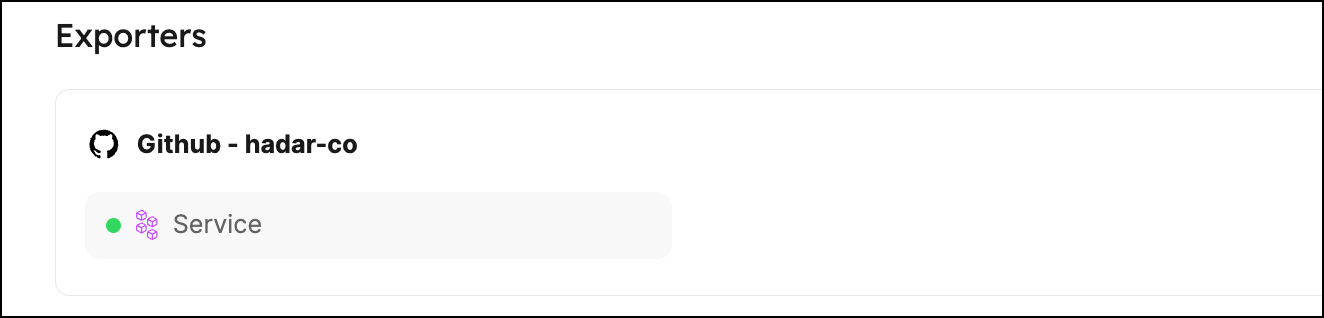
Clicking on this entry will open a modal. Click the Mapping tab to view and edit the mapping configuration.
From there, you can click {...} Edit YAML to open the YAML editor, or use the form editor to configure the mapping through a visual interface.
Note that Port provides default mapping, providing values to the properties defined in the relevant blueprint:
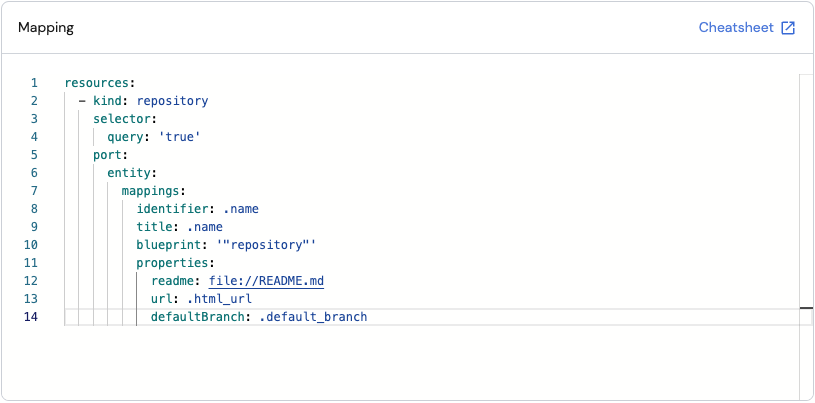
Port provides two ways to configure the mapping:
- Form editor - a visual, guided experience.
- YAML editor - a code-based configuration.
Mapping concepts
The following concepts are the building blocks of a mapping configuration. They apply to both editors - understanding them once lets you work fluently in either.
Resources and kinds
A resource represents one type of data to fetch and map. Each resource specifies a kind - the API object type to fetch (e.g., repository, pull-request, issue).
Resources are processed sequentially from top to bottom. This means:
- The first resource is fetched and ingested before the second one starts.
- If you have relations between entities (e.g., pull requests referencing repositories), list the target blueprint first so those entities exist before the relation is created.
- For large datasets, the order can affect sync duration since each resource must complete before the next begins.
A mapping can contain multiple resources of the same kind with different filters, allowing you to map the same API object to different blueprints or with different property values.
Selector
Selectors belong to the Extraction phase. They modify the API request by adding query parameters or other parameters that change what the API returns. Unlike the query filter, selectors act on the request - not the response.
Available selectors vary per integration, based on the API capabilities of the integrated tool. Using selectors to narrow what the API returns can reduce sync time and help avoid hitting API rate limits.
Query
The query field belongs to the Transformation phase. It accepts a JQ expression evaluated against each object returned by the API:
- If the expression evaluates to
true, the object is ingested. - If it evaluates to
false, the object is skipped.
Set query to "true" to ingest all objects, or use a JQ expression to filter specific objects. This field is called Data filter in the form editor. In YAML, it appears as query inside the selector block - but unlike other selector keys, it filters the API response rather than modifying the request.
Entity mappings
Entity mappings define how fields from the API response are translated into Port entity properties. For each resource, you specify a target blueprint, how to derive the entity's identifier and title, which API fields map to which blueprint properties, and optionally which relations to populate.
The exact structure of entity mappings differs between the two editors - see Transformation in the form editor section and Transformation in the YAML editor section.
When using JQ to reference identifiers or property names that contain hyphens, you must wrap them in double quotes and use bracket notation.
For example, use .["my-property"] instead of .my-property, which JQ interprets as subtraction.
This applies to secrets, properties, and any other identifiers containing hyphens:
- Secrets:
.secrets["zendesk-api-token"] - Properties:
.properties["my-custom-field"] - Relations:
.relations["parent-service"]
Mapping relations
In Port, relations define how blueprints are connected to one another. The mapping configuration lets you populate these relations automatically during ingestion.
There are two ways to reference a related entity in a mapping:
- Direct identifier reference - provide the related entity's identifier as a JQ expression. Use this when the API response contains the identifier of the related entity.
- Search query - find the related entity by matching one of its properties. Use this when you don't have the identifier directly, but know a property value that uniquely identifies it.
Limitations for search query relations
- A "single type" relation expects a single entity to be returned. A "many type" relation expects an array.
- The maximum number of entities returned is 500.
- Calculation properties are not supported.
- Mirror properties are supported only for single type relations, one level deep.
- Only the
=,in, andcontainsoperators are supported. - The search is scoped to the relation's target blueprint - it will not match entities from other blueprints, even if they have a matching property value.
Manually assigning relations in the UI
You can also assign relations manually without touching the mapping configuration:
- Go to the relevant catalog page (e.g., services).
- Hover over an entity, click
..., and select Edit. - In the relation field, select the related entity from the dropdown, then click Update.
Relation values are overwritten on every sync
Every time an integration syncs an entity, the relation value in Port is replaced with whatever the mapping returns. Port does not merge or append relation values across syncs or across different integrations.
This has two important implications:
- If your JQ returns an empty array (e.g. because a filter excludes all items), Port will clear that relation - removing any previously set values.
- If two integrations both write to the same relation, the last sync to run wins. The other integration's values are overwritten.
The mapping expression must therefore return the complete desired set of relation identifiers every time it runs.
Workarounds:
- Merge all sources in one mapping: Use a single integration that queries all sources and returns the merged set in the JQ expression.
- Manage the relation manually: Exclude the relation from the integration's mapping entirely by omitting it from the
relationsblock, and assign values manually in Port's UI. - Use an automation to append: Create a Port automation that reacts to entity changes and uses JQ array concatenation to append new values while preserving existing ones.
Map by property
In some cases you may not know the identifier of the entity you want to map to, but you do know one of its properties. Instead of a direct identifier, you can use a search query rule in the identifier, team, or relation fields to find and update the entity by that property. Search query mapping is only supported for these three fields.
This is useful when you want to map data directly to an existing entity without needing a separate blueprint. For example, a PagerDuty integration can map directly to a service entity using a pagerduty_service_id property, without a separate PagerDuty service blueprint.
Limitations
- The search query must return exactly one entity - otherwise the entire request will fail.
To avoid failures from identical property values across multiple blueprints, include an additional rule filtering by$blueprint. - If the search query returns no entities, a new entity will not be created.
- The query is executed on the same blueprint from the request's URL.
- Only the
=andinoperators are supported. Calculationandmirrorproperties are not supported.
Searching by property can also be used when using Port's API to create an entity.
Items to parse
When the API returns an array that you want to expand into multiple separate Port entities, use items to parse. Port iterates over the array and creates one entity per item.
There are three related options:
itemsToParse- a JQ expression pointing to the array in the API response. Each element in the array becomes a separate entity.itemsToParseName- a custom name for referencing each array element. Use this when your API response already has a top-level key that conflicts with the default name.itemsToParseTopLevelTransform- controls whether the target array is removed from the payload during iteration. Whentrue(default), the array is removed. Whenfalse, the original array remains accessible alongside individual items.
Limitations
itemsToParseNameis not supported in non-Ocean integrations: Github app, Kubernetes, and Webhook integrations.- When
itemsToParseNameis enabled, you cannot use the "test mapping" option in Port's UI.
Advanced options
These options apply globally across all resources in a mapping configuration. In the YAML editor they are set at the root level, in the form editor they appear under Advanced Configuration.
| UI label | YAML key | Description |
|---|---|---|
| Auto-create related entities | createMissingRelatedEntities | Automatically creates missing related entities during ingestion. Useful when creating an entity whose related entity does not yet exist in Port. |
| Auto-delete related entities | deleteDependentEntities | Deletes dependent Port entities when a related entity is removed. Required when two blueprints have a required relation and the source entity must be deleted alongside the target. |
| Deletion prevention flag | entityDeletionThreshold | Accepts 2 values (0 or 1) that controls if the deletion mechanism of the integration would be activated or not (0 means disabled and 1 is enabled) |
Additional options may be available depending on the integration. Refer to the specific integration's documentation for the full list.
The Auto-create related entities option cannot be used to create entities in protected blueprints such as _user and _team.
JQ runtime
Port's JQ runtime runs in UTC. This affects any time-based JQ functions you use in your mapping, such as now, todate, strftime, and strptime.
When writing JQ expressions that reference the current time or calculate relative durations, assume the server clock is UTC:
# Get the current time as a UTC ISO string
now | todate
# Output: "2024-04-15T10:30:00Z"

# Calculate days since last update (assuming .updated_at is an ISO string)
(now - (.updated_at | sub("\\.[0-9]+Z$"; "Z") | strptime("%Y-%m-%dT%H:%M:%SZ") | mktime)) / 86400 | floor
If your source data contains timestamps with a non-UTC offset (e.g. 2024-04-15T12:30:00+02:00), you must normalize them to UTC before comparing against now or using Port's datetime property format. Port stores and displays all datetime values in UTC.
Common test errors
When running Test mapping, you may come across one of the following errors:
-
Missing kind example for {kind}
Cause: No example data is available for this resource kind.
Resolution: Add example data for the missing kind. -
Selector query is false or evaluated to false
Cause: The data filter expression returnedfalsefor the example data.
Resolution: Update your JQ expression or use an example that matches your filter. -
must NOT have additional properties, additional property: "[property]"
Cause: The mapping YAML contains an unrecognized field, often due to a typo.
Resolution: Check for typos in your field names and ensure they match the expected mapping schema. -
Blueprint with identifier "[identifier]" was not found
Cause: The blueprint identifier referenced in the mapping does not exist in your portal.
Resolution: Verify the identifier matches an existing blueprint in your portal.