Govern data access
Port provides granular control to ensure that every user only sees the parts of the catalog that are relevant to them.
Port's catalog RBAC capabilities are enabled by utilizing permissions controls.
In order to manage who can view certain pages in Port, check out page permissions.
Common usage
The catalog RBAC mechanism allows admins to finely control which users have access to specific information in the software catalog, for example:
- Allow a user to edit a single specific property on an entity.
- Create a fully read-only view for a developer.
- Allow users to create, edit, and delete only entities owned by their team.
- Restrict entity visibility to users whose team matches the entity's owner team.
- Allow only users with the on-call property set to true to edit entities owned by their team.
Set access controls for catalog data
The default permissions assigned to every blueprint upon creation specify that users with the admin role and users with the specific blueprint moderator role can edit the blueprint itself and manage its permissions.
See RBAC permissions for more information about the different roles.
The permissions described below control access to blueprint entities and their properties, not to the blueprint structure or permissions configuration itself. You can control who reads, creates, updates, or deletes entities, and who can view or edit specific properties within those entities.
It is possible to assign global permissions controls for a blueprint's entities and properties, using the following steps:
-
Go to the Context lake page of your portal.
-
Select your desired blueprint, click on the
...button in the top-right corner, and selectPermissions: -
A dialog will open with two tabs:
- Entities tab - set entity-level permissions (who can read, create, update, or delete entities)
- Properties tab - set property-level permissions (who can update or view specific properties)
You can also manage these permissions via the Port API, Terraform, or Pulumi. Terraform and Pulumi support roles, users, teams, team ownership (owned_by_team), and update property/relation scopes. Advanced dynamic policies (policy) are not supported in those providers yet - configure them in the UI or via the API.
- Entities
- Properties
The Entities tab controls who can read, create, update, or delete entities. Configure entity-level access below by role, user/team, entity ownership, or dynamic policy.
- General
- Basic
- Advanced (entity owners)
- Advanced (dynamic policy)
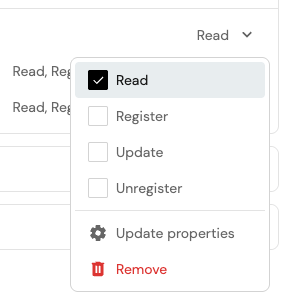
This section allows you to assign permissions for a role (Member, Admin or Moderator).
Click on the dropdown in the desired role row and select the permissions that will be assigned to it.
Edit via JSON (click to expand)
To edit permissions via JSON, click on the Edit JSON button in the top-right corner of the dialog.
To give permissions to a role, add it to the roles array in the permission scope you desire (read, register, unregister, or update):
{
  "entities": {
    "read": {
      "roles": ["myBlueprint-moderator", "Admin", "Member"],
      // ...other permissions
    },
    "register": {
      "roles": ["myBlueprint-moderator", "Admin", "Member"],
      // ...other permissions
    },
    "unregister": {
      "roles": ["myBlueprint-moderator", "Admin", "Member"],
      // ...other permissions
    },
    "update": {
      "roles": ["myBlueprint-moderator", "Admin", "Member"],
      // ...other permissions
    },
    "updateProperties": {
      "$identifier": {
        "roles": ["myBlueprint-moderator", "Admin", "Member"],
        // ...other permissions
      }
      // ...other properties
    },
    "updateRelations": {
      "service": {
        "roles": ["myBlueprint-moderator", "Admin", "Member"],
        // ...other permissions
      }
      // ...other relations
    }
  }
}
This section allows you to assign permissions for a user or team.
If there isn't currently a row for the user or team, search for them in search box and select them. This will also automatically give them Read access.
Click on the dropdown in the desired user or team row and select the permissions that will be assigned to it.
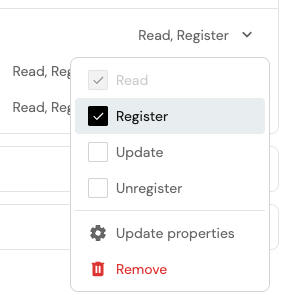
If you see None as the permission, it means that the user or team only has permissions for updateProperties or updateRelations.
Edit via JSON (click to expand)
To edit permissions via JSON, click on the Edit JSON button in the top-right corner of the dialog.
To give permissions to a user or team, add the user or team identifier to the users or teams array in the permission scope you desire (read, register, unregister, or update):
{
  "entities": {
    "read": {
      "users": ["my-user@example.port.io"],
      "teams": ["my-team"],
      // ...other permissions
    },
    "register": {
      "users": ["my-user@example.port.io"],
      "teams": ["my-team"],
      // ...other permissions
    },
    "unregister": {
      "users": ["my-user@example.port.io"],
      "teams": ["my-team"],
      // ...other permissions
    },
    "update": {
      "users": ["my-user@example.port.io"],
      "teams": ["my-team"],
      // ...other permissions
    },
    "updateProperties": {
      "$identifier": {
        "users": ["my-user@example.port.io"],
        "teams": ["my-team"],
        // ...other permissions
      }
      // ...other properties
    },
    "updateRelations": {
      "service": {
        "users": ["my-user@example.port.io"],
        "teams": ["my-team"],
        // ...other permissions
      }
      // ...other relations
    }
  }
}
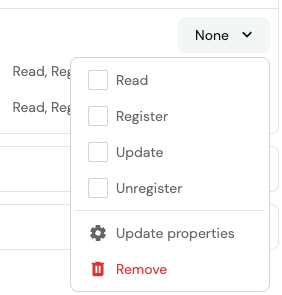
This section allows you to assign permissions based on entity owners.
Click on the dropdown in the desired row and select the permissions that will be assigned to it.
Edit via JSON (click to expand)
To edit permissions via JSON, click on the Edit JSON button in the top-right corner of the dialog.
To give permissions to entity owners, set ownedByTeam to true in the permission scope you desire (read, register, unregister, or update):
{
  "entities": {
    "read": {
      "ownedByTeam": true,
      // ...other permissions
    },
    "register": {
      "ownedByTeam":  true,
      // ...other permissions
    },
    "unregister": {
      "ownedByTeam":  true,
      // ...other permissions
    },
    "update": {
      "ownedByTeam":  true,
      // ...other permissions
    },
    "updateProperties": {
      "$identifier": {
        "ownedByTeam":  true,
        // ...other permissions
      }
      // ...other properties
    },
    "updateRelations": {
      "service": {
        "ownedByTeam":  true,
        // ...other permissions
      }
      // ...other relations
    }
  }
}
Important notes
- In the context of the
registerpermission, setting a user or team as an entity owner means that they can only create a new entity if they assign it to a team that they are a member of. - When entity owners permissions are configured the policy is ignored.
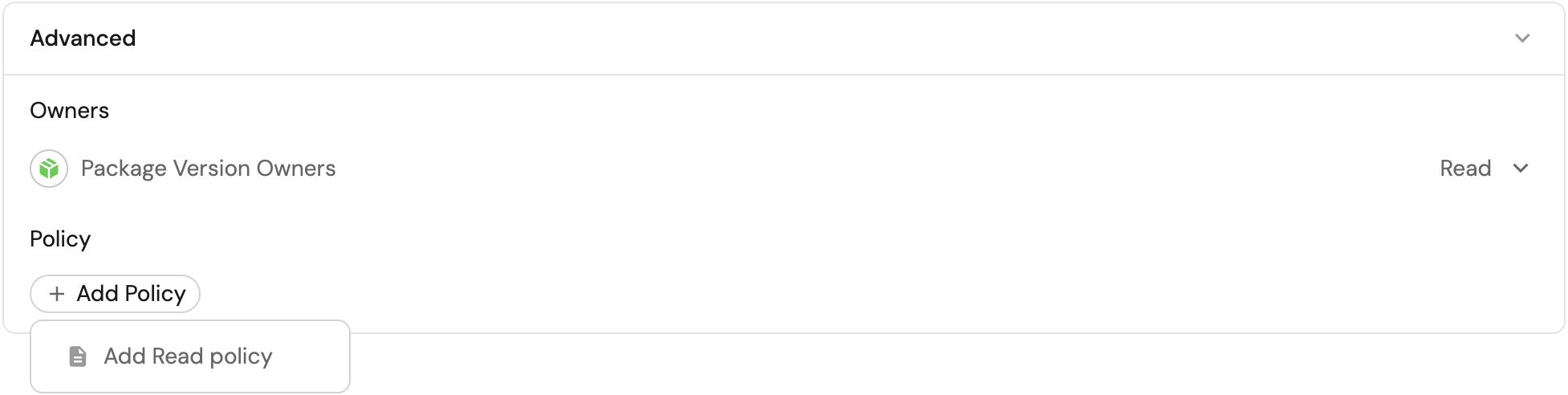
This section allows you to assign permissions based on a dynamic policy.
Edit via JSON (click to expand)
To edit permissions via JSON, click on the Edit JSON button in the top-right corner of the dialog.
To configure a policy, add a policy query to the relevant scope.
The policy key allows you to give dynamic permissions to users, by using search queries.
- For
read,update, andunregister: the policy filters the specific entities you are allowed to view or mutate. - For
register: Port simulates the new entity and evaluates the query against it. For this reason, therelatedTooperator and queries against calculation/aggregation properties are not supported.
You can also use contextual query rules to get the context of the user executing the query.
In the following example, on-call users are granted read access only to entities that share the same region as one of their owning teams:
{
  "entities": {
    // ...other scopes
    "read": {
      "policy": {
        "combinator": "and",
        "rules": [
          {
            "property": {
              "context" : "user",
              "property": "isOnCall"
            },
            "operator": "=",
            "value": "true"
          },
          {
            "property": "region",
            "operator": "containsAny",
            "value": {
              "context" : "userTeams",
              "property": "region"
            }
          },
        ]
      }
      // ...other permissions
    }
  }
}
When entity owners permissions are configured, the dynamic policy is ignored.
The Properties tab restricts access to specific properties. You can control which properties are editable and which properties are visible to different users.
- Update properties
- Read properties
Limit which properties specific users can modify. A user with update permission on a property can change its value regardless of entity-level update restrictions.
Configure access by role, user, team, or entity ownership. Note: entity ownership (ownedByTeam) is supported for update properties, but dynamic policies are not.
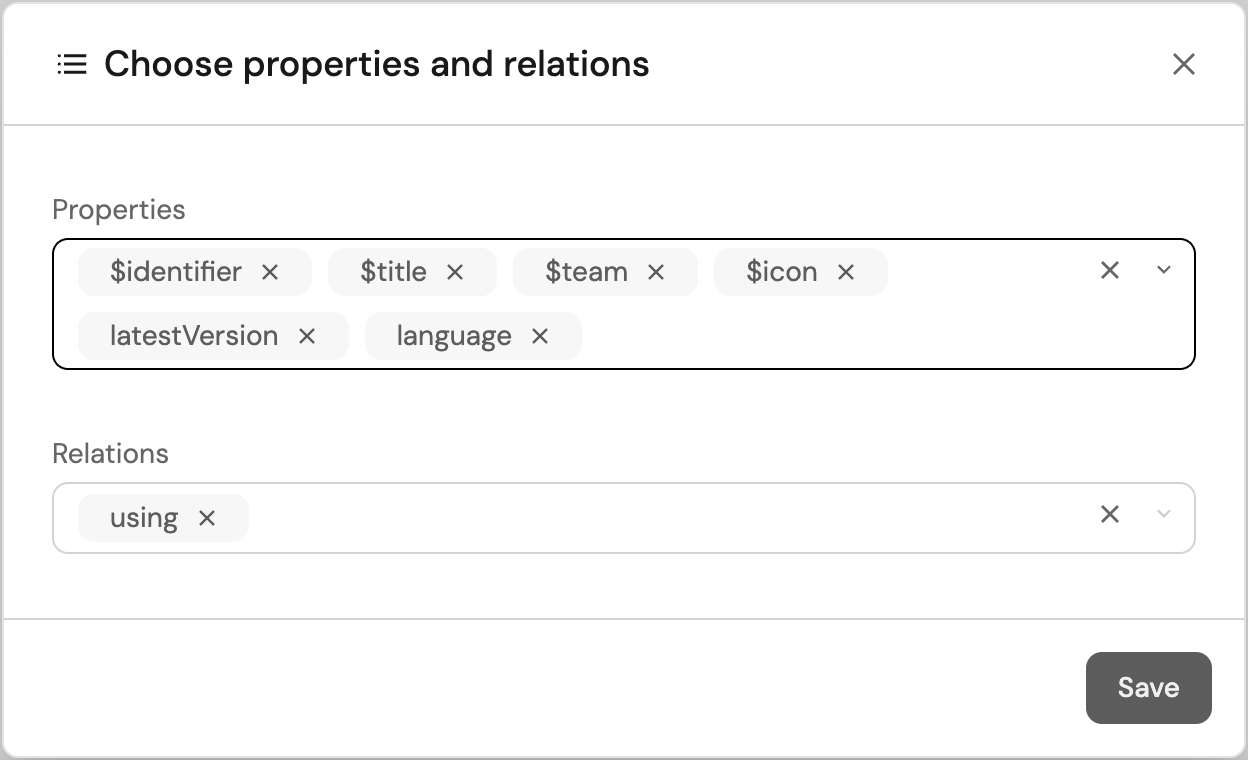
{
  "entities": {
    "updateProperties": {
      "api_key": {
        "roles": ["platform-team", "Admin"],
        "users": ["my-user@example.port.io"],
        "teams": ["my-team"],
        "ownedByTeam": true
      }
      // ...other properties
    }
  }
}
Hide specific properties from users who shouldn't see them. Users must have entity-level read access first, properties with no explicit read restrictions are visible by default.
Configure access by role, user, or team. Note: only roles, users, and teams are supported for read properties. Entity ownership (ownedByTeam) and dynamic policies are not supported.
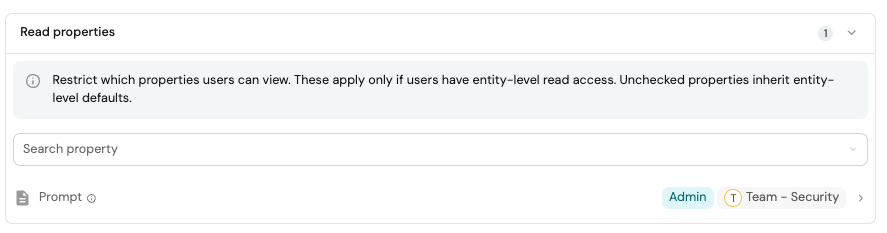
{
  "entities": {
    "readProperties": {
      "api_key": {
        "roles": ["platform-team", "Admin"],
        "users": ["my-user@example.port.io"],
        "teams": ["my-team"]
      }
      // ...other properties
    }
  }
}
Setting read permissions on entities takes effect at the API level, meaning that any component in Port that fetches entities will be affected by these permissions.
For example, a table widget that displays entities will only show entities that the user has read permissions for.
Permission simulator
The permission simulator allows you to test and validate blueprint permissions before saving them.
You can simulate read, register (create), update, and unregister (delete) access for any user in your organization and quickly understand why access is granted or denied. It's available from Port AI, the UI, or the API, not only from the browser.
Use the simulator
- Port AI
- UI
- API
Ask Port AI, or your coding agent over the Port MCP server, to run the check in plain language. For example:
"Why can Alex Chen update the checkout-service entity on the Service blueprint?"
Port AI runs the simulator and reports the exact rule that grants access, for example that Alex is on the team that owns checkout-service.
"Which services can anyone on the security-team currently update?"
Port AI returns every entity accessible under that rule, useful for checking a policy's blast radius before you widen it to more teams.
- Go to the Context lake page, open a blueprint, and click
Permissions. - In the Permission Simulator section at the bottom of the page, select:
- A user from your organization.
- An operation:
read,register(create),update, orunregister(delete).
- Review the results table to see all entities the selected user can access for the selected operation.
- (Optional) Select a specific entity to open the detailed access breakdown.
- In the detail view, review:
- The visual flow (user → granted/denied → entity).
- Which checks passed or failed.
- The exact check that granted access (if access is granted).
The simulator evaluates pending permission changes from the form, not only the saved configuration.
This lets you verify impact in real time before applying your changes.
This checks whether alex-chen can update the checkout-service entity on the Service blueprint, and why. Call POST on /v1/blueprints/{blueprint_identifier}/permissions/simulate with:
{
  "userIdentifier": "alex-chen",
  "operation": "update",
  "entityIdentifier": "checkout-service"
}
Drop entityIdentifier to list every entity the user can reach for that operation, instead of checking one:
{
  "userIdentifier": "alex-chen",
  "operation": "update"
}
See Simulate permissions for a user for the full request and response schema.
How permissions are evaluated
The simulator evaluates five checks. Access is granted if any one of the following checks passes:
- Role check - verifies whether the user's role is included in the operation's allowed
roles. - Owned by team - when
ownedByTeamis enabled, verifies whether the user belongs to at least one team in the entity's$team. - Team list - verifies whether the user belongs to any team listed in the operation's
teams. - User list - verifies whether the user is explicitly listed in the operation's
users. - Policy - verifies whether the entity matches the configured
policyquery.
When access is granted, the simulator indicates the granting path, for example: "Has role Admin which allows this operation".
For policy-based access, the evaluated query is also displayed.
Software catalog RBAC examples
Refer to the examples page for practical examples of Port's RBAC.