Migration steps
This guide walks you through migrating from Port's legacy GitHub cloud app to the improved GitHub integration powered by Ocean.
This migration focuses on transferring entity ownership from the legacy GitHub App to the new GitHub Ocean integration. This is a recommended step before uninstalling the old app.
Note that:
- Only the integration that created an entity can delete it.
- If you uninstall before transferring ownership, entities created by the old integration will become orphaned and will have to be deleted manually.
Before starting, review the key changes page to understand how blueprints and selectors have changed between the two integrations. You will need this context when adjusting your mappings during the steps below.
Step-by-step migration plan
This section provides the practical steps to migrate your entities and transfer ownership to the new GitHub Ocean integration.
Prerequisites
Get your installation IDs
Before migrating, you need to identify both installation IDs. Note that these are different types of values:
| Flag | Type | Example | Where to find it |
|---|---|---|---|
--old-installation-id | Numeric GitHub App installation ID | 12345678 | GitHub App installation URL |
--new-installation-id | String Port integration identifier | github-ocean-v2 | Port UI or API (see below) |
A common mistake is passing a numeric GitHub App installation ID for --new-installation-id. This will cause get-diff to return empty results (all entities appear as "not migrated") because the migrator cannot find the new integration. The --new-installation-id must be the string identifier of your Port integration, not a numeric ID.
Finding the legacy GitHub App installation ID (numeric):
-
Navigate to GitHub App installations:
- Personal installations:
https://github.com/settings/installations - Organization installations:
https://github.com/organizations/YOUR-ORG/settings/installations
- Personal installations:
-
Click on Port's GitHub App installation from the list.
-
Look at the URL in your browser address bar — it contains the installation ID at the end.
Visual guide:

The installation ID is the numeric value circled in the URL bar (e.g., 97269548 in the example above).
Finding the new GitHub Ocean integration identifier (string):
The --new-installation-id is the name you gave to the GitHub Ocean integration when you created it in Port (e.g., github-ocean, github-ocean-v2, my-github-integration).
You can find it in one of these ways:
- Port UI: Go to the data sources page and look for the integration name.
- Port API: Call the integrations endpoint and look for the
installationIdfield of your GitHub Ocean integration:curl -s https://api.port.io/v1/integration \-H "Authorization: Bearer YOUR_ACCESS_TOKEN" | jq '.integrations[] | {installationId, integrationType}'
Replace YOUR_ACCESS_TOKEN with your Port API access token.
Install the migrator tool
curl -sL https://raw.githubusercontent.com/port-labs/port-github-migrator/main/install.sh | bash
Gather your Port API credentials:
- Port API client ID.
- Port API client secret.
- Your Port instance URL.
For detailed command reference and usage examples, refer to the port-github-migrator GitHub repository. The repository contains complete documentation for all available commands.
Set up the new integration
Follow the installation guide.
Disable "Create default resources" when migrating
When installing the new GitHub Ocean integration while migrating from the old GitHub app, you must disable the "Create default resources" toggle in the Advanced Configuration section. If you leave this toggle enabled, the integration will create new default blueprints and mappings that may conflict with your existing data, causing disruptions to your catalog.
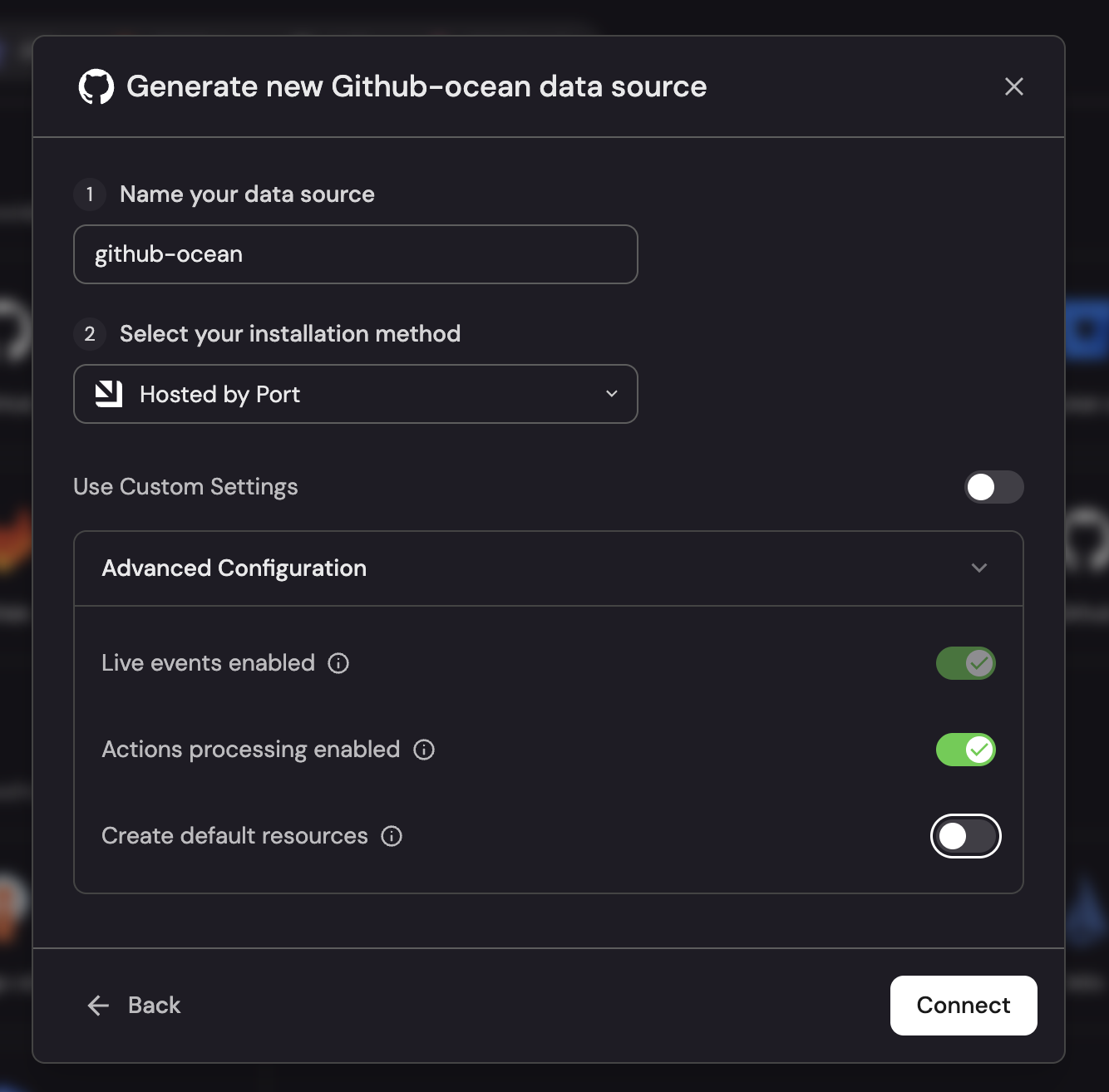
By disabling this toggle, the integration will start up with empty mapping, which ensures that the integration won't disrupt existing entities.
Set entityDeletionThreshold: 0 before running the migration
Before running migrate, add entityDeletionThreshold: 0 to the GitHub Ocean integration's mapping config. The migrate command will refuse to run without it, as this prevents the next resync from deleting entities you just transferred while the new integration is still pointed at a temporary blueprint. You should remove the threshold flag once all blueprints are migrated and the new integration is pointed at the original blueprints.
deleteDependentEntities: true
createMissingRelatedEntities: true
entityDeletionThreshold: 0 # required during migration
# ... rest of your mapping ...
GitOps managed config
If you managed your integration mapping from a repository (using port-app-config.yml), you will need to perform an extra step during migration because the steps below require temporary mapping changes.
To successfully complete the migration:
- For each blueprint you migrate, copy only the relevant
resourcesblock(s) fromport-app-config.ymlinto the GitHub Ocean mapping in Port. - Apply the migration steps below.
- After you finish migrating all blueprints, copy the final mapping back into
port-app-config.ymland re-enable repo-managed mapping. See Managing your configuration.
Migrate each blueprint (entity ownership transfer)
This is where you transfer ownership of entities from the old app to the new one.
For each blueprint, repeat these steps:
Step 1: Create temporary blueprint
- Duplicate your existing blueprint and rename to
<blueprint>-ocean-temp(choose whatever name you want).
Step 2: Map the new integration to the temporary blueprint
resources:
  - kind: repository
    port:
      entity:
        mappings:
          blueprint: '"githubRepository-ocean-temp"' # Use temp blueprint
          # ... rest of config ...
Step 3: Compare entities
port-github-migrator get-diff githubRepository githubRepository-ocean-temp \
  --client-id <your-client-id> \
  --client-secret <your-client-secret> \
  --old-installation-id 12345678 \
  --new-installation-id github-ocean-v2 \
  --port-url https://api.port.io # use https://api.us.port.io if you are using the US region
Replace 12345678 with your numeric GitHub App installation ID and github-ocean-v2 with the string identifier of your Port GitHub Ocean integration.
Step 4: Adjust mappings if needed
- Review the kind mapping changes page and update your configuration if there are differences.
Step 5: Transfer ownership (critical step)
port-github-migrator migrate githubRepository \
  --client-id <your-client-id> \
  --client-secret <your-client-secret> \
  --old-installation-id <legacy-id> \
  --new-installation-id <ocean-id> \
  --port-url https://api.port.io # use https://api.us.port.io if you are using the US region
This command transfers ownership of all entities in the blueprint from the old app to the new integration. It will refuse to run if entityDeletionThreshold is not set to 0 on the new integration (see Set up the new integration).
Step 6: Update mapping and clean up
- Point the new integration back to the original blueprint.
- Delete the temporary blueprint.
Step 7: Repeat for each remaining blueprint
Migration tool reference
This section documents migrator behavior that is good to know before you run it on large or unattended workloads.
Per-blueprint batch limit
migrate <blueprint> and get-diff <source> <target> operate on up to 5000 entities per blueprint per invocation. This cap exists because the underlying Port search API caps a single result set at the same number, and migrating in bounded batches keeps each run quick to retry and easy to reason about.
What this means in practice:
- If a blueprint has fewer than 5000 entities, the cap is invisible — everything migrates in one run.
- If a blueprint has more than 5000 entities,
migratereports the cap up front (Total entities affected: N / M (capped at 5000 per blueprint)) and migrates the first 5000. Re-runmigrate <blueprint>to process the next batch. Each run picks up entities still owned by the legacy app, so progress is monotonic and safe to resume. - For continuous, unattended processing of every entity in a blueprint, use
--auto(see below). It paginates past the 5000 cap and produces a single result file you can inspect afterwards.
Auto mode (unattended bulk migration)
migrate <sourceBlueprint> <targetBlueprint> --auto paginates the source blueprint in batches of 5000, diffs each batch against the target blueprint under the new installation, patches identicals in place, and dumps the leftover entities (those that need attention) to a single JSON file under your local cache directory. It is designed for large blueprints and unattended runs (CI, scheduled jobs).
Key differences from interactive migrate:
- No
'type yes'confirmation prompt — auto mode is meant to run unattended. - Two positional arguments — source and target blueprints, just like
get-diff. The target is only used for diffing against the desired state; ownership is transferred on the source blueprint. - No 5000 cap — auto mode walks the search cursor until the source blueprint is exhausted.
- Result file — every run writes
<cache>/auto/<oldInstallationID>/migration-result-<uuid>.jsonand prints its path on completion. The file contains:changed— entities whose properties or relations differ between old and new, with the per-property diff so you can review what would change before re-running.notMigrated— identifiers of entities that exist on the old side but have no counterpart under the new installation yet (typically because the new integration has not synced them, or the mapping does not produce them).
- A live spinner reports the current operation per batch (
Batch N: fetching target entities…,Batch N: patching identicals…, etc.) so progress is visible in CI logs.
port-github-migrator migrate githubRepository githubRepository-ocean-temp --auto \
  --client-id <your-client-id> \
  --client-secret <your-client-secret> \
  --old-installation-id <legacy-id> \
  --new-installation-id <ocean-id> \
  --port-url https://api.port.io
After the run completes, inspect the result file. Entities listed under notMigrated typically need a resync of the new integration (or a mapping fix) before they can be migrated; entities under changed warrant a manual review of the property diffs before deciding whether to re-run migrate for that blueprint.
Local state and result files
The migrator persists a small amount of state under your user cache directory (resolved via Go's os.UserCacheDir() — typically ~/Library/Caches/port-github-migrator/ on macOS, ~/.cache/port-github-migrator/ on Linux, %LocalAppData%\port-github-migrator\ on Windows):
| Path | Written by | Purpose |
|---|---|---|
blueprints/<oldInstallationID>/<blueprint>.json | get-diff and migrate | Identifier manifest with a 10-minute freshness window. migrate honors this manifest: it patches exactly the captured identifiers and removes the file on full success. |
auto/<oldInstallationID>/migration-result-<uuid>.json | migrate --auto | One file per auto-mode run with the changed and notMigrated sections described above. These files are not removed automatically; they are intended as run artifacts. |
You can safely delete anything under this directory at any time — get-diff will rebuild manifests on its next run, and migrate will fall back to a live search if no manifest is present.
Update action backend types
If you have self-service actions or automations that use the legacy GitHub App backend, you must update them to use the new GitHub Ocean backend before uninstalling the old integration.
For each action that uses GitHub workflows:
- Navigate to the action's configuration in Port.
- Update the backend type from the legacy GitHub App backend to
GitHub Ocean. - Set the
installationIdfield to the name of your GitHub Ocean integration installation. - Configure the organization, repository, and workflow details as needed.
For detailed configuration instructions, refer to the GitHub Ocean backend documentation.
Finalize and uninstall
Only uninstall the legacy GitHub App after:
- ✅ All blueprints are migrated.
- ✅ Ownership is transferred for each blueprint (using the
migratecommand). - ✅ The new integration is syncing correctly.
- ✅ All actions are migrated to use the GitHub Ocean backend.
Best practices
- Start with non-critical blueprints — Build confidence before migrating critical data.
- One blueprint at a time — Easier to debug if issues arise.
- Use
get-diffbefore migrating — Verify entities match before transferring ownership. - Keep legacy app active — Don't remove until all migrations complete. Removing it early will leave orphaned entities that can only be deleted manually.
- Check Port logs — Monitor for any sync issues after migration.
- Ownership is reversible — If issues arise, you can revert by deleting the migrated entities and resyncing the old integration. This will recreate those entities under the old integration ownership.