Single account installation
This page shows you how to deploy the AWS integration to sync resources from a single AWS account into your Port catalog. The integration runs as a container that authenticates with AWS, discovers resources, and syncs them on a schedule you configure.
Choose authentication method
- IAM Role (ECS)
- IAM Role (EC2)
- IRSA (EKS)
- IAM User (Access Keys)
This option runs the integration as an Amazon ECS task. The deployment creates a task role (PortOceanTaskRole) and a read-only role (PortOceanReadRole). The ECS task assumes the read-only role to discover your AWS resources. The deployment also provisions the required infrastructure to run the integration continuously.
Prerequisites
- VPC and subnets: An existing VPC and at least two subnets (for high availability) in which the ECS task will run. You select these when providing the CloudFormation stack parameters.
Step 1: Deploy the CloudFormation stack
-
Open the CloudFormation stack creation page: Deploy the ECS CloudFormation stack ↗
-
Fill in the required parameters (see All stack parameters below for details).
-
Check the I acknowledge that AWS CloudFormation might create IAM resources box at the bottom of the page, then click Create stack.
All stack parameters (click to expand)
| Parameter | Default | Description |
|---|---|---|
| PortClientId | — | Your Port client ID. |
| PortClientSecret | — | Your Port client secret. |
| VpcId | — | VPC where the ECS task runs (dropdown). |
| SubnetIds | — | Subnets for the ECS task; select at least two for high availability (dropdown). |
| PortBaseUrl | https://api.port.io | Port API endpoint. Use https://api.us.port.io for US region. |
| IntegrationIdentifier | my-aws-v3 | Unique identifier for this integration. |
| ResyncIntervalMinutes | 1440 | How often the integration rescans AWS (minutes); 1440 = once per day. |
| ContainerCpu | 256 | CPU units (256 = 0.25 vCPU). |
| ContainerMemory | 1024 | Memory in MB. |
What the stack creates (click to expand)
| Resource | Purpose |
|---|---|
| ECS Cluster | Logical grouping for ECS tasks (always created by this stack). |
| ECS Task Definition | Defines container image, resources, and IAM roles. |
| ECS Service | Keeps the task running continuously. |
| Execution Role | Allows ECS to pull images and write logs. |
| Task Role (PortOceanTaskRole) | Used by the ECS task; can assume PortOceanReadRole. |
| Read-only Role (PortOceanReadRole) | Grants ReadOnlyAccess; assumed by the integration for scanning. |
| Security Group | Allows outbound HTTPS to Port and AWS APIs. |
| CloudWatch Log Group | Stores container logs (90-day retention). |
Step 2: Verify the deployment
- Wait for the stack status to show
CREATE_COMPLETE(typically 3–5 minutes).
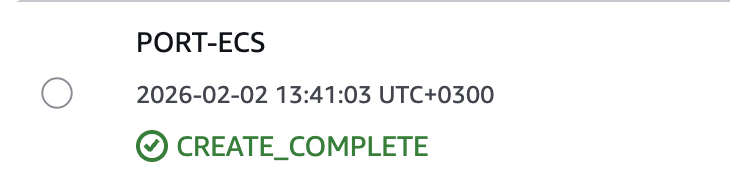
- In the ECS console, open your cluster and the
port-ocean-aws-v3service. - Confirm the task is RUNNING.

The integration starts syncing AWS resources to Port. In Port, check your catalog to confirm resources are syncing.
The port_region, port.baseUrl, portBaseUrl, port_base_url and OCEAN__PORT__BASE_URL parameters select which Port API instance to use:
- EU (app.port.io) →
https://api.port.io - US (app.us.port.io) →
https://api.us.port.io
This option runs the integration on an Amazon EC2 instance. The deployment creates an instance role and a read-only role (PortOceanReadRole). The instance assumes the read-only role to gain read-only access and discover your AWS resources. The deployment provisions the required infrastructure to run the integration continuously.
Prerequisites
- VPC and subnet: An existing VPC and subnet in which the EC2 instance will run. You select these when providing the CloudFormation stack parameters.
Step 1: Deploy the CloudFormation stack
-
Open the CloudFormation stack creation page: Deploy the EC2 CloudFormation stack ↗
-
Fill in the required parameters (see All stack parameters below for details).
-
Check the I acknowledge that AWS CloudFormation might create IAM resources box at the bottom of the page, then click Create stack.
All stack parameters (click to expand)
| Parameter | Default | Description |
|---|---|---|
| PortClientId | — | Your Port client ID. |
| PortClientSecret | — | Your Port client secret. |
| VpcId | — | VPC where the instance and security group are created (dropdown). |
| SubnetId | — | Subnet for the instance (dropdown). |
| PortBaseUrl | https://api.port.io | Port API endpoint. Use https://api.us.port.io for US region. |
| IntegrationIdentifier | my-aws-v3 | Unique identifier for this integration. |
| ResyncIntervalMinutes | 1440 | How often the integration rescans AWS (minutes); 1440 = once per day. |
| InstanceType | t3.small | EC2 instance type. |
| KeyPairName | (empty) | EC2 key pair for SSH access (optional). |
What the stack creates (click to expand)
| Resource | Purpose |
|---|---|
| EC2 Instance | Amazon Linux 2023 instance running the integration container. |
| IAM Role (PortOceanInstanceRole) | Attached to the instance profile; can assume the read-only role. |
| IAM Role (PortOceanReadRole) | Grants ReadOnlyAccess; assumed by the integration. |
| Instance Profile | Links the instance role to the EC2 instance. |
| Security Group | Allows outbound traffic to AWS APIs and Port. |
| User Data Script | Installs Docker and runs the container as a systemd service. |
Step 2: Verify the deployment
- Wait for the stack status to show
CREATE_COMPLETE(typically 3–5 minutes).
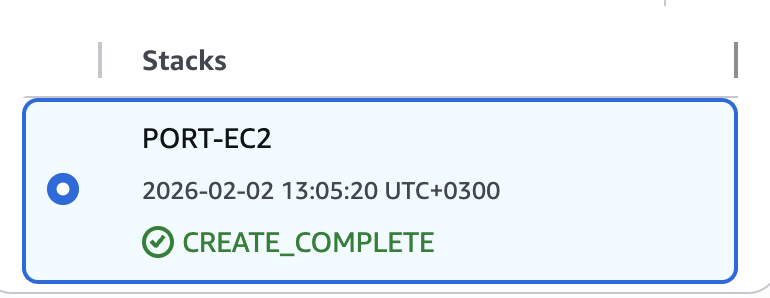
- In the EC2 console, find the instance named
{stack-name}-port-oceanand confirm it is running.

The integration starts syncing AWS resources to Port. In Port, check your catalog to confirm resources are syncing.
The port_region, port.baseUrl, portBaseUrl, port_base_url and OCEAN__PORT__BASE_URL parameters select which Port API instance to use:
- EU (app.port.io) →
https://api.port.io - US (app.us.port.io) →
https://api.us.port.io
This option runs the integration as a pod on an Amazon EKS cluster. The stack creates PortOceanServiceRole (for the service account annotation) and PortOceanReadRole (for read-only scanning). Using IAM Roles for Service Accounts (IRSA), the pod's service account is annotated with PortOceanServiceRole so EKS injects a JWT; the integration then assumes PortOceanReadRole via that JWT to discover your AWS resources.
The stack creates the EKS cluster, managed node group, IAM OIDC provider, PortOceanServiceRole, and PortOceanReadRole. You then deploy the integration using Helm or Argo CD.
Prerequisites
- VPC and subnets: An existing VPC and at least two subnets in different Availability Zones. Use subnets in EKS-supported AZs for your Region (not all AZs are supported). You select these when providing the CloudFormation stack parameters.
Step 1: Deploy the CloudFormation stack
-
Open the CloudFormation stack creation page: Deploy the EKS CloudFormation stack ↗
-
Fill in the required parameters (see All stack parameters below for details).
Choose two or more subnets from different EKS-supported availability zones (e.g. us-east-1a, us-east-1b). Not all AZs support EKS (e.g. us-east-1e does not).
- Check the I acknowledge that AWS CloudFormation might create IAM resources box at the bottom of the page, then click Create stack.
All stack parameters (click to expand)
| Parameter | Default | Description |
|---|---|---|
| VpcId | — | VPC where the EKS cluster runs (dropdown). |
| SubnetIds | — | Subnets for the EKS cluster; EKS requires at least two subnets in different AZs. Not all AZs support EKS control plane (e.g. us-east-1e); use subnets in supported AZs. |
| ClusterName | port-ocean-eks | EKS cluster name. |
| KubernetesVersion | 1.34 | Kubernetes version for the cluster. |
| NodeInstanceType | t3.medium | EC2 instance type for the node group. |
| NodeDesiredSize | 2 | Desired number of nodes in the node group. |
| Namespace | port-ocean | Kubernetes namespace where the integration runs. |
| ServiceAccountName | port-ocean-aws-v3 | Service account name used by the integration pod. |
What the stack creates (click to expand)
| Resource | Purpose |
|---|---|
| EKS cluster | Kubernetes control plane. |
| Managed node group | Worker nodes for running pods. |
| Cluster IAM role | Used by the EKS control plane. |
| Node IAM role | Used by the node group. |
| IAM OIDC provider | Links the cluster to IAM for IRSA. |
| PortOceanServiceRole | Service account annotation target; no AWS permissions (enables JWT injection). |
| PortOceanReadRole | Trusts the EKS OIDC provider and grants ReadOnlyAccess for scanning. |
Step 2: Verify the stack
- Wait for the stack status to show
CREATE_COMPLETE(typically 10–15 minutes for EKS).
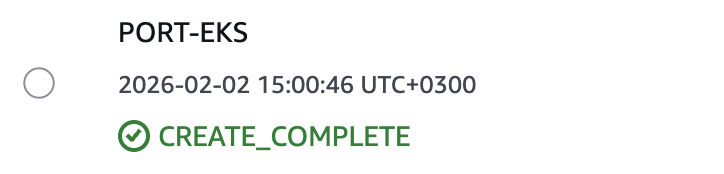
- In the EKS console, open your cluster and confirm the cluster and node group are active.
Step 3: Configure kubectl
When the stack status is CREATE_COMPLETE, run the UpdateKubeconfigCommand value from the stack outputs to configure kubectl for your cluster.

Step 4: Deploy the integration
Deploy with Helm or ArgoCD. For both methods you need two outputs from the stack: ServiceAccountRoleArn (for the service account annotation) and ReadRoleArn (for integration.config.accountRoleArns).

- Helm
- ArgoCD
Run the following, using the ServiceAccountRoleArn from the stack outputs for SERVICE_ACCOUNT_ROLE_ARN and the ReadRoleArn for READ_ROLE_ARN:
helm repo add --force-update port-labs https://port-labs.github.io/helm-charts

helm upgrade --install aws-v3 port-labs/port-ocean \
  --create-namespace --namespace port-ocean \
  --set port.clientId="$PORT_CLIENT_ID" \
  --set port.clientSecret="$PORT_CLIENT_SECRET" \
  --set port.baseUrl="https://api.port.io" \
  --set initializePortResources=true \
  --set sendRawDataExamples=true \
  --set scheduledResyncInterval=1440 \
  --set integration.identifier="my-aws-v3" \
  --set integration.type="aws-v3" \
  --set integration.eventListener.type="POLLING" \
  --set podServiceAccount.name="port-ocean-aws-v3" \
  --set podServiceAccount.create=true \
  --set podServiceAccount.annotations."eks\.amazonaws\.com/role-arn"="SERVICE_ACCOUNT_ROLE_ARN" \
  --set integration.config.accountRoleArns='["READ_ROLE_ARN"]'
Step 5: Verify the deployment
Run the following commands to verify the integration is running:
kubectl get pods -n port-ocean
kubectl logs -n port-ocean -l app.kubernetes.io/name=port-ocean -f
The integration starts syncing AWS resources to Port. In Port, check your catalog to confirm resources are syncing.
The port_region, port.baseUrl, portBaseUrl, port_base_url and OCEAN__PORT__BASE_URL parameters select which Port API instance to use:
- EU (app.port.io) →
https://api.port.io - US (app.us.port.io) →
https://api.us.port.io
To deploy the integration using ArgoCD:
- Create a
values.yamlfile inargocd/my-ocean-aws-v3-integrationin your git repository with the content. Use the ServiceAccountRoleArn from the stack outputs for the annotation and the ReadRoleArn forintegration.config.accountRoleArns.
initializePortResources: true
sendRawDataExamples: true
scheduledResyncInterval: 1440
integration:
  identifier: my-aws-v3
  type: aws-v3
  eventListener:
    type: POLLING
  config:
    accountRoleArns:
      - READ_ROLE_ARN
podServiceAccount:
  name: port-ocean-aws-v3
  create: true
  annotations:
    "eks.amazonaws.com/role-arn": SERVICE_ACCOUNT_ROLE_ARN
- Install the
my-ocean-aws-v3-integrationArgoCD Application by creating the followingmy-ocean-aws-v3-integration.yamlmanifest. ReplaceYOUR_PORT_CLIENT_ID,YOUR_PORT_CLIENT_SECRET, andYOUR_GIT_REPO_URL. Multiple sources ArgoCD documentation can be found here.
ArgoCD Application (click to expand)
apiVersion: argoproj.io/v1alpha1
kind: Application
metadata:
  name: my-ocean-aws-v3-integration
  namespace: argocd
spec:
  destination:
    namespace: port-ocean
    server: https://kubernetes.default.svc
  project: default
  sources:
  - repoURL: 'https://port-labs.github.io/helm-charts/'
    chart: port-ocean
    targetRevision: 0.9.5
    helm:
      valueFiles:
      - $values/argocd/my-ocean-aws-v3-integration/values.yaml
      parameters:
        - name: port.clientId
          value: YOUR_PORT_CLIENT_ID
        - name: port.clientSecret
          value: YOUR_PORT_CLIENT_SECRET
        - name: port.baseUrl
          value: https://api.port.io
  - repoURL: YOUR_GIT_REPO_URL
    targetRevision: main
    ref: values
  syncPolicy:
    automated:
      prune: true
      selfHeal: true
    syncOptions:
    - CreateNamespace=true
Step 5: Verify the deployment
Run the following commands to verify the integration is running:
kubectl get pods -n port-ocean
kubectl logs -n port-ocean -l app.kubernetes.io/name=port-ocean -f
The integration starts syncing AWS resources to Port. In Port, check your catalog to confirm resources are syncing.
The port_region, port.baseUrl, portBaseUrl, port_base_url and OCEAN__PORT__BASE_URL parameters select which Port API instance to use:
- EU (app.port.io) →
https://api.port.io - US (app.us.port.io) →
https://api.us.port.io
Use static access keys only when running the integration outside of AWS or for quick testing.
We strongly discourage using IAM user access keys for production environments. Prefer IAM Role (ECS), EC2, or EKS (IRSA) with IAM roles instead (see the other tabs on this page). If you use access keys: never commit them to version control, store them in a secrets manager, and rotate them regularly.
Step 1: Create an IAM user
- In the IAM console, go to Users → Create user.
- Enter a username (for example,
port-ocean-integration). - Attach the ReadOnlyAccess managed policy.
- Create the user.
Step 2: Generate access keys
- Open the user, go to the Security credentials tab, and click Create access key.
- Choose Application running outside AWS.
- Download or copy both the Access key ID and Secret access key.
Step 3: Deploy the integration
Deploy with Helm, ArgoCD, or Docker. For Helm or ArgoCD, use a machine with kubectl configured for your cluster. For Docker, use a host that can reach Port and AWS.
- Helm (Kubernetes)
- ArgoCD
- Docker
helm repo add --force-update port-labs https://port-labs.github.io/helm-charts

helm upgrade --install aws-v3 port-labs/port-ocean \
  --create-namespace --namespace port-ocean \
  --set port.clientId="$PORT_CLIENT_ID" \
  --set port.clientSecret="$PORT_CLIENT_SECRET" \
  --set port.baseUrl="https://api.port.io" \
  --set initializePortResources=true \
  --set sendRawDataExamples=true \
  --set scheduledResyncInterval=1440 \
  --set integration.identifier="my-aws-v3" \
  --set integration.type="aws-v3" \
  --set integration.eventListener.type="POLLING" \
  --set integration.config.awsAccessKeyId="$AWS_ACCESS_KEY_ID" \
  --set integration.config.awsSecretAccessKey="$AWS_SECRET_ACCESS_KEY"
Verify the deployment
kubectl get pods -n port-ocean
kubectl logs -n port-ocean -l app.kubernetes.io/name=port-ocean -f
In Port, check your catalog to confirm resources are syncing.
To deploy the integration using ArgoCD with IAM user credentials:
- Create a
values.yamlfile inargocd/my-ocean-aws-v3-iam-integrationin your git repository. Use your Port credentials and AWS access key credentials for the placeholders. Prefer storing AWS credentials in a Kubernetes secret and referencing them invalues.yamlrather than committing them to git.
initializePortResources: true
sendRawDataExamples: true
scheduledResyncInterval: 1440
integration:
  identifier: my-aws-v3
  type: aws-v3
  eventListener:
    type: POLLING
  config:
    awsAccessKeyId: YOUR_AWS_ACCESS_KEY_ID
    awsSecretAccessKey: YOUR_AWS_SECRET_ACCESS_KEY
- Install the ArgoCD Application by creating the following manifest. Replace
YOUR_PORT_CLIENT_ID,YOUR_PORT_CLIENT_SECRET, andYOUR_GIT_REPO_URL. For multiple sources, see Argo CD documentation.
ArgoCD Application (click to expand)
apiVersion: argoproj.io/v1alpha1
kind: Application
metadata:
  name: my-ocean-aws-v3-iam-integration
  namespace: argocd
spec:
  destination:
    namespace: port-ocean
    server: https://kubernetes.default.svc
  project: default
  sources:
  - repoURL: 'https://port-labs.github.io/helm-charts/'
    chart: port-ocean
    targetRevision: 0.9.5
    helm:
      valueFiles:
      - $values/argocd/my-ocean-aws-v3-iam-integration/values.yaml
      parameters:
        - name: port.clientId
          value: YOUR_PORT_CLIENT_ID
        - name: port.clientSecret
          value: YOUR_PORT_CLIENT_SECRET
        - name: port.baseUrl
          value: https://api.port.io
  - repoURL: YOUR_GIT_REPO_URL
    targetRevision: main
    ref: values
  syncPolicy:
    automated:
      prune: true
      selfHeal: true
    syncOptions:
    - CreateNamespace=true
Verify the deployment
kubectl get pods -n port-ocean
kubectl logs -n port-ocean -l app.kubernetes.io/name=port-ocean -f
In Port, check your catalog to confirm resources are syncing.
docker run -i --rm --platform=linux/amd64 \
  -e OCEAN__PORT__CLIENT_ID="$PORT_CLIENT_ID" \
  -e OCEAN__PORT__CLIENT_SECRET="$PORT_CLIENT_SECRET" \
  -e OCEAN__PORT__BASE_URL="https://api.port.io" \
  -e OCEAN__INITIALIZE_PORT_RESOURCES=true \
  -e OCEAN__SEND_RAW_DATA_EXAMPLES=true \
  -e OCEAN__EVENT_LISTENER='{"type": "ONCE"}' \
  -e OCEAN__INTEGRATION__CONFIG__AWS_ACCESS_KEY_ID="$AWS_ACCESS_KEY_ID" \
  -e OCEAN__INTEGRATION__CONFIG__AWS_SECRET_ACCESS_KEY="$AWS_SECRET_ACCESS_KEY" \
  -e OCEAN__INTEGRATION__IDENTIFIER="my-aws-v3" \
  -e OCEAN__INTEGRATION__TYPE="aws-v3" \
  ghcr.io/port-labs/port-ocean-aws-v3:latest
The port_region, port.baseUrl, portBaseUrl, port_base_url and OCEAN__PORT__BASE_URL parameters select which Port API instance to use:
- EU (app.port.io) →
https://api.port.io - US (app.us.port.io) →
https://api.us.port.io
Troubleshooting
For how authentication and IAM roles work, see IAM role architecture.
Stack creation failed (CREATE_FAILED)
- Insufficient IAM permissions: Ensure your AWS user has CloudFormation and IAM permissions to create the stack.
- Parameter mismatch: For IRSA (EKS), ensure the namespace and service account name in the stack match the values used in the Helm command.
- EKS unsupported availability zone: EKS does not support control plane in all AZs (e.g.
us-east-1e). If you see an error likeEKS does not support creating control plane instances in <AZ>, delete the failed stack and retry with subnets in supported AZs (the error message lists which AZs are supported for your region).
No resources discovered
- Verify the IAM user or role has the ReadOnlyAccess policy attached.
- Check that the regions you want to sync are not excluded by your region policy and that the integration has network access to AWS APIs.
Invalid credentials (IAM User only)
- Verify AWS_ACCESS_KEY_ID and AWS_SECRET_ACCESS_KEY are correct and the IAM user has ReadOnlyAccess attached.
Role or authentication errors
- Verify the role ARN in Helm or your config matches the stack output. For IRSA, ensure the service account annotation and OIDC provider match the values used in the stack.