Sentry


Port's Sentry integration allows you to model Sentry resources in your software catalog and ingest data into them.
 UserTeamWhen enabled, the integration enriches the team resource with members using the team member API.ProjectProject TagIssueIssue Tag
Core support
Prerequisites
-
A Sentry account with access to the organization you want to sync.
-
Your Port user role is set to
Admin. -
A Sentry API token for resyncing data into Port.
Required permissions (click to expand)
- Issue & Event: Read (
event:read) - for syncing issues and issue tags. - Member: Read (
member:read) - for syncing organization members and teams. - Organization: Read (
org:read) - for organization-level API access. - Project: Read (
project:read) - for syncing projects and project tags. - Team: Read (
team:read) - for syncing teams and team members.
- Issue & Event: Read (
Setup
Choose one of the following installation methods: Not sure which method is right for your use case? Check the available installation methods.
The prerequisites required for installation are listed below.
-
Go to the Sentry Connectors page in Port.
-
Under
Select your installation method, chooseHosted by Port. -
Configure the
Installation parametersandAdvanced configurationas you wish (see below for details).
Installation parameters
Each integration requires specific parameters (such as an API token, a URL, etc.), as seen in Port's UI when installing it. Hover over the ⓘ icon next to each parameter to see more details about it.
Advanced configuration
- During the installation process each integration may have additional settings under the
Advanced configurationsection in Port's UI. Additionally, each integration has one or more settings that can be configured after installation. To do so, click on the integration's name in the Connectors page and navigate to theSettingtab. Hover over the ⓘ icon next to each setting to see more details about it.
Port secrets
Some integration settings require sensitive pieces of data, such as tokens. For these settings, Port secrets will be used, ensuring that your sensitive data is encrypted and secure.
When filling in such a setting, its value will be obscured (shown as ••••••••).
For each such setting, Port will automatically create a secret in your organization.
To see all secrets in your organization, follow these steps.
Port source IP addresses
When using this installation method, Port will make outbound calls to your 3rd-party applications from static IP addresses. You may need to add these addresses to your allowlist, in order to allow Port to interact with the integrated service:
- Europe (EU):
54.73.167.226,63.33.143.237,54.76.185.219 - United States (US):
3.234.37.33,54.225.172.136,3.225.234.99
-
Go to the Sentry Connectors page in your portal.
-
Select the
Self-hostedmethod. -
A
helmcommand will be displayed, with default values already filled out (e.g. your Port client ID, client secret, etc). Copy the command, replace the placeholders with your values, then run it in your terminal to install the integration.
Required parameters:
port.clientId- Your Port client ID (How to get the credentials).port.clientSecret- Your Port client secret (How to get the credentials).port.baseUrl- Your Port API URL (https://api.port.iofor EU,https://api.us.port.iofor US).integration.identifier- A unique identifier for your integration.integration.type- The integration type.integration.eventListener.type- The event listener type.integration.secrets.sentryToken- The Sentry API token. See the prerequisites for the required permissions.integration.config.sentryHost- The Sentry host. For examplehttps://sentry.io.integration.config.sentryOrganization- The Sentry organization slug. For exampleacmefromhttps://acme.sentry.io.
Optional parameters (click to expand)
integration.secrets.sentryWebhookSecret- The custom internal integration client secret generated by Sentry. This is optional and is used to verify the signature of webhook requests from Sentry.scheduledResyncInterval- The number of minutes between each resync.initializePortResources- Whentrue, the integration will create default blueprints and the Port app config mapping.
If you're running high volumes of live events in a self-hosted deployment and want better reliability, event durability, or horizontal scalability, you can optionally set up Port's dedicated live events infrastructure. See live events at scale for details.
Recommended resource sizes
To ensure optimal performance and avoid out-of-memory (OOM) errors, we recommend the following resources for this integration:
- CPU Limit:
800m - CPU Request:
100m - Memory Limit:
1Gi - Memory Request:
1Gi
Set resource values
helm install my-integration port-labs/port-ocean \
# ... other parameters
--set resources.limits.cpu=800m \
--set resources.limits.memory=1Gi \
--set resources.requests.cpu=100m \
--set resources.requests.memory=1Gi
- GitHub
- Jenkins
- Azure DevOps
- GitLab
- Go to the Sentry Connectors page in your portal.
- Under Select your installation method, choose your desired CI/CD platform.
- Copy the workflow and replace the placeholders with your values.
Below are the available parameters and their descriptions.
| Parameter | Description | Required? | Secret?Store this value as a GitHub Actions secret |
|---|---|---|---|
port_client_id | Your Port client ID (How to get the credentials). | ✓ | ✓ |
port_client_secret | Your Port client secret (How to get the credentials). | ✓ | ✓ |
port_base_url | Your Port API URL (https://api.port.io for EU, https://api.us.port.io for US). | ✓ | ✗ |
sentry_token | The Sentry API token. See the prerequisites for the required permissions. | ✓ | ✓ |
sentry_host | The Sentry host. For example https://sentry.io. | ✓ | ✗ |
sentry_organization | The Sentry organization slug. For example acme from https://acme.sentry.io. | ✓ | ✗ |
initialize_port_resources | Default true. When set to true, the integration will create default blueprints and the Port app config mapping. | ✗ | ✗ |
integration_identifier | The identifier of the integration that will be installed. | ✗ | ✗ |
send_raw_data_examples | Enable sending raw data examples from the third-party API to Port for testing and managing the integration mapping. Default is true. | ✗ | ✗ |
Your Jenkins agent must be able to run Docker commands.
Below are the available parameters and their descriptions.
| Parameter | Description | Required? | Secret?Store this value as a Jenkins credential (Secret Text) |
|---|---|---|---|
OCEAN__ | Your Port client ID (How to get the credentials). | ✓ | ✓ |
OCEAN__ | Your Port client secret (How to get the credentials). | ✓ | ✓ |
OCEAN__ | Your Port API URL (https://api.port.io for EU, https://api.us.port.io for US). | ✓ | ✗ |
OCEAN__ | The Sentry API token. See the prerequisites for the required permissions. | ✓ | ✓ |
OCEAN__ | The Sentry host. For example https://sentry.io. | ✓ | ✗ |
OCEAN__ | The Sentry organization slug. For example acme from https://acme.sentry.io. | ✓ | ✗ |
OCEAN__ | Default true. When set to true, the integration will create default blueprints and the Port app config mapping. | ✗ | ✗ |
OCEAN__ | The identifier of the integration that will be installed. | ✗ | ✗ |
OCEAN__ | Enable sending raw data examples from the third-party API to Port for testing and managing the integration mapping. Default is true. | ✗ | ✗ |
Here is an example for a Jenkinsfile pipeline file:Jenkins pipeline (click to expand)
Prerequisites
- Your Azure Devops agent should be able to run docker commands. Learn more about agents here.
- You must have permissions to create and manage Azure DevOps variable groups for storing credentials.
Set up your credentials
- Create a Variable Group: Name it port-ocean-credentials.
- Store the required variables (see the table below).
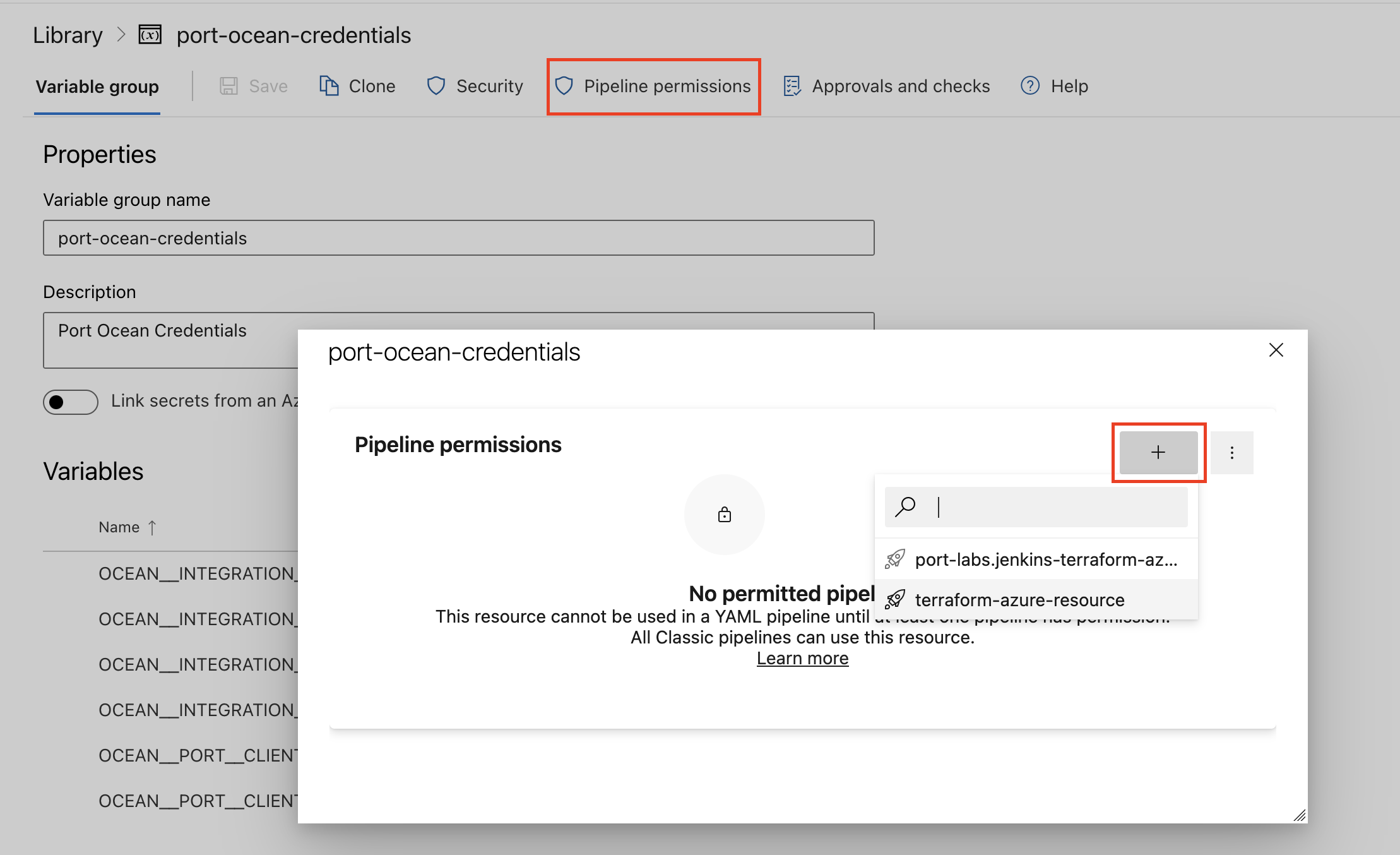
- Authorize Your Pipeline:
-
Go to "Library" -> "Variable groups."
-
Find port-ocean-credentials and click on it.
-
Select "Pipeline Permissions" and add your pipeline to the authorized list.
-
Below are the available parameters and their descriptions.
| Parameter | Description | Required? | Secret?Store this value as an Azure DevOps pipeline variable |
|---|---|---|---|
OCEAN__ | Your Port client ID (How to get the credentials). | ✓ | ✓ |
OCEAN__ | Your Port client secret (How to get the credentials). | ✓ | ✓ |
OCEAN__ | Your Port API URL (https://api.port.io for EU, https://api.us.port.io for US). | ✓ | ✗ |
OCEAN__ | The Sentry API token. See the prerequisites for the required permissions. | ✓ | ✓ |
OCEAN__ | The Sentry host. For example https://sentry.io. | ✓ | ✗ |
OCEAN__ | The Sentry organization slug. For example acme from https://acme.sentry.io. | ✓ | ✗ |
OCEAN__ | Default true. When set to true, the integration will create default blueprints and the Port app config mapping. | ✗ | ✗ |
OCEAN__ | The identifier of the integration that will be installed. | ✗ | ✗ |
OCEAN__ | Enable sending raw data examples from the third-party API to Port for testing and managing the integration mapping. Default is true. | ✗ | ✗ |
Here is an example for a azure-pipeline.yml pipeline file:Azure pipeline (click to expand)
- Go to the Sentry Connectors page in your portal.
- Under Select your installation method, choose your desired CI/CD platform.
- Copy the workflow and replace the placeholders with your values.
Below are the available parameters and their descriptions.
| Parameter | Description | Required? | Secret?Store this value as a GitLab CI/CD variable |
|---|---|---|---|
OCEAN__ | Your Port client ID (How to get the credentials). | ✓ | ✓ |
OCEAN__ | Your Port client secret (How to get the credentials). | ✓ | ✓ |
OCEAN__ | Your Port API URL (https://api.port.io for EU, https://api.us.port.io for US). | ✓ | ✗ |
OCEAN__ | The Sentry API token. See the prerequisites for the required permissions. | ✓ | ✓ |
OCEAN__ | The Sentry host. For example https://sentry.io. | ✓ | ✗ |
OCEAN__ | The Sentry organization slug. For example acme from https://acme.sentry.io. | ✓ | ✗ |
OCEAN__ | Default true. When set to true, the integration will create default blueprints and the Port app config mapping. | ✗ | ✗ |
OCEAN__ | The identifier of the integration that will be installed. | ✗ | ✗ |
OCEAN__ | Enable sending raw data examples from the third-party API to Port for testing and managing the integration mapping. Default is true. | ✗ | ✗ |
Configuration
Port integrations use a YAML mapping block to ingest data from the third-party api into Port.
The mapping makes use of the JQ JSON processor to select, modify, concatenate, transform and perform other operations on existing fields and values from the integration API.
Default mapping configuration
This is the default mapping configuration for this integration:
Default mapping configuration (click to expand)
deleteDependentEntities: true
createMissingRelatedEntities: true
enableMergeEntity: true
resources:
- kind: user
  selector:
    query: 'true'
  port:
    entity:
      mappings:
        identifier: .email
        title: .user.name
        blueprint: '"sentryUser"'
        properties:
          username: .user.username
          isActive: .user.isActive
          dateJoined: .user.dateJoined
          lastLogin: .user.lastLogin
          orgRole: .orgRole
          inviteStatus: .inviteStatus
- kind: user
  selector:
    query: 'true'
  port:
    entity:
      mappings:
        identifier: .email
        blueprint: '"_user"'
        relations:
          sentry_user: .email
- kind: project-tag
  selector:
    query: 'true'
    tag: environment
  port:
    entity:
      mappings:
        identifier: .slug + "-" + .__tags.name
        title: .name + "-" + .__tags.name
        blueprint: '"sentryProjectEnvironment"'
        properties:
          dateCreated: .dateCreated
          platform: .platform
          status: .status
          link: .organization.links.organizationUrl + "/projects/" + .name
- kind: issue-tag
  selector:
    query: 'true'
    tag: environment
  port:
    entity:
      mappings:
        identifier: .id + "-" + .item.name
        title: .title + " -" + " " + .item.name
        blueprint: '"sentryIssue"'
        properties:
          link: .permalink + "?environment=" + .item.name
          status: .status
          isUnhandled: .isUnhandled
        relations:
          projectEnvironment: (.project.slug as $slug | .item | "\($slug)-\(.name)")
          assignee:
            combinator: '"and"'
            rules:
            - operator: '"="'
              property: '"$identifier"'
              value: .assignedTo.email
- kind: team
  selector:
    query: 'true'
    includeMembers: true
  port:
    entity:
      mappings:
        identifier: .slug
        title: .name
        blueprint: '"sentryTeam"'
        properties:
          dateCreated: .dateCreated
          memberCount: .memberCount
          roles: .teamRole
          projects: .projects | map (.slug)
        relations:
          members: if .__members != null then .__members | map(.user.email) | map(select(. != null)) else [] end
Mapping & selectors per resource
Examples of blueprints and the relevant integration configurations:
- kind: user
  selector:
    query: 'true'
  port:
    entity:
      mappings:
        identifier: .email
        title: .user.name
        blueprint: '"sentryUser"'
        properties:
          username: .user.username
          isActive: .user.isActive
          dateJoined: .user.dateJoined
          lastLogin: .user.lastLogin
          orgRole: .orgRole
          inviteStatus: .inviteStatus
- kind: user
  selector:
    query: 'true'
  port:
    entity:
      mappings:
        identifier: .email
        blueprint: '"_user"'
        relations:
          sentry_user: .email
{
  "id": "10909027",
  "email": "developer@getport.io",
  "name": "Michael",
  "user": {
    "id": "1722098",
    "name": "Michael",
    "username": "developer@getport.io",
    "email": "developer@getport.io",
    "avatarUrl": "https://gravatar.com/avatar/9645cd28334383caa5efa6a681dddf7cba33f94ddaf234297ba13cb30d5c5718?s=32&d=mm",
    "isActive": true,
    "hasPasswordAuth": true,
    "isManaged": false,
    "dateJoined": "2022-01-18T22:38:13.946094Z",
    "lastLogin": "2024-11-10T23:25:31.826834Z",
    "has2fa": false,
    "lastActive": "2024-11-11T07:32:23.490455Z",
    "isSuperuser": false,
    "isStaff": false,
    "experiments": {},
    "emails": [
      {
        "id": "1861335",
        "email": "developer@getport.io",
        "is_verified": false
      }
    ],
    "avatar": {
      "avatarType": "letter_avatar",
      "avatarUuid": null,
      "avatarUrl": null
    }
  },
  "orgRole": "owner",
  "pending": false,
  "expired": false,
  "flags": {
    "idp:provisioned": false,
    "idp:role-restricted": false,
    "sso:linked": true,
    "sso:invalid": false,
    "member-limit:restricted": false,
    "partnership:restricted": false
  },
  "dateCreated": "2022-01-18T22:33:43.222734Z",
  "inviteStatus": "approved",
  "inviterName": "Port Admin",
  "role": "owner",
  "roleName": "Owner"
}
{
  "identifier": "developer@getport.io",
  "title": "Michael",
  "blueprint": "sentryUser",
  "icon": "Sentry",
  "team": [],
  "properties": {
    "username": "developer@getport.io",
    "isActive": true,
    "dateJoined": "2022-01-18T22:38:13.946094Z",
    "lastLogin": "2024-11-10T23:25:31.826834Z",
    "orgRole": "owner",
    "inviteStatus": "approved"
  },
  "relations": {},
  "createdAt": "2024-11-06T08:49:17.700Z",
  "createdBy": "hBx3VFZjqgLPEoQLp7POx5XaoB0cgsxW",
  "updatedAt": "2024-11-06T08:59:11.446Z",
  "updatedBy": "hBx3VFZjqgLPEoQLp7POx5XaoB0cgsxW"
}
Set up live events
This integration supports live events, allowing real-time updates to your software catalog without waiting for the next scheduled sync.
Note that different events are supported depending on the resource type.
createdresolvedignoredunresolvedassigned- Hosted by Port
- Self-hosted
Live events base URL
For integrations installed using the Hosted by Port method, you can obtain the live events base URL from the Get an integration API. The response includes liveEventsUuid and liveEventsIngestHostname in the appSpec section.
Call the endpoint with your integration's identifier:
curl -X GET \
  'https://api.port.io/v1/integration/<INTEGRATION_IDENTIFIER>' \
  -H 'Authorization: Bearer <PORT_ACCESS_TOKEN>'
The port_region, port.baseUrl, portBaseUrl, port_base_url and OCEAN__PORT__BASE_URL parameters select which Port API instance to use:
- EU (app.port.io) →
https://api.port.io - US (app.us.port.io) →
https://api.us.port.io
In the response, look for the following fields under spec.appSpec:
{
  "spec": {
    "appSpec": {
      "liveEventsUuid": "abcdefghijk",
      "liveEventsIngestHostname": "ingest.ocean.getport.io"
    }
  }
}
Combine them to build the live events base URL:
https://<liveEventsIngestHostname>/live-events/<liveEventsUuid>
For example, with the values above, the live events base URL is:
https://ingest.ocean.getport.io/live-events/abcdefghijk
This is the same URL configured for the integration.
BaseUrl & webhook configuration
To enable real-time updates of the data in your software catalog, you need to define the liveEvents.baseUrl parameter.
This parameter should be set to the URL of your Sentry integration instance, which needs to have the option to setup webhooks via HTTP requests/receive HTTP requests, so ensure the network is configured accordingly.
- If Sentry and the integration are in the same cluster/network: Use an internal URL (e.g., a Kubernetes service DNS name).
For Kubernetes deployments, create a service to expose the integration pod and use the service URL asliveEvents.baseUrl. If both the source system and integration are in the same cluster, an internal ClusterIP service is sufficient. - If Sentry is external to the integration's network: The integration must be exposed via an ingress, load balancer, or public URL that Sentry can reach.
If you're running high volumes of live events in a self-hosted deployment and want better reliability, event durability, or horizontal scalability, you can optionally set up Port's dedicated live events infrastructure. See live events at scale for details.
If liveEvents.baseUrl is not provided, the integration will continue to function correctly. In such a configuration, to retrieve the latest information from the target system, the scheduledResyncInterval parameter has to be set, or a manual resync will need to be triggered through Port's UI.
To test webhooks or live event delivery to your local environment, expose your local pod or service to the internet using ngrok (e.g. ngrok http http://localhost:8000)
To update Port in real time when Sentry issues change, create an internal integration in Sentry and configure it to send issue webhooks to Port.
Get the webhook URL
- Hosted by Port
- Self-hosted
First create a custom webhook integration in Port, then connect it to Sentry in Create the internal integration in Sentry:
- Go to the connectors page in Port.
- Select the Webhook tab.
- Click Custom integration. For more details, see the custom webhook integration guide.
- Enter a name for the integration (e.g Sentry Webhook).
- Enter a description for the integration.
- Click Next.
- After the custom integration is created, open its card.
- Select the Mapping tab.
- In the Configure Webhook event section, copy the webhook URL. You'll paste it in the Sentry internal integration steps below.
- In the Map the data from the external system into Port section, add a mapping for Sentry issue events. The mapping uses JQ to select and transform fields from the webhook payload.
Use the Test mapping section to verify that the JQ mapping works with a Sentry webhook payload before saving.
Configure liveEvents.baseUrl and webhook security in the Self-hosted tab above. Use the resulting webhook URL when you create the internal integration in Sentry below.
Example mapping (click to expand)
[
  {
    "blueprint": "sentryIssue",
    "operation": "create",
    "filter": ".body.data.issue.id != null",
    "entity": {
      "identifier": ".body.data.issue.id",
      "title": ".body.data.issue.title",
      "properties": {
        "link": ".body.data.issue.permalink",
        "status": ".body.data.issue.status",
        "isUnhandled": ".body.data.issue.isUnhandled"
      },
      "relations": {
        "projectEnvironment": ".body.data.issue.project.slug"
      }
    }
  }
]
Example webhook payload (click to expand)
{
  "body": {
    "action": "resolved",
    "data": {
      "issue": {
        "id": "7324623130",
        "shortId": "PROJECT-8V",
        "title": "N+1 Query",
        "permalink": "https://example.sentry.io/issues/7324623130/",
        "level": "info",
        "status": "resolved",
        "isUnhandled": false,
        "project": {
          "id": "4509038422523904",
          "name": "example-api",
          "slug": "example-api",
          "platform": "python-django"
        },
        "firstSeen": "2026-03-10T14:44:04.743762Z",
        "lastSeen": "2026-06-09T11:20:54.358658Z"
      }
    },
    "actor": {
      "type": "user",
      "name": "Example User"
    }
  },
  "headers": {
    "Sentry-Hook-Resource": "issue",
    "Sentry-Hook-Signature": "<signature>",
    "Sentry-Hook-Timestamp": "1781025505"
  },
  "queryParams": {}
}
Create the internal integration in Sentry
- Log in to Sentry with your organization's credentials.
- Click the gear icon (Setting) at the left sidebar of the page.
- Under Integrations, click Custom Integrations.
- At the upper corner of this page, click on Create New Integration.
- Sentry provides two types of integrations: Internal and Public. For the purpose of this guide, choose Internal Integration and click on the Next button.
- Under Internal Integration Details, input the following details:
- Name - use a meaningful name such as "Port Webhook".
- Webhook URL - paste the URL from the webhook URL instructions for your installation method.
- Under Permissions, grant Read permissions for the Issue & Event category.
- Under Webhooks, enable the issues checkbox to allow Sentry to report issue events to Port.
- Click Save Changes at the bottom of the page.
After saving the internal integration, Sentry displays a client secret. Copy it if you want Port to verify the signature of webhook requests from Sentry.
For more details on setting up internal integrations in Sentry, see the Sentry documentation.
Verify webhook signatures
Signature verification is optional. To enable it, use the client secret generated by Sentry when you created the internal integration.
- Hosted by Port
- Self-hosted
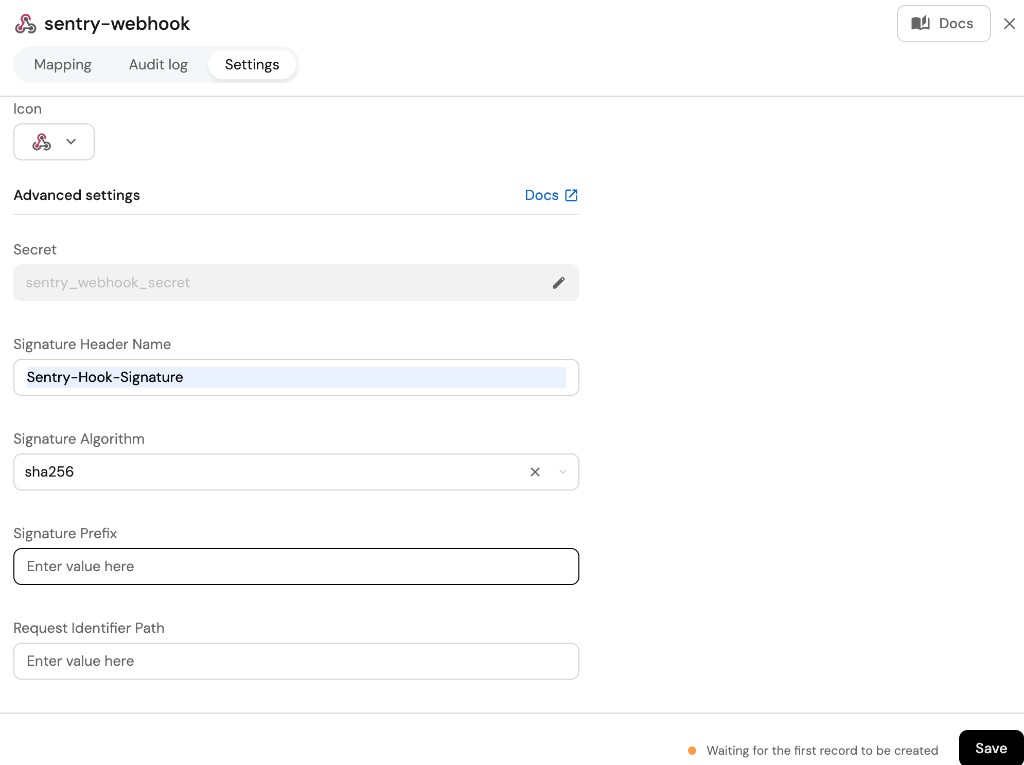
- Select the custom webhook integration's Settings tab.
- Paste the client secret from Sentry's internal integration in the Secret field.
- Set Signature Header Name to
Sentry-Hook-Signature. - Set Signature Algorithm to
sha256. - Click Save.
Configure integration.secrets.sentryWebhookSecret with the client secret — see the optional parameters in Setup.
Monitoring and sync status
To learn more about how to monitor and check the sync status of your integration, see the relevant documentation.