Install an integration
Port is designed to be flexible. It can be integrated with any tool, and can be used to build a software catalog that reflects your exact data model.
Port comes with a wide variety of available integrations for popular tools and platforms, modeled and configured by us to provide you with a plug & play experience.
Once installed, you can customize and extend these integrations to fit your exact needs.
Don't see the tool you wish to integrate with Port in the available integrations below?
Port provides you with the required tools to model your data and ingest it with ease, see Create a custom integration.
Integration process
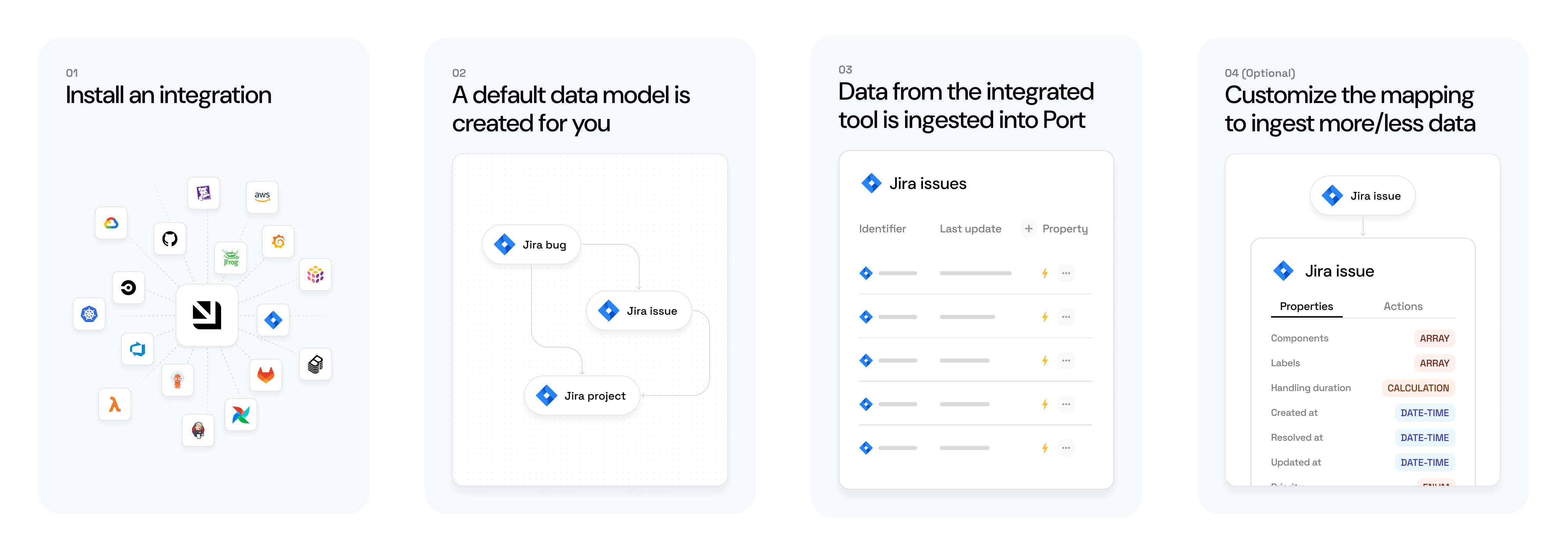
Generally, installing an available integration results in the following:
-
The integration's default data model is created for you:
- Default blueprints will be created in the Builder page of your portal.
- Default mapping will be defined in the integration's data source page.
-
Data from the integrated tool is ingested into Port.
The sync mechanism and frequency depend on the installation method.
After the installation, you can customize the blueprints and/or mapping to ingest more/less data (see below).
Available plug & play integrations


GitHub (Ocean)
GitHub (sunset)

GitLab v2
GitLab (deprecated)

BitBucket
BitBucket server

AzureDevops

Jenkins

Octopus Deploy

ArgoCD

Komodor

Istio

FluxCD

Knative

Kyverno

OpenShift

Trivy

Jira
Jira server (self-hosted)


Linear

Kubernetes


AWS (self-hosted)
AWS (hosted by Port)

Azure

GCP

Terraform


Datadog

New Relic


Sentry

Prometheus

Snyk

Wiz

SonarQube
Aikido

Checkmarx

Armorcode

BrowserStack


Launchdarkly

PagerDuty

StatusPage

FireHydrant

OpsGenie

ServiceNow

Rootly
Jira Service Management

Dynatrace
Azure Monitor

Kubecost

Opencost


Kafka


Okta
Microsoft Entra ID

Amplication


Backstage

Slack

Zapier

Ocean custom


Github Copilot

Claude AI


Cursor


OpenAI

n8n
Most of Port's integrations were developed using the Ocean framework.
Ocean is an open-source framework that simplifies the development of integrations with external tools, providing many out-of-the-box functionalities.
Want to contribute an integration? Check out the Ocean documentation to get started, and reach out to us if you have any questions 🌟
Integrations vs. MCP connectors
Integrations are not the only way to connect external tools to Port. Port also supports MCP connectors, which give Port AI real-time access to a tool without syncing data into the catalog.
Use an integration when you need persistent data in Port - for ownership, relations between resources, scorecards, or workflow automation.
Use an MCP connector when you want Port AI to query a tool on demand without modeling its data. MCP connectors require minimal configuration and are a good starting point before committing to a full catalog integration.
For many tools, you'll end up using both: the integration models the data you care about governing, while the MCP connector gives AI access to the tool's full surface area.
Learn more: Integrations vs. MCP connectors →
Installation methods
Below is a breakdown of the supported installation methods for Port integrations.
| Installation type | Security | Ease of installation | Periodic sync | Live sync (Webhook) | Infrastructure & maintenance responsibility | Use case fit |
|---|---|---|---|---|---|---|
| Hosted by Port (OAuth) | Port stores OAuth tokens securely. | 🟩🟩🟩🟩 | ✅ (user-selectable interval) | ✅ (Integration-dependent) | Port handles scaling, uptime, and updates. | Ideal for a quick setup with minimal effort. Mainly useful for getting started with an integration. Not recommended for large-scale production environments. |
| Hosted by Port (Custom settings) | Port stores API credentials securely. Setup requires more details (e.g., token, host) and allows access control flexibility. | 🟩🟩🟩⬜ | ✅ (user-selectable interval) | ✅ (Integration-dependent) | Port handles scaling, uptime, and updates. | Best for quick setup without granting OAuth permissions. |
| Self-hosted | Managed entirely in your infrastructure. | 🟩⬜⬜⬜ | ✅ (custom interval) | ✅ (Integration-dependent) | You provision, monitor, and maintain the integration. | Best for high-security or custom networking needs. |
| CI | Managed in your CI/CD environment. | 🟩🟩⬜⬜ | ✅ (custom interval) | ❌ | Minimal infrastructure. You manage the CI/CD environment and triggers. | Best when real-time isn’t needed and you want full sync control. |
Service accounts (machine tokens) are currently not supported for Ocean integrations. This is a known limitation that affects:
- Audit/event logging functionality - Service account tokens may not properly log events.
- Token validation - Machine user tokens cannot be properly validated by the system.
- Some integration features - May experience reduced functionality.
Current workaround: Use personal or organizational credentials until this limitation is resolved.
Status: This is being tracked as a feature request and will be addressed in a future release. For production environments requiring service account support, consider using Port-hosted integrations where available.
Customize your integrations
Now that you've installed an integration, let's see how you can customize it:
-
Configure your data model - Update the integration's data model in Port to ingest additional data that is not included by default.
-
Configure your data mapping - Update the integration's data mapping in Port to match the data model and fetch your desired data from the tool.
Manage integrations via API
While integrations are installed using one of the methods above, you can manage existing integrations programmatically using Port's API. Available endpoints include:
- Get all integrations : List all integrations in your organization.
- Get an integration : Fetch details of a specific integration.
- Update an integration : Modify an integration's mapping, trigger a resync, or change its configuration.
- Delete an integration : Remove an integration from your organization.
For more granular management, see also the endpoints for integration config, event logs, metrics and sync status, and sync metadata.
Entities
An entity is an instance of a blueprint, it represents the data defined by a blueprint's properties.
After installing an integration, a page will be created in your catalog, populated with entities representing the ingested data.
For example, once you complete Port's onboarding process and connect your Git provider to Port, a new Services page will be created in your software catalog, populated with entities representing your services (Git repositories):
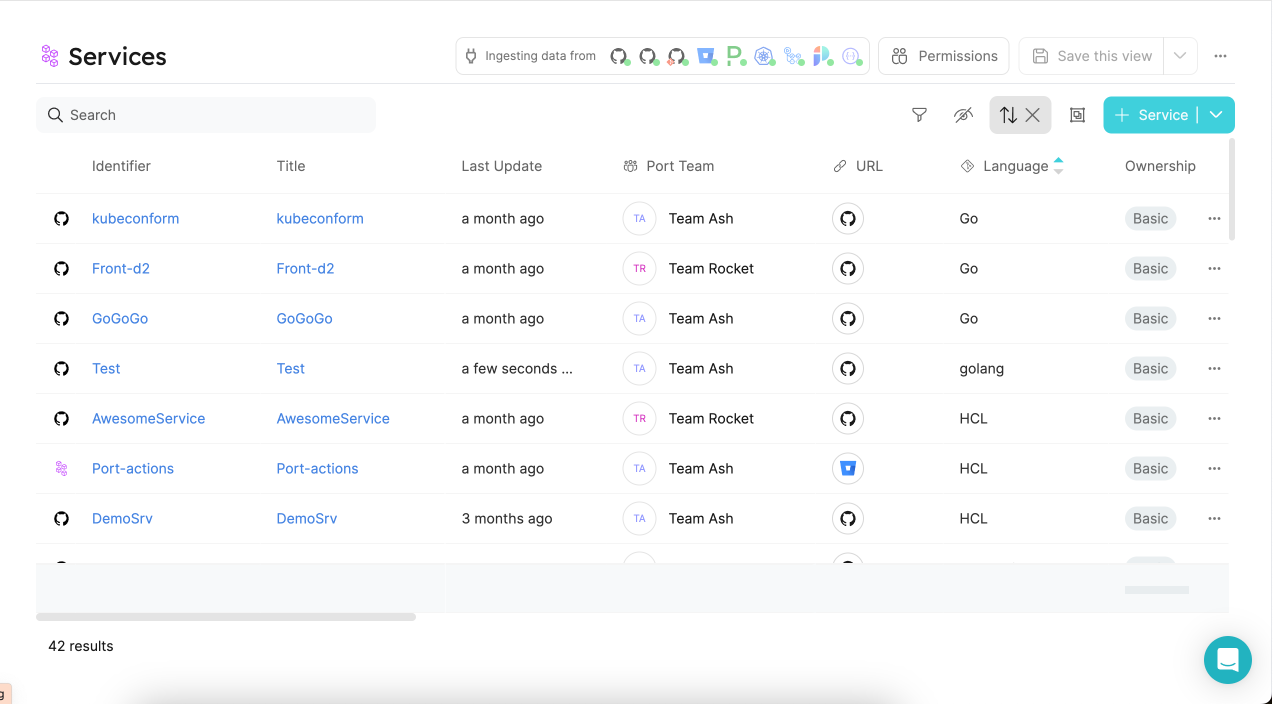
Clicking on an entity in the table will take to its entity page, where you can view its properties, relations and more.
Entity structure
By default, each entity has the following meta-properties: identifier, title, team. See the table below for more details.
JSON structure
{
  "identifier": "unique-ID",
  "title": "Title",
  "team": [],
  "blueprint": "blueprintName",
  "properties": {
    "property1": "",
    "property2": ""
  },
  "relations": {}
}
Structure table
| Field | Type | Description |
|---|---|---|
identifier | String | Unique identifier. (Maximum 1000 characters) Note that while the identifier is unique, it can be changed after creation. |
title | String | Entity name that will be shown in the UI. |
team | Array | Optional Field. An array of the associated teams. |
blueprint | String | The name of the blueprint that this entity is based on. |
properties | Object | An object containing key-value pairs, where each key is a property as defined in the blueprint definition, and each value matches the type of the property. |
relations | object | An object containing key-value pairs. Each key is the identifier of the relation that is defined on the blueprint. |
Monitoring and sync status
Every integration has a dedicated page that displays detailed monitoring metrics and sync status, helping you track the data ingestion process. This monitoring view is available for all Ocean integrations.
To access the integration's monitoring metrics and sync status, navigate to the data sources page. Under the Exporters section, select your integration.
The Sync Status tab offers a detailed overview of the data ingestion and reconciliation processes.
It updates on initial installation, manual resyncs, and at scheduled intervals. Note that it does not reflect changes from live events.
It includes the following sections:
Sync by kind
Shows the monitoring metrics and sync status for each kind.
When triggering a sync, the Save & resync button offers two options:
- Run full sync: Runs all three stages below - fetches fresh data from the source, maps it, and ingests it into Port. The first sync is always a full resync.
- Apply mapping: Skips the fetch stage and reruns only the mapping and ingestion using already-fetched data. This is useful after editing your mapping configuration - if you don't need fresh data from the source, apply mapping is much faster since it reuses existing data rather than re-fetching everything.
Sync stages overview:
- Fetch data:
The first step in the data ingestion process is fetching the data from the data source. This stage only runs during a Run full sync and is skipped when using Apply mapping.
In this section, you will find the following fields:- Fetched: Number of objects fetched from the data source.
- Failed: If the fetch fails, this field will show
1andFetchedwill show0. Otherwise, it shows0.
- Map data:
The next step is mapping these objects according to the integration's mapping configuration.
In this section, you will find the following fields:- Transformed: Number of objects that were mapped to blueprint entities.
- Filtered out: Number of objects that were filtered out according to the mapping conditions.
- Failed: Number of objects that failed to map, you can find more information about the failure reasons in the Troubleshooting tips section below in the UI or refer to the
Audit logorEvent logtabs, available in the same window.
- Ingest to Port:
Final step is ingesting the mapped objects to Port.
In this section, you will find the following fields:- Ingested: Number of objects that were inserted or updated successfully.
- Not changed: Number of objects that were already up to date, so no changes were made to them.
- Failed: Number of objects that failed to ingest. To learn more about the failure reasons, see the
Audit logorEvent logtabs, available in the same window.
Details: Displays the duration of the sync.
Kind status
While a resync is in progress, each kind can show the following in-progress statuses:
- Pending: The
kindis waiting to start. - Syncing: The
kindis currently being processed.
After the ingestion process finishes for each kind, Port assigns a final status based on the metrics from each sync stage. Available final statuses: Aborted, Failed, Synced with errors, and Synced.
A kind is marked as Failed when any of the following apply:
- Could not fetch data: The fetch step reported failures and no objects were fetched.
- All objects failed to map: At least one object was fetched, every fetched object failed to map, and none were transformed.
- Failed to ingest all mappable objects: At least one object was fetched, not all objects were filtered out, not all objects failed to map, at least one object was transformed, and none were ingested while ingest reported failures.
A kind is marked as Synced with errors when it is not Failed, and at least one sync stage reported failures.
A kind is marked as Synced when it is not Failed and no sync stage reported failures.
A kind is marked as Aborted when:
- A newer resync starts before the current sync completes for that
kind. - Metrics for the
kindare not available (for example, the sync did not complete).
Reconciliation
This section provides visibility into both the reingestion and deletion processes.
When the createMissingRelatedEntities flag is set to false, Port will not automatically create related entities that are referenced in the mapping but not yet present in Port. The reingestion process ensures that once the missing related entities are ingested, the dependent entities will be reingested.
The deletion process ensures that entities that are no longer present in the data source are removed.
In this section, you will find the following data:
Ingestion retry:
- Reingested entities: Displays the number of entities that were ingested successfully on retry after dependencies resolved.
- Failed: Displays the number of entities that failed to reingest.
Delete:
- Deleted entities: Displays the number of entities that were removed from Port to match the data source.
- Failed: Displays the number of entities that failed to delete.
Details: Displays the duration of the reconciliation.
Reconciliation status
While a resync is in progress, reconciliation can show the following in-progress statuses:
- Pending: Reconciliation is waiting to start. This happens when one or more
kindingestion processes have not finished yet. - Syncing: Reconciliation is currently running.
After the reingestion and deletion processes finish, Port assigns a final reconciliation status based on the metrics from both stages and the status of each kind. Available final statuses: Aborted, Failed, Synced with errors, and Synced.
Reconciliation is marked as Aborted when at least one kind is Failed.
Reconciliation is marked as Failed when both stages fully failed:
- Ingestion retry fully failed: At least one entity failed to reingest and none were reingested successfully.
- Delete fully failed: At least one entity failed to delete and none were deleted successfully.
Reconciliation is marked as Synced with errors when it is not Aborted or Failed, and any of the following apply:
- One stage fully succeeded, the other did not: One stage completed with no failures and at least one success, while the other stage either fully failed or partially succeeded.
- Both stages partially succeeded: Both Ingestion retry and Delete reported failures and successes.
Reconciliation is marked as Synced when it is not Aborted, Failed, or Synced with errors. This includes cases where both stages completed with no failures, or when a stage had no work to perform.
Sync status
While a sync is in progress, the integration shows the following in-progress statuses:
- Syncing: The sync is currently running.
After all kind ingestion processes and reconciliation finish, Port calculates a final overall resync status for the integration from the status of each kind and the reconciliation status. Available final statuses: Aborted, Failed, Synced with errors, and Synced.
The resync is marked as Failed when every kind is Failed.
The resync is marked as Synced when every kind is Synced and reconciliation is Synced.
The resync is marked as Synced with errors when at least one kind is Failed or Synced with errors, or when reconciliation is Failed or Synced with errors.
The resync is marked as Aborted when none of the above conditions apply. For example, when one or more kind statuses are Aborted and no kind or reconciliation issue triggered Synced with errors.
Note: The same data is also available through the Get an integration's metrics and sync status API endpoint.
If you are using the self-hosted integration method, you can get raw Prometheus metrics by accessing the following endpoint: Types of Metrics Available Types of Labels Available{your_integration's_base_url}/metrics/.Understanding the metrics (click to expand)
Labels: kind, phase
Labels: kind, phase, object_count_type
Labels: kind, phase
extract: Fetch data from the source.transform: Map or modify data before loading.load: Ingest the data into Port.resync: Full ETL process for a specific kind.delete: Part of the reconciliation phase.
transform: transformed, filtered_out, failed.load: loaded, failed, skipped.extract: raw_extracted, failed.deletion: deleted.
FAQ
Which integrations support this view? (Click to expand)
The monitoring view is available for all Ocean integrations, including both SaaS and on-premise environments.
Can I view previous syncs data? (Click to expand)
Yes. Use the resync dropdown at the top of the monitoring view to switch between the most recent sync and data from several past resyncs.
What are the troubleshooting tips based on? (Click to expand)
The troubleshooting tips are based on the observed metrics at each sync stage. They offer context-aware suggestions depending on the sync outcome. For example, if no data is fetched, the tip might recommend checking the integration's permissions. These tips are not tied to error logs.
When is the monitoring view updated? (Click to expand)
The monitoring view is updated following every sync, whether it is scheduled or manually triggered.
Does ingestion retry always attempt to process all failures? (Click to expand)
No, retries only apply when CreateMissingRelatedEntities is set to false.
Can I see the reasons for sync failures? (Click to expand)
The monitoring view includes potential failure via troubleshooting tips, but they are not definitive. For more detailed and precise insights, refer to the Audit Log and Event Log tabs at the top of the modal.
What happens if the same kind appears more than once in the mapping? (Click to expand)
If a kind appears multiple times in the mapping file, it will also appear multiple times in the monitoring view, following the exact order defined in the mapping.