Set catalog RBAC
Port provides granular control to ensure that every user only sees the parts of the catalog that are relevant to them.
Port's catalog RBAC capabilities are enabled by utilizing permissions controls.
In order to manage who can view certain pages in Port, check out page permissions.
Common usage
The catalog RBAC mechanism allows admins to finely control which users have access to specific information in the software catalog, for example:
- Allow a user to edit a single specific property on an entity.
- Create a fully read-only view for a developer.
Set access controls for catalog data
The default permissions assigned to every blueprint upon creation specify that users with the admin role, and users with the specific blueprint moderator role, can perform any action on a blueprint.
See RBAC permissions for more information about the different roles.
It is possible to assign global permissions controls for a blueprint's entities, using the following steps:
-
Go to the Builder page of your portal.
-
Select your desired blueprint, click on the
...button in the top-right corner, and selectPermissions: -
A dialog will open, with the
Permissionstab selected. Here you can set the permissions for the blueprint's entities.
Permissions are divided into the following sections:
- General
- Basic
- Advanced (entity owners)
- Advanced (dynamic read policy)
This section allows you to assign permissions for a role (Member, Admin or Moderator).
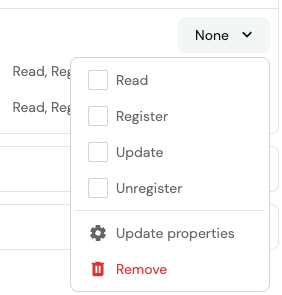
Click on the dropdown in the desired role row and select the permissions that will be assigned to it.
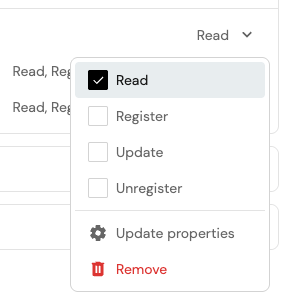
Set granular access controls to catalog data
It is possible to assign more granular permissions controls on entities, allowing you to restrict users to editing only certain properties or relations.
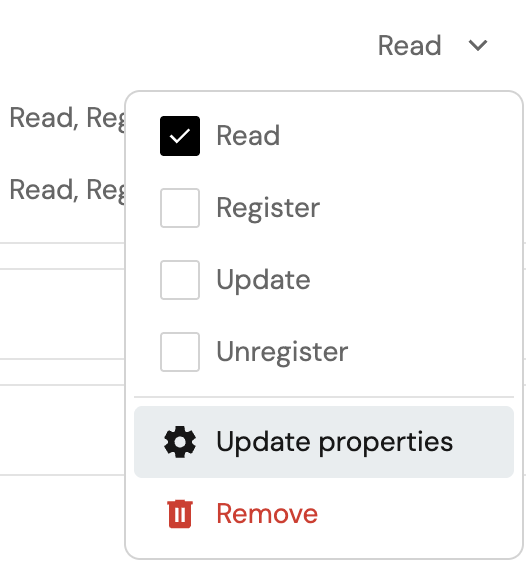
To do so, open the permissions dropdown in the desired row, then click on Update properties.
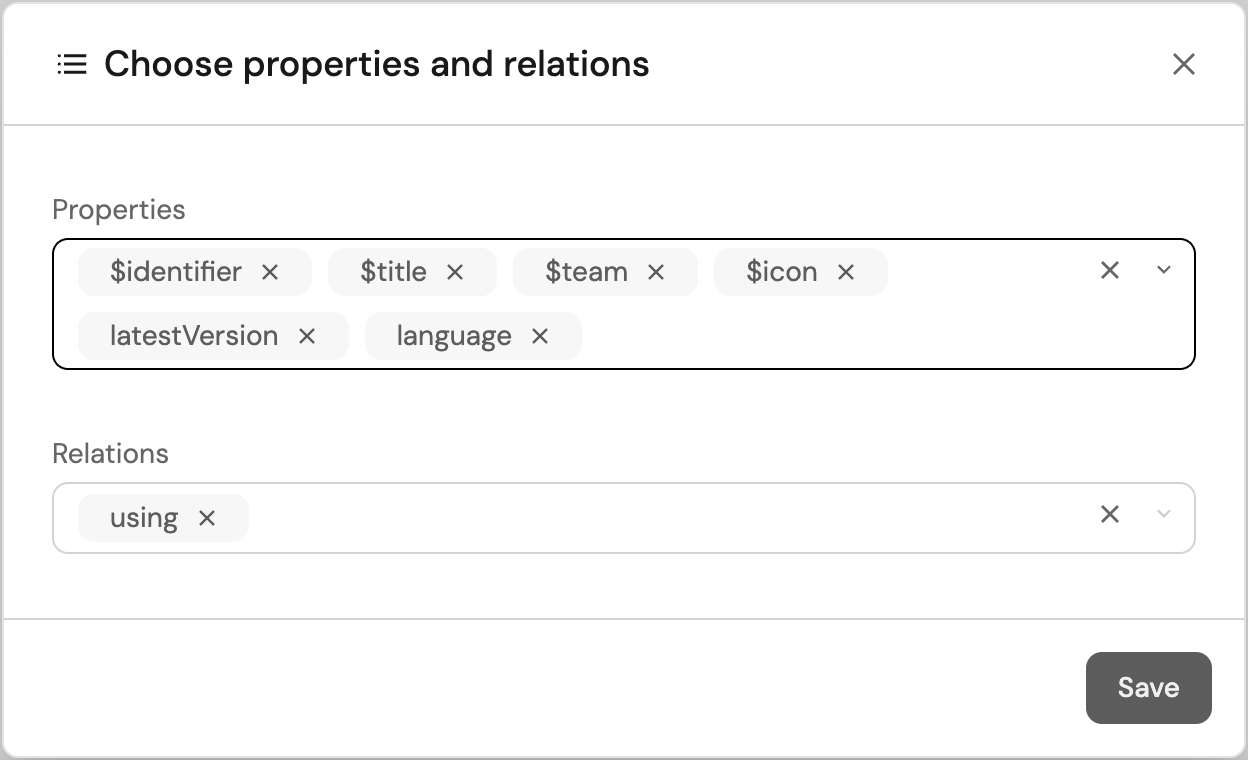
This will open a dialog, where you can select the properties and relations that the selected role will be able to update.
Edit via JSON (click to expand)
To edit permissions via JSON, click on the Edit JSON button in the top-right corner of the dialog.
To give permissions to a role, add it to the roles array in the permission scope you desire (read, register, unregister, update, updateProperties or updateRelations):
{
  "entities": {
    "read": {
      "roles": ["myBlueprint-moderator", "Admin", "Member"],
      // ...other permissions
    },
    "register": {
      "roles": ["myBlueprint-moderator", "Admin", "Member"],
      // ...other permissions
    },
    "unregister": {
      "roles": ["myBlueprint-moderator", "Admin", "Member"],
      // ...other permissions
    },
    "update": {
      "roles": ["myBlueprint-moderator", "Admin", "Member"],
      // ...other permissions
    },
    "updateProperties": {
      "$identifier": {
        "roles": ["myBlueprint-moderator", "Admin", "Member"],
        // ...other permissions
      }
      // ...other properties
    },
    "updateRelations": {
      "service": {
        "roles": ["myBlueprint-moderator", "Admin", "Member"],
        // ...other permissions
      }
      // ...other relations
    }
  }
}
This section allows you to assign permissions for a user or team.
If there isn't currently a row for the user or team, search for them in search box and select them. This will also automatically give them Read access.
Click on the dropdown in the desired user or team row and select the permissions that will be assigned to it.
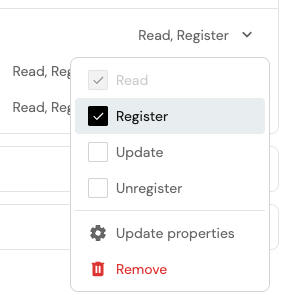
If you see None as the permission, it means that the user or team only has permissions for updateProperties or updateRelations.
Set granular access controls to catalog data
It is possible to assign more granular permissions controls on entities, allowing you to restrict users to editing only certain properties or relations.
To do so, click on the dropdown in the desired row, then click on Update properties.
This will open a dialog, where you can select the properties and relations that the selected user or team will be able to update.
Edit via JSON (click to expand)
To edit permissions via JSON, click on the Edit JSON button in the top-right corner of the dialog.
To give permissions to a user or team, add the user or team identifier to the users or teams array in the permission scope you desire (read, register, unregister, update, updateProperties or updateRelations):
{
  "entities": {
    "read": {
      "users": ["my-user@example.port.io"],
      "teams": ["my-team"],
      // ...other permissions
    },
    "register": {
      "users": ["my-user@example.port.io"],
      "teams": ["my-team"],
      // ...other permissions
    },
    "unregister": {
      "users": ["my-user@example.port.io"],
      "teams": ["my-team"],
      // ...other permissions
    },
    "update": {
      "users": ["my-user@example.port.io"],
      "teams": ["my-team"],
      // ...other permissions
    },
    "updateProperties": {
      "$identifier": {
        "users": ["my-user@example.port.io"],
        "teams": ["my-team"],
        // ...other permissions
      }
      // ...other properties
    },
    "updateRelations": {
      "service": {
        "users": ["my-user@example.port.io"],
        "teams": ["my-team"],
        // ...other permissions
      }
      // ...other relations
    }
  }
}
This section allows you to assign permissions based on entity owners.
Click on the dropdown in the desired row and select the permissions that will be assigned to it.
Set granular access controls to catalog data
It is possible to assign more granular permissions controls on entities, allowing you to restrict users to editing only certain properties or relations.
To do so, click on the dropdown in the desired row, then click on Update properties.
This will open a dialog, where you can select the properties and relations that the selected entity owners will be able to update.
Edit via JSON (click to expand)
To edit permissions via JSON, click on the Edit JSON button in the top-right corner of the dialog.
To give permissions to entity owners, set ownedByTeam to true in the permission scope you desire (read, register, unregister, update, updateProperties or updateRelations):
{
  "entities": {
    "read": {
      "ownedByTeam": true,
      // ...other permissions
    },
    "register": {
      "ownedByTeam":  true,
      // ...other permissions
    },
    "unregister": {
      "ownedByTeam":  true,
      // ...other permissions
    },
    "update": {
      "ownedByTeam":  true,
      // ...other permissions
    },
    "updateProperties": {
      "$identifier": {
        "ownedByTeam":  true,
        // ...other permissions
      }
      // ...other properties
    },
    "updateRelations": {
      "service": {
        "ownedByTeam":  true,
        // ...other permissions
      }
      // ...other relations
    }
  }
}
Important notes
- In the context of the
registerpermission, setting a user or team as an entity owner means that they can only create a new entity if they assign it to a team that they are a member of. - When entity owners permissions are configured the
Readpolicy is ignored.
This section allows you to assign read permissions based on a dynamic policy.
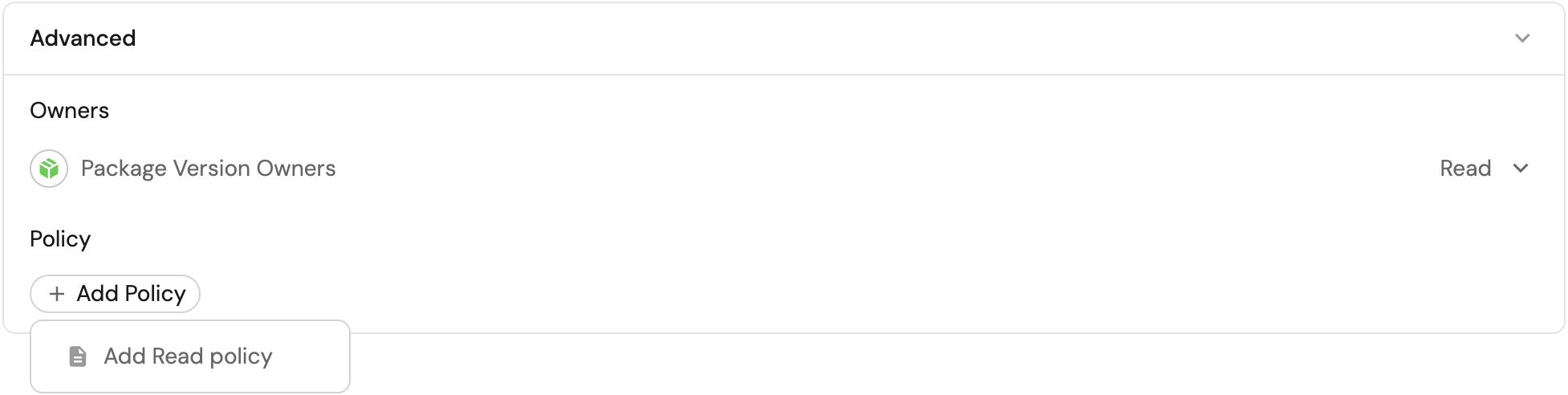
Edit via JSON (click to expand)
To edit permissions via JSON, click on the Edit JSON button in the top-right corner of the dialog.
To configure a read policy, add a policy query to the read scope.
The policy key allows you to give dynamic read permissions to users, by using search queries.
You can also use contextual query rules to get the context of the user executing the query.
In the following example, on-call users are granted read access only to entities that share the same region as one of their owning teams:
{
  "entities": {
    // ...other scopes
    "read": {
      "policy": {
        "combinator": "and",
        "rules": [
          {
            "property": {
              "context" : "user",
              "property": "isOnCall"
            },
            "operator": "=",
            "value": "true"
          },
          {
            "property": "region",
            "operator": "containsAny",
            "value": {
              "context" : "userTeams",
              "property": "region"
            }
          },
        ]
      }
      // ...other permissions
    }
  }
}
When entity owners permissions are configured, the dynamic read policy is ignored.
Setting read permissions on entities takes effect at the API level, meaning that any component in Port that fetches entities will be affected by these permissions.
For example, a table widget that displays entities will only show entities that the user has read permissions for.
Permission simulator
The permission simulator allows you to test and validate blueprint permissions before saving them.
You can simulate read, register (create), update, and unregister (delete) access for any user in your organization and quickly understand why access is granted or denied.
Use the simulator
- Go to the Builder page, open a blueprint, and click
Permissions. - In the Permission Simulator section at the bottom of the page, select:
- A user from your organization.
- An operation:
read,register(create),update, orunregister(delete).
- Review the results table to see all entities the selected user can access for the selected operation.
- (Optional) Select a specific entity to open the detailed access breakdown.
- In the detail view, review:
- The visual flow (user → granted/denied → entity).
- Which checks passed or failed.
- The exact check that granted access (if access is granted).
The simulator evaluates pending permission changes from the form, not only the saved configuration.
This lets you verify impact in real time before applying your changes.
How permissions are evaluated
The simulator evaluates five checks. Access is granted if any one of the following checks passes:
- Role check - verifies whether the user's role is included in the operation's allowed
roles. - Owned by team - when
ownedByTeamis enabled, verifies whether the user belongs to at least one team in the entity's$team. - Team list - verifies whether the user belongs to any team listed in the operation's
teams. - User list - verifies whether the user is explicitly listed in the operation's
users. - Policy (read only) - for
readsimulations, verifies whether the entity matches the configuredpolicyquery.
When access is granted, the simulator indicates the granting path, for example: "Has role Admin which allows this operation".
For policy-based access, the evaluated query is also displayed.
Software catalog RBAC examples
Refer to the examples page for practical examples of Port's RBAC.
FAQ
Since the catalog RBAC can be very granular, in some instances it might not be perfectly clear what the resulting assigned permissions would do, this part aims to provide some real-world examples and the behavior of Port's RBAC in those instances.
What happens if a user lacks the permissions to edit a required property of the blueprint?
In this case the user will not be able to register or update entities as a whole because they can't provide a value for the required property.
What happens if the ownedByTeam setting is enabled for entity registration, but the user can't edit the team property?
In this case the user will not be able to register a new entity since they can't select a value for the entity's team field and mark it as owned by their team.