Port MCP server
The Port Model Context Protocol (MCP) Server acts as a bridge, enabling Large Language Models (LLMs)—like those powering Claude, Cursor, or GitHub Copilot—to interact directly with your Port.io developer portal. This allows you to leverage natural language to query your software catalog, analyze service health, manage resources, and even streamline development workflows, all from your preferred interfaces.
The Port MCP Server provides significant standalone value, independent of our AI Agents feature. The MCP Server gives you immediate access to streamline building in Port, query your catalog, analyze service health, and streamline development workflows using natural language.
While the MCP Server can interact with Port AI Agents when available, the core MCP functionality can be used freely on its own.
Why integrate LLMs with your developer portal?
The primary advantage of the Port MCP Server is the ability to bring your developer portal's data and actions into the conversational interfaces you already use. This offers several benefits:
- Reduced Context Switching: Access Port information and initiate actions without leaving your IDE or chat tool.
- Increased Efficiency: Get answers and perform tasks faster using natural language commands.
- Improved Developer Experience: Make your developer portal more accessible and intuitive to interact with.
- Enhanced Data-Driven Decisions: Easily pull specific data points from Port to inform your work in real-time.
As one user put it:
"It would be interesting to build a use case where a developer could ask Copilot from his IDE about stuff Port knows about, without actually having to go to Port."
The Port MCP Server directly enables these kinds of valuable, in-context interactions.
Key capabilities and use-cases
The Port MCP Server enables you to interact with your Port data and capabilities directly through natural language within your chosen LLM-powered tools. Here's what you can achieve:
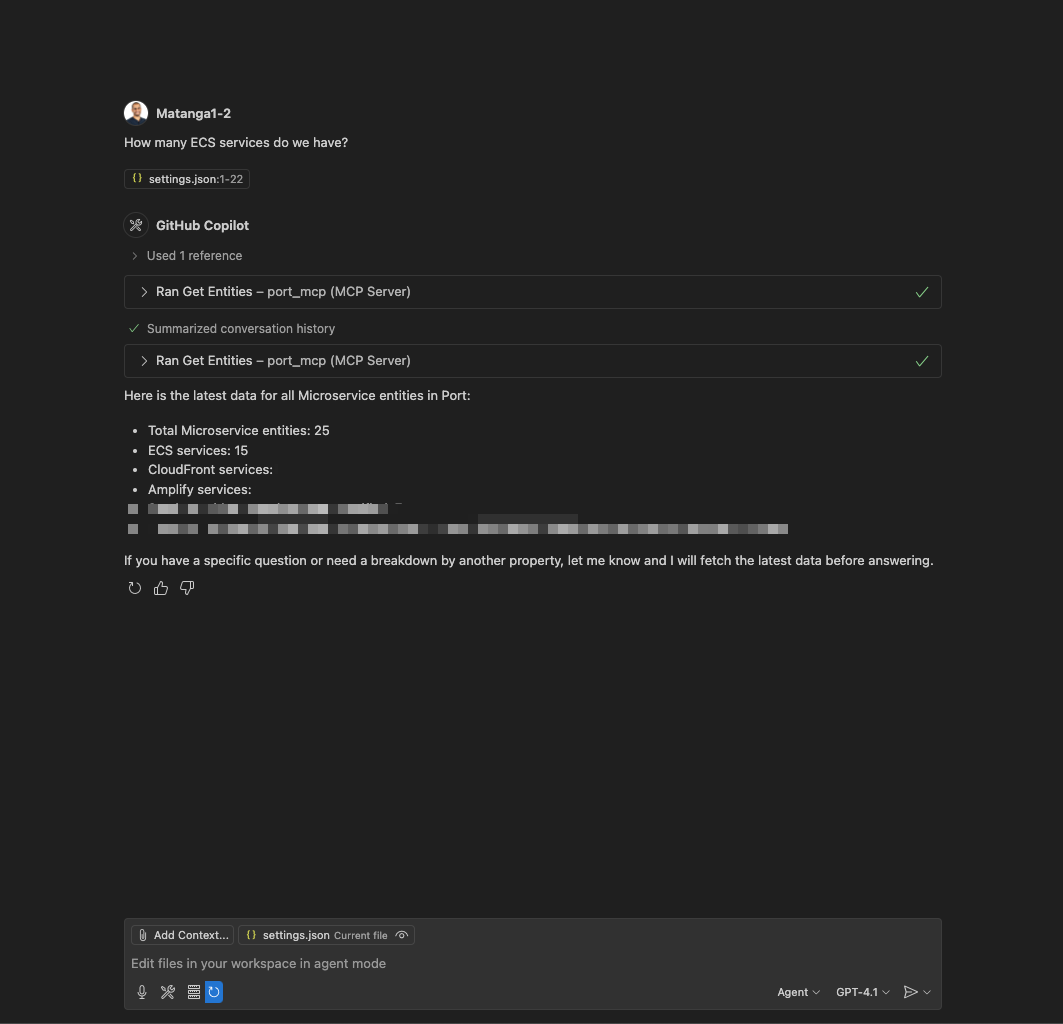
Find information quickly
Effortlessly query your software catalog and get immediate answers. This eliminates the need to navigate through UIs or write complex API queries when you need information.
- Ask: "Who is the owner of service X?"
- Ask: "How many services do we have in production?"
- Ask: "Show me all the microservices owned by the Backend team."
- Ask: "What are the dependencies of the 'OrderProcessing' service?"
Vibe-build in Port
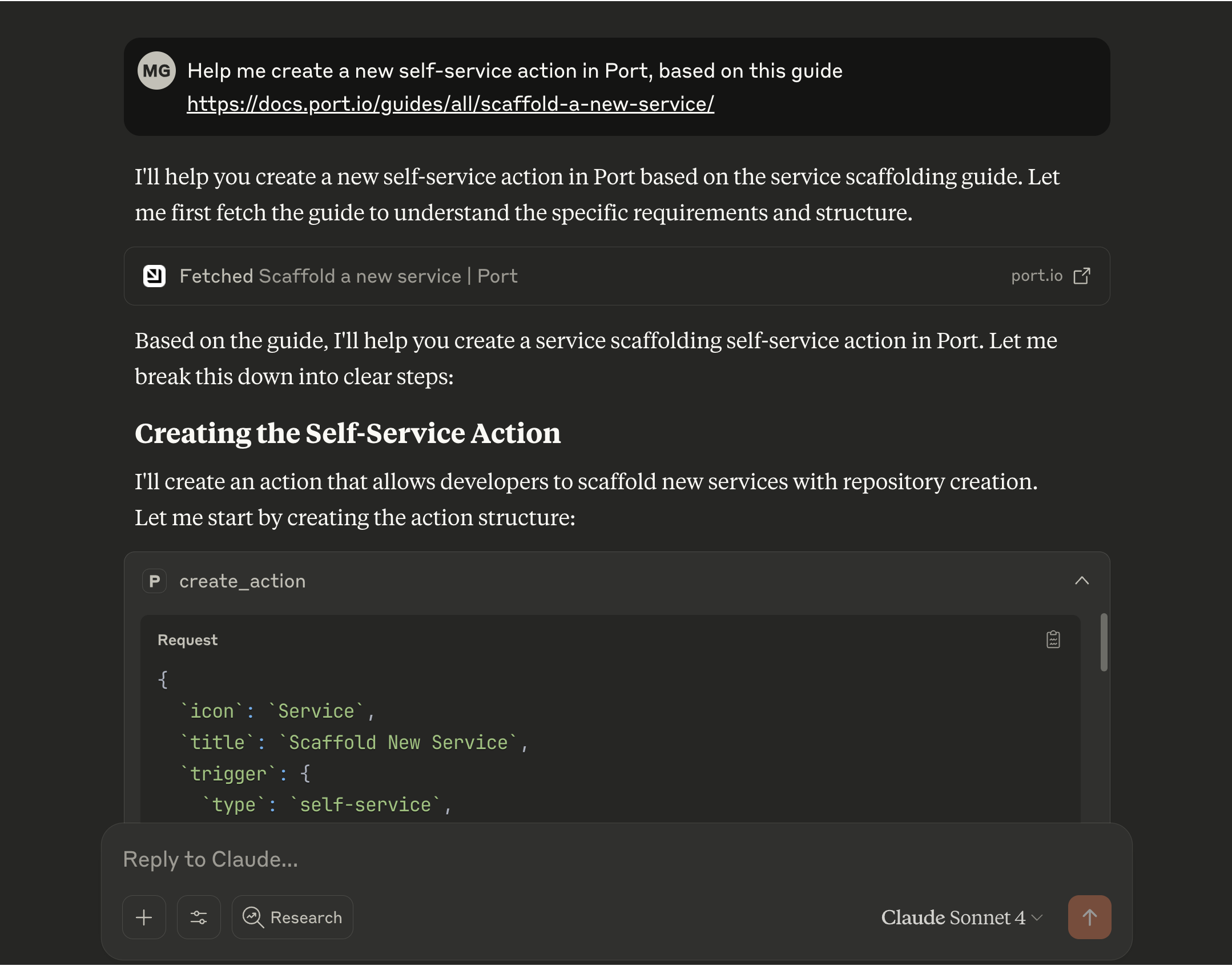
Leverage Claude's capabilities to manage and build your entire Port software catalog. You can create and configure blueprints, set up self-service actions, design scorecards, and more.
- Ask: "Please help me apply this guide into my Port instance - [[guide URL]]"
- Ask: "I want to start managing my k8s deployments, how can we build it in Port?"
- Ask: "I want a new production readiness scorecard to track the code quality and service alerts"
- Ask: "Create a new self-service action in Port to scaffold a new service"
Analyze scorecards and quality
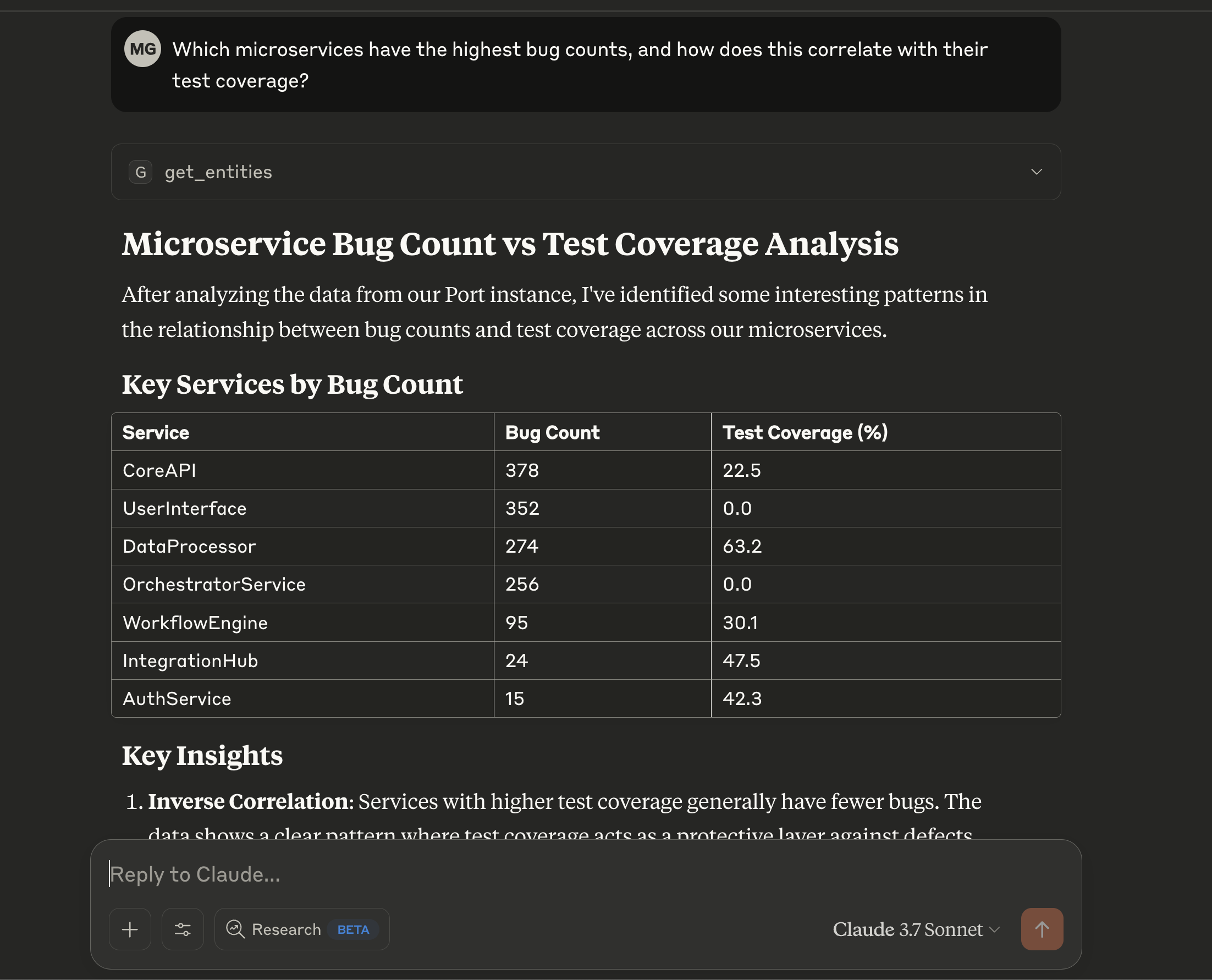
Gain insights into service health, compliance, and quality by leveraging Port's scorecard data. Identify areas for improvement and track progress against your standards.
- Ask: "Which services are failing our security requirements scorecard?"
- Ask: "What's preventing the 'InventoryService' from reaching Gold level in the 'Production Readiness' scorecard?"
- Ask: "Show me the bug count vs. test coverage for all Java microservices."
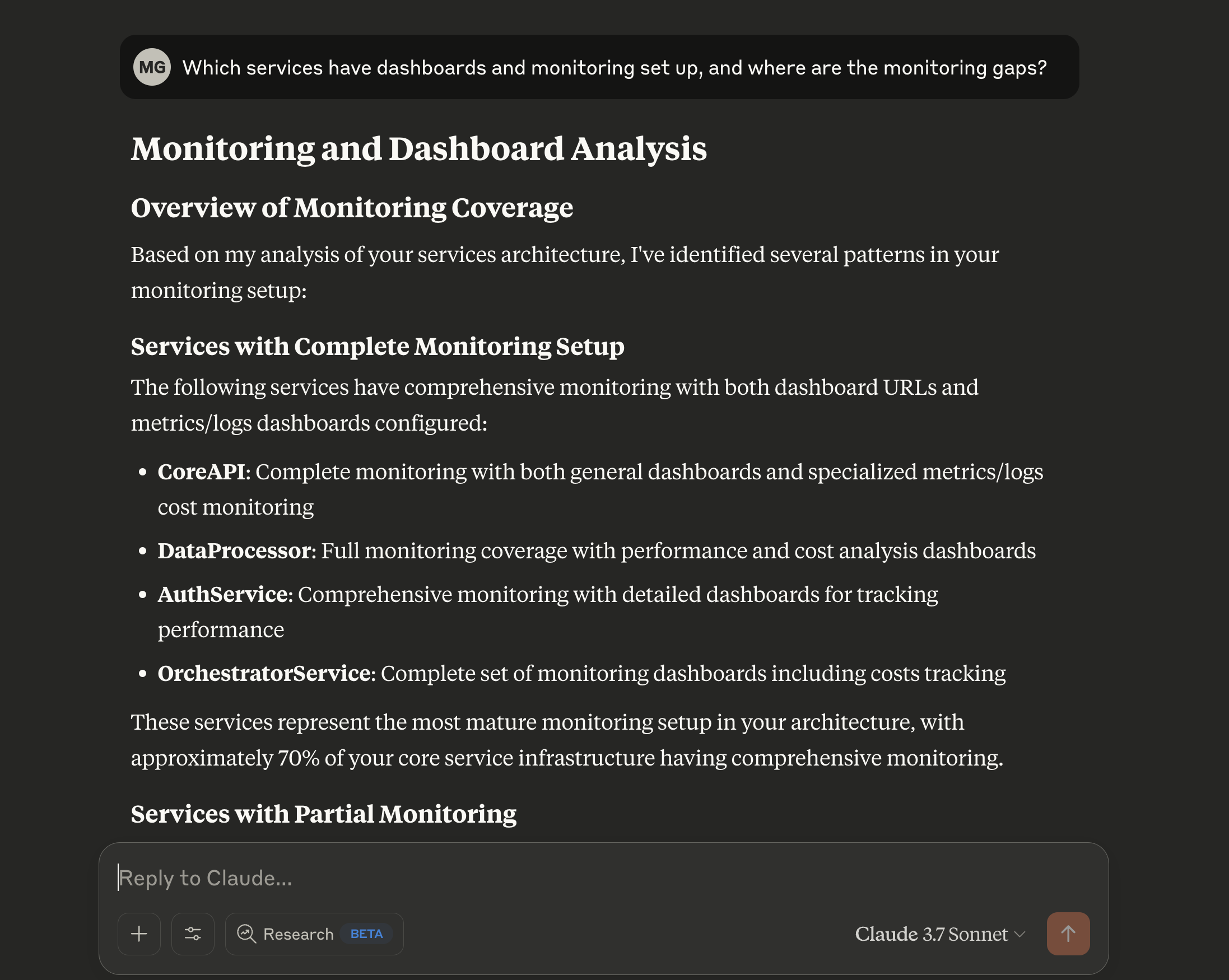
- Ask: "Which of our services are missing critical monitoring dashboards?"
Streamline development and operations
Receive assistance with common development and operational tasks, directly within your workflow.
- Ask: "What do I need to do to set up a new 'ReportingService'?"
- Ask: "Guide me through creating a new component blueprint with 'name', 'description', and 'owner' properties."
- Ask: "Help me add a rule to the 'Tier1Services' scorecard that requires an on-call schedule to be defined."
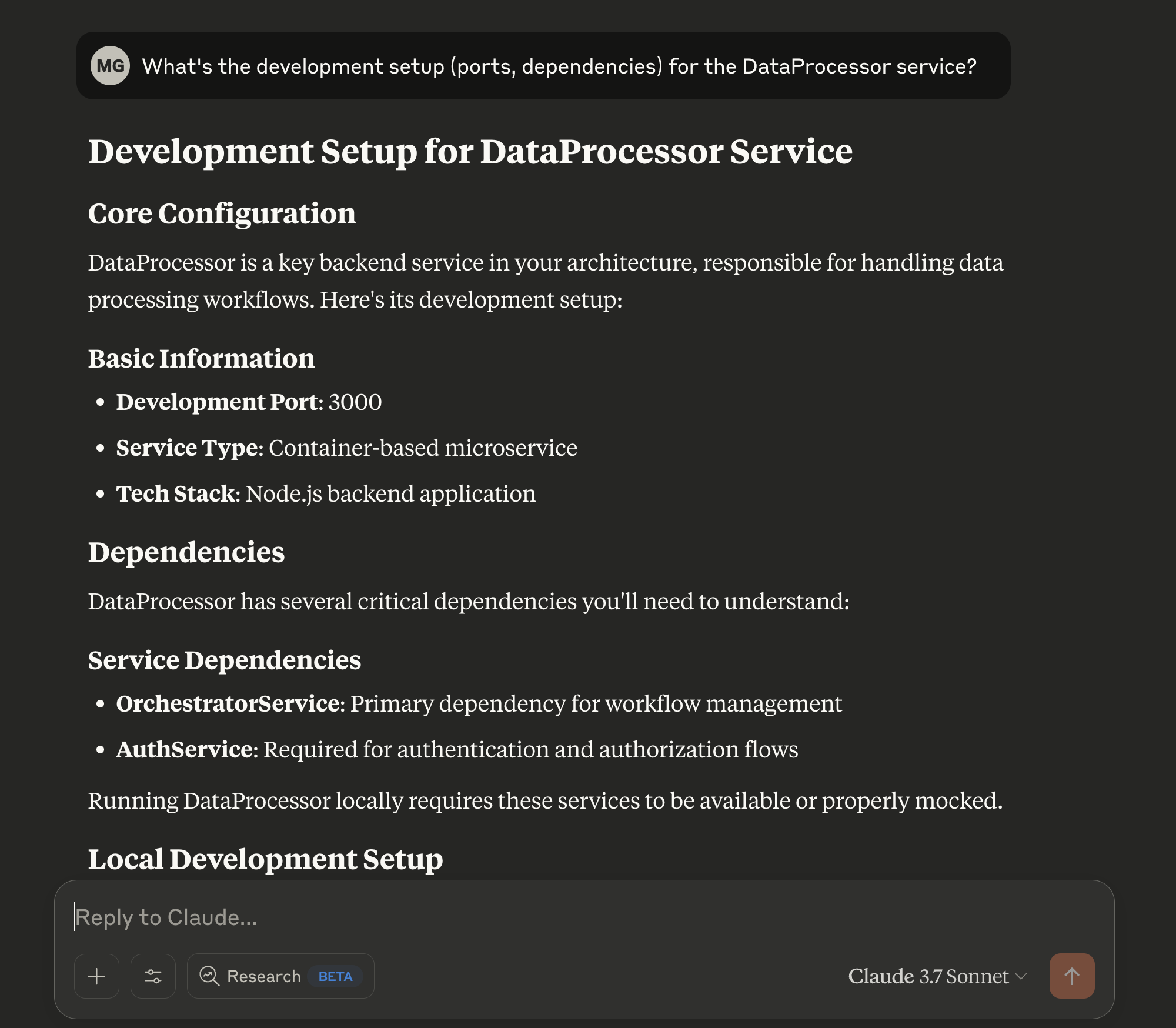
Find your own use cases
You can use Port's MCP to find the use cases that will be valuable to you. Try using this prompt: "think of creative prompts I can use to showcase the power of Port's MCP, based on the data available in Port"
Install Port MCP
Follow the instructions for your preferred tool below:
- Cursor
- VSCode
- Claude AI
To connect Cursor to Port's remote MCP, follow these steps:
-
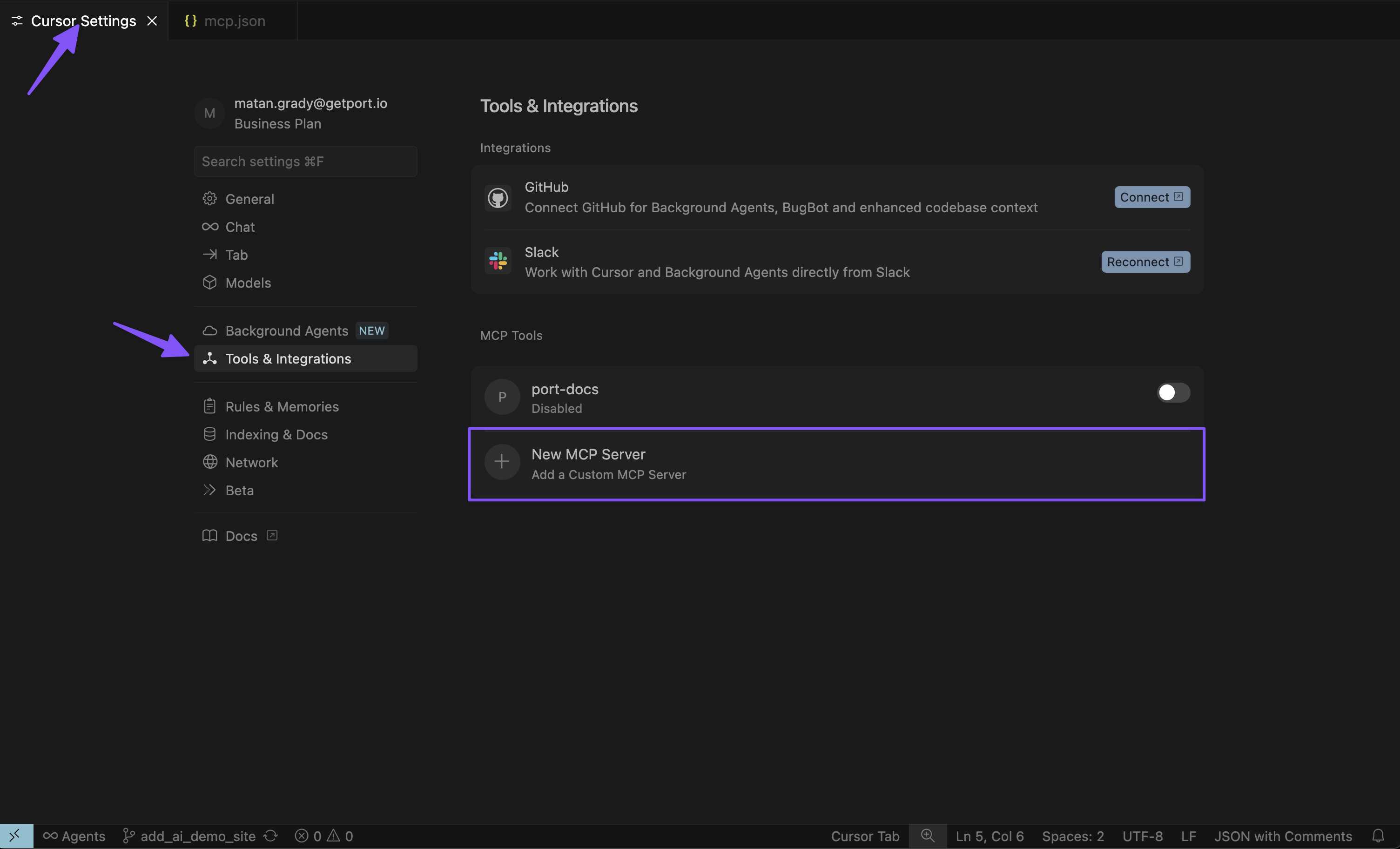
Open Cursor settings
Go to Cursor settings, click on Tools & Integrations, and add a new MCP server.
-
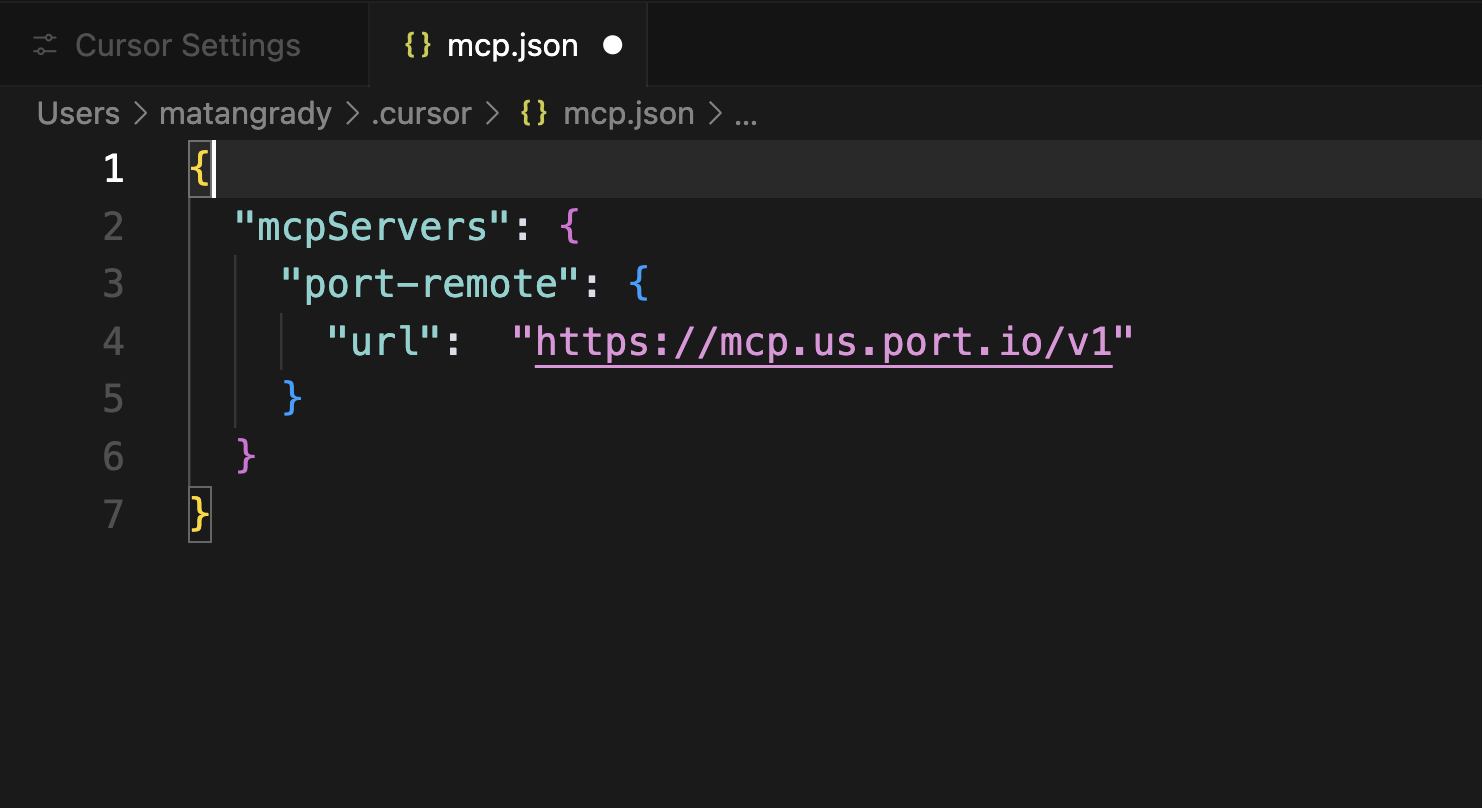
Configure the MCP server
Add the appropriate configuration for your Port region:
- EU
- US
{
  "mcpServers": {
    "port-eu": {
      "url": "https://mcp.port.io/v1",
      "headers": {
        "x-read-only-mode": "0"
      }
    }
  }
}
{
  "mcpServers": {
    "port-us": {
      "url": "https://mcp.us.port.io/v1",
      "headers": {
        "x-read-only-mode": "0"
      }
    }
  }
}
The x-read-only-mode header defaults to 0, which allows all tools based on your permissions. You can change it to 1 to restrict the MCP server to only expose read-only tools. When set to 1, write tools are completely hidden from the available tools list, ensuring you can only query data without making modifications.
-
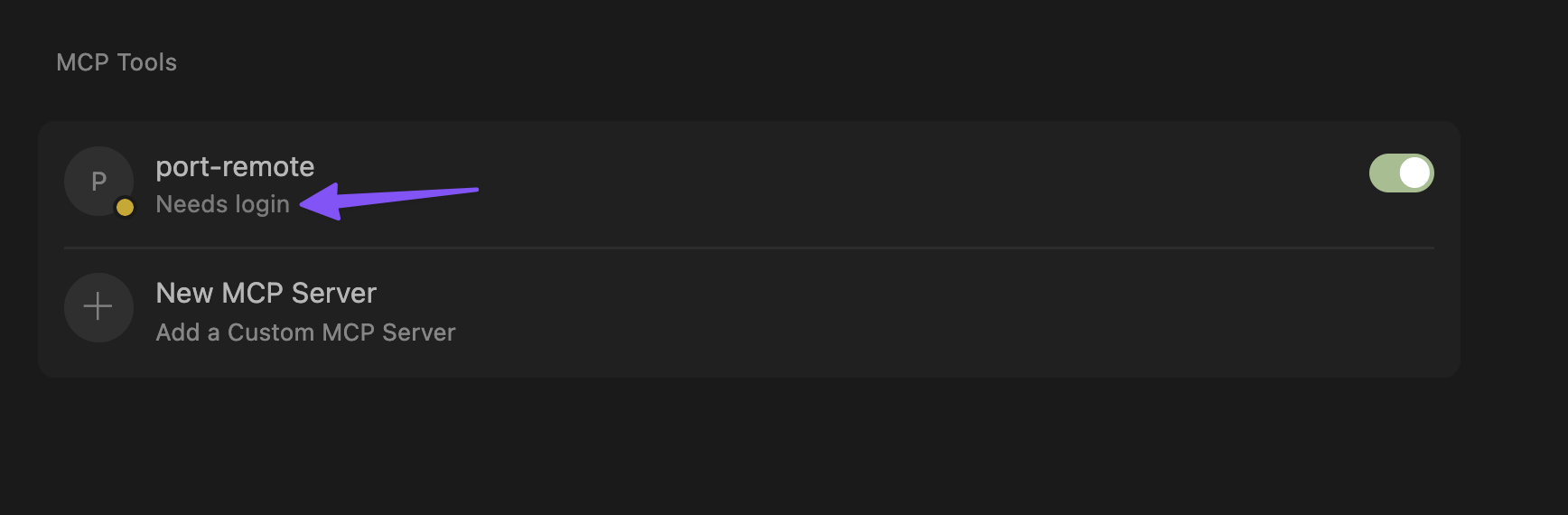
Authenticate with Port
Click on "Needs login" and complete the authentication flow in the window that opens.
-
Verify connection
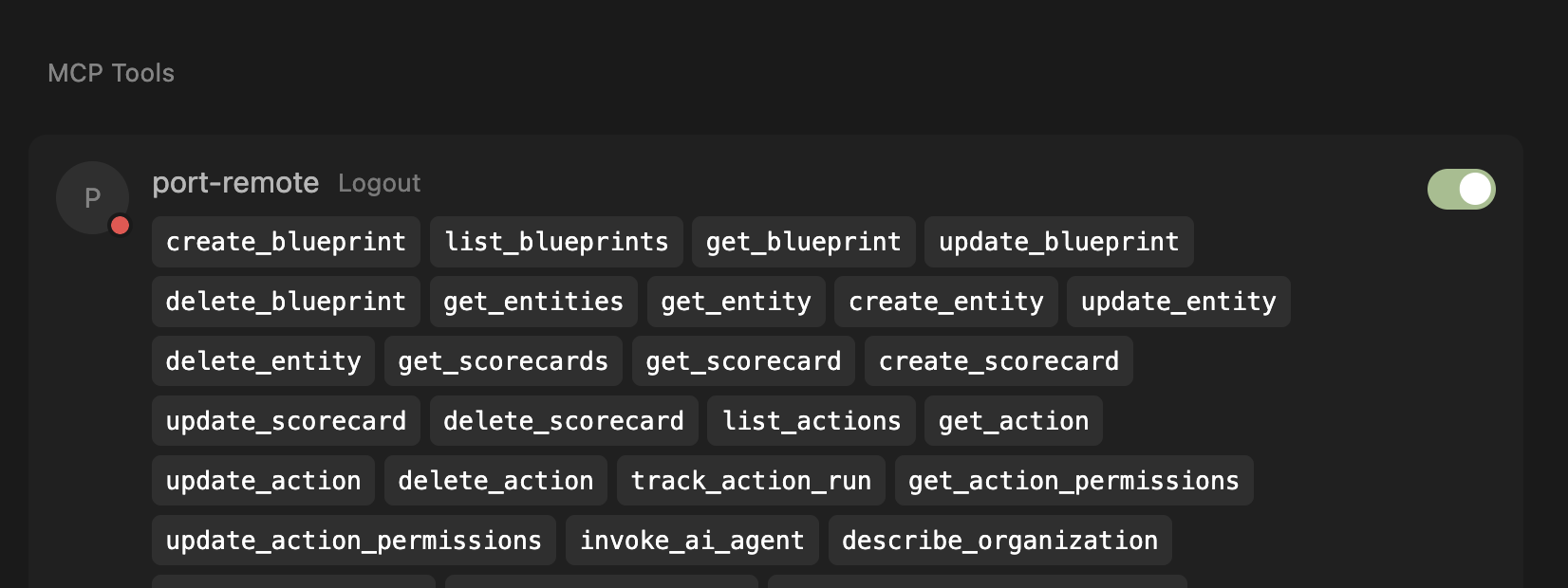
After successful authentication, you'll see the list of available tools from the MCP server.
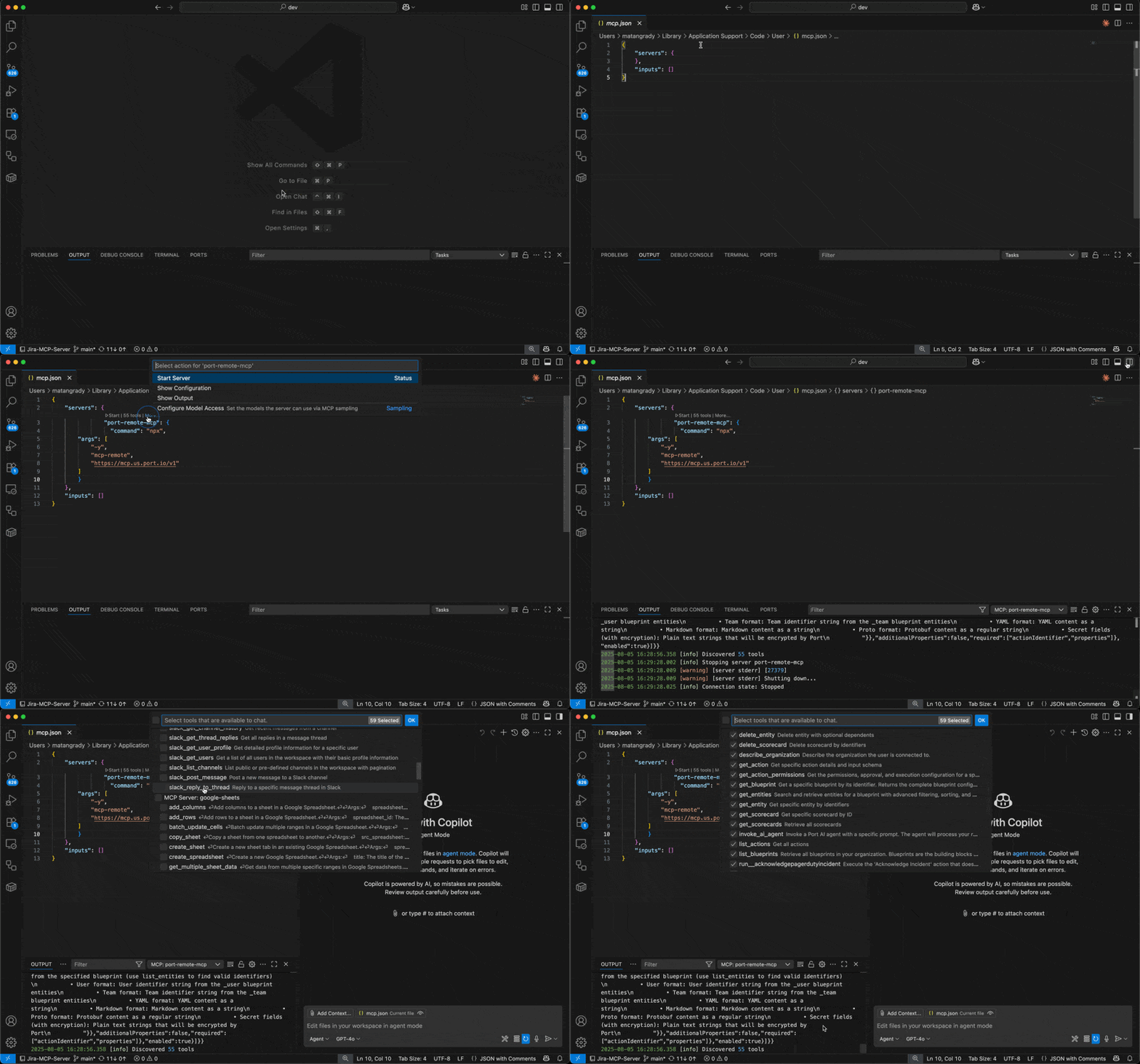
To connect VSCode to Port's remote MCP server, follow these detailed steps. For complete instructions, refer to the official VS Code MCP documentation.
Before proceeding, ensure your VS Code is updated to the latest version and that MCP is enabled for your GitHub organization. You may need to enable "Editor preview features" under Settings > Code, planning, and automation > Copilot via admin access from your organization.
This configuration uses the open-source mcp-remote package, which requires Node.js to be installed on your system. Before using the configuration, ensure Node.js is available by running:
npx -y mcp-remote --help
If you encounter errors:
- Missing Node.js: Install Node.js from nodejs.org
- Network issues: Check your internet connection and proxy settings
- Permission issues: You may need to run with appropriate permissions
Step 1: Configure MCP Server Settings
- Open VS Code settings
- Search for "MCP: Open user configuration" (or follow the instructions on a workspace installation)
- Add the server configuration using the appropriate configuration for your region:
- EU
- US
{
  "mcpServers": {
    "port-vscode-eu": {
      "command": "npx",
      "args": [
        "-y",
        "mcp-remote",
        "https://mcp.port.io/v1",
        "--header",
        "x-read-only-mode: 0"
      ]
    }
  }
}
{
  "mcpServers": {
    "port-vscode-us": {
      "command": "npx",
      "args": [
        "-y",
        "mcp-remote",
        "https://mcp.us.port.io/v1",
        "--header",
        "x-read-only-mode: 0"
      ]
    }
  }
}
WSL Users
If you are running VS Code on Windows with WSL, you may need to explicitly specifywsl as the command and provide the full path to npx (run which npx in your WSL terminal to find the path). For example:{
"mcpServers": {
"port-vscode": {
"command": "wsl",
"args": [
"/usr/bin/npx",
"-y",
"mcp-remote",
"https://mcp.port.io/v1",
"--header",
"x-read-only-mode: 0"
]
}
}
}
The x-read-only-mode header defaults to 0, which allows all tools based on your permissions. You can change it to 1 to restrict the MCP server to only expose read-only tools. When set to 1, write tools are completely hidden from the available tools list, ensuring you can only query data without making modifications.
Step 2: Start the MCP Server
- After adding the configuration, click on "Start" to initialize the MCP server
- If you don't see the "Start" button, ensure:
- Your VS Code version is updated to the latest version
- MCP is enabled for your GitHub organization
- "Editor preview features" is enabled under Settings > Code, planning, and automation > Copilot
Step 3: Verify Connection
- Once started, you should see the number of available tools displayed
- If you don't see the tools count:
- Click on "More" to expand additional options
- Select "Show output" to view detailed logs
- Check the output panel for any error messages or connection issues
Step 4: Access Port Tools
- Start a new chat session in VS Code
- Click on the tools icon in the chat interface
- You should now see Port tools available for use
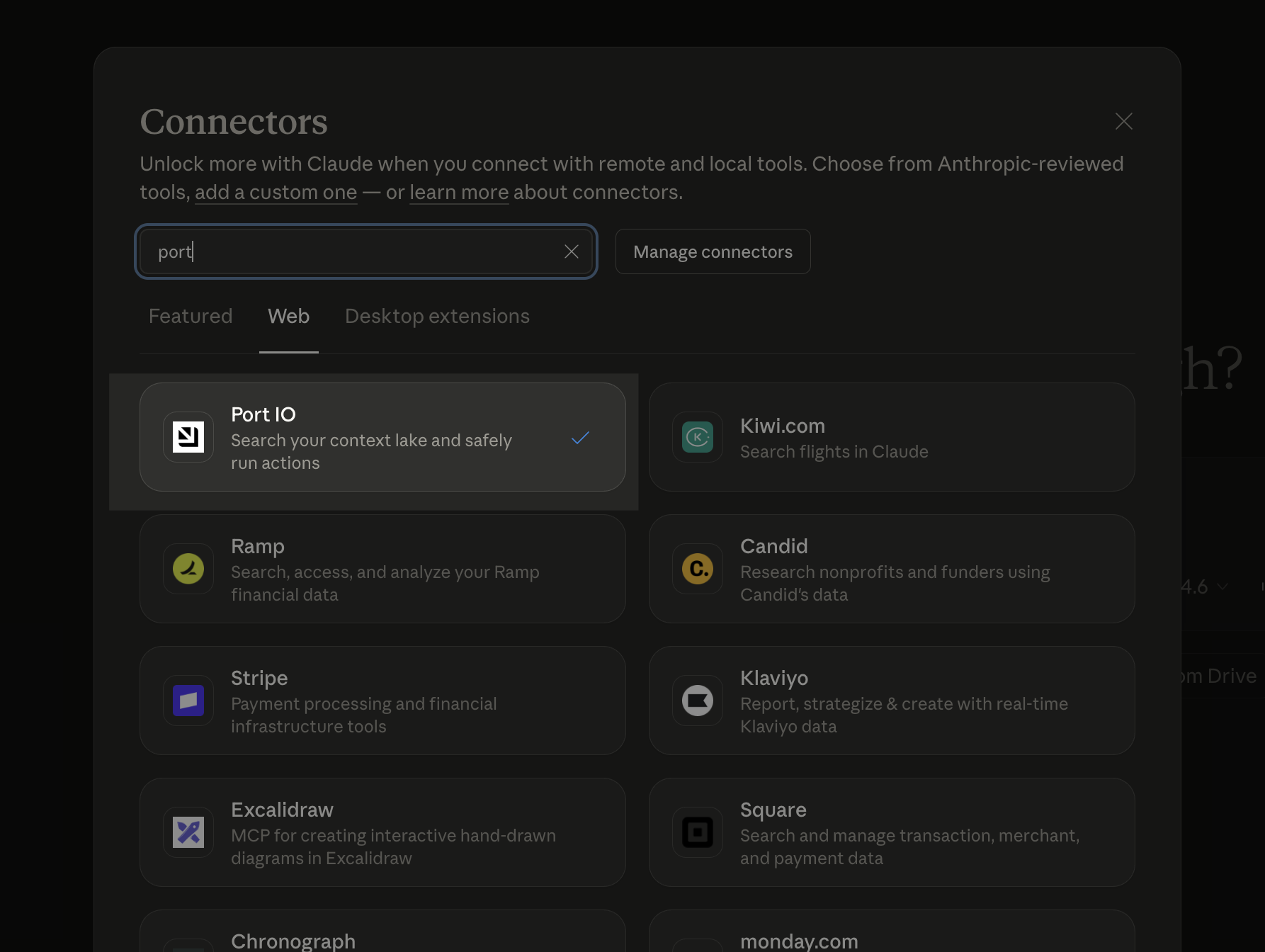
To connect Claude AI (Desktop & Web) to Port's remote MCP, install the Port official connector from the Claude connectors library. For detailed instructions, refer to the official Anthropic documentation on custom connectors.
- Open Port Connector page by visiting this link or searching for "Port" connector, and click Connect.
- Enter your MCP server URL when prompted based on your Port region (if you're not sure what your Port region is, check your Port app base URL: if it contains "US", it's the US; otherwise, it's the EU).
- EU
- US
https://mcp.port.io/v1
https://mcp.us.port.io/v1
MCP clients can maintain authenticated sessions for up to 30 days (as long as you're not idle for 15 days). This applies to OAuth-based authentication for interactive use, providing a more seamless experience for long-running integrations.
Connect the server to multiple organizations
Port uses your browser's OAuth session to approve MCP connections. When your MCP client opens the authentication prompt, you approve access in the organization where you are currently logged in. Follow these steps to connect to the correct organization:
- Make sure you are logged in to the desired organization in your browser before you start the MCP connection flow.
- Approve the OAuth prompt from your MCP client while you remain logged in to that organization.
- Continue using the MCP client; changing your browser session afterward does not change the connected organization.
To connect another organization from the same MCP client, add a second configuration and repeat the flow while logged in to the other organization. Each configuration keeps its own OAuth approval, so you can work with multiple organizations in parallel.
In addition to Port's native tools, you can also access external MCP servers (like Notion, Slack, Jira, and more) through the same interface. If you have configured MCP connectors, authenticate to them in Port and they will automatically be available in your IDE alongside Port's native capabilities.
Connecting the server when SSO is enabled
If your organization uses SSO (Single Sign-On) and you see an error like the one below when trying to connect to the MCP Server:
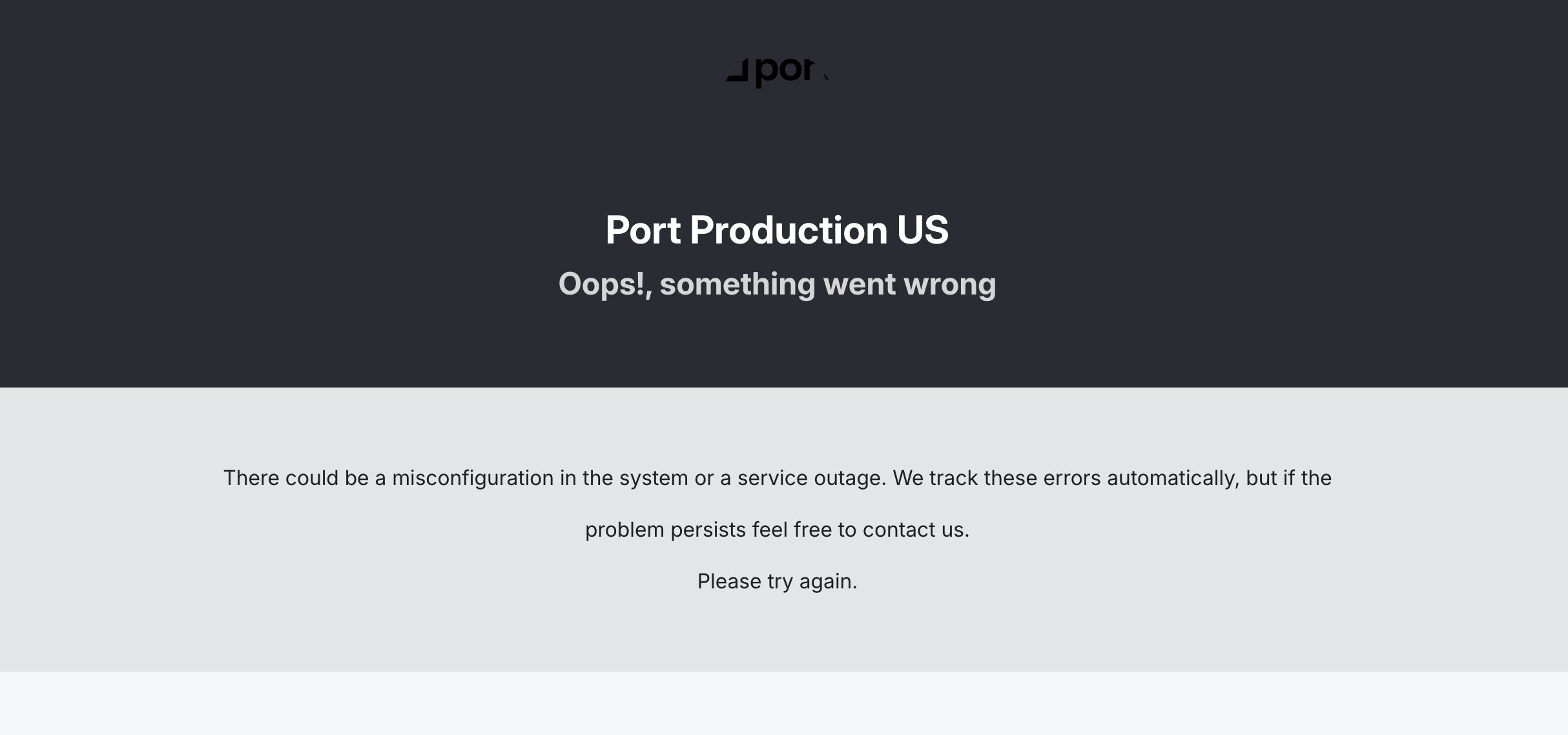
This error occurs because the SSO connection needs to be configured for domain-level authentication to work with the MCP Server's OAuth flow.
Why this happens - When SSO is initially configured in Port, the authentication connection starts as a standard type. For the MCP Server to authenticate users through SSO, the connection needs to be upgraded to "domain level" mode, which enables Dynamic Client Registration (DCR). This configuration change can only be made by Port on the backend.
How to resolve - Contact our support team and let them know you're experiencing an SSO authentication error when connecting to the MCP Server. The support team will update your SSO connection configuration to enable domain-level authentication, which will allow the MCP Server OAuth flow to work correctly with your SSO provider.
Once the configuration is updated, retry the MCP Server connection and the authentication should work as expected.
Token-based authentication
You can also connect using token-based authentication for automated environments like CI/CD pipelines where interactive authentication isn't possible:
curl -X POST "https://api.port.io/v1/auth/access_token" \
  -H "Content-Type: application/json" \
  -d '{"clientId":"YOUR_CLIENT_ID","clientSecret":"YOUR_CLIENT_SECRET"}'
For complete examples and detailed setup instructions, see our token-based authentication guide.
MCP server headers
The Port MCP Server supports several headers that allow you to customize its behavior:
| Header | Type | Default | Description |
|---|---|---|---|
x-read-only-mode | String | 0 | Controls whether write tools are available. Set to 1 to restrict the MCP server to only expose read-only tools, completely hiding write tools from the available tools list. Set to 0 to allow all tools based on your permissions. |
x-allowed-actions-to-run | String | All actions | Comma-separated list of action identifiers that controls which actions are available through the run_action tool. Only the specified actions will be available. If not specified, all actions you have permission to run will be available. If set to an empty string, no actions will be allowed to run. Example: "create_github_issue,create_incident". |
Configuring headers in your MCP client
Headers are set in your MCP client's configuration file, not in Port itself. The exact syntax depends on your client.
- Claude Desktop
- Cursor
- VS Code
Add an env block to your claude_desktop_config.json. Claude Desktop uses mcp-remote, which maps environment variables of the form MCP_REMOTE_HEADER_<HEADER_NAME_IN_SCREAMING_SNAKE_CASE> to HTTP headers.
{
  "mcpServers": {
    "port": {
      "command": "npx",
      "args": ["mcp-remote", "https://mcp.getport.io/v1"],
      "env": {
        "MCP_REMOTE_HEADER_X_READ_ONLY_MODE": "1",
        "MCP_REMOTE_HEADER_X_ALLOWED_ACTIONS_TO_RUN": "create_github_issue,deploy_service"
      }
    }
  }
}
If your Port organization is in the US region, replace https://mcp.getport.io/v1 with https://mcp.us.getport.io/v1.
Add a headers block to your .cursor/mcp.json file:
{
  "mcpServers": {
    "port": {
      "url": "https://mcp.getport.io/v1",
      "headers": {
        "x-read-only-mode": "1",
        "x-allowed-actions-to-run": "create_github_issue,deploy_service"
      }
    }
  }
}
If your Port organization is in the US region, replace https://mcp.getport.io/v1 with https://mcp.us.getport.io/v1.
Add a headers block to your .vscode/mcp.json file:
{
  "servers": {
    "port": {
      "url": "https://mcp.getport.io/v1",
      "headers": {
        "x-read-only-mode": "1",
        "x-allowed-actions-to-run": "create_github_issue,deploy_service"
      }
    }
  }
}
If your Port organization is in the US region, replace https://mcp.getport.io/v1 with https://mcp.us.getport.io/v1.
Use x-allowed-actions-to-run to scope a connection to only the actions relevant for a given context — for example, allowing a developer's IDE session to run only deployment actions, or giving a CI/CD integration access to a single scaffold action. To find an action's identifier, open the self-service page and copy the identifier from the action.
Connecting to AI Agents
To connect the Port MCP server to AI agents in CI/CD environments or other automated contexts where interactive authentication isn't possible, see our token-based authentication.
FAQ & troubleshooting
Can I change the organization after connecting? (Click to expand)
You cannot move an existing MCP connection. Update the configuration for your MCP client and reconnect while you are logged in to the organization you want to use.
How does the remote MCP server work with multiple organizations? (Click to expand)
Each organization requires a separate connection. Create separate MCP configurations and start each one while you are logged in to the desired organization in your browser. Each configuration keeps its own connection.
Do I need to stay logged in to the same browser session? (Click to expand)
You do not need to keep the browser logged in after approval. Your MCP client stays connected to the organization you authorized.
What happens if I approve the OAuth prompt in the wrong organization? (Click to expand)
Disconnect the MCP client or remove its credentials, then reconnect while logged in to the correct organization in your browser so you grant access to the right workspace.
How do I connect without using my browser for approval? (Click to expand)
Use token-based authentication when you are in CI/CD or another non-interactive environment. Generate a token with your client credentials and configure the MCP client with that token instead of signing in through the browser.
Why do I get an error when trying to connect with SSO enabled? (Click to expand)
If your organization uses SSO and you see an authentication error when connecting to the MCP Server, your SSO connection may need to be configured for domain-level authentication. This is a one-time configuration change that enables the MCP Server's OAuth flow to work with your SSO provider. Contact Port support to have this enabled for your organization. See the Connecting the server when SSO is enabled section for more details.
How can I connect to the MCP? (Click to expand)
Refer back to the setup instructions for your specific application (Cursor, VSCode, or Claude). Make sure you're using the correct regional URL for your Port organization.
I completed the connection but nothing happens (Click to expand)
Check that you've followed all the setup steps correctly for your application. Ensure you're authenticated with Port and have the necessary permissions. If you've followed all the steps and still have issues, please reach out to our support team.
How do I connect from Augment Code if OAuth fails? (Click to expand)
If you use Augment Code in VS Code and OAuth fails while connecting to Port MCP, configure the server with the command-based npx mcp-remote setup (instead of a direct HTTP OAuth MCP server configuration). This is a known issue documented by Augment in their MCP setup guide.
MCP tools appear but fail when using a corporate VPN or firewall (Click to expand)
If your MCP client shows the Port tools but all tool calls fail when connected to a corporate VPN or behind a firewall, your network may be blocking outbound traffic to Port's servers.
To resolve this, ask your network administrator to whitelist the following IP addresses:
US region:
44.221.30.24844.193.148.17934.197.132.205
EU region:
3.251.12.20534.252.219.13154.75.236.107
If you continue to experience issues, please reach out to Port support with:
- Your IDE/application version.
- The specific error messages you're seeing.
- Your Port region (EU/US).
- Steps you've already tried.
This information will help us provide more targeted assistance.