Virtual MCP servers
This feature is currently in closed beta with limited availability.
To request access, please contact Port's support team.
A virtual MCP server is an MCP endpoint that exposes only the tools you choose, for one job. Instead of handing an agent every tool from the Port MCP server and your MCP connectors, you give it a short list of tools named in your organization's language, with some arguments already filled in.
You can scope which tools an agent can see and lock arguments so every call stays inside the boundaries you set.
How it works
A virtual MCP server exposes tools in two ways:
- Passthrough tools - regex patterns that expose existing Port or MCP connector tools unchanged.
- Virtual tools - customized versions of a single Port or MCP connector tool, with their own name, description, and argument rules.
When a virtual tool and a passthrough pattern produce the same tool name, the virtual tool takes precedence.
Every tool runs with the permissions of the user who calls it. A virtual MCP server can only narrow what an agent sees, it never grants access the user does not already have.
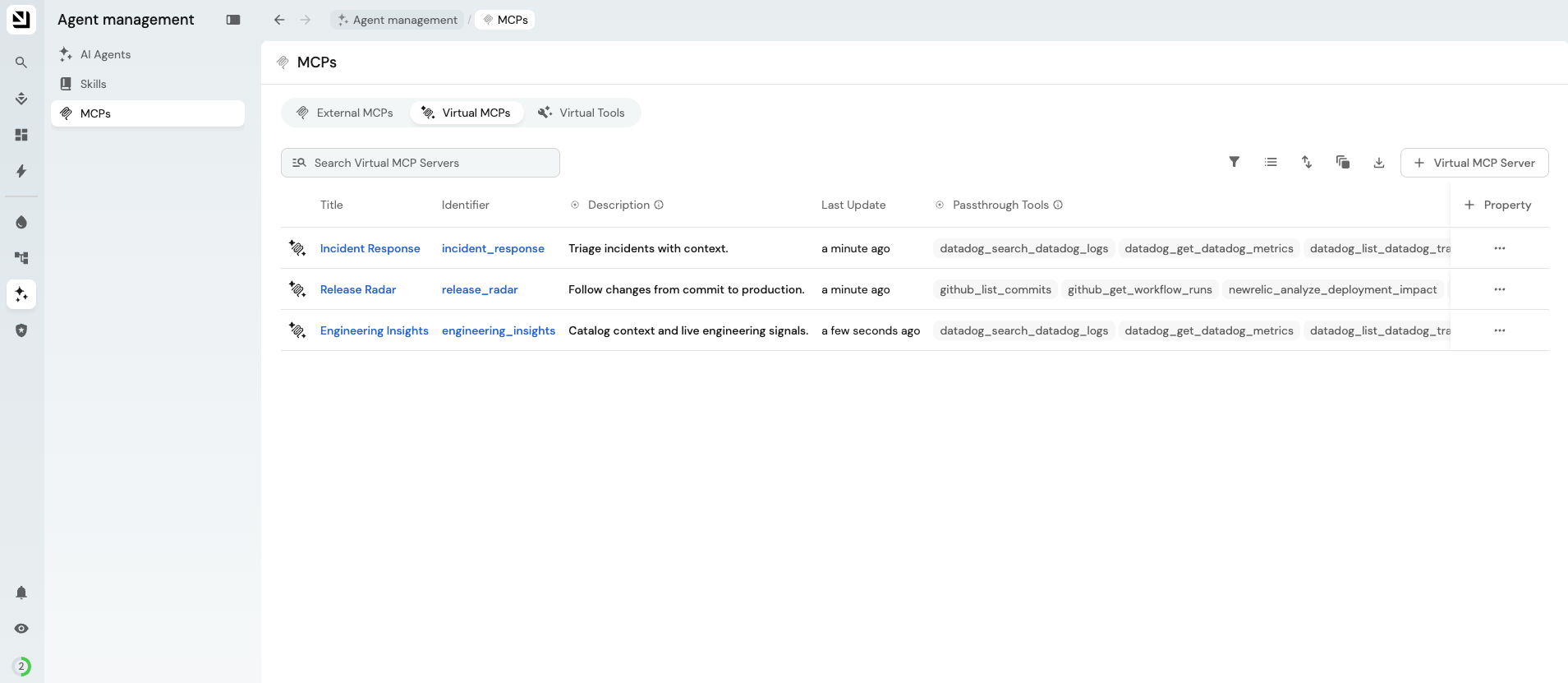
Create a virtual MCP server
You can create and edit virtual MCP servers from the Virtual MCPs tab of the MCPs page, from the catalog like any other entity, or by asking Port AI (for example, "Create a virtual MCP server for incident response that only exposes read tools").
Each virtual MCP server has the following properties:
| Property | Description |
|---|---|
| Description | What the server is for. |
| Instructions | Instructions sent to the agent when it connects. When empty, the default Port MCP server instructions are sent. |
| Passthrough Tools | Regex patterns of tools to expose unchanged. |
| Virtual Tools | A relation to the virtual tools this server exposes. |
The server identifier becomes part of the server's URL, so it can only contain letters, numbers, _, and -.
Passthrough patterns
Each pattern must match the whole tool name. Patterns without a connector prefix match Port tools only.
| Pattern | Exposes |
|---|---|
list_entities | The Port list_entities tool. |
list_.* | Every Port tool whose name starts with list_. |
.* | All Port tools. |
<connector_identifier>_.* | All tools of one MCP connector, for example github_.*. |
<connector_identifier>_<tool> | One tool of an MCP connector, for example github_list_commits. |
For example, this server exposes two Port tools and every tool of a pagerduty connector:
{
  "identifier": "incident-responder",
  "title": "Incident responder",
  "properties": {
    "description": "Read-only tools for investigating incidents.",
    "instructions": "You help on-call engineers investigate incidents. Start by listing open incidents.",
    "passthrough_tools": ["list_blueprints", "list_entities", "pagerduty_.*"]
  }
}
Customize a tool
A virtual tool is a customized version of one underlying tool. Use it to rename a tool, rewrite its description, or fix and limit its arguments. Create virtual tools from the Virtual Tools tab of the MCPs page, then add them to a server through its Virtual Tools relation. You can add the same virtual tool to several servers.
| Property | Description |
|---|---|
| Exposed name | The tool name the agent sees and calls. Must be unique within each server that uses the tool. |
| Underlying tool | The tool to customize: a Port tool such as list_entities, or an MCP connector tool as <connector_identifier>_<tool>. |
| Description | The description the agent sees. When empty, the underlying tool's description is used. |
| Expose arguments | all shows the agent every argument that is not fixed. listed shows only arguments that have an entry in Argument overrides. |
| Argument overrides | Per-argument rules, keyed by the argument's path in the underlying tool's input, such as blueprintIdentifier or query.rules. |
Each entry in Argument overrides can use the following fields:
| Field | What the agent sees |
|---|---|
value | Nothing. The argument is hidden and always sent with this value. |
merge | With value on an array argument: the argument stays visible, and your items are always added to the agent's items. Use append or prepend. |
enum | Only the listed values are allowed. |
as | The argument under a different name. |
description | Your description instead of the original one. |
expose | On an object argument: listed shows only the nested arguments that have an entry. |
Port validates the virtual tool against the underlying tool's schema when you save it, and rejects rules that would not work at runtime.
For example, this virtual tool turns list_entities into a tool that can only list open incidents:
{
  "identifier": "list_open_incidents",
  "title": "List open incidents",
  "properties": {
    "name": "list_open_incidents",
    "tool": "list_entities",
    "description": "List open incidents. Read only. Use it to find incidents to investigate.",
    "arguments": {
      "blueprintIdentifier": { "value": "incident" },
      "query.combinator": { "value": "and" },
      "query.rules": {
        "value": [{ "property": "status", "operator": "=", "value": "open" }],
        "merge": "append"
      }
    }
  }
}
The agent sees a list_open_incidents tool with no blueprint argument. It can add its own filter rules, but the status = open rule is always added, and the combinator is fixed to and, so its rules can only narrow the results.
You cannot override a single key inside a free-form object argument, such as inputs on trigger_run or entity.properties on upsert_entity. Set the whole object with value instead.
After you add a scoped virtual tool, remove any passthrough pattern that still exposes the original tool, so agents cannot bypass your rules.
Connect a virtual MCP server
Each virtual MCP server has its own URL, shown in its URL property:
https://mcp.port.io/v1/virtual-server/<identifier>
If your Port organization is in the US region, use https://mcp.us.port.io/v1/virtual-server/<identifier>.
From your IDE
Connect your IDE or MCP client the same way as the Port MCP server, using the virtual MCP server URL instead. See Port MCP server installation for client-specific steps.
From Port AI and custom agents
Add the virtual MCP server URL as a Custom Server MCP connector. Then select the connector in an agent's MCP servers field, as described in build agents.
Permissions
- To connect to a virtual MCP server, a user needs read access to its entity.
- To create or edit virtual MCP servers and virtual tools, a user needs write access to their blueprints. Both blueprints support team ownership.
- Only a user who is connected to an MCP connector can save a virtual tool over that connector's tools. API and Terraform tokens cannot save these virtual tools.
Limitations
- Virtual MCP servers expose tools only, not prompts.
- If an underlying tool's schema changes after you save a virtual tool, calls to that virtual tool fail until you update it.
- A virtual MCP server cannot expose another virtual MCP server's tools.
FAQ
Not through that virtual MCP server. A virtual MCP server limits what an agent sees, not what the user is allowed to do. Users can still reach any tool they have access to through the Port MCP server or their MCP connectors.
Changes apply the next time the MCP client loads the server's tool list. Some clients only do this when they reconnect.
A virtual tool only appears when the user calling the server can use its underlying tool. Check that the user has access to the Port tool, or is connected to the MCP connector the tool comes from.