MCP registry
The MCP registry is an organizational catalog of MCP servers your teams are allowed to use. Platform teams define which servers are approved, developers discover what is available, and new servers enter through a governed request flow instead of ad hoc installs.
Port's built-in _mcp_server blueprint stores connectors you configure under Data sources. An MCP registry blueprint (for example mcpRegistry) adds approval status, ownership, installation guidance, and labels so you can answer: which MCPs are approved in our org?

What you set up
| Piece | Purpose |
|---|---|
| MCP registry blueprint | Catalog entity per MCP server with approval status, type, labels, install docs, and optional tool metadata. |
| Request MCP server action | Self-service form for developers to propose a new server; creates a pending registry entry. |
| Catalog views | Browse and filter approved servers; optional scorecards or dashboards for governance. |
For a full step-by-step implementation (blueprint JSON, action JSON, and optional GitHub tool extraction), see the guide Manage MCP server registry.
Create the MCP registry blueprint
- Go to the builder page of your portal.
- Create a blueprint (for example identifier
mcpRegistry, title MCP registry). - Add properties that support governance and discovery, for example:
- Approval status (
approved,pending,rejected). - Server type (
internalorexternal). - Description and installation instructions (markdown).
- Labels (array) for capabilities such as
database,java, orfilesystem. - Repository URL, command, and endpoint when relevant.
- Approval status (
- Add relations such as owning team and requested by (user).
The Manage MCP server registry guide includes copy-paste blueprint definitions for mcpRegistry and an optional mcpToolSpecification blueprint if you sync tools from MCP servers automatically.
Add a self-service action to request a new MCP
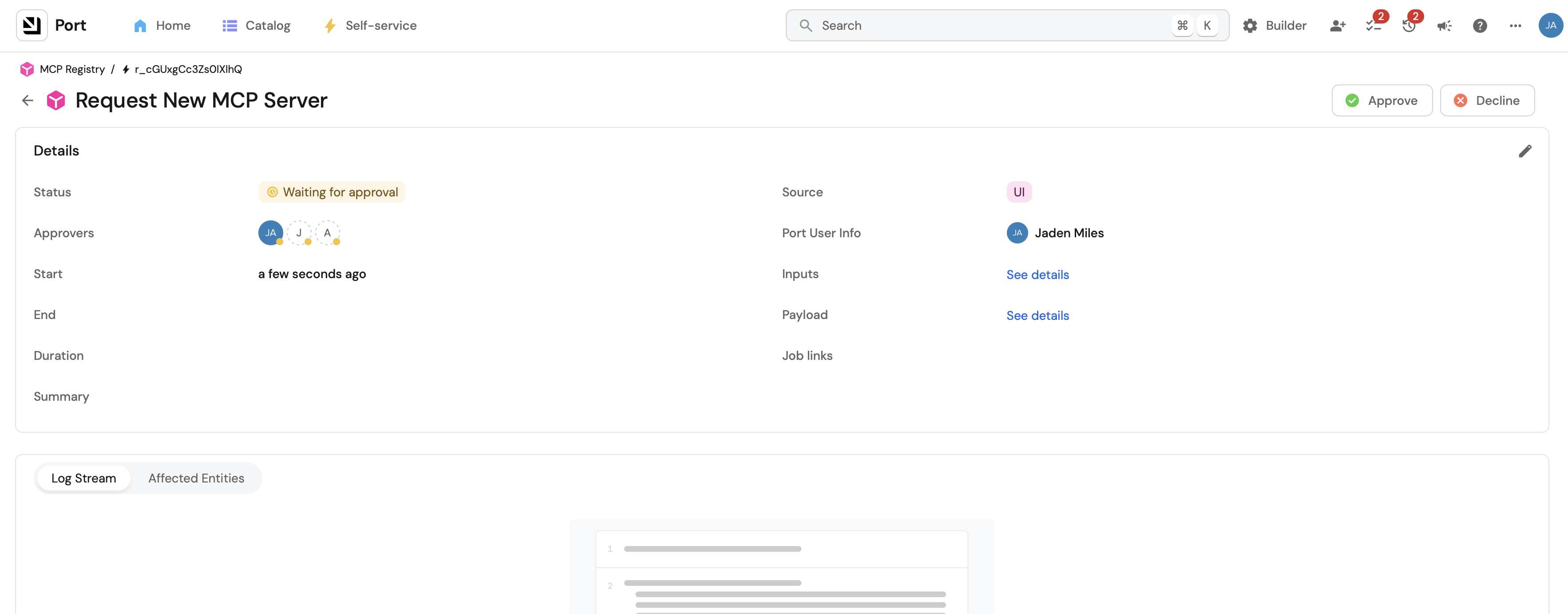
Give developers a Request new MCP server action that creates a registry entity in pending status.
- Go to the self-service page of your portal.
- Create an action with operation CREATE on your registry blueprint.
- Collect inputs such as server name, type, repository URL, description, labels, command, endpoint, and business justification.
- Map the action to an upsert entity invocation that sets
statustopendingand relates requested by to the triggering user.
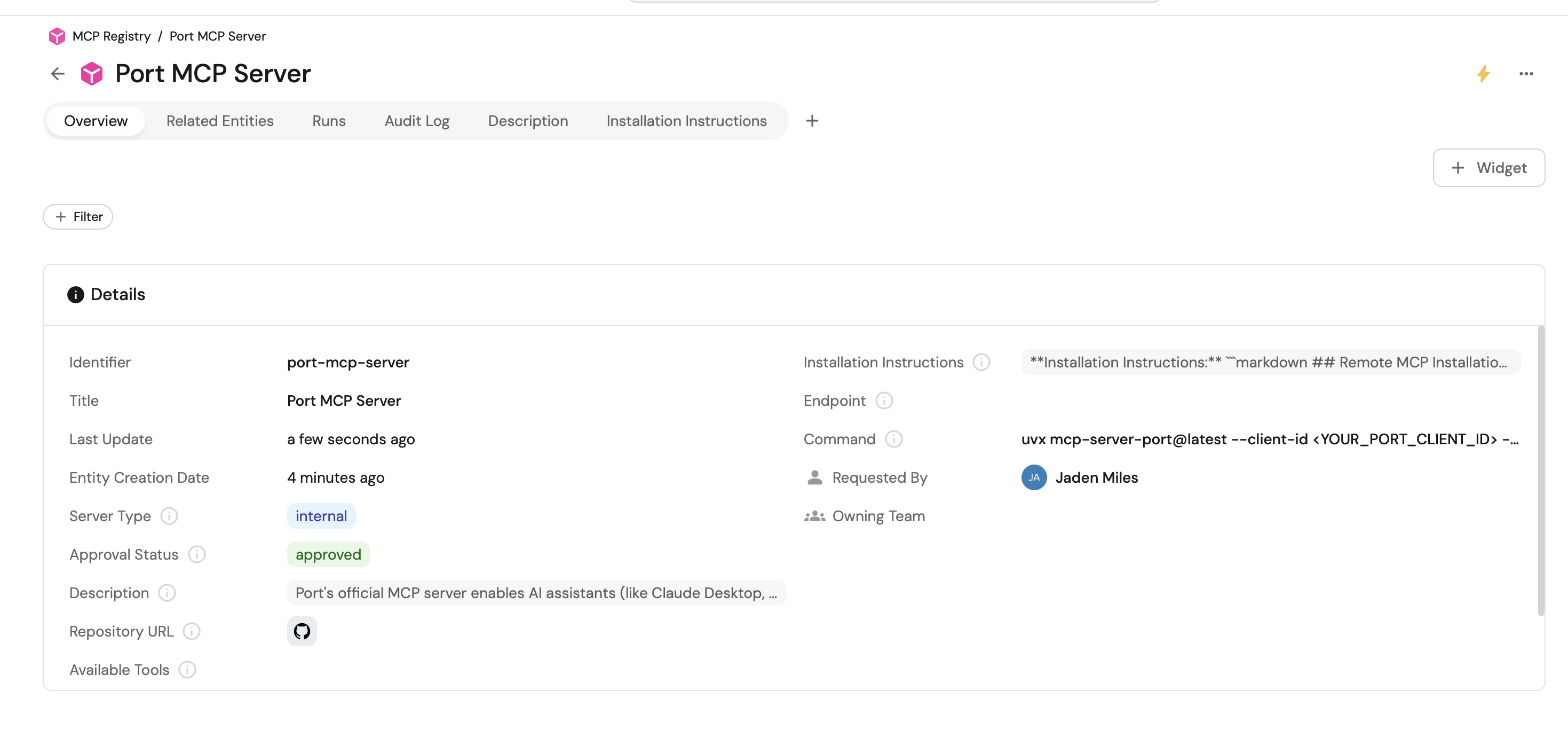
After submission, platform teams review the entity, update status to approved or rejected, and enrich installation instructions for approved servers.
See which MCP servers are approved in your org
In the catalog
- Open the MCP registry page in your portal (or your custom catalog page for the registry blueprint).
- Filter or sort by approval status =
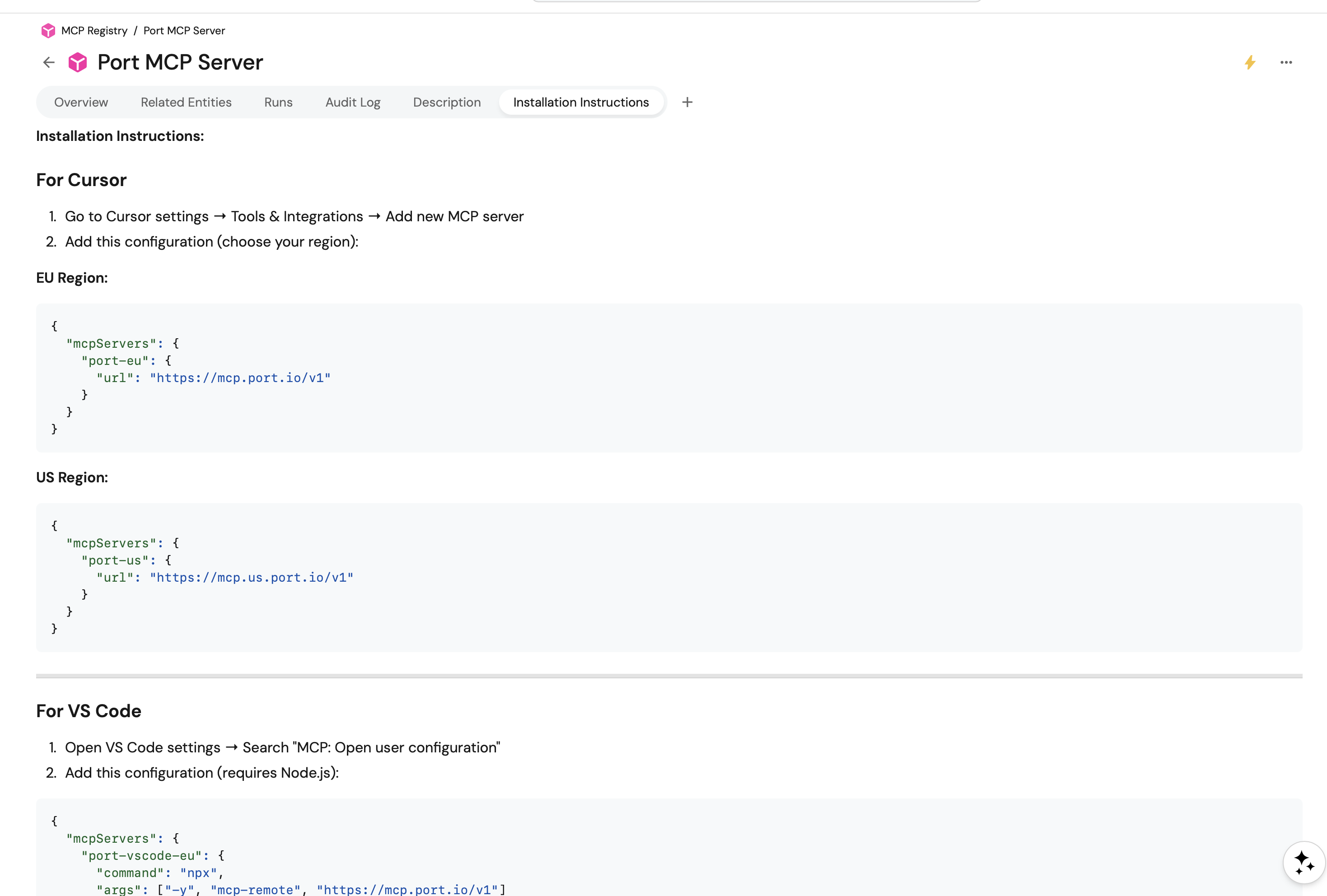
approved. - Open an entity to read installation instructions, labels, available tools, and ownership.
With Port AI and IDEs
When the registry lives in your Context Lake, Port AI and the Port MCP server can answer discovery questions, for example:
- Which MCP servers are approved for our team?
- Which servers support database operations?
- What are the install steps for the approved PostgreSQL MCP?
Approved servers configured as MCP connectors are also available to Port AI through the unified MCP gateway.
How this fits with Port MCP server
| Capability | MCP registry (catalog) | Port MCP server |
|---|---|---|
| Govern which servers are allowed | Yes | Uses approved connectors |
| Install/config for developers | Documented on registry entities | Overview and installation |
| Query catalog from IDE | Via discovery + connector setup | Native MCP tools |
Where to go next
- Manage MCP server registry — full blueprint, action, and optional tool-extraction workflow.
- MCP connectors — connect approved external MCP servers for Port AI.
- Port custom agents — agents that use registry and connector context at runtime.