Azure DevOps troubleshooting
This page contains common problems users face when using Azure DevOps (ADO) pipelines as a backend for Port actions and automations, and how to solve them.
Prerequisites
Before troubleshooting, ensure you have:
- Properly installed the Azure DevOps integration.
- Configured the Personal Access Token (PAT) with correct scopes.
- Verified organization and project names.
Understanding the trigger flow
The ADO trigger flow is more complex than other pipelines because it requires multiple components working together:
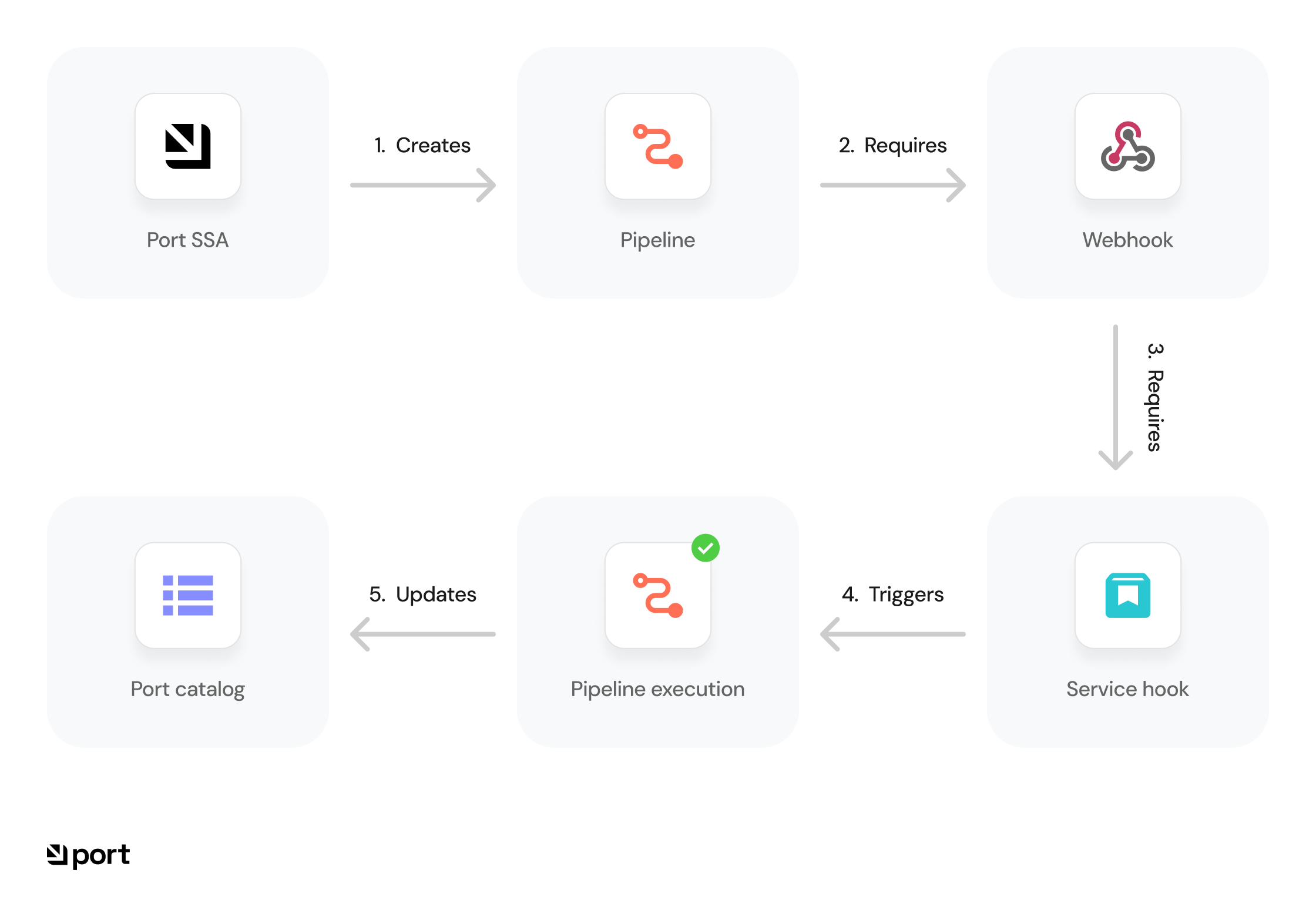
Troubleshoot pipeline issues
Follow these steps in order to diagnose and fix common pipeline issues.
Issue: pipeline not triggering
Symptoms you might be seeing:
- Pipeline doesn't start automatically when expected.
- No webhook events appear in the ADO logs.
- Manual pipeline runs work, but automatic triggers don't.
- You're making changes but pipelines aren't being triggered.
Troubleshooting flow:
-
Verify pipeline configuration
-
Ensure the pipeline YAML file is correctly configured and adheres to Azure DevOps syntax.
-
Important: Trigger the pipeline manually in the UI first (this is required for initial setup).
-
Check if the pipeline is enabled in Project Settings → Pipelines.
-
Validate the YAML syntax:
az pipelines validate --name <pipeline-name> --path <path-to-yaml>First-run requirementAzure DevOps pipelines must be manually triggered at least once before webhooks can activate them automatically.
-
-
Verify the pipeline default branch setting
- ADO evaluates the pipeline YAML from the branch set in "Default branch for manual and scheduled builds", not necessarily the branch where the YAML lives.
- If your
resources.webhookssubscription is on a non-default branch but this setting still points tomain/master, ADO silently drops the trigger while returning HTTP 200. - Set "Default branch for manual and scheduled builds" to the branch containing the webhook-enabled YAML.
-
Check webhook configuration
-
Verify webhook presence in Project Settings → Service Connections.
-
Check webhook logs for any failed attempts.
-
Check if the webhook name matches the one referenced in your pipeline.
-
Test webhook manually:
curl -X POST 'https://dev.azure.com/{org_name}/_apis/public/distributedtask/webhooks/{webhook_name}?api-version=6.0-preview' \-H "Content-Type: application/json" \-d '{"resource": {"id": "test-run-id","status": "completed"}}'Undefined webhook name errorIf you see an "undefined webhook name" error in Port, this may mean your Service Connection or webhook is misconfigured or missing. Try creating a new Service Connection and re-linking your pipeline.
-
-
Verify agent availability
- Check agent status in Agent Pools (are they online?)
- For self-hosted agents, verify network/firewall rules.
- Ensure sufficient runners are available (not all in use).
- Check if there are any queued jobs that aren't starting.
-
Review pipeline logs
- If you see partial runs, enable debug logging:
variables:system.debug: 'true'
- Check run history for detailed error messages.
- Look for permission errors or timeout issues.
- If you see partial runs, enable debug logging:
-
Inspect variable and secret management
- Verify all required variables are defined.
- Ensure variables are accessible to the pipeline.
- Check for any missing or incorrect values.
- Verify PAT tokens haven't expired.
-
Reset the service hook
- If your pipeline triggers are still not working after completing all the above steps, try deleting and recreating the Service Hook in Project Settings → Service Hooks. Stale or misconfigured service hooks are a common cause of trigger issues, and recreating them often resolves the problem.
-
Last resort: Test with a new service connection, service hook, and minimal pipeline
-
Create a new Service Connection in Azure DevOps (Project Settings → Service Connections).
-
Create a new Service Hook in Azure DevOps (Project Settings → Service Hooks).
-
Create a minimal "hello world" pipeline using the sample YAML below.
-
Trigger the new pipeline from Port and check if it runs successfully.
Sample minimal pipeline YAML (click to expand)
trigger: none # Disables automatic triggers on code commits.resources:webhooks:- webhook: port_triggerconnection: port_triggerjobs:- job: port_triggersteps:- script: |echo "Webhook triggered by API call"- If this minimal pipeline works, the issue may be with your original pipeline's configuration or logic.
- If it still does not work, please contact support with details of your setup and any error messages.
-
-
Check parameter and variable passing
- If your pipeline uses parameters or variables from Port, make sure you are passing them correctly.
See Advanced SSA form input documentation for details.
- If your pipeline uses parameters or variables from Port, make sure you are passing them correctly.
Issue: reserved input key causes silent trigger failure
If Port gets a 200 OK but no pipeline run appears, check whether any Port user input key uses an ADO YAML reserved word (e.g. stages). Rename the conflicting input and update the pipeline YAML.
Issue: pipeline not triggering despite HTTP 200
Symptoms you might be seeing:
- Port reports a successful webhook delivery (HTTP 200).
- No pipeline run appears in Azure DevOps.
- The pipeline works when triggered manually in the ADO UI.
- The webhook-enabled YAML exists on a feature branch, not the default branch.
Troubleshooting flow:
-
Understand the root cause
- Azure DevOps always returns HTTP 200 when it receives a webhook request, regardless of whether a pipeline actually triggers.
- If the
resources.webhookssubscription is defined in a YAML file on a non-default branch, ADO will not evaluate it because it reads the pipeline definition from the default branch. - This makes the failure completely silent - Port sees a successful delivery, but ADO never matches the webhook to a pipeline.
-
Update the pipeline's default branch setting
- In Azure DevOps, navigate to Pipelines and select your pipeline.
- Click the three-dot menu (⋮) and select Settings (or Triggers).
- Under Default branch for manual and scheduled builds, change the value to the branch that contains your webhook-enabled YAML definition.
- Save the settings.
-
Verify the fix
- Re-trigger the action from Port.
- Once the pipeline's branch context matches the YAML definition, ADO will correctly evaluate the webhook subscription and trigger the pipeline.
For more details, see the Azure DevOps documentation on pipeline default branch.
Issue: pipeline triggers but payload values are blank
Symptoms you might be seeing:
- The pipeline triggers successfully from Port.
- All parameter values from the Port payload appear empty inside the pipeline.
- The pipeline YAML references
payload.propertiesorresource.payloadpaths.
Troubleshooting flow:
-
Understand the root cause
- Azure DevOps exposes Port webhook fields under a different path than you might expect.
- Referencing
payload.propertiesorresource.payloadwill not resolve to the correct values.
-
Update parameter references to the correct path
-
ADO makes Port webhook parameters available under
parameters.port_trigger.*. -
Update any parameter references in your pipeline YAML from paths like
payload.properties.service_nametoparameters.port_trigger.service_name. -
For example, if your Port action sends a
service_nameproperty, access it like this:steps:- script: |echo "Service name: ${{ parameters.port_trigger.service_name }}"
-
-
Verify the fix
- Re-trigger the action from Port and confirm the parameter values are now populated in the pipeline run.
Issue: pipeline stuck "in progress"
Symptoms you might be seeing:
- Pipeline shows as running but makes no progress.
- Agent appears to be processing but status doesn't update.
- Pipeline has been running for an unusually long time.
- The job seems to hang at a specific step.
Troubleshooting flow:
-
Check run history and logs
- Review the run history for errors.
- Verify pipeline status in the UI.
- Check agent status in Agent Pools (is it still connected?)
- Look for timeout errors or hanging processes.
-
Verify service connections
- Ensure all external service connections are valid.
- Check permissions on service connections.
- Verify PAT token hasn't expired.
- Check if you can manually use the service connections.
-
Investigate resource issues
- Check if the agent is running out of disk space.
- Verify memory/CPU usage isn't causing the agent to hang.
- Check if any long-running processes are blocking the pipeline.
Issue: pipeline runs but port catalog not updated
Symptoms you might be seeing:
- Pipeline completes successfully in ADO.
- Changes aren't reflected in your Port catalog.
- No obvious errors in pipeline logs.
- Port entities aren't being created/updated.
Troubleshooting flow:
-
Check Port integration
- Verify Port SSA configuration is correctly set up.
- Ensure entity mappings are defined properly.
- Check Port API credentials are valid.
- Verify API endpoints are correct and accessible.
-
Review pipeline output
- Look for Port API call errors (status codes 4xx or 5xx).
- Verify entity data format matches your blueprint.
- Check for rate limiting issues.
- Verify payload formatting (JSON structure).
-
Validate Port permissions
- Ensure the API token has sufficient permissions.
- Verify the blueprint exists and is properly configured.
- Check if you can create entities manually in Port.
Advanced troubleshooting tools
Checking pipeline status with API
Use this API to verify pipeline configuration and status when the UI doesn't provide enough information or you need programmatic access:
curl -X GET 'https://dev.azure.com/{organization}/{project}/_apis/pipelines/{pipelineId}?api-version=7.1-preview.1' \
-H "Content-Type: application/json"
Manual pipeline trigger with API
Use this API when testing or troubleshooting webhook issues, or when you need to trigger pipelines programmatically:
curl -X POST 'https://dev.azure.com/{organization}/{project}/_apis/pipelines/{pipelineId}/runs?api-version=7.1-preview.1' \
-H "Content-Type: application/json" \
-d '{
  "resources": {
    "repositories": {
      "self": {
        "refName": "refs/heads/main"
      }
    }
  }
}'
For more details, see the Azure DevOps REST API documentation.