Entity
Entity is an input type used to reference existing entities from the software catalog when triggering actions.
Common entity usage
The entity input type can be used to reference any existing entity from the software catalog, for example:
- Cloud regions
- Clusters
- Configurations
In the live demo self-service hub page, we can see the scaffold new service action whose Domain input is an entity input. 🎬
Entity input structure
The entity is represented by the unique entity format and the blueprint key that accompanies it, as shown in the following section:
{
  "myEntityInput": {
    "title": "My entity input",
    "icon": "My icon",
    "description": "My entity input",
    "type": "string",
    "format": "entity",
    "blueprint": "myBp",
    "sort": {
      "property": "propertyIdentifier",
      // order should have either "ASC" or "DESC" value
      "order": "ASC/DESC"
    },
    "dataset": {
      "combinator": "and/or",
      "rules": [
        {
          "operator": "=",
          "property": "propertyIdentifier",
          "value": "value"
        }
      ]
    }
  }
}
Structure table
| Field | Description | Notes |
|---|---|---|
"format":"entity" | Used to specify that this is an entity input | Required |
"blueprint":"myBp" | Used to specify the identifier of the target blueprint that entities will be queried from | Required. Must specify an existing blueprint identifier |
sort | Used to specify the sorting order of the entities in the dropdown | Optional. Default is by entity's title, ascending |
sort.property | The identifier of the property by which to sort the entities | |
sort.order | Can be either ASC (ascending) or DESC (descending) | |
dataset | Used to filter which entities appear in the dropdown based on specific conditions | Optional |
dataset.combinator | Defines how multiple rules are evaluated. Can be either and or or | |
dataset.rules | An array of rule objects that define the filtering conditions | |
dataset.rules[].operator | The comparison operator (e.g., =, !=, >, <, etc.) | |
dataset.rules[].property | The identifier of the property to filter by | |
dataset.rules[].value | The value to compare against |
The = and != operators are not supported on array-type properties in dataset filter rules. Using them on array properties may produce unexpected or incorrect results (e.g., entities that should be excluded may still appear). For array properties, use array-aware operators such as containsAny, isEmpty, or isNotEmpty instead. See comparison operators for the full list.
API definition
- Basic
- Array
{
  "myEntityInput": {
    "title": "My entity input",
    "icon": "My icon",
    "description": "My entity input",
    "type": "string",
    "format": "entity",
    "blueprint": "myBlueprint",
    "sort": {
      "property": "propertyIdentifier",
      // order should have either "ASC" or "DESC" value
      "order": "ASC/DESC"
    },
    "dataset": {
      "combinator": "and",
      "rules": [
        {
          "operator": "=",
          "property": "propertyIdentifier",
          "value": "value"
        }
      ]
    }
  }
}
{
  "EntityArrayInput": {
    "title": "My entity array input",
    "icon": "My icon",
    "description": "My entity array input",
    "type": "array",
    "items": {
      "type": "string",
      "format": "entity",
      "blueprint": "myBlueprint",
      "dataset": {
        "combinator": "and",
        "rules": [
          {
            "operator": "=",
            "property": "propertyIdentifier",
            "value": "value"
          }
        ]
      }
    }
  }
}
Check out Port's API reference to learn more.
Sort entities
When using the entity input type, a user executing the action will see a dropdown list of entities from the specified blueprint.
By default, the entities are sorted in ascending order based on the entity's title.
In some cases, you may have a large number of entities and want to sort them based on a specific property.
The entities can be sorted in either ascending or descending order based on a specified property, provided that the property is not of type object or array.
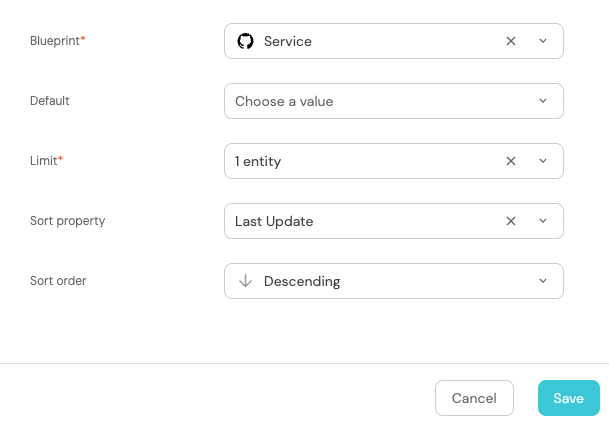
This is done in the action form when creating the entity input, for example:
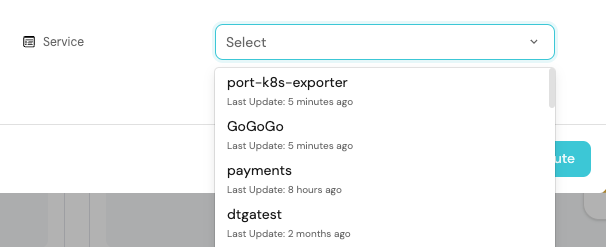
When executing the action, the entities will be sorted based on the specified property, in the selected order.
In this case, they are sorted by Last Update, descending:
This can also be done when using Port's API, see the sort key in the JSON structure below.
Filter entities
The dataset filtering capability is only available when defining actions in JSON mode (via API or JSON editor). This feature is not supported in the UI action builder.
When using the entity input type in JSON mode, you can filter which entities appear in the dropdown list by adding conditions to the dataset key.
This allows you to display only entities that match specific criteria based on their properties.
For example, you can filter to show only entities where a specific property has a certain value, or combine multiple conditions to create more complex filters.
The dataset key uses a combinator (and or or) to define how multiple rules should be evaluated, and includes an array of rules that specify the filtering conditions.
The following example filters to show only unlocked services (i.e. entities whose locked property is false):
{
  "entity": {
    "type": "string",
    "title": "entity",
    "blueprint": "service",
    "format": "entity",
    "dataset": {
      "combinator": "and",
      "rules": [
        {
          "operator": "=",
          "property": "locked",
          "value": "false"
        }
      ]
    }
  }
}
Terraform definition
- Basic
- Array
resource "port_action" "myAction" {
  # ...action properties
  user_properties = {
    string_props = {
      "myEntityInput" = {
        title       = "My entity input"
        description = "My entity input"
        format      = "entity"
        blueprint   = "myBlueprint"
      }
    }
  }
}
resource "port_action" "myAction" {
  # ...action properties
  user_properties = {
    array_props = {
      "EntityArrayInput" = {
        title       = "My entity array input"
        description = "My entity array input"
        string_items = {
          format = "entity"
        }
      }
    }
  }
}